Nowadays, a static PowerPoint slideshow can be boring. What if you could share your presentation not as a file, but as a seamless video that plays on various devices? Well, making your PowerPoint into a video is a powerful method to ensure that you can deliver your message consistently. The best part of making a video from your PowerPoint is that you can make your file engaging to your audience. So, if you are interested in making an appealing video from your slideshow, check this post. We are here to give you the best procedure on how to make a PowerPoint into a video.
Part 1. Make a PowerPoint into a Video (Built-in Feature)
Microsoft PowerPoint is a tool that has a series of slides that are used to organize information. It can even offer various customization options for making an excellent presentation. It allows you to insert images, shapes, text, font styles, themes, videos, links, and resize images in PowerPoint. In addition to that, what makes the software reliable is that it can offer its recording feature for turning your slideshow into an engaging video. With this feature, you can ensure that you can share your video with various users without encountering any issues. Aside from that, recording your presentation is an easy task, thanks to its simple user interface. Thus, if you want an excellent program for making your presentation into a video, you can just access the built-in recorder from Microsoft PowerPoint.
To learn how to make a PowerPoint slideshow into a video, you can check the steps below.
Step 1You can download and install Microsoft PowerPoint on your computer. After that, run it to start the process.
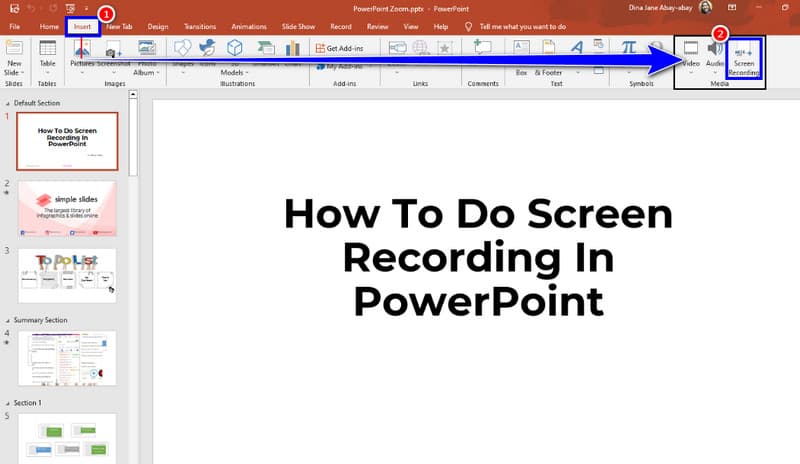
Step 2Then, you can now open the presentation you want to turn into a video. After that, go to the top interface and proceed to the Insert section.
Step 3You can now start the recording process by clicking the Screen Recording feature. After that, full-screen your presentation and present it one-on-one.
Step 4Tick the Stop button to finish/stop the recording and proceed with the saving process.
With the software's built-in screen recorder feature, you can smoothly record your presentation and save it as a video. The only problem here is that you must first get a subscription plan to access the software to start the recording process.
Part 2. Best Practice to Make a Video into a Video
Are you looking for a better way to record your PowerPoint presentation? In that case, we would like to recommend using AVAide Screen Recorder. This recorder ensures that it gives you all the features you need during the recording process. It can also offer a straightforward layout for an easier procedure. What makes it ideal is that while recording, you can access various annotation tools. You can insert an arrow, lines, use a pencil, and much more. Plus, you can even use the Screenshot feature to capture your favorite part. The best part here is that you can save the recorded presentation at the best quality for up to 4K. You can even save the result based on your preferred format, such as MP4, MKV, AVI, FLV, WMV, etc. Thus, if you are looking for an amazing screen recorder, you can rely on AVAide Screen Recorder.
You can check the detailed steps below and learn how to make a PowerPoint into a video on Mac and Windows.
Step 1Click the Download buttons below to start downloading and installing AVAide Screen Recorder.

FREE DOWNLOAD For Windows 7 or later
 Secure Download
FREE DOWNLOAD For Mac OS X 10.13 or later
Secure DownloadStep 2After you launch the screen recorder, you can now select the Full option if you want to capture your entire screen. Click Custom if you want to capture a specific area on your screen.
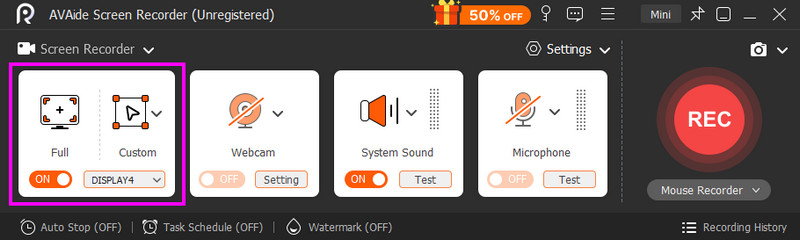
Step 3You can now open the PowerPoint you want to record. Then, from the recorder, hit the REC button. The recording will start after the three-second countdown.
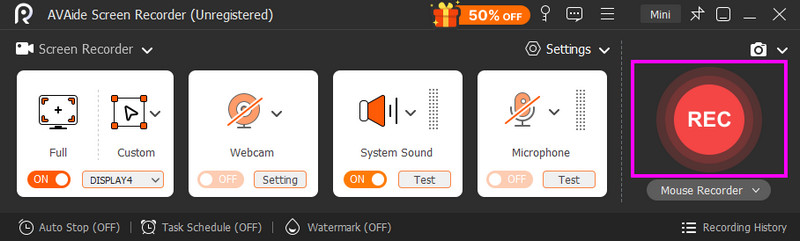
Tap the Stop button to finish recording your PowerPoint.
Step 4Once the preview shows up, you can tap the Play button to check the recorded presentation. If you are satisfied with the result, click the Export function to start saving your video on your computer.
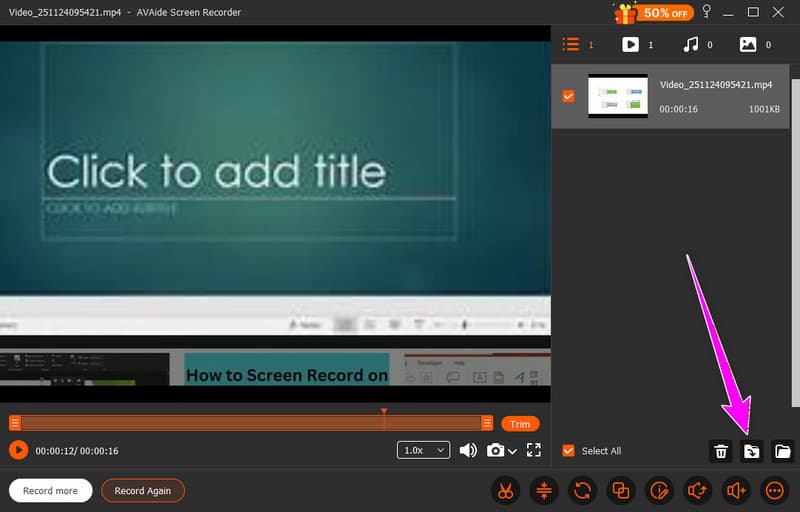
Now you've learned how to make a PPT into a video using this excellent screen recorder. Thus, if you want to create an appealing video from your PowerPoint slideshow, there is no doubt that AVAide Screen Recorder is among the best free screen recorders you can rely on.
Part 3. Uses of Turning PowerPoint into a Video
There are various reasons and uses why you have to converting your PowerPoint into a video. To learn some of them, check the details below.
Better Compatibility
Making a video from PowerPoint is ideal if you want to avoid compatibility issues. It is because Ms PowerPoint is a subscription-based platform. Without the program, you cannot open and edit the presentation smoothly. With that, if you turn the slideshow into a video, you can effectively play it on your multimedia player.
Preservation Purposes
Another good thing about turning your PPT into a video is for preservation purposes. By recording your slideshow, you can keep it and get back every time you want to access some references about the presentation. Aside from that, you can even share the video with those people who are not in the meetings, so they can still get the information.
Boost Professionalism
An excellent video presentation might appear more professional compared with a simple slideshow. It only shows how you've inserted extra effort to ensure a flawless viewing experience, which can even enhance your credibility.
Good for Marketing
When it comes to business, it is better to turn a PowerPoint into an appealing video, especially when sharing your products with your target market. This way, possible customers can get their attention. Plus, via video, you can effectively explain your service, showcase a product, and share it on various platforms, such as YouTube, Instagram, Facebook, etc.
To learn how to turn a PowerPoint presentation into a video, you can use the methods mentioned above. That way, you can play your presentation on various multimedia players. Plus, if you are looking for a free way of recording your presentation, we suggest using AVAide Screen Recorder. This screen recorder ensures that you can turn your slideshow into a video with the best quality, making it the most reliable program.
Record screen, audio, webcam, gameplay, online meetings, as well as iPhone/Android screen on your computer.