Tinder is one of the most renowned dating platforms today, with almost 75 million active users. The app helps you find and connect with people, whether they are on the other side of the world. As the relationship blossoms, you cannot deny that you want to take a screenshot of your potential partner's profile picture or the ongoing conversation to share with friends. But, does Tinder notify screenshots to other users? And what can be the solution not to get caught? With these questions in mind, you have stumbled upon the right place, as you are about to learn the answer and methods to screenshot Tinder.
Part 1. FAQs of Tinder Screenshots
This part shows the answers to common questions like, 'Does Tinder show screenshots?' and what to expect when taking screenshots within the platform.
1. Does Tinder notify screenshots?
The answer is no. Tinder is incapable of notifying users when someone is taking screenshots of any content within the app. This means you can capture a user's profile, conversation, and video calls without being caught. Unlike Snapchat, Tinder does not have a detection system for screenshots, nor is it capable of accessing your device's screenshot feature.
2. Will Tinder ban me for taking screenshots?
No, you will not get banned for taking Tinder app screenshots. That is to say, Tinder has its relevant terms of providing protection of user data security to all of its members while using its service. If any of these terms are violated, the platform will make the call to ban accounts.
3. Can someone screenshot your Tinder profile without you knowing?
Yes. Anyone within the platform can take screenshots of your profile, and you will not receive Tinder screenshot notifications unless the other users tell you on their own.
Part 2. How to Screenshot on Tinder on iPhone (iOS)
Tinder, as a mobile app, is a great convenience as you can always check your matches or messages anywhere you are. Moreover, you don't have to ask, 'Can you screenshot on Tinder on mobile?' as iOS has a built-in screen capture feature you can always use. Below, you can check the following steps to capture Tinder screenshots:
Face ID
Step 1Place your fingers on the Side and Volume Up buttons on your iPhone. Quickly press and release to take a screenshot.
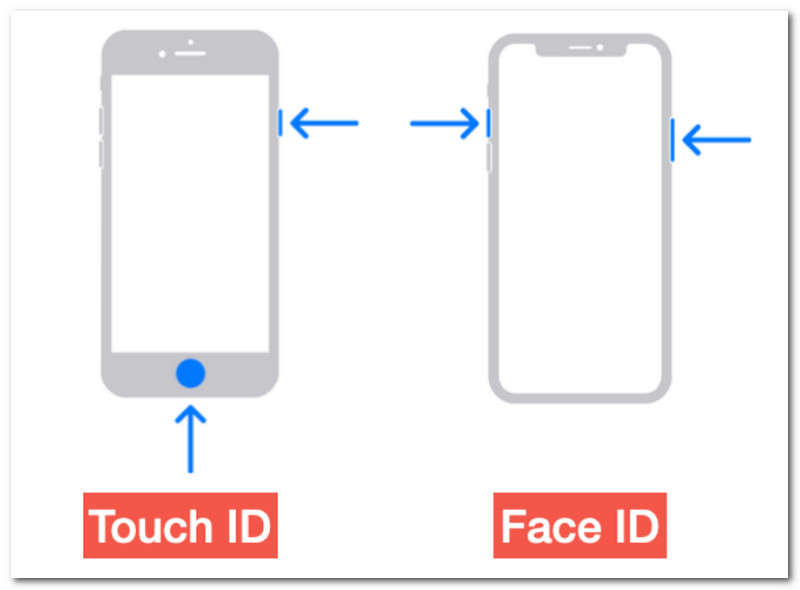
Step 2When a thumbnail appears on your screen, it indicates the action was done. Tap on the thumbnail to use the Photos app as the best photo cut-out tool.
Touch ID
Step 1Simultaneously press the Home and Side buttons on your iPhone to take a screenshot.
Step 2Once done, the screenshot is automatically saved. You can find it in the Photos app to view.
Part 3. How to Screenshot on Tinder on Android
Same as iOS, Tinder is available for Android phones and tablets. While Androids can be different depending on the brand and model, there is a universal method that you can always follow for taking screenshots.
Step 1Press the Power and Volume Down buttons at the same time to capture a Tinder screenshot.
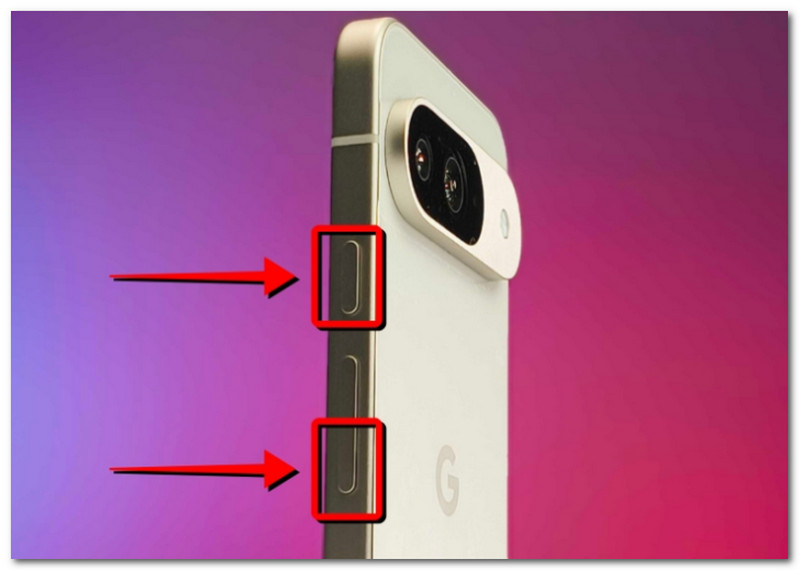
Step 2Immediately, a notification will appear either on the left side of the screen or in the Quick panel. Tap on it to view or resize the image.
Part 4. How to Screenshot on Tinder on Windows PC
Can you screenshot Tinder profiles on PC? Yes, you can! And unlike mobiles, there are many methods you can capture your screen with Tinder content. Let's get into them straight away.
1. PrtSc
The PrtSc button will not disappear on any Windows PC or its keyboard. It is built in, making it convenient for a quick screenshot. Here are the steps to follow:
Step 1Find and press the PrtSc button on your keyboard (usually located on the top right part).
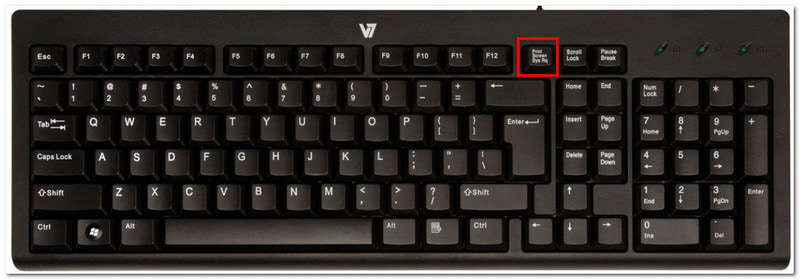
Step 2Choose a screenshot mode displayed on the top middle of the screen: Freeform, Window, and Fullscreen.
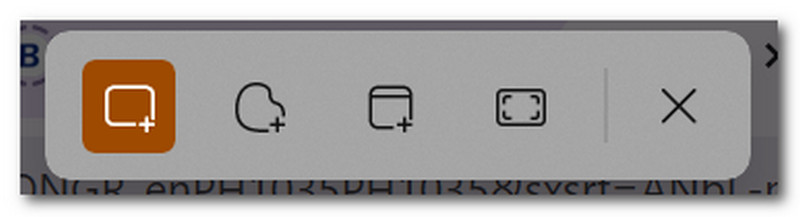
Step 3When a screenshot is taken, it is saved on your clipboard. Press Ctrl+V to paste into a Word document, messaging app, etc.
2. Snipping Tool
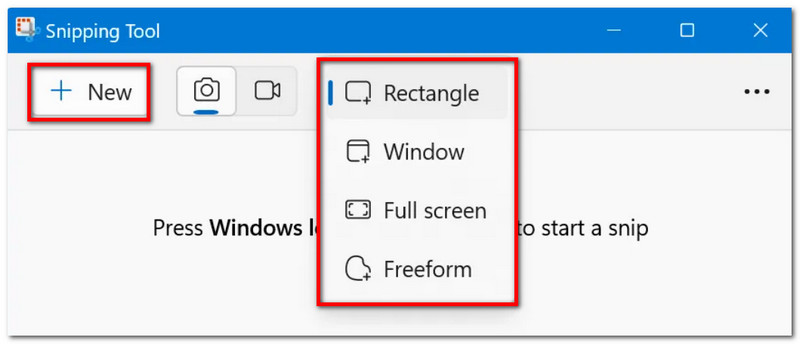
Snipping Tool is a pre-installed software for Windows 10 and 11. You can find it on your computer, or if you don't, it is free to download from the Microsoft Store.
Step 1Go to the Start menu and search for the Snipping Tool. Choose the screenshot mode first from the dropdown menu.
Step 2Click the New button to take a screenshot. Your photo will open on the Snipping Tool editor, where you can edit it further. Once done, click the Save button to export as a file.
3. AVAide Screen Recorder
You can upgrade to taking screenshots on Tinder and any platform by using AVAide Screen Recorder. It is a multi-solution tool made for Windows and Mac, providing a sleek interface equipped with excellent Screen Capture and recording features. To elaborate, Screen Capture allows you to screenshot in any mode, including full screen, active window, and partial. It saves screenshots in popular image formats like JPG, PNG, and GIF so that photos can be easily saved and shared across platforms. Additionally, it has built-in editing functions to draw, add text, and edit screenshots before saving. With that said, it is good to note that AVAide's screen recording can also help capture video and audio calls in Tinder without limitations. So, make sure to try to use it by following the steps:
Step 1To begin, click the Download button to get AVAide Screen Recorder on Windows or Mac. Complete the installation process and open the software.

FREE DOWNLOAD For Windows 7 or later
 Secure Download
FREE DOWNLOAD For Mac OS X 10.13 or later
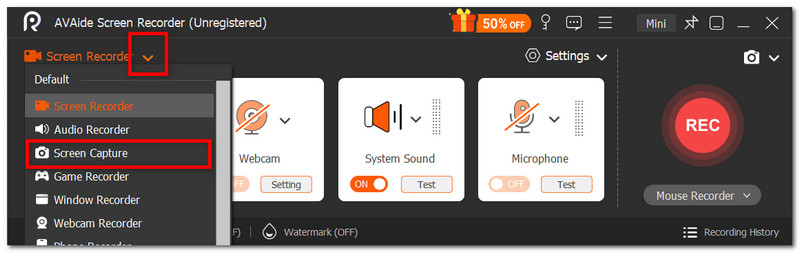
Secure DownloadStep 2From the top left corner, open the dropdown menu and choose Screen Capture. When the cursor becomes a crosshair, select the area or active window to capture.
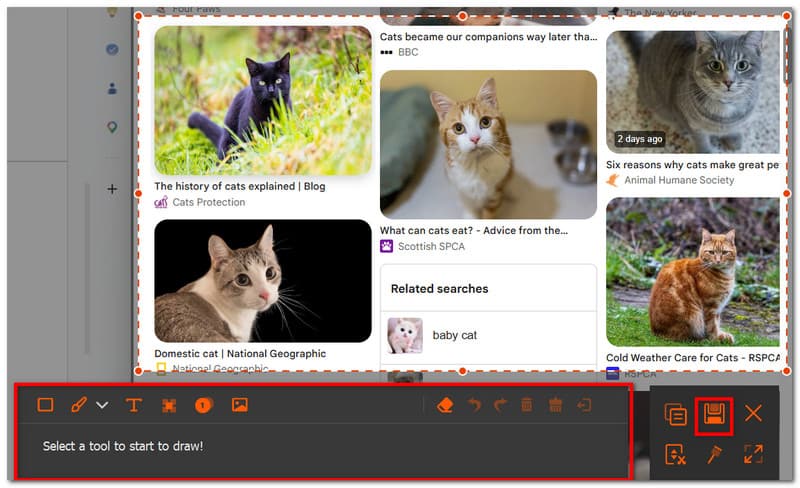
Step 3Use the editing options, including the numbers, drawing, and text elements, to add to the image. Then, click the Save button to save the screenshot.
Part 5. How to Screenshot on Tinder on Mac
There are a few shortcut keys to take Tinder screenshots on a Mac. You might want to carefully check various methods that respond to your screenshot needs.
Step 1To capture the entire screen, press Shift+Command+3 on your keyboard. You will see a thumbnail appear, indicating the screenshot is already taken.
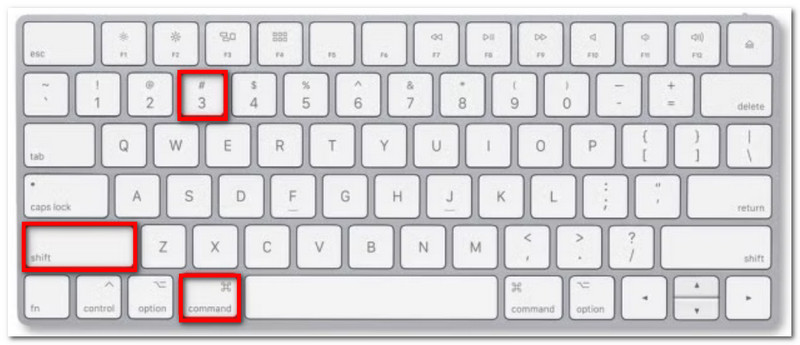
Step 2Press Shift+Command+4 on your keyboard to take a screenshot of only a partial area of the screen. Once the cursor turns into a crosshair, select the desired area to capture.
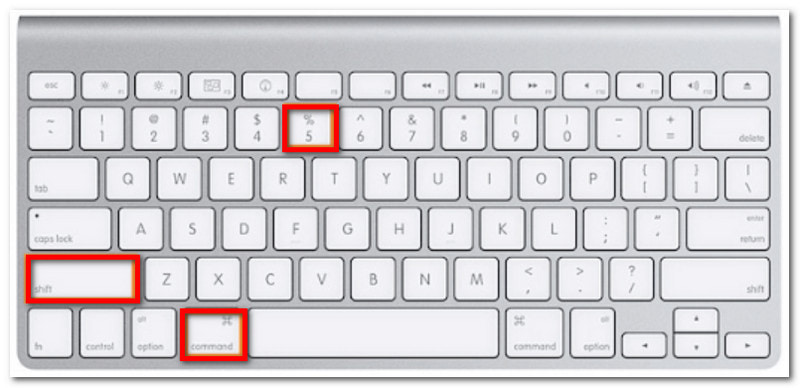
Step 3For more screen capture features on your Mac, press Shift+Command+5. The widget will provide the screenshot modes, screenshot timer, and other settings.
You can now relax, knowing that no Tinder screenshot notification will be sent to other users when you take a photo of their profiles or messages. With that said, make sure to use the screenshots carefully and not to violate any of Tinder's regulations. But other than that, you also discovered the different ways to take screenshots on different devices, especially using AVAide Screen Recorder for a better experience. You can freely download the software and check its other offered features for recording on Windows and Mac.
ABOUT THE AUTHOR

Record screen, audio, webcam, gameplay, online meetings, as well as iPhone/Android screen on your computer.