Are you a game enthusiast who wants to record your gameplay on PlayStation 4? Well, this process is ideal if you want to have a record of your games or share them with various users. Thankfully, this post will provide you with all the best methods you can use to capture your gameplay effectively. You will even learn how to edit and share your PS4 gameplay to have a better version of your video. Without anything else, you can check this guidepost and discover the most reliable instructions on how to record gameplay on PS4.
Part 1. How to Record Gameplay on PS4
The PlayStation 4, also known as PS4, is among the popular game consoles designed by Sony. Since its release, it has been the center of entertainment for millions of gamers worldwide. It is even known for its vast library of multi-platform games, from epic adventures and intense fights to fun family-friendly titles.
The good part here is that the PS4 is not just an excellent game machine. It is a complete entertainment hub. It can even offer its built-in recorder feature. This feature allows you to capture and record your gameplay smoothly. With this process, you can share your video with various users or keep a collection of your gameplays. Thus, we can tell that PS4 is among the best tools you can rely on in terms of gaming and recording.
Want to learn how to record gameplay on the PS4? You can check the steps we have provided below.
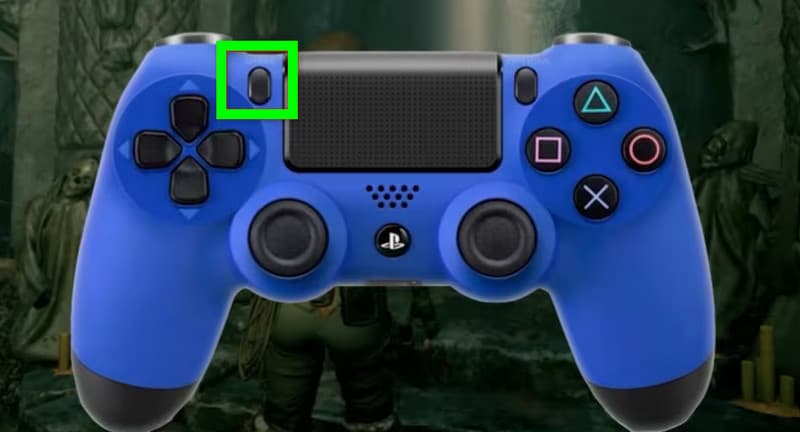
Step 1The first thing to do is to set up everything so you can start playing your games.
Step 2After that, on your controller, press the Share button twice. Then, the recording process will begin.
Step 3To stop the gameplay recording on PS4, just double-press the Share button again. Then, a pop-up message will show up on your monitor that says your gameplay has been recorded.
How to View the Recorded Gameplay on PS4?
Do you want to see and watch your recorded gameplay? If so, you can just proceed to the Gallery section of your console. Then, you will see all the videos and images you have captured. The good part here is that the recorded gameplays are shareable and editable.
Advanced Tips for Better Recording
If you want the best tips for a better recording to get an excellent result, read all the information below.
• You have to set the resolution and frame rate. From the Settings section, you can upscale from 480p to 1080p. Then, put it to the highest frame rate. This way, you can get a better video quality after the recording process.
• You also have to manage your storage space. PS4 has a limited internal storage. With that, for a smooth recording, you can first delete unnecessary files, like images and videos, from your console.
• You can operate editing software. This program is perfect if you want to create a better version of your recorded gameplay. You can crop the video, add a filter, adjust brightness, and more.
Part 2. How to Record PS4 Gameplay on a Computer
PS4 can offer its pre-built recording feature to capture gameplay. However, with its limited storage space, there are times when you cannot record the whole game. Thus, if you are looking for another recorder that can give you the result you need, we suggest using AVAide Screen Recorder. It is an exceptional program you can access on your computer. With this recorder, there is no doubt that recording your entire game is a possible task. The best part here is that it has simple-to-use functions, allowing you to navigate them smoothly. You can even record both your gameplay and your mic when it's open.
Moreover, what we like here is that you can save the recorded gameplay with the best quality, leading to a better viewing experience. You can even save the video in various output formats, such as MP4, MOV, AVI, MKV, FLV, and more. Thus, if you want the best gaming recorder, it is better to rely on AVAide Screen Recorder.
To begin the recording process, you can follow and check the simple tutorial below.
Step 1Download and install AVAide Screen Recorder on your desktop. Then, launch it to see the main interface. After that, you can start connecting your PS4 to your computer using an HDMI cable.

FREE DOWNLOAD For Windows 7 or later
 Secure Download
FREE DOWNLOAD For Mac OS X 10.13 or later
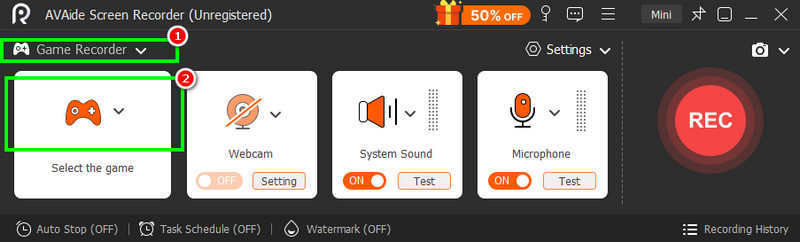
Secure DownloadStep 2Then, from the main interface, click the drop-down button and select the Game Recorder option. Once done, you can start choosing the game you want to record.
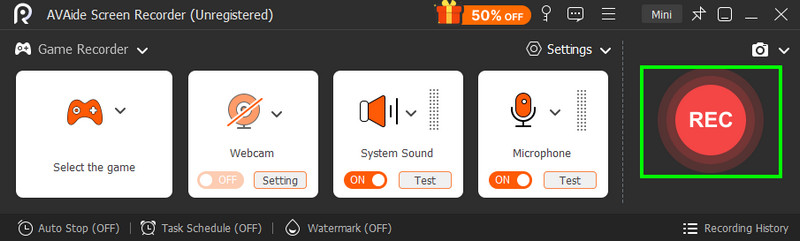
Step 3After that, click the REC button to start the process of recording your gameplay. To finish the recording, hit the Stop button.
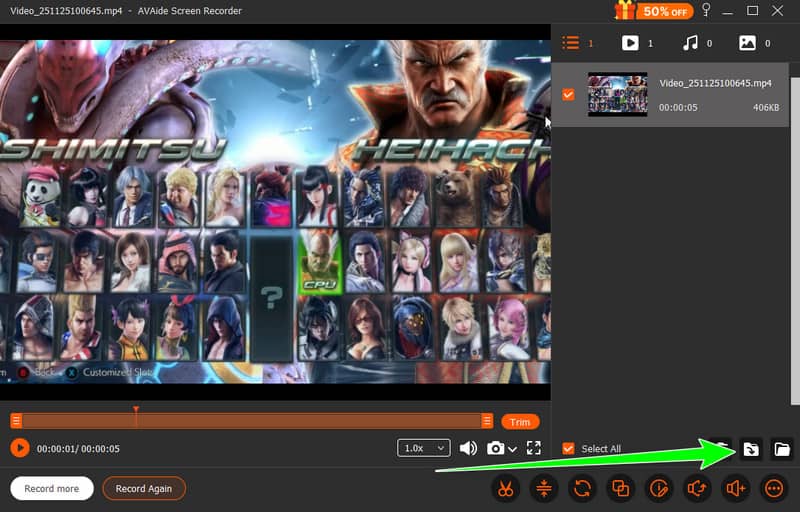
Step 4You can now tick the Play button to see the recoded gameplay. If you are satisfied with the result, you can begin the savings process. Tap the Export button below to insert the video into your computer completely.
With this process, you can ensure that you can smoothly record your gameplay on PS4. The best part here is that you can use all the features easily, thanks to its simplicity. What we like here is that the program can record various content. Besides gameplay, you can also record your webcam, audio content, vlogs, instructional videos, and much more. Thus, if you want the best recorders, look no further than AVAide Screen Recorder.
Bonus: How to Edit and Share Gameplay on PS4
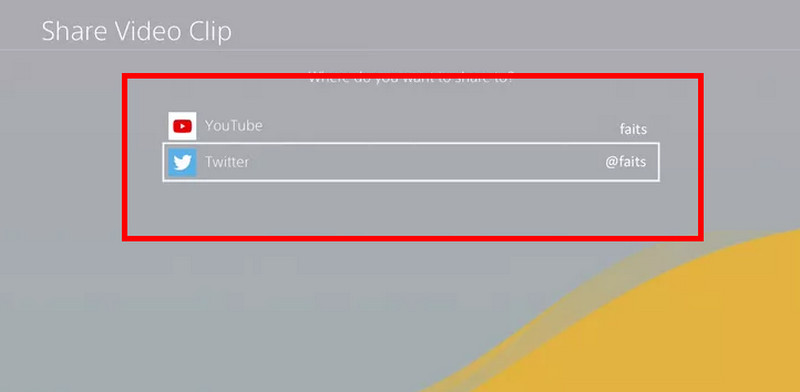
The good thing about the PS4 is that it allows you to edit the recorded gameplay and share it on various platforms, like YouTube and Twitter. To start the process, follow the methods below.
Step 1From your console, proceed to the Capture Gallery section to see the recorded gameplay.
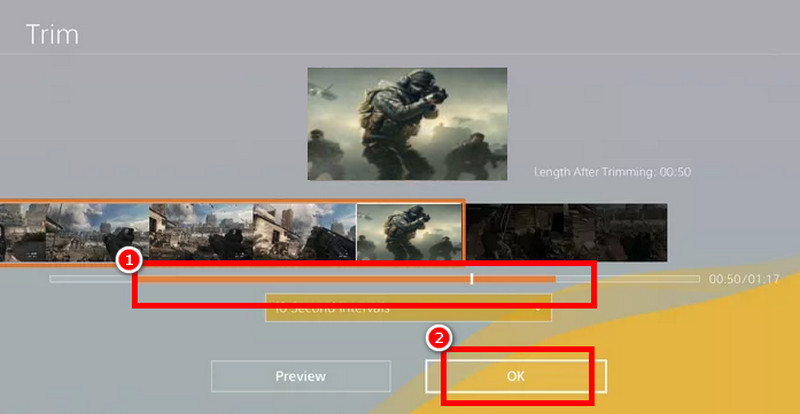
Step 2After that, you can choose the video and tap the Options button on your controller. Then, select the Trim function.
Step 3Now, you can start trimming the recorded gameplay. Once done, tap the OK > Save as New Video Clip options.
Step 4You can now hit the Share > OK button from your controller. Then, select where you want to share the gameplay.
Now you have given an idea of how to capture gameplay on PlayStation 4. With that, if you want to collect your gameplay when using PS4, you can just use the methods we have provided in this article. Aside from that, if you are planning to use a computer to record your gameplay on PS4, it would be better to access AVAide Screen Recorder. With its Game Recorder feature, you can record your gameplay on PS4 with the best quality. You can even access basic editing functions to enhance the overall appearance of the file. Thus, operate this program for an effective game-recording process.
ABOUT THE AUTHOR

Record screen, audio, webcam, gameplay, online meetings, as well as iPhone/Android screen on your computer.