Steps Recorder is among the software you can use for recording steps on your computer. However, there are times when this tool is not performing well. Microsoft is even uncertain about its future, which might leave users confused. So, if you are looking for the best alternative to a step recorder, we are here to guide you. You can check this article and discover all the best recorders you can access to record steps smoothly. The best part here is that we will even offer a simple method you can follow for a better recording process. Without anything else, see this article and learn more about the best step recorders.
Part 1. What is Windows Steps Recorder
Windows Steps Recorder is a built-in tool or utility for Windows. Its main function is to automatically capture your on-screen actions to create a visual, step-by-step guide. Plus, when activated, it takes a screenshot with each mouse click and logs a text description of every action. It includes opening a program or selecting a menu item. The good thing about this tool is that you can even add your own comments to highlight specific areas. The final result is packaged into a single, compressed file that opens as a simple, scrollable webpage, making it an excellent tool for clearly demonstrating how to reproduce a problem or complete a task.
Part 2. Best Steps Recorder Alternatives
While excellent for basic documentation, the Steps Recorder utility captures only static screenshots on mouse clicks, missing crucial context like mouse movements, animations, or dynamic interface changes. Plus, this tool is an outdated feature by Microsoft, which can only offer limited performance. Thus, if you are looking for an excellent alternative to Steps Recorder, see all the details below.
1. AVAide Screen Recorder
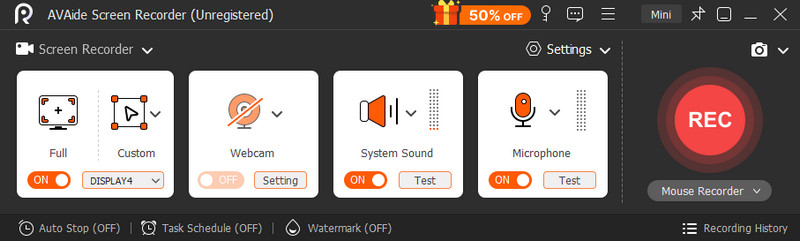
If you want the best app for recording steps, you can use AVAide Screen Recorder. This software is perfect if you want to document everything on your screen. You can capture text, images, and even show a step-by-step tutorial. What we like about this program is that it can give its clean and understandable user interface. You can also sync both video and audio, leading to better video playback. Plus, when taking a screenshot, you can expect to get a better quality. Additionally, you can access various annotation tools, allowing you to improve your file before the export process.
2. OBS Studio
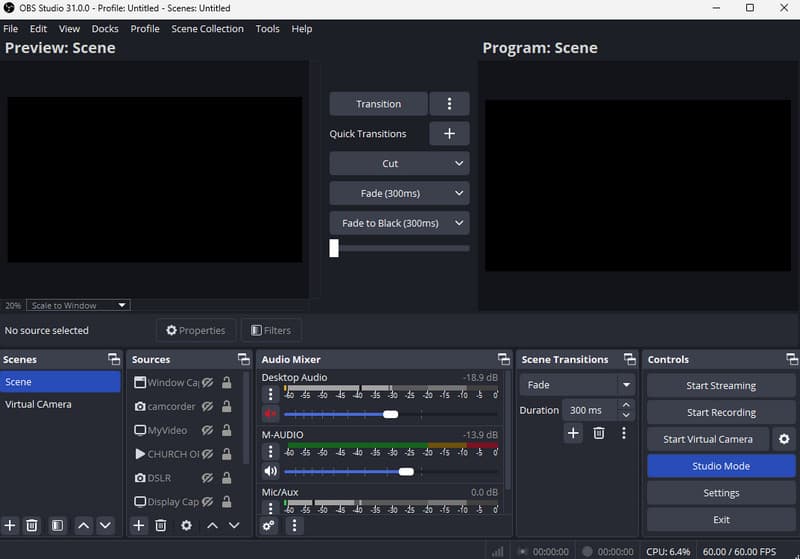
OBS Studio is another excellent tool you can rely on if you want to record your screen. What we like here is that it is free to use. You can even use all of its features without any restrictions. Plus, you can save the recorded screen with the best quality, which can be satisfying to all users. Thus, try using this program for an effective recording process.
3. MagicHow

MagicHow is a free tool designed for generating step-by-step guides and instructional materials such as tutorials, how-to documents, and standard operating procedures. By using its screenshot automation feature, you can effortlessly record any process on your computer, and the software will assemble the captures into a structured, ready-to-use guide. The only drawback here is that there are times when the software shows some bugs and glitches during the process.
4. Folge
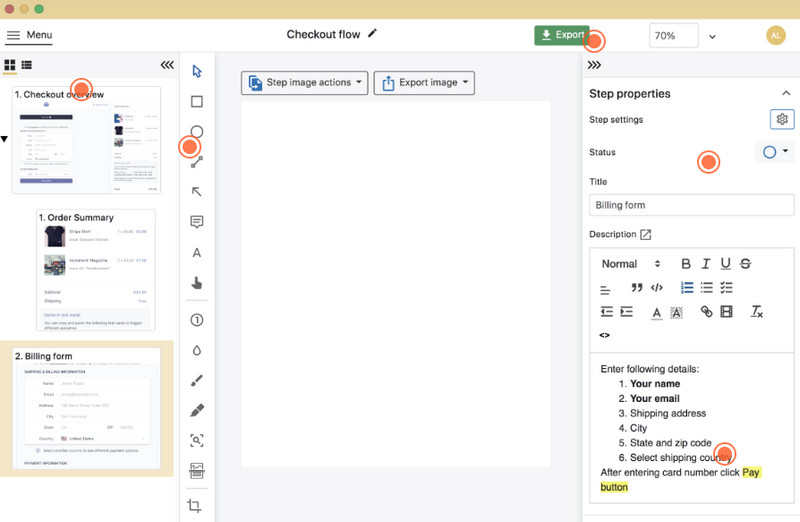
Another best app to record steps is Folge. It is a desktop tool that is capable of capturing and generating screenshots. The good part here is that you can customize your guides by inserting descriptions, titles, arrows, and more. You can even export the output to various formats, such as HTML, Word, PDF, and more.
5. Camtasia
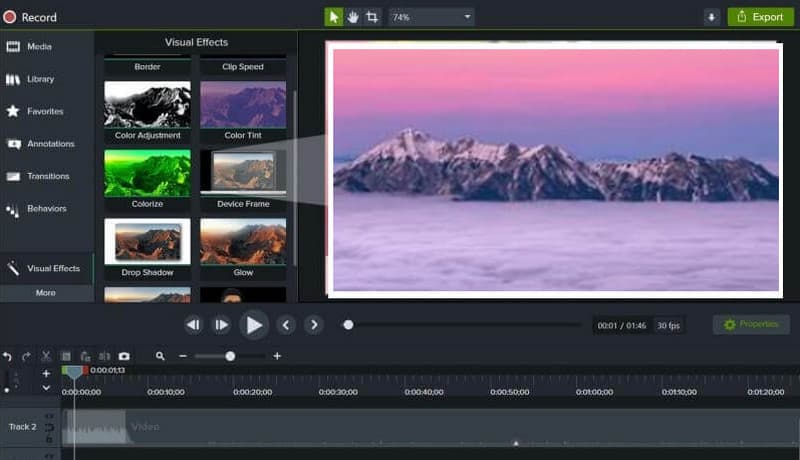
Camtasia is a comprehensive tool for recording your screen to document troubleshooting steps and PC fixes. It allows you to capture the whole screen, a specific window, a custom region, or a particular app. It even supports recording both system audio and your microphone, which makes it ideal for creating detailed demos and tutorials. Furthermore, the software includes built-in video editing capabilities to refine and polish your recordings. However, this software is resource-intensive, so you have to ensure that you have a high-spec computer.
6. Snagit
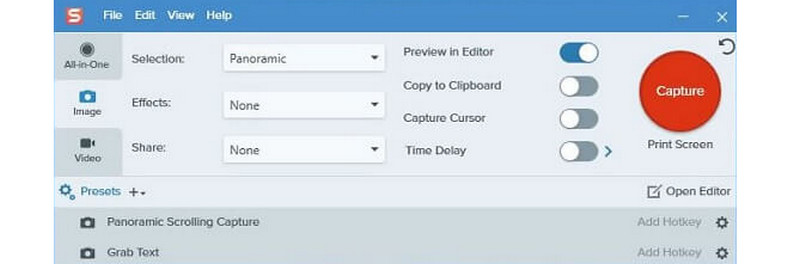
If you are looking for an easy-to-use step recorder, look no further than Snagit. It is among the best and popular screen capture software you can rely on. What makes it ideal is its interface and smooth process. You can even integrate it with other platforms, such as MS Office, Google Drive, and more. You can even decide how you want to capture your steps, whether you want to capture the entire screen or a particular screen area. The only drawback here is that its subscription plan is a little bit pricey. There are also times when the software crashes. But still, if you need a simple alternative for Steps Recorder, consider using this tool.
7. Dubble
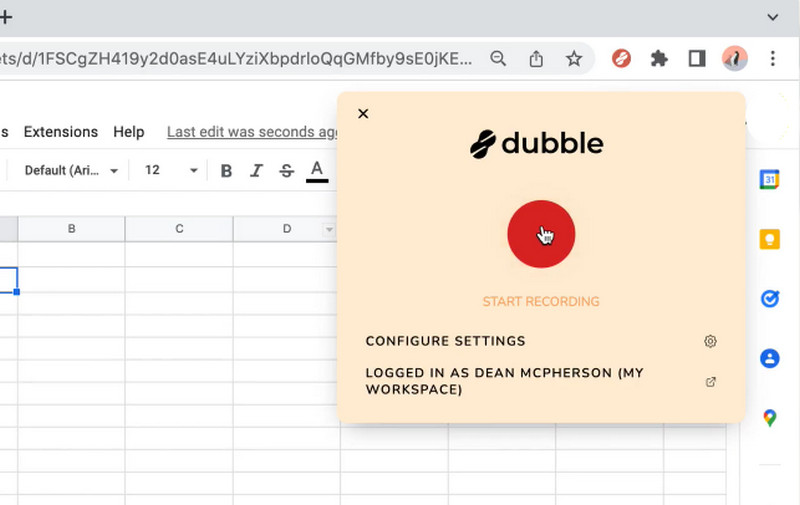
For our last Steps Recorder alternative, we have Dubble. This tool can eliminate manual documentation, making the guide creation simple. After hitting the recording button, you can start doing your task and quickly get the ready-to-use guides. What makes it powerful is that it allows you to adjust the description, markup and captured screenshots to ensure precision. Plus, after the recording process, you can save the output in various formats, like HTML, PDF, and more. You can even save the outcome as a URL to share it with other platforms.
Part 3. Excellent Method to Record Steps
Are you looking for an excellent way to record steps successfully? In that case, we recommend using AVAide Screen Recorder. As we discussed above, it has all the features you need. You can even get an excellent quality after taking screenshots. So, to use this program, you can check the details below.
Step 1Download and run AVAide Screen Recorder on your computer. Tap the buttons below for a quicker way to access the program.

FREE DOWNLOAD For Windows 7 or later
 Secure Download
FREE DOWNLOAD For Mac OS X 10.13 or later
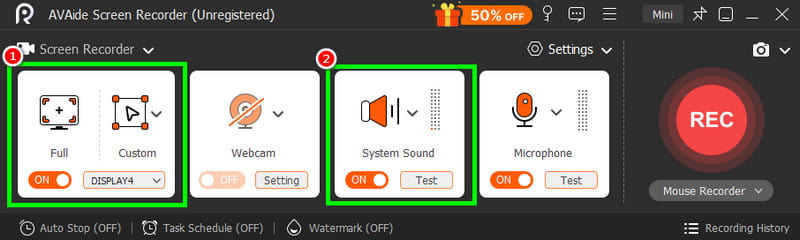
Secure DownloadStep 2Now, you can choose whether you want to record your screen in Full or Custom. Plus, ensure that the System Sound is turned on.
Step 3Now, hit the REC button. After the three-second countdown, you can start performing the steps you want to document on your screen.
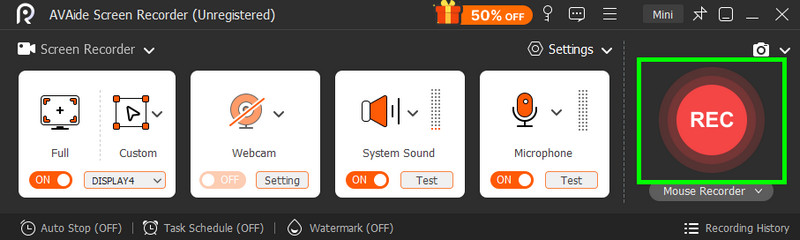
Click the Stop function to finish recording.
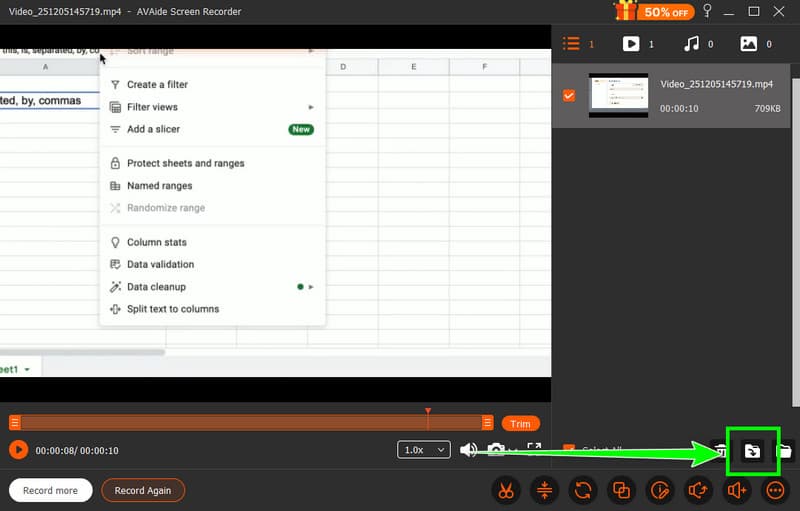
Step 4When the preview shows up on your screen, you can begin the saving process. Tick the Export option and save the file on your device.
If you need the best step recorders to record steps, then you can use all the tools we have introduced in this article. All of them are perfect since they can help you achieve the result you need after the process. Plus, thanks to AVAide Screen Recorder, you have learned how to record steps smoothly. You can even access various functions, allowing you to create an engaging output. Thus, use this software for an effective screen-recording software.
ABOUT THE AUTHOR

Record screen, audio, webcam, gameplay, online meetings, as well as iPhone/Android screen on your computer.