In an era dominated by high-quality streaming and remote collaboration, the demand for reliable screen recording tools on both PC and mobile has never been higher. Whether you're capturing gameplay, creating tutorials, or recording meetings, DU Recorder has long been a go-to solution for millions of users worldwide.
However, recent signs point to a suspension in updates and official support, leaving many to wonder: Is DU Recorder still dependable in 2026? In this detailed review, we put DU Recorder's current performance to the test, analyzing its stability and feature set on the latest operating systems. By the end, you’ll know exactly whether to stick with this classic or transition to a modern alternative.
Part 1: Main Features of DU Recorder
DU Recorder is a robust, user-friendly screen capture solution designed for both mobile and desktop platforms. It empowers users to record high-definition video, making it an ideal choice for gameplay, professional tutorials, and creative content. Beyond simple recording, DU Recorder features a built-in editor to trim, crop, and enhance videos with custom music or voiceovers. While it remains free to install and highly versatile, its reliability in the current landscape makes it a noteworthy tool for any creator's arsenal.
1. Recording Features of DU Recorder
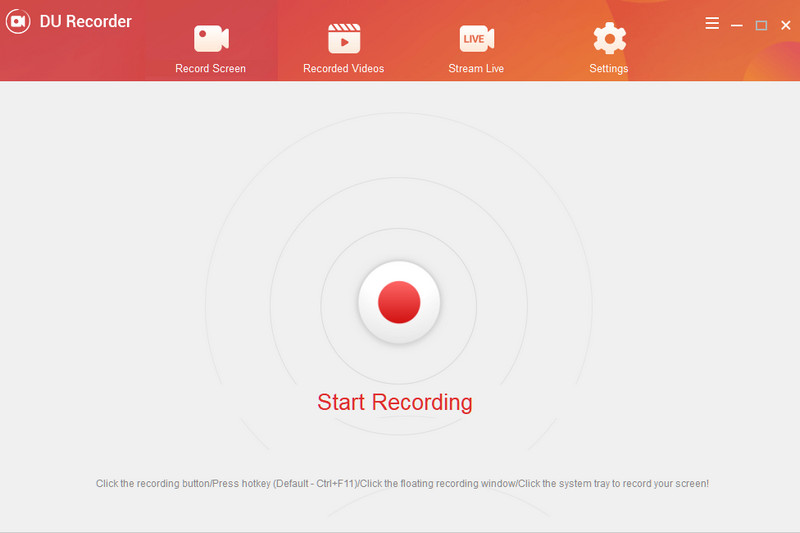
The core of the DU Recorder app is its ability to capture stable and fluid footage without requiring root access on mobile.
- Resolution & Bitrate: Supports up to 1080p resolution, 12Mbps bitrate, and 60 FPS for smooth gaming captures.
- Audio Capture: Can record internal system audio (where OS-supported) and external microphone audio simultaneously.
- Webcam Integration: Allows you to record your face in a small window (PIP) while capturing the screen—ideal for reaction videos and tutorials.
- No Time Limits: Unlike some free tools, it offers unlimited recording time (restricted only by your device's storage).
2. Editing Features of DU Recorder
DU Recorder acts as a lightweight post-production suite so you can polish videos without third-party apps.
- Trimming & Cropping: Easily remove unwanted segments from the beginning, middle, or end of a clip.
- Audio Layering: Add background music, adjust volume levels, or insert voiceovers.
- Visual Enhancements: Includes options to add subtitles, fun stickers, and various filters to change the mood of the footage.
- GIF Maker: A dedicated tool to convert specific portions of your video into shareable GIF files.
3. Live Streaming Capabilities of DU Recorder
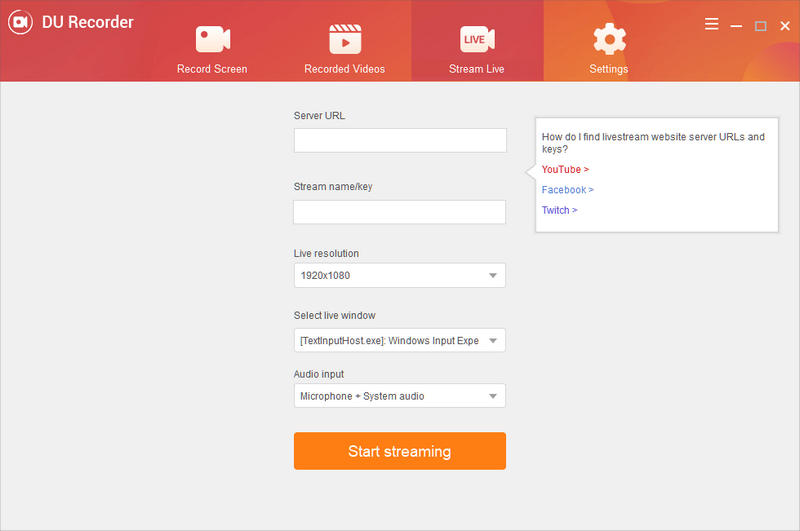
One of DU Recorder's standout features is the built-in "Stream Creator".
- Multi-Platform Support: Directly stream your screen to YouTube, Facebook, and Twitch.
- RTMP Support: Supports custom RTMP addresses, allowing you to stream to almost any server or private platform.
- Privacy Settings: Includes public, unlisted, and private stream settings to control your audience.
Free vs. Premium DU Recorder
Note that some features may be locked behind a premium paywall or require watching ads if the server-side support for subscriptions is still active:
- Watermark Removal: The ability to remove the "DU Recorder" watermark from exports.
- Custom Watermarks: Add your own brand logo or text to the recording.
- Enhanced Export: Access to higher compression and specialized formats.
Part 2: Master Review of DU Recorder
In the landscape of 2026, where high-definition content and real-time streaming are standard, the demand for versatile recording tools remains high. DU Recorder was once the gold standard for mobile and PC screen capture. However, with official updates largely suspended and the app removed from major platforms like Google Play, users are left wondering: Is it still worth your storage space?
In 2026, DU Recorder is a "survivor". While its core engine is still powerful, it is losing ground to native system recorders and modern, actively maintained alternatives.
Who should use DU Screen Recorder? If you are using an older device or specifically need the RTMP streaming and Screen Brush features in a single app, it remains a viable, "scrappy" choice.
Who should avoid DU Screen Recorder? If you prioritize data privacy and system stability on a new flagship phone, you are better off looking elsewhere.
- Pros
- DU Recorder works seamlessly on most Android and iOS devices without needing deep system modifications.
- Unlike many modern "freemium" competitors, it doesn't cap the length of your recordings.
- DU Recorder is an all-in-one shop for recording, simple editing, and live broadcasting.
- Cons
- Lack of updates means it may crash on Android 16+ or the latest iOS versions due to API changes.
- Being removed from the Play Store (due to past ad-policy violations) means users must download APKs from third-party sites, which carry inherent security risks.
- The free version of DU Recorder is heavily monetized with ads, and many "Pro" features are now locked behind a subscription that may be difficult to manage given the app's status.
Being removed from the Play Store (due to past ad-policy violations) means users must download APKs from third-party sites, which carry inherent security risks.
The free version of DU Recorder is heavily monetized with ads, and many "Pro" features are now locked behind a subscription that may be difficult to manage given the app's status.
Part 3: How to Use DU Recorder on Different Devices
How to Use DU Recorder on Windows and Mac
Step 1Download the App
The initial step to get this tool on your device is to acquire its file installer. You can search for the main product page of DU Screen Recorder on your web browsers, and a list of pages will give you options to download the app. Please access the legit website, which is the main product facade that enables you to download the app safely on your computer. If you use a mobile device, you can use Play Store for Android and App Store for iOS devices to acquire the application.
Step 2Record Screen Activity
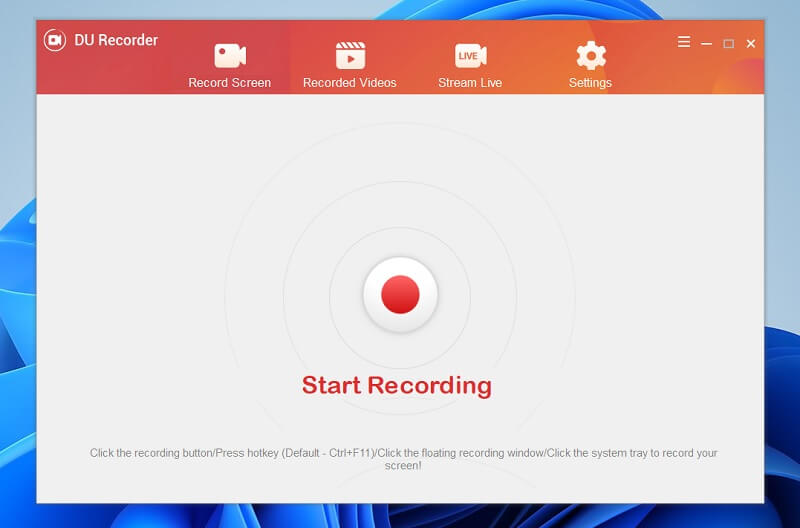
The next stage in using Screen Recorder is to capture screen activity within its system. Access the app on your device and hit the Start Recording icon in the middle of the capturing recording tool. Continue capturing your screen activity.
Step 3Save the Recordings
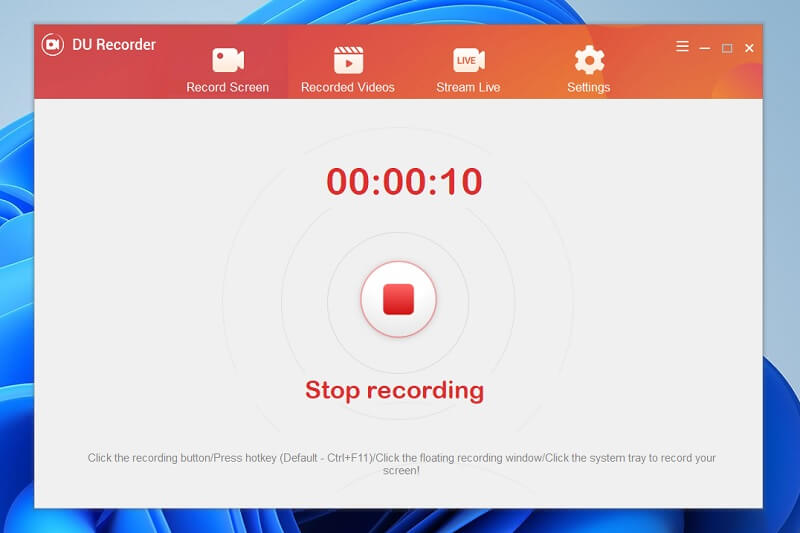
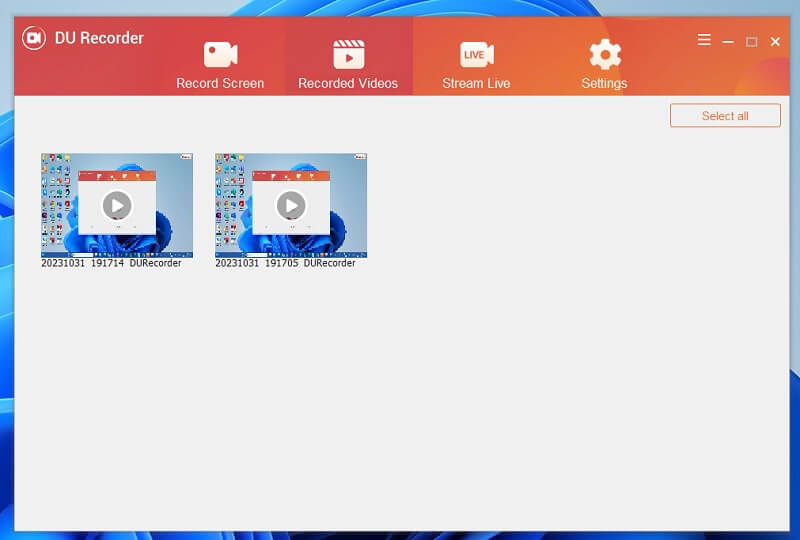
For the final touch, save the recordings on your device by relaunching the tool and clicking the Stop button. The recorded files will be saved automatically on your device. Go to the Recorded Videos to access the list of files that you recently captured on your screen. Double-click the video to preview and play the file.
How to Use DU Recorder on iOS and Android
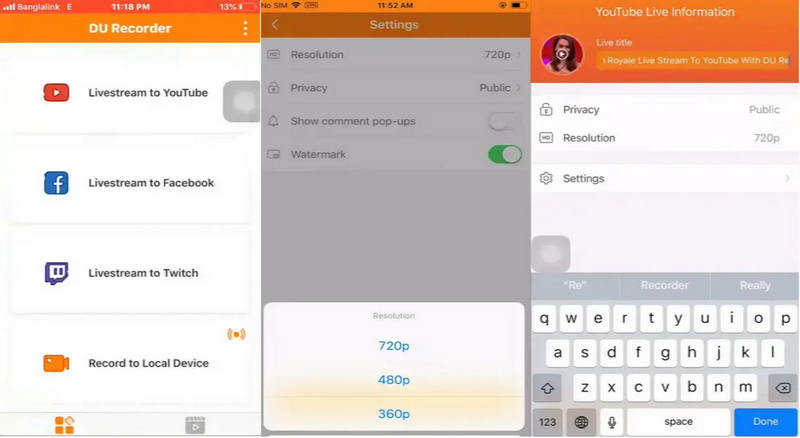
DU Recorder app on iPhone/iPad and Android is also very easy to use. It can help you create high-quality and seamless recordings. Check how to use the DU Recorder app on your mobile phone if you need to record a mobile game, tutorial, highlight, etc.
- 1.Download and launch DU Recorder on your phone.
- 2.Tap the Record button to start recording your mobile phone's screen.
- 3.Tap the Record button again to stop the screen recording.
Part 4: Top 2 Alternatives to DU Recorder
Today, DU Recorder is getting less competitive on mobile or desktop. It cannot even meet basic needs for those who need simple annotation and highlight features. Therefore, this post offers three reliable and up-to-date DU Recorder alternatives on Windows, Mac, iOS, and Android.
1. The Best DU Recorder Alternative on Windows and Mac
When discussing the best alternatives to capture screen activities, use AVAide Screen Recorder. This application contains the best and most reliable screen recording features, which enables users to use and create video demos, tutorials, reaction videos, gameplay content, and other that is useful not only for monetization but also for personal use. The selling point of this application is its Task Scheduler, which can capture screens at a set time and date. It is helpful in getting videos on live streams and TV channels that do not have an option to download the file.
Step 1Get AVAide Screen Recorder
The beginning phase of capturing your screen using AVAide Screen Recorder is to install or download the app on your device. You can click the download button below this step to get the installer. Then, run it and finish the prompt. Access the interface of the app and check its processes to have easy access.

FREE DOWNLOAD For Windows 7 or later
 Secure Download
FREE DOWNLOAD For Mac OS X 10.13 or later
Secure DownloadStep 2Capture Your Screen
Prepare the app for the activity you need to record. Go to its main interface and hit the Video Recorder to access its recording parameters. Select the aspect ratio and audio input of the app. Afterward, select the REC button to instigate the process of capturing your PC screen.

Step 3End the Process
Finally, end the recording process by clicking the Stop button at the recording panel below the area where you are recording your screen. The tool will prompt its media player, allowing you to preview the file. Then, you can use the device to save or rerecord the file to capture the best moment of your screen activities.

2. The Best DU Recorder Alternative on iPhone and Android
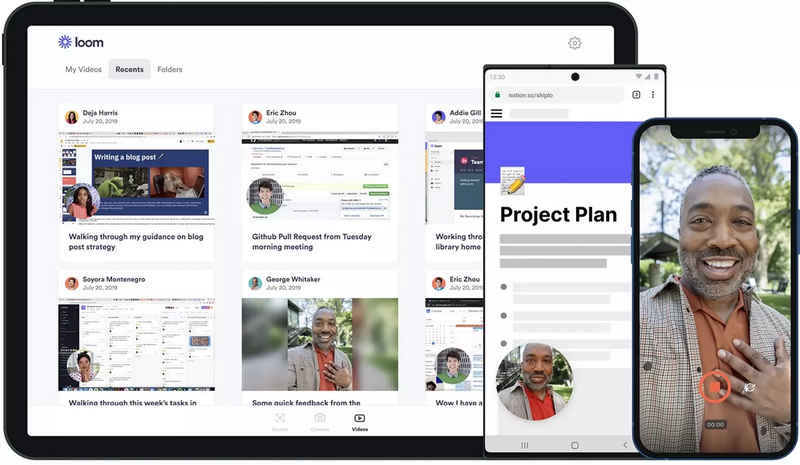
As DU Recorder moves into a "legacy" phase with suspended updates in 2026, Loom has emerged as the premier modern alternative for both Android and iOS. While DU Recorder was built for local saving and manual sharing, Loom is designed for the modern "video-first" workflow, offering seamless cloud integration and professional polish that fits perfectly into today's remote work and content creation landscape.
Loom bridges the gap between a simple screen capture and a professional communication tool. It eliminates the tedious steps of exporting, compressing, and uploading large files. Whether you are reporting a bug, providing feedback on a design, or recording a quick mobile tutorial, Loom ensures your message is delivered instantly via a simple link—making it the smartest upgrade for anyone moving away from DU Recorder.
Part 5: FAQs of DU Recorder
Why was the DU Recorder removed?
DU Recorder was removed from the Google Play Store due to severe policy violations, primarily involving ad fraud and the misrepresentation of its ownership and background data-collection practices. Investigations revealed that the app, along with other tools from the same developer group, engaged in "ad clicking" schemes that ran in the background without user consent.
Is DU Screen Recorder free?
DU Recorder is a freemium screen recorder. Most features are free to use. Some advanced features require a purchase.
What alternatives are better than DU Recorder?
DU Recorder is outdated today. Many alternative screen recorders on desktop and mobile, like AVAide Screen Recorder, Loom, OBS, and Bandicam, can work better than DU Recorder.
DU Screen Recorder is greatly outdated today. Whether you need to do a simple screen recording or live streaming, you'd better resort to an alternative. AVAide Screen Recorder is the best DU Recorder alternative for screen recording with seamless playback and original quality. It can also upscale your recordings to 4K resolution and 120 FPS, providing immaculate visual and audio quality.
ABOUT THE AUTHOR

Record screen, audio, webcam, gameplay, online meetings, as well as iPhone/Android screen on your computer.