Need to record GIFs quickly for a tutorial, bug report, or social post? Finding the right tool can be tricky. This guide compares the best GIF recorders across platforms, helping you capture smooth, high-quality animations with ease, whether you're a beginner or an experienced creator.
Part 1. How We Chose the Best GIF Recorders
To choose the most optimal GIF recorders, it is not sufficient to compare features on paper. We paid particular attention to the performance of each tool in a real-life situation, smooth animations, quality, and a convenient workflow for beginners and professional users. Here is a list of the main criteria that we have considered and ranked each GIF recorder:
- Recording Quality and Performance: We examined the effectiveness of each tool in recording the activity of the screen, frame rate stability, resolution support, and general smoothness. Tools that led to the creation of clear and lag-free GIFs ranked higher.
- User-friendliness: It needs a lot of an easy-to-use interface. We focused on the tools that enable the user to begin recording fast, with little setup or learning.
- Recording Flexibility: The capability to record the entire screen, selected windows, or custom regions was tested. Other features, such as audio capture or webcam overlay, were viewed as a bonus.
- Editing Functionality: We looked at whether the users can trim, cut, resize, or add text to the GIFs within the software itself, which would minimize the need for third-party editors.
- Export Options and Optimization: options were evaluated according to their capability to export GIFs efficiently, and it has options to control the size, resolution, and compatibility of files to share on the Internet.
Part 2. A Quick Comparison Table
| Tool | Windows | Mac | Online | Recording Support | Built-in Editing | High-Quality Recording | Free Version |
| AVAide Screen Recorder | ✔ | ✔ | ✘ | ✔ | ✔ | ✔ | ✔ |
| ScreenToGif | ✔ | ✘ | ✘ | ✔ | ✔ | ✔ | ✔ |
| ShareX | ✔ | ✘ | ✘ | ✔ | ✔ | ✔ | ✔ |
| Gifox | ✘ | ✔ | ✘ | ✔ | ✔ | ✔ | ✔ |
| QuikGIF | ✘ | ✔ | ✘ | ✔ | ✘ | ✔ | ✘ |
| Kapwing | ✘ | ✘ | ✔ | ✔ | ✔ | ✔ | ✔ |
Part 3. The Best GIF Recorders for Windows
1. AVAide Screen Recorder
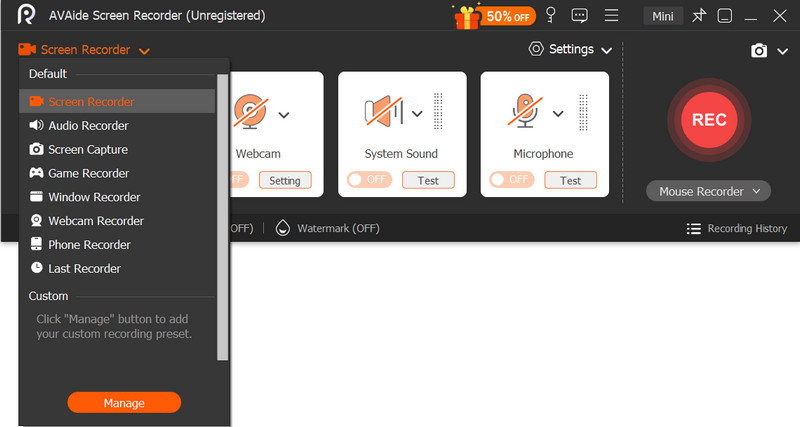
AVAide Screen Recorder is developed as an all-inclusive recording studio as opposed to a specific GIF application, and that is precisely its strength. It does not confine the user to brief and poor-quality clips, but rather enables one to take high-quality shots first and then turn the chosen parts into GIFs. The workflow is particularly beneficial to content creators, educators, and professionals who require both refined video and lightweight GIFs of the same video recording session.

FREE DOWNLOAD For Windows 7 or later
 Secure Download
FREE DOWNLOAD For Mac OS X 10.13 or later
Secure DownloadPerformance:
AVAide offers high-quality recording with smoothness in the content at constant frame rates and synchronized audio. It can effectively manage long missions, but consumes more resources in the system as compared to lightly weighted GIF tools.
Key Features:
- Record up to 1080p/4K with customizable screen areas.
- Recordings to GIF and other formats.
- Audio recording of systems and microphones.
- Adjustable webcam overlay.
- In-built editor to trim, compress, and convert.
- Pros
- Professional output of high quality.
- Records and edits GIFs in one app.
- Accepts other formats other than GIF.
- Consistent when it comes to short videos and lengthy videos.
- Cons
- A paid version is needed to be fully functional.
2. ScreenToGif
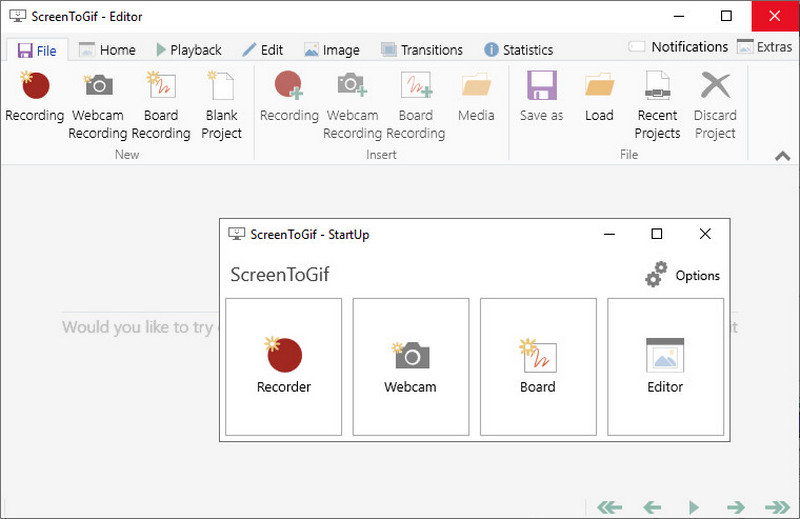
ScreenToGif is a dedicated GIF recorder that allows users to be precise and have control. It does not have the general-purpose nature of other tools, but it is completely dedicated to GIF creation and includes in-depth editing features that extend past mere trimming. It is specifically suited to developers and designers as well as to anyone who creates instructional content.
Performance:
Light, fast ScreenToGif is compatible with most systems. It is good for short recording and detailed editing, but large projects might be slowed a little by frame-level processing.
Key Features:
- Insert text, drawings, transitions, and effects.
- Adjustable frame rate and playback speed.
- No export limitations or watermark.
- Pros
- Superior manipulation of GIFs.
- No expense or constraints.
- Lightweight and efficient.
- Cons
- Interfaces may be technical to novices.
- Fixed to GIF-based workflows.
3. ShareX
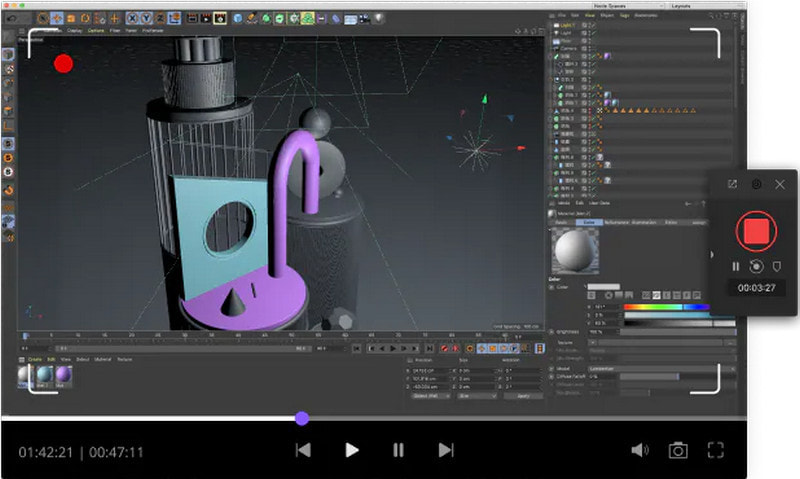
ShareX is a multi-featured, open-source capture tool that has GIF recording as a subset of its capabilities. It is geared towards users who value speed, automation, and sharing over refined editing. This renders it a good choice for fast captures and productivity.
Performance:
ShareX is most effective when it comes to short, fast GIF captures that have the least impact on the system. Nevertheless, it is not as efficient to create high-quality or highly edited animations.
Key Features:
- Recording of a GIF with the selection of a region.
- In-built upload and sharing features.
- Multiple capture modes.
- Basic annotation tools.
- Pros
- Very adaptable and tailorable.
- No paywall or watermark.
- Perfect for productivity processes.
- Cons
- Interfaces are daunting.
- Poor editing functions of GIFs.
Part 4. The Best GIF Recorders for Mac
1. Gifox
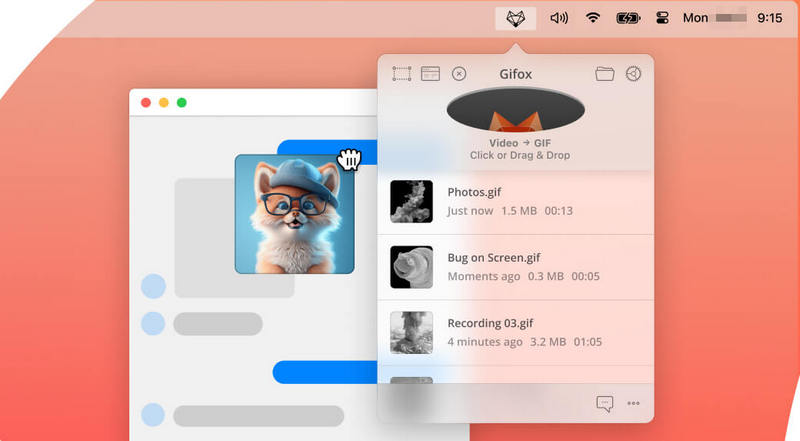
Gifox is a highly polished GIF recorder that is designed to be used by users who require not only a high-quality capture but also accurate control of output. It is unlike a simple recorder in that it is a combination of recording, editing, compression, and sharing in one streamlined process. This makes it especially useful with developers, designers, and teams that use GIFs to document, report bugs, or to present.
Performance:
Gifox provides high-quality recordings that have good frame capture and compression. It works well even with repeated edits, and so can be used frequently with a heavy workflow.
Key Features:
- Flexible capture modes.
- The capability to turn videos into GIFs.
- Cursor, keyboard, and visual effect capture options.
- Direct sharing integrations.
- Pros
- Good balance of editing and recording.
- State-of-the-art compression to reduce file sizes.
- Integrated sharing is time-saving.
- Cons
- Upgrade to be paid to have full functionality.
- Minor learning curve since controls are state-of-the-art.
2. QuikGIF
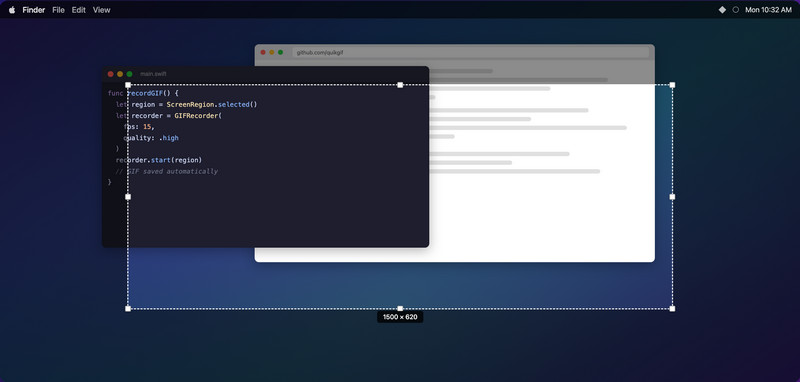
QuikGIF is a lightweight, fast GIF recorder that is fast and easy. It is minimal friction, instant capture, unlike tools with features, which are designed to be used to create quick demos, bug reports, or do any informal use. Its design in the form of a menu bar makes it easy to use without having to clutter your workspace.
Performance:
QuikGIF is optimized well to use on macOS, and Apple Silicon in particular. It is fast and consumes little resources, and it can create GIFs fast, even at higher frame rates.
Key Features:
- Recordings using menubar hotkeys worldwide.
- Get full screen, window, or custom area.
- Adjustable frame rates.
- An inbuilt GIF viewer that has frame scrubbing.
- Share instantly and copy to the clipboard.
- Pros
- Extremely lightweight and fast.
- No recording and watermark restrictions.
- Simple, distraction-free interface.
- Affordable one-time pricing.
- Cons
- Minimal editing in comparison to high-end tools.
- No good with complex or highly polished GIFs.
Part 5. The Best Online GIF Recorders
1. Kapwing
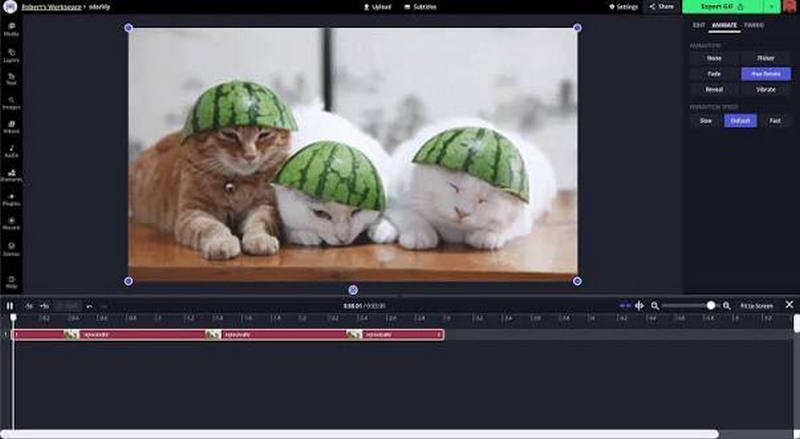
Kapwing is a browser-based creative platform that goes beyond simple GIF recording. Kapwing is an online, creative tool that is more than GIF recordings. It is an all-in-one screen recorder, video editor, and GIF converter all integrated into a shared workspace, which is particularly helpful when working in a team, as a marketer, or a content creator who requires high-quality results without downloading software.
Performance:
Kapwing is designed to be fast to record and process (browsers). It performs reliably for short clips, with minimal waiting time between recording and export, and features like Kapwing crop video help refine content quickly before turning it into a GIF.
Key Features:
- On the record screen, as a browser tab or webcam.
- Teamwork project collaboration tools.
- Online workstation with distributable links.
- Pros
- All-in-one workflow.
- No installation required.
- Strong collaboration features.
- Sharing with links easily.
- Cons
- The free is watermarked.
- Needs adequate internet connectivity.
2. Flixier
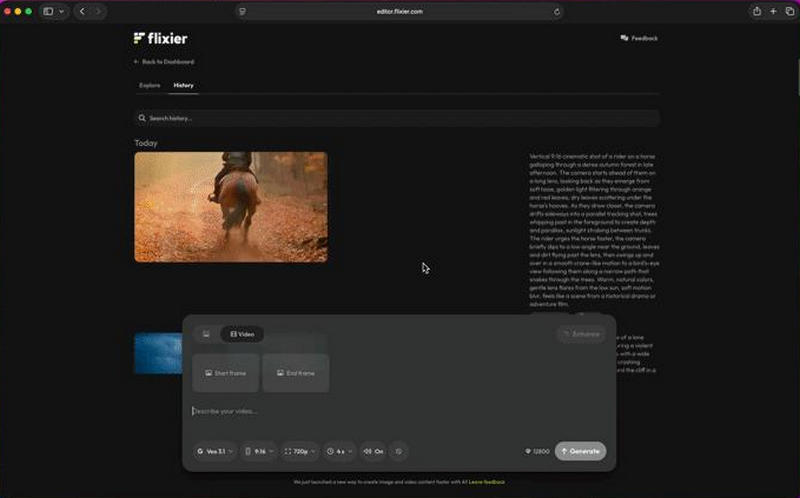
Flixier is a GIF recorder and editor that is based on the cloud to be fast and user-friendly. In contrast to other traditional tools, which depend on local processing, Flixier deploys cloud servers to process its rendering and is ideal for users who prefer quick results despite low-end devices.
Performance:
Flixier will enjoy the benefits of cloud computing, rendering fast and being able to edit in the browser. It is user-friendly on all devices, including under-specified machines.
Key Features:
- Export to GIF and view online.
- Advanced editing tools.
- Cross-device compatibility.
- In-built media library and motion.
- Pros
- Quick processing with cloud computing.
- Browse anywhere with a device.
- No installation needed.
- Cons
- Internet-dependent performance.
- Accounts for full functionality.
Part 6. How to Record a GIF: Quick Tutorial
A GIF is not as difficult to make as it sounds, particularly with a trusted program like AVAide Screen Recorder. The following is a basic step-by-step tutorial that will assist you in capturing and saving your own GIF.
Step 1Get the Software and Install
Go to AVAide Screen Recorder and install the installer on your Windows or Mac computer. After the download, open the file and proceed with the instructions as displayed on the screen to install it.
FREE DOWNLOAD For Windows 7 or later
Secure DownloadFREE DOWNLOAD For Mac OS X 10.13 or later
Secure DownloadStep 2Start the Program and Select the Recording Mode
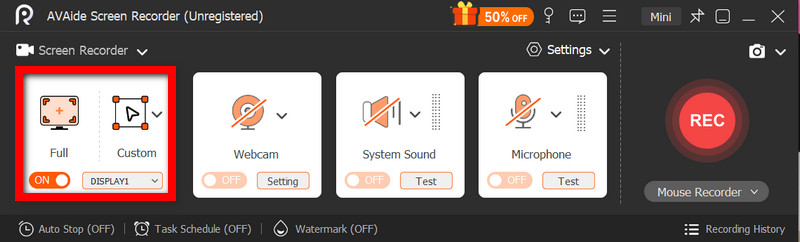
Launch the program and choose Screen Recorder.
Step 3Adjust Recording Settings
Set up your recording preferences by choosing either Full or Custom, depending on what you want to capture.
Step 4Start Recording
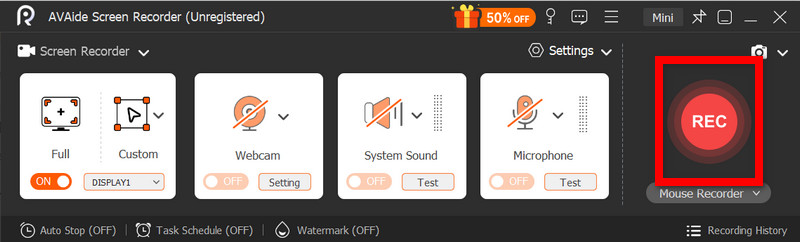
To start, press the REC button. Record what you want to record, be it a tutorial step, gameplay, or an on-screen action.
Step 5Stop and Preview Recording
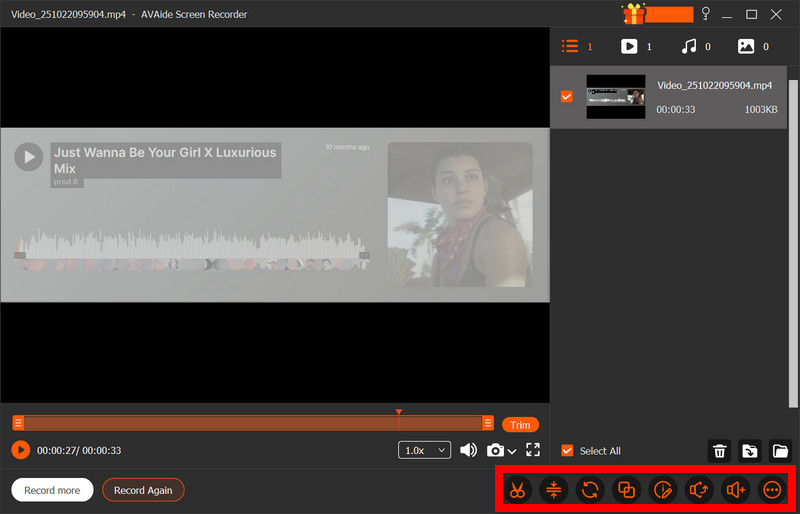
When completed, press the Stop button. The software will automatically pop up a preview window in which you can view your recording.
Step 6Editing and Trimming the Clip
Take advantage of the built-in editor to trim down the unnecessary sections, shorten the clip to the required length, or do brief edits and export the film.
Step 7Export as GIF
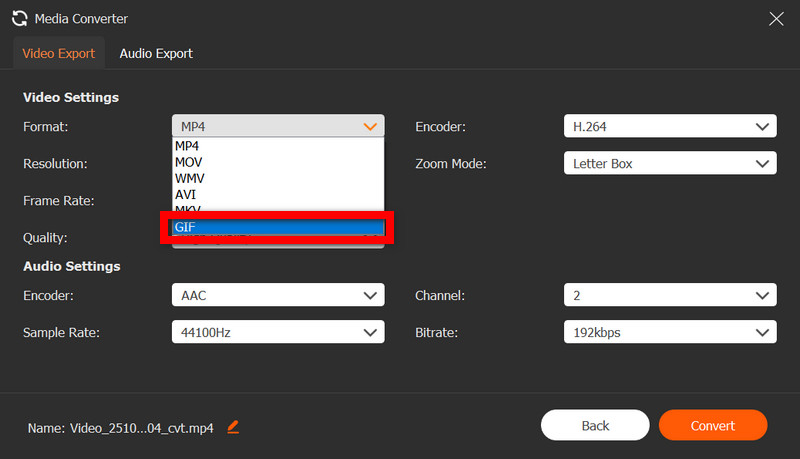
Choose GIF as the output format.
A reliable GIF screen recorder makes capturing and sharing moments effortless. Whether you need advanced editing, quick recording, or online convenience, choosing the right tool ensures smooth performance, better quality, and a more efficient workflow.
ABOUT THE AUTHOR

Record screen, audio, webcam, gameplay, online meetings, as well as iPhone/Android screen on your computer.