Roku TV makes it simple to watch movies, shows, and videos on the big screen. But what about DVDs? Is it possible to stream a DVD to a Roku? The answer is yes. You can enjoy your DVD movies on Roku and watch your favorite films anytime. Learn how to stream DVD to Roku below and make the most of your collection!
Part 1: How to Use a DVD Player on Roku TV with HDMI
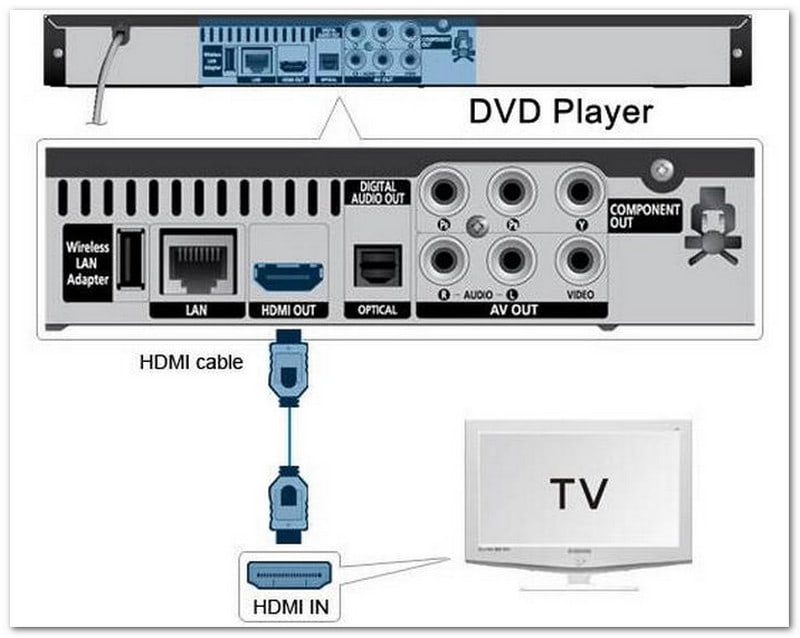
DVDs can feel limited without a player, but your Roku TV makes it easy to watch them if your DVD player has an HDMI port. Follow the steps presented and enjoy your favorite movies on the big screen with no hassle.
Step 1Turn off both your DVD player and your Roku TV. It is important to make sure nothing gets damaged. Check that your DVD player has an HDMI output port. Also, look at your Roku TV and remember which HDMI input you want to use.
Step 2Use an HDMI cable and connect one end to the HDMI OUT port on your DVD player. Then, plug the other end into the HDMI IN port on your Roku TV. Make sure the connection is firm so the signal can pass properly.
Step 3Turn on your DVD player first, then the Roku TV. Using your Roku remote, go to Settings > Inputs and select the HDMI port where your DVD player is connected. It will let your TV know to show what the DVD player is sending.
Step 4Use the Home button on your Roku remote. Look for the HDMI input you just selected and highlight it. You should see the DVD player's home screen or media menu appear on your TV. Now, you can play your DVDs and enjoy them right from your Roku TV.
Part 2: How to Get DVD to Digital to Stream on Roku
Do you want to watch DVDs without a player and enjoy them on Roku anytime? AVAide DVD Ripper is the solution you need. This program can help you save your DVD movies in formats that Roku can play, like MP4 or MKV. It makes streaming fast, simple, and convenient.
Furthermore, it offers useful editing features. You can adjust brightness, contrast, and other basic effects. You can also add subtitles, add audio, and boost the volume. Impressively, your videos will stay high-quality and ready for smooth playback.
Refer to the guide below to learn how to get a DVD to digital to stream on Roku:
Step 1Download and set up AVAide DVD Ripper on your Windows or Mac computer. Then, insert your DVD into the computer's DVD drive.

FREE DOWNLOAD For Windows 7 or later
 Secure Download
FREE DOWNLOAD For Mac OS X 10.13 or later
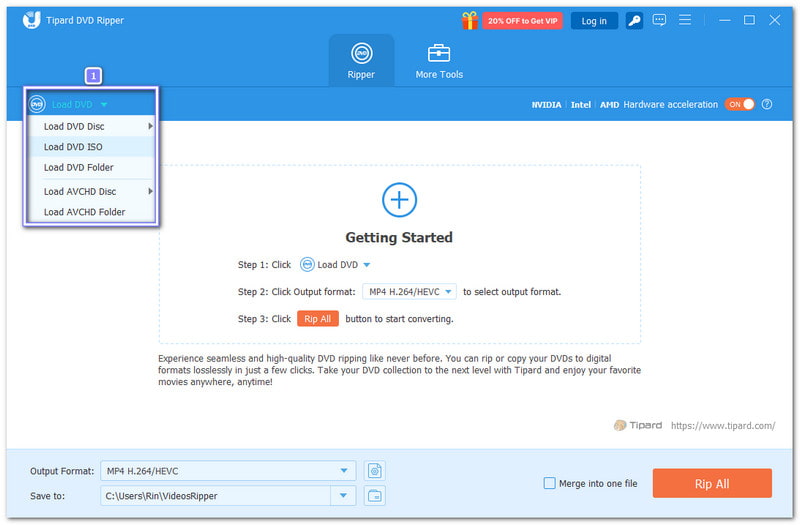
Secure DownloadStep 2In the AVAide DVD Ripper, click the Load DVD button. You can load a DVD, an image file, or a folder. Then, choose either the Main Title or the Full Title List, depending on what you want to rip, and click OK.
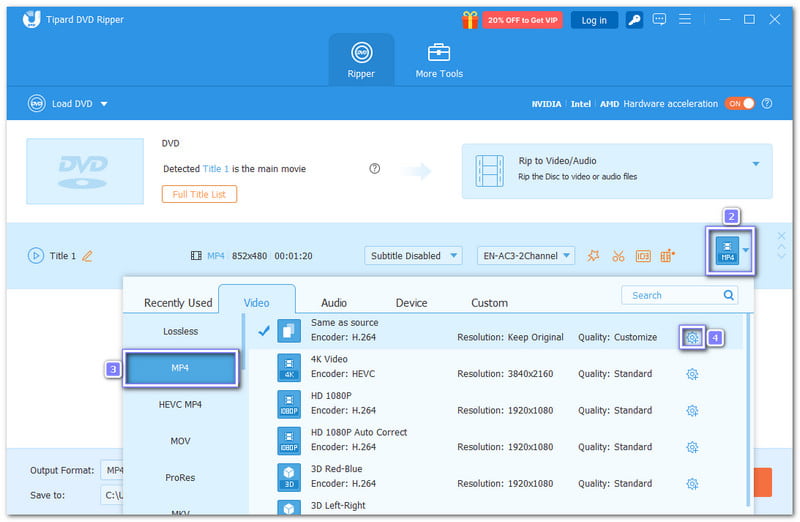
Step 3Go to the Format menu and pick a video format that works with Roku, like MP4 or MKV. If you want, use the Custom Profile option to change the resolution, bitrate, or audio settings. It helps make sure your video looks good and plays smoothly on Roku.
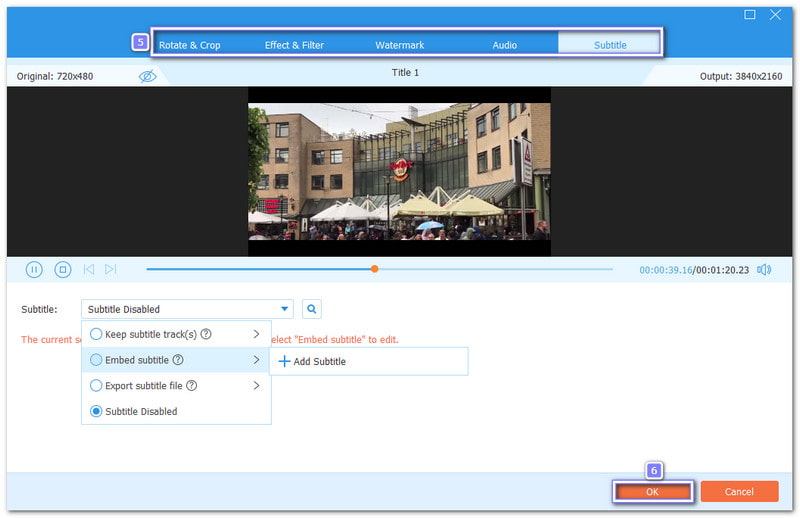
Step 4You can also edit your video. To do that, press the Wand button and open the tabs. You can rotate, crop, or add filters. You can also change the brightness, contrast, and other effects, or add subtitles if needed. These edits are important because they improve how the video looks and sounds when streaming on your Roku TV.
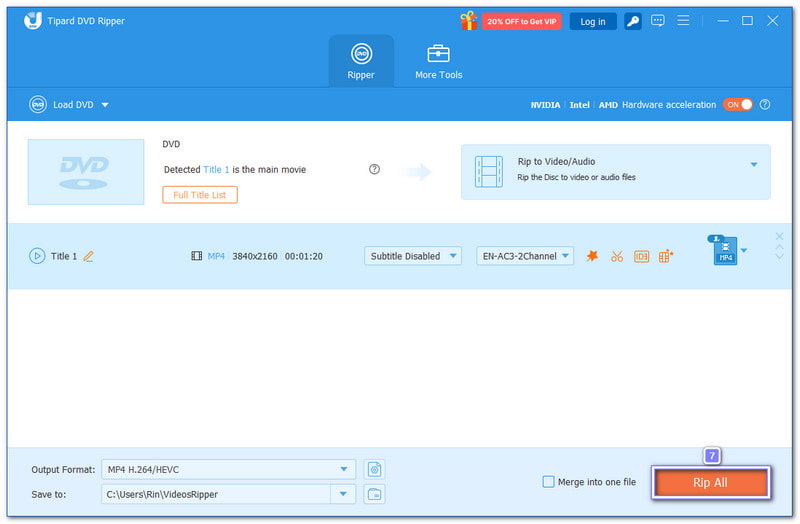
Step 5Now, press the Rip All button to start ripping your DVD into the digital format you selected. AVAide DVD Ripper will transform the DVD content into a file that is ready to play on your Roku TV.
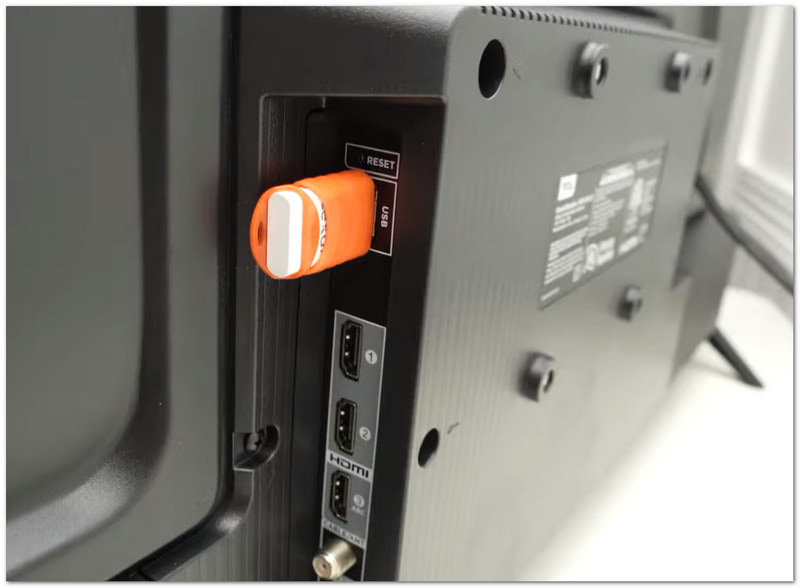
Step 6After all that, copy the digital file to a USB flash drive. Next, insert the USB into your Roku TV's USB port. Then, open the Media Player app using your Roku remote, find the video file, and press Play. Now, you can sit comfortably and enjoy your DVD movies directly on your Roku TV.
Part 3: Stream DVD to Roku
If you wonder how to stream DVD to Roku, you can enjoy your DVD movies on Roku TV without a DVD player. There are two main ways to do this: using a USB drive or streaming through Plex. Both methods are simple and make it easy to watch your media.
Method 1: Using a USB Drive
Step 1First, copy your video, audio, or image files from your DVD to a USB drive. Make sure the files are in Roku-compatible formats like MP4 for video, MP3 for audio, or JPEG for pictures.
Step 2Look for the USB port on your Roku TV. Most Roku TVs have USB ports on the side or at the back. Insert your USB drive into the port carefully.
Step 3Use the Home button on your Roku remote. Head to Media Player and select USB. You will see all the media files saved on the drive.
Step 4Choose the file you want to watch or listen to and press OK. You can also use the remote to pause, rewind, or fast-forward your media. Now, enjoy your DVD content on your Roku TV.
Method 2: Using Plex Media Server
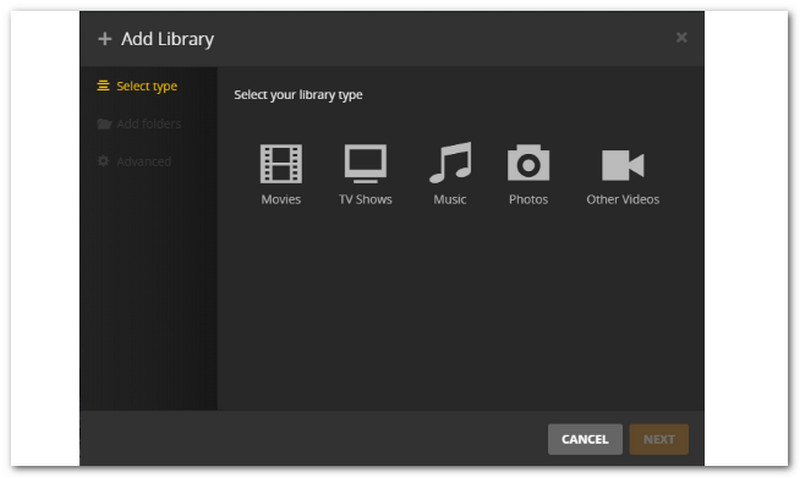
Step 1On your computer, install Plex Media Server. Add the DVD files you ripped into the Plex library so they are ready to stream.
Step 2On your Roku TV, download and open the Plex app from the Channel Store. Sign in with the same account used on your computer.
Step 3Browse your Plex library inside the app. Find the movie or media file you want to watch and select it.
Step 4Press Play and follow the on-screen instructions. You can manage playback with your Roku remote. Now, your DVD content streams in high quality directly on your Roku TV.
Part 4: Things You Should Know When Streaming DVD to Roku
DVDs on Roku are simple to play. But you need to be aware that there are a few important things to know when streaming DVD to Roku. These are beneficial to make the process smooth and ensure high-quality playback.
1. File Format is Key
Roku only supports certain video formats. MP4 and MKV work best. If your DVD is not in these formats, you need to convert it with a tool like AVAide DVD Ripper. It keeps the video playing smoothly without errors.
2. USB Drives Work Best for Offline Playback
You can use a USB drive to watch DVD movies on Roku. Make sure the drive has enough space. Only supported files will appear in the Media Player app. This method is simple and does not need an internet connection.
3. Plex Lets You Stream Over the Network
If you want to stream without a USB, Plex is a good option. Install Plex Media Server on your desktop and the Plex app on Roku. Add your DVD files to the library. Then, you can browse and play them directly on Roku.
4. Stable Connection Helps Playback
If you stream via Plex, a strong internet connection is important. Slow networks can cause buffering. Using a USB drive avoids this problem and ensures smooth playback.
5. Editing Improves Quality
Before streaming, you can edit DVD files. You can adjust brightness, contrast, or add subtitles and audio settings with tools like AVAide DVD Ripper. It makes your videos look and sound better on a big screen.
You have learned how to use a DVD player on Roku TV with HDMI, as well as how to stream DVD to Roku using a USB drive or a Plex media server.
If you prefer not to use a DVD player, AVAide DVD Ripper can turn your DVDs into digital files. It makes it more convenient, letting you save movies in Roku-friendly formats, edit videos, and enjoy high-quality playback anytime.
Best tool for ripping and converting DVD Disc/Folder/ISO image file into over various formats.