Do you want to copy a DVD to a hard drive? Well, copying your DVD to a hard drive is an ideal method to preserve your video collection, enjoy disc content, and back up important data. Since DVDs can wear out and get scratched over time, transferring them to a hard drive ensures that you can access your files in the long term. So, if you are looking for the best ways to easily copy your DVD content into a hard drive, you are in the right place. You can check this post and get more details on how to copy your DVD to a hard drive on your Windows and Mac computers.
Part 1: How to Copy Non-Protected DVD to Hard Drive to Watch on TV
Copying a non-protected DVD to your hard drive is a straightforward process that allows you to store and play movies or videos on your TV without needing the physical disc. A non-protected DVD does not have encryption or digital rights management (DRM) restrictions. It means that you can freely copy its contents using standard software or even your computer's built-in tools. On the other hand, a protected DVD uses encryption (like CSS or region codes). Its main purpose is to prevent unauthorized duplication, requiring specialized ripping software to bypass these restrictions, which may raise legal or ethical concerns depending on your country's laws.
So, if you are looking for the most reliable methods to copy your non-protected and protected DVDs to watch on TV instantly, see all the feasible methods in the preceding sections.
Part 2: Best Program to Copy DVD to Hard Drive [Copy-Protected]
How do you copy a DVD to a hard drive? Well, there are various programs you can use to effectively copy DVD content into a hard drive for better video playback. One of them is AVAide DVD Ripper. This program is ideal if you need an effective way to copy your DVD. It is because you can access all the necessary features for copying and ripping DVDs. It can even offer a comprehensive user interface. Plus, this powerful DVD Ripper leverages GPU acceleration and maximizes multicore processor performance through NVIDIA CUDA technology. It can transform DVD movies into digital formats up to 30 times faster and create a lossless ISO or MPG backup of the original disc in just five minutes at full speed. The best part here is that you can also use various video editing features to enhance your videos. You can compress your videos, crop, split, add filters, watermark, and more. Thus, if you need an astounding DVD ripper, look no further than AVAide DVD Ripper.
To begin copying a DVD to a hard drive, you can use the methods we have provided.
Step 1Download AVAide DVD Ripper on your desktop. You can use it on both Mac and Windows computers. After that, ensure that your hard drive and DVD are already inserted into your computer.

FREE DOWNLOAD For Windows 7 or later
 Secure Download
FREE DOWNLOAD For Mac OS X 10.13 or later
Secure DownloadStep 2After you run the software, go to the Ripper section. Then, add the DVD by clicking the Load DVD button.
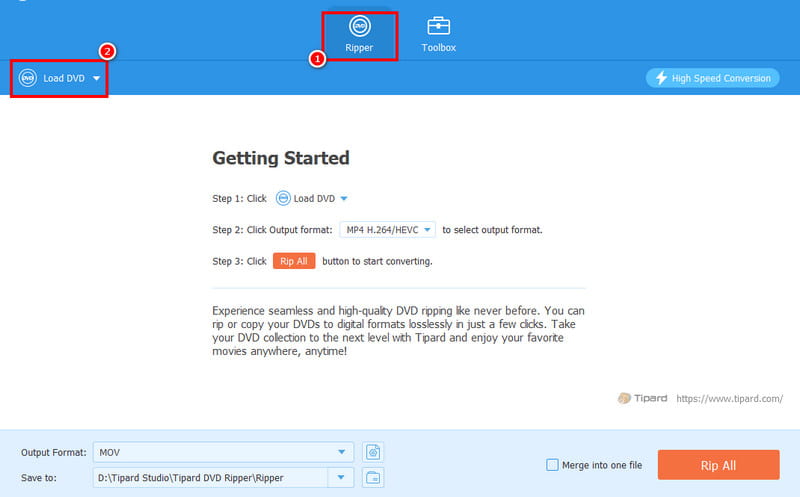
Step 3After you add the DVD, you can proceed to the Output Format section and choose your preferred video format. You can even choose/seelct the video quality you want.
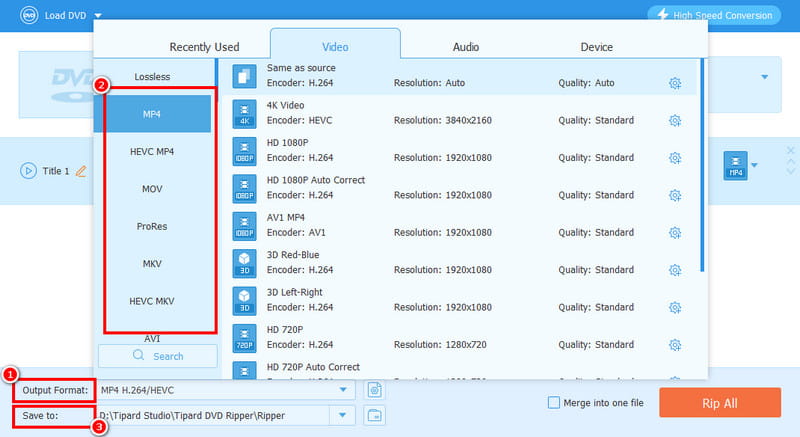
You can also go to the Save to section to select the hard drive as your destination folder.
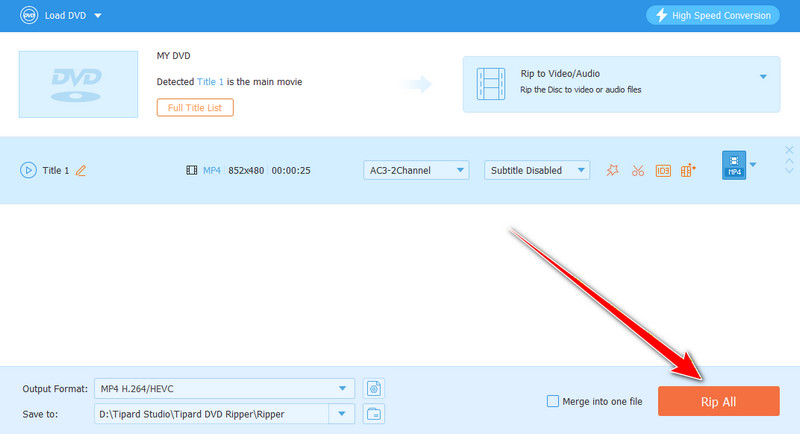
Step 4For the last process, tap the Rip All button below to begin the saving process. Once done, you can now enjoy watching your favorite videos.
Part 3: Copy DVD to Hard Drive in VLC
VLC is another offline program that you can use to copy your DVD to a hard drive effectively. Thanks to its converter feature, you can get the result you need after the process. What we like here is that the process of copying your DVD is simple, thanks to its friendly user interface. Additionally, you can also enhance your video using the program's built-in editing tools. You can adjust the playback speed, crop, change aspect ratio, and more. The only drawback here is that the software's layout looks outdated, which might not be appealing to some users. But still, if you want to copy a DVD to a computer or hard drive, you can rely on this program.
Follow the steps below and learn the best way to copy a DVD to a hard drive.
Step 1Download VLC Media Player on your computer. Then, proceed to the File > Convert / Save section.
Step 2After that, go to the Disc section and tap Browse to add the DVD you want to copy. Once done, click the Convert / Save button below.
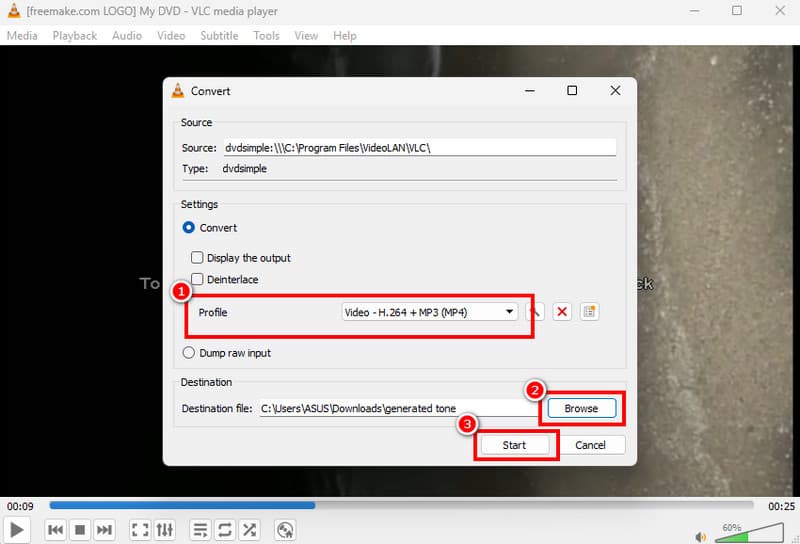
Step 3Now, proceed to the Profile section and choose your preferred video format. Then, go to the Browse option to select the hard drive as your destination file.
Step 4For the last process, tap the Start button to convert and save your final file.
Part 4: Copy DVD to Hard Drive via HandBrake
Another good software to copy a DVD to a hard drive is Handbrake. With this software, you can ensure that you can get the digital version of your DVD after the process. Plus, using the program is simple since it offers an easy-to-operate user interface. It can even offer various editing features to improve your video, such as filters, video noise removers, deblur, and more. You can even copy Blu-rays to a hard drive if you want to. To check its capability, you can use the instructions below.
Step 1Download and install the Handbrake program on your computer. After you launch it, tap the File button to start adding the DVD.
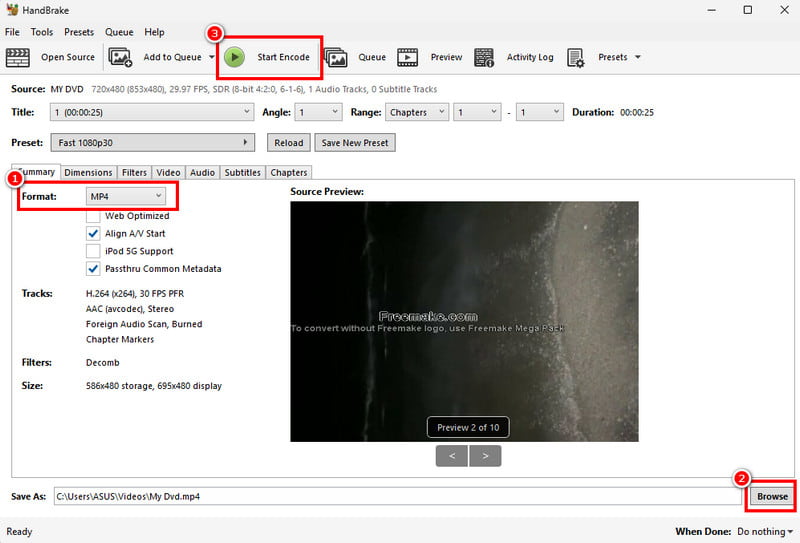
Step 2Then, proceed to the Format section and choose your preferred video format. After that, click the Browse option below to select the hard drive as your destination folder.
Step 3For the final procedure, hit the Start Encode option above. Once the process is done, you can start watching your videos on your TV, computer, and any device.
Part 5: Comparison of the 3 Best Software to Copy DVD to Hard Drive
Want to get more insights about the best programs for copying DVDs to a hard drive? See the table below.
| Programs | AVAide DVD Ripper | VLC | Handbrake |
| Ripping Process | 30 times faster | Standard | Standard |
| Primary Function | Rip DVDs, Edit DVDs | Media Playback | Media Conversion |
| Ease of Use | Simple | Simple | Simple |
| User Interface | Comprehensive | Comprehensive, but looking outdated | Comprehensive, but looking outdated |
| Supported Output Formats | MP4, MKV, FLV, AVI, MOV, M4V, VOB, WMV, and more. | MP4, AVI, FLV, and more. | MP4, MKV, and WebM. |
Now you have explored the best ways to copy a DVD to a hard drive on your desktop. With that, use all the methods above to achieve your desired result. In addition, if you want a smooth process of copying your DVDs, look no further than AVAide DVD Ripper. It can even offer all the basic and advanced editing tools you can use to improve your videos, resulting in an astounding video output.
ABOUT THE AUTHOR

Copy and rip DVDs to digital formats, create ISO/MPG backups, and edit videos with ease.