Desire to convert DVD to MP4 on Mac for smooth playback on iPhone, iPad, Android, Apple TV, or other devices? You are in the right place. This guide covers the best DVD to MP4 converters for macOS 26 Tahoe, 15 Sequoia, 14 Sonoma, and earlier systems. We will evaluate each tool based on ripping function, output quality, speed, and DVD decryption capability. You will learn how to convert both home movie DVDs and commercial copy-protected DVDs to MP4, ensuring high-quality results with reliable software solutions.
All Reliable DVD to MP4 Converters on Mac at a Glance
| Features | AVAide DVD Ripper | Handbrake | VLC Media Player | WinX DVD Ripper Platinum | FFmpeg |
| Handles Copy-Protected DVDs | Yes | No | No | Yes | No |
| Output Quality Control | Highest | Medium | Low | High | High |
| Pricing | Cheapest Paid | Free | Free | Paid | Free |
| Ease of Use | Easiest | Moderate | Easy | Easy | Advanced |
Top 1: AVAide DVD Ripper
AVAide DVD Ripper makes it easy to convert DVD to MP4 on macOS X quickly and reliably, preserving the original video quality and structure. It plays all types of DVDs, such as CSS-secured, APS, AACS and region-locked DVDs and finishes conversions up to 30x faster. Users have easy access to editing subtitles, editing audio tracks, trimming, merging, cropping and customizing video settings.
With support for MP4, MOV, AVI, 4K, HD 1080p, 720p, and more, this tool ensures smooth playback on computers, smartphones, tablets, and TVs. It also offers lossless backups, making it a complete solution for digitizing and preserving your DVD collection.
Step 1Click the Download button to get AVAide DVD Ripper for your Mac or Windows computer. Install it according to the instructions presented on the screen and open the program. It is important to set it up first so as to have a smooth transition process.

FREE DOWNLOAD For Windows 7 or later
 Secure Download
FREE DOWNLOAD For Mac OS X 10.13 or later
Secure DownloadStep 2Insert your DVD into your computer’s drive or connect an external DVD drive. Click Load DVD in the program. You can also import a DVD ISO file or a DVD folder if you have a digital copy.
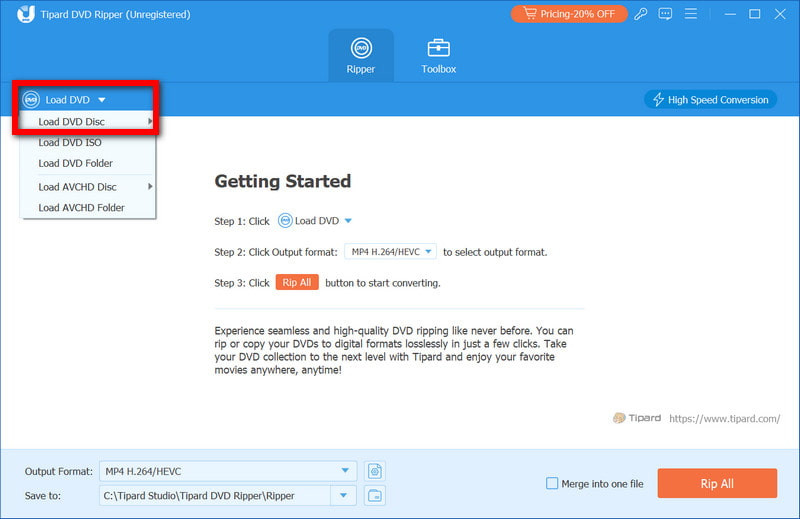
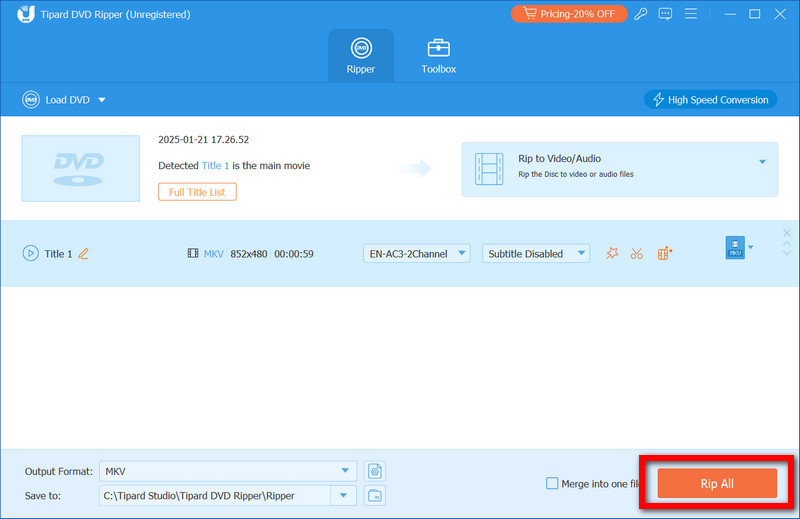
Step 3After the DVD loads, you will see all titles, chapters, and subtitles. Click Rip All to choose your output format, such as MP4, to convert your DVD for playback on any device.
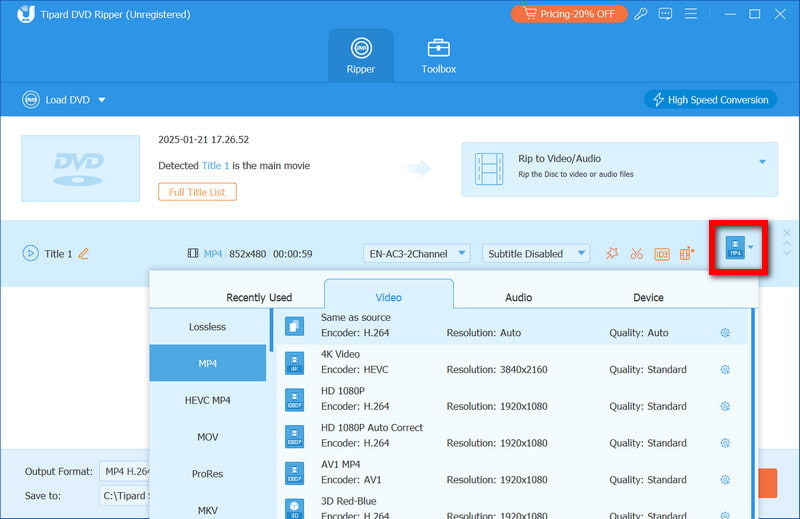
Step 4Pick a destination folder in Save to, then click Rip All. When it finishes, your digital files are ready to play on your Mac, iPhone, iPad, or other devices - no DVD needed.
Top 2: Handbrake
HandBrake is a free and dependable software to convert DVDs to MP4 for Mac, ideal for digitizing home DVDs into high-quality MP4 files. It enables them to customize video resolution, bitrate, audio tracks and subtitles so that it can be easily played in Mac, iPhone, iPad and other devices. The copy-protected commercial DVDs are not compatible with HandBrake, and yet it is a good choice in case a user wants to have fine control over output quality through a clean and lightweight interface.
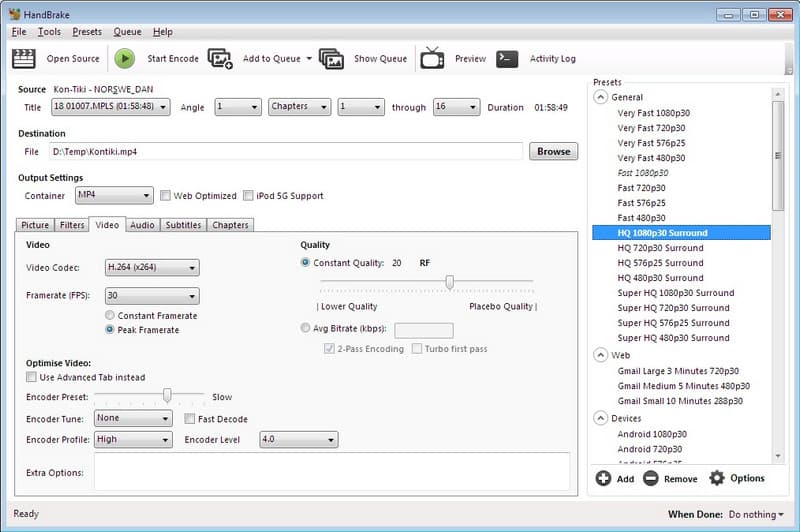
Step 1Download HandBrake for macOS from the official website. Install it by following the on-screen instructions, then open the program. Insert your DVD into a built-in or external DVD drive. Click Open Source and select the DVD to load its contents.
Step 2Select the main title you want to convert. In the Summary tab, choose MP4 as the output format. Modify video quality, resolution, audio tracks, or subtitles based on your playback needs.
Step 3Click Browse to pick a save location, then select Start Encode. Once complete, your MP4 file is ready to play on your Mac or other compatible devices. If the video is too large after ripping, then use Handbrake to compress the video.
Top 3: VLC Media Player
VLC Media Player is a free and dependable choice to convert DVD to MP4 on Mac when you need a basic and familiar tool. It can convert home DVDs and can give an option of titles, audio tracks and subtitles at the time of conversion. Since VLC is primarily a media player, it has limited control over output parameters, speed and format because the ripping capabilities are primarily used to play media. It also has a problem with discs that are copy-protected. Nevertheless, VLC is still an option when it comes to basic DVD decryptions in which no special ripping programs are installed.
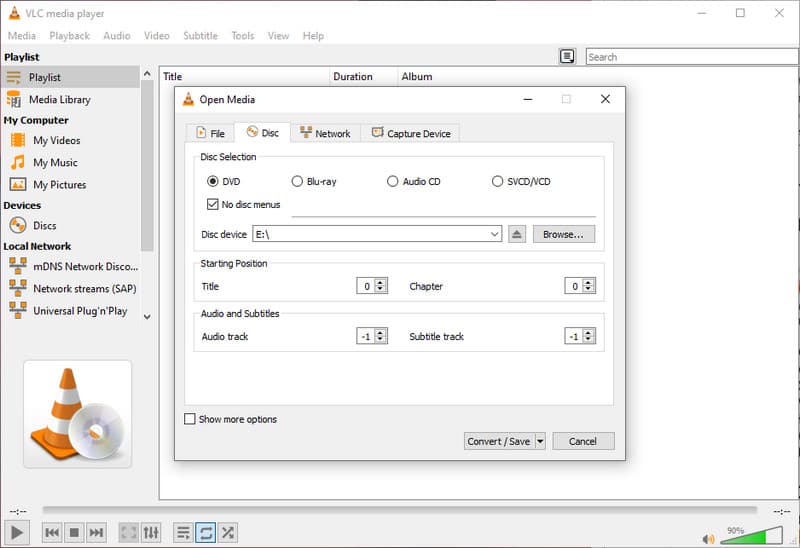
Step 1Install VLC Media Player for macOS from the official website. Open the program after installation. Place the DVD into your DVD drive or connect an external drive. From the top menu, click File, then choose Convert/Stream.
Step 2Select the Disc tab, choose DVD, and confirm the correct DVD drive. Click Open Media to load the disc content. In the conversion window, select MP4 as the output format. Select a destination file for the converted file.
Step 3Click Save or Convert to begin. Once the process finishes, your MP4 file will be ready for playback on your Mac or other supported devices.
Top 4: WinX DVD Ripper Platinum
WinX DVD Ripper Platinum is a trustworthy DVD to MP4 converter that Mac users trust to convert DVDs to MP4 within a short period of time and in a stable way. It is compatible with home and commercial DVDs, copy-protected and region-locked, and maintains the original video quality. Hardware acceleration makes sure that there is a high ripping speed with low system load. The software also has standard profiles of Mac, iphone, iPad and other devices, and thus the compatibility of MP4 files is easily created without involving complicated configurations.
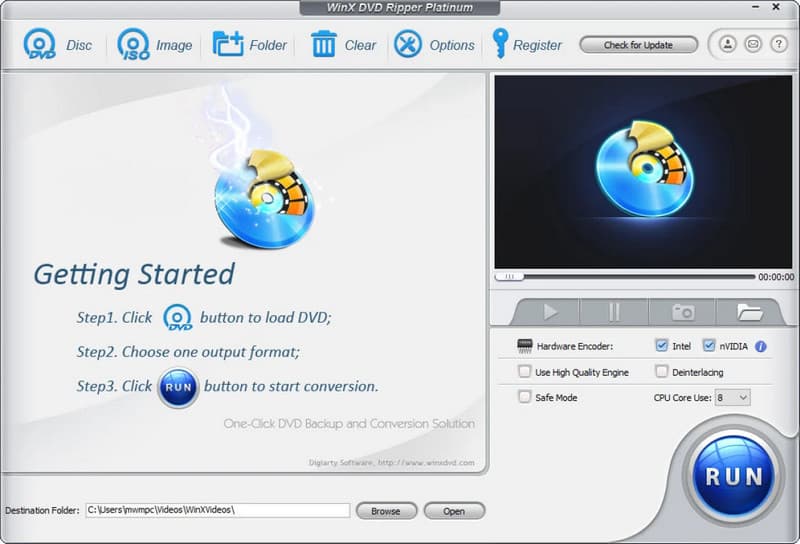
Step 1Download the macOS version from the official website. Install it by following the on-screen instructions, then open the program. Insert your DVD into a built-in or external DVD drive. Click the DVD Disc to load the content. You can also import a DVD ISO file or a DVD folder.
Step 2After the DVD loads, select MP4 from the output profile list. You may also choose a device preset optimized for Mac or Apple devices.
Step 3Optional settings allow you to change resolution, video quality, audio tracks, or subtitles before conversion. Select a destination folder and click Run to begin ripping. When the process finishes, your MP4 file will be ready for playback on your Mac or other supported devices.
Top 5: FFmpeg
FFmpeg is often considered the best DVD to MP4 converter for Mac among the advanced users who prefer complete control over video conversion. It is a command-line utility, and it allows one to finely encode video and audio, producing clear and accurate MP4 files. FFmpeg supports unprotected DVDs or home DVDs, as it does not support copy-protected DVDs. Although it does not have a graphical interface, it can still be a good choice when a user wants to have a lightweight and flexible application and does not want to install any extra programs.
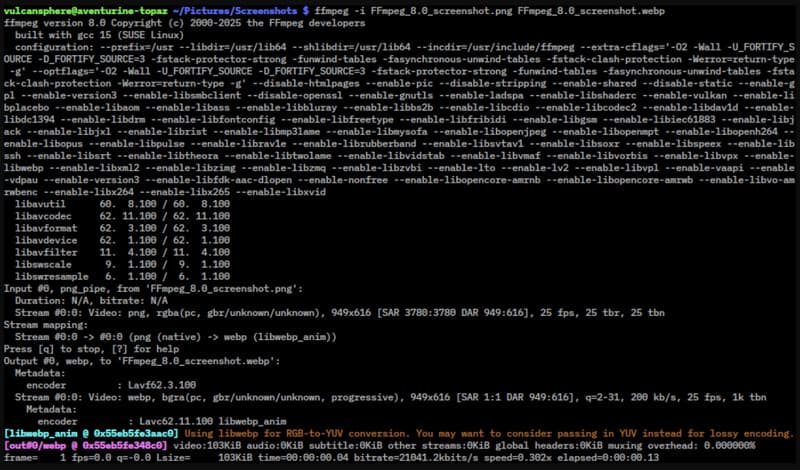
Step 1Open Terminal and install FFmpeg with Homebrew: brew install ffmpeg
Step 2Insert the DVD into your Mac or an external drive. The disc will appear under the Volumes folder.
Step 3Use the command below to convert the main DVD video to MP4:
ffmpeg -i /Volumes/DVD_NAME/VIDEO_TS/VTS_01_1.VOB -c:v libx264 -c:a aac output.mp4
Replace DVD_NAME and the VOB file name with the correct ones for your DVD.
Step 4Once the process finishes, the MP4 file will be ready to play on your Mac or other supported devices.
With the appropriate software, it is easy to digitize your DVDs. AVAide DVD Ripper and WinX DVD Ripper Platinum are quick and efficient, whereas HandBrake and VLC are free, and FFmpeg is advanced enough and available to professionals. Using trusted tools is the best way to convert DVD to MP4 Mac, keeping your videos high-quality and ready to play on any device.
Convert DVD to MP4, MOV, and 300+ formats on Mac and Windows with high quality and fast speed.