How to convert a DVD to digital? Turning your DVDs into a digital format is a wise choice if you want to preserve your content. Plus, it ensures that you can access and play your content wherever you are since digital files are more compatible with all media players and other platforms. Thankfully, this tutorial will teach you how to convert your DVD to digital using the best converters you can use on your desktop. Thus, read here and explore all the best conversion processes.
- Why Convert DVD to Digital
- What You Need to Get Started
- Method 1: Convert DVD to Digital with HandBrake (Free)
- Method 2: Convert DVD to Digital with AVAide DVD Ripper (Professional)
- Method 3: Convert DVD to Digital with VLC
- Method 4: Convert DVD to Digital with MakeMKV
- Method 5: Convert DVD to Digital with WinX DVD Ripper
- How About Professional DVD to Digital Services?
Why Convert DVD to Digital
Well, there are various reasons why you need to convert your DVDs into a digital format. Some of them are;
- Preservation - Converting DVDs to digital is ideal if you want to preserve your content. DVDs are degrading, and some computers and laptops don't support DVDs, making them hard to play.
- Convenience - Since digital files are more compatible, it is simpler to play videos on any platform.
- Space Saving - DVDs contain a large file size. Turning them into digital can help you balance the file size while enjoying the quality, and store files without worrying about the computer storage.
- Modern Compatibility - Nowadays, digital files are more compatible with devices than DVDs. It helps users to play videos smoothly.
- Sharing - Digital files are easier to share compared with DVDs.
What You Need to Get Started
- Hardware Requirements - You need a computer with a DVD drive. You can also access an external drive if your desktop doesn't have one.
- Software Options Overview - You need excellent software that can help you convert your DVDs into a digital format.
- Important Note on Copyright - Always remember that you can only convert content that you legally own. Also, avoid distributing copyrighted material without the real owner's consent.
Method 1: Convert DVD to Digital with HandBrake (Free)
Handbrake is one of the best tools you can access on your desktop to convert DVDs to digital. It has a simple user interface and a smooth conversion process, making it ideal for non-professional users. The only drawback here is that it only supports a limited number of output formats, such as MP4, MKV, and WebM. To use Handbrake to convert a DVD to MP4 and other formats, see the steps below.
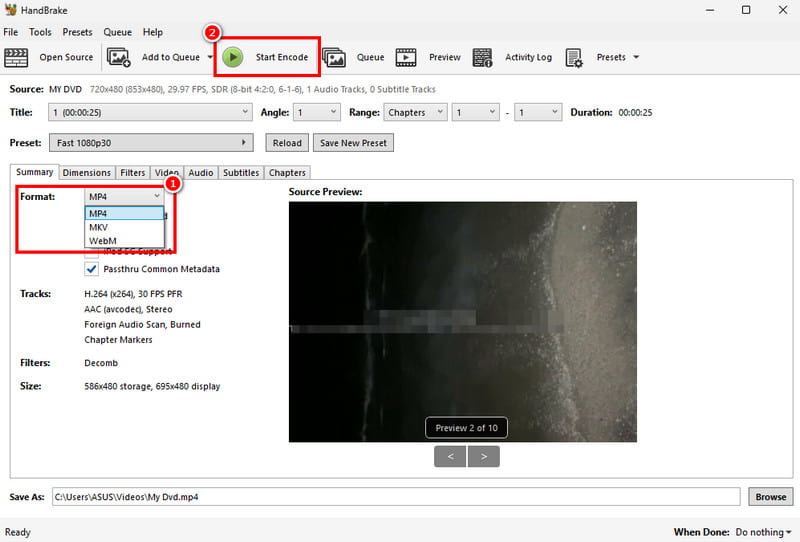
Step 1Download and install Handbrake on your desktop. After that, add the DVD you want to convert to start the process.
Note: Ensure that your DVD is already inserted into your computer.
Step 2After adding the DVD, you can go to the Format section and choose/pick your desired output format.
Step 3Finally, proceed to the top interface and hit Start Encode to begin the DVD-to-digital conversion process.
Method 2: Convert DVD to Digital with AVAide DVD Ripper (Professional)
Want to convert DVDs to MP4 and other formats? In that case, you can use AVAide DVD Ripper. With this program, you can ensure to digitize your DVDs smoothly and instantly. What we like here is that it has a comprehensive user interface, offers basic editing features to improve the video, and can save your video with the best quality for up to 4K. It can even offer numerous formats, such as MKV, AVI, FLV, MOV, M4V, WMV, and more. Thus, if you want to transcode your DVDs to your preferred format, look no further than AVaide DVD Ripper.
Step 1Download AVAide DVD Ripper on your computer. Then, run it after the installation process.

FREE DOWNLOAD For Windows 7 or later
 Secure Download
FREE DOWNLOAD For Mac OS X 10.13 or later
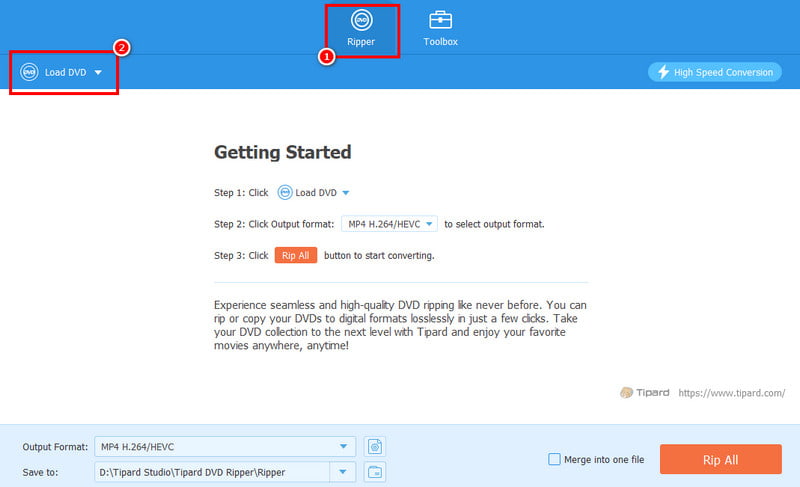
Secure DownloadStep 2Proceed to the Ripper section and tap Load DVD to start adding the DVD that you want to convert.
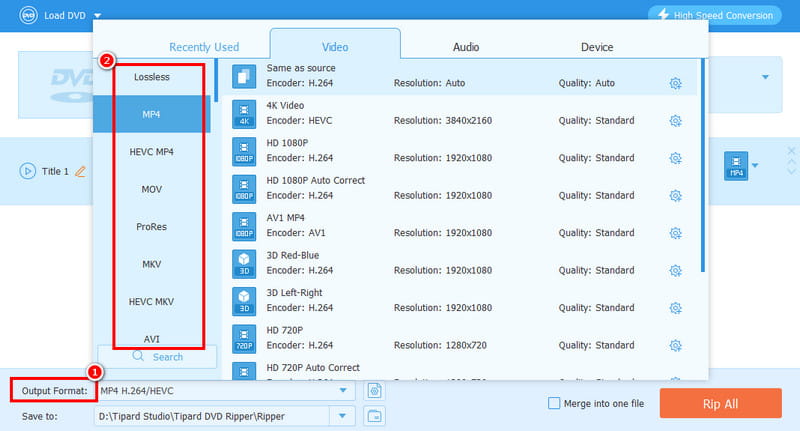
Step 3Go to the Output Format and choose your desired format and video quality. You can even choose a format with 4K quality.
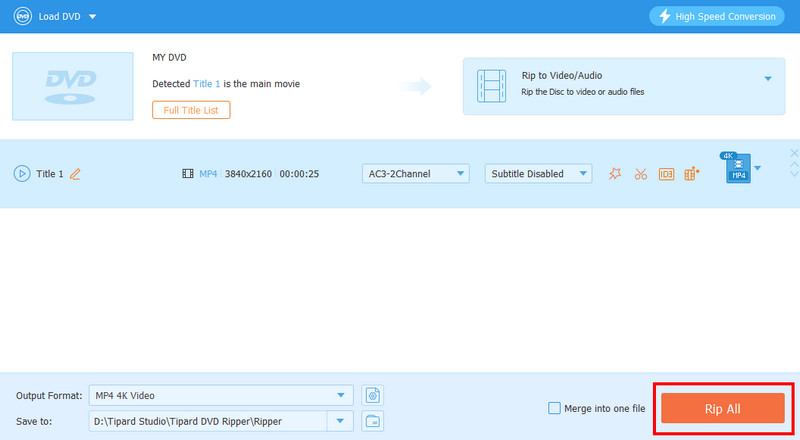
Step 4For the last step, tap the Rip All button to start digitizing your DVD to a digital format.
Method 3: Convert DVD to Digital with VLC
Another DVD to digital converter you can use is VLC. Aside from playing media files, you can also use its converter feature to turn your DVDs into video formats. The good thing here is that the conversion process is easy. It can also support other formats. You can convert DVDs to AVI, MP4, MKV, MOV, FLV, etc. The only problem here is that its UI is a little bit outdated, making it not that appealing to some users.
Step 1Download and install VLC. Then, go to the Media > Convert / Save options.
Step 2Go to the Disc section and tap Add to start adding the DVD. After that, click the Convert / Save button below.
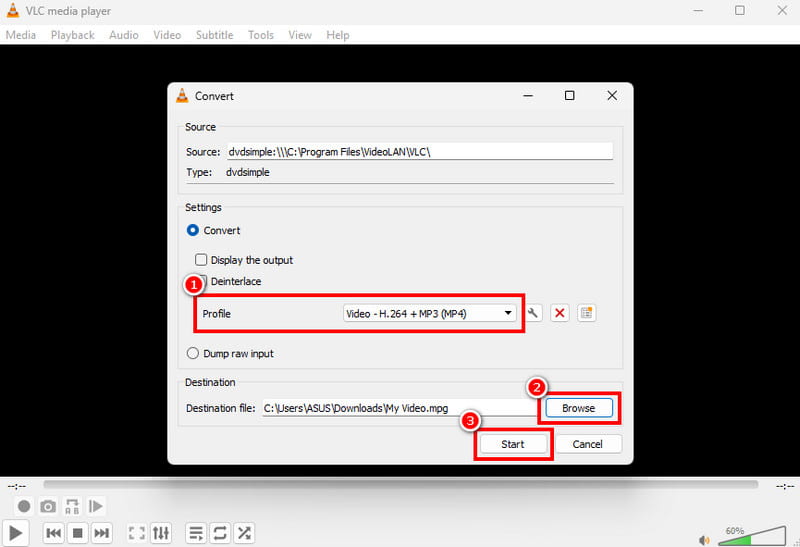
Step 3From the Profile section, select your preferred format. Hit Browse to choose the folder where you want to save the file. Lastly, hit Start to begin the conversion process.
Method 4: Convert DVD to Digital with MakeMKV
If you want to turn your DVD into MKV format, you can access MakeMKV. This software is ideal if your focus is on obtaining MKV files from DVDs. This tool is free to use, making it ideal and accessible to all users. To learn how to convert a DVD to digital, see the steps below.
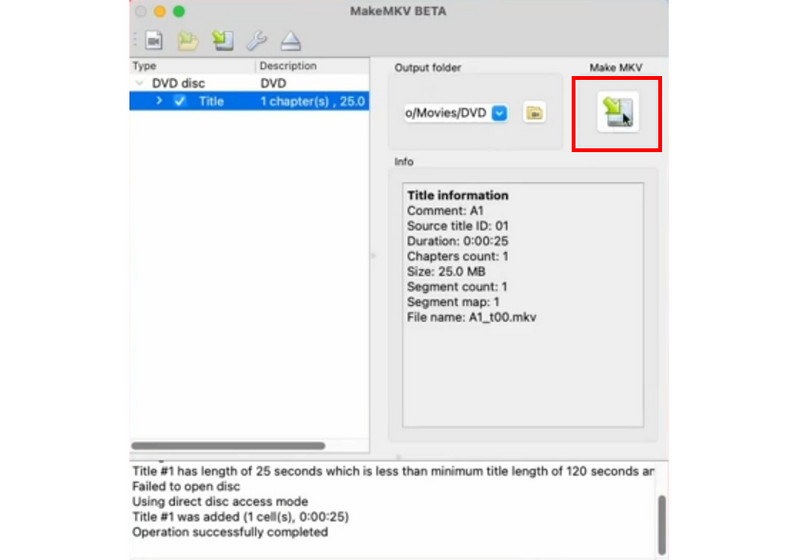
Step 1Access and install MakeMKV on your Mac or Windows. After that, add the DVD to the interface.
Step 2Once done, you can now start turning the DVD into MKV by clicking the Make MKV button from the right interface.
Step 3Finally, you can start watching the video on your media player.
Method 5: Convert DVD to Digital with WinX DVD Ripper
Another program you can use for the DVD-to-digital conversion process is WinX DVD Ripper. This advanced DVD-to-digital converter is perfect since it can give you all the features you need. You can choose your desired format, change the frame rate, bitrate, aspect ratio, and other parameters. The only problem here is that it is resource-intensive, so always use a high-spec computer for a smoother DVD-to-digital conversion process.
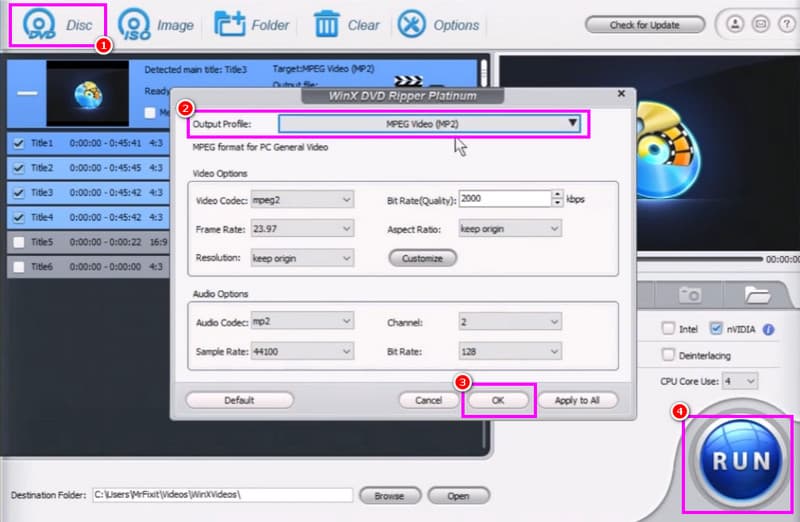
Step 1After installing and launching the WinX DVD Ripper, add the DVD by clicking the DVD buttons above.
Step 2Then, hit the Settings button to start selecting your preferred format under the Output Profile section.
Step 3Finally, click RUN to begin turning your DVD into digital.
How About Professional DVD to Digital Services?
Besides converting, you can also turn your DVD into digital by asking for assistance from professional DVD-to-digital services.
When to Use Professional Service?
If you have a large DVD collection and don't have all the needed hardware and software, it would be ideal to use a professional service.
Cost of DVD to Digital Conversion
The price will depend on the service/provider, the number of DVDs, and the output format. Some of the services charge a service fee per disc.
How to Find a Service Near You?
The best way to find a nearby service is to look for local electronic stores, video and photo service centers, or media conversion companies.
To transfer a DVD to digital formats, you can use all the methods we have provided in this tutorial. That way, you can digitize your DVDs and play them on various media players. Plus, if you want a better, smoother, and faster DVD-to-digital conversion process, we suggest using AVAide DVD Ripper. It ensures to give the result you want after the conversion process, making it a must-have converter for all.
ABOUT THE AUTHOR

Best tool for ripping and converting DVD Disc/Folder/ISO image file into over various formats.