Blu-ray discs come in various formats and capacities, offering diverse storage options for digital content. Understanding these formats and capacities is crucial, as it allows you to select the right disc for your specific needs. This write-up aims to provide a comprehensive overview of Blu-ray disc formats, capacities, and advantages. In addition, it offers a reliable method for creating and burning Blu-ray discs, ensuring a seamless and accurate process.
Part 1. Different Blu-ray Disc Formats
Blu-ray disc types offer various options for storing data, each with unique features catering to different needs. These formats include BD-R, BD-R DL, BD-RE, BDXL, and BD-ROM. Understanding these distinctions helps determine the best option for specific storage or entertainment needs.
1. BD-R (Blu-ray Disc Recordable)
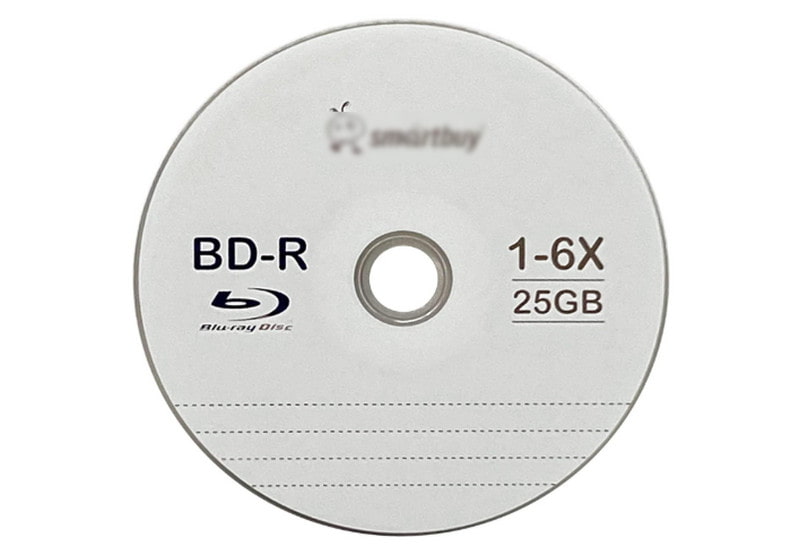
◆ Write-once format for data storage.
◆ Typically has a storage capacity of 25 gigabytes (single layer) or 50 gigabytes (dual layer).
◆ It cannot be erased or rewritten after data has been recorded.
2. BD-R DL (Blu-ray Disc Recordable Dual Layer)
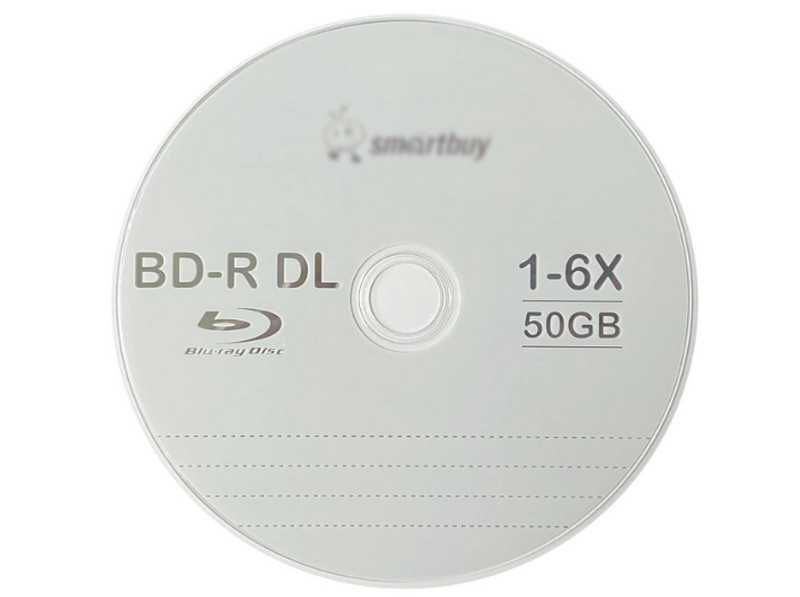
◆ Similar to BD-R but with a dual-layer configuration.
◆ It offers higher storage capacity, commonly around 50 gigabytes (single-sided).
◆ It is still a write-once format.
3. BD-RE (Blu-ray Disc Rewritable)
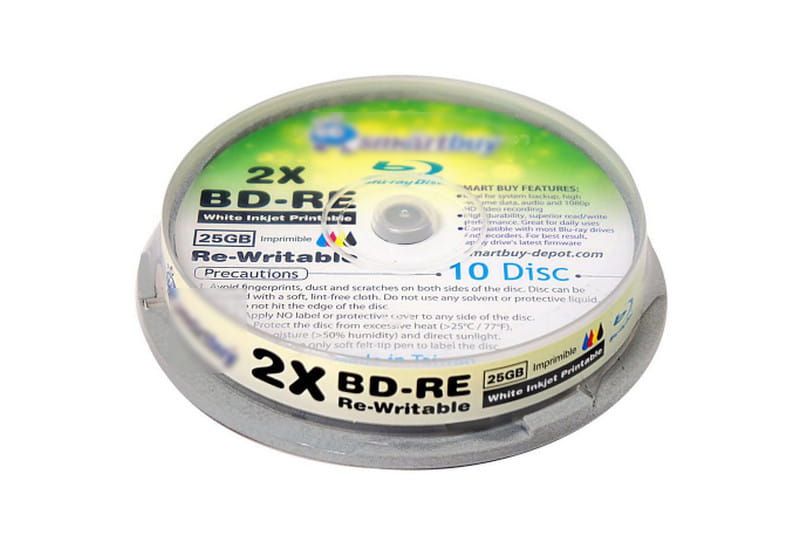
◆ Reusable format allowing data to be erased and rewritten multiple times.
◆ It has a capacity of 25 gigabytes (single-layer) or 50 gigabytes (dual-layer).
◆ It is suited for applications requiring frequent data updates or changes.
4. BDXL
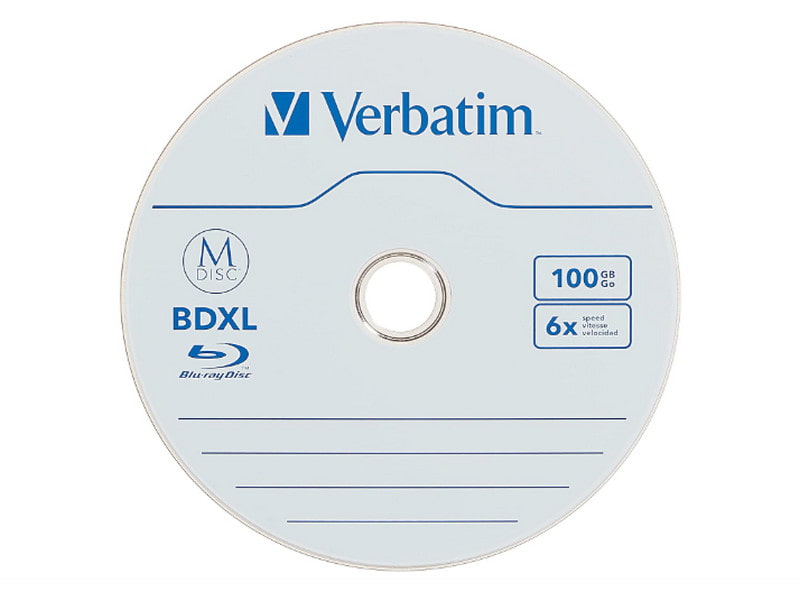
◆ It is commonly used for more extensive storage needs.
◆ It offers significantly higher capacities than standard Blu-ray discs.
◆ BDXL discs come in three sizes
5. BD-ROM
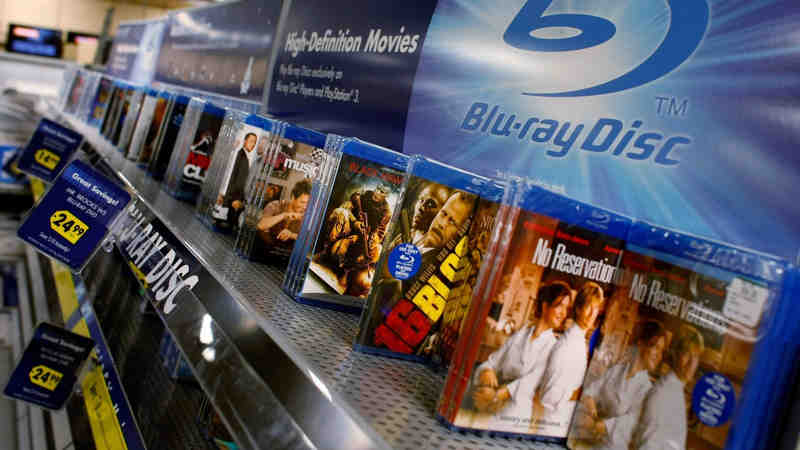
◆ It is primarily used for the commercial distribution of high-definition movies, software, and video games.
◆ Read-only format designed for pre-recorded content that cannot be erased or overwritten.
◆ It offers various capacities, typically 25 GB (single-layer), 50 GB (dual-layer), or up to 100 GB (triple-layer).
The comparison chart detailing different Blu-ray disc formats highlights key distinctions between BD-R, BD-R DL, BD-RE, BDXL, and BD-ROM. Exploring these differences can guide the choice of the most appropriate disc format.
| Format (Short) | Full Name & Specification | Layers | Rewritable | Supported Devices | Best For |
| BD-R | Blu-ray Disc Recordable | Single (SL) | No | Most | Permanent 1080p Video & Photo Backups |
| BD-R DL | Blu-ray Disc Recordable Dual Layer | Dual (DL) | No | Most | 4K Home Movies & Large Software Archives |
| BD-RE | Blu-ray Disc Erasable | SL / DL | Yes | Some | Temporary Storage & System Testing |
| BDXL | High Capacity Recordable | Triple / Quad | Varied | Specialized | Enterprise Cold Storage & 4K UHD Mastering |
| BD-ROM | Blu-ray Read-Only Memory | Varied | No | Some | Commercial Movie Releases (Retail Discs) |
Pro Tip: If you are archiving mission-critical data, consider M-DISC (BD-R). It uses a rock-like recording layer that is immune to light and temperature degradation, offering a lifespan of up to 1,000 years, whereas standard organic dye-based discs may last 10-20 years.
Part 2. Different Blu-ray Capacity
Blu-ray discs come in various capacities, ranging from smaller storage options like BD-5 and BD-9 to larger capacities like BD-25 and BD-50. These designations indicate the amount of data the discs can hold. It offers options for different media, software, and entertainment storage needs.
1. BD-5
This type of Blu-ray disc has a storage capacity of approximately 5 gigabytes. It is single-layered, meaning it has one layer where data is stored. BD-5 discs are commonly used for small-scale applications, such as distributing short videos or essential software.
2. BD-9
A BD-9 disc has a storage capacity of around 9 gigabytes. It is single-layered but can hold more data due to its increased capacity. BD-9 discs are often used for slightly larger content like modest-length videos or more complex software applications.
3. BD-25
This Blu-ray disc can hold approximately 25 gigabytes of data. It is a dual-layered disc featuring two layers for storing data. This increased capacity makes it suitable for storing high-definition movies, longer videos, or larger software packages.
4. BD-50
A BD-50 disc has a storage capacity of about 50 gigabytes. It is also a dual-layered disc with a larger storage capacity. BD-50 discs are commonly used for storing extensive high-definition movies, large collections of multimedia content, or software applications requiring significant storage space.
Part 3. Play Any Blu-ray Disc Without Restriction
Whatever Blu-ray disc type you have, you want to play your Blu-ray collection without any restrictions, including region codes and encryption. AVAide Blu-ray Player is the solution you need. With a disc drive connected to your computer, you can play your Blu-ray movies in this player software. It can automatically bypass region codes and encryptions and seamlessly open your discs. Its powerful, advanced hardware decoding can play large Blu-ray movies without lag or excessive CPU usage. Your computer will feel cool and let you run other background tasks.
- Play Blu-ray on your computer without lag or frame drops.
- Cinema-level 4K Blu-ray experience with Dolby audio effects.
- Support all Blu-ray formats - BD, BD-R, BD-RE, and even ISO files.
- Freely change the audio track or subtitles.
- Compatible with Windows and Mac.

 Secure Download
Part 4. How to Create & Burn Blu-ray Discs
Designed to help you create and burn Blu-ray discs, Tipard Blu-ray Creator offers several key features for creating high-quality Blu-ray discs from your video files.
This program can transform video formats such as MP4, AVI, MKV, WMV, and more into Blu-ray format for disc burning. It includes customizable menu templates for personalized disc interfaces and basic video editing functionalities for refining content before burning. It supports BD-25 and BD-50 disc types and maintains original video quality during the burning process. On top of that, it offers efficient burning capabilities at a relatively fast speed without compromising output quality.
Step 1Download and install the Tipard Blu-ray Creator on your Windows computer. Connect a blank or rewritable Blu-ray disc to your disc drive and connect it to your computer.
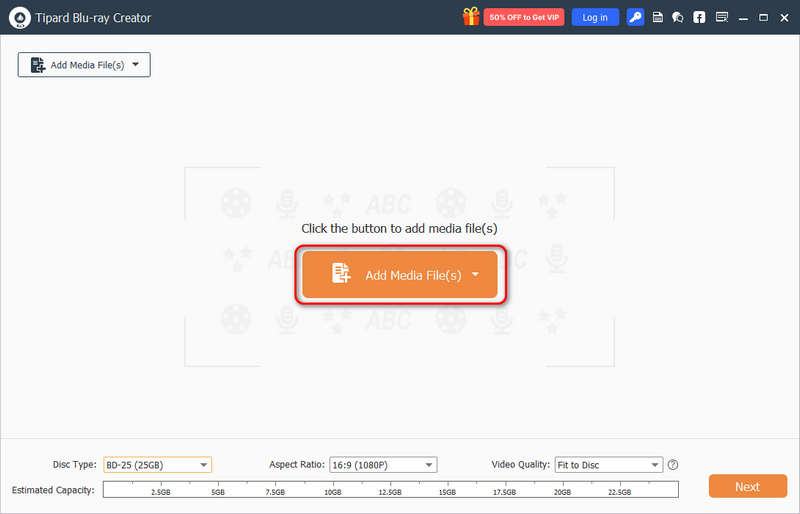
Step 2Open the Tipard Blu-ray Creator once it is installed. Click the Add Media Files button to select the video or files you desire to burn onto the Blu-ray disc.
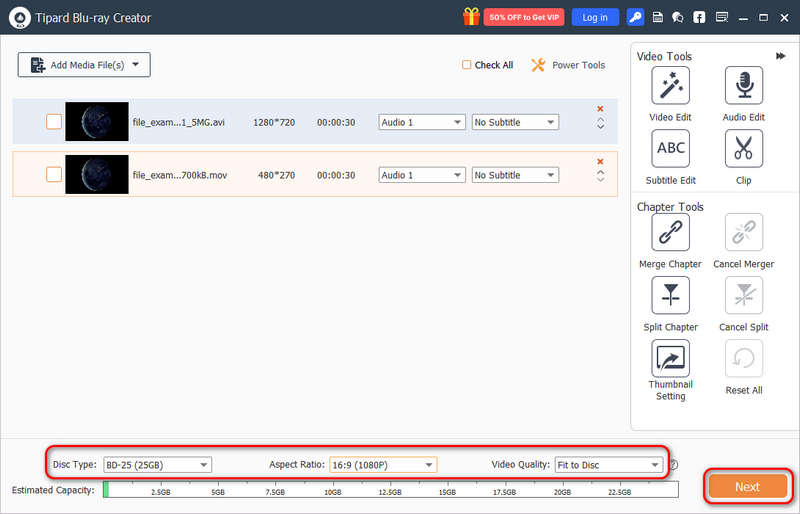
Step 3You can use the editing features on the right side to edit your video, audio, subtitles, and add filters. Also, you can use the Chapter Tools to arrange the Blu-ray chapters and titles.
Then, go to the bottom side, click the Disc Type button to select a desired Blu-ray capacity, like BD-25 and BD-50. You can also adjust the Blu-ray movie aspect ratio. What's most important is to ensure Fit to Disc in Video Quality. Then, click the Next button.
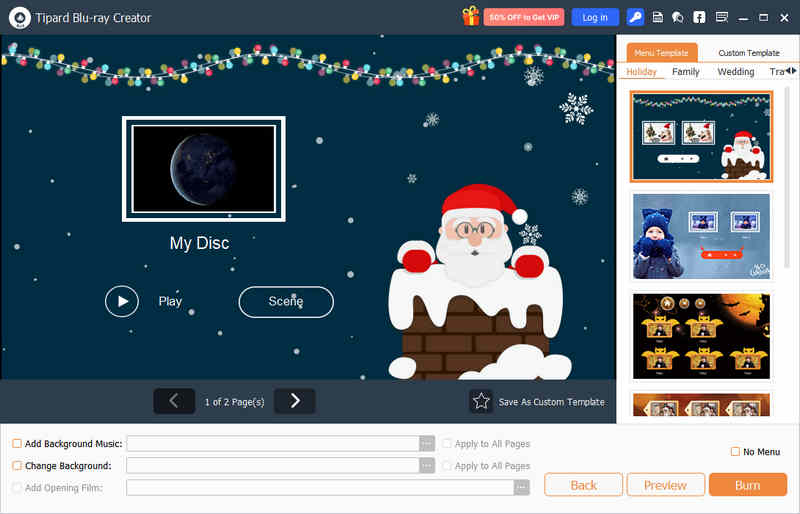
Step 4Select a desired free Blu-ray menu template. Then, you can adjust the background image, music, and Title name and position, and the positions of those buttons. Then, click the Burn button to go on.
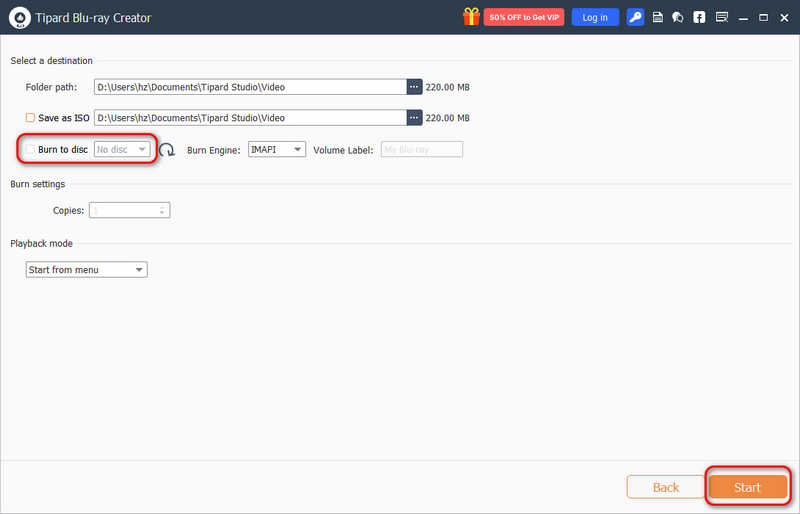
Step 5Select your disc drive (Blu-ray disc) and click the Start button burn or author your Blu-ray. This program can also help you create Blu-ray ISO and BDMV folder.
Part 5. FAQs about Blu-ray Disc Types
What type of storage media are CDs, DVDs, and Blu-ray?
CDs use a red laser and store around 700 megabytes to 1 gigabyte. DVDs use a red laser and can hold 4.7 gigabytes to 8.5 gigabytes. Lastly, Blu-ray discs use a blue-violet laser to store about 25 gigabytes up to 100 gigabytes or more.
What are the types of Blu-ray cases?
Blu-ray cases mainly come in two types: Standard Blu-ray cases and Slim Blu-ray cases. The Standard Blu-ray cases are the most common and hold a single disc. They have a blue transparent plastic outer cover. On the other hand, Slim Blu-ray Cases are thinner and more compact. It is commonly used for single-disc storage and is often preferred for its space-saving design.
Can all Blu-ray players play Blu-ray disc types?
Most Blu-ray players can play BD-ROMs. However, not all players can handle BD-R or BD-RE discs. It depends on the player's specifications. Always check the player's manual or specifications to ensure compatibility.
Can Blu-ray discs degrade over time?
Blu-ray discs can wear out in bright light or very hot, humid places. To make them last longer, keep them in their cases away from direct sunlight and hot or wet spots.
How to select a suitable Blu-ray disc?
Decide what you need it for, whether for movies, data, or recording. You can choose between BD-ROM, BD-R, or BD-RE. Check the disc's storage capacity based on your needs. Ensure your player or burner supports the disc type you want. Opt for higher-quality discs for movies or important data to ensure better performance and durability.
Understanding the various Blu-ray disc types and capacities is essential for choosing the correct disc to burn your physical media. Also, when you create a disc, you should select a Blu-ray burner that supports Fit-to-Disc, like Tipard Bu-ray Creator. If you want to play Blu-ray discs on your computer, we recommend AVAide Blu-ray Player because it can play almost all types of Blu-ray discs. Your bought, homemade, or highly customized Blu-ray discs can be played seamlessly with this player software. The excellent GPU decoding technology can play large Blu-ray movies without lag or stutter.
ABOUT THE AUTHOR

Full-featured multimedia player to play Blu-rays, DVDs, 4K UHDs, and other video/audio files.