When you are preparing photos for social media or a professional portfolio and notice acne, dark spots, or blemishes stealing attention, an image blemish remover can instantly fix these flaws, giving you smooth, polished, and high-quality photos effortlessly, whether you're editing on a phone, online, or desktop software.
Part 1. Why Do You Need a Photo Blemish Remover
Before we hear about the features of a blemish remover, it is best to discuss why it is crucial and essential to have it in the first place in editing photos.
• This tool keeps the audience's gaze concentrated on the subject when viewers see even the minutest physical features on a subject, such as acne, dark spots, and scars.
• This tool helps in smoothing and filling uneven, unsightly, and inconsistent skin textures. Blemish removers diminish skin unevenness due to the rupturing of breakouts, faded scars, and blemishes, leaving skin neat and polished.
• This tool helps in editing the photo, even with little to no background in photo editing. It works by identifying wrinkles, scars, and blemishes on the photo, eliminating the need for advanced photo editing.
• This tool helps in sustaining the consistency of photos from their previous uploads. It helps in making the photo clean, which is why many creators and influencers use it frequently.
• This tool lets imperfections fade while correcting other features in the photo. Out of other editing and photo retouching, this tool fixes a spot, changing the features in a photo more naturally and softly.
Part 2. Top 3 Photo Blemish Removers Free Online
1. AVAide Image Upscaler (Best Overall)
AVAide Image Upscaler is among the numerous photo retention applications to remove pores, sharpen and enhance details, and get rid of the blur to enhance the details of the face in a photo. It helps in making the photo cleaner by enlarging it to 8 times and removing the blemishes from the photo, too.
- Pros
- Images can have blurred areas removed and be denoised all with a single click.
- Extensive support for image file formats, and includes a batch processing feature.
- Completely free and accessible from any web browser with no downloading necessary.
- Does not add a watermark to images processed through the site.
- Cons
- Needs an active internet connection.
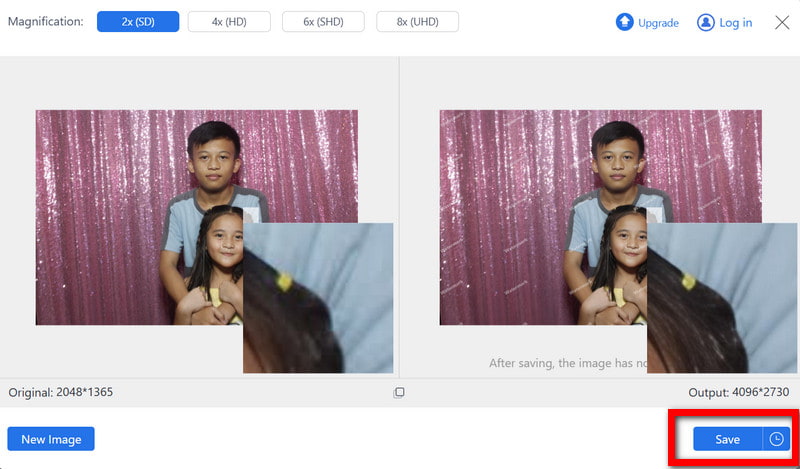
Step 1To get started, click Choose a Photo and select the file from your device.

Step 2Set your desired factor for upscaling to 2×, 4×, 6×, or 8×, and let the AI do its magic to enhance and smooth the image.
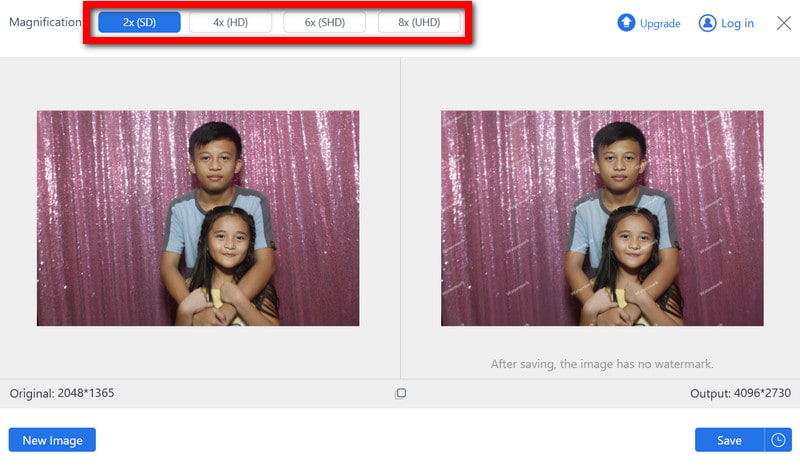
Step 3When the image has finished processing, save the transparent image to your computer using the Save button.
2. Fotor Blemish Remover
Fotor Blemish Remover uses AI to get rid of acne and dark spots quickly. The web app erases texture and smooths skin with no complicated editing necessary.
- Pros
- Utilizes AI to remove blemishes.
- Utilizes AI to remove blemishes and offers manual spot correction.
- Can be used on both desktop and mobile.
- Cons
- There are ads in the free version.
- The quality of the exported content is somewhat compressed.
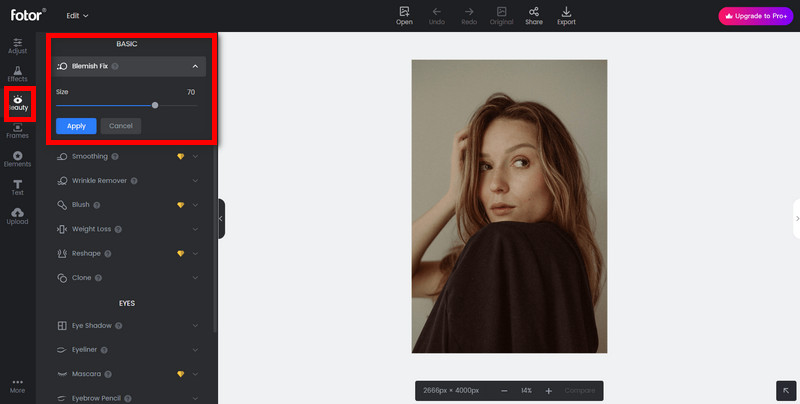
Instructions: Users can upload a picture by clicking the Edit and then the Upload Image buttons, select the Blemish Fix tool from the retouch menu, and apply the tool to the target areas. Wait for the AI to process the cleanup, and then click the Download button to get the refined image on your local storage.
3. Evoto Online AI Blemish Remover
Evoto Online uses AI technology to modify pictures by removing imperfections and increasing the clarity of the portraits. It is suitable for creators managing large image sets because it allows batch uploads and editing several pictures at once.
- Pros
- Supports JPG and WEBP output.
- Blemish removal is fully automated.
- Cons
- Outputs have a watermark.
- No options for manual editing.

Instructions: Select the Upload Image button to submit your image. Once the AI has removed the blemishes, press the Download button to gain access to your enhanced image that has been cleaned and is on your device.
Part 3. Top 2 Photo Blemish Remover Apps on iOS and Android
1. FaceTune
Mobile retouching app FaceTune is widely used to edit, remove imperfections, smooth the skin, and adjust the color. The tools Vanish and Smooth give a quick, natural finish to selfies and social media pictures by removing the acne, scars, or marks.
- Pros
- Gives the user a real-time preview of the before and after in this photo retouch app.
- Available for editing photos and videos.
- Cons
- Limited features for users on the free version.
- The free version is ad-supported.
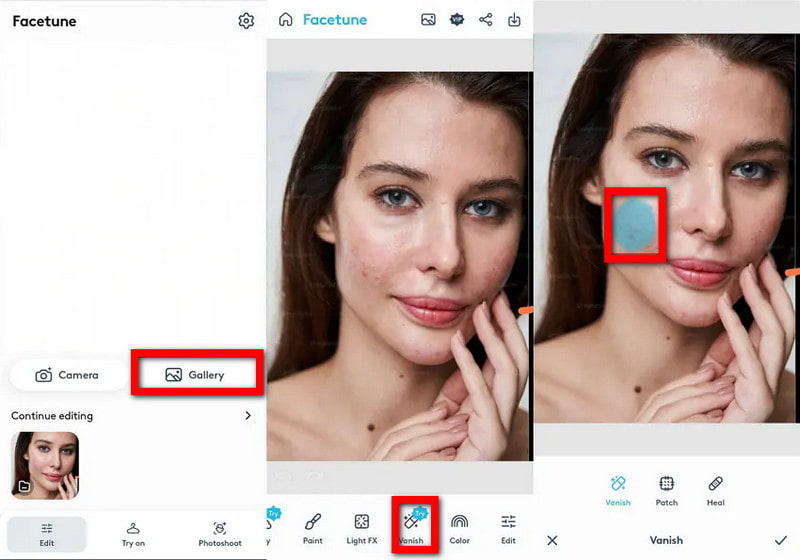
Instructions: In the app, you must import the image you want to edit. The Vanish tool can be used by tapping and brushing over the area that contains blemishes. Once the area is devoid of marks, click the ✓ button and save your edited image.
2. AirBrush
AirBrush is an easy-to-learn, user-friendly application that allows you to retouch skin with natural results. The tools named Acne and Blemishes can either remove skin imperfections with one simple tap or permit individual changes so that correction can be customized.
- Pros
- One-tap blemish removal with AI.
- Manual editing tools for detailed corrections.
- Fast processing even on low-end phones.
- Cons
- Some filters and retouching tools require Pro access.
- Occasional pop-up ads.
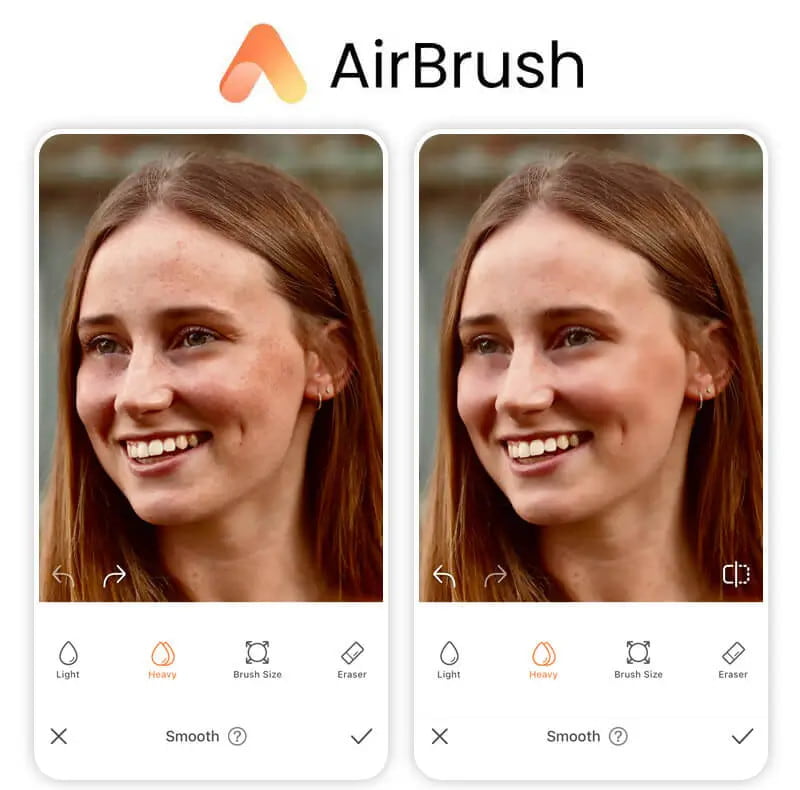
Instructions: Once inside the app, to retrieve an image, find the Acne or Blemishes tool, and tap on the skin imperfections that you want to remove on the image. Click the Save or ✓ button to finish downloading the retouched image to use in your gallery.
Part 4. Top 3 Photo Blemish Removers on Windows and Mac
1. Photoshop
In the world of editing, Adobe Photoshop is regarded as the best in the game for removing and fine-tuning skin. There are no blemishes or skin imperfections that can be seen after using the Spot Healing Brush and Healing Brush tools because the removal configures skin texture with respect to the quality of the photo to be used.
- Pros
- Professional-grade blemish and skin-retouching tools.
- Brush size and hardness can be customized.
- Ideal for portraits, fashion, and commercial photos.
- Cons
- Paid software after trial.
- Learning curve for beginners.
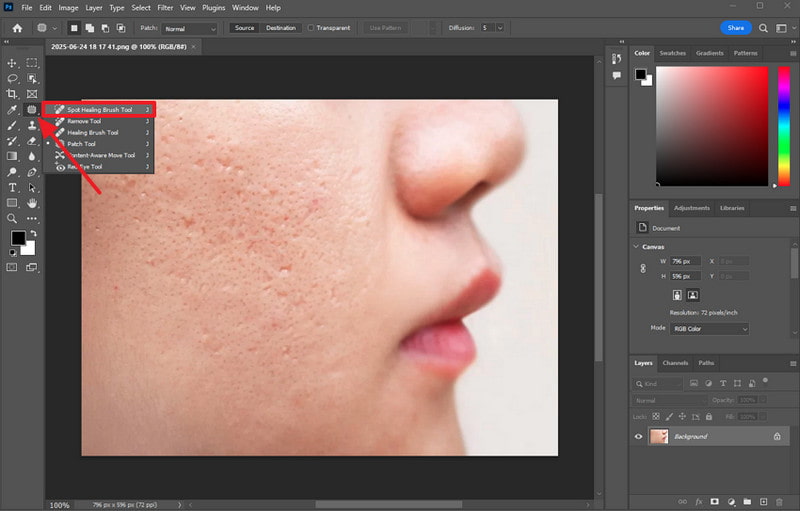
Instructions: Use the Spot Healing Brush Tool, where you can press J to use it on the keyboard, and then paint over the skin blemishes that you want to remove. The edited image can be saved by using the File > Save As option after making sure that all the blemishes have disappeared.
2. Luminar Neo
Among a variety of photo editors, Luminar Neo is an AI-driven photo editor that has an Eraser tool that can get rid of skin imperfections. It has even more tools, including skin smoothing, portrait lighting, and face enhancement, making it an ideal editor for portraits.
- Pros
- Instant detection and removal of skin blemishes.
- Ability to control the manual brush in areas that need more precision.
- The final result is natural and of high quality.
- Cons
- The customer has to pay for some features as they are in extensions.
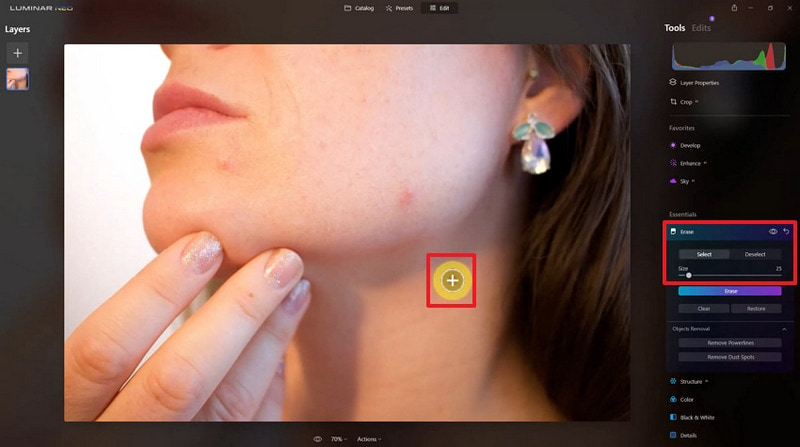
Instructions: Open Luminar Neo and upload the photo you want to edit. Click on the Eraser tool. In the blemished area, change the size of the brush and outline it. Select the Erase button, let the AI process the photo, and upload it to your computer.
3. Movavi Picverse
Movavi Picverse is an AI-powered photo enhancer that improves portrait quality by removing blemishes, smoothing skin, and sharpening details. It can remove image noise and supports multiple file formats, handling high-resolution images efficiently.
- Pros
- Batch processing is supported for multiple photos.
- AI automatically removes imperfections and noise.
- User-friendly interface for beginners.
- Cons
- Requires installation.
- Some advanced features are paid.

Instructions: Open Movavi Picverse and select the Portrait Enhancer tool. Upload your photo, choose the AI enhancement settings, click Enhance, and once finished, press Save to export the improved image.
A photo blemish remover is essential for creating polished, professional-looking images. Whether using online tools, mobile apps, or desktop software, these solutions make it easy to enhance skin, remove imperfections, and improve overall photo quality.
ABOUT THE AUTHOR


Our AI technology will automatically enhance the quality of your images, remove noise and fix blurry images online.
PROCESS NOW