A white background can highlight the product, get an ID photo past those plain-background rules, or just give the image a clean, consistent look. You get there by cutting out the existing background and swapping in pure white. In this guide, we will walk you through 4 ways to make an image background white: free online tools, Photoshop, or decent mobile apps.
- Part 1. When You Need a White Background: Common Scenarios
- Part 2. Make a Picture Background White Online with AVAide Background Eraser
- Part 3. Make a Photo Background White in Adobe Photoshop
- Part 4. Make the Background of an Image White with Fotor
- Part 5. Make an Image Background White with Snapseed
- Part 6. How to Choose the Right Method
- Part 7. FAQs About Making a Picture Background White
Part 1. When You Need a White Background: Common Scenarios
White backgrounds are useful for making Amazon product images, ID/passport photos, clean designs and more.
Amazon Listing
A pure white background is required for all Amazon main product photos. Make sure the color code is Hex #FFFFFF and RGB 255, 255, 255. JPEG is usually fine; keep the resolution high. Double-check the specific category guidelines because Amazon can be picky, and the product itself needs to fill at least 85% of the entire photo and stay clear against that true white background.
ID/Passport Photo
ID or passport photos are usually white, as in the US, Canada, India, China, Japan, and South Korea. But don't just assume plain white is okay everywhere. For instance, France forbids a pure white background. Instead, it requires light blue or light gray. Look up the current rules for whatever document you're applying for.
Presentation/Artworks
For slide images or art designs, pure white (#FFFFFF) keeps things clean. Small tip though: a slight off-white in a complementary color can make your main subject pop even more. Like, if the subject is mostly orange, try a light blue background rather than plain white. Export-wise, JPG is fine for regular photos, but PNG is better if you need crisp edges.
Part 2. Make a Picture Background White Online with AVAide Background Eraser
AVAide Background Eraser is a free online photo-editing tool which uses AI and automated background removal technology. It can clear image background or change picture background for any need with just 1 click. This useful tool has the ability to edit the background on any image format, such as PNG, JPG, JPEG, GIF, etc.
Step 1Upload a photo and AVAide Background Eraser will automatically start cutting out the main subject.
Step 2If the automatic result is not clean enough, you can refine the edges manually with the Keep or Erase brush at the top-left.
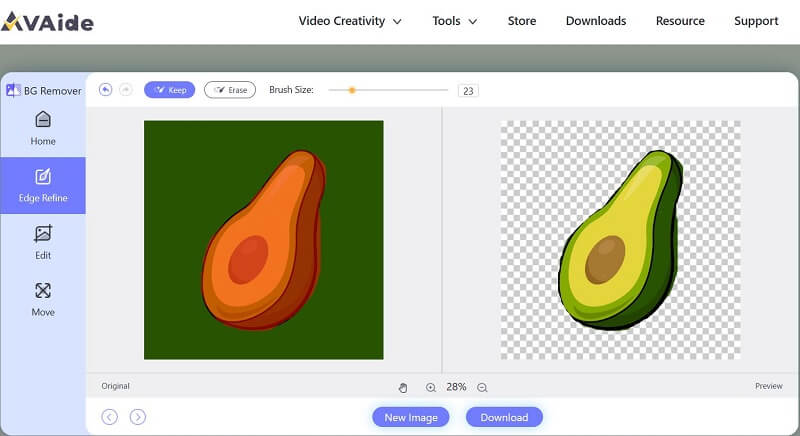
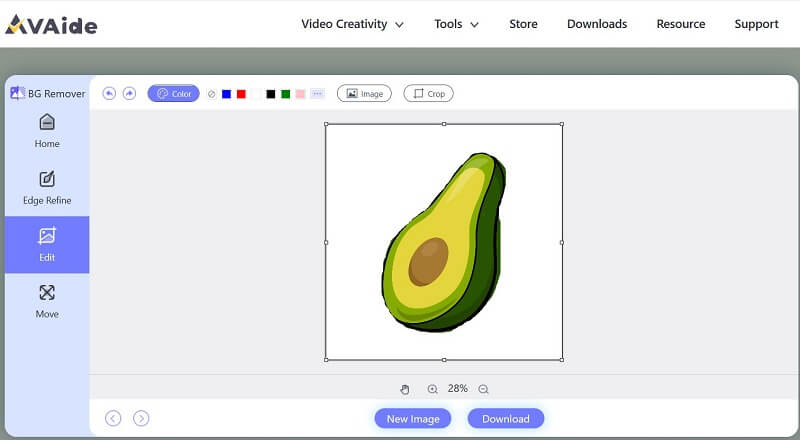
Step 3Click the Edit tab on the left. In the top menu, choose the white color to be the new background. Finally, click Download at the bottom.
Part 3. Make a Photo Background White in Adobe Photoshop
Adobe Photoshop is a renowned graphic editing software that has been an industry standard for decades. It provides a comprehensive suite of features and tools for manipulating and enhancing images. Both greenhands and professionals can use Photoshop to create graphics that meet their needs. One of the most popular tools in Photoshop is to change or replace the background of an image. There are a few different ways to turn a background white in Adobe Photoshop, and we are going to introduce one of them. If you are interested in this, you can explore more useful ways.
Step 1Open your image in Photoshop. You can duplicate the original image layer in case the original image file is changed permanently.
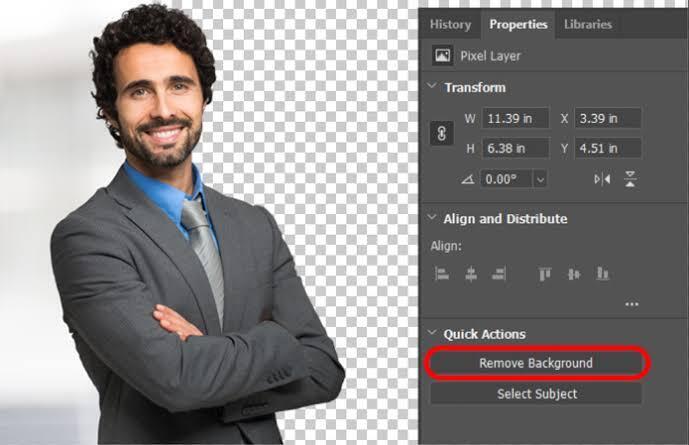
Step 2Go to the Window tab on the top bar, and check Properties to open the Properties panel. Then, under Quick Actions, click Remove Background. Photoshop automatically detects and erases the background, leaving the area transparent.
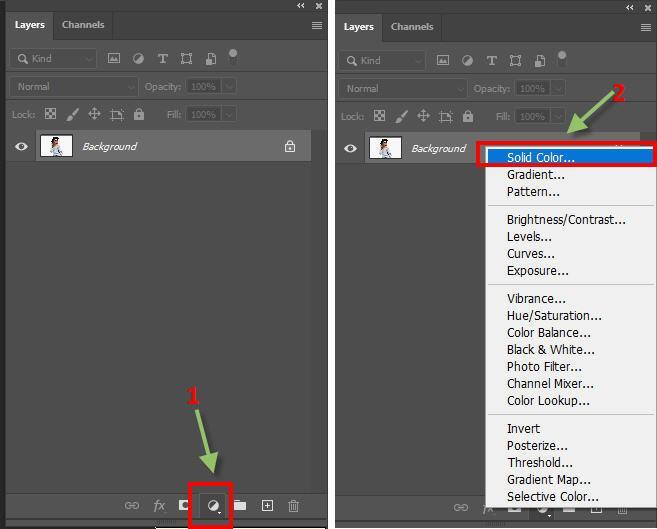
Step 3In the Layers panel, click the Create New Fill button (the circle that is half black and half white) and choose Solid Color from the top of the menu.
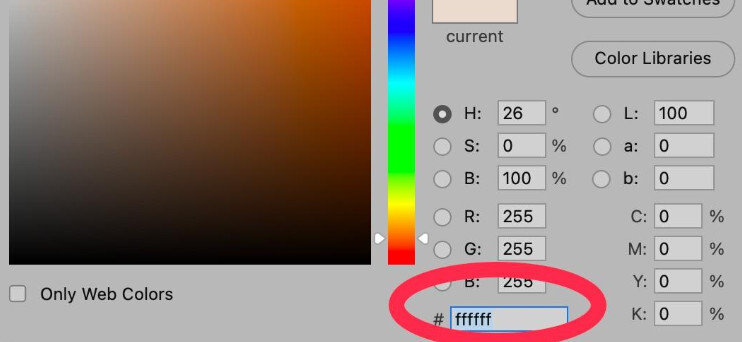
Step 4When the Color Picker opens, set the color to pure white by typing #FFFFFF into the box at the bottom. Place the new layer below the subject layer.
Part 4. Make the Background of an Image White on iPhone/Android with Fotor
In the above two ways, we introduced how to convert the background color to white on the webpage and by using computer software. You may wonder how to make the background white on iPhone and Android. Here is the answer. Fotor is a photo-editing app that offers many different tools for enhancing photos. It has some very useful and user-friendly functions. Converting the background to white is one of the basic functions.
Step 1Download and open the Fotor app on your iPhone or Android phone..
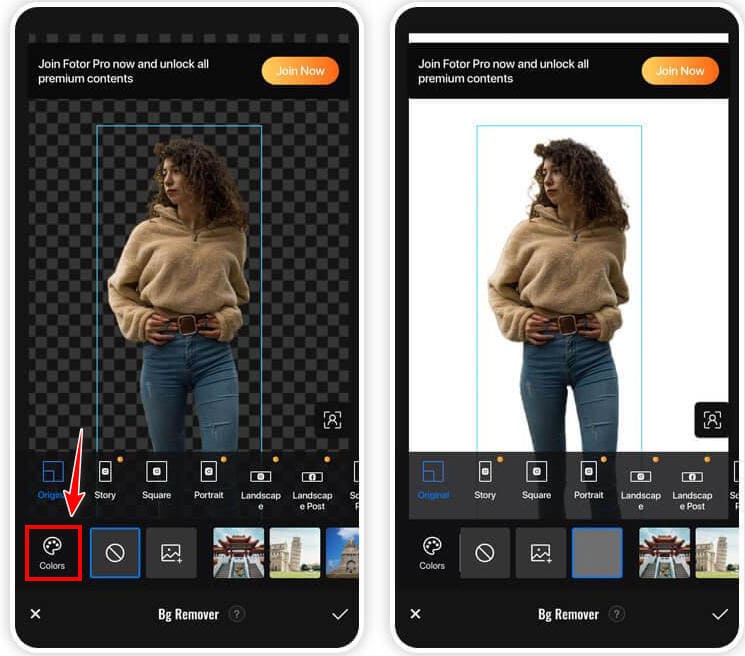
Step 2Tap the Edit button. In the AI Cutout tab at the bottom, tap BG Remover.
Step 3After removing the original background, tap the Color button to change the background to white.
Part 5. Make an Image Background White with Snapseed
Snapseed is a versatile and user-friendly photo editing application designed to empower users to enhance, transform, and perfect their photos with ease. It provides a selection of creative filters and effects, allowing you to add artistic flair to your photos. Furthermore, the user-friendly interface and intuitive touch controls make it easy to navigate and apply edits precisely where you want them. As for converting the background function, Snapseed is a little bit different from other tools.
Step 1Open an image in Snapseed on your Android or iPhone.
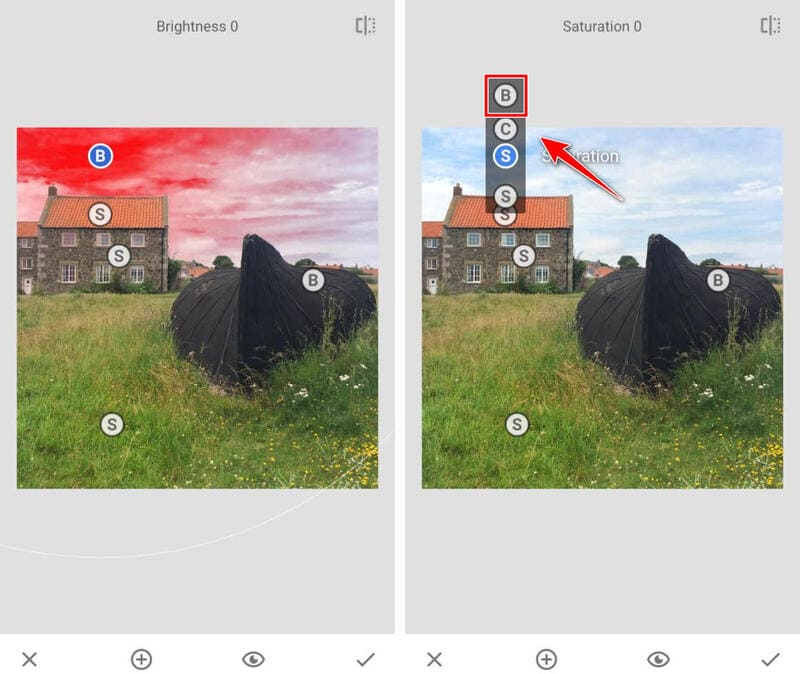
Step 2Tap Tools at the bottom, select Selective, and tap the plus button. Tap an area of the background to add a control point.
Step 3Swipe up or down on the control point and select Brightness. Then swipe right to increase the brightness, up to +100. You can add more control points or pinch with two fingers to adjust the affected area if needed.
Part 6. How to Choose the Right Method
| Need | Recommended Method | Why | Watch Out For |
| Amazon product photo | AVAide Background Eraser or Fotor | Fast cutout + white background replacement | Confirm the current Amazon category requirements and use the required image specs. |
| Passport / ID photo | Photoshop or Fotor | Better control over exact framing and background cleanup | The issuing authority may require white or off-white backgrounds, specific dimensions, head position, and other rules. |
| Presentation image | AVAide Background Eraser or Fotor | Quickly creates a clean white subject background | Use PNG when you need crisp edges or future editing; use JPG for ordinary photos. |
| Complex hair / edges | Photoshop | Layer masks and manual brush refinement give you more control | Requires more time and a paid desktop workflow. |
| Edit directly on a phone | Fotor or Snapseed | Both work on mobile; Fotor is more direct for background changes | Snapseed requires more manual masking work. |
How to choose:
- If you just need the quickest route from upload to a clean white background, go with AVAide Background Eraser.
- Want to swap the background and do some extra editing in the same tool? Fotor's the better pick.
- When the edges have to look perfect, and you want full manual control, nothing beats Photoshop.
- And if you're stuck on mobile and don't mind putting in a bit more work by hand, Snapseed can get the job done as a workaround.
Part 7. FAQs About Making a Picture Background White
What background color is preferred for an ID photo?
In the majority of cases, ID photo background color should be white or light grey. In some countries, however, you might need blue background passport photos or red background passport photos.
Can I make the background transparent?
Yes. It is better to use a PNG format image to edit. You can use AVAide Background Eraser to remove the background with one click and therefore get a new image with the transparent background.
Can I edit the picture background to other images?
Yes. There are several graphic-editing tools that encourage users to give full scope to their imagination and creativity and to edit the picture background in an innovative way. For example, Picsart and AVAide Background Eraser.
Is Photoshop free for making a white background?
No. Photoshop is a paid desktop editor. It can be used for this task, but it should not be described as a free method.
Should I save a white-background photo as JPG or PNG?
JPG is a practical default for ordinary photos and many upload workflows. PNG is useful when you need a lossless file or plan to continue editing the image.
Why does my white background look gray instead of pure white?
The replacement color may not be pure white, or the original background may contain shadows and color spill around the subject. Set the new background to #FFFFFF and refine the edges.
Making a picture's background white usually takes two steps: strip out the original background, then drop in a white one. For speed, just use an online tool like AVAide Background Eraser. If you need more control, Photoshop's the way to go. Fotor and Snapseed work fine if you're doing it on your phone. One heads-up though: if this is for something regulated like product listings or ID photos, double-check the destination's current image requirements before you export.
ABOUT THE AUTHOR


Uses AI and automated background removal technology to capture complex backgrounds from JPG, JPEG, PNG, and GIF.
PROCESS NOW