Slik spiller du inn musikk på en iPhoneDet er enkelt å spille inn favorittmusikken din, takket være telefonens forhåndsbygde funksjoner og pålitelige apper. Enten du spiller inn en kort sang, spiller instrumentale spor eller spiller inn samtaler, kan iPhonen din tilby fleksible alternativer som kan hjelpe både nybegynnere og profesjonelle. Så hvis du ønsker ulike metoder for å spille inn musikken din effektivt, er det best å begynne å lese alt i denne veiledningen.
Del 1. Spill inn musikk på iPhone ved hjelp av den innebygde talememo-appen
En av MP3-opptakerappene for iPhone du kan bruke til å spille inn musikk er Voice Memos-appen. Det er en innebygd app du har tilgang til på iPhone-enheten din. Denne musikkopptakeren lar deg spille inn og fange opp alt lydinnhold tydelig og umiddelbart. Den er ideell for å notere ned sangideer, melodier og fulle øvingsøkter. Det beste her er at appen har et intuitivt brukergrensesnitt. Du kan enkelt trimme det innspilte innholdet ditt, organisere og dele det uten problemer. Også for musikere som ønsker å ta opp lyd på en iPhone, kan vi ikke si at Talememo-appen kan være det ideelle verktøyet.
For å lære hvordan du spiller inn en MP3-fil på en iPhone, kan du følge de detaljerte trinnene nedenfor.
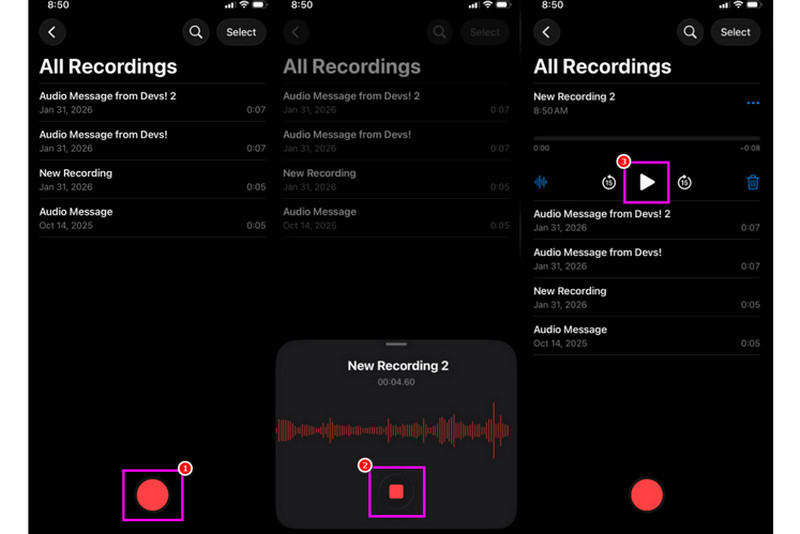
Trinn 1På iPhonen din, fortsett til Verktøy seksjonen og trykk på Stemmememoer app. Sørg deretter for at musikken du vil spille inn allerede er klargjort.
Steg 2Etter det, fortsett til det nederste grensesnittet og trykk på Ta opp knappen. Når du er ferdig, kan du spille av musikken på iPhonen din eller på en annen enhet.
Trinn 3Når du er ferdig med opptaket, trykker du på Stoppe knappen. Med det kan du nå spille inn musikken din. Du kan til og med redigere eller dele filen hvis du vil.
Del 2. Ta opp musikk med GarageBand
Vil du lage din egen musikk og spille den inn for å lagre den på enheten din? I så fall kan du få tilgang til GarasjebandDette er en gratis app som sikrer at du kan spille inn musikk på iPhonen din. Med opptaksfunksjonen er det ingen tvil om at det er enkelt å spille inn musikk. Du kan til og med få tilgang til diverse instrumenter du kan bruke hvis du vil lage din egen musikk. Så hvis du trenger en alt-i-ett-innspillingsløsning, bør du vurdere å bruke denne applikasjonen.
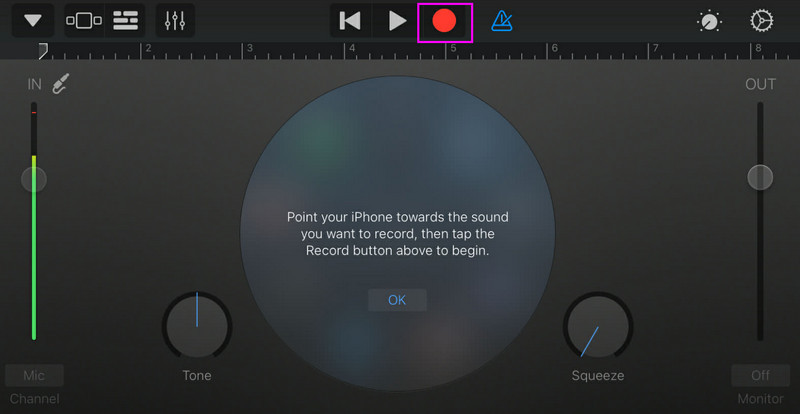
Trinn 1Gå til Apple-butikken og begynn å laste ned GarasjebandKjør den på enheten din etter installasjonen.
Steg 2Fra grensesnittet må du velge og trykke på LydopptakerDeretter vil hovedgrensesnittet vises på skjermen.
Trinn 3Start innspillingen av musikken din ved å trykke på Ta opp knappen ovenfor. Trykk deretter på Stoppe for å fullføre opptaket.
Del 3. Flersporsopptak med tredjepartsapper
GarageBand er nyttig for musikkinnspilling. Det finnes imidlertid flere apper du kan bruke som kan brukes spesifikt til ulike stiler innen låtskriving, sporing og samarbeid på tvers av plattformer. Noen av appene er:
- BandLab - Dette verktøyet er ideelt for skybasert samarbeid. Det er perfekt for musikere siden det har bedre funksjoner, som masteringsalgoritmer, et omfattende loopbibliotek og multiopptak.
- FL Studio Mobil - Dette er et abonnementsbasert verktøy. Hiphop-, elektronika- og popprodusenter foretrekker det.
- Cubasis 3 - Det er et profesjonelt studioalternativ portert over fra Cubase til skrivebordet. Verktøyet kan tilby elite MIDI-redigering, ubegrenset lydspor og flersporsopptak, noe som gjør det til et ideelt verktøy for brukere.
Effektiv måte å spille inn musikk på en stasjonær datamaskin
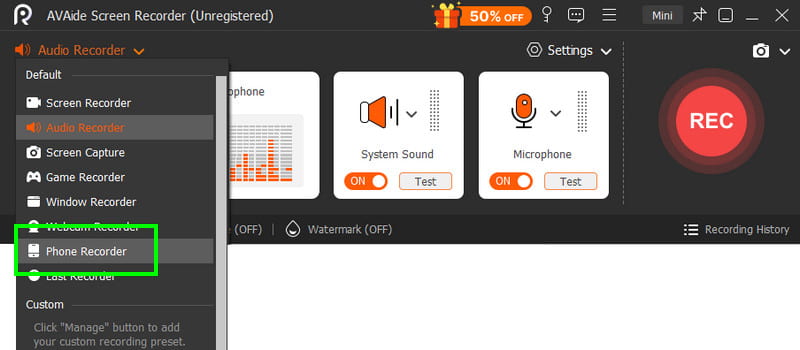
Leter du etter en skrivebordsbasert opptaker som kan hjelpe deg med å spille inn musikken din? I så fall kan du få tilgang til AVAide skjermopptakerDette programmet tilbyr Phone Recorder for å spille inn musikk fra iPhonen din. Denne programvaren er ideell hvis du vil lagre opptaket direkte på datamaskinen. Det vi liker her er at denne opptakeren kan gi deg en smidig og enkel opptaksprosess, takket være det intuitive brukergrensesnittet. Dette programmet sikrer også at du kan lagre lyden med den beste kvaliteten, opptil 320 kbps, noe som fører til bedre lydavspilling. Du kan til og med redigere lyden din basert på dine preferanser, noe som gjør lydopptakeren ideell for alle brukere.
Trinn 1nedlasting AVAide skjermopptaker på skrivebordet. Deretter starter du prosessen.

GRATIS NEDLASTING For Windows 7 eller nyere
 Sikker nedlasting
GRATIS NEDLASTING For Mac OS X 10.13 eller nyere
Sikker nedlastingSteg 2Fra grensesnittet, gå til fall ned og velg Telefonopptaker funksjonen. Trykk deretter på iOS og koble til telefonen.
Trinn 3Etter det, fortsett til Opptak av innhold seksjonen for å fjerne merket for Skjerm alternativet og velg Telefonhøyttaler alternativ. Når du er ferdig, trykker du på Ta opp for å starte opptaksprosessen.
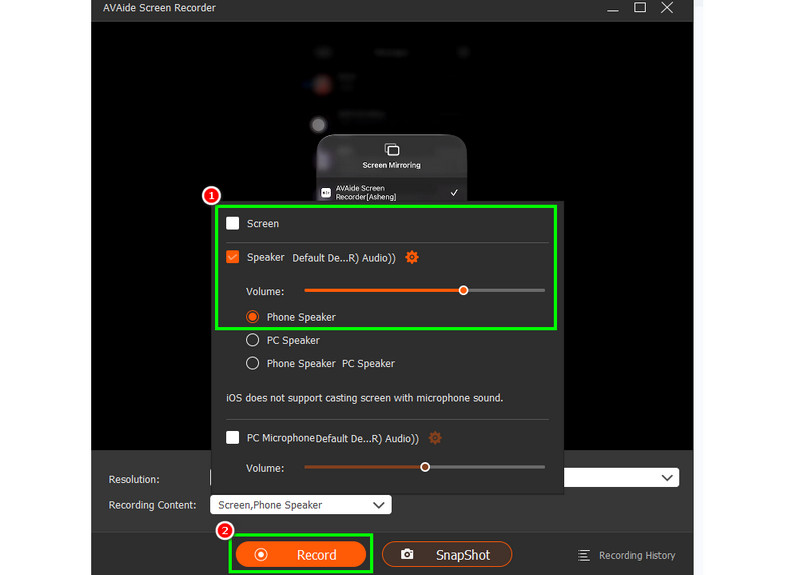
Trykk på Stoppe for å fullføre opptaket.
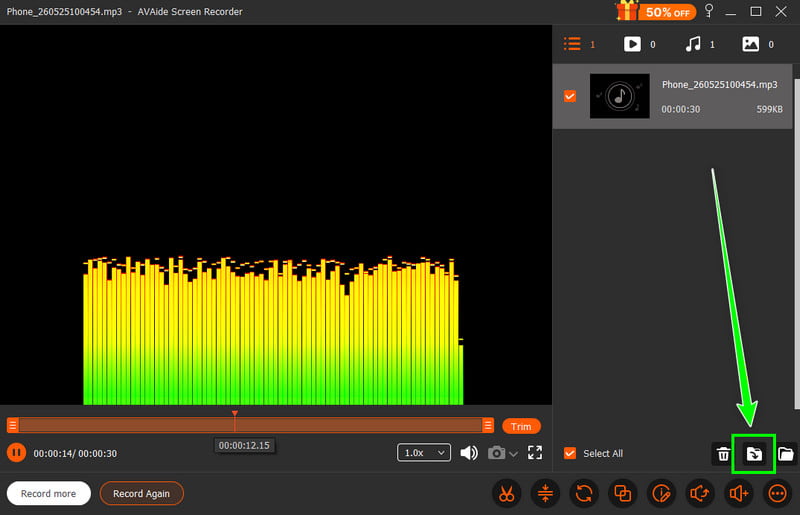
Trinn 4Når forhåndsvisningen vises, klikker du Eksport for å begynne å lagre den innspilte lyden.
Del 4. Opptak i MP3-format
Som standard lagrer Apple-økosystemet musikk som WAV eller AAC. Vi kan imidlertid fortsatt si at MP3 er blant de mest portable lydformatene der ute. Derfor er det beste alternativet å konvertere opptakene dine til MP3. For å konvertere opptaket kan du bruke Lydopptaker-appen. Med denne appen kan du konvertere opptakene dine fra talememoer til MP3 for bedre kompatibilitet. Du kan konvertere AAC til MP3, WAV til MP4, FLAC til WAV og mer.
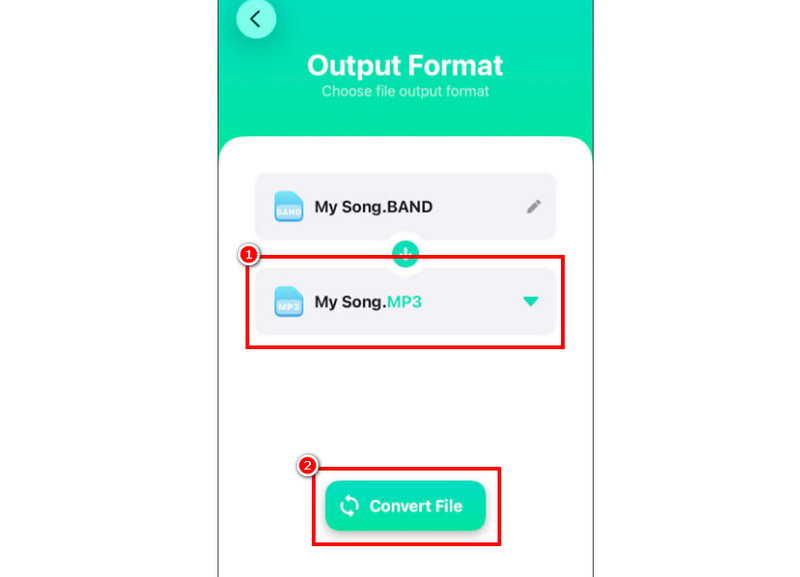
Trinn 1Gå til din Apple-butikken og last ned Audio Converter app. Start deretter konvertereren og begynn å legge til opptaket.
Steg 2Fra Format seksjonen, begynn å velge MP3 format. Trykk deretter på Konvertere knapp.
Trinn 3Etter konverteringsprosessen kan du nå spille av MP3-filen din.
Del 5. Slik spiller du inn musikk fra YouTube på iPhone
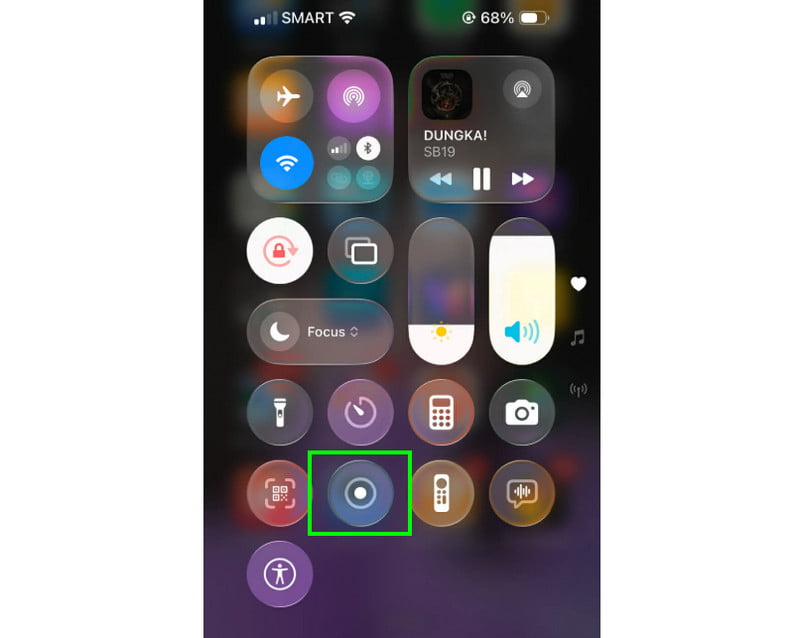
Vil du spille inn musikk fra YouTube på iPhonen din? I så fall trenger du bare å bruke opptakerfunksjonen på enheten din. Med denne funksjonen kan du spille inn all slags musikk fra YouTube. For å starte opptaksfunksjonen trenger du bare å trykke på Assisterende berøring og fortsett til Kontrollsenter-delen. Der kommer du til Opptaker-funksjonen. Prosedyren starter etter 3 sekunders nedtelling. Med det kan du begynne å spille av musikken fra YouTube. Trykk på Stopp for å fullføre opptaket. Når det er gjort, kan du bruke en hvilken som helst video til MP3-konverterer for å gjøre videoen din om til en lydfil.
Del 6. Profftips for bedre lydkvalitet
Sjekk denne delen og få mer innsikt i hvordan du får bedre lydkvalitet.
- Spill alltid inn på et stille sted for å minimere bakgrunnsstøy.
- Når du bruker en app som GarageBand, må du holde inngangsforsterkningen balansert. Unngå alltid klipping ved å holde deg under den røde sonen.
- For bedre kvalitet, ta alltid opp i AIFF eller WAV.
- Overvåk opptak med hodetelefoner. Du kan bruke kablede hodetelefoner for å løse problemer i sanntid.
Til spille inn en sang på en iPhone, bruk alle metodene som er gitt i denne veiledningen. Med det kan du få det resultatet du ønsker etter prosessen. Hvis du vil spille inn musikk fra telefonen din ved hjelp av skrivebordet, kan du også få tilgang til AVAide skjermopptakerMed dette programmets telefonopptakerfunksjon kan du koble til iPhonen din og spille inn musikk og lagre den med den beste kvaliteten, noe som gjør den til den beste opptakeren du kan stole på.
OM FORFATTEREN

Fang skjermaktiviteter med lyd, nettmøter, spillvideoer, musikk, webkamera osv.