Slik spiller du inn en talemelding på en iPhoneVel, å spille inn en talemelding er en rask måte å dele tankene dine eller sende personlig lyd uten å skrive. Med iPhones innebygde talemeldingsfunksjon kan du umiddelbart spille inn, lagre og dele lydklippene dine med bare noen få trykk. Så hvis du leter etter en omfattende måte å spille inn og sende en talemelding på mobilen din, kan du se denne veiledningen for å oppnå ønsket resultat.
Del 1. Slik spiller du inn og sender en talemelding i iMessage
iMessage er ikke bare et enkelt kommunikasjonsverktøy. Det kan også tilby en talemeldingsfunksjon. Med denne funksjonen kan du sende eller dele meldinger og tanker med stemmen. Dette er en ideell funksjon hvis du vil sende meldinger uten å skrive tekst fra tastaturet. Det beste her er at det er enkelt å sende en talemelding, noe som gjør den perfekt for alle brukere. Så hvis du vil begynne å spille inn og sende meldinger, kan du bruke instruksjonene nedenfor.
Slik spiller du inn en iPhone-talemelding
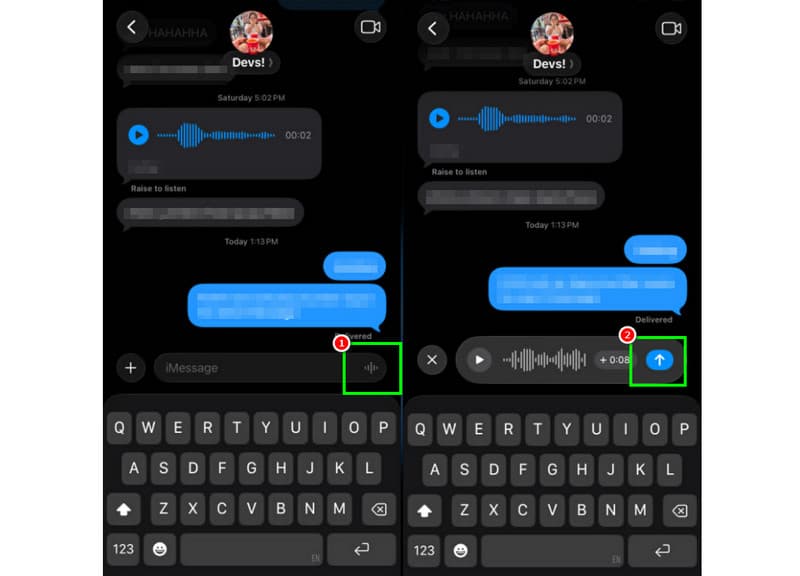
Trinn 1På iPhonen din, start iMessage app. Gå deretter videre til personen du vil kommunisere med.
Steg 2Fra skjermen trykker du på og holder inne Mikrofon alternativ. Mens du holder inne, kan du begynne å spille inn og snakke meldingen din.
Trinn 3For å stoppe opptaket, slipp fingeren fra knappen. Trykk deretter på Send pil knappen for å sende meldingen.
Lytt til innkommende talemeldinger
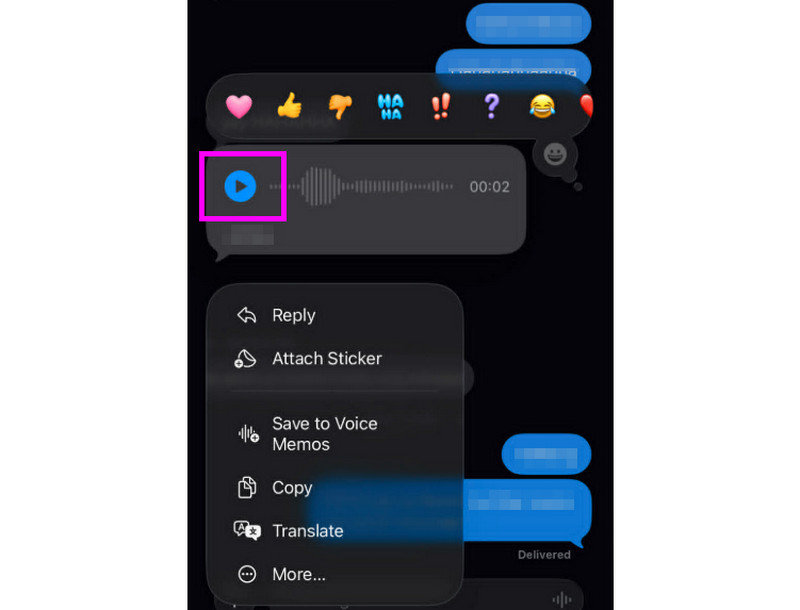
Trinn 1Etter at du har mottatt talemeldingen, kan du trykke på Spille knapp.
Steg 2Du kan også justere volumet med sideknappen på iPhonen din for å høre meldingen ordentlig.
Trinn 3Etter to minutter utløper talemeldingen. For å beholde meldingen, trykk bare på Beholde alternativet nedenfor.
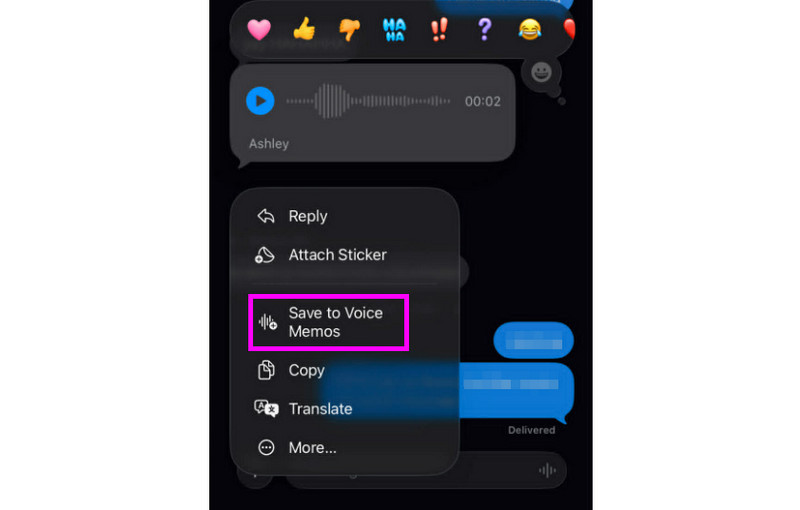
Trinn 4Hvis du vil lagre talemeldingen, trykker du bare lenge på den og trykker på Lagre i talememoer app. Med denne stemmeopptaker-app, kan du spille av meldingen når som helst og hvor som helst.
Juster innstillinger for talemeldinger
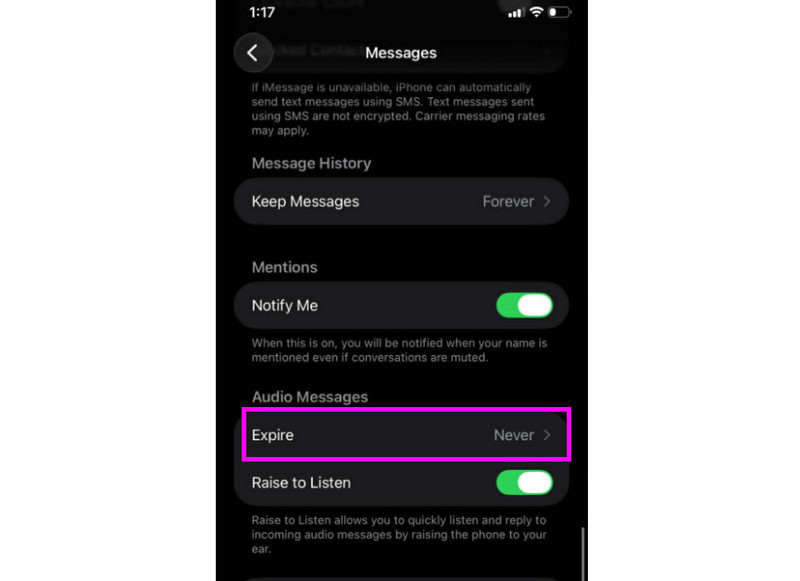
Trinn 1Gå til din Innstillinger appen. Fortsett deretter til Meldinger app.
Steg 2Naviger til Lydmeldinger > Utløpe seksjonen og trykk på Aldri alternativ. På denne måten vil ikke talemeldinger fra iMessage utløpe.
Del 2. Metode for å spille inn en talemeldingshilsen på iPhone
Når du ikke er tilgjengelig, vil innringere motta en tilpasset melding hvis du spiller inn en talemeldingshilsen på iPhonen din. Det er enkelt å opprette en ny hilsen, endre eller fjerne en gammel, og til og med bruke en midlertidig hilsen for spesielle anledninger. Du kan endre hvordan talemeldingen din høres ut for andre med bare noen få trykk i Telefon-appen. Se metodene og lær hvordan du spiller inn en talemelding på en iPhone.
Konfigurere talemeldingshilsenen din
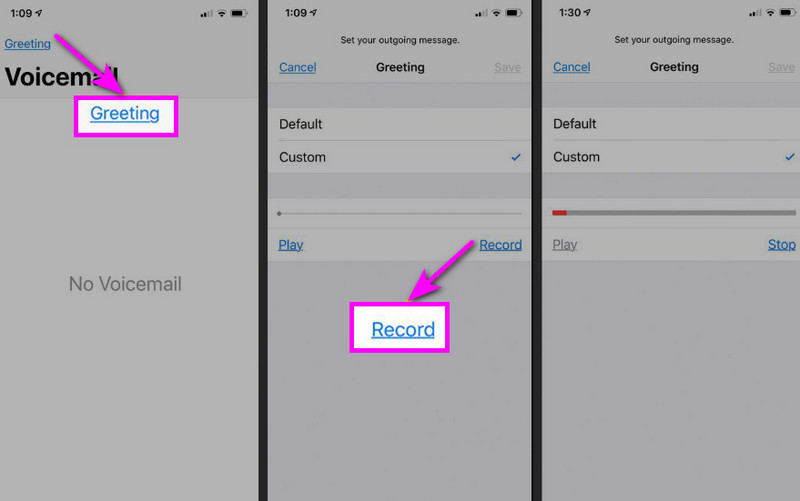
Trinn 1Fortsett til Telefon appen og trykk på Talepost alternativ.
Steg 2Etter det, trykk på Hilsen funksjonen fra øverste venstre hjørne av skjermen. Trykk Tilpasset > Ta opp å starte innspilling av lyd på iPhonen din som din hilsen.
Trinn 3Trykk på Stoppe for å fullføre og spill den av for å se gjennom den. Når du er ferdig, trykk Lagre for å angi den som din aktive hilsen.
Endre eller slette hilsenen din
Trinn 1Du kan gå tilbake til Talepost > Hilsen seksjon.
Steg 2Truffet Tilpasset og spill inn en ny hilsen for å erstatte den gamle.
Trinn 3For å gå tilbake til standardinnstillingen kan du deretter velge Misligholde i stedet for Tilpasset.
Profftips: Midlertidig hilsen
Hvis du ikke er tilgjengelig i en kort periode, kan du spille inn en midlertidig hilsen ved å følge de samme trinnene under Tilpasset. Når du er tilbake, kan du ganske enkelt bytte tilbake til den vanlige hilsenen eller standardalternativet.
Del 3. Feilsøking - Kan ikke ta opp talemelding
Kom til denne delen og se feilsøkingsveiledningen som dekker noen av problemene når du spiller inn eller sender en talemelding på en iPhone.
Mikrofonknappen er nedtonet i meldinger
Løsning: Sørg for at mikrofontilgang er aktivert. For å gjøre det, gå til Innstillinger > Personvern og sikkerhet > Mikrofon og tillat tilgang for Meldinger.
Stemmen sendes ikke
Løsning: Sjekk alltid internettforbindelsen din. Sørg også for at iMessage er aktivert under Innstillinger > Meldinger > iMessage.
Kan ikke ta opp talemeldingshilsen
Løsning: Hilsen-alternativet vises bare hvis operatøren støtter visuell talemelding. Hvis det mangler, kan du trykke og holde inne 1 på telefonappen for å ringe talemeldingen direkte. Deretter kan du begynne å følge operatørens instruksjoner for å spille inn en hilsen.
Mottakere sier at de ikke kan høre deg
Løsning: Du kan teste mikrofonen din ved hjelp av Talememo-appen. Du kan også fjerne etuier eller tilbehør som kan blokkere mikrofonen. En annen metode du kan bruke er å rengjøre mikrofonåpningen med en klut eller en minibørste.
Hurtigreferanse: Talemelding vs. telefonsvarer
Vil du vite mer om talemeldinger og telefonsvarer? Da kan du sjekke den enkle tabellen nedenfor.
| Trekk | Talemelding (iMessage) | Talepost (operatør) |
| Hvordan den sendes | • Innspilt i Meldinger-appen • Sendt via iMessage | • Innspilt hilsen • Lyd lagret av operatøren |
| Internett nødvendig | Ja (Wi-Fi eller mobildata) | Nei, fungerer over mobilnettverk |
| Oppbevaring | Lagret i iMessage-tråden | Lagret i operatørens telefonsvarersystem |
| Styre | Brukeren kan sende på nytt, slette eller lagre | Transportøren kontrollerer tilgang og lagring |
Bonus: Beste verktøyet for å hjelpe deg med å redigere stemmeopptak
Etter at du har lagret taleopptaket eller talemeldingen, er det tider når du vil redigere det for å få bedre lydutgang. Når det gjelder å redigere lyden, er det derfor bedre å bruke et utmerket redigeringsverktøy, som f.eks. AVAide Video ConverterDette programmet tilbyr en lydredigeringsfunksjon, slik at du kan redigere lydfilen din. Du kan trimme lydsporet, dele det og slå det sammen. Du kan til og med justere volum og forsinkelse basert på dine preferanser. Det beste her er at du kan lagre lyden i alle formater ved å bruke programmets konverteringsfunksjon. Du kan lagre stemmeopptaket ditt som MP3, WAV, M4A, FLAC og mer, med den beste kvaliteten på opptil 320 kbps. Hvis du leter etter en ideell programvare som kan hjelpe deg med å redigere stemmeopptakene dine, trenger du ikke lete lenger enn til AVAide Video Converter.

GRATIS NEDLASTING For Windows 7 eller nyere
 Sikker nedlasting
GRATIS NEDLASTING For Mac OS X 10.13 eller nyere
Sikker nedlastingFlere funksjoner:
- Det kan tilby en smidig lydredigeringsprosedyre.
- Programmet kan slå sammen flere lydfiler for å lage én fil.
- Den kan konvertere lyd- og videoformater med 120 ganger raskere konverteringshastighet.
- Programmet kan også tilby innebygde videoredigerere, som fusjon, splitter, trimmer, cropper, etc.
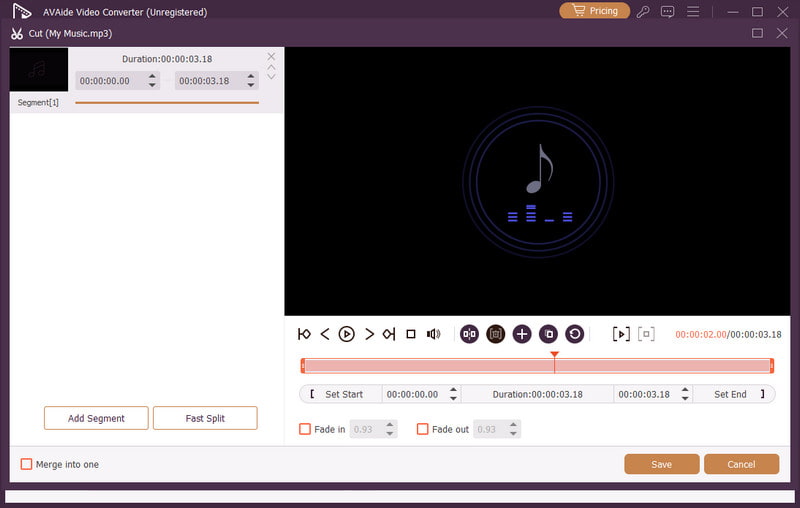
Sende en talemelding på en iPhone er en ideell måte hvis du vil sende meldingen din raskere. Takket være denne veiledningen har du lært hvordan du spiller inn og sender en talemelding effektivt. Du får til og med nok innsikt i hvordan du lagrer talemeldingen til å spille den av uten begrensninger. I tillegg, hvis du vil redigere taleopptakene dine, ville det være bedre å få tilgang til AVAide Video ConverterMed dette programmets lydredigeringsfunksjon kan du forbedre lyden din, noe som resulterer i en bedre og mer tilfredsstillende lydavspilling.
OM FORFATTEREN

Fang skjermaktiviteter med lyd, nettmøter, spillvideoer, musikk, webkamera osv.