しようとしている 動画を録画しながら音楽を再生する TikTok用のiPhone動画、旅行の思い出、短いVlogなどを撮影している時、音声が突然途切れてしまうとイライラしますよね。多くのユーザーが、大切な瞬間にこの問題に遭遇しています。幸いなことに、iPhoneとAndroid端末の両方で、録画中に音楽を再生し続ける簡単な方法がいくつかあります。
パート1. iPhone - 動画撮影中に音楽を再生する方法
方法1:組み込みの方法
iOS 18では、iPhoneユーザーにとって使い勝手が大幅に向上しました。以前のバージョンのiOSでは、カメラアプリで録画中に音楽再生が一時停止していましたが、今回のアップデートでその問題が解決され、録画しながら音楽を聴くことができるようになりました。追加のアプリをインストールしたり、裏技を使ったりする必要がないため、iPhoneシステム内で直接動作する最もシンプルで確実な方法です。
ステップ1iPhoneの「設定」アプリを開いてください。
ステップ2をタップします カメラ 画面の下部にあります。
ステップ3 選択する 録音音声 または同じオーディオオプションを選択し、 音声再生を許可する 録画オプション使用時。
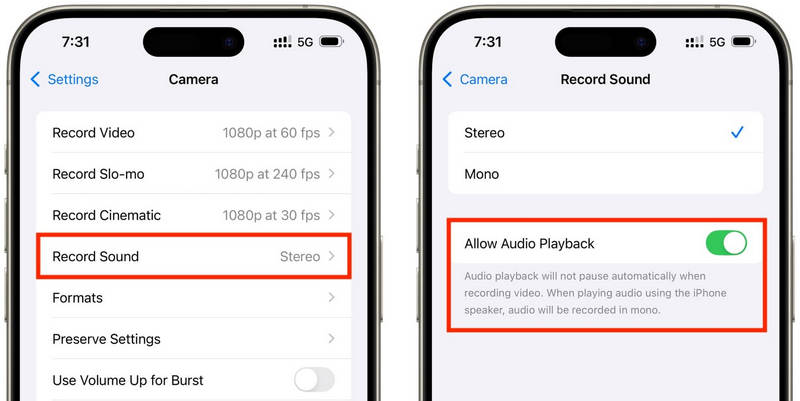
ステップ4お好みの音楽アプリで曲を再生してください。
ステップ5を開きます カメラ アプリを選択して ビデオモード録音中も音楽は再生され続けるはずです。
方法2:QuickTakeの裏技(iOS 17以前のバージョン向け)
QuickTakeは、古いiPhoneで動画を撮影する際に音楽が一時停止してしまう問題を解決する最も簡単な方法の一つです。ビデオモードに完全に切り替えるのではなく、QuickTakeを使えば写真モードから直接クリップを撮影できるため、BGMが途切れることなく再生されます。ちょっとした動画、ツイート用の動画、SNSに投稿する自分の動画、あるいは音声を途切れさせることなく撮影したいあらゆる場面に、素早く簡単に活用できます。
ステップ1Apple Music、Spotify、またはその他の音楽アプリで曲を再生してください。
ステップ2デフォルト設定のままにする 写真 モード。
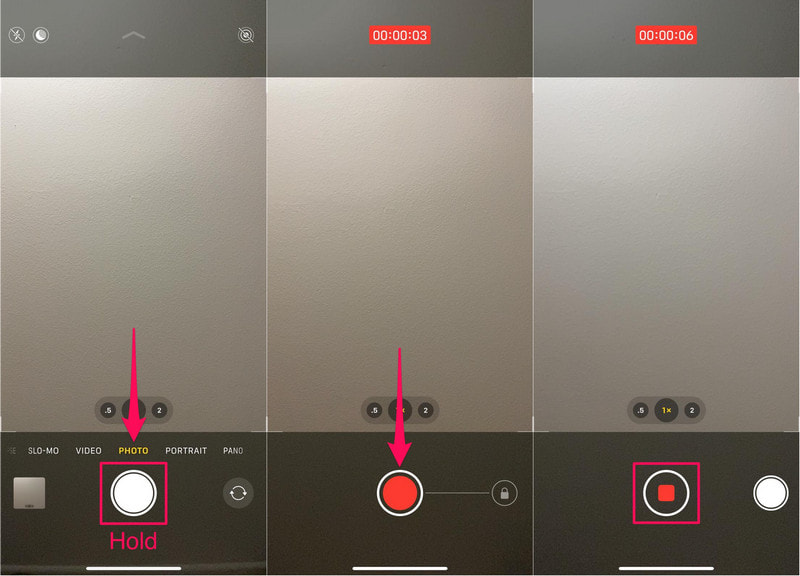
ステップ3ビデオ録画を開始するには、 シャッター ボタン。
ステップ4 シャッターボタンを右に動かすと録画が確定するので、シャッターボタンを押し続ける必要はありません。
ステップ5クリックしてください やめる 完了したらボタンを押してください。
方法3:サードパーティ製アプリを使用する
音楽再生中に動画が中断される場合は、サードパーティ製の録画アプリが最適な解決策です。中でも最も人気が高いのはMideoで、音楽再生と動画録画を同時に行うことができます。対応デバイスではHDや4Kの録画に対応し、ズームイン・ズームアウト機能、前面カメラと背面カメラのサポート、写真アプリへの即時保存など、必要な機能はすべて備えています。
ステップ1App StoreからMideoをダウンロードしてください。
ステップ2カメラとマイクへのアクセスを許可してください。
ステップ3Apple Music、Spotify、またはその他のストリーミングアプリを開いて、再生を開始してください。
ステップ4音楽が始まったら、 アプリ.
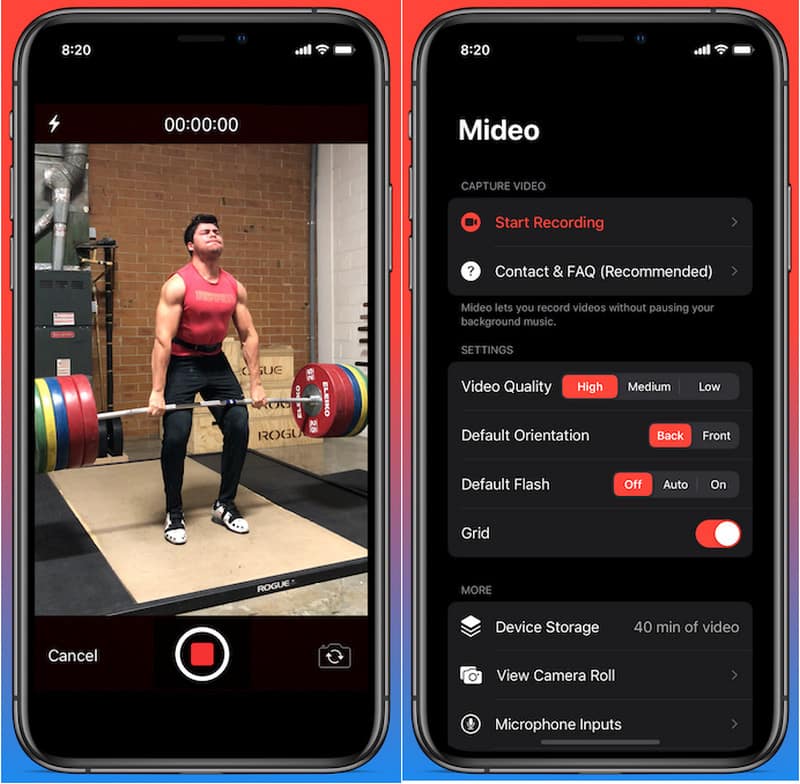
ステップ5を押します 記録 ボタンを押して録音を開始すると、バックグラウンドで音楽が再生されます。
方法4:ピクチャーインピクチャー(PiP)モードを使用する
動画撮影時にメディア再生を停止する必要はありません。ピクチャー・イン・ピクチャー機能を使えば可能です。iPhoneは、カメラアプリをフォアグラウンドで起動した後でも、動画や音楽ファイルの再生を継続できます。これは、追加の録画ツールをインストールする必要のない簡単な方法です。
ステップ1ピクチャー・イン・ピクチャーモードに対応したアプリから、曲や動画を再生してください。
ステップ2に移動 設定 >> 全般的 >> ピクチャーインピクチャーオンにする PiPを自動的に開始する.
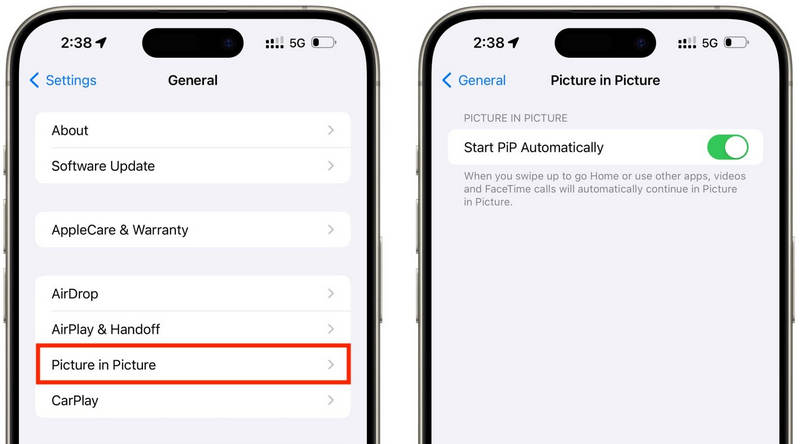
ステップ3動画プレーヤーで上にスワイプするか、PiPボタンをタップすると、メディアがフローティングウィンドウに最小化されます。
ステップ4メディア再生を停止せずに、カメラアプリを慎重に起動してください。
ステップ5音楽やメディアがバックグラウンドで再生されている状態で、ビデオを録画してください。
パート2. Android - 動画撮影中に音楽を再生する方法
方法1:Samsung One UI 7(内蔵)
Samsung One UI 7では、カメラとオーディオのコントロール機能が強化され、動画撮影中に音楽を再生しやすくなりました。この機能はシステムに統合されているため、追加のアプリケーションをインストールすることなく、よりスムーズな録画体験を実現できます。特に、ソーシャルメディア用の動画、Vlog、BGM付きのカジュアルな動画制作に役立ちます。
ステップ1を開きます カメラ アプリをタップして、 設定 ボタン。
ステップ2音声を確認するか、 高度なビデオオプション.
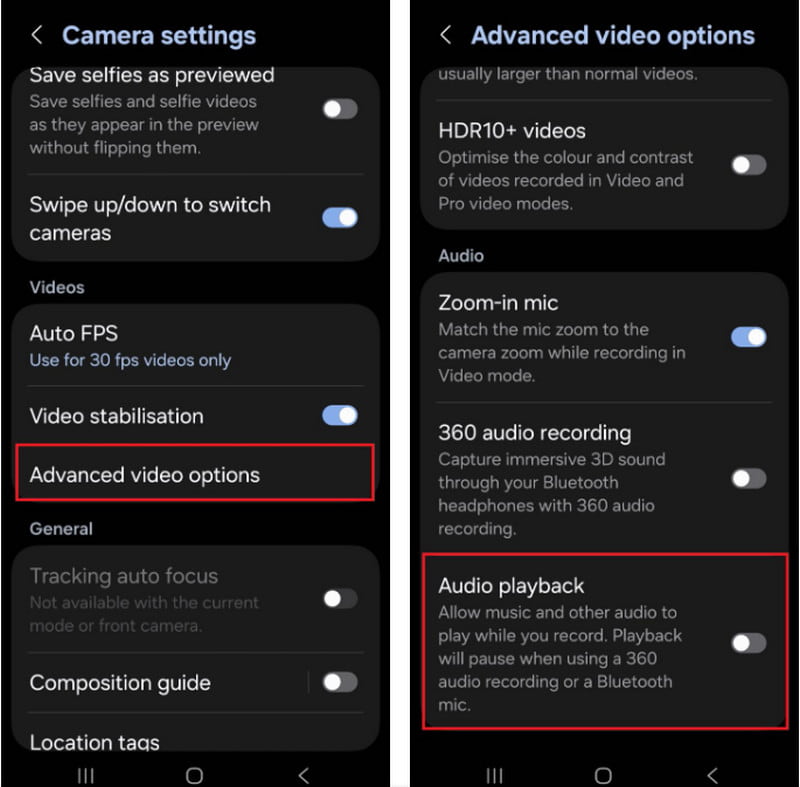
ステップ3有効にする 音声再生.
ステップ4Spotify、YouTube Music、またはその他のアプリで曲を開きます。
ステップ5を開きます カメラ アプリを開いて録画を開始します。
方法2:Google Pixelスクリーンレコーダーを使用する
Google Pixelスマートフォンに内蔵されている画面録画アプリでは、内部音声も録音できます。主に画面録画用のアプリですが、録画中に音楽を再生することも可能です。チュートリアル動画、ゲームプレイデモ、BGM付きのアプリデモなどに非常に役立ちます。
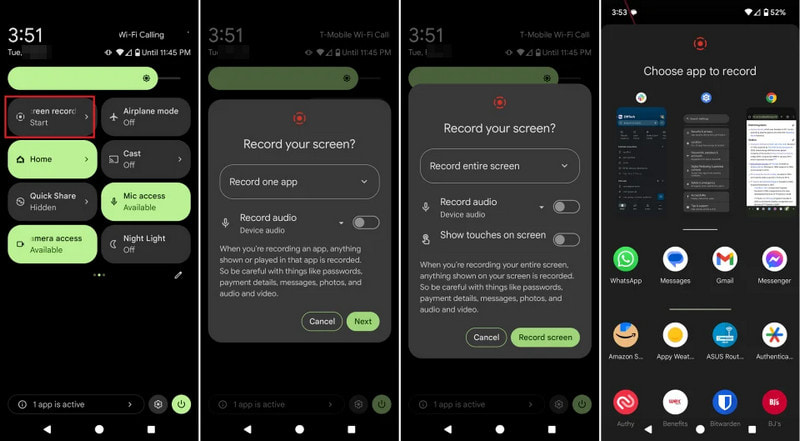
ステップ1 画面上部からタップして下にドラッグしてください。
ステップ2既に利用可能な画面録画ソフトを選択してください。
ステップ3内部音声録音またはデバイス録音を選択してください。
ステップ4音楽を再生するには、お気に入りの音楽アプリをクリックしてください。
ステップ5画面録画を開始します。
方法3:サードパーティ製アプリを使用する
Background Video Recorderのようなサードパーティ製の録画アプリは、さまざまなスマートフォンブランドやAndroidバージョンとの互換性が高いため、Androidで広く使用されています。多くのアプリは、バックグラウンドでの音声再生や、HDビデオ品質、手動コントロール、フィルター、手ぶれ補正などの追加の音声録音オプションを提供しています。これらのアプリは、内蔵のカメラアプリよりも多くの録画オプションが必要な人、特に次のようなユーザーにとって役立ちます。 ポッドキャストを録音するより良い音声と映像品質で、チュートリアル、Vlog、またはソーシャルメディアコンテンツを作成できます。
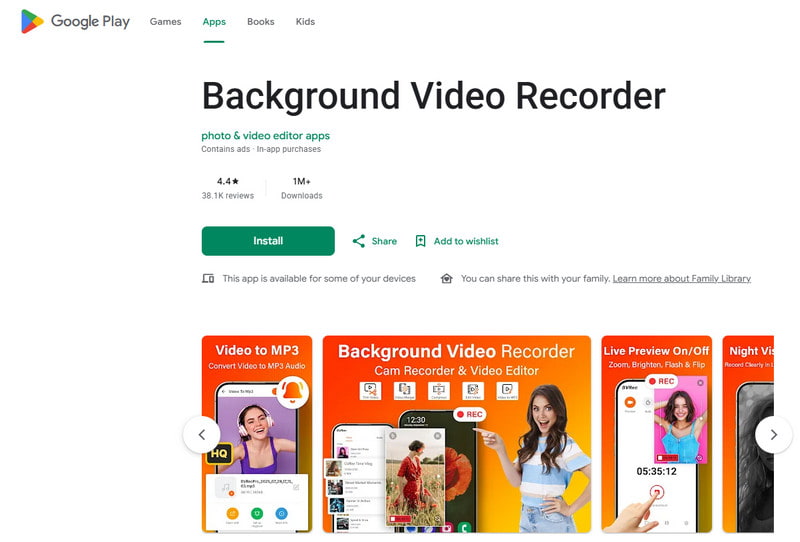
ステップ1Google Playストアから「Background Video Recorder」をインストールしてください。
ステップ2指示が表示されたら、カメラ、マイク、ストレージへのアクセスを許可してください。
ステップ3Spotify、YouTube Music、またはその他の音楽アプリを開いて、プレイリストを作成してください。
ステップ4レコーダーを起動し、必要に応じてビデオ品質や音声設定を調整してください。
ステップ5音楽をバックグラウンドで再生したまま、録音ボタンをタップしてください。
パート3:iPhoneで録音を開始すると音楽が一時停止するのはなぜですか?
iPhoneユーザーの中には、自分の動画を録画しているときに音楽が突然止まるという報告があります。これは、iOSデバイスではカメラのマイクが常にメディア再生よりも先に音声録音に使用されるためです。この動作は、ソフトウェアが Macで音声を録音する 録音セッション中にマイク入力を優先します。この問題は、お使いのiPhoneの機種とiOSのバージョンによって、いくつかの原因で発生する可能性があります。
- カメラアプリがオーディオを制御します。 カメラアプリは、最高の音声品質を確保するために、ビデオ録画時にマイクを自動的に優先します。
- 古いバージョンのiOSには以下の制限があります。 ほとんどの場合、iOS 17以前のバージョンでは、動画を録画する際に音楽は自動的に一時停止されます。
- バックグラウンド再生ができる音楽アプリは限られています。 他のアプリケーションが音声録音設定を使用している場合、一部のストリーミングアプリケーションは一時的にストリーミングを一時停止することがあります。
- Bluetooth機器は競合を引き起こす可能性があります。 ワイヤレスイヤホンやスピーカーは、録音中に気が散る原因となることがある。
- バッテリーセーバーモードが干渉する可能性があります: 低電力モードでは、音楽再生などのバックグラウンド動作が制限される場合があります。
パート4.音楽が止まる、または再生されない場合【簡単な解決策】
| 問題 | 応急処置 |
| 録音開始直後に音楽が一時停止する。 | QuickTake方式を使用するか、カメラの設定で内蔵の再生機能を有効にしてください。. |
| 録音中は音楽は使用しないでください。 | カメラアプリと音楽アプリの両方を再起動してから、もう一度録音を試してください。 |
| Bluetoothオーディオが切断される。 | Bluetoothをオフにしてから再度オンにした後、ワイヤレスイヤホンまたはスピーカーを再接続してください。 |
| サードパーティ製のレコーダーが動作しません。 | 互換性の問題を解決するには、録音アプリをアップデートまたは再インストールしてください。 |
| 私のiPhoneでは、音楽がまだ途中で止まってしまうことがあります。 | iPhoneを再起動し、利用可能な最新のiOSアップデートをインストールしてください。 |
| 録画されたビデオには音声がありません。 | カメラアプリと音楽アプリの両方で、マイクへのアクセス権限が有効になっていることを確認してください。 |
パート5:プロ仕様のスクリーンレコーダーを使ってみるのはどうでしょう?
AVAideスクリーンレコーダー WindowsとMacで、より滑らかで高品質な録画を求めるユーザー向けのプロフェッショナルな画面録画ソフトウェアです。システムオーディオ、マイクオーディオ、ウェブカメラ映像、そして画面そのものを高画質でキャプチャできます。このソフトウェアは、チュートリアル、ゲーム動画、リアクション動画、オンライン授業、ビデオプレゼンテーションの作成に特に役立ち、遅延や複雑な設定は一切不要です。
- 最大4Kまたは1080pの解像度で、スムーズで安定したパフォーマンスで動画を録画できます。
- 内部音声とマイク音声を同時に録音することで、よりクリアな録音を実現します。
- 全画面表示、選択したウィンドウ、またはカスタマイズした録画領域から選択してください。
- ウェブカメラの映像を録画したり、iPhoneやAndroidの画面をミラーリングして簡単にキャプチャしたりできます。
- 録画中に注釈を追加したり、撮影直後に動画をトリミングまたは編集したりできます。

 安全なダウンロード
ステップ1AVAideスクリーンレコーダーをインストールする
AVAideの公式サイトにアクセスし、Windows版またはMac版のソフトウェアをダウンロードしてください。プログラムをインストール後、実行してください。
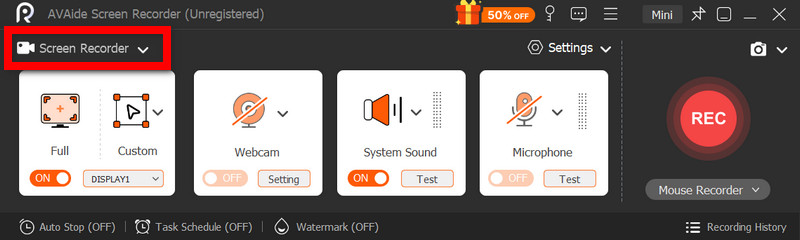
ステップ2録画モードを選択してください
画面操作を記録するには、 スクリーンレコーダー メイン画面からのオプション。
ステップ3記録領域を選択する
選択する 満杯 また カスタム 必要に応じて録画モードに切り替えます。
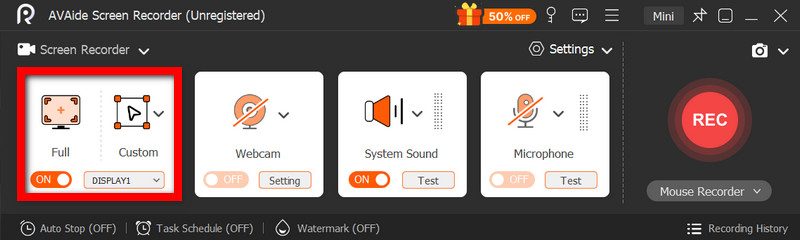
ステップ4オーディオソースを有効にする
自分の声を録音したい場合は、 マイクロフォン;内部音声を録音する場合は、 システムサウンド.
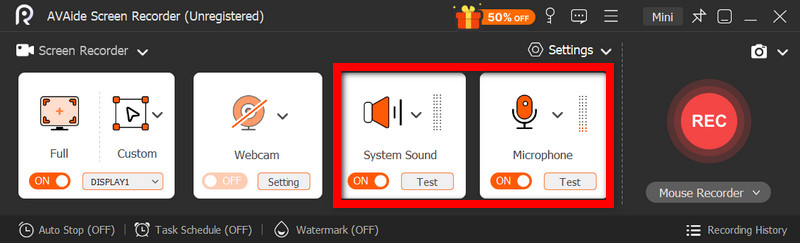
ステップ5録音開始
クリック REC 画面、ビデオ、または音声アクティビティを録画するためのボタン。
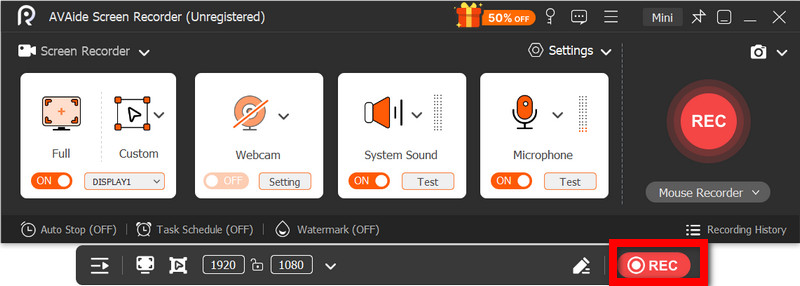
ステップ6録音を編集して保存する
完了したら、 やめる ボタン。動画を見て大まかな流れを把握し、必要に応じて簡単に編集してから、コンピューターに保存してください。
録音しながら音楽を再生する ソーシャルメディアや個人利用のために動画を作成する際、多くのユーザーが苦労する点の一つが、BGMを途切れさせずに動画を録画することです。適切な設定、方法、ツールを使えば、iPhoneユーザーもAndroidユーザーも、BGMを途切れさせずに簡単に動画を録画できます。
著者について

オーディオ、オンライン会議、ゲームプレイビデオ、音楽、Webカメラなどで画面アクティビティをキャプチャします。