Προσπαθώντας να αναπαραγωγή μουσικής κατά την εγγραφή βίντεο Τα κλιπ iPhone για TikTok, οι ταξιδιωτικές αναμνήσεις ή τα γρήγορα vlog μπορεί να είναι απογοητευτικά όταν ο ήχος σταματά ξαφνικά. Πολλοί χρήστες αντιμετωπίζουν αυτό το πρόβλημα σε σημαντικές στιγμές. Ευτυχώς, υπάρχουν αρκετοί εύκολοι τρόποι για να συνεχίσετε να παίζετε μουσική κατά την εγγραφή τόσο σε συσκευές iPhone όσο και σε συσκευές Android.
- Μέρος 1. iPhone - Πώς να αναπαράγετε μουσική κατά την εγγραφή βίντεο
- Μέρος 2. Android - Πώς να αναπαράγετε μουσική κατά την εγγραφή βίντεο
- Μέρος 3. Γιατί το iPhone μου κάνει παύση μουσικής όταν ξεκινάω την εγγραφή;
- Μέρος 4. Η μουσική σταματά ή δεν παίζει [Γρήγορες λύσεις]
- Μέρος 5. Τι θα λέγατε για τη χρήση μιας επαγγελματικής συσκευής εγγραφής οθόνης
Μέρος 1. iPhone - Πώς να αναπαράγετε μουσική κατά την εγγραφή βίντεο
Μέθοδος 1: Η ενσωματωμένη μέθοδος
Το iOS 18 φέρνει κάποιες ευπρόσδεκτες βελτιώσεις στην ευκολία χρήσης για τους χρήστες iPhone. Στο παρελθόν, οι παλαιότερες εκδόσεις του iOS διέκοπταν την αναπαραγωγή μουσικής κατά την εγγραφή της εφαρμογής Κάμερα, αλλά αυτή η ενημέρωση επιλύει αυτό το πρόβλημα και επιτρέπει στους χρήστες να ακούν μουσική κατά την εγγραφή. Είναι ο πιο απλός και αξιόπιστος τρόπος, επειδή δεν χρειάζεται να εγκαταστήσετε πρόσθετες εφαρμογές ή να χρησιμοποιήσετε hacks. Λειτουργεί απευθείας μέσα στο σύστημα iPhone.
Βήμα 1Μεταβείτε στην εφαρμογή Ρυθμίσεις στο iPhone σας.
Βήμα 2Πατήστε το ΦΩΤΟΓΡΑΦΙΚΗ ΜΗΧΑΝΗ στο κάτω μέρος της οθόνης.
Βήμα 3 Επιλέγω Εγγραφή ήχου ή την ίδια επιλογή ήχου και ενεργοποιήστε την Να επιτρέπεται η αναπαραγωγή ήχου επιλογή κατά την εγγραφή.
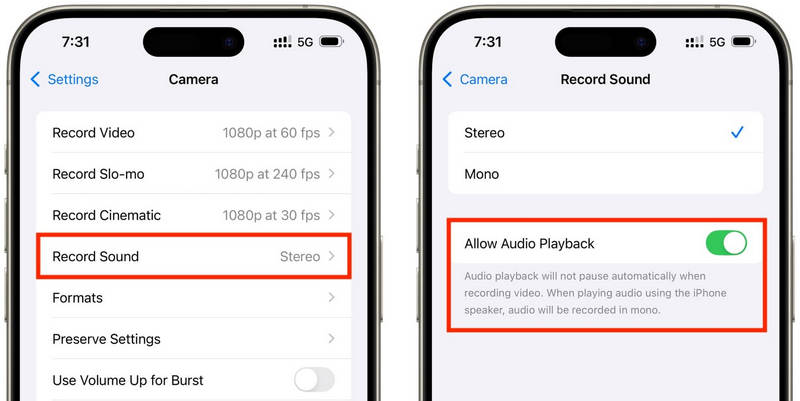
Βήμα 4Αναπαραγωγή ενός τραγουδιού στην εφαρμογή μουσικής της επιλογής σας.
Βήμα 5Ανοιξε το ΦΩΤΟΓΡΑΦΙΚΗ ΜΗΧΑΝΗ εφαρμογή και επιλέξτε την Λειτουργία βίντεοΗ μουσική σας θα πρέπει να συνεχίζει να παίζει κατά την ηχογράφηση.
Μέθοδος 2: Το κόλπο QuickTake (Για iOS 17 και παλαιότερες εκδόσεις)
Το QuickTake είναι ένας από τους απλούστερους τρόπους για να αντιμετωπίσετε το πρόβλημα της παύσης της μουσικής κατά την εγγραφή βίντεο σε παλαιότερα iPhone. Σε αντίθεση με την πλήρη μετάβαση στη λειτουργία βίντεο, το QuickTake σάς επιτρέπει να τραβάτε κλιπ απευθείας από τη λειτουργία Φωτογραφίας, έτσι ώστε η μουσική υπόκρουση να συνεχίζει να αναπαράγεται. Είναι γρήγορο και εύκολο για γρήγορα βίντεο, βίντεο στο Twitter, βίντεο του εαυτού σας στα μέσα κοινωνικής δικτύωσης ή οποιαδήποτε τυχαία στιγμή θέλετε να καταγράψετε χωρίς να τερματίσετε τον ήχο σας.
Βήμα 1Αναπαραγωγή του τραγουδιού σας στο Apple Music, το Spotify ή σε άλλη εφαρμογή μουσικής.
Βήμα 2Παραμονή στην προεπιλογή φωτογραφία τρόπος.
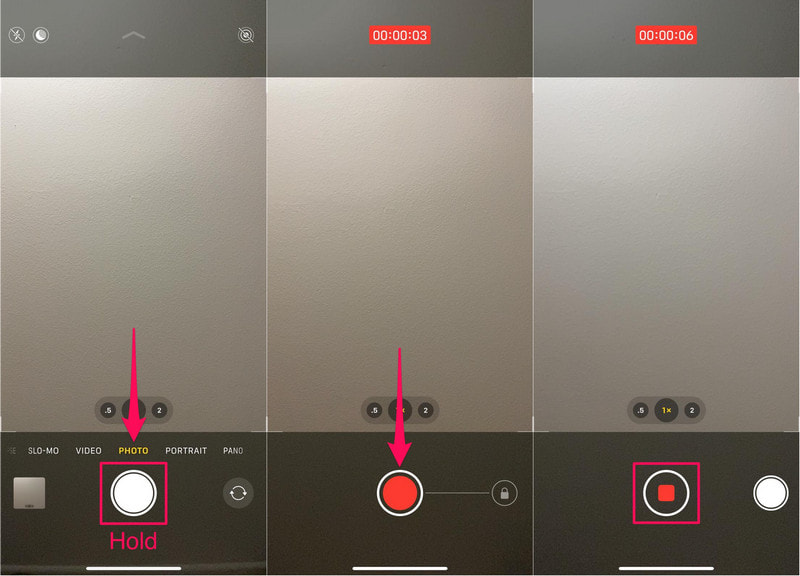
Βήμα 3Για να ξεκινήσετε την εγγραφή βίντεο, κρατήστε πατημένο το Παραθυρόφυλλο κουμπί.
Βήμα 4 Μετακινήστε το κουμπί λήψης προς τα δεξιά για να ασφαλίσετε την εγγραφή, ώστε να μην χρειάζεται να κρατάτε πατημένο το κλείστρο.
Βήμα 5Κάνε κλικ στο Να σταματήσει κουμπί μόλις ολοκληρωθεί.
Μέθοδος 3: Χρήση εφαρμογής τρίτου μέρους
Εάν η αναπαραγωγή εξακολουθεί να διακόπτεται από μουσική, οι εφαρμογές εγγραφής τρίτων αποτελούν την ιδανική λύση. Η πιο δημοφιλής είναι η Mideo, μια εφαρμογή που επιτρέπει στους χρήστες να αναπαράγουν μουσική και να εγγράφουν βίντεο ταυτόχρονα. Χειρίζεται εγγραφή HD, ακόμη και 4K, σε συμβατές συσκευές και περιλαμβάνει όλες τις λειτουργίες που θα περιμένατε, όπως χειριστήρια μεγέθυνσης και σμίκρυνσης, υποστήριξη για την μπροστινή και την πίσω κάμερα και άμεση αποθήκευση στην εφαρμογή Φωτογραφίες.
Βήμα 1Κατεβάστε το Mideo από το App Store.
Βήμα 2Επιτρέψτε την πρόσβαση στην κάμερα και το μικρόφωνο.
Βήμα 3Ανοίξτε το Apple Music, το Spotify ή κάποια άλλη εφαρμογή streaming και ξεκινήστε την αναπαραγωγή.
Βήμα 4Μόλις ξεκινήσει η μουσική σας, ανοίξτε το Εφαρμογή.
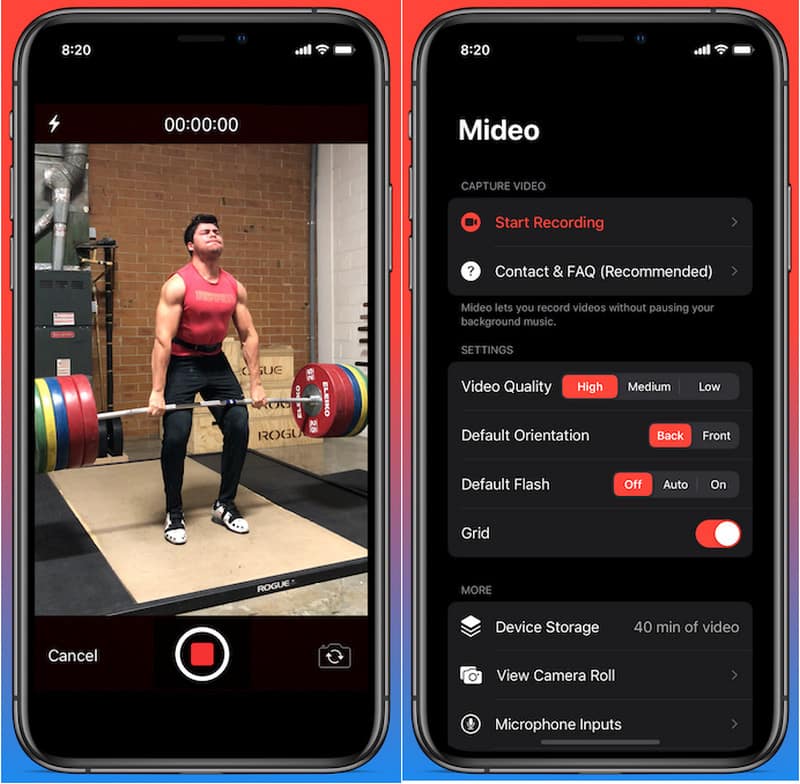
Βήμα 5Πάτα το Ρεκόρ και ξεκινήστε την εγγραφή καθώς η μουσική σας αναπαράγεται στο παρασκήνιο.
Μέθοδος 4: Χρήση της λειτουργίας Picture-in-Picture (PiP)
Δεν χρειάζεται να απενεργοποιήσετε την αναπαραγωγή πολυμέσων κατά την εγγραφή βίντεο. Μπορείτε να χρησιμοποιήσετε τη λειτουργία Picture-in-Picture. Το iPhone σας θα μπορούσε να συνεχίσει να αναπαράγει ένα αρχείο βίντεο ή μουσικής ακόμα και μετά το άνοιγμα της εφαρμογής Κάμερα στο προσκήνιο. Αυτή είναι μια εύκολη μέθοδος που δεν απαιτεί την εγκατάσταση επιπλέον εργαλείων εγγραφής.
Βήμα 1Αναπαραγωγή ενός τραγουδιού ή βίντεο από μια εφαρμογή που υποστηρίζει τη λειτουργία Picture-in-Picture.
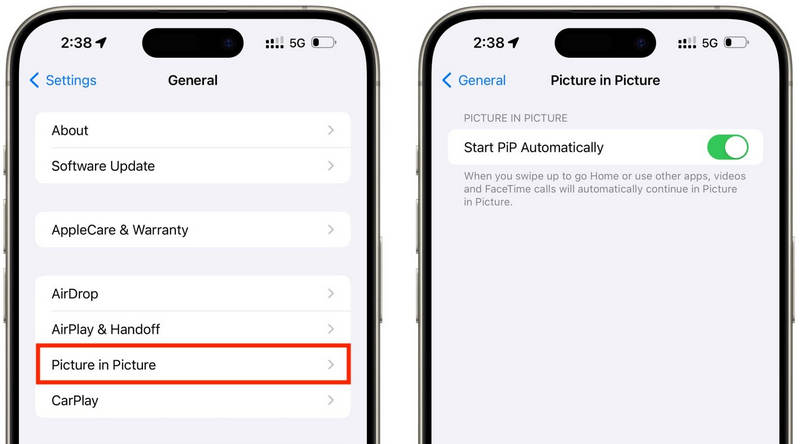
Βήμα 2Παω σε Ρυθμίσεις > Γενικός > Εικόνα μέσα σε εικόνακαι, στη συνέχεια, ενεργοποιήστε Αυτόματη έναρξη PiP.
Βήμα 3Σύρετε προς τα πάνω ή πατήστε το κουμπί PiP στο πρόγραμμα αναπαραγωγής βίντεο για να ελαχιστοποιήσετε τα πολυμέσα σε ένα αιωρούμενο παράθυρο.
Βήμα 4Ανοίξτε προσεκτικά την εφαρμογή Κάμερα χωρίς να διακόψετε την αναπαραγωγή πολυμέσων.
Βήμα 5Εγγράψτε το βίντεό σας ενώ η μουσική ή τα πολυμέσα συνεχίζουν να αναπαράγονται στο παρασκήνιο.
Μέρος 2. Android - Πώς να αναπαράγετε μουσική κατά την εγγραφή βίντεο
Μέθοδος 1: Samsung One UI 7 (Ενσωματωμένο)
Με το Samsung One UI 7, η εταιρεία βελτιώνει τα χειριστήρια της κάμερας και του ήχου για να διευκολύνει την αναπαραγωγή μουσικής κατά τη λήψη βίντεο. Η λειτουργία είναι ενσωματωμένη στο σύστημα, ώστε οι χρήστες να μπορούν να απολαμβάνουν μια πιο ομαλή εμπειρία εγγραφής χωρίς να εγκαταστήσουν πρόσθετες εφαρμογές. Είναι ιδιαίτερα χρήσιμη για τη δημιουργία βίντεο στα μέσα κοινωνικής δικτύωσης, vlogs ή casual βίντεο με μουσική υπόκρουση.
Βήμα 1Ανοιξε το ΦΩΤΟΓΡΑΦΙΚΗ ΜΗΧΑΝΗ εφαρμογή και, στη συνέχεια, πατήστε το Ρυθμίσεις κουμπί.
Βήμα 2Ελέγξτε για ήχο ή Προηγμένες επιλογές βίντεο.
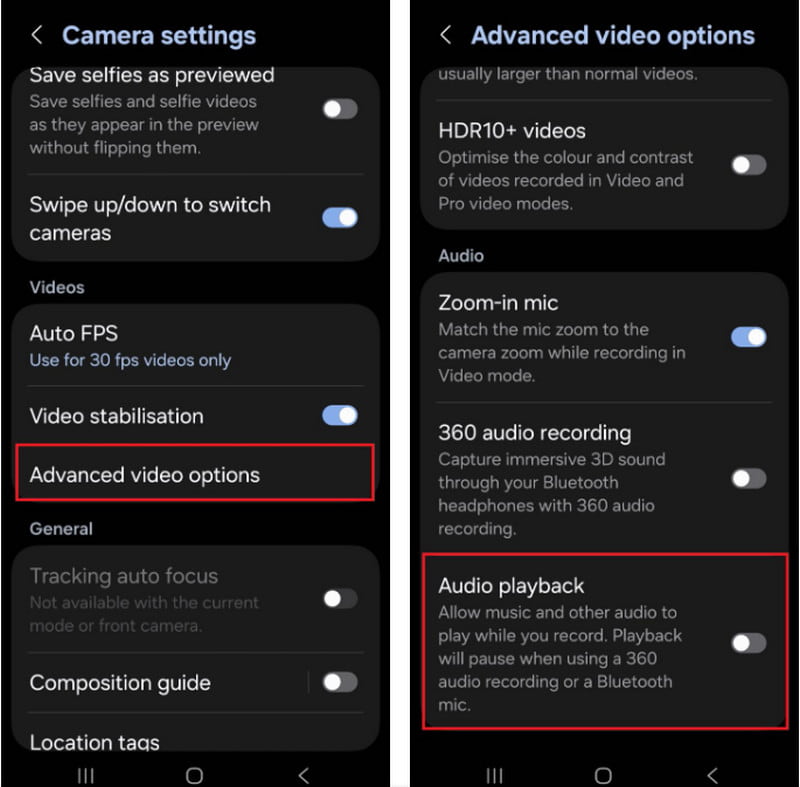
Βήμα 3Ενεργοποίηση του Αναπαραγωγή ήχου.
Βήμα 4Ανοίξτε ένα τραγούδι στο Spotify, το YouTube Music ή σε άλλη εφαρμογή.
Βήμα 5Ανοιξε το ΦΩΤΟΓΡΑΦΙΚΗ ΜΗΧΑΝΗ εφαρμογή και ξεκινήστε την εγγραφή.
Μέθοδος 2: Χρήση του Google Pixel Screen Recorder
Η ενσωματωμένη συσκευή εγγραφής οθόνης στα τηλέφωνα Google Pixel σάς επιτρέπει επίσης να εγγράφετε τον εσωτερικό σας ήχο. Είναι κυρίως μια εφαρμογή για εγγραφές οθόνης, αλλά μπορεί επίσης να αναπαράγει μουσική κατά την εγγραφή. Είναι πολύ χρήσιμη για εκπαιδευτικά βίντεο, επιδείξεις παιχνιδιού και επιδείξεις εφαρμογών με μουσική υπόκρουση.
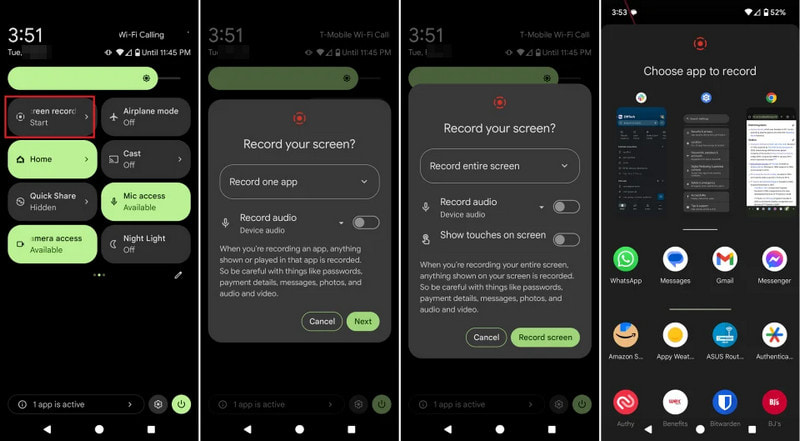
Βήμα 1 Πατήστε και σύρετε προς τα κάτω από το επάνω μέρος της οθόνης.
Βήμα 2Επιλέξτε την καταγραφή οθόνης που είναι ήδη διαθέσιμη.
Βήμα 3Επιλέξτε εσωτερική εγγραφή ήχου ή εγγραφή ήχου συσκευής.
Βήμα 4Για να αναπαράγετε τη μουσική, κάντε κλικ στην αγαπημένη εφαρμογή μουσικής.
Βήμα 5Ξεκινήστε την εγγραφή οθόνης.
Μέθοδος 3: Χρήση εφαρμογής τρίτου μέρους
Οι εφαρμογές εγγραφής τρίτων, όπως το Background Video Recorder, χρησιμοποιούνται ευρέως στο Android, καθώς είναι πιο συμβατές με μια σειρά από μάρκες τηλεφώνων και εκδόσεις Android. Ένας σημαντικός αριθμός εφαρμογών προσφέρει αναπαραγωγή ήχου στο παρασκήνιο και πρόσθετες επιλογές εγγραφής ήχου, όπως ποιότητα βίντεο HD, χειροκίνητα χειριστήρια, φίλτρα και σταθεροποίηση. Μπορούν να είναι χρήσιμες για άτομα που χρειάζονται περισσότερες επιλογές εγγραφής από αυτές που παρέχει η ενσωματωμένη εφαρμογή Κάμερα, ειδικά για χρήστες που θέλουν να... ηχογράφηση ενός podcast, εκπαιδευτικά βίντεο, βιντεολόγια ή περιεχόμενο κοινωνικών μέσων με καλύτερη ποιότητα ήχου και βίντεο.
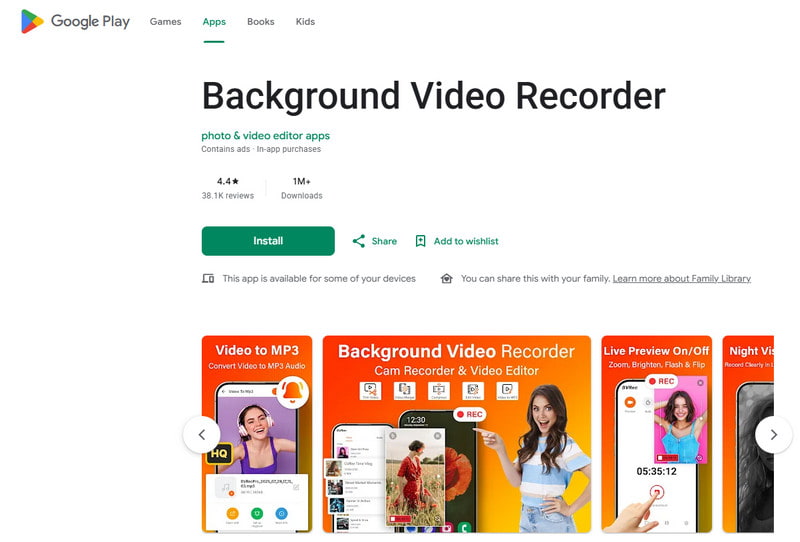
Βήμα 1Εγκαταστήστε την εφαρμογή εγγραφής βίντεο φόντου από το Google Play Store.
Βήμα 2Επιτρέψτε την πρόσβαση στην κάμερα, το μικρόφωνο και τον αποθηκευτικό χώρο σας όταν σας ζητηθεί.
Βήμα 3Ανοίξτε το Spotify, το YouTube Music ή κάποια άλλη εφαρμογή μουσικής και ξεκινήστε τη λίστα αναπαραγωγής σας.
Βήμα 4Ανοίξτε τη συσκευή εγγραφής και προσαρμόστε τις ρυθμίσεις ποιότητας βίντεο ή ήχου, εάν χρειάζεται.
Βήμα 5Πατήστε το κουμπί εγγραφής ενώ η μουσική σας συνεχίζει να παίζει στο παρασκήνιο.
Μέρος 3. Γιατί το iPhone μου κάνει παύση μουσικής όταν ξεκινάω την εγγραφή;
Ορισμένοι χρήστες iPhone αναφέρουν ότι η μουσική τους σταματά ξαφνικά κατά την εγγραφή ενός βίντεο του εαυτού τους. Αυτό συμβαίνει επειδή στις συσκευές iOS, το μικρόφωνο της κάμερας χρησιμοποιείται πάντα πρώτα για την εγγραφή ήχου και όχι για την αναπαραγωγή πολυμέσων. Αυτή η συμπεριφορά είναι παρόμοια με τον τρόπο που το λογισμικό που ηχογραφεί φωνή σε Mac Δίνει προτεραιότητα στην είσοδο μικροφώνου κατά τη διάρκεια των περιόδων εγγραφής. Αρκετές πιθανές αιτίες μπορούν να προκαλέσουν αυτό το πρόβλημα, ανάλογα με το μοντέλο iPhone και την έκδοση iOS που διαθέτετε.
- Η εφαρμογή Κάμερα αναλαμβάνει τον έλεγχο του ήχου: Η εφαρμογή Κάμερα δίνει αυτόματα προτεραιότητα στο μικρόφωνο για την εγγραφή βίντεο, ώστε να διασφαλίζεται η καλύτερη δυνατή ποιότητα ήχου.
- Οι παλαιότερες εκδόσεις iOS συνοδεύονται από περιορισμούς: Στις περισσότερες περιπτώσεις, η μουσική διακόπτεται αυτόματα κατά την εγγραφή βίντεο σε iOS 17 και παλαιότερες εκδόσεις.
- Μπορείτε να αναπαράγετε μουσική μόνο στο παρασκήνιο με ορισμένες εφαρμογές μουσικής: Ορισμένες εφαρμογές ροής ενδέχεται να διακόψουν προσωρινά τη ροή, εάν κάποια άλλη εφαρμογή χρησιμοποιεί τις ρυθμίσεις εγγραφής ήχου.
- Οι συσκευές Bluetooth μπορούν να προκαλέσουν διενέξεις: Τα ασύρματα ακουστικά ή ηχεία μπορεί να αποσπούν την προσοχή κατά τη διάρκεια των ηχογραφήσεων.
- Η λειτουργία εξοικονόμησης μπαταρίας ενδέχεται να επηρεάσει: Η Λειτουργία χαμηλής κατανάλωσης ενέργειας ενδέχεται να περιορίσει τις λειτουργίες στο παρασκήνιο, όπως την αναπαραγωγή μουσικής.
Μέρος 4. Η μουσική σταματά ή δεν παίζει [Γρήγορες λύσεις]
| Πρόβλημα | Γρήγορη Επιδιόρθωση |
| Η μουσική σταματάει αμέσως μετά την έναρξη της ηχογράφησης. | Χρησιμοποιήστε τη μέθοδο QuickTake ή ενεργοποιήστε την ενσωματωμένη λειτουργία αναπαραγωγής στις ρυθμίσεις της Κάμερας. |
| Δεν υπάρχει μουσική κατά την ηχογράφηση. | Επανεκκινήστε τόσο την εφαρμογή Κάμερα όσο και την εφαρμογή Μουσικής και, στη συνέχεια, δοκιμάστε ξανά την εγγραφή. |
| Ο ήχος Bluetooth αποσυνδέεται. | Επανασυνδέστε τα ασύρματα ακουστικά ή το ηχείο σας αφού απενεργοποιήσετε και ενεργοποιήσετε ξανά το Bluetooth. |
| Η συσκευή εγγραφής τρίτου κατασκευαστή δεν λειτουργεί. | Ενημερώστε ή επανεγκαταστήστε την εφαρμογή εγγραφής για να διορθώσετε πιθανά προβλήματα συμβατότητας. |
| Η μουσική εξακολουθεί να σταματάει στο iPhone μου. | Επανεκκινήστε το iPhone σας και εγκαταστήστε την πιο πρόσφατη διαθέσιμη ενημέρωση iOS. |
| Δεν υπάρχει ήχος στο εγγεγραμμένο βίντεο. | Βεβαιωθείτε ότι τα δικαιώματα μικροφώνου είναι ενεργοποιημένα τόσο για την εφαρμογή Κάμερα όσο και για την εφαρμογή Μουσική. |
Μέρος 5. Τι θα λέγατε για τη χρήση μιας επαγγελματικής συσκευής εγγραφής οθόνης
Εγγραφή οθόνης AVAide είναι ένα επαγγελματικό λογισμικό εγγραφής οθόνης για όσους προτιμούν ομαλότερες, υψηλότερης ποιότητας εγγραφές σε Windows και Mac. Μπορεί να καταγράψει ήχο συστήματος, ήχο μικροφώνου, βίντεο κάμερας web, ακόμη και την οθόνη σε υψηλή ποιότητα. Το λογισμικό είναι ιδιαίτερα χρήσιμο για τη δημιουργία εκπαιδευτικών σεμιναρίων, βίντεο παιχνιδιών, βίντεο αντιδράσεων, διαδικτυακών μαθημάτων και παρουσιάσεων βίντεο, χωρίς καθυστέρηση και χωρίς περίπλοκες ρυθμίσεις.
- Εγγράψτε βίντεο σε ανάλυση έως 4K ή 1080p με ομαλή και σταθερή απόδοση.
- Καταγράψτε τον εσωτερικό ήχο και τον ήχο του μικροφώνου ταυτόχρονα για πιο καθαρές ηχογραφήσεις.
- Επιλέξτε ανάμεσα σε πλήρη οθόνη, επιλεγμένο παράθυρο ή μια προσαρμοσμένη περιοχή εγγραφής.
- Εγγράψτε πλάνα από κάμερα web ή κατοπτρίστε τα και καταγράψτε εύκολα οθόνες iPhone και Android.
- Προσθέστε σχολιασμούς κατά την εγγραφή και περικόψτε ή επεξεργαστείτε βίντεο αμέσως μετά τη λήψη.

 Ασφαλής λήψη
Βήμα 1Εγκαταστήστε το AVAide Screen Recorder
Μεταβείτε στην επίσημη ιστοσελίδα του AVAide και κατεβάστε το λογισμικό για Windows ή Mac. Εγκαταστήστε το πρόγραμμα και, στη συνέχεια, εκτελέστε το μετά την εγκατάσταση.
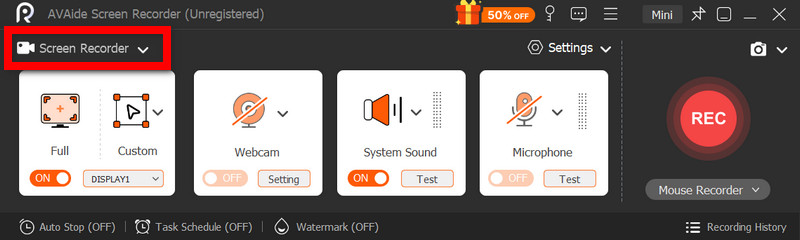
Βήμα 2Επιλέξτε τη λειτουργία εγγραφής
Για να καταγράψετε την δραστηριότητα της οθόνης σας, κάντε κλικ στο Εγγραφή οθόνης επιλογή από την κύρια οθόνη.
Βήμα 3Επιλέξτε την περιοχή εγγραφής
Επιλέγω Γεμάτος ή Εθιμο λειτουργία εγγραφής όπως απαιτείται.
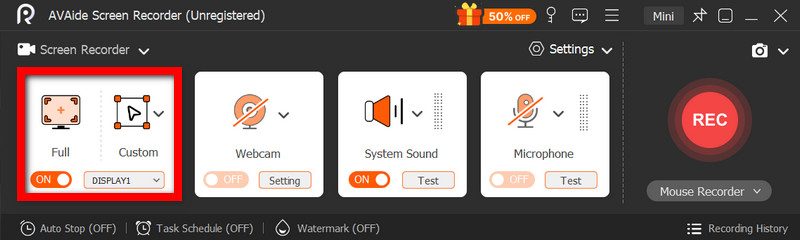
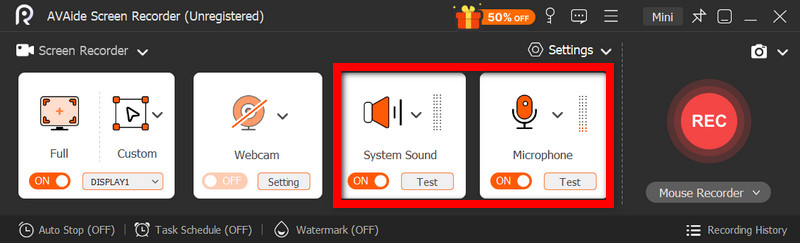
Βήμα 4Ενεργοποίηση πηγών ήχου
Αν θέλετε να ηχογραφήσετε τη φωνή σας, ενεργοποιήστε το Μικρόφωνο; αν θέλετε να ηχογραφήσετε τον εσωτερικό ήχο, επιλέξτε Ήχος συστήματος.
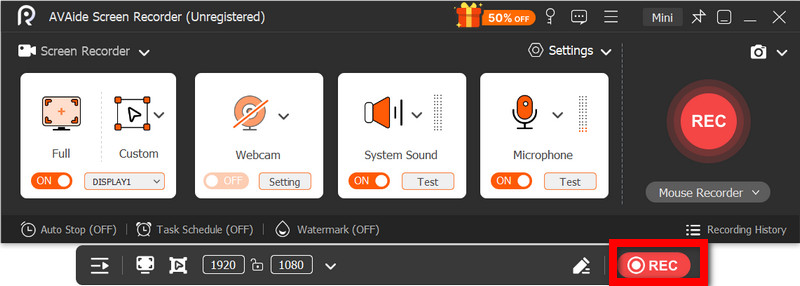
Βήμα 5Ξεκινήστε την εγγραφή
Κάντε κλικ στο REC για να καταγράψετε την οθόνη, το βίντεο ή την ηχητική σας δραστηριότητα.
Βήμα 6Επεξεργασία και αποθήκευση της εγγραφής
Όταν ολοκληρωθεί, πατήστε το Να σταματήσει κουμπί. Παρακολουθήστε το βίντεο για να πάρετε μια γενική ιδέα, επεξεργαστείτε το για λίγο αν χρειάζεται και, στη συνέχεια, αποθηκεύστε το στον υπολογιστή.
Αναπαραγωγή μουσικής κατά την ηχογράφηση είναι κάτι με το οποίο πολλοί χρήστες δυσκολεύονται όταν δημιουργούν βίντεο για μέσα κοινωνικής δικτύωσης ή για προσωπική χρήση. Με τις κατάλληλες ρυθμίσεις, μεθόδους ή εργαλεία, τόσο οι χρήστες iPhone όσο και οι χρήστες Android μπορούν εύκολα να εγγράφουν βίντεο χωρίς να διακόπτουν τη μουσική υπόκρουση.
ΣΧΕΤΙΚΑ ΜΕ ΤΟΝ ΣΥΓΓΡΑΦΕΑ

Καταγράψτε δραστηριότητες οθόνης με ήχο, διαδικτυακές συσκέψεις, βίντεο παιχνιδιού, μουσική, κάμερα web κ.λπ.