Want to learn how to take a screenshot on an HP laptop? Well, taking a screenshot on your laptop is a necessary skill for education, work, and professional use. Capturing your screen is an ideal method if you want to get information, share something interesting, or collect various content. Having enough knowledge on how to take a screenshot can make your digital life easier. In this guidepost, we have covered various methods you can use to take a screenshot on your HP laptop effectively. In addition to that, you will also discover various third-party screenshot tools you can rely on for a better capturing process. Thus, check this post and explore the best procedures you can get.
Part 1. Screenshot on HP Using the Print Screen Key
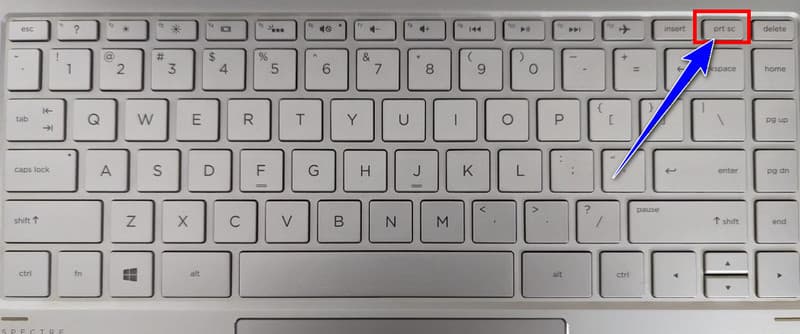
If you want to learn how to take a screenshot on an HP laptop, then you can get one of the best methods from this section. When capturing your screen, one of the best functions you can use is the Print Screen Key. This function will be found on your keyboard (PrtSc key). With this key, you can capture any content from your screen. The best thing about this function is that it is simple to access. All you need to do is go to the information you want to capture and simply press the PrtSc key. Once done, you can already have your captured screen. If you want to begin the process, you can check the simple steps below.
Step 1The first thing to do is to open your HP laptop. Then, you can proceed to the content you want to take a screenshot of.
Step 2On your keyboard, you can press the PrtSc key. You will see this key in the top-right corner of your keyboard.
Step 3Then, you can start capturing the image from your screen. Once done, you can open an image editing software, like MS Word or Paint. Hit Ctrl + V to paste and open the captured image.
Step 4You can now proceed with saving the image. You can save the screenshot to JPG or PNG format for better compatibility.
Part 2. Screenshot on HP Using the Snipping Tool
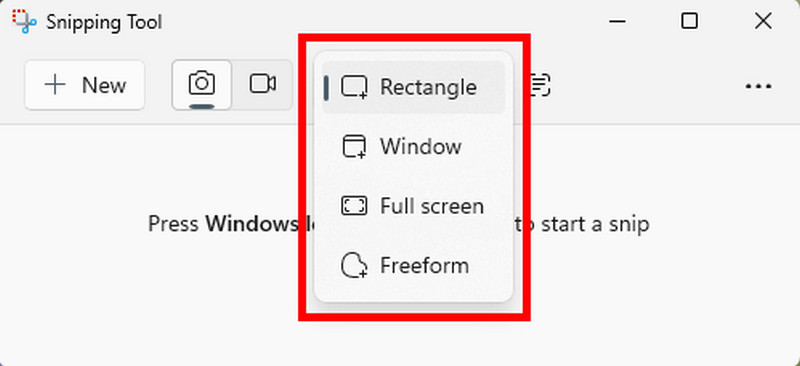
Aside from the PrtSc feature, there are more features you can use for taking a screenshot. One of them is the Snipping Tool. It is a pre-built screenshot tool you can access on your HP laptop. The best part here is that this tool has a simple layout, allowing you to capture all the information you need. What's more, the software has many ways to capture your screen. These are Rectangle, Window, Full Screen, and Freeform. To learn more about these methods, check the simple explanation below:
• Rectangular Snip - Draw a rectangle around the screen you want to capture.
• Windows Snip - This function allows you to capture specific windows in just one click.
• Full-Screen Snip - This function is ideal for capturing the entire screen.
• Freeform Snip - It is perfect for capturing irregular areas.
With these functions, there is no doubt that taking a screenshot is a possible task. What makes the program tool unique is that it allows you to access basic editing functions. You can use a highlight, pen tools, or erase unnecessary parts from the image. To start learning how to take a screenshot on an HP desktop, see the instructions below.
Step 1On your HP laptop, go to the Search function below and type the Snipping Tool. Then, launch the tool to proceed with the next process.
Step 2Once the software's interface appears, you can tap the Snipping Area button and select how you want to take a screenshot.
Step 3Then, you can start with the capturing process. You can select all the areas you want to capture.
Step 4After that, you can begin editing your image. You can also tap the Save button above to keep the screenshot on your laptop.
Part 3. Screenshot on HP via Snip and Sketch
Do you have Windows 10 or 11 on your HP laptop? Then the best way to capture the screen is by using the Snip and Sketch tool. This tool is a modern replacement for the Snipping Tool. It has more features to offer and is smoother to use. The best part here is that you can decide how you want to take a screenshot. You can customize the area, capture the entire screen, or capture irregular areas. You can even access various editing functions to your captured photo. You can add color to the image, erase some part of the photo, crop the image, and more. If you want to learn how to take a screenshot on an HP computer, you can follow the provided methods.
Step 1Open your HP laptop and start proceeding with the data that you want to capture.
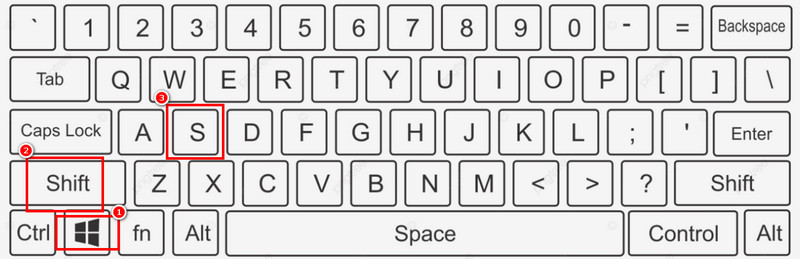
Step 2After that, press the Windows + Shift + S key. Then, your screen will become a little dim. You can now start the capturing process.
Step 3When the captured screen image shows up on your screen, tap the Save button to start the saving process.
Part 4. Best Software to Take a Screenshot on HP Without the Print Screen Key
When taking a screenshot on HP, there are various ways you can follow. However, there are times when the keys are not functioning well, which can be challenging for some HP users. With that, if you are looking for a third-party screenshot tool for capturing your laptop screen, you can check the details in this section.
Method 1. Take a Screenshot Using AVAide Screen Recorder
One of the most powerful programs you can use to take a screenshot is AVAide Screen Recorder. This software can offer its Screen Capture feature that lets you take a screenshot of any data from your screen. Aside from that, you can even take a screenshot of any area on your screen. The software even ensures that you can get the best image quality, leading to a satisfying viewing experience. Additionally, the main interface of the program is simple, making it ideal for non-professional users. It can even support various image formats, such as JPG, PNG, and more. With that, if you want the best screenshot tool, it would be better to access this program.
More Features
• The software can offer a smooth screen-capturing process.
• The main interface is neat and comprehensive.
• The program can offer basic editing features for enhancing the captured screen.
• The software can also record both audio and video.
To start the capturing process, you can check and follow the instructions below.
Step 1The first thing to do is to download AVAide Screen Recorder on your HP laptop. Then, proceed with the installation process and go to the next step.
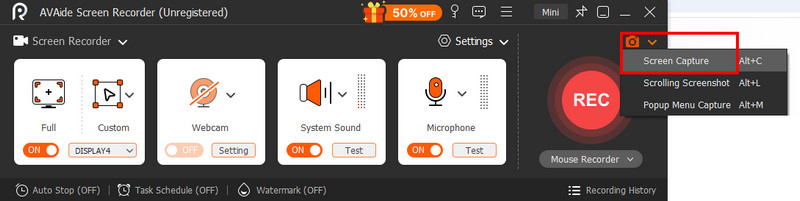
Step 2From the main interface, click the drop-down button on the right interface and click the Screen Capture feature. Then, start the capturing process.
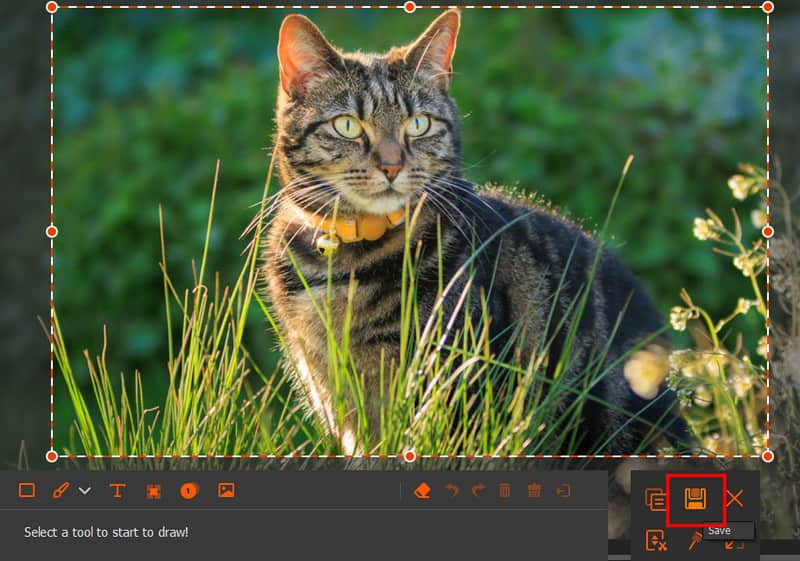
Step 3Then, if you are done taking a screenshot, you can tap the Save button. With that, you can get any information from your screen.
Method 2. Capture a Screen on an HP Laptop Using Snagit
Snagit is a feature-rich and popular screenshot tool that works smoothly on an HP laptop. What we like about this software is that it can provide powerful capture options, basic editing tools, and simple ways to arrange and share visual content. The good part here is that it can provide advanced annotation features, templates, scrolling captures, and fast sharing workflows. With these capabilities, we can tell that this screenshot tool is ideal for educators, professionals, and other content creators using HP laptops. The good part here is that you can even use this software to take a screenshot on Lenovo laptops. The only problem here is that the software is resource-intensive. You must have a high-spec computer for smooth performance. Plus, it is not 100% free. You have to get its premium version for unlimited features.
You can use the steps below to learn how to take a screenshot on an HP desktop using Snagit.
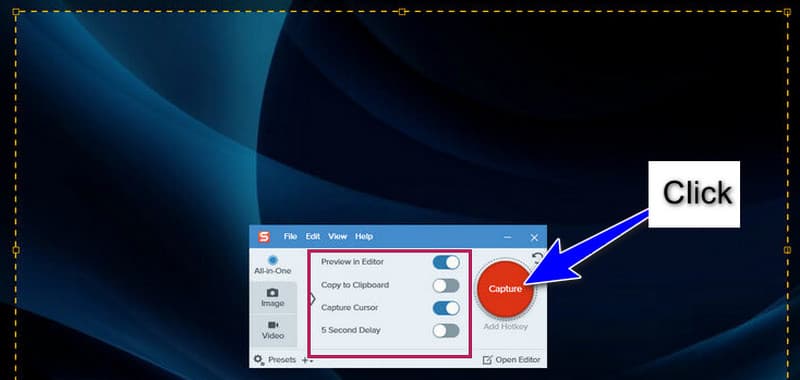
Step 1Download Snagit on your HP laptop. After the installation process, run it to start the capturing process.
Step 2After you launch the software's interface, you can start clicking the Capture option to take a screenshot.
Step 3Once you are done capturing, tap the Camera button, and you will proceed to the editing process. After that, navigate to the File > Save as option for the final process.
Useful Tips to Take a Screenshot on HP Laptops
To ensure that you can get the most out of your screenshot capabilities, consider these advanced tips and best practices.
Keyboard Shortcut and Reference:
• PrtSc: Capture the entire screen.
• Alt + PrtSc: Capture active window.
• Fn + PrtSc: Use on laptops with a function key requirement.
• Windows + PrtSc: Save full screen automatically.
• Windows + Shift + S: Open Snip & Sketch.
• Windows + Alt + PrtSc: Capture the active window and save automatically.
Clean Up Your HP Laptop Before Capturing:
• Remove or delete unnecessary icons
• Close irrelevant windows
• Hide personal or sensitive data
Optimize Your Display:
• Modify screen brightness for optimal visibility
• Set the appropriate zoom level
• Ensure text is visible and readable
Use Appropriate Capture Methods:
• Choose an accurate tool for your specific needs
• Consider the final purpose of the screenshot
• Choose appropriate file formats
Preserve Quality:
• Use PNG format for the clearest images
• Prevent unnecessary compression
• Maintain original aspect ratios
With these tips, there is no doubt that you can get the best result after taking a screenshot. With that, it would be best to consider using these tips when taking a screenshot on an HP laptop.
Taking a screenshot on an HP notebook doesn't have to be a complicated task. With that, you can use various methods for an effective capturing process, such as PrtSc, Snipping Tool, and Snipping and Sketch. In addition, if you are looking for a third-party software that can instantly capture your screen on a laptop, we prefer using AVAide Screen Recorder. With this program's Screen Capture feature, you can take a screenshot on your laptop easily and smoothly.
Record screen, audio, webcam, gameplay, online meetings, as well as iPhone/Android screen on your computer.

 Secure Download