คอมพิวเตอร์ของคุณมีสิ่งจำเป็นครบครันสำหรับการใช้งานออนไลน์ ไม่ว่าจะเป็นการตัดต่อ การรับชม หรือการเล่นเกม หนึ่งในฟีเจอร์ที่ทุกคนจำเป็นต้องใช้คือฟังก์ชันการจับภาพหน้าจอ ซึ่งช่วยให้คุณบันทึกภาพหน้าจอทั้งหมดหรือเฉพาะส่วนใดส่วนหนึ่งก็ได้ เนื่องจากมีคอมพิวเตอร์หลากหลายยี่ห้อและรุ่น บทความนี้จึงมุ่งเน้นไปที่การแนะนำวิธีการใช้งานฟังก์ชันนี้ วิธีถ่ายภาพหน้าจอในคอมพิวเตอร์ Acer ระบบ Windowsเริ่มต้นด้วยการเรียนรู้วิธีต่างๆ ในการเข้าถึงฟีเจอร์การจับภาพหน้าจอในตัวบนแล็ปท็อปหรือเดสก์ท็อป Chromebook และแท็บเล็ต นอกจากนี้ ลองดูวิธีแก้ปัญหาหากคุณพบว่า Acer ของคุณไม่มีปุ่ม PrintScreen สำหรับจับภาพหน้าจอ
ส่วนที่ 1 วิธีการจับภาพหน้าจอในแล็ปท็อปหรือคอมพิวเตอร์ตั้งโต๊ะ Acer ที่ใช้ระบบปฏิบัติการ Windows
ต่อไปนี้คือวิธีการจับภาพหน้าจอในแล็ปท็อป Acer โดยใช้ปุ่มลัดและแอปพลิเคชันมาตรฐาน มีขั้นตอนที่ชัดเจนเพื่อให้คุณลองทำตามได้ มาเริ่มกันเลยดีกว่า
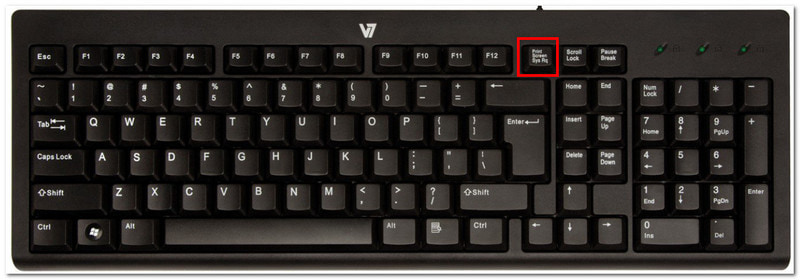
1. ปุ่ม PrintScreen (PrtSc) แบบคลาสสิก
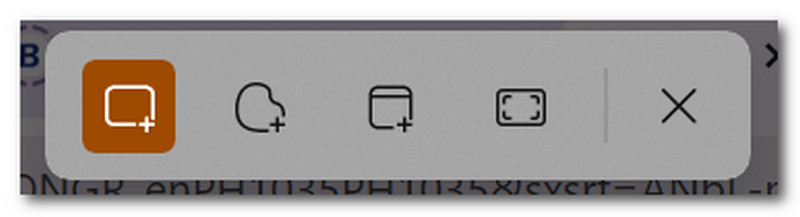
ขั้นตอนที่ 1ค้นหาและกด ป.ตรี กดปุ่มที่อยู่ด้านบนขวาของแป้นพิมพ์ หน้าจอของคุณจะหรี่ลง และแถบเมนูเล็กๆ จะปรากฏขึ้นที่ด้านบนตรงกลาง
ขั้นตอนที่ 2เลือกโหมดการใช้งาน: สี่เหลี่ยมผืนผ้า, ฟรีฟอร์ม, หน้าต่าง, และ เต็มหน้าจอเมื่อเสร็จสิ้นแล้ว ภาพหน้าจอจะถูกคัดลอกไปยังคลิปบอร์ดของคุณโดยอัตโนมัติ ซึ่งคุณสามารถวางลงในเอกสารเปล่า แชทข้อความ และอื่นๆ ได้
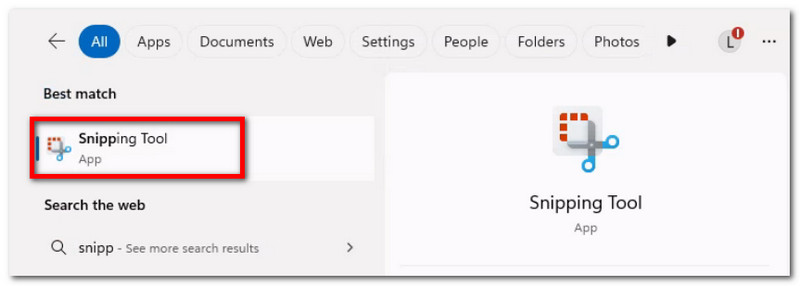
2. เครื่องมือ Snipping Tool และ Snip & Sketch (เหมาะที่สุดสำหรับพื้นที่ที่กำหนดเอง)
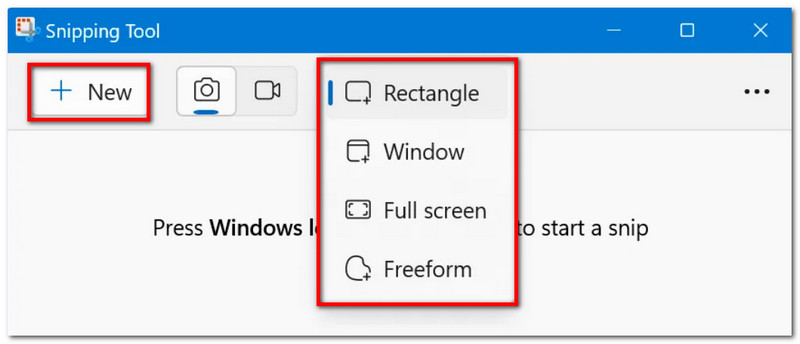
ขั้นตอนที่ 1ค้นหาแอปในแถบค้นหาของคุณ โปรดทราบว่าชื่อแอปอาจเป็น ก็ได้ เครื่องมือสนิป หรือ สแนปแอนด์สเก็ตช์ขึ้นอยู่กับเวอร์ชัน Windows ของอุปกรณ์ของคุณ
ขั้นตอนที่ 2เลือกโหมดจากเมนูแบบเลื่อนลง จากนั้นคลิก ใหม่ กดปุ่มเพื่อถ่ายภาพหน้าจอ ใช้เครื่องมือวาดภาพเพื่อแก้ไข จากนั้นคลิก บันทึก เพื่อบันทึกภาพหน้าจอ
3. บาร์เกม
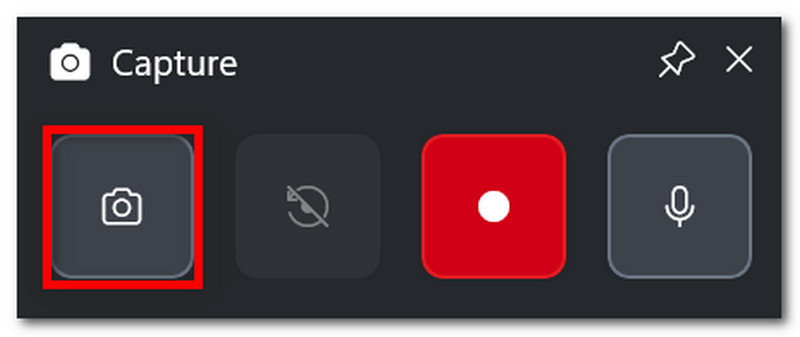
ขั้นตอนที่ 1กด วินโดวส์ + จี บนแป้นพิมพ์ของคุณ เมื่อหน้าจอมืดลง จะมีแถบงานปรากฏขึ้นมาสองสามแถบ
ขั้นตอนที่ 2คลิก กล้อง ไอคอนนี้ใช้สำหรับถ่ายภาพหน้าจอ คุณยังสามารถกดได้อีกด้วย Windows + Alt + PrtSc เพื่อเข้าถึงฟีเจอร์นี้ระหว่างการเล่นเกม
4. โปรแกรมบันทึกหน้าจอ AVAide
ด้วยวิธีการจับภาพหน้าจอแบบมาตรฐาน คุณอาจคิดว่าอุปกรณ์ของคุณทำได้เพียงเท่านี้ แต่คุณรู้หรือไม่ว่า โปรแกรมบันทึกหน้าจอ AVAide สามารถยกระดับประสบการณ์การจับภาพหน้าจอของคุณได้หรือไม่? ด้วยดีไซน์ที่สวยงามและฟีเจอร์มากมาย การจับภาพหน้าจอจึงง่ายและมีคุณภาพสูง คุณสามารถจับภาพหน้าจอทั้งหมด หน้าต่างที่เปิดอยู่ หรือเพียงพื้นที่เล็กๆ และบันทึกในรูปแบบยอดนิยม เช่น BMP, JPEG, PNG, GIF หรือ TIFF ตัวเลือกการแก้ไขในตัวก็มีประโยชน์เช่นกัน คุณสามารถวาด เพิ่มตัวเลขหรือข้อความ และเบลอรายละเอียดที่สำคัญในภาพก่อนบันทึกได้อย่างอิสระ สุดท้ายนี้ การจับภาพหน้าจอของ AVAide ไม่ได้จำกัดอยู่แค่เครื่องมือเดียว แต่สามารถใช้งานได้แม้ในขณะที่คุณกำลังบันทึกบนคอมพิวเตอร์ ด้วยเว็บแคม และบนอินเทอร์เน็ตทุกส่วน ยกระดับประสบการณ์การจับภาพหน้าจอของคุณด้วยทางเลือกที่ยอดเยี่ยมนี้บน Windows หรือแม้แต่ Mac ของคุณ
ขั้นตอนที่ 1คลิก ดาวน์โหลด กดปุ่มและติดตั้ง AVAide Screen Recorder บน Acer ของคุณ เมื่อติดตั้งเสร็จสมบูรณ์แล้ว ให้เปิดโปรแกรม

ดาวน์โหลดฟรี สำหรับ Windows 7 หรือใหม่กว่า
 ดาวน์โหลดอย่างปลอดภัย
ดาวน์โหลดฟรี สำหรับ Mac OS X 10.13 หรือใหม่กว่า
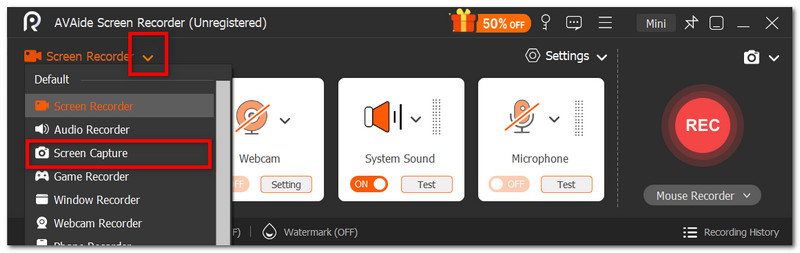
ดาวน์โหลดอย่างปลอดภัยขั้นตอนที่ 2ไปที่เมนูแบบเลื่อนลงที่มุมซ้ายของส่วนติดต่อผู้ใช้ แล้วเลือกตัวเลือกจากรายการ จับภาพหน้าจอ ตัวเลือกนี้จะทำให้เคอร์เซอร์ของคุณเปลี่ยนไปทันที ซึ่งคุณสามารถใช้เพื่อเลือกพื้นที่บนหน้าจอที่คุณต้องการจับภาพได้
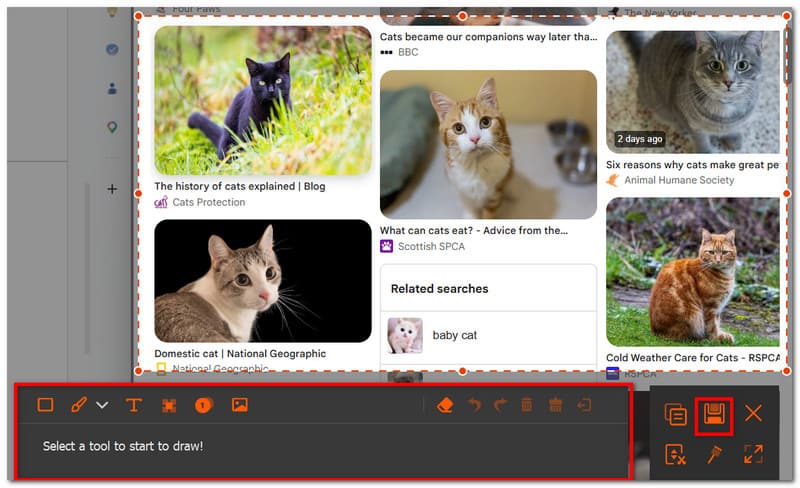
ขั้นตอนที่ 3เมื่อถ่ายภาพเสร็จแล้ว คุณสามารถแก้ไขภาพโดยใช้ตัวเลือกการแก้ไข หลังจากนั้น ให้ส่งออกภาพโดยคลิกที่ปุ่ม บันทึก ปุ่ม ทำซ้ำตามต้องการ
ส่วนที่ 2: วิธีการจับภาพหน้าจอในเครื่อง Acer โดยไม่ต้องใช้ปุ่ม PrintScreen
คุณอาจพบว่าตัวเองอยู่ในสถานการณ์ที่ท้าทายเมื่อแป้นพิมพ์ของคุณไม่มีปุ่ม PrtSc และมันอาจทำให้การทำงานของคุณล่าช้าได้ ดังนั้น จะจับภาพหน้าจอในคอมพิวเตอร์ Acer ที่ไม่มีปุ่ม PrtSc ได้อย่างไร? ส่วนนี้จะนำเสนอวิธีการที่ดีที่สุดโดยไม่ต้องใช้ปุ่ม PrtSc และเป็นวิธีการที่ใช้ได้กับแล็ปท็อป Acer โดยเฉพาะ
วิธีแก้ปัญหาที่ 1: กดปุ่ม Fn + Windows + Spacebar (ปุ่มลัดที่ใช้กันทั่วไปในเครื่อง Acer) หรือ Fn + PrtSc
ขั้นตอนที่ 1บนแป้นพิมพ์ Acer ของคุณ ให้กดปุ่ม Fn + Windows + Spacebar ปุ่มต่างๆ เมื่อหน้าจอของคุณกะพริบ แสดงว่าได้ถ่ายภาพหน้าจอแบบเต็มหน้าจอเรียบร้อยแล้ว
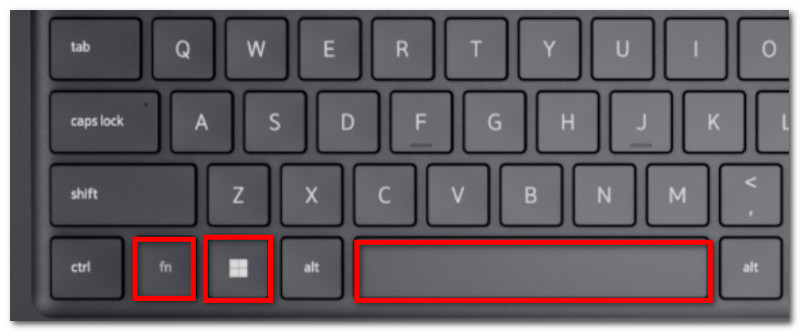
ขั้นตอนที่ 2ไปที่เอกสาร Word ว่างเปล่าแล้วกด Ctrl + V เพื่อวางรูปภาพ จากนั้นคุณสามารถบันทึกเอกสารลงในโฟลเดอร์ได้
วิธีที่ 2: ใช้ปุ่ม Windows + Shift + S (เพื่อเปิดแถบจับภาพของ Snipping Tool)
ขั้นตอนที่ 1กดพร้อมกัน Windows + Shift + S กดปุ่มบนแป้นพิมพ์ของคุณ แล้วมันจะเปิดโปรแกรม Snipping Tool ขึ้นมา
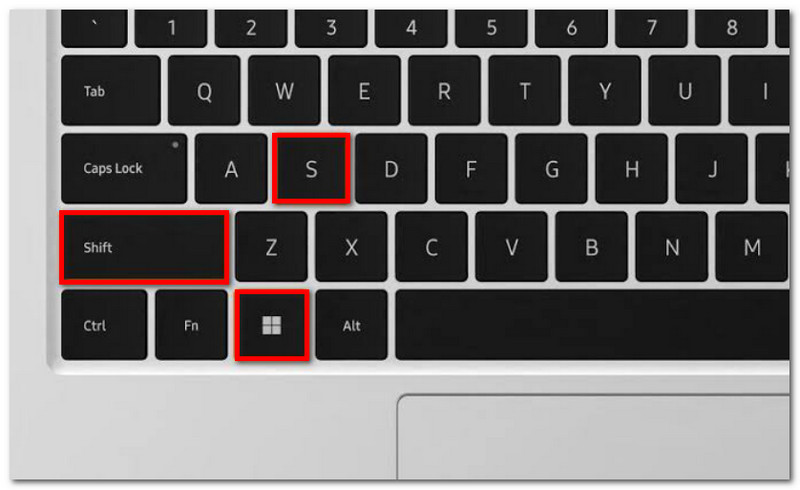
ขั้นตอนที่ 2เลือกโหมดการจับภาพหน้าจอ แล้วลากเคอร์เซอร์เพื่อเลือกพื้นที่ที่ต้องการจับภาพ ใช้ Ctrl + V เพื่อวางรูปภาพ
วิธีแก้ปัญหาที่ 3: กำหนดค่าคีย์ใหม่ให้กับคีย์อื่น
ขั้นตอนที่ 1ดาวน์โหลด PowerToys จาก Microsoft Store จากส่วนด้านซ้ายของหน้าจอ ให้เลือก... ตัวจัดการแป้นพิมพ์.
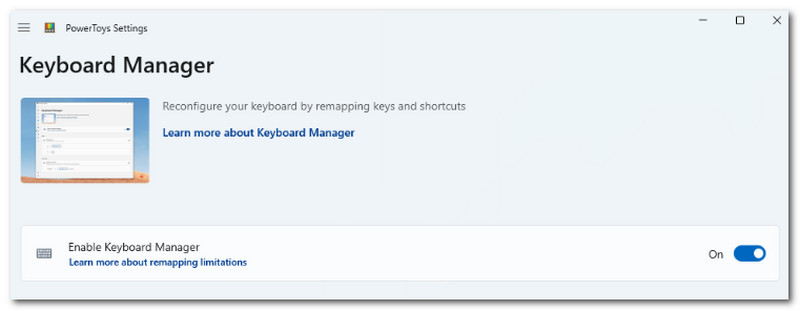
ขั้นตอนที่ 2เลือกตัวอักษรใดก็ได้บนแป้นพิมพ์ของคุณเพื่อเข้าถึงเครื่องมือ Snipping Tool เมื่อต้องการใช้งาน คลิก ตกลง เพื่อบันทึกการเปลี่ยนแปลง
ส่วนที่ 3: วิธีการจับภาพหน้าจอใน Acer Chromebook
Chromebook ของ Acer มีวิธีถ่ายภาพหน้าจอที่แตกต่างออกไป โดยปกติแล้วแป้นพิมพ์คอมพิวเตอร์ส่วนใหญ่จะมีปุ่ม PrtSc แต่ Chromebook ไม่มี ดังนั้นวิธีการถ่ายภาพหน้าจออย่างเป็นทางการบน Chromebook ของ Acer ทำได้อย่างไร? ทำตามขั้นตอนต่อไปนี้เพื่อถ่ายภาพหน้าจอในโหมดเต็มหน้าจอและโหมดบางส่วนได้อย่างง่ายดาย:
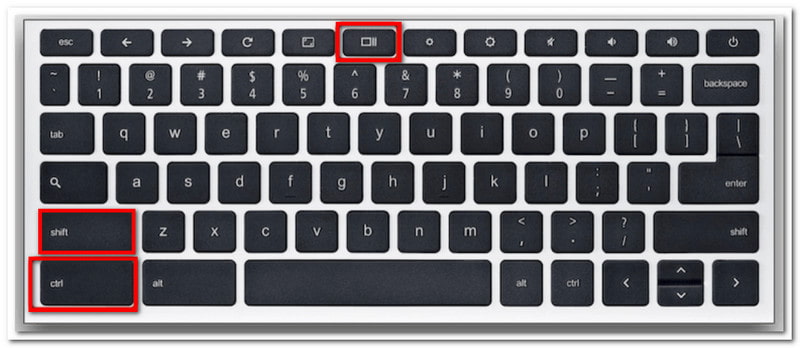
ขั้นตอนที่ 1เพื่อดูแบบเต็มหน้าจอ ให้กด Ctrl + แสดง ปุ่มต่างๆ ปุ่ม "แสดง" มักจะอยู่ตรงกลางด้านบนของแป้นพิมพ์ โดยมีไอคอนเป็นรูปสี่เหลี่ยมผืนผ้าที่มีเส้นแนวตั้งสองเส้นอยู่ภายใน
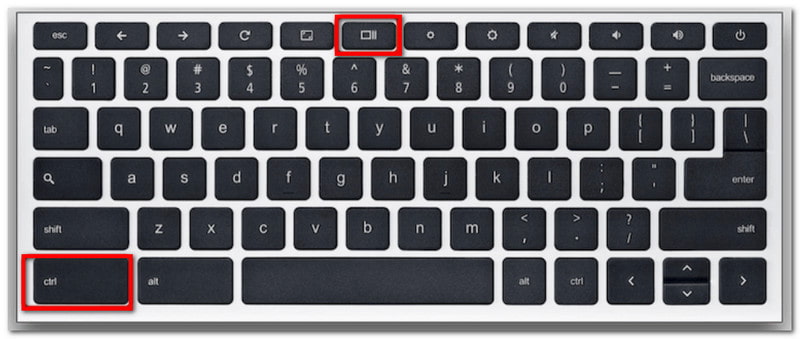
ขั้นตอนที่ 2ภาพหน้าจอจะถูกคัดลอกไปยังคลิปบอร์ดของคุณ ซึ่งคุณต้องวางลงในเอกสาร Word ว่างเปล่าเพื่อบันทึก
ขั้นตอนที่ 3สำหรับโหมดบางส่วน ให้กด Ctrl + Shift + แสดงใช้เมาส์เลือกพื้นที่ที่คุณต้องการจับภาพหน้าจอ
ส่วนที่ 4: วิธีการจับภาพหน้าจอในแท็บเล็ต Acer
แท็บเล็ต Acer มีวิธีการใช้งานแตกต่างจากแล็ปท็อป อย่างไรก็ตาม การถ่ายภาพหน้าจอในแท็บเล็ตนั้นง่ายและใช้เพียงไม่กี่ปุ่มเท่านั้น ต่างจากการถ่ายภาพหน้าจอในแล็ปท็อปที่บันทึกภาพด้วยวิธีต่างๆ กัน ภาพหน้าจอในแท็บเล็ตจะถูกบันทึกไว้ในแอป Photos ลองทำตามขั้นตอนต่อไปนี้:
ขั้นตอนที่ 1เตรียมเนื้อหาที่คุณต้องการบันทึกบนแท็บเล็ต Acer ของคุณ กดปุ่มค้างไว้ ลดระดับเสียง และ พลัง ปุ่ม
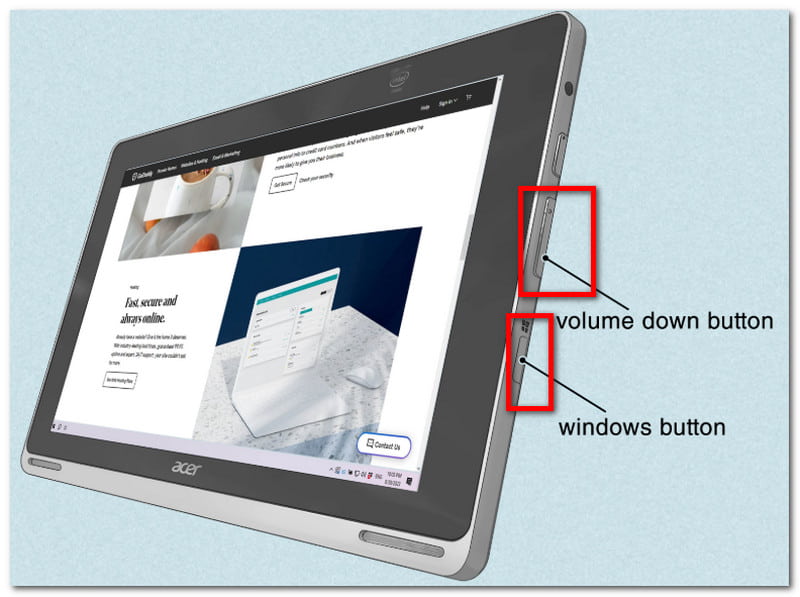
ขั้นตอนที่ 2เมื่อหน้าจอกะพริบ แสดงว่าได้ทำการจับภาพหน้าจอเรียบร้อยแล้ว ไปที่แอปรูปภาพเพื่อดูภาพ หรือใช้... ตัวปรับขนาดรูปภาพ เพื่อตัดแต่งภาพหน้าจอ
จากบทความนี้ การถ่ายภาพหน้าจอใน Acer การจับภาพหน้าจอไม่เคยง่ายขนาดนี้มาก่อน เพราะมันจะแนะนำวิธีการใช้การจับภาพหน้าจออย่างเป็นทางการบนอุปกรณ์ของคุณ ไม่เพียงเท่านั้น แต่คุณยังจะได้พบวิธีที่ดีที่สุดหากเดสก์ท็อปของคุณไม่มีปุ่ม PrintScreen อย่าลืมว่า AVAide Screen Recorder จะเป็นทางเลือกที่ดีเยี่ยมสำหรับการจับภาพหน้าจอเสมอ ไม่ว่าคุณต้องการถ่ายภาพหน้าจอ บันทึกวิดีโอ หรือบันทึกเสียง เราขอแนะนำให้คุณลองใช้โซลูชันที่ดีที่สุดสำหรับการบันทึกหน้าจอทั้งบน Windows และ Mac
เกี่ยวกับผู้เขียน

บันทึกหน้าจอ เสียง เว็บแคม การเล่นเกม การประชุมออนไลน์ ตลอดจนหน้าจอ iPhone/Android บนคอมพิวเตอร์ของคุณ