Want to learn how to screenshot on a Samsung? Capturing a Samsung screen is the best technique to get all the information on your screen. It helps you save an important message, a game highlight, a favorite scene from the videos, and more. The good thing here is that Samsung can offer various ways to take a screenshot on your screen. Thus, to discover all the most effective screen-capturing methods, start reading everything in this tutorial.
- Part 1. Classic Method of Taking a Screenshot on Samsung
- Part 2. The Palm Swipe Method of Taking a Screenshot on Samsung
- Part 3. How to Take a Long Screenshot on Samsung
- Part 4. How to Take a Screenshot Without Using Buttons on Samsung
- Part 5. How to Screenshot a Video on Samsung
- Part 6. How to Screenshot on a Samsung Tablet
- Part 7. Best Troubleshooting: Screenshot Not Working on Samsung
- Bonus: Capture Samsung Screen in an Advanced Way
Part 1. Classic Method of Taking a Screenshot on Samsung
There is a classic method for taking a screenshot on Samsung devices. This method is applicable to almost all devices, especially to those old models. It works on the S series, A series, M series, Note series, and all Samsung tablets. To get more details about the best way to take a screenshot, see the details below.
1. Use a Standard Button Combo
If you want a method that works for all models, you can use the standard button. To learn how to screenshot on a Samsung phone, see the steps below.
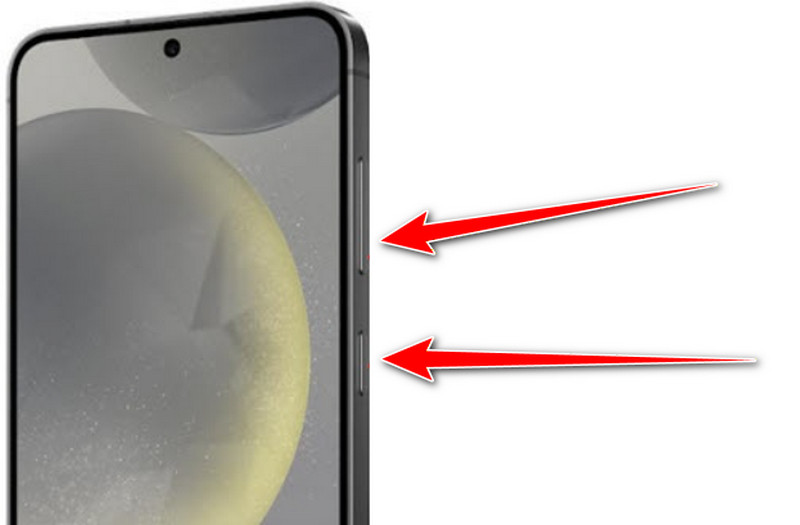
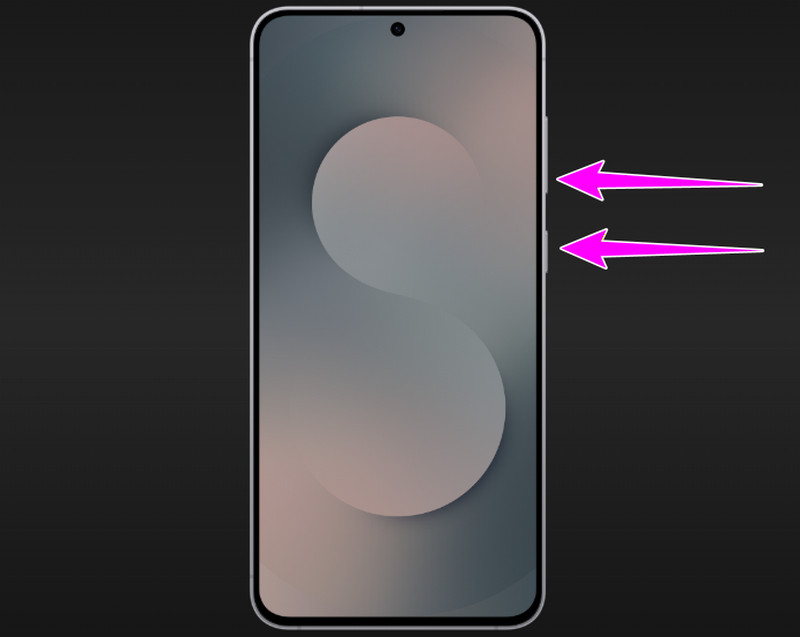
Step 1Open your Samsung device and proceed to the content that you want to capture. Then, press and hold the Volume Down and Power buttons simultaneously.
Step 2Hold the buttons for about 1 to 2 seconds. Then, release the button to get the captured image. Proceed to the Gallery app to view the capture screen.
Tips: When using the buttons, you must not hold them for too long, or else, the power menu will show up.
2. Try the Alternative Combo
If you are using an older model of Samsung, you can use another combo to take a screenshot. If you are using a Samsung phone that was released before 2016, you can use the steps below.
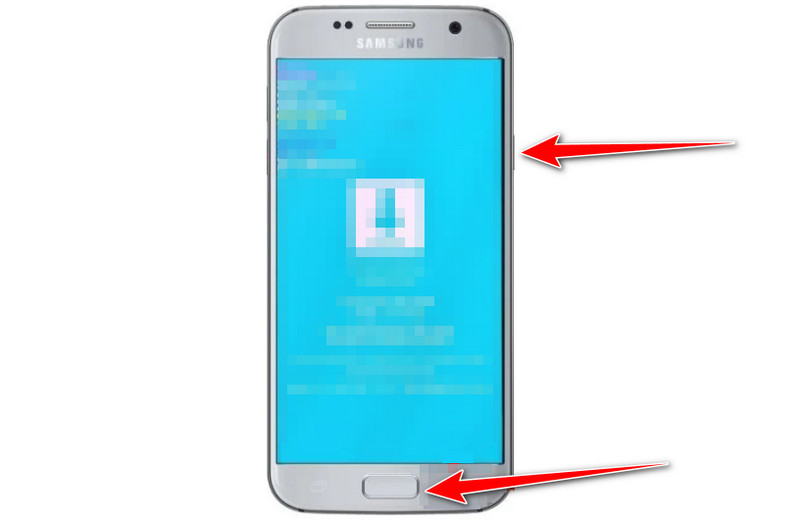
Step 1On your Samsung device, start pressing the Power button and the Home button at the same time.
Step 2Then, press the buttons for a few seconds and wait until the screenshot appears on your screen. Once done, you can see the screenshot in your Gallery app. Note that you can also use this method to take a screenshot on Alcatel and other phones with older model versions.
Part 2. The Palm Swipe Method of Taking a Screenshot on Samsung
Another way to screenshot on Samsung is to use the Palm Swipe feature. This feature can be found on the Settings app. This method is ideal if you don't want to use your buttons for taking screenshots. The process is also simple, making it ideal for all Samsung users. To learn how to take a screenshot on a Samsung, follow the steps below.
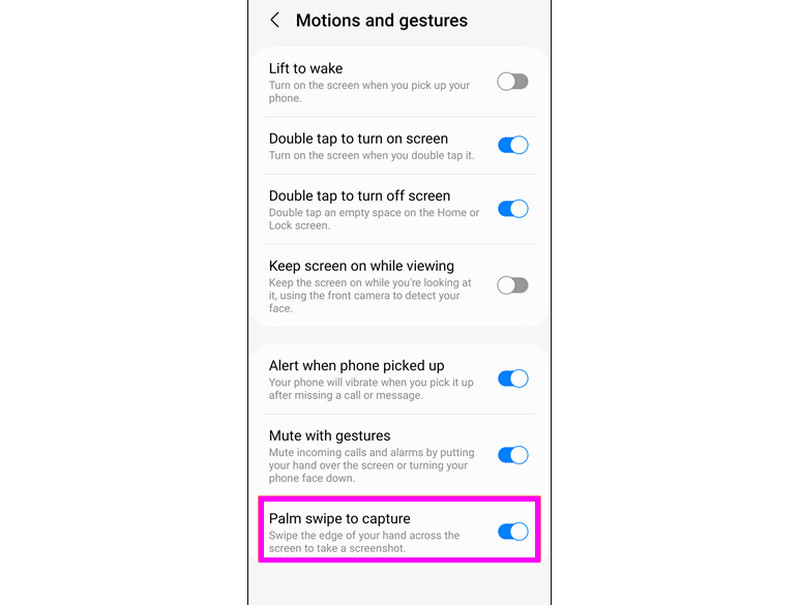
Step 1Open your Samsung device and launch the Settings app. After that, go to the Advanced Features.
Step 2Then, press the Motions and Gestures to proceed to the next step.
Step 3Toggle on the Palm swipe to capture option. Once done, you can start capturing your screen by swiping your hands on the front screen.
Part 3. How to Take a Long Screenshot on Samsung
Do you want to take a long screenshot? Well, when using Samsung, you can get the result you need. The device can offer its scrolling screenshot feature, making it ideal for capturing text-based information. Check the simple steps below and learn how to take a screenshot on a Samsung Galaxy.
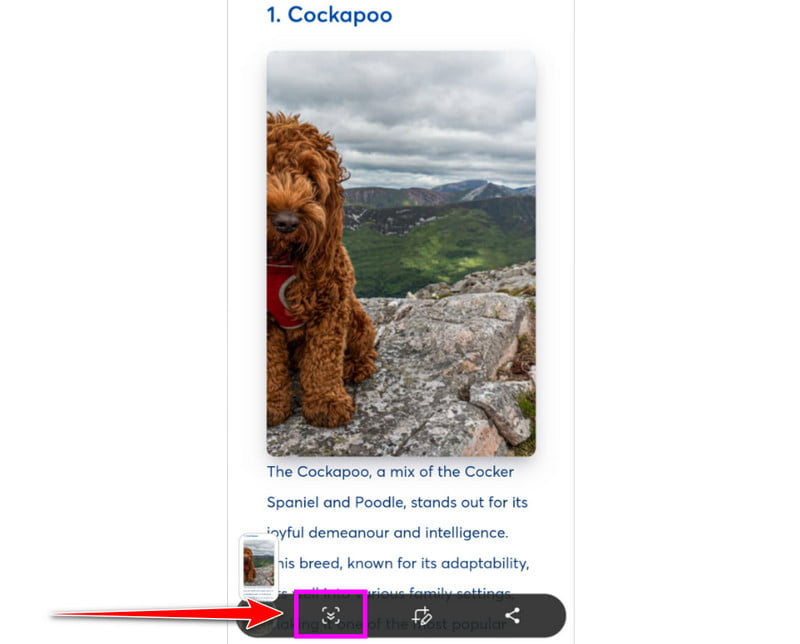
Step 1On your Samsung device, proceed to the content that you want to take a long screenshot of. Then, press and hold the Volume down + power buttons.
Step 2Then, once the captured screen shows up, click the down arrow button. Then, the screen will be captured while scrolling down.
Step 3After taking a screenshot, tap the Save button to keep the final image on your device.
Part 4. How to Take a Screenshot Without Using Buttons on Samsung
Besides the Palm Swipe feature, you can also use other methods to take a screenshot without pressing the buttons. Use the method below to start taking screenshots of the Samsung home screen and other contents.
Method 1. Use Assistant Menu
Step 1You can go to the Settings app and proceed to the Accessibility > Interaction and Dexterity options.
Step 2Then, you must enable the Assistant Menu option. Once done, a floating menu will appear on your screen.
Step 3Tap it and press the Screenshot to capture the screen.
Method 2. Using Bixby Voice
Using Bixby voice is another way to capture your Samsung screen. To start a screenshot on Samsung One UI, see the steps below.
Step 1You can activate Bixby by holding the Side button or saying "Hi Bixby."
Step 2Then, you can simply command "Take a screenshot."
Step 3With that, Bixby will start capturing your Samsung screen.
Method 3. Using Quick Settings Tile
Step 1You can swipe down from the top of the screen to view the Quick Settings.
Step 2Press the Screenshot tile to start capturing the screen. You can also screen record on Samsung by tapping the Record button in this setting.
Part 5. How to Screenshot a Video on Samsung
Are you watching videos on a Samsung device and want to capture your favorite scene? Well, taking a screenshot while watching videos is a possible task. See the steps in this section and learn how to screenshot a video on a Samsung.
Step 1Open the video from your device to start watching.
Step 2Then, for an effective capturing process, all you need is to press the Volume down + Power button at the same time.
Step 3After that, the captured scene will appear on your screen.
Part 6. How to Screenshot on a Samsung Tablet
Do you have a Samsung tablet and want to take a screenshot? The good news here is that you can use the same method that we have provided from the previous parts. You can use the:
- Volume Down + Power buttons
- Power + Home buttons
- Palm Swipe features
- Quick Settings Tile
With these buttons and features, you can capture your Samsung tablet screen effectively.
Part 7. Best Troubleshooting: Screenshot Not Working on Samsung
There are times when you can't take a screenshot on your Samsung device. Read this section and learn some of the troubleshooting methods you can use to solve a certain problem.
Enable Palm Swipe Gesture
If the Palm Swipe feature is not working, then maybe it is turned off. If that is the case, always ensure that the feature is enabled. You can go to the Settings app and proceed to Advanced Features > Motions and Gestures options and enable the Palm swipe to capture option.
Check Button Combination
If you are holding the buttons too long, it may trigger the volume or power. So, it would be better to press the buttons instantly, maybe one to two seconds. Then, release the pressure on the buttons.
Review Security Policy Restrictions
Some apps, like streaming or banking, don't allow screenshots for privacy reasons. You can use a screen recording feature if it is allowed. If you can't capture the screen, it would be better to stop and respect app restrictions.
Bonus: Capture Samsung Screen in an Advanced Way
Do you want to capture your Samsung screen professionally? In that case, you can use AVAide Screen Recorder. This program can offer its Snapshot function from the Phone Recorder feature, allowing you to connect and record any content from the screen. What we like here is that it lets you improve your captured screen by using annotation tools and basic image editing functions. It also ensures that you can save the images with the best quality for a better viewing experience. To check its capability in capturing the Samsung screen, you can use the steps below.
Step 1Download AVAide Screen Recorder on your desktop. After that, run it to begin the process.

FREE DOWNLOAD For Windows 7 or later
 Secure Download
FREE DOWNLOAD For Mac OS X 10.13 or later
Secure DownloadStep 2From the main interface, click the drop-down button and select the Phone Recorder feature. Then, start connecting your Samsung device.
Step 3Once the content has already shown up on your computer screen, you can start clicking on the Snapshot function. That way, you can capture anything from your Samsung device.
Thanks to this tutorial, you have learned how to capture a Samsung screen on both mobile phones and tablets. So, if you want to take a screenshot of various content, using all the provided methods above would be helpful. Plus, if you want a more professional and advanced way to capture your Samsung screen, we suggest using AVAide Screen Recorder. With its Snapshot function, you can capture anything from the screen with the best image quality. Thus, use this program and achieve the result you need.
ABOUT THE AUTHOR

Record screen, audio, webcam, gameplay, online meetings, as well as iPhone/Android screen on your computer.