Dell is an iconic brand of computers and laptops, known for its durability and great value, and a reliable purchase for work, school, gaming, and everyday use. Despite these, several users still find it challenging on how to screenshot on Dell as keyboard shortcuts might differ between the operating system and the model of Dell. Additionally, some keyboards do not have dedicated keys to make this even more confusing. This page provides the fastest way to take screenshots, and if that does not work, explanations of alternative options on various Dell products. You can find your saved screenshots.
Part 1. Quick Screenshot Methods for Any Dell (Windows 10 & 11)
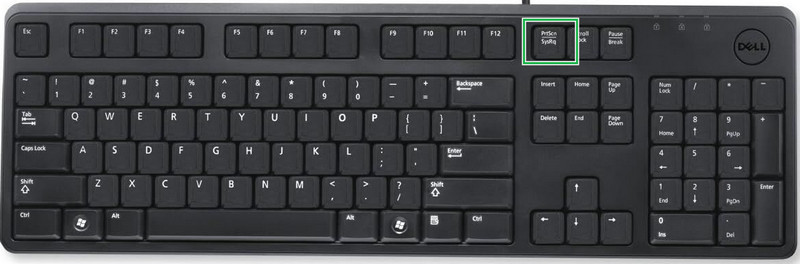
Method 1: Print Screen (PrtSc) - The Classic
The Print Screen or PrtSc key is one of the easiest ways to take a screenshot on a Dell laptop or desktop. Pressing this key captures your entire screen and copies the image to the clipboard instead of saving it as a file. You can then paste the screenshot into Paint, Microsoft Word, an email, or any app that supports images by pressing Ctrl + V. On most Dell keyboards, simply press the PrtSc key to capture your screen.
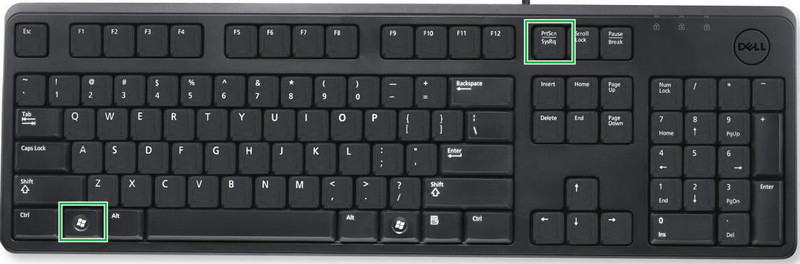
Method 2: Windows + Print Screen - Saves Automatically
If you are wondering how to take a screenshot on a Dell and save it instantly, press the Windows + PrtSc keys at the same time. This shortcut captures your entire screen and automatically saves the image as a file in the Pictures > Screenshots folder. It is a convenient option if you plan to edit, share, or organize your screenshots later. Unlike using the PrtSc key alone, you do not need to paste the image into another application before saving it.
Method 3: Alt + Print Screen - Active Window Only
If you are learning how to screenshot on a Dell computer but only need to capture the active window, press the Alt + PrtSc keys at the same time. This shortcut captures only the currently selected window instead of the entire screen, making it useful when you want to avoid unnecessary background content. The screenshot is copied to the clipboard, so you can paste it into Paint, Microsoft Word, or another application by pressing Ctrl + V.
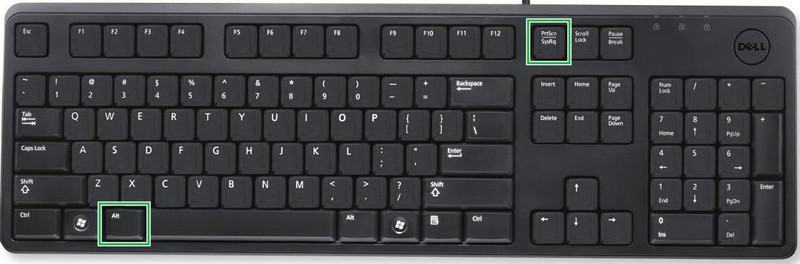
Method 4: Windows + Shift + S - Snipping Tool
If you are wondering how do you screenshot on a Dell Inspiron, the Windows + Shift + S shortcut is one of the best options. It opens the Snipping Tool, which lets you capture a rectangular area, a freeform shape, a specific window, or the entire screen. After taking the screenshot, the image is copied to the clipboard, and a notification appears so you can open it in the Snipping Tool to edit, save, or share it.
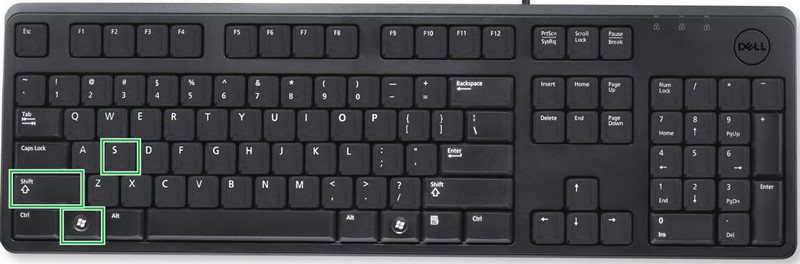
Method 5: AVAide Screen Recorder
When you want to capture more than just what the integrated software allows, or when you are curious about how to make a screenshot for a Dell Chromebook, you can utilize a third-party application such as AVAide Screen Recorder. It allows you to take screenshots of the whole screen, a chosen portion of the screen, or a particular window in no time. You can also annotate, edit, and save screenshots in different image formats, making it useful for work, study, or everyday tasks.
Step 1Get the updated version of the AVAide Screen Recorder on your Dell computer or laptop for free by clicking the download button below. Promptly, follow the installation and setup process to start using it.

FREE DOWNLOAD For Windows 7 or later
 Secure Download
FREE DOWNLOAD For Mac OS X 10.13 or later
Secure DownloadStep 2On the floating toolbar, click the drop-down menu and select the Screen Capture feature. Your cursor will change into a crosshair. Click the active window to capture it, or click and drag to set the specific area you want to capture.
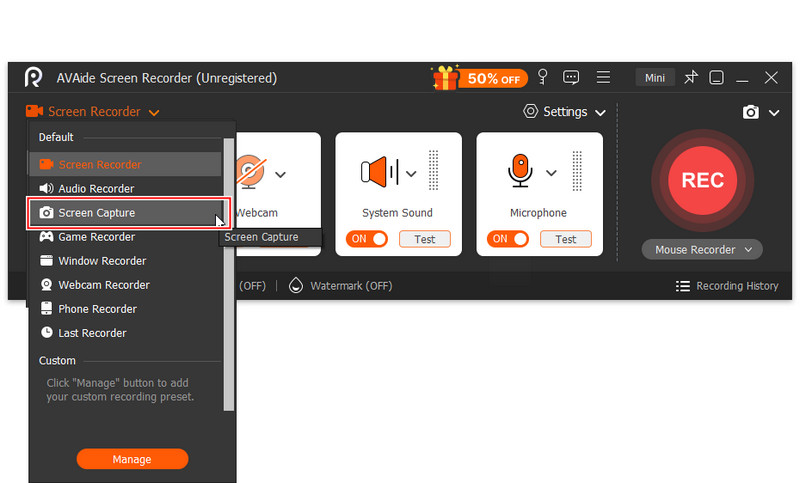
Step 3After taking the screenshot, you can use the built-in editing tools to add annotations, draw, or highlight important details. When you are finished, tick the Save button to store the screenshot on your Dell computer.
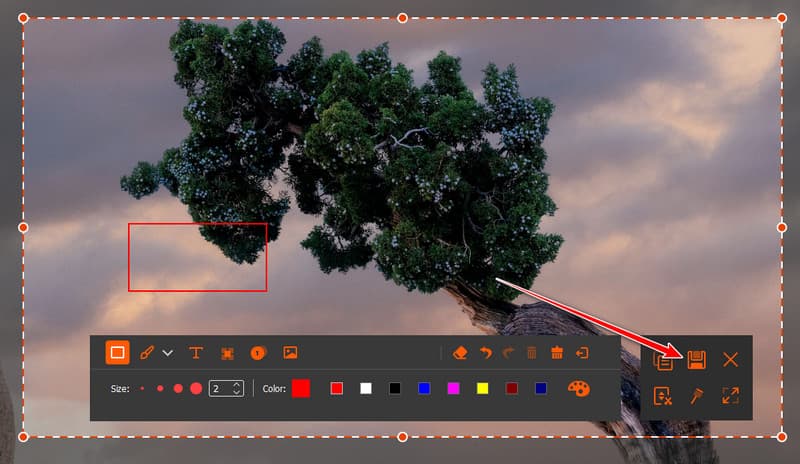
Part 2. How to Screenshot on a Dell Without the Windows Key
1. Use the Snipping Tool App
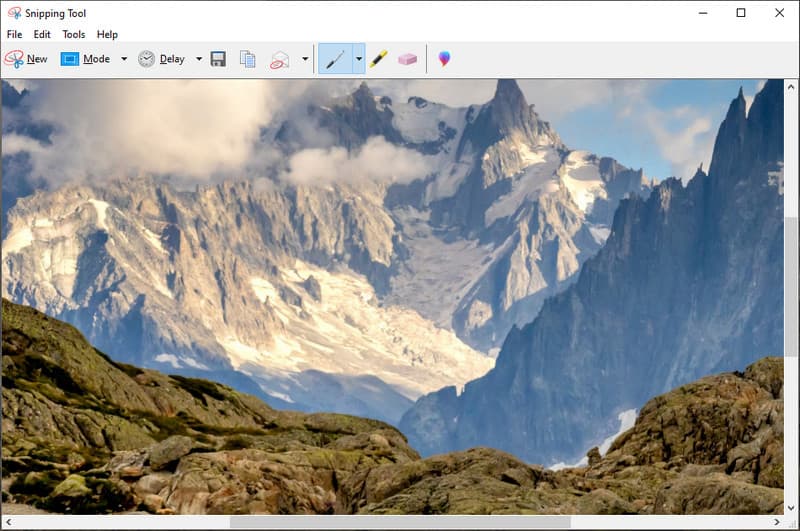
If you are wondering how to screenshot on a Dell desktop without using the Windows Key, you can still use the Snipping Tool app.
Step 1Click the Start button, type Snipping Tool in the search bar, and open the app from the results.
Step 2Select New and click the dropdown button for the Mode to select your preferred capture mode, then take a screenshot.
Step 3After capturing your screen, you can now start editing, and later on, save the image directly from this app.
2. Use the On-Screen Keyboard
If you are looking for how to screenshot on a Dell PC without using the physical Print Screen key, the On-Screen Keyboard is a simple solution.
Step 1Click the Start button, search for On-Screen Keyboard, and open the app.
Step 2When the keyboard appears, click the PrtScn key to capture your screen.
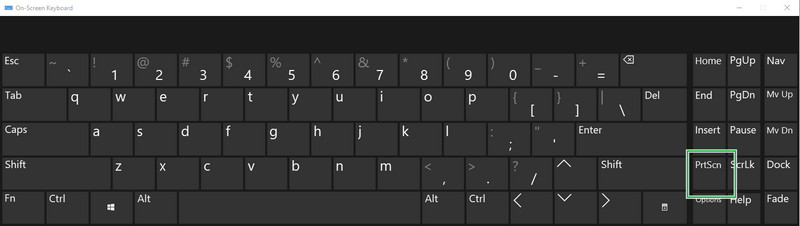
Step 3The screenshot is copied to the clipboard, so hit Ctrl + V to paste it into Paint, Microsoft Word, or another application before saving it.
3. Remap a Different Key
If you want to learn how to screenshot on a Dell but your Print Screen key is missing or not working, you can remap another key using Microsoft PowerToys.
Step 1First, install and open PowerToys, then go to Keyboard Manager and select Remap a Key.
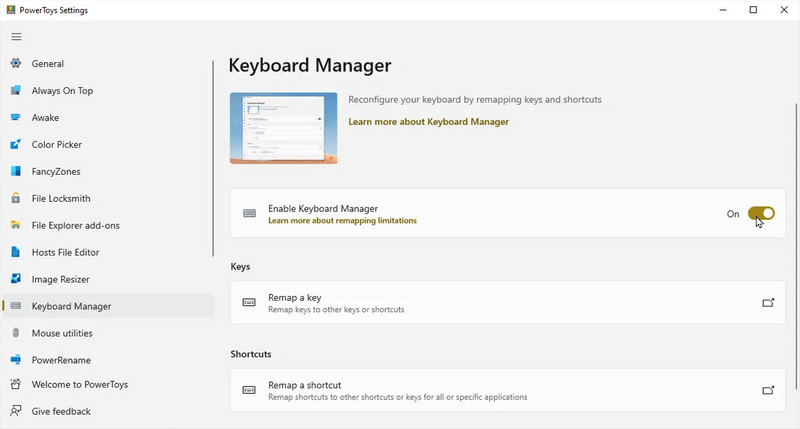
Step 2Click the + button, choose the key you want to replace, and assign it to Print Screen (PrtSc). Save the changes, and you can use the new key to take screenshots just like the original Print Screen key.
Part 3. How to Screenshot on Specific Dell Models
As I observe how to take screenshots on a Dell PC, different Dell models may seem to use different screenshot methods. However, that is not the case. Inspiron, Latitude, and XPS laptops all support the same print screen on Windows with shortcuts. The main difference is the keyboard layout, which may require you to hit the Fn key together with PrtSc on some models.
| Dell Model | Keyboard Note | Best Screenshot Shortcut |
| Dell Inspiron | Some models require pressing the Fn + PrtSc | Windows + Shift + S |
| Dell Latitude | Business keyboards may combine PrtSc with another key, like the Fn, Windows, and Alt | Windows + PrtSc |
| Dell XPS | A compact keyboard may require Fn + PrtSc | Windows + Shift + S |
Regardless of the model you own, Dell laptops use the same Windows screenshot shortcuts as most other Windows PCs. The biggest difference is the keyboard layout. On some models, the PrtSc key shares another function, so you may need to press Fn + PrtSc instead of the PrtSc key alone.
Part 4. How to Screenshot on a Dell Chromebook
1. Full Screen Screenshot
If you are wondering how to take a screenshot on a Dell Chromebook, taking a full-screen screenshot is quick and easy.
Step 1Press Ctrl + Show Windows, it is like the key with a rectangle and two vertical lines, at the same time.
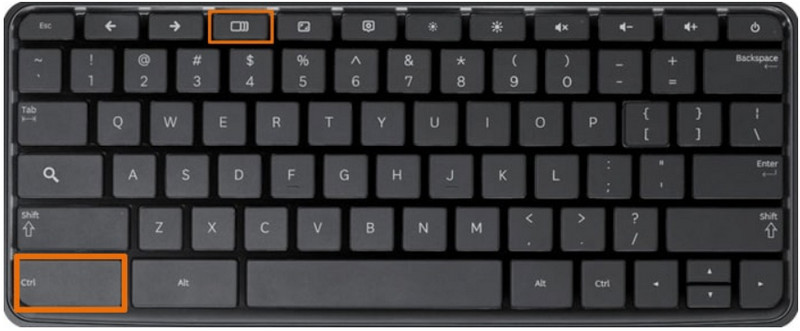
Step 2The screenshot is captured automatically and saved to the Downloads folder, where you can open, edit, or share it later.
2. Partial Screenshot
If you want to know how to screenshot on a Dell computer running ChromeOS without capturing the entire screen, use the partial screenshot shortcut.
Step 1Press Ctrl + Shift + Show Windows, then tick and drag to set the area you want to capture.
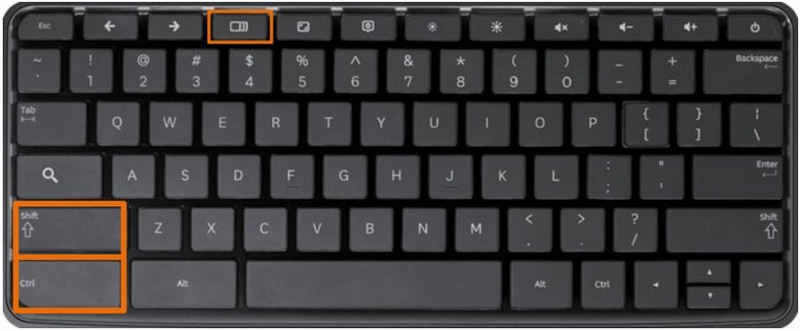
Step 2Release the cursor to take the screenshot, and the image will be saved automatically to the Downloads folder.
Part 5. Where Do Dell Screenshots Go? (Complete Answer)
After learning how to take screenshots on a Dell PC, you also need to know where your screenshots are stored. The save location depends on the shortcut or tool you use. Some methods save the image automatically, while others only copy it to the clipboard until you paste and save it yourself.
| Screenshot Method | Where It Is Saved? | Does It Save Automatically on My Dell? |
| PrtSc | Clipboard | No |
| Alt + PrtSc | Clipboard | No |
| Windows + PrtSc | Pictures > Screenshots | Yes |
| Windows + Shirt + S | The clipboard can be saved to any folder after editing | No |
| Dell Chrome | Download folder | Yes |
| AVAide Screen Recorder | User-selected output folder | Yes |
Reminder: If you use PrtSc, Alt + PrtSc, or Windows + Shift + S, remember to paste the screenshot into an application such as Paint by pressing Ctrl + V before saving it. Otherwise, the screenshot will remain on the clipboard and may be replaced the next time you copy or take a screenshot of something.
There is no one-size-fits-all method for how to screenshot on a Dell laptop. Each shortcut offers a different way to capture your screen. Pick the method that works best for your task, or use AVAide Screen Recorder if you need more advanced screenshot and editing features.
ABOUT THE AUTHOR

Record screen, audio, webcam, gameplay, online meetings, as well as iPhone/Android screen on your computer.