How to screen record on Samsung becomes a common question when you suddenly need to capture a video call, gameplay moment, or tutorial, but cannot find the option on your phone. Many users face this situation on different models, especially when settings are not easy to locate. This guide helps you record your screen easily.
Part 1. The Universal Method
Most modern Samsung devices come with a built-in screen recorder that is reliable and sufficient for everyday use. As it is built into the system, there is stable performance, smooth video output, and flexible audio options without needing any third-party apps. It is especially handy for recording tutorials, gameplay, or meetings in apps like Google Meet.
Step 1Pull down the notification panel on your screen (swipe twice if needed). Swipe down once more to reveal the complete Quick Panel menu.
Step 2Hit the Screen Recorder button. In case you do not find it, hit the three-dot menu or edit button and attach it to your Quick Panel.
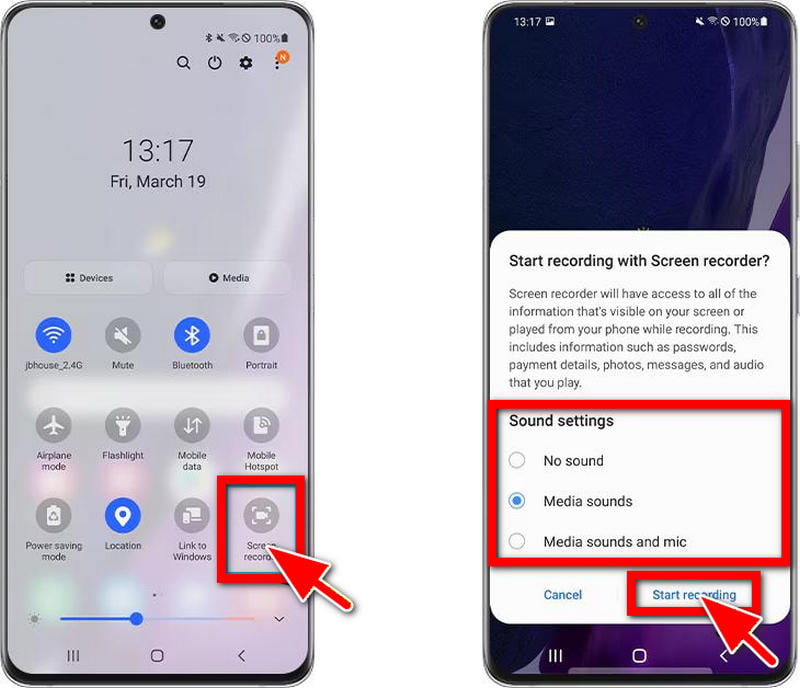
Step 3Tap Screen Recorder, and select your desired options like sound settings (No sound, Media sounds, or Media sounds and mic) and video quality.
Step 4Tap Start Recording. Your screen recording will start after a brief countdown.
Step 5To record, tap the floating toolbar or notification bar to stop recording. Your video will be automatically stored in your Gallery.
Part 2. Model-Specific Guidance
1. For Galaxy S10 and Older Models
Earlier phones, such as the Samsung Galaxy S10, and older models might not necessarily have the built-in screen recorder that is present in newer phones. Due to this, users tend to use other means like third-party applications or in-built gaming applications (where possible). Although these options are effective, they might differ in features and performance by a few degrees.
Step 1Open the Game Launcher application on your device. Many older Samsung models are pre-equipped with this feature.
Step 2Tap a desired application or game on the Game Launcher.
Step 3Within the app, swipe up or tap the Game button and tap the Record button.
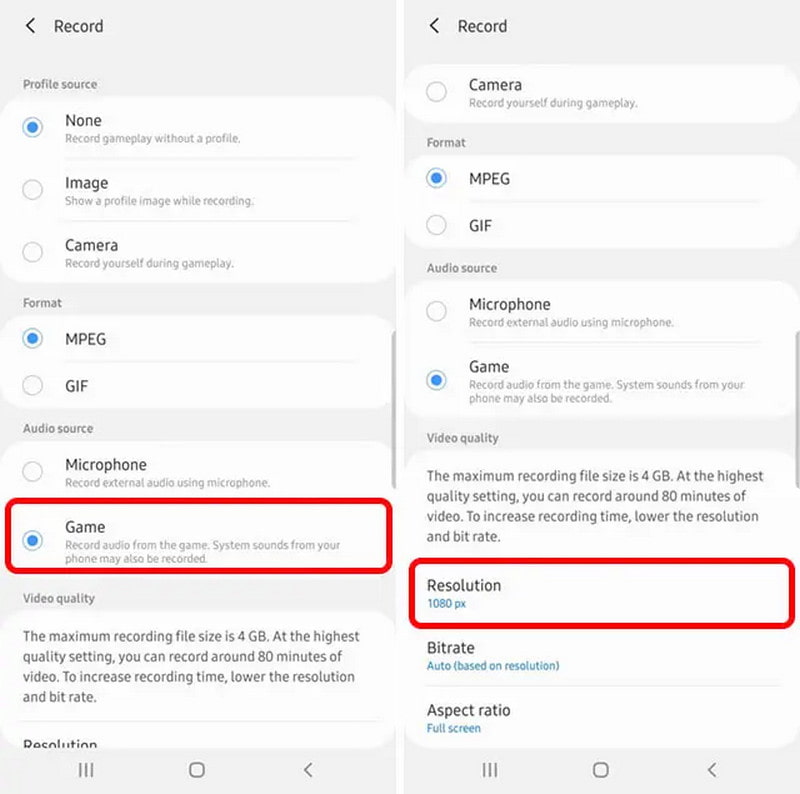
Step 4Make changes to audio settings, resolution, and start recording your screen.
Step 5Click on the floating toolbar stop control. This will be automatically saved in your Gallery.
Alternative: If Game Launcher is not available, you can download screen recording applications via the Play Store, but some of them might have advertisements or watermarks.
2. For Galaxy A15, A14, A13, A04, A20s, A10e
Some of the devices with the built-in screen recorder are the Samsung Galaxy A15, Samsung Galaxy A14, Samsung Galaxy A13, Samsung Galaxy A10e, Samsung Galaxy A20S, and Samsung Galaxy A04, though not all such devices have the feature with every version of the Samsung Galaxy phone. In case of the lack of the feature, the most viable option would be a third-party application.
Step 1To record the screen, visit the Google Play Store and download a good screen recorder.
Step 2Tap the app and give it the required permissions like screen capture, microphone, and storage.
Step 3Customize your ideal resolution, frame rate, and audio source according to your requirements.
Step 4Press the Record button in the app. A floating control can be visible to access it easily.
Step 5Click on the stop button of the floating toolbar. Your work will automatically be recorded on your gadget.
This approach ensures that even devices without a built-in recorder can still achieve smooth and functional screen recording, though the experience may vary depending on the app used.
Part 3. How to Screen Record Without a Built-In Feature
1. AZ Screen Recorder
AZ Screen Recorder is considered to be one of the most balanced tools on Android. It provides stable recording performance, and few frame drops even in long recording sessions like gameplay or tutorials. The application is able to have finer control over resolution, bitrate, and frame rate, which is rare for a free application. Its floating controls are capable of breaking immersion a bit, but its reliability and absence of hostile limitations make it a powerful overall option.
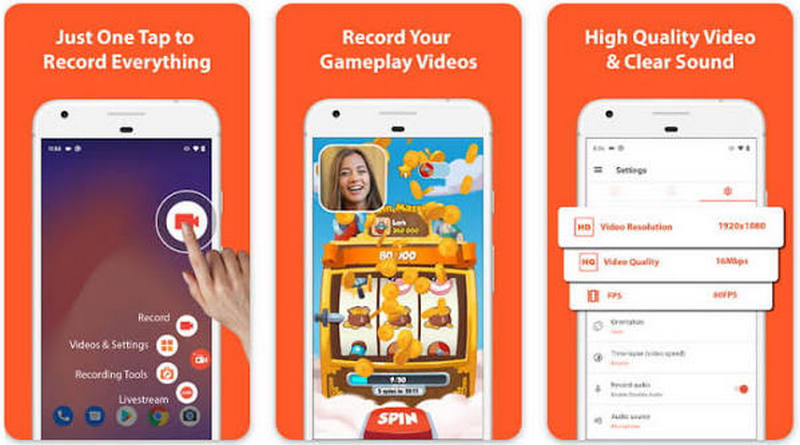
Step 1Get the app in the Google Play Store.
Step 2Open and grant required permissions.
Step 3Floating toolbar: Tap the Record button.
Step 4Adjust options, such as resolution and audio, when necessary.
Step 5Tap Save to save your recording.
2. Mobizen Screen Recorder
Mobizen is more accessibility-oriented and content creation. It is a mix of high-quality recording capabilities and such features as facecam overlay and easy editing tools, which makes it especially helpful in the vlog format or reaction videos. The app is compatible with a large variety of Samsung devices, although the free version might add a watermark, which can be a restriction with more refined outputs.
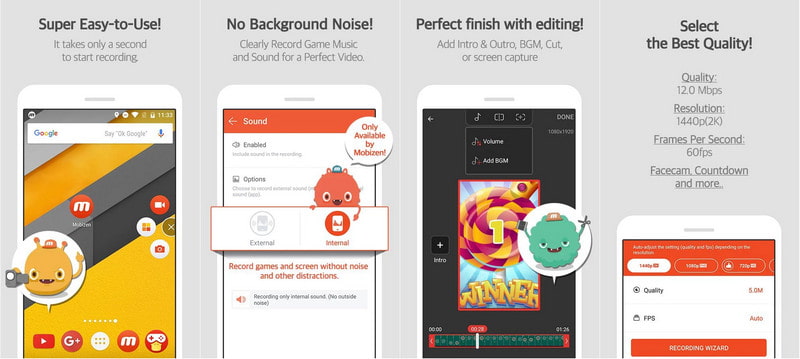
Step 1Download and install the app.
Step 2Start it and proceed with the installation.
Step 3Tap the floating Record button.
Step 4Record when the countdown is finished.
Step 5Stop the video on your gadget.
3. XRecorder
XRecorder is dedicated to the provision of a smooth and lightweight recording experience, which is particularly well matched with Samsung's lower-end devices. It also reduces performance load and yet records at a high resolution, which is essential to users with limited hardware capabilities. It is a reliable solution when simple recording is required, even though it does not have more advanced editing tools, as it has much more stability and generally no watermark.
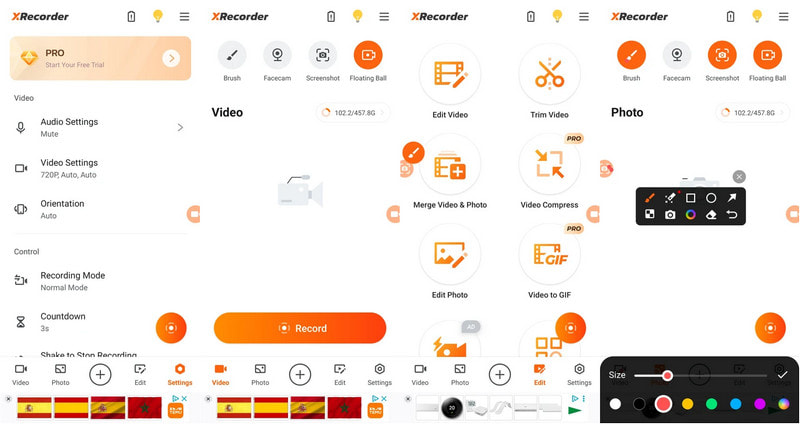
Step 1Install the app on your Samsung device.
Step 2Grant required permissions.
Step 3Tap the floating Record button.
Step 4Start a screen recording.
Step 5Tap Stop to finish and save the file.
4. AVAide Screen Recorder
AVAide Screen Recorder stands out from the crowd by transferring the screen recording experience, which is inherently mobile-centric, into a desktop-based, more robust workflow. This method greatly enhances stability in recording, particularly in longer recordings or high-resolution recordings. It also gives a greater level of control over both video and audio sources, which can be a weakness of mobile applications.
Its practical uses include recording tutorials, presentations, or gameplay where regular frame rates, audio synchronization, and post-record flexibility are crucial. Its capability to mix screen capture with webcam overlay adds even more value to the content creators, who require a more professional look.
- Records Samsung screen in 4K/1080p with smooth, lag-free performance.
- Captures system audio and microphone clearly for tutorials and gameplay.
- Supports webcam overlay (picture-in-picture) when recording via computer.
- Offers flexible capture modes (full screen, window, or custom area).
- Includes built-in editing tools for trimming and enhancing recordings.

 Secure Download
Step 1Install the Software
Get AVAide Screen Recorder and install it on your computer (Windows or Mac). Installation is to be done following the setup guide.
Step 2Turn on and Select Recording Mode
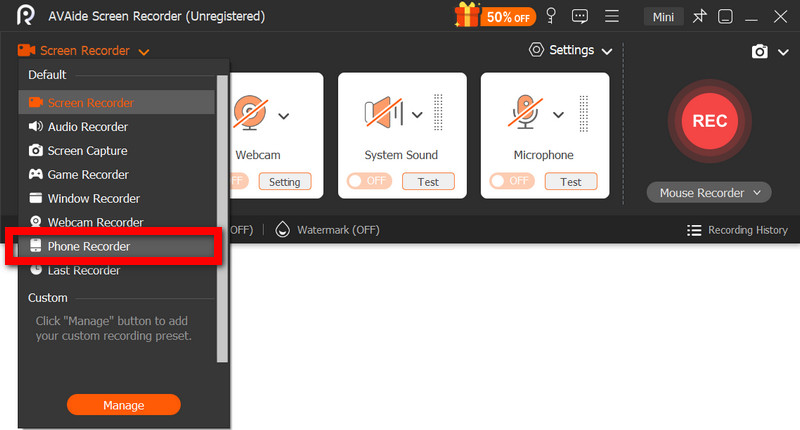
Launch it and choose the option Phone Recorder, based on your need to record a computer screen or your Samsung device.
Step 3Connect and Mirror Your Device
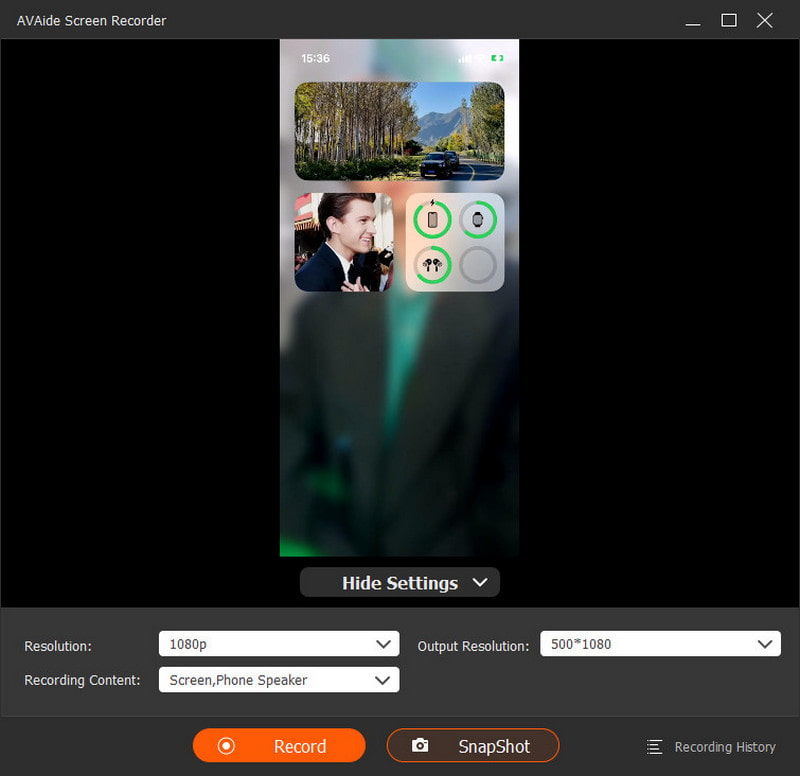
Connect your Samsung phone, and turn on screen mirroring to allow the software to show your phone screen in real time.
Step 4Adjust Recording Settings
Adjust the set resolution, audio input, frame rate, and recording area to your desired output quality.
Step 5Start Recording
Press the REC button and start recording your screen in a smooth video and audio.
Step 6Stop and Save Recording
Click Stop, preview your video, make quick edits (where necessary), and save it to your computer.
Part 4. Troubleshooting Common Issues
Some challenges that users might experience when learning to screen record on Samsung devices include the absence of features, soundlessness, or recording problems. The correct settings or adjustments can typically resolve such issues.
1. The recorder button is not visible
In case the Screen Recorder button is not present in the Quick Panel, then it might not be turned on or included.
Fix: Drag the Screen Recorder button into the Quick Panel editor. Still not showing up? Make sure that your device software is up to date, since older versions can be missing built-in recording.
2. No Sound during Recording
Occasionally, the video may be recorded, but no audio.
Fix: Tap Screen Recorder settings beforehand, and choose Media sounds or Media sounds and mic. Also, make sure that your device is not muted or attached to a Bluetooth device that can divert audio.
3. Poor or Slow Recording
Some devices might have a blurry or lagging screen recording.
Fix: Reduce the resolution or shut down background applications to free up system resources. This assists in enhancing performance in recording.
4. Recording Stops Unexpectedly
There are limits to storage or performance that may stop some recordings.
Fix: Look at available storage and delete unneeded files. Also, avoid running heavy apps while recording.
5. Apps of Third Parties Not Working Correctly
Applications, such as AZ Screen Recorder or Mobizen Screen Recorder, can crash or stop operation while trying to record Steam gameplay or capture other screen activities.
Fix: Check to have the latest version of the app, re-grant permissions, or restart your device to reset background processes.
Samsung screen recorders are a simple and powerful tool for capturing anything on your device, from tutorials to gameplay. Whether built-in or using alternatives, knowing the right method ensures smooth recording on any Samsung model, along with quick fixes for common issues.
ABOUT THE AUTHOR

Record your Samsung screen, computer, and more with high quality and flexible modes.