Are you a game enthusiast who wants to share your great gameplay with others? In that case, the best thing you can do is to record your gameplay. Whether you want to show off your skills, give some tips, keep your gameplay, or just have some happy memories, recording your gameplay is easier than you imagined. In this article, we will teach you various methods you can use to record your gameplay effectively. Thus, come to this post and get more ideas on how to record gameplay on Xbox One successfully.
Part 1. How to Capture Gameplay on Xbox One with Built-In Feature
Xbox One is not only an excellent tool for gaming. The good thing about this tool is that it can even offer its pre-built recorder. With this feature, you can effectively record your gameplay, ideal for sharing and collecting them. In addition to that, the process of recording your gameplay is simple, making it perfect for all types of users. You can even ensure that you can get the best quality, leading to a better viewing experience. Plus, during the recording process, you can also take a screenshot of your favorite part. Thus, if you want to learn how to record gameplay on Xbox One for YouTube and other platforms, see the steps below.
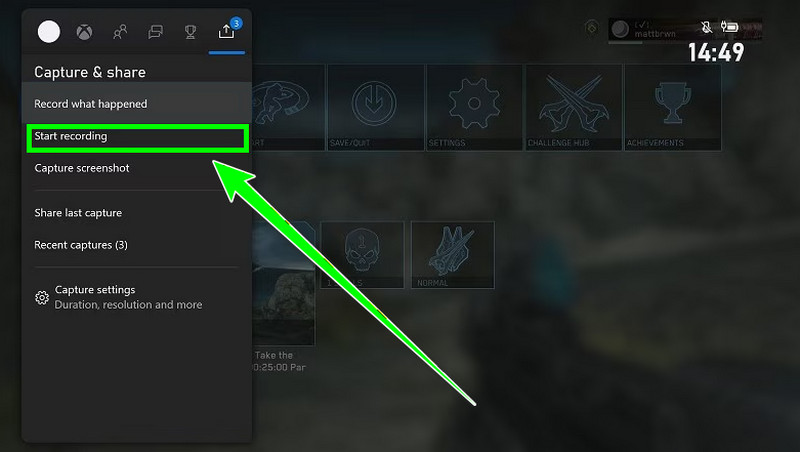
Step 1For the first step, you can start turning on your Xbox gaming console. Then, you can start playing any game.
Step 2After that, press the Xbox button on your console to see the guide on your monitor or TV screen.
Step 3Proceed to the Capture and Share menu and press the Start Recording button. Then, the recording process will start. You can also use the Y button to take a screenshot during the process.
Step 4To finish the recording, hit the Xbox button and press X. You can now start watching your recorded gameplay on your screen.
Part 2. How to Record Gameplay for YouTube on Xbox One in One Click
Are you looking for a perfect recorder that can help you record your gameplay on Xbox One in just a single click? In that case, you can try using AVAide Screen Recorder. Recording your gameplay using this program is perfect since you can use all the features you need. You can even have a smooth process, thanks to its simplicity. The best part here is that you can record the play with voice. You can also insert your camera if you want to include yourself in the video.
Additionally, the software ensures that you can get the best video quality after the recording process. You can even access this program on both Windows and Mac platforms. Thus, if you want an exceptional gameplay recorder, look no further than AVAide Screen Recorder. To check the program's capabilities, check the steps we have provided and learn how to record a full gameplay on Xbox One.
Step 1Download AVAide Screen Recorder on your computer. After that, install it to start the recording process. Once done, ensure that your Xbox One is already connected to your computer.

FREE DOWNLOAD For Windows 7 or later
 Secure Download
FREE DOWNLOAD For Mac OS X 10.13 or later
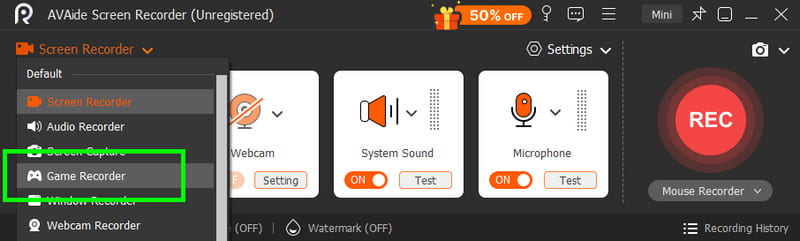
Secure DownloadStep 2After you launch the software, click the drop-down button on the left interface and hit the Game Recorder. Then, proceed to the Xbox game you want to record. Ensure that the Sound System is turned on to record both your screen and the audio.
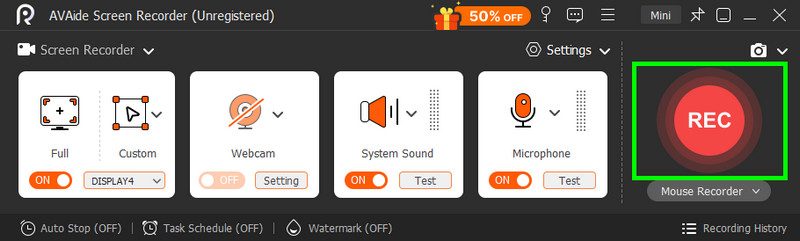
Step 3You can now start recording your gameplay by clicking the REC button. To finish recording your gameplay, tap the Stop button.
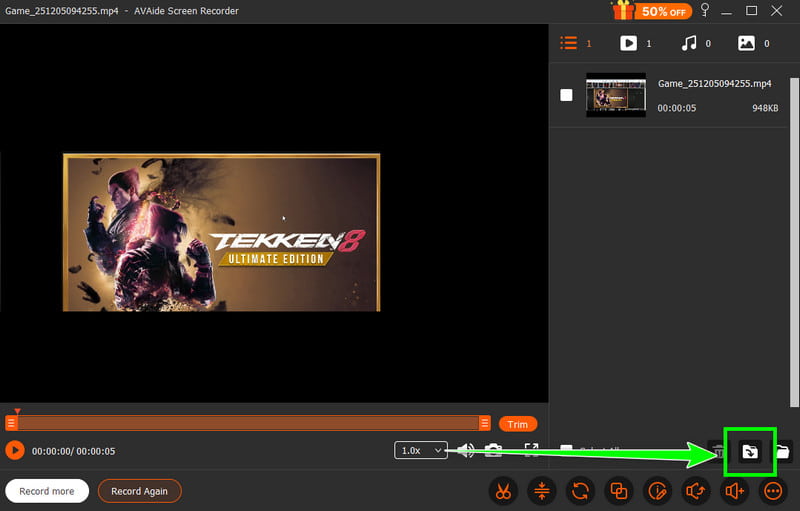
Step 4Once the preview shows up, tap the Export button below to begin saving your gameplay on your computer.
Thanks to this desktop recorder, you can record your gameplay without encountering any trouble. Thus, use this software and record any content on your screen.
Part 3. Record Gameplay for YouTube on Xbox One Using Game DVR
Do you plan to record a short clip of your gameplay instantly and share it on various platforms? In that case, you can achieve your goal by using Game DVR. This feature is available on your Xbox One. Game DVR can automatically record your gameplay in the background and collect it in a buffer. With that, you can save events or any happenings in your gameplay. Another good thing about this feature is that the recorded short clip can offer you excellent quality, resulting in better video playback. The only drawback here is that Game DVR uses system resources, so you must ensure that you have a high-spec device for a smooth recording procedure. You can follow/check the detailed steps below and learn how to record gameplay and audio on Xbox One.
Step 1On your Xbox One, navigate to the game you want to record. After that, press the Xbox button on your console twice.
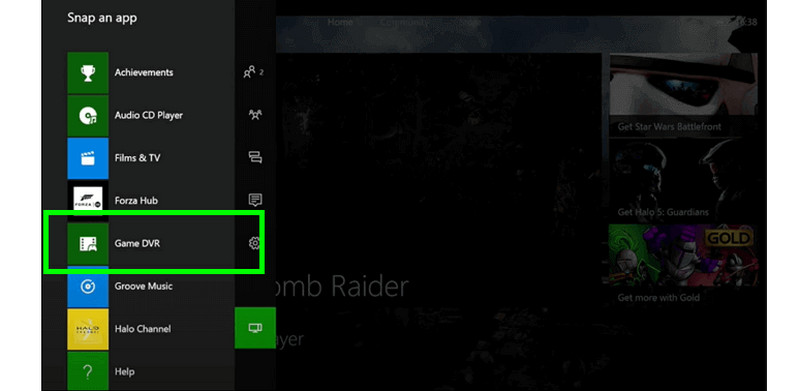
Step 2From the sidebar of your screen, go to the Snap an app section and select the Game DVR feature.
Step 3After that, the recording process will start. Tap the End Clip option to finish recording your gameplay.
Part 4. Record Gameplay for YouTube on Xbox One Using Egato Game Capture
For Xbox One gamers, you can access the Elgato Game Capture device for an effective gameplay recording process. This device is perfect if you want to have a satisfying video playback. It is because it can offer an excellent quality for up to 1080p. Plus, it is a lightweight device, so you can bring it with you wherever you are. The only drawback here is that this device is a little bit pricey, and you will need an HDMI cable for connectivity. Follow the methods below to start recording your gameplay using this game capture device.
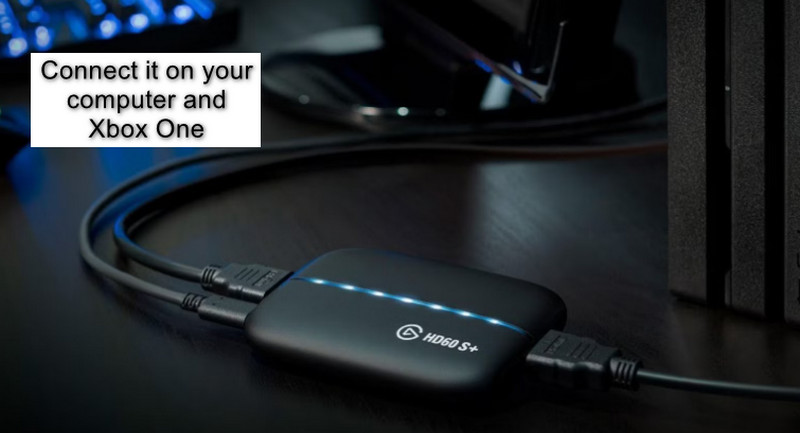
Step 1Use an HDMI cable to connect the Elgato Game Capture to your computer and Xbox One.
Step 2Then, you have to download the compatible Elgato Game Recorder software on your computer. You can find the ideal software on the official website of Elgato.
Step 3Then, you can start launching the games you want and begin the recording process.
Now you have learned how to record audio and gameplay on Xbox One effectively. So, if you want an effective way to record your gameplay, you can use this article as your go-to tutorial. In addition, if you want to use an excellent program that can give you a smooth gameplay recording process, use AVAide Screen Recorder. This program can give you all the features you need, such as smooth recording, comprehensive UI, basic editing tools, and more, making it a remarkable program for all users.
ABOUT THE AUTHOR

Record screen, audio, webcam, gameplay, online meetings, as well as iPhone/Android screen on your computer.