You've just discovered a stunning Ugoira on Pixiv, an animation so fluid and captivating that you need to save it. However, Pixiv's unique format makes a simple "Right-click and Save" impossible. Whether it’s a high-quality Ugoira or a classic GIF, capturing that seamless motion requires the right approach. In this guide, we’ll show you exactly how to use a Pixiv GIF downloader to download and convert Pixiv animations into playable, high-definition formats without losing a single frame. Stop guessing and start building your collection today.
Part 1: Disclaimer for Personal Use
This guide is intended for educational and personal collection purposes only. As the author, we provide information on how to use third-party tools to digitize and save Pixiv Ugoira or GIFs for offline viewing. We do not host, store, or distribute any copyrighted artworks from Pixiv.
Users bear full responsibility for their actions. We do not condone the unauthorized re-uploading, redistribution, or commercial use of any artist's work. To maintain a healthy creative ecosystem, we strongly encourage users to respect intellectual property rights and support original creators by following their official Pixiv profiles.
Part 2: What Are Pixiv GIF and Ugoira?
Pixiv GIF is a GIF image uploaded by the creators. It is literally in .gif format. Users can save this type of image and play it anywhere.
What is Pixiv Ugoria? Pixiv has its own way of showing short animations. They are not normal GIFs. They use a format called Ugoira. It works like a slideshow of pictures. Each picture is a frame. These frames play one after the other. They make a short loop, just like a GIF. But it is not saved as a .gif file.
Ugoira is a mix of many images inside a ZIP file. Pixiv uses this format to make animations load fast and look smooth. People call them Pixiv GIFs because they act like GIFs. But they are really Ugoira files.
Part 3: How to Download Pixiv GIF Directly
Unfortunately, you cannot download a Pixiv GIF directly from the website or app. Pixiv does not let you save the full animation like a normal GIF. Also, most animations on Pixiv are called ugoira. They are not real GIFs. They are made from many pictures played in a row, like a flipbook.
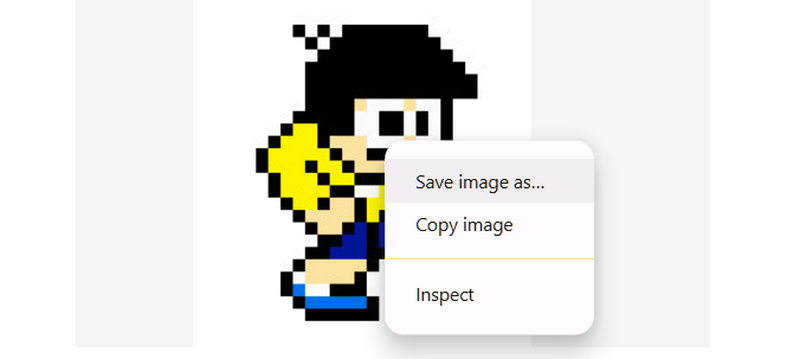
If you right-click and try to save a Pixiv GIF, you only get one picture, generally in PNG format. You won't get the whole animation. There is no Pixiv download GIFs button for the full Ugoira. Pixiv does not give you a real GIF file. You also cannot save the Ugoira from the page without help.
To get the full animation, you need to use additional Pixiv GIF-downloading tools or websites. That is the only way to turn ugoira into a GIF, video, or anything else. Pixiv does not do it for you.
Part 4: How to Use a Pixiv GIF Downloader
If you want to save a Pixiv GIF and play it like a real animation, you will need a tool to help you. Luckily, this part will show two tools that work well: Pixiv Toolkit Next for browsers and Downloader for Pixiv for Android.
1. Pixiv Toolkit Next
Pixiv Toolkit Next is an innovative tool made for your web browser. It works on Chrome and Firefox. This tool helps you download Pixiv animations, called ugoira. It can also save manga, illustrations, and even novels. The best part is that it turns the animation into a real GIF or video that you can keep. You can also save it as a ZIP, APNG, or WebM. It adds a button to your Pixiv page so you can save things fast.
Step 1Open Chrome or Firefox. Search for Pixiv Toolkit Next in your browser. Go to the extension page. Click the Add to Chrome button. After that, click the Add extension button to add this Pixiv GIF downloader extension to your browser.

Step 2Go to Pixiv and open the animation you want to download. When the plugin detects a ugoira, its button will light up. Click the button, and a Download menu will appear.
Step 3Choose what format you want. Click Generate GIF if you are going to turn the Pixiv video into a GIF file, or click Download to save it as a zip or WebM. After that, the file will go to your browser's default download folder.
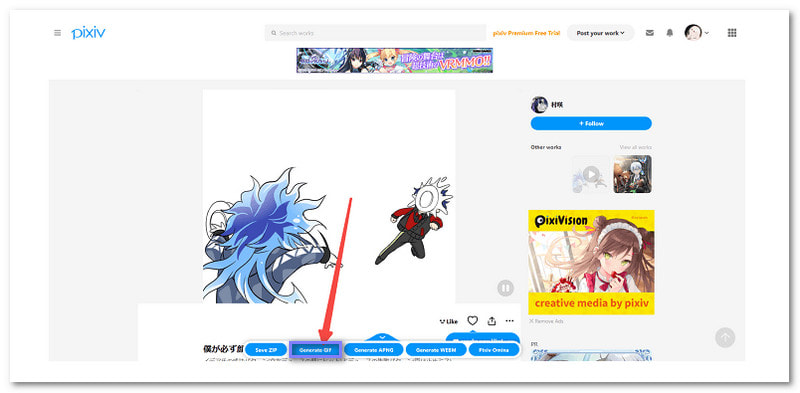
Ups: It is free, easy to use, and works right inside your browser. You can save animations in many formats. You can also download other Pixiv content, like novels or comics.
Downs: Sometimes it crashes. The button may not show even after restarting. It may lose image quality during the download. In that case, you need to use a tool that can help you enhance GIF quality for a much better look.
2. Downloader for Pixiv
Downloader for Pixiv is a good app for Android phones. You can get it on Google Play. It lets you download Pixiv GIFs and save them as real animations. It also works for manga and novels. You can also turn manga into EPUB or TXT files. It is excellent for people who use Pixiv on their phones and want to keep animations with just one tap. Without further ado, learn how to download GIFs from Pixiv on Android below!
Step 1Go to Google Play on your Android device. Search Downloader for Pixiv. Open the app page and click Install.
Step 2Open the app. Make sure you already have Pixiv open in the background. Copy the animation link you want to save.
Step 3Paste the link into the app's URL box. Tap the Download button. The app will fetch the animation and save it to your device.
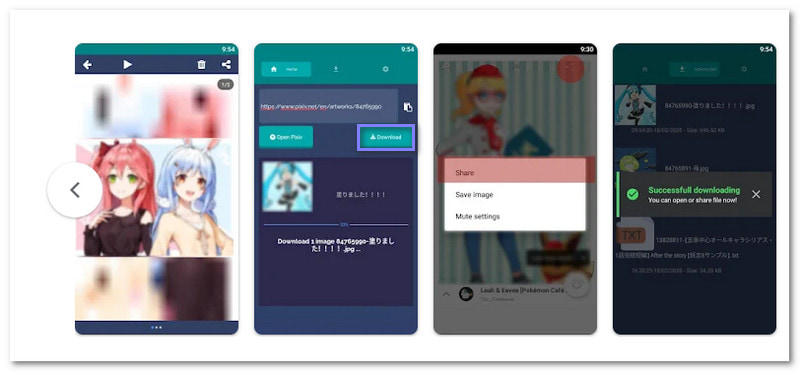
Ups: This app is free and works without needing extra tools. It supports Ugoira downloads and lets you save manga and novels, too. It is simple, fast, and easy to master.
Downs: It has ads. You must pay to remove them. It only works when Pixiv is open in the background. Sometimes, the downloads fail, and you have to try again.
Part 5: Easily Record Pixiv Ugoira/GIF/Video with Best Quality
If a Pixiv GIF downloader cannot help you save GIFs or Ugorias, an versatile and powerful screen recorder can help you. Whether you want to save your favorite animations or create your own, AVAide Screen Recorder gives you the power to capture them in the best quality. It is perfect for recording animations from Pixiv and converting them into high-quality GIFs or videos. With this program, you can record, edit, and save your content without any hassle. Plus, it gives you complete control over the video and audio quality, making sure your recordings are just how you want them.
- Record all types of GIFs and Ugorias on Pixiv website or app.
- Save high-bitrate, high-FPS, and clear Pixiv animations without lag or stutter.
- Output recordings as GIFs or videos with customizable codec, bitrate, FPS, resolution, and more settings.
- Directly share your Pixiv recordings to social media like YouTube and Instagram.

 Secure Download
Step 1Go to the AVAide Screen Recorder's official website. Pick the version for your computer. Install it and open the program. Make sure you pick the right one for Windows or Mac.
Step 2When AVAide Screen Recorder starts, you will see the screen recorder. You can record the whole screen or pick a custom area. For Pixiv, it is better to record just the animation window. Drag the box to fit the ugoira, GIF, or video you want to capture.

Step 3You can turn on System Sound to record any sounds playing with the animation. If you want to add your voice, turn on the Microphone, too.
Now go to Settings and choose GIF or MP4 as the format so you get the correct file type. It makes the Pixiv animation look clean and clear.

Step 4Click the REC button to begin. A countdown will start so you can get ready. While it records, a tiny bar shows up. You can press buttons to pause, stop, or even take a quick screenshot. Want to add notes or doodles? Use the drawing tools during the recording.

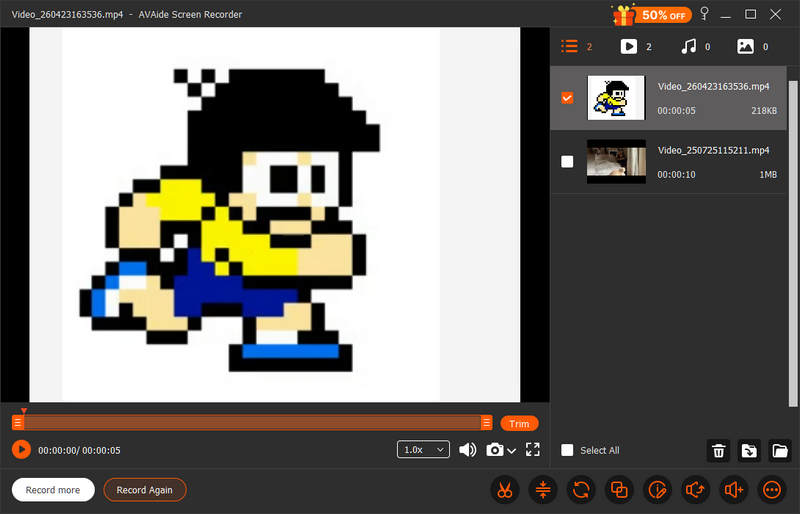
Step 5When you are done, click the red Stop button. You will see a preview of what you recorded. You can trim the beginning or end if needed to resize your GIF or video. Then, save the file on your computer. Your Pixiv ugoira, GIF, or video is now yours in perfect quality.
Part 6: FAQs of Pixiv GIF Downloader
Does Pixiv allow GIFs?
Yes. You can post GIF photos to Pixiv. But when you want to download a GIF (or Ugoria) on Pixiv, you can only get a still image frame.
What are the best Pixiv downloader alternatives?
You can use PixEz Flutter. It supports almost all image formats on Pixiv. You downloaded files have high definition and decent fluency.
Is pixivFANBOX legal?
Yes, PixivFANBOX is a legal and legitimate platform. It is an official service operated by Pixiv Inc., a major Japanese company based in Tokyo.
While online Pixiv GIF download tools are common, they often struggle with Pixiv/s complex Ugoira sequences, leading to compressed quality or broken frames. For those who demand a pixel-perfect collection, AVAide Screen Recorder offers a more reliable alternative. It bypasses the technical hurdles of ZIP conversions, allowing you to capture every seamless motion in its original brilliance. If you value quality and ease of use, AVAide is the refined solution your Pixiv gallery deserves. Give it a try.
ABOUT THE AUTHOR

Record screen, audio, webcam, gameplay, online meetings, as well as iPhone/Android screen on your computer.