There are times when the usual way to take a screenshot simply does not work. Pressing the Power and Volume buttons or using a keyboard shortcut may only display an error or do nothing at all. If you can't take a screenshot due to a security policy, the cause could be app security, device settings, protected content, or a work account. This guide explains why it happens on Android, iPhone, Windows, Mac, and popular apps, then shows safe and practical ways to fix it.
Part 1. Can't Take a Screenshot Due to Security Policy on Android
1. Why It Happens
If you are wondering why I can't screenshot on your Android phone, the answer is often simpler than it seems. In most cases, your device is working exactly as intended. The restriction comes from the app or system to protect sensitive information.
Android includes a built-in screenshot security policy that allows developers to block screenshots in certain situations. Banking apps, password managers, digital wallets, and many work-related apps use this feature to prevent personal or confidential data from being copied. You may also run into the same restriction when watching DRM-protected videos or using a phone managed by your employer or school.
2. Legitimate Workarounds
The best fix depends on what is causing the restriction.
- If screenshots only fail in one app, the app is likely blocking them intentionally. Rather than searching for an Android bypass screenshot policy, use the app's built-in options, such as Share, Save, Download, or Export, if they are available.
- Restart the phone and install any available updates to the OS or the app if screenshots are not taking off anywhere on the phone. It is often a quick solution to software problems affecting the ability to capture a screenshot.
- For work or school devices, the restriction may come from your organization's security settings. In that case, only your IT administrator can change the policy.
3. What NOT to Do (Ethical Warning)
You may find apps or online guides that claim to remove screenshot restrictions. It is best to avoid them. Many of these tools are unreliable, and some can expose your personal information, weaken your device's security, or violate an app's terms of service.
There are some risks involved with simply rooting your Android device so that you can bypass the screenshot protection, too. It can damage the system security, cause some applications not to function properly, and may even eliminate your system's warranty.
When an app prevents screenshots, it most often means it is safeguarding private information, copyrighted content, or proprietary business information. If at all possible, do not use the sharing options offered by the app, but use the official ones provided by the content owner or ask their permission.
Part 2. Can't Take Screenshot on iPhone - Why & Fixes
1. Common Reasons
- App Restrictions
Not every app allows screenshots. Some apps, such as banking, payment, or place of work apps, may not allow this feature to safeguard user data. If it only fails in one app and all other apps work without a problem, then it is most likely intentional. - Low Storage
Screenshots need available storage before they can be saved. If your iPhone is running low on space, iOS may fail to save new images, making it seem as though the screenshot feature has stopped working. Checking your storage only takes a minute and can quickly rule out this possibility. - Button Malfunction
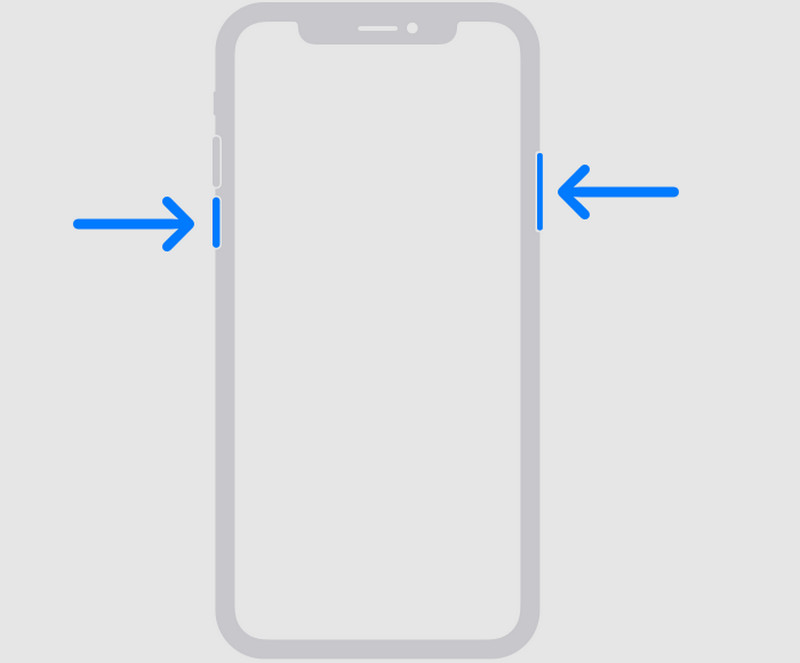
To take a screenshot, the Side button must be held down while pressing the Volume Up button. If any of the buttons are sticking or are not working correctly, your iPhone might not be able to detect the shortcut. - AssistiveTouch Conflict
AssistiveTouch offers another way to capture screenshots, but custom settings can sometimes interfere with the normal controls. If you recently changed your accessibility settings, reviewing them may solve the problem.
If you have also searched why can't I screenshot on Mac, you are not alone. Although macOS uses different screenshot tools, permission settings, and app restrictions can cause similar problems on Apple's desktop operating system.
2. How to Fix
- Restart Your iPhone
This can be an immediate solution to glitches that interfere with screenshots on the iOS system. Once your iPhone resumes Power On, attempt to do another screen shot. If there is an iOS update available, use it prior to testing again.
- Check the Side and Volume Buttons
Be sure the Side button and Volume Up button work correctly. If one of them is not functioning, your iPhone might not be able to recognize the screenshot shortcut. There's also AssistiveTouch to check if the problem lies with the actual buttons or not. - Check Whether the App Blocks Screenshots
If only an app fails to take screenshots, it's probably a feature, not a bug. Screenshots are enabled in apps like banking, streaming, and work apps to keep sensitive data hidden. Similarly, when you wonder why you can't screenshot on Instagram, only a disappearing photo or video in a private chat is restricted.
Part 3. Why Can't I Take a Screenshot on Windows
1. Common Reasons
- DRM-Protected Content
Why can't I take a screenshot on Windows? Some streaming services and protected apps block screenshots to prevent copyrighted content from being copied. If you see a black screen or a blank image, DRM protection is likely the reason. - Full-Screen Games
Some games disable screenshots while running in full-screen mode. Others require their own built-in screenshot shortcut instead of the standard Windows keys. - Keyboard Issues
The Print Screen or PrtScn key may not work if it is damaged, disabled, or requires the Fn key. Some keyboards also use different shortcut combinations depending on the manufacturer. - Group Policy Restrictions
If you are using a work or school computer, your organization may have disabled screenshots through Windows Group Policy. In this case, only your IT administrator can change the setting.
2. How to Fix
• Check Your Keyboard
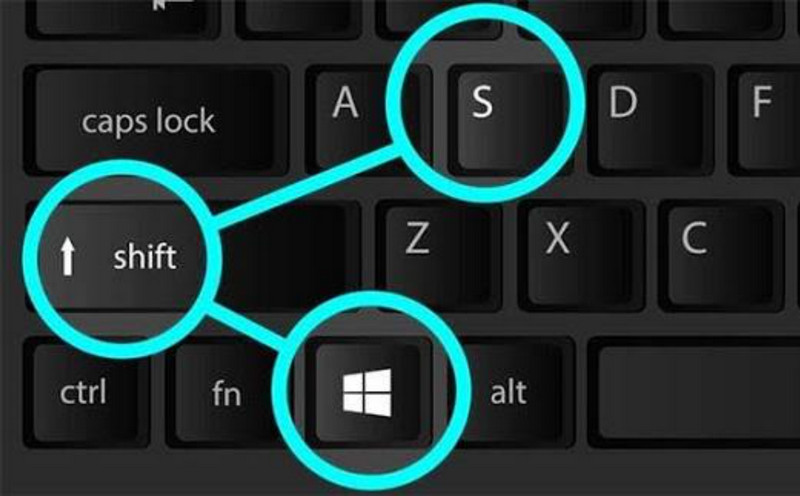
Press PrtScn or Windows + Shift + S to see if Windows can capture your screen. If you are using a laptop, try Fn + PrtScn, since some keyboards require the Function key.
• Use Xbox Game Bar for Games
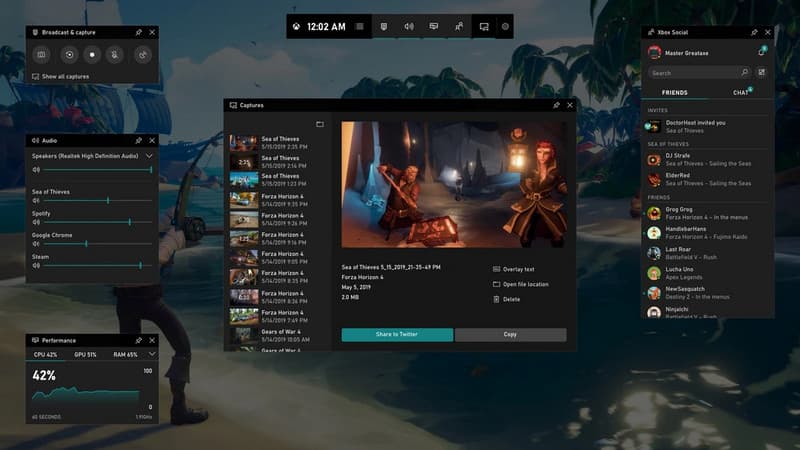
If screenshots are only broken during games, then press Windows + G to open Xbox Game Bar. Even if the Print Screen key does not produce a print screen, many games have a built-in print screen function in the Game Bar. You can also use this feature to do a screen recording on Windows.
• Try Snipping Tool or AVAide Screen Recorder
If the keyboard shortcuts still don't work, use Snipping Tool to capture the screen. A built-in feature of Windows and works fine for most regular use. If you require more than simple screenshots, another alternative is AVAide Screen Recorder. In addition to taking screenshots of your screen, it can also record footage of your screen, offer a custom capture area, and include editing options for making tutorials or recording important content for work or study.

FREE DOWNLOAD For Windows 7 or later
 Secure Download
FREE DOWNLOAD For Mac OS X 10.13 or later
Secure Download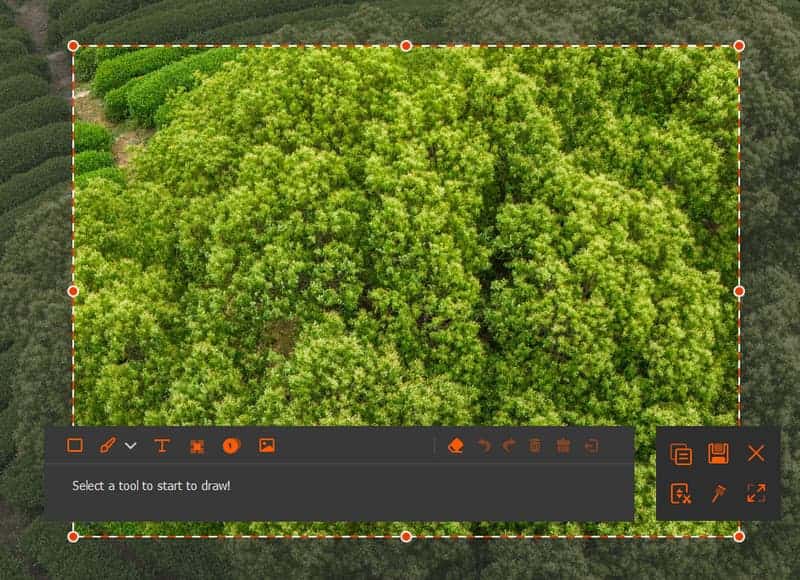
Part 4. Why Can't I Take a Screenshot on Mac
1. Common Reasons
- Keyboard Shortcut Issues
Mac uses keyboard shortcuts to capture screenshots. If the shortcuts have been changed or the keys are not responding correctly, macOS may not save the screenshot. - DRM-Protected Content
Streaming services and other apps that display copyrighted content may block screenshots. When this happens, your screenshot may only capture a black screen instead of the video. - Permission Issues
Some screen-capturing and screen recording applications require permission to take a screenshot. Though the built-in shortcuts to take screenshots still work, if these permissions are denied, the app might not function. - Third-Party App Conflicts
Customizing keyboard shortcuts or recording screen activity with apps can sometimes disrupt the macOS screen capture utilities. If the issue appeared since running any new software, close the software and reopen it to see if the screenshot function works.
Certain social media platforms also have their own guidelines on screenshots. For instance, the Instagram screenshot policy also permits screenshots of normal posts, Stories, and Reels, whereas disappearing photos or videos in private conversations might inform the sender when they are taken.
2. How to Fix
- Check Your Screenshot Shortcuts
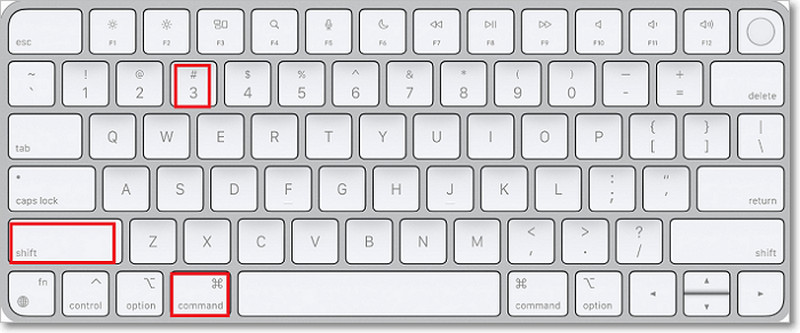
Press Command + Shift + 3 to capture the entire screen or Command + Shift + 4 to select part of the screen. If neither shortcut works, open System Settings > Keyboard > Keyboard Shortcuts > Screenshots and make sure the shortcuts are enabled.
- Allow Screen Recording Permission
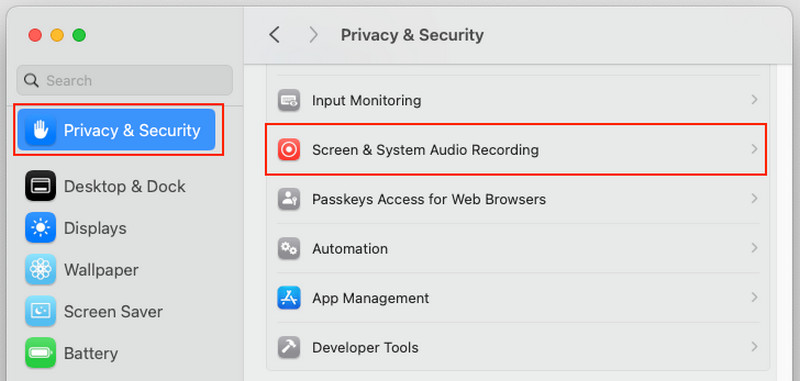
Go to System Settings > Privacy & Security > Screen & System Audio Recording and check whether the screenshot or screen recording app has permission to access your display. Restart the app after making any changes.
- Close Conflicting Apps
Close any screen recording software, keyboard remapping programs, or other programs that could affect the functionality of screen shortcuts. If the issue is confined to a particular application, then it might be something that is programmed into the application to safeguard copyrighted or sensitive material.
Part 5. Why Can't I Screenshot on Instagram, TikTok, WhatsApp
Why Do Some Apps Block Screenshots?
Some apps do not allow screenshots to protect the user's privacy, sensitive data, or copyrighted material. The restriction applies to the app and the content you are viewing in that app. If you have searched for can't take a screenshot because of security policy TikTok, the problem lies most likely with protected content or the security settings of your device, and not with TikTok.
Similarly, can't take a screenshot due to the security policy on WhatsApp, which frequently appears when viewing View Once photos or videos. WhatsApp blocks screenshots for these messages to help protect the sender's privacy. If screenshots are limited, avoid circumventing the limitation and go with the sharing features the app provides instead. This is to ensure that your account remains secure and doesn't breach the app's privacy regulations.
When you're still wondering why I can't take a screenshot, the reason is often quite simple. It may be due to any one of a number of device settings, app restrictions, or temporary software problems. With this information about the common issues and the correct solution to solve the problem, the screenshots can be fixed again within a few minutes.
ABOUT THE AUTHOR

Record screen, audio, webcam, gameplay, online meetings, as well as iPhone/Android screen on your computer.