Încercând să redarea muzicii în timp ce înregistrați videoclipuri Clipurile de pe iPhone pentru TikTok, amintiri de călătorie sau vloguri rapide pot fi frustrante atunci când sunetul se oprește brusc. Mulți utilizatori se confruntă cu această problemă în momente importante. Din fericire, există mai multe modalități simple de a continua redarea muzicii în timp ce înregistrați, atât pe dispozitivele iPhone, cât și pe cele Android.
- Partea 1. iPhone - Cum să redați muzică în timp ce înregistrați videoclipuri
- Partea 2. Android - Cum să redați muzică în timp ce înregistrați videoclipuri
- Partea 3. De ce iPhone-ul meu întrerupe muzica când încep să înregistrez?
- Partea 4. Muzica se oprește sau nu se redă [Soluții rapide]
- Partea 5. Ce zici de utilizarea unui înregistrator de ecran profesional
Partea 1. iPhone - Cum să redați muzică în timp ce înregistrați videoclipuri
Metoda 1: Metoda încorporată
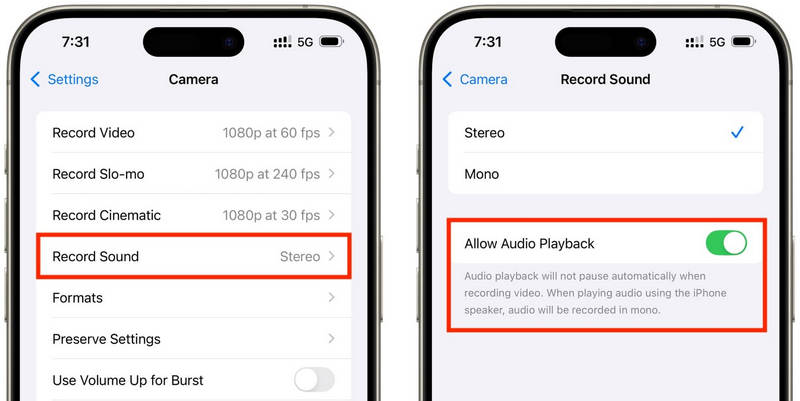
iOS 18 aduce câteva îmbunătățiri binevenite în ceea ce privește ușurința în utilizare pentru utilizatorii de iPhone. În trecut, versiunile mai vechi de iOS întrerupeau redarea muzicii în timp ce aplicația Cameră înregistra, dar această actualizare rezolvă această problemă și permite utilizatorilor să asculte muzică în timp ce înregistrează. Este cea mai simplă și fiabilă modalitate, deoarece nu este nevoie să instalați aplicații suplimentare sau să folosiți trucuri; funcționează direct în sistemul iPhone.
Pasul 1Accesați aplicația Setări de pe iPhone.
Pasul 2Apasă pe aparat foto în partea de jos a ecranului.
Pasul 3 Selectați Înregistrare sunet sau aceeași opțiune audio și activați Permiteți redarea audio opțiunea în timpul înregistrării.
Pasul 4Redă o melodie în aplicația muzicală aleasă de tine.
Pasul 5Deschide aparat foto aplicația și selectați Mod videoMuzica ar trebui să continue să se redă în timpul înregistrării.
Metoda 2: Trucul QuickTake (pentru iOS 17 și versiunile mai vechi)
QuickTake este una dintre cele mai simple metode de a rezolva problema întreruperii muzicii la înregistrarea video pe iPhone-uri mai vechi. Spre deosebire de intrarea completă în modul Video, QuickTake vă permite să realizați clipuri direct din modul Foto, astfel încât muzica de fundal să continue să fie redată. Este rapid și ușor pentru videoclipuri rapide, videoclipuri postate pe Twitter, videoclipuri cu dvs. pe rețelele sociale sau orice moment aleatoriu pe care doriți să îl capturați fără a încheia înregistrarea audio.
Pasul 1Redă melodia ta în Apple Music, Spotify sau în altă aplicație muzicală.
Pasul 2Rămâneți în setările implicite Fotografie modul.
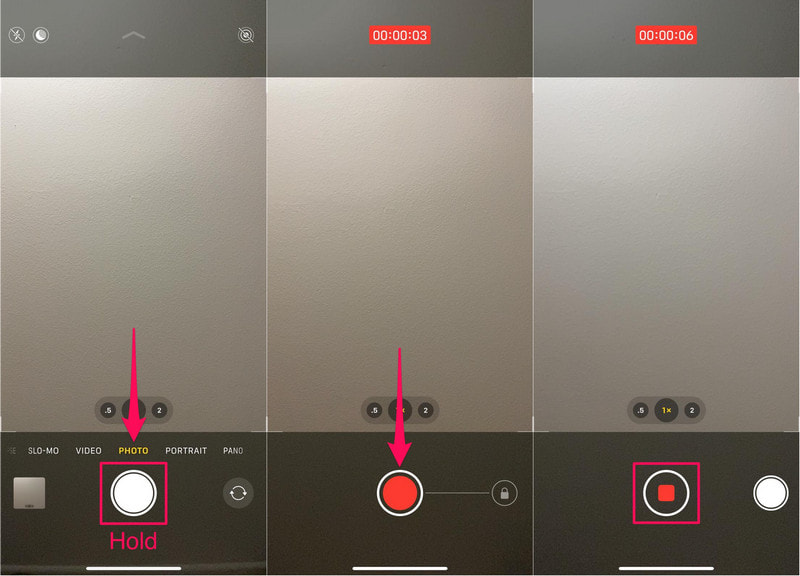
Pasul 3Pentru a începe înregistrarea video, țineți apăsat butonul Obturator buton.
Pasul 4 Mișcă butonul declanșator spre dreapta pentru a securiza înregistrarea, astfel încât să nu fie nevoie să ții apăsat butonul declanșator.
Pasul 5Faceți clic pe Stop buton odată ce ați terminat.
Metoda 3: Utilizarea unei aplicații terțe
Dacă redarea este în continuare întreruptă de muzică, aplicațiile de înregistrare terțe sunt soluția perfectă. Cea mai populară este Mideo, o aplicație care permite utilizatorilor să redea muzică și să înregistreze videoclipuri simultan. Aceasta gestionează înregistrări HD și chiar 4K pe dispozitive compatibile și include toate funcțiile pe care le-ați aștepta, cum ar fi comenzi de zoom in și zoom out, suport pentru camerele frontale și spate și salvare instantanee în aplicația Fotografii.
Pasul 1Descarcă Mideo din App Store.
Pasul 2Permiteți accesul la cameră și microfon.
Pasul 3Deschide Apple Music, Spotify sau o altă aplicație de streaming, apoi începe redarea.
Pasul 4Odată ce muzica începe, deschideți Aplicație.
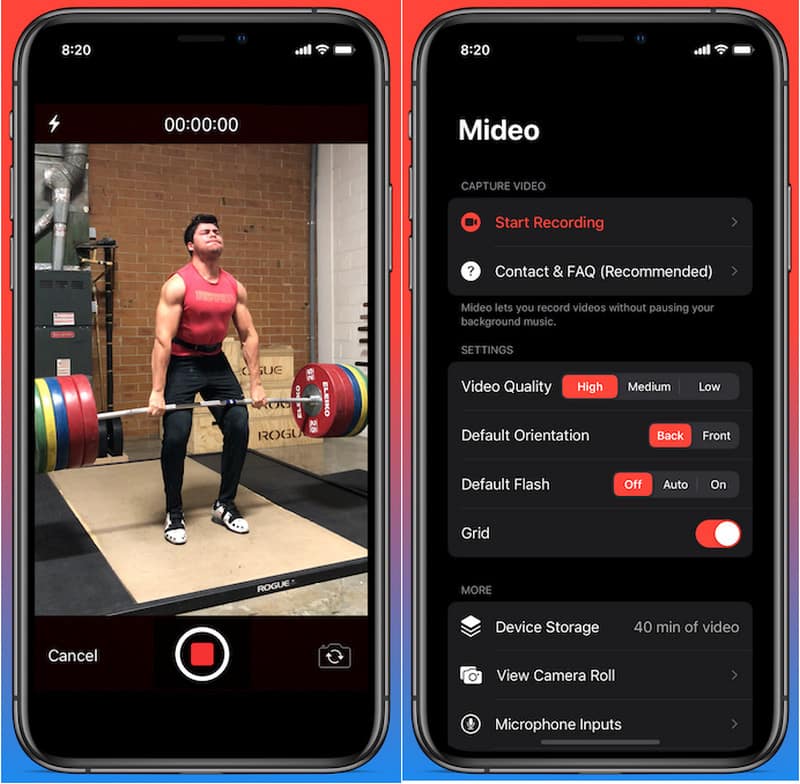
Pasul 5apasă pe Record și începeți înregistrarea în timp ce muzica se redă în fundal.
Metoda 4: Utilizarea modului Imagine în imagine (PiP)
Redarea media nu trebuie oprită în timpul înregistrării video; puteți utiliza funcția Picture-in-Picture. iPhone-ul dvs. ar putea continua să redea un fișier video sau muzical chiar și după deschiderea aplicației Cameră în prim-plan. Aceasta este o metodă simplă care nu necesită instalarea de instrumente suplimentare de înregistrare.
Pasul 1Redați o melodie sau un videoclip dintr-o aplicație care acceptă modul Imagine în imagine.
Pasul 2Mergi la Setări > General > Imagine în imagine, apoi porniți Porniți automat PiP.
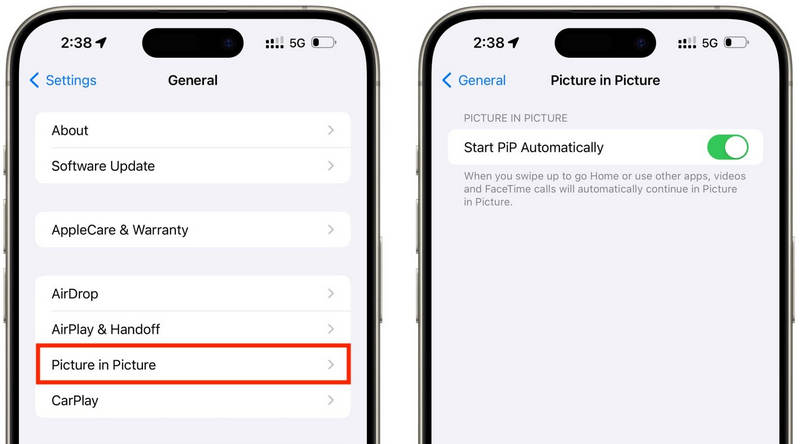
Pasul 3Glisați în sus sau atingeți butonul PiP de pe playerul video pentru a minimiza fișierele media într-o fereastră plutitoare.
Pasul 4Lansați aplicația Cameră cu grijă, fără a opri redarea fișierelor media.
Pasul 5Înregistrați videoclipul în timp ce muzica sau fișierele media continuă să se redea în fundal.
Partea 2. Android - Cum să redați muzică în timp ce înregistrați videoclipuri
Metoda 1: Samsung One UI 7 (încorporată)
Cu Samsung One UI 7, compania îmbunătățește controalele camerei și audio pentru a facilita redarea muzicii în timpul filmării. Funcția este integrată în sistem, astfel încât utilizatorii pot experimenta o experiență de înregistrare mai fluidă fără a instala aplicații suplimentare. Este utilă în special pentru realizarea de videoclipuri pentru rețelele sociale, vloguri sau videoclipuri casual cu muzică de fundal.
Pasul 1Deschide aparat foto aplicația, apoi atingeți Setări buton.
Pasul 2Verificați dacă există sunet sau Opțiuni video avansate.
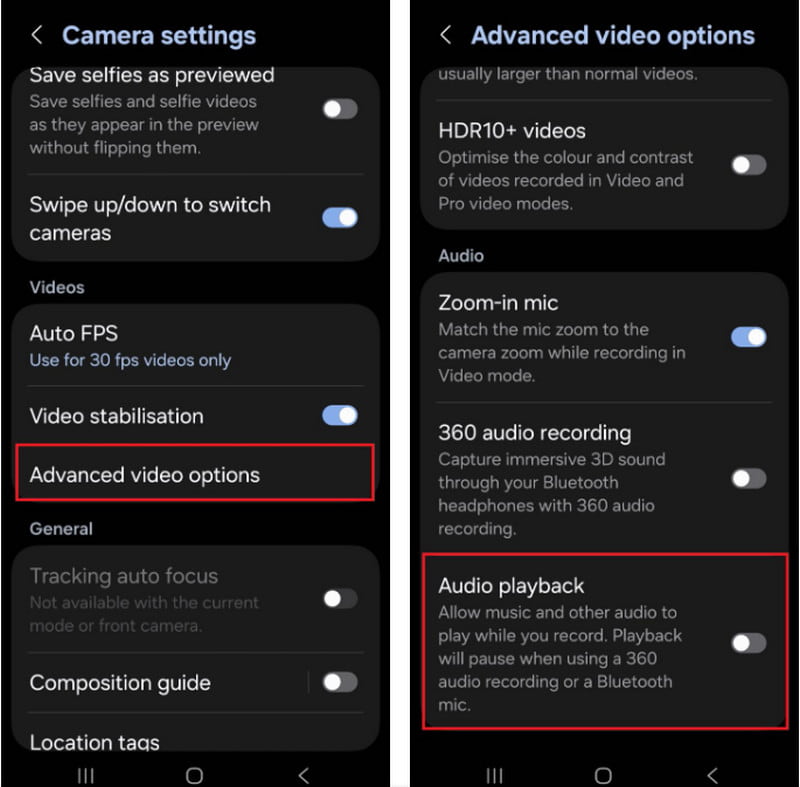
Pasul 3Activează Redare audio.
Pasul 4Deschide o melodie pe Spotify, YouTube Music sau în altă aplicație.
Pasul 5Deschide aparat foto aplicație și începe înregistrarea.
Metoda 2: Utilizarea aplicației Google Pixel Screen Recorder
Înregistratorul de ecran încorporat în telefoanele Google Pixel vă permite, de asemenea, să înregistrați sunetul intern. Este în principal o aplicație pentru înregistrări de ecran, dar poate reda și muzică în timpul înregistrării. Este foarte util pentru tutoriale, demonstrații de joc și demonstrații de aplicații cu muzică de fundal.
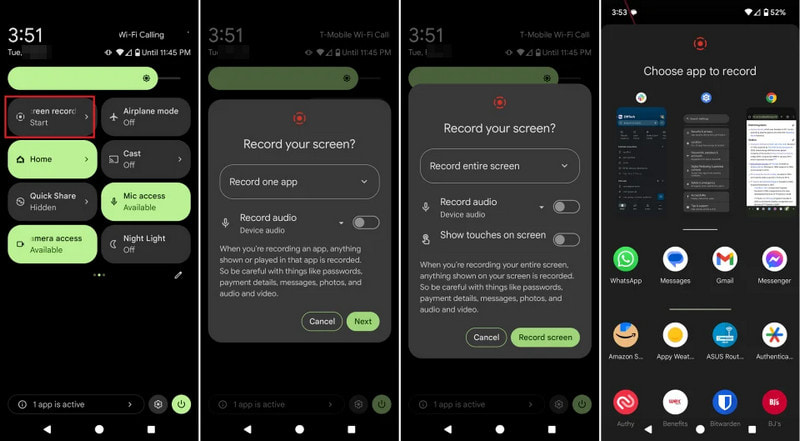
Pasul 1 Atingeți și trageți în jos din partea de sus a ecranului.
Pasul 2Alegeți înregistratorul de ecran care este deja disponibil.
Pasul 3Alegeți înregistrarea audio internă sau cea de pe dispozitiv.
Pasul 4Pentru a reda muzica, faceți clic pe aplicația muzicală preferată.
Pasul 5Porniți înregistrarea ecranului.
Metoda 3: Utilizarea unei aplicații terțe
Aplicațiile terțe de înregistrare, cum ar fi Background Video Recorder, sunt utilizate pe scară largă pe Android, deoarece sunt mai compatibile cu o gamă largă de mărci de telefoane și versiuni de Android. Un număr semnificativ de aplicații oferă redare audio în fundal și opțiuni suplimentare de înregistrare audio, cum ar fi calitate video HD, comenzi manuale, filtre și stabilizare. Acestea pot fi utile pentru persoanele care au nevoie de mai multe opțiuni de înregistrare decât oferă aplicația Cameră încorporată, în special pentru utilizatorii care doresc... înregistrați un podcast, tutoriale, vloguri sau conținut pentru rețelele sociale cu o calitate audio și video mai bună.
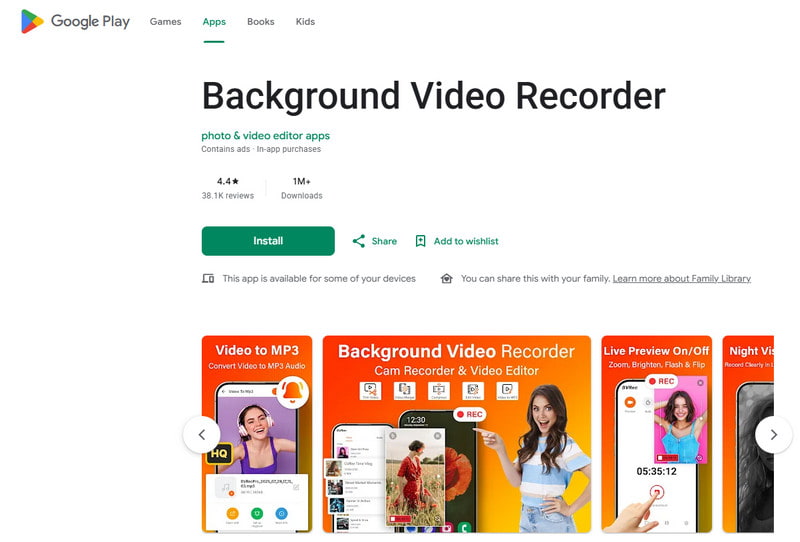
Pasul 1Instalați Background Video Recorder din Magazinul Google Play.
Pasul 2Permiteți accesul la cameră, microfon și spațiul de stocare atunci când vi se solicită.
Pasul 3Deschide Spotify, YouTube Music sau o altă aplicație muzicală și începe lista ta de redare.
Pasul 4Lansați înregistratorul și ajustați calitatea video sau setările audio, dacă este necesar.
Pasul 5Atingeți butonul de înregistrare în timp ce muzica continuă să se redă în fundal.
Partea 3. De ce iPhone-ul meu întrerupe muzica când încep să înregistrez?
Unii utilizatori de iPhone raportează că muzica lor se oprește brusc atunci când înregistrează un videoclip cu ei înșiși. Acest lucru se datorează faptului că, pe dispozitivele iOS, microfonul camerei este întotdeauna folosit mai întâi pentru înregistrarea audio, mai degrabă decât pentru redarea fișierelor media. Acest comportament este similar cu cel al software-ului care... înregistrează vocea pe Mac prioritizează intrarea microfonului în timpul sesiunilor de înregistrare. Această problemă poate fi declanșată de mai multe cauze posibile, în funcție de modelul iPhone-ului și de versiunea iOS.
- Aplicația Cameră preia controlul asupra sunetului: Aplicația Cameră prioritizează automat microfonul pentru înregistrarea video, pentru a asigura cea mai bună calitate audio.
- Versiunile mai vechi de iOS au anumite restricții: În majoritatea cazurilor, muzica este întreruptă automat la înregistrarea videoclipurilor pe iOS 17 și versiuni anterioare.
- Poți reda muzică în fundal doar cu anumite aplicații muzicale: Este posibil ca unele aplicații de streaming să întrerupă temporar redarea în flux dacă o altă aplicație utilizează setările de înregistrare audio.
- Dispozitivele Bluetooth pot cauza conflicte: Căștile sau difuzoarele wireless pot fi o distragere a atenției în timpul înregistrărilor.
- Modul de economisire a bateriei poate interfera: Modul de consum redus poate restricționa operațiunile din fundal, cum ar fi redarea muzicii.
Partea 4. Muzica se oprește sau nu se redă [Soluții rapide]
| Problemă | Remediere rapidă |
| Muzica se întrerupe imediat după începerea înregistrării. | Folosește metoda QuickTake sau activează funcția de redare încorporată în setările camerei. |
| Fără muzică în timpul înregistrării. | Reporniți atât aplicația Cameră, cât și aplicația Muzică, apoi încercați din nou să înregistrați. |
| Sunetul Bluetooth se deconectează. | Reconectați căștile sau difuzorul wireless după ce dezactivați și reactivați Bluetooth. |
| Înregistratorul de la terți nu funcționează. | Actualizați sau reinstalați aplicația de înregistrare pentru a remedia posibilele probleme de compatibilitate. |
| Muzica tot se oprește pe iPhone-ul meu. | Repornește iPhone-ul și instalează cea mai recentă actualizare iOS disponibilă. |
| Nu se aude sunet în videoclipul înregistrat. | Asigurați-vă că permisiunile pentru microfon sunt activate atât pentru aplicația Cameră, cât și pentru cea muzicală. |
Partea 5. Ce zici de utilizarea unui înregistrator de ecran profesional
AVaide Screen Recorder este un software profesional de înregistrare a ecranului pentru cei care preferă înregistrări mai fluide și de calitate superioară pe Windows și Mac. Poate captura sunetul sistemului, sunetul microfonului, videoclipul camerei web și chiar ecranul la calitate înaltă. Software-ul este deosebit de util pentru crearea de tutoriale, videoclipuri cu jocuri, videoclipuri cu reacții, cursuri online și prezentări video, fără întârziere și fără configurare complicată.
- Înregistrați videoclipuri la rezoluție de până la 4K sau 1080p cu performanțe fluide și stabile.
- Capturați simultan sunetul intern și sunetul microfonului pentru înregistrări mai clare.
- Alegeți între ecran complet, fereastră selectată sau o zonă de înregistrare personalizată.
- Înregistrați imagini de pe camera web sau oglindiți și capturați cu ușurință ecranele iPhone și Android.
- Adăugați adnotări în timpul înregistrării și decupați sau editați videoclipuri imediat după capturare.

 Descărcare sigură
Pasul 1Instalați AVaide Screen Recorder
Accesați site-ul oficial AVAide și descărcați software-ul pentru Windows sau Mac. Instalați programul, apoi rulați-l după instalare.
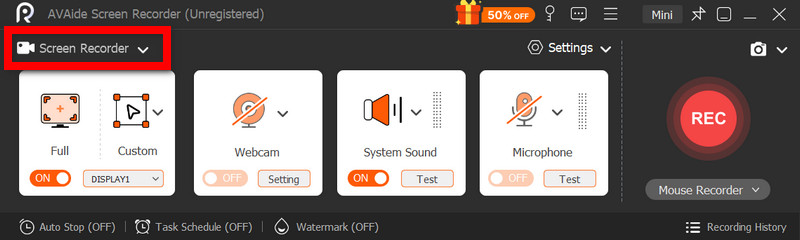
Pasul 2Alegeți modul de înregistrare
Pentru a înregistra activitatea ecranului, faceți clic pe Screen Recorder opțiunea din ecranul principal.
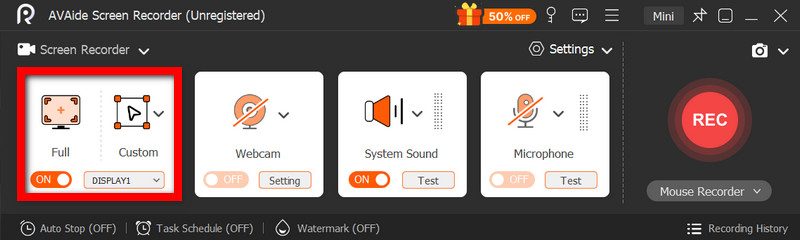
Pasul 3Alegeți zona de înregistrare
Selectați Deplin sau Personalizat modul de înregistrare, după cum este necesar.
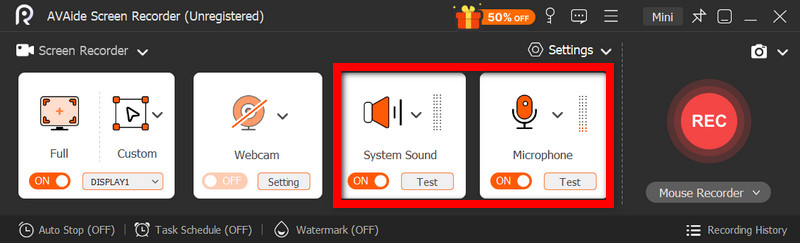
Pasul 4Activează sursele audio
Dacă doriți să vă înregistrați vocea, activați Microfon; dacă doriți să înregistrați sunetul intern, selectați Sunet de sistem.
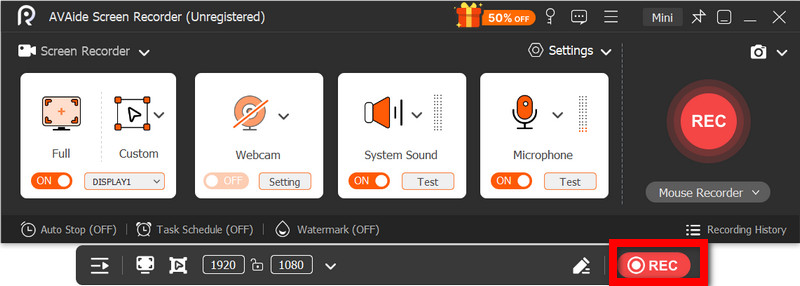
Pasul 5Începe să înregistrezi
Apasă pe REC buton pentru a înregistra activitatea de pe ecran, video sau audio.
Pasul 6Editați și salvați înregistrarea
Când ați terminat, apăsați butonul Stop buton. Urmăriți videoclipul pentru a vă face o idee generală despre el, editați-l scurt dacă este necesar, apoi salvați-l pe computer.
Redarea muzicii în timpul înregistrării este o problemă cu care mulți utilizatori se confruntă atunci când creează videoclipuri pentru rețele sociale sau uz personal. Cu setările, metodele sau instrumentele potrivite, atât utilizatorii de iPhone, cât și cei de Android pot înregistra cu ușurință videoclipuri fără a opri muzica de fundal.
DESPRE AUTOR

Capturați activități pe ecran cu sunet, întâlniri online, videoclipuri de joc, muzică, cameră web etc.
Înregistrare ecran
- Înregistrare ecran pe Windows
- Înregistrați live pe Instagram
- Extrage videoclipuri din Tubi
- Convertește videoclipuri YouTube în MP3
- Descarcă videoclipuri de la Fansly
- Descărcarea videoclipurilor JW Player
- Descărcați videoclipuri Bilibili
- Descarcă videoclipuri Patreon
- Descarcă videoclipuri SpankBang
- Descarcă videoclipuri Discord
- Descărcați videoclipul DoodSream