Încercând să-mi dau seama cum să înregistrezi ecranul pe un Dell Înregistrarea unui tutorial, a unui gameplay sau a unei întâlniri poate părea confuză fără instrumentul potrivit. Indiferent dacă aveți nevoie de ceva rapid sau mai avansat, acest ghid vă prezintă metode simple și eficiente pentru a înregistra ecranul fără probleme.
Partea 1. Cea mai simplă metodă: Utilizarea barei de jocuri Xbox
Bara de jocuri Xbox este concepută în principal pentru înregistrarea jocurilor, dar poate fi folosită și pentru înregistrarea zilnică a ecranului. Îți permite să înregistrezi ecranul și sunetul și să salvezi clipuri imediat. Cu toate acestea, nu poate captura desktopul sau File Explorer; poate captura doar ferestrele active ale aplicațiilor.
Pasul 1Pentru a deschide suprapunerea Xbox Game Bar, apăsați butonul Windows + G tastele de pe tastatură. Dacă întrebarea este dacă este un joc, răspundeți afirmativ.
Pasul 2The Captură panoul se află în suprapunere. Dacă nu îl puteți vedea, va fi creat un meniu Widgeturi și va fi selectată opțiunea Captură.
Pasul 3Pentru a începe înregistrarea ecranului, faceți clic pe Înregistrare (●) butonul sau Windows + Alt + RInstrumentul va captura automat o imagine a ferestrei active.
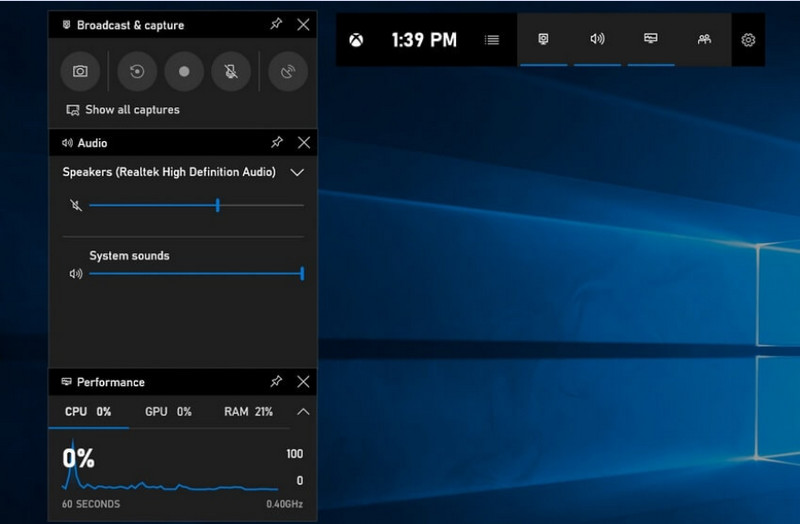
Pasul 4Înregistrarea cu microfon poate fi activată făcând clic pe Mic butonul înainte sau în timpul înregistrării.
Pasul 5Pentru a opri înregistrarea, apăsați Windows + Alt + R a doua oară sau apăsați butonul Oprire (■) butonul de pe bara plutitoare.
Pasul 6Videoclipurile pe care le înregistrați sunt stocate automat în Videoclipuri > Capturi folderul computerului dumneavoastră.
Partea a 2-a. Alegerile profesionale
1. Utilizarea OBS Screen Recorder
OBS Screen Recorder este un înregistrator de ecran gratuit, open-source, utilizat în mod obișnuit atât pentru înregistrarea, cât și pentru streamingul de conținut live. Și oferă o configurație personalizabilă care vă permite să înregistrați întregul ecran, o fereastră distinctă sau mai multe surse simultan. Controalele sale video și audio puternice îl fac o opțiune eficientă pentru utilizatorii care nu sunt interesați doar de cel mai simplu tip de înregistrare a ecranului.
Performanţă:
OBS Screen Recorder este un software cu accelerare hardware care oferă performanțe fiabile, permițând înregistrare fluidă la 1080p și 60 fps. Odată instalat, poate funcționa eficient, cu un randament constant și o latență redusă, în timpul sesiunilor extinse de înregistrare pe sisteme compatibile.
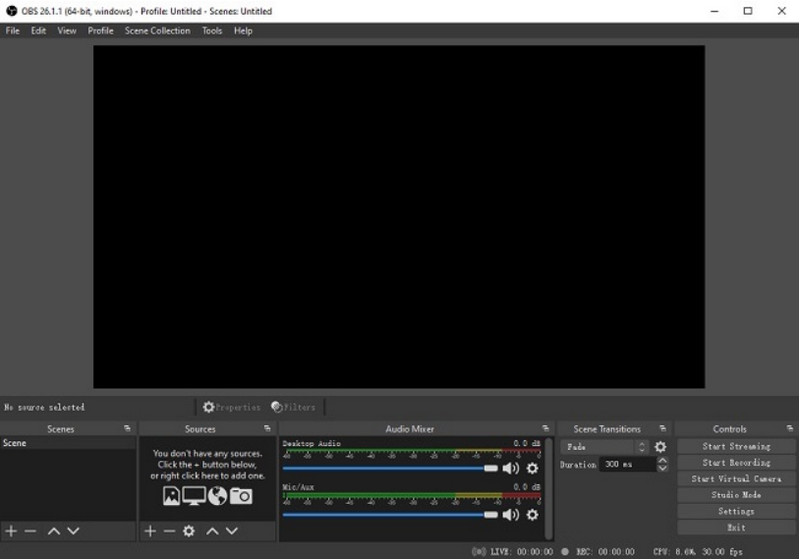
Pasul 1Accesați site-ul oficial OBS Screen Recorder, descărcați programul de instalare și finalizați instalarea.
Pasul 2Deschis OBS Screen RecorderVi se va prezenta interfața principală cu panouri precum Scene și Surse.
Pasul 3În panoul Scene, faceți clic pe + și dați un nume scenei.
Pasul 4Puteți adăuga o captură de ecran sau o captură de fereastră (pentru a captura o anumită aplicație) făcând clic pe + în Surse panou și selectarea Captură de afișare sau Captură de fereastră.
Pasul 5Testați Mixer audio prin activarea și reglarea sunetului microfonului și al sistemului.
Pasul 6apasă pe Începe să înregistrezi butonul din partea dreaptă a interfeței.
Pasul 7Când ați terminat, faceți clic pe Opriți înregistrareaAcest videoclip va fi pus automat în folderul implicit.
2. Utilizarea AVAide Screen Recorder
AVaide Screen Recorder este un instrument simplu, dar eficient, pentru înregistrarea activității de pe ecran la o calitate înaltă. Se adresează utilizatorilor care au nevoie de un sistem de înregistrare ușor de utilizat, cu sunet clar, un sistem de captură flexibil cu configurare minimă și comenzi intuitive.
Performanţă:
AVAide Screen Recorder este optimizat pentru a înregistra fără probleme și stabil, chiar și în timpul sesiunilor lungi. Poate suporta ieșire de înaltă rezoluție la 4K/1080p cu latență minimă în aplicațiile comune. Software-ul poate gestiona eficient înregistrarea simultană a ecranului și a sunetului pentru a asigura sincronizarea sunetului sistemului și a intrării microfonului.
- Înregistrează ecranul la calitate înaltă, cu performanță fluidă și fără întârzieri.
- Capturează simultan sunetul sistemului și al microfonului, cu o ieșire audio clară.
- Acceptă înregistrarea cu camera web cu suprapunere reglabilă imagine în imagine.
- Permite înregistrarea pe tot ecranul, a unei ferestre selectate sau a unei regiuni personalizate.
- Include instrumente de editare încorporate pentru decuparea, îmbunătățirea și exportarea videoclipurilor.

 Descărcare sigură
Pasul 1Descărcați și instalați instrumentul
Accesați site-ul oficial AVAide Screen Recorder. Obțineți programul de instalare pentru sistemul dvs. Windows și urmați procesul de instalare.
Pasul 2Lansați software-ul
Instalarea poate fi urmată de deschiderea programului. Pe interfața principală, puteți alege Screen Recorder pentru început.
Pasul 3Alegeți zona de înregistrare
Alegeți între Deplin și Personalizat moduri de înregistrare în funcție de nevoile dumneavoastră.
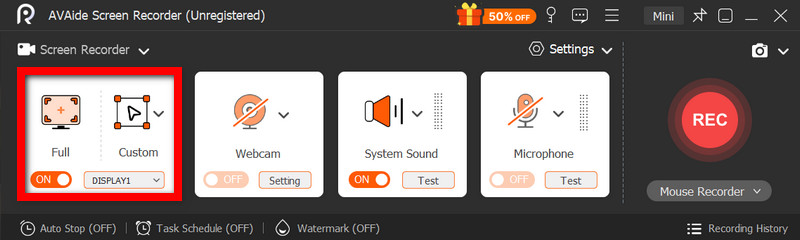
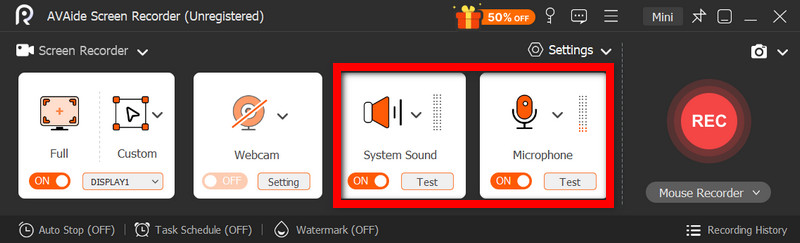
Pasul 4Configurați sunetul și camera web
Permite Sistem audio si Microfon dacă aveți nevoie de sunet. Camera web poate fi, de asemenea, activată pentru a înregistra fețe.
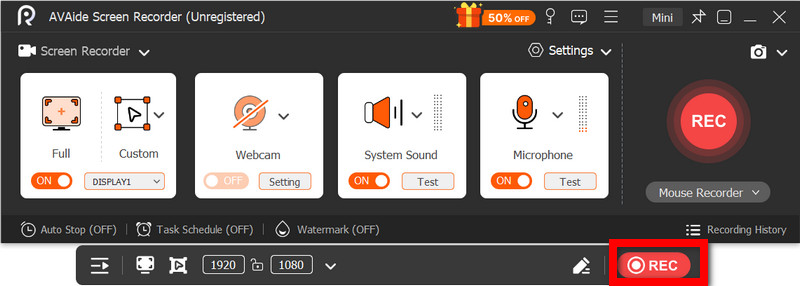
Pasul 5Începe să înregistrezi
Pentru a începe înregistrarea ecranului, apăsați butonul REC Adnotările pot fi adăugate în timpul înregistrării, dacă este necesar.
Pasul 6Opriți și salvați înregistrarea
Apasă pe Stop apăsați butonul când ați terminat. Înregistrarea va fi salvată automat și o puteți previzualiza sau edita imediat.
Partea 3. Alte metode gratuite și simple
1. Utilizarea instrumentului de decupare (Windows 11)
Instrumentul de decupare din Windows 11 include înregistrarea ecranului încorporată, oferind o modalitate simplă și rapidă de a captura activitatea ecranului fără a instala software suplimentar. Este cel mai eficient cu clipuri scurte, tutoriale și lucrări simple de înregistrare.
Performanţă:
Instrumentul de decupare este potrivit pentru înregistrări ușoare și oferă o captură fluidă a unor imagini de dimensiuni reduse. Cu toate acestea, îi lipsesc funcții, nu acceptă setări avansate și este posibil să nu gestioneze înregistrările lungi sau de înaltă performanță la fel de eficient ca alte instrumente.
Pasul 1Deschideți instrumentul de decupare făcând clic pe start meniul.
Pasul 2Pentru a utiliza bara de instrumente, faceți clic pe Record.
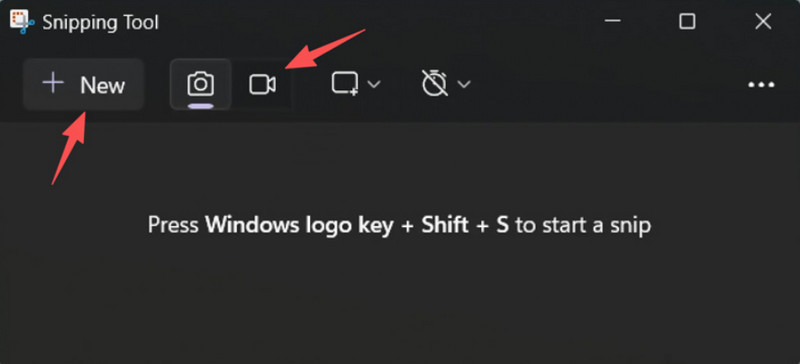
Pasul 3Pentru a înregistra o înregistrare nouă, selectați Nou.
Pasul 4Selectați zona ecranului pe care doriți să o capturați.
Pasul 5Clic start pentru a începe înregistrarea.
Pasul 6Clic Stop când ați terminat și salvați înregistrarea.
2. Utilizarea Microsoft PowerPoint (toate versiunile de Windows)
Microsoft PowerPoint include o funcție de înregistrare a ecranului care vă permite să faceți o captură de ecran și să o încorporați într-o prezentare. De asemenea, este o alternativă ușoară la dezvoltarea de tutoriale, demonstrații sau diapozitive didactice, fără a necesita software suplimentar de înregistrare.
Performanţă:
PowerPoint oferă rezultate consistente în înregistrări simple de ecran, în special pentru prezentări și demonstrații scurte. Deși oferă o calitate video rezonabilă, îi lipsesc controale avansate și este posibil să nu fie potrivit pentru calitatea videoclipurilor capturate în timpul înregistrărilor de lungă durată.
Pasul 1Lansați Microsoft PowerPoint și pregătiți o prezentare nouă sau una existentă.
Pasul 2Faceți clic pe fila Inserare, apoi Înregistrare ecran.
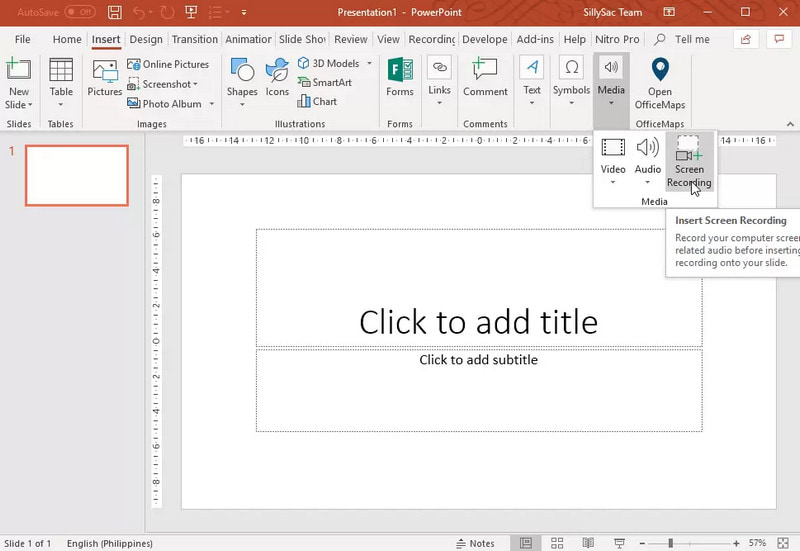
Pasul 3Alegeți partea ecranului pe care doriți să o capturați.
Pasul 4Permiteți înregistrarea audio sau a indicatorului atunci când este necesar.
Pasul 5Clic Record pentru a începe înregistrarea ecranului.
Pasul 6Pentru a termina înregistrarea, apăsați Windows + Shift + Q.
Pasul 7Pentru a salva înregistrarea, faceți clic dreapta pe videoclip și selectați Salvare fișier media ca.
Partea 4. Depanarea problemelor frecvente
| Problemă | Soluţie |
| Bara de jocuri nu se deschidea și nu înregistra. | În setări, poți dezactiva Bara de jocuri Xbox. Accesează Setări > Jocuri > Bar de jocuri și întoarce-l PEÎncercarea de a apăsa Windows + G din nou și repornirea PC-ului (unde este necesar). |
| Înregistrarea nu are sunet. | Asigură-te că sunetul și microfonul sistemului sunt activate în setările Game Bar. De asemenea, asigură-te că dispozitivul audio nu este dezactivat sau selectat incorect în Setări sunet Windows. |
| Laptopul meu Dell funcționează lent în timpul înregistrării. | Folosește Închidere sau Minimizare pentru a reduce aplicațiile și filele de browser inutile. Comută la modul Performanță înaltă în setările de alimentare și reduce rezoluția de înregistrare atunci când este necesar pentru a îmbunătăți performanța. |
| Calitatea videoclipului înregistrat este slabă. | Setați calitatea înregistrării la cea mai bună setare disponibilă în Bara de jocuri, în special atunci când înregistrare Google Meet sesiuni. Setați ecranul la rezoluția sa nativă și actualizați driverele grafice pentru a-l face mai clar și mai stabil. |
Învăţare cum se înregistrează ecranul pe un laptop Dell vă va oferi flexibilitate pentru tutoriale, întâlniri sau chiar jocuri. Fie că este vorba de un instrument încorporat sau de un software sofisticat, alegerea metodei potrivite va asigura că înregistrarea se face cu ușurință și de înaltă calitate, iar fluxul de lucru este eficientizat.
DESPRE AUTOR

Înregistrați ecranul, sunetul, camera web, jocul, întâlnirile online, precum și ecranul iPhone/Android pe computer.
Înregistrare ecran
- Înregistrare ecran pe Windows
- Înregistrați live pe Instagram
- Extrage videoclipuri din Tubi
- Convertește videoclipuri YouTube în MP3
- Descarcă videoclipuri de la Fansly
- Descărcarea videoclipurilor JW Player
- Descărcați videoclipuri Bilibili
- Descarcă videoclipuri Patreon
- Descarcă videoclipuri SpankBang
- Descarcă videoclipuri Discord
- Descărcați videoclipul DoodSream