DVD technology was not designed to be used with modern laptops; it is designed to be used on the set-top players. The format is based upon MPEG-2 compression, predetermined resolution, and stratified navigation files. When users attempt to Mac rip DVD media today, they face compatibility gaps between legacy disc design and current macOS frameworks. These structural details have been neglected, leading to failed rips in digital archiving work. Elaborate care safeguards the video quality and does not interfere with the law.
Part 1: Is It Legal to Rip a DVD on a Mac
The answer is yes, it is legal to rip a DVD on a Mac, although under specific circumstances. The most important ones are the ownership of the copies, the copy protection status, and the laws of copyright in your country.
In certain jurisdictions, under the provisions of the law, making a personal copy of a DVD is allowed under the provisions of the law of private copying or fair use as long as the copy is of a legally obtained DVD, and is not encrypted. Most of the commercial DVDs, however, employ some sort of CSS encryption or region coding to discourage duplication. When ripping a DVD on Mac software, it can also be forced to bypass these locks, thus altering the legality of the matter.
The DMCA in countries like the United States does not allow anyone to circumvent digital rights management, even when doing it themselves. That is, the legality of the process does not remain much attached to the device, but rather to the presence of encryption. Even in cases where many users seek how to rip a DVD on Mac, they do not have a clue about such legal constraints.
Most DVDs have protection, and you must know the copyright laws in your area before trying any form of ripping.
Part 2: How to Rip Unprotected DVDs on Mac
How do I rip a DVD on a Mac? If your DVD does not include copy protection, macOS can read the disc structure without restriction. You only need the right software to extract the video and convert it into a modern format such as MP4. Below are two reliable tools and the exact steps to use them.
1. MacX DVD Ripper Mac
MacX DVD Ripper Mac is built for macOS and supports direct DVD-to-MP4 conversion. If you are searching for how to rip from a DVD on a Mac with preset output formats and easy controls, the tool provides a step-by-step procedure to rip unprotected discs.
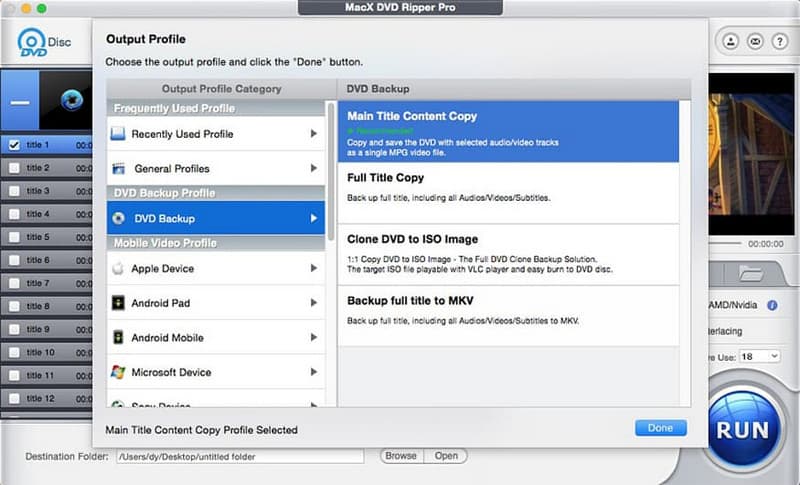
Step 1Install the software and insert the unprotected DVD into your Mac.
Step 2Launch the program and click DVD Disc to load the source.
Step 3Choose an output profile such as MP4 under General Profiles.
Step 4Select a destination folder and click Run to begin the ripping process.
2. VLC Media Player
VLC Media Player includes a built-in conversion feature that can extract video directly from unprotected DVDs. For users searching for how to rip a video from a DVD Mac without installing specialized ripping software, VLC offers a practical alternative and various formats to choose from, the best format to rip a DVD for.
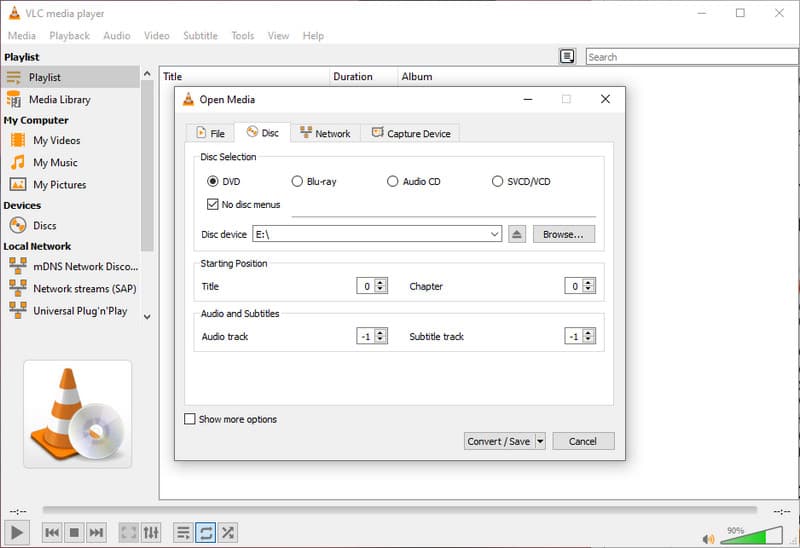
Step 1Install VLC Media Player and insert your unprotected DVD. Open VLC, click File in the top menu, and select Convert/Stream.
Step 2Choose the Disc tab, select DVD, and click Open Media to load the content.
Step 3Select a profile such as H.264 MP4, set the save location, and click Save to begin the process.
Part 3: How to Rip Copy-Protected DVDs on Mac
Copy-protected DVDs are designed to block direct copying through encryption, region codes, and structural protection. These limitations normally lead to the failure of standard tools.
Specialized software is needed by those users who want to find the best DVD ripping solutions for Mac that are able to handle encrypted discs and do not give any errors.
1. AVAide DVD Ripper
AVAide DVD Ripper is built to bypass copyright protection commonly found on commercial DVDs while maintaining stable performance on macOS. It backs up a 1:1 ratio without any recompression of the original video structure, audio tracks, and subtitles. The software is also available for fast processing with hardware acceleration, and flexible outputs give the option of MP4, MOV, and MKV. The users are able to set codec, bitrate, and resolution levels to optimize file size and quality to fit full backups as well as optimized playback files.
Step 1Download and install AVAide DVD Ripper, then insert the protected DVD into your Mac.

FREE DOWNLOAD For Windows 7 or later
 Secure Download
FREE DOWNLOAD For Mac OS X 10.13 or later
Secure DownloadStep 2Launch the software and click Load DVD to scan and analyze the disc.
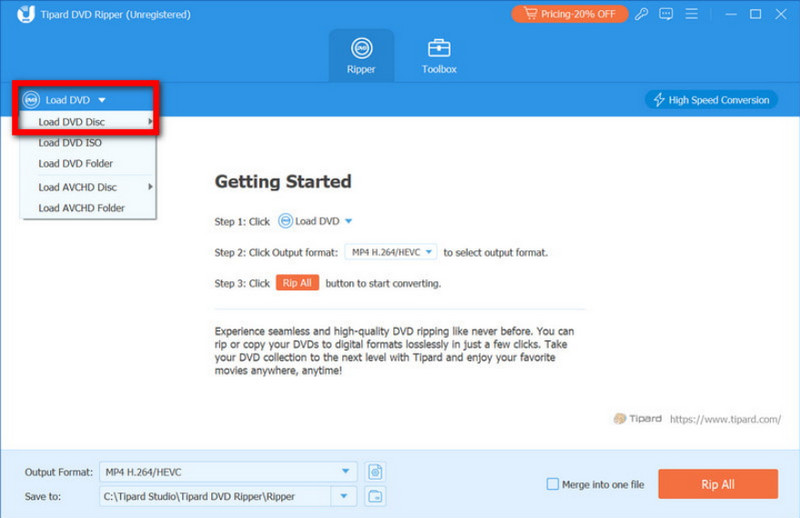
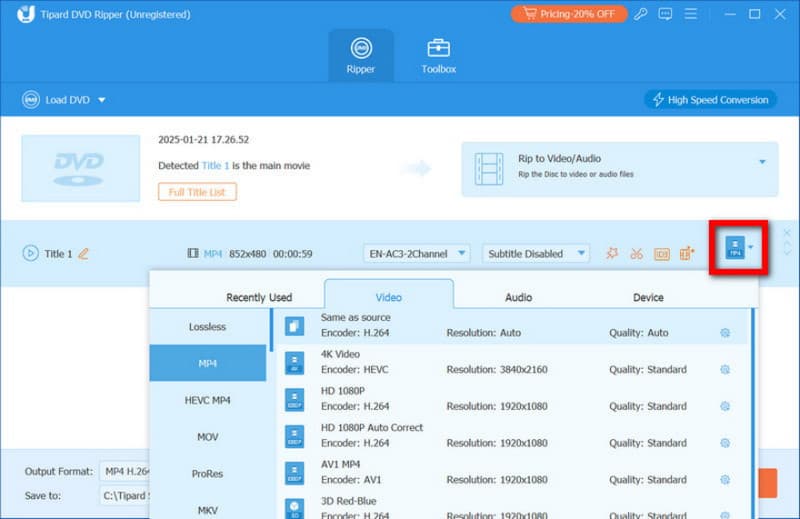
Step 3Select your desired output format or enable the 1:1 ratio option for full-quality backup.
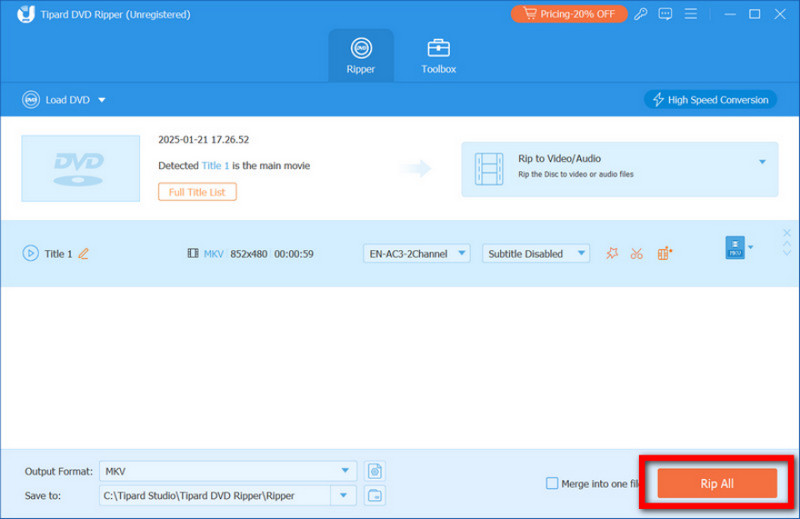
Step 4Choose the destination folder and click Rip All to start the conversion process.
2. HandBrake
HandBrake is known as reliable free DVD ripping software for Mac. By default, it works with unprotected discs, but some users configure it to read certain protected DVDs. It offers detailed control over compression, resolution, frame rate, and output format, making it suitable for optimized playback files.
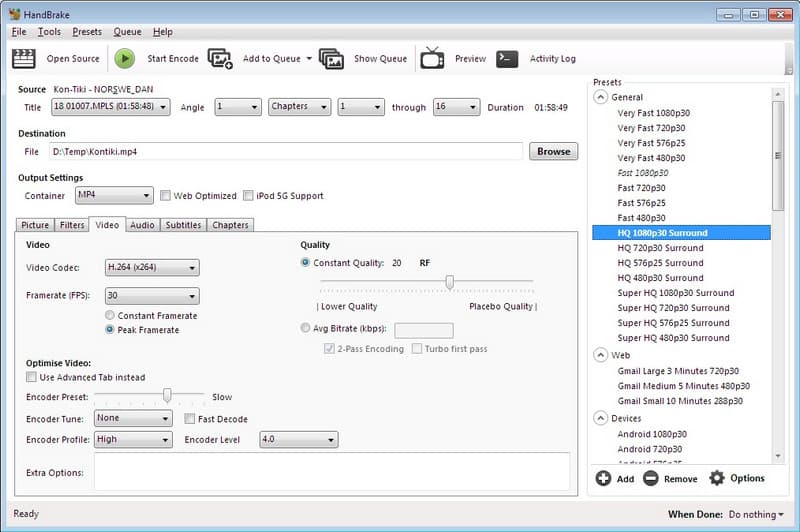
Step 1Insert the DVD, and allow the program to scan the disc structure fully before selecting a title.
Step 2Review the list of detected titles and choose the main feature based on duration rather than file size. Select a preset that matches your goal, such as high quality or device-compatible output, then confirm MP4 or MKV as the container format.
Step 3Adjust the bitrate or resolution if needed, choose your save location, and click the Start button to begin the encoding process while monitoring the progress panel for errors.
3. MakeMKV
Is ripping a DVD on HandBrake difficult to handle? If so, try to use MakeMKV. It is designed to read DVDs and remove certain types of copy protection during extraction. For users researching how to rip DVDs from a Mac while preserving original quality, MakeMKV focuses on creating full MKV backups without re-encoding the video stream.
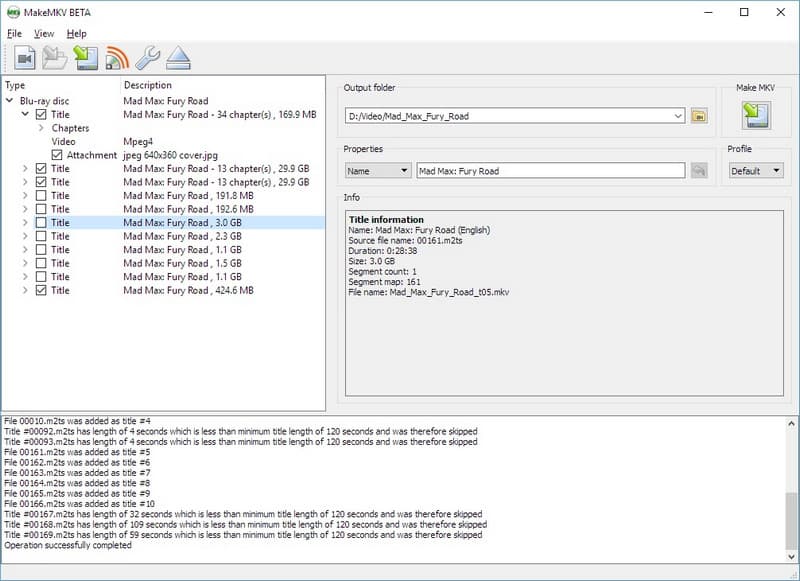
Step 1Install MakeMKV and launch the software, and click the DVD drive icon to scan the disc.
Step 2Select the main movie title and choose the audio and subtitle tracks you want to keep.
Step 3Choose an output folder and click Make MKV to start the extraction process.
Keep in mind that bypassing copy protection may be restricted in some regions. Always review your local copyright laws before attempting to rip encrypted DVDs.
Ripping DVDs on a Mac requires more than pressing a convert button. You must know whether the disc is licensed, what tools are useful to you, and how local copyright laws are applied. Regular software can be used to operate unprotected DVDs, whereas the encrypted discs require more complex solutions and consideration of the boundaries of the law. Output format, compression level, and backup quality also affect long-term playback and storage. If you have been searching for how to rip a DVD to a Mac computer, the most important step is choosing the right method for your specific disc and purpose while preserving quality and staying compliant.
ABOUT THE AUTHOR

Best tool for ripping and converting DVD Disc/Folder/ISO image file into over various formats.