


O gravador de tela integrado do Android pode não ter recursos suficientes. No entanto, existem algumas dicas práticas que você pode aprender para fazer gravações mais fáceis e versáteis da tela do seu celular. Este post mostrará um guia completo sobre como fazer isso. Gravação de tela do Android tutorial.
Se você prefere gravação de tela avançada para jogos, tutoriais ou demonstrações profissionais, também podemos ajudá-lo a evitar a confusão e apresentar os melhores métodos e aplicativos de gravação de tela para Android disponíveis atualmente, com tutoriais passo a passo para ajudá-lo a obter resultados nítidos e em alta definição.
- Parte 1: Como usar o gravador de tela integrado do Android
- Parte 2: Algumas ferramentas de gravação específicas da marca para Android
- Parte 3: 4 maneiras mais versáteis de gravar a tela no Android
- Bônus: Grave a tela no computador e no celular com a melhor qualidade.
- Parte 4: Perguntas frequentes sobre como gravar a tela no Android
Parte 1: Como usar o gravador de tela integrado do Android
A maioria dos dispositivos com Android 11 ou superior vem com um aplicativo nativo de gravação de tela localizado no painel de Configurações Rápidas. Você pode usá-lo para gravar a tela do seu telefone.
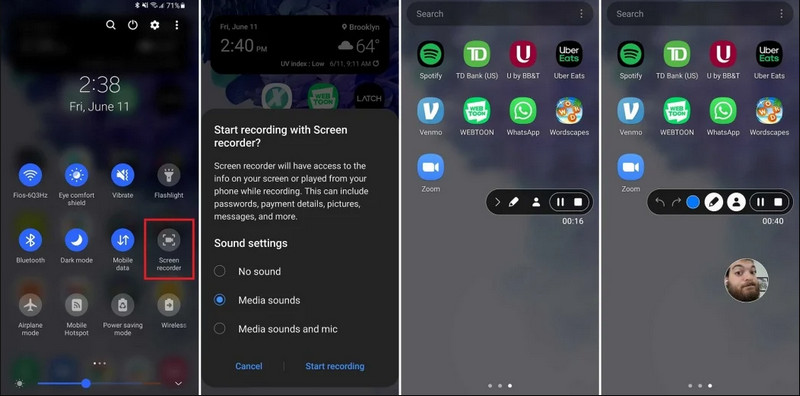
Passo 1Acessar configurações rápidas
Deslize o dedo duas vezes de cima para baixo na tela para expandir o menu completo de Configurações Rápidas.
Passo 2Selecione Gravador de Tela
Procurar Gravação de telaSe não o vir, toque no Editar clique no botão (com um ícone de lápis) e arraste o bloco Gravação de tela para a sua grade ativa.
etapa 3Configurar as definições de gravação
Quando você encontrar o Android Gravador de ecrã Com essa ferramenta, você tem várias opções de gravação. Escolher a opção certa pode tornar a gravação da tela do seu Android mais eficaz.
- Sem som: Grave apenas a tela do telefone, sem áudio do sistema ou som externo.
- Sons da mídia: Grave a tela com todos os sons do sistema, incluindo o som de todos os aplicativos do seu telefone.
- Sons de mídia e microfone: Grave tanto os sons do sistema quanto os sons externos (microfone embutido do telefone ou microfone dos seus fones de ouvido).
Passo 4Iniciar e parar a gravação de tela
Faça sua escolha e toque no Iniciar a recodificação botão. Uma contagem regressiva aparecerá na barra de status. Para interromper a gravação de tela do Android, toque no Pare botão (se houver uma barra de status de gravação) ou deslize para baixo a área de notificações e toque no vermelho Pare botão.
Parte 2: Algumas ferramentas de gravação específicas da marca para Android
Muitos fabricantes de celulares Android oferecem gravadores de tela proprietários com recursos avançados, como sobreposições para a câmera frontal. Confira alguns recursos especiais de gravação de marcas populares de Android:
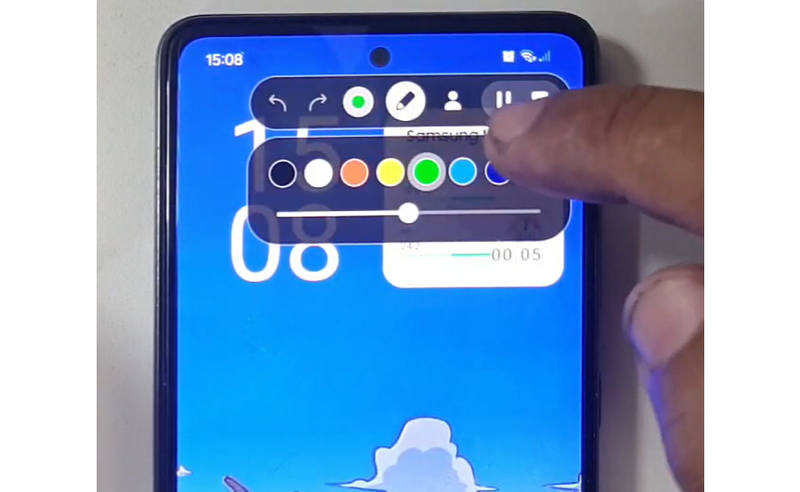
Samsung (One UI): Inclui um gravador de tela com uma barra de ferramentas que permite desenhar na tela em tempo real.
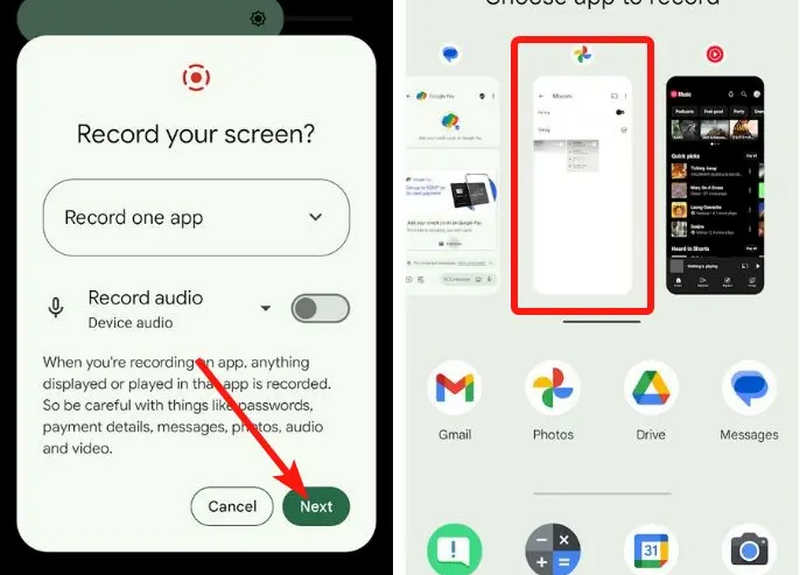
Google Pixel: Você pode selecionar um aplicativo específico (por exemplo, um aplicativo bancário ou o WhatsApp) para gravar. Se você sair do aplicativo ou abrir a barra de notificações durante a gravação, essas ações não aparecerão no vídeo final.
Xiaomi (MIUI/HyperOS): Inclui um aplicativo dedicado de "Gravação de Tela" com ampla personalização para taxas de quadros (FPS) e taxas de bits.
Huawei e Honra (HarmonyOS/MagicOS): Uma integração única entre hardware e software, onde você pode iniciar ou parar uma gravação simplesmente tocando duas vezes na tela com os nós dos dedos.
OPPO, vivo e realme (ColorOS / OriginOS): Ao iniciar um jogo, o gravador de tela otimiza automaticamente os recursos da CPU/GPU para garantir que a gravação de um clipe em 4K/60FPS não cause travamentos ou quedas de frames durante o jogo.
Parte 3: 4 maneiras mais versáteis de gravar a tela no Android
Se o seu celular Android não possui recursos satisfatórios de gravação de tela, você pode conferir quatro aplicativos de gravação de tela para Android. Eles oferecem funcionalidades práticas e convenientes.
1. Gravador de tela AZ
Gravador de tela AZ é um aplicativo de gravação de tela muito popular para Android na Play Store. Ele pode gravar vídeos em alta resolução da tela do seu celular Android. O aplicativo também permite ajustar a resolução, a taxa de quadros e a taxa de bits, dependendo da finalidade da gravação.
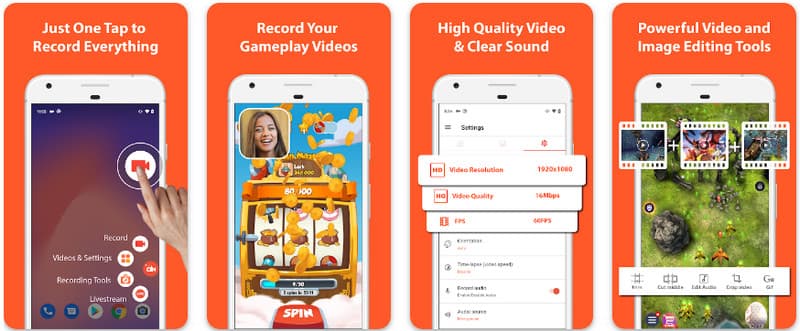
Além disso, o AZ Screen Recorder permite que os usuários gravem o som reproduzido no dispositivo usando um microfone. Isso torna possível gravar até mesmo as gravações mais complexas e de alto padrão. Seu arranjo simples de botões e desempenho consistente tornam o aplicativo o favorito de muitos. Aprenda a gravar uma tela do Android com isso usando o tutorial abaixo.
Passo 1Depois de baixar o aplicativo no seu Android, inicie-o. Em seguida, clique no câmera botão para acessar o recurso de gravação de tela.
Passo 2Toque Comece agora Para iniciar a gravação de tela no seu Android, uma contagem regressiva aparecerá na tela.
etapa 3Para interromper a gravação de tela no seu telefone Android, toque em Registro botão novamente. Com este aplicativo, você também pode gravação de tela no seu iPhone com sons ativado.
2. Gravador de tela Mobizen
Gravador de tela Mobizen O Mobizen é outro aplicativo para gravar a tela do Android, disponível gratuitamente na Play Store, que promete gravações fáceis e de alta qualidade. Ele oferece opções para gravação em alta definição com parâmetros ajustáveis e gravação limpa para remover marcas d'água. Além disso, o Mobizen também possui gravação de áudio interna, que pode ser usada para a gravação, bem como recursos como webcam e GIF, que podem adicionar mais à gravação. Ele também utiliza uma interface intuitiva com diferentes recursos e controles, o que ajuda o usuário a iniciar a gravação da tela do Android ou editar o conteúdo sem muita dificuldade. Descubra como gravar a tela do seu Android usando este aplicativo.
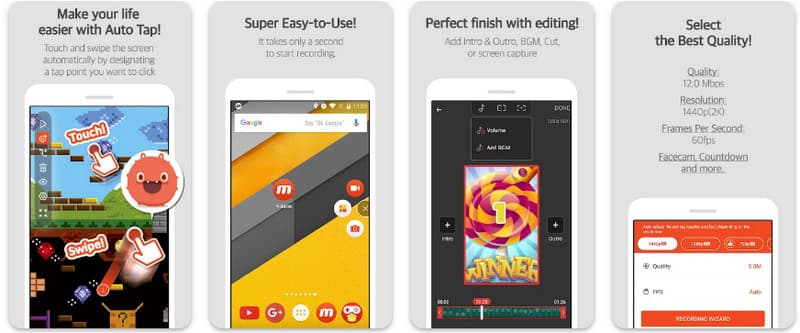
Passo 1Baixe agora no seu Android e abra o aplicativo.
Passo 2Faça a configuração necessária antes de usar o gravador de tela. Uma barra flutuante de gravação aparecerá na sua tela. Toque nela. câmera botão, então Comece agora Para iniciar a gravação da tela.
etapa 3Quando terminar, toque no M e a Pare Botão para interromper a gravação de tela no seu telefone Android.
3. Gravador de tela - XRecorder da Inshot
Gravador de tela - XRecorder é um utilitário Android completo e poderoso que simplifica a captura de tela, oferecendo gravação em alta definição, até 1080p a 60 FPS, sem exigir acesso root ou impor marcas d'água. Como um método de ponta para gravação de tela no Android 17/16, proporciona uma experiência de usuário perfeita por meio de uma janela de controle flutuante que permite iniciar, pausar e desenhar na tela em tempo real usando uma ferramenta de pincel integrada. Além da simples captura de vídeo, oferece suporte à gravação de áudio interna, sobreposição de webcam para streamers e edição de vídeo integrada, tornando-se a escolha ideal para quem precisa criar tutoriais profissionais, vídeos de jogos ou demonstrações claras diretamente do seu dispositivo móvel.
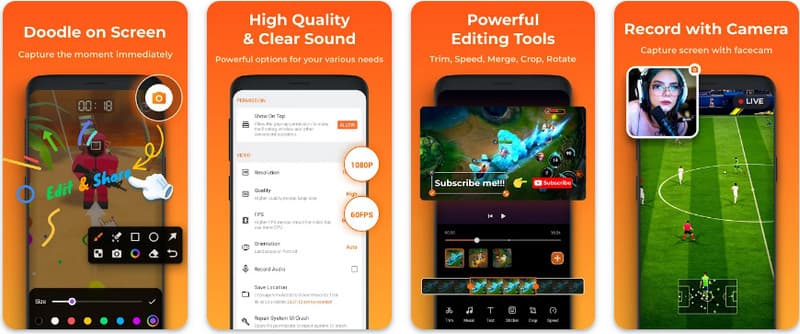
Passo 1Quando o download do XRecorder estiver concluído, abra-o e toque no Habilitar ícone flutuante.
Passo 2Depois disso, toque no Registro botão para iniciar a gravação e Comece agora confirmar.
etapa 3Como você pode ver, a duração da gravação aparece como um ícone flutuante; toque no Pare botão para salvar a gravação.
4. Super Gravador de Tela
Super Gravador de Tela Super Screen Recorder é uma solução de ponta para quem busca uma maneira profissional de gravar a tela do Android com máxima flexibilidade. Este poderoso aplicativo oferece captura em alta definição e se destaca por proporcionar uma experiência sem marca d'água, mesmo na versão gratuita, garantindo que seu conteúdo permaneça limpo e profissional. Ele conta com uma webcam integrada para capturar reações em tempo real e uma ferramenta de pincel versátil que permite desenhar na tela durante a gravação, uma função essencial para criar tutoriais ou demonstrações envolventes. Seja você iniciante ou usuário avançado, o Super Screen Recorder oferece a personalização robusta necessária para dominar a gravação de tela do Android com facilidade.
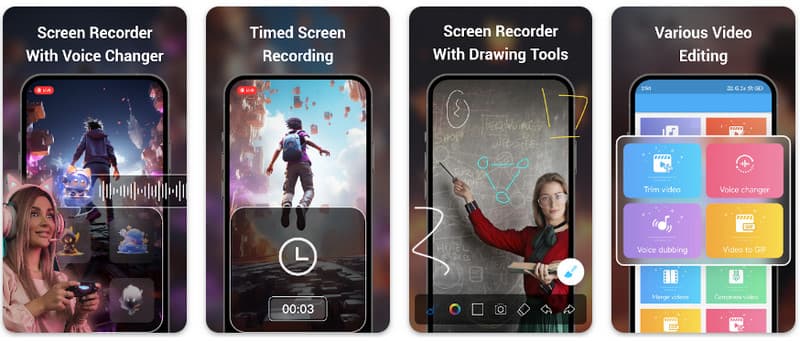
Passo 1Abra o Super Screen Recorder no seu Android e ative o recurso flutuante do aplicativo para usá-lo.
Passo 2Na tela, toque em câmera botão, confirme as configurações e toque em Comece agora. Então, uma contagem regressiva de três segundos aparecerá antes do início da gravação.
etapa 3Toque em quadrado botão para finalizar a gravação e salvá-la no seu dispositivo Android.
Bônus: Grave a tela no computador e no celular com a melhor qualidade.
Acredita que seja possível gravar a tela do seu celular Android em um computador? Gravador de tela AVAide Foi desenvolvido principalmente para gravação de tela no Windows e no Mac. Mas também pode gravar a tela inteira do seu celular Android. Isso é especialmente útil quando você precisa criar um tutorial de determinadas operações no Android e depois editar o vídeo diretamente no seu Mac ou Windows.
Para gravação de tela no Windows e Mac, o AVAide Screen Recorder suporta os codecs AV1 e HEVC, que comprimem bastante a gravação, mantendo a melhor qualidade de vídeo. A aceleração de hardware completa permite gravar vídeos longos com baixíssimo uso da CPU. Ainda mais interessante é o microfone aprimorado, que melhora a clareza cancelando ruídos de fundo e ecos. O software faz gravações excelentes com navegação simples e recursos de edição, como corte e anotações. Embora seja um software caro, é altamente recomendado, pois pode ser usado para fins pessoais e profissionais.
- Grave a tela do seu dispositivo Android ou iOS com a melhor qualidade de vídeo.
- Crie facilmente gravações de tutoriais com recursos de desenho e anotação.
- Suporta os codecs de saída AV1 e HEVC para comprimir altamente o vídeo de saída.
- Oferece recursos de edição de vídeo fáceis de usar para editar suas gravações no Android.
Passo 1Agora você pode baixar o gravador de tela no seu PC clicando no botão de download aqui. Depois, instale o aplicativo seguindo o prompt na tela e inicie-o para avançar para a próxima etapa.

DOWNLOAD GRATUITO Para Windows 7 ou posterior
 Download seguro
DOWNLOAD GRATUITO Para Mac OS X 10.13 ou posterior
Download seguroPasso 2Agora que ele já está rodando no seu sistema, coloque o quadro de gravação na área onde você quer começar a gravar. Aqui, você pode gravar sua tela inteira selecionando a opção Tela cheia em vez da opção Região.

etapa 3Em seguida, o sistema e a gravação do microfone podem ser configurados, se necessário. Se você quiser adicionar seu rosto à gravação, ative a opção Webcam aqui. Então, clique em GRAVANDO para iniciar a contagem regressiva e começar a gravar.

Passo 4Ao concluir a gravação, clique no botão Pare botão, que é um quadrado vermelho. Para a próxima janela que aparece, você pode editar a gravação que você fez anteriormente com as opções disponíveis aqui, então coloque o cursor na gravação e aperte o download botão para salvá-lo. Este aplicativo prova seu valor como o melhor gravador de código aberto disponível.

Parte 4: Perguntas frequentes sobre como gravar a tela no Android
Onde posso encontrar a opção de gravação de tela nas minhas configurações?
Para acessar o recurso integrado gravação de tela no Android Sem aplicativos de terceiros, deslize o dedo duas vezes de cima para baixo na tela para abrir o Configurações rápidas painel e procure o Gravação de tela (ou ícone "Gravação de Tela"). Se não estiver visível, toque no Editar (ícone de lápis) para arrastar o ícone de gravação de tela para os seus blocos ativos. Depois de adicionado, basta tocar no ícone, escolher suas preferências de áudio, como gravar sons internos do sistema ou o seu microfone, e tocar em Iniciar para começar a capturar a tela diretamente das configurações do sistema.
Por que não consigo encontrar a opção de gravação de tela no meu Android?
A ausência de uma opção nativa para gravar a tela no Android geralmente ocorre porque seu dispositivo está executando um sistema operacional mais antigo, já que o recurso integrado só foi padronizado a partir da versão 2.0. Android 11Se o seu software estiver atualizado, a opção pode simplesmente estar oculta. Configurações rápidas menu; normalmente você pode exibi-lo tocando no Editar Para gravar a tela, basta acessar o botão na área de notificações e arrastar o ícone "Gravar tela" para a sua área de visualização ativa. Além disso, alguns dispositivos básicos da linha "Go Edition" ou interfaces personalizadas específicas do fabricante podem desativar esse recurso para economizar recursos do sistema. Nesses casos, usar um aplicativo de terceiros, como o XRecorder ou o Super Screen Recorder, é a solução mais eficaz.
Por que o botão de gravação de tela desapareceu?
O botão de gravação de tela geralmente desaparece porque foi movido acidentalmente para fora da área ativa das Configurações Rápidas; você geralmente pode restaurá-lo tocando no ícone correspondente. Editar (ícone de lápis) na sua área de notificações e arrastando o bloco de volta. Ele também pode estar oculto devido ao Modo de Economia de Energia, restrito por um Perfil de Trabalho ou simplesmente exigir uma reinicialização do sistema para atualizar a interface do usuário após uma atualização de software.
Usando o tutorial listado aqui, você aprendeu como gravar tela no Android Samsung. Este tutorial irá beneficiá-lo muito em relação à sua tarefa de gravação de tela, especialmente se você for um usuário Android. Compartilhe esta informação com seu amigo usuário Android para dar a ele uma ideia de como fazê-lo.
SOBRE O AUTOR

Gravar tela, áudio, webcam, jogabilidade, reuniões online, bem como tela do iPhone/Android no seu computador.
Gravação de tela


