You zoom in and notice soft edges. Fine detail looks washed out. The image feels flat. Most people take such a photo to be useless, yet this is not the case. Clarity may be enhanced greatly with the help of the correct sets of adjustment layers and intelligent filters. In this guide on how to unblur an image in Photoshop, you will learn practical steps that restore definition while maintaining natural texture. Let us start by understanding what caused the blur.
Part 1: Why Photos Become Blurry
Blur is a phenomenon arising due to the absence of clear edges in the light hitting the camera sensor. The sharp pictures depend on the constant exposure, focus, and light. If one of these collapses, the detail is blurred. Can you blur an image using Photoshop before asking, by the way? You have to be aware of what made the blur. The limit of recovery is the contribution of the cause.
1. Camera Shake
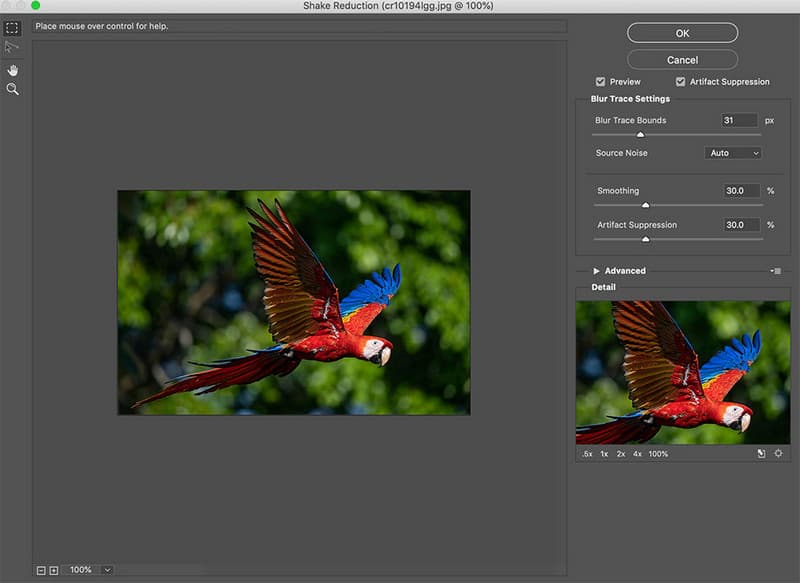
Camera shake is the shaking of the camera during the exposure period, and it is usually caused by slow shutter speed or when shooting handheld in low light. The slightest motion can distort pixels and leave streaking edges, which blur the details. Motion blur reacts effectively with applications that stabilize or correct movement tracks. Its Shake Reduction filter is an example of a feature that helps you how to sharpen a blurry image in Photoshop by analyzing and reversing the detected motion, helping restore lost clarity.
2. Subject Movement
If the subject moves while the shutter is open, parts of the image may appear streaked while other areas remain sharp. This is common in sports, wildlife, or low-light scenes. Because only specific areas are affected, selective sharpening or masking techniques can target the blurred zones without over-processing the entire photo. Professionals often rely on adjustment layers and smart filters when they want to fix a blurry image in Photoshop effectively while protecting surrounding detail.
3. Focus Errors
Loss of concentration is an observable problem. The autofocus can focus on the wrong object. Key details can also be placed out of the focus plane by a shallow depth of field. The defocus blur does not stretch detail; it makes it even all over. In the case that no detail was ever recorded, complete restoration can hardly be expected.
4. Low Light and High ISO
Low-light photography usually demands that a photographer use a higher ISO or a slower shutter, both of which can compromise the quality of the images. High ISO also adds digital noise and eliminates small details, reducing the ability to distinguish an edge. Soft images can even be well-focused. Sharpening and noise loss in Photoshop will enable you to make an image less blurry, making the results look natural without blurring them.
5. Lens and Aperture Limits
Lens quality and aperture settings influence sharpness. Wide apertures can soften edges outside the focus plane, while very small apertures may cause diffraction that reduces overall resolution. Optical limitations cannot be fully reversed, but subtle sharpening tools help to how to sharpen a blurry image in Photoshop by enhancing micro-contrast and detail in affected areas.
6. Compression and File Loss
Heavy JPEG compression discards fine detail to reduce file size. Once data is lost, no tool can fully restore it. Over-sharpening can make artifacts worse. Still, certain Photoshop techniques can unblur an image in Photoshop to recover as much clarity as possible, making edges more defined while controlling noise.
Understanding the source of blur sets realistic expectations. Some types respond well to sharpening and deconvolution. Others have permanent data loss. The next section covers practical correction methods inside Photoshop.
Part 2: How to Unblur an Image in Photoshop in 5 Ways
Below are five effective Photoshop methods for improving image clarity and restoring detail when working with soft or out-of-focus photos. Each explanation includes a relevant keyword naturally placed within the guidance to support SEO and help you learn the right fix for your image.
1. Shake Reduction Filter
If your photo shows motion blur from camera movement, start with the Shake Reduction filter. This tool examines the blur path and attempts to reverse it by adjusting pixel movement. When you apply this filter, you will see how to unblur an image in Adobe Photoshop involves letting Photoshop determine the motion trajectory before fine-tuning the settings for best clarity.
2. Basic Sharpen Filter
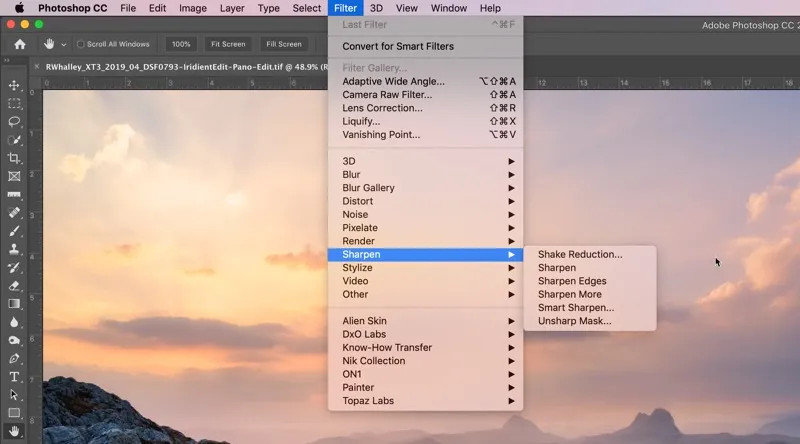
For mildly soft images, the basic Sharpen filter can help tighten edges by boosting contrast between adjacent pixels. After choosing Filter > Sharpen > Sharpen, reduce the strength if the result looks harsh. This technique demonstrates a simple way to unblur an image in Photoshop without adding complex layers or masks.
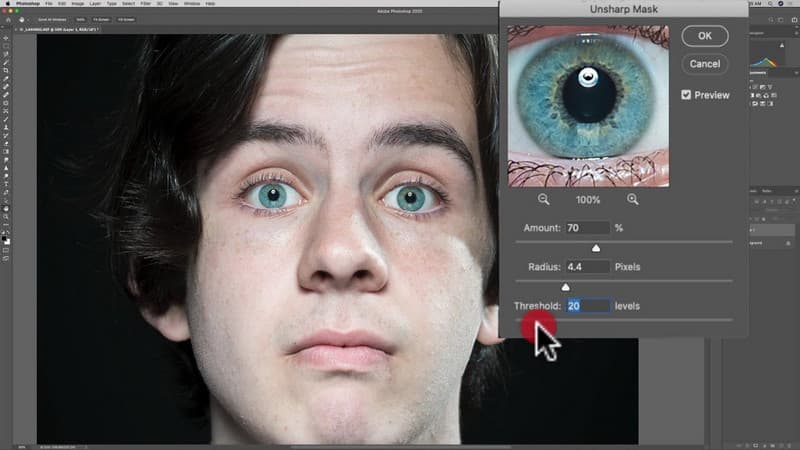
3. Unsharp Mask
Unsharp Mask offers more control than the basic Sharpen tool by letting you adjust the Amount, RadiusM, and Threshold sliders. By increasing edge distinction while protecting smooth areas, you can see how to fix a blurry image in Photoshop with balanced detail enhancement that avoids amplifying noise.
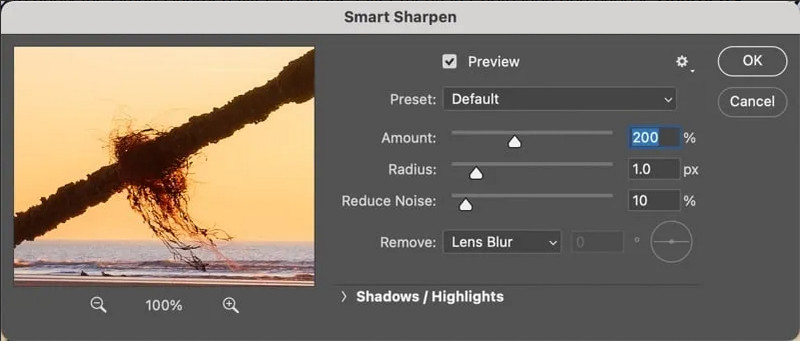
4. Smart Sharpen
Smart Sharpen provides advanced sharpening options, including noise reduction and Shadow/Highlights control. Use it on a Smart Object so edits remain non-destructive. As you tweak Amount and Radius alongside the Reduce Noise slider, you will learn how to make a blurry image clear in Photoshop by enhancing detail without introducing unwanted artifacts.
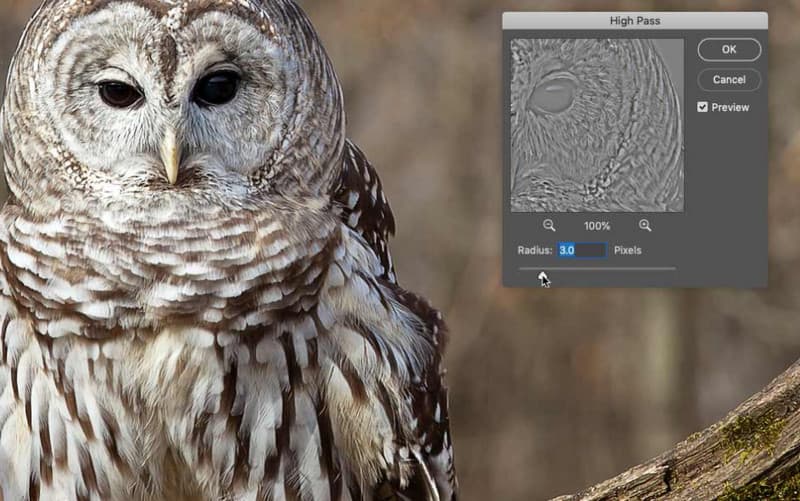
5. High Pass with Blend Modes
High Pass sharpening works by isolating fine texture and then blending it back into the image. Duplicate the layer, apply Filter > Other > High Pass with a low radius value, and set the blend mode to Overlay or Soft Light. This method shows how to sharpen a blurry image in Photoshop by reinforcing micro-contrast and detail without overt sharpening.
These five Photoshop techniques help you address different blur causes with practical control to make your images HD. Next, we will examine an AI-powered option for cases where manual methods may not be enough.
Part 3: AI Alternative to Unblur an Image Online
If your photo remains soft after Photoshop edits, an AI-powered online tool can save time and enhance clarity. AVAide Image Upscaler automatically analyzes your image using advanced neural networks, restoring edges, reducing noise, and improving overall sharpness. This makes it an excellent solution for anyone looking to improve detail without complex manual adjustments quickly.
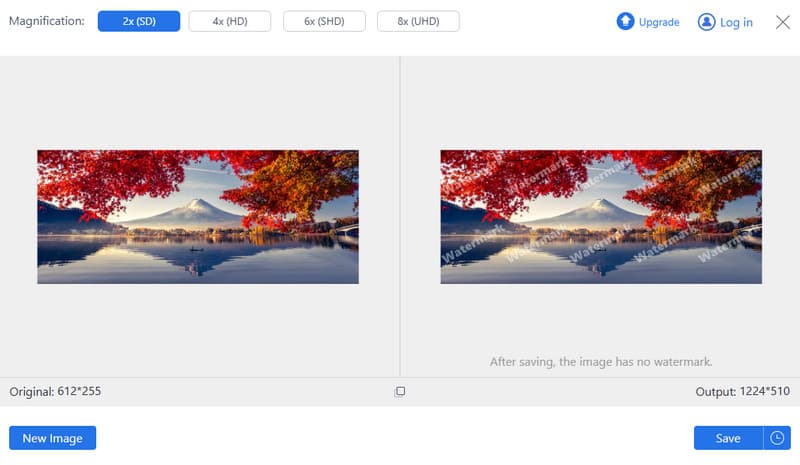
To the users seeking to know how to sharpen a photo in Photoshop, AVAide presents a free, web-based alternative that produces superior quality even in the 4K range. It is straightforward, and only takes a matter of seconds to upload your image, have the artificial intelligence process it, and gain a better version in seconds that is both clear and sharper.
The quality of the photos with a blurry image can normally be enhanced, provided that you are aware of the source of the blur. Shakiness of the camera, motion of the subject, focus faults, low-light, or a limit of the lens all require diverse techniques. Photoshop features such as Shake Reduction, Smart Sharpen, and High Pass are used in restoring detail, and AI tools such as AVAide Image Upscaler can be used to improve clarity in a few seconds online. By following these steps, you can confidently learn how to unblur an image in Adobe Photoshop and make your soft photos clear and sharp.
ABOUT THE AUTHOR


Our AI technology will automatically enhance the quality of your images, remove noise and fix blurry images online.
PROCESS NOW