You are either an enthusiastic and entertained photographer trying to level up your shots or a professional seeking ways of fixing valuable photos. In Nightmare AI Upscaler, that is actually all possible. It uses Real-ESRGAN technology, which turns images into 4K resolution wonders without changing anything in them at all. This review lays the foundation for the detailed examination of Nightmare AI Upscaler's features and its top alternative.
Part 1. What You Should Know about Nightmare AI Upscaler
As previously noted, the Nightmare AI Upscaler, driven by Real-ESRGAN, is capable of uplifting images to 4K resolution. This is because the Real-ESRGAN algorithm preserves anime's inherent aesthetics while intelligently supporting photo-specific attributes like color balance, contrast, and brightness axis for images. This image upscaling tool automatically adjusts enhancements based on the type of photo, ensuring optimal results for various images.
You can purchase the Nightmare AI Upscaler via nightmare-ai.com, and easily adjust the platform's picture elevation direction as needed, making it possible to raise images swiftly. This image enhancement tool is widely used in applications like photo restoration and video upscaling.
Part 2. Detailed Review of Nightmare AI Upscaler
Here's a detailed review of Nightmare AI Upscaler, covering its pricing, key features, pros, cons, and how to use:
Pricing:
| Plan | Price | Plan Duration | Images Upscaled | Resolution | Money-back Guarantee |
|---|---|---|---|---|---|
| Free | $0 | N/A | Up to 10 | Up to HD | N/A |
| Starter | $19.9 | One Month | Up to 100 | Up to 4K | Yes |
| Premium | $49.9 | One Month | Up to 300 | Up to 4K | Yes |
Key Features:
• The upscaling tool is known for its impressive performance in enhancing image resolution without compromising its quality.
• Ability to control various upscaling factors and remove noise, among other elements, to achieve the best results.
• The tool's processing speed is advantageous because it allows users to obtain large files quickly.
• Easy-to-use interface.
- Pros
- High-quality enhanced images with more precise details.
- A user-friendly interface that appeals to both a novice and an expert.
- Suitable for a wide range of image types.
- Cons
- Free plans may limit the resolution of images and their processing quantities.
- Paid plans may be quite costly for users with a lot of data that requires upscaling.
- Minor bugs are sometimes noticed on the site, which are quickly fixed with updates and support.
Troubleshooting:
• If you need help upscaling your image, make sure you use the correct input image formats and that they are not broken.
• Check if you have connection problems or if the server is down.
• Ensure that the upscaling settings you selected meet your desired output, and adjust settings as necessary.
• If anything goes wrong, customer support is always ready to help you.
How to Use:
Step 1First, go to the Nightmare AI Upscaler website's home page and select a plan with options that suit your needs.
Step 2Then, upload the images you need to upscale on its interface. Just hit the Click to Upload button.
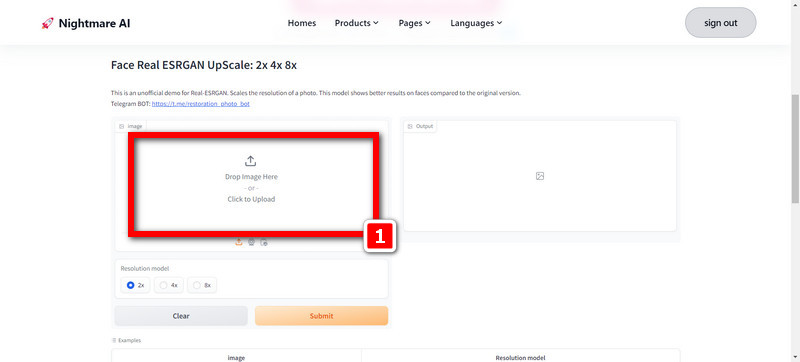
Step 3Next, select the adjustment factor from 2×, 4× or 8× to upscale the image resolution as much as possible while minimizing the noise and blur. Afterward, click on the Submit button to apply.
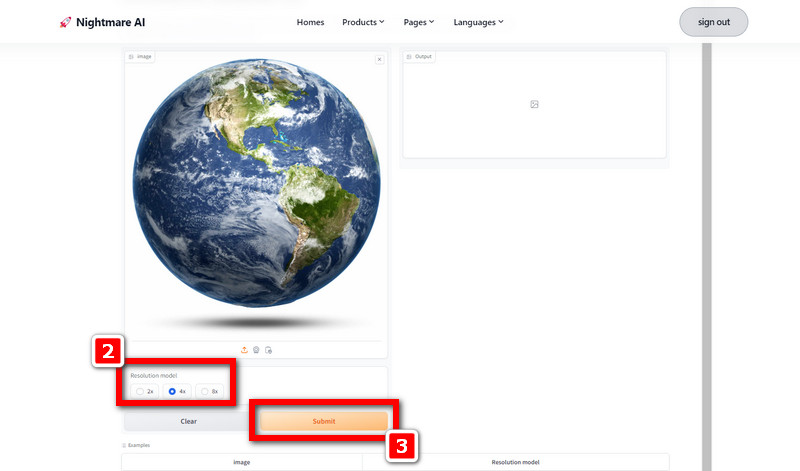
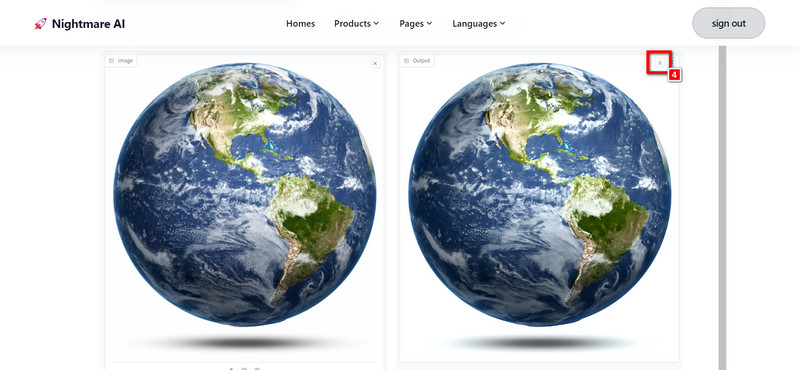
Step 4Wait for a while while the tool works on the upscaling process so that you can see the film grain effect on your images.
Step 5Lastly, click Download after processing, and they will automatically be saved to your device.
Common Issues and Fixes of Nightmare AI Image Upscaler
1. The output looks too smooth (or blurry).
The Nightmare AI denoising is too strong, which over-smooths the line art. You can lower the denoise level or use a sharper model.
2. The file size is too big after image upscaling.
Use the JPG format instead of the lossless PNG format. You can also use an online image compressor to reduce the image file size.
3. Crash during the large file processing.
Use a lower image upscaling factor. For example, you can use 2x instead of the 4x upscaling model.
4. Faces look distorted.
It often happens with anime characters or fine details. You can use the Real-ESRGAN anime model for face recovery.
Part 3: Nightmare AI vs. Real-ESRGAN (Replicate) vs. AVAide Image Upscaler
Which One Should You Choose?
We compared the three leading image upscalers across various dimensions to highlight the strengths and limits of each. Check out the comparison table to choose the one that fits you best.
| Feature | Nightmare AI | AVAide Image Upscaler | Real-ESRGAN (Replicate) |
| Price | Free for 10 images Starter $19.9 per month Premium $49.9 per month | 100% Free for basic use | $2 per thousand output images |
| Max Resolution | Up to HD (Free) Up to 4K (Paid) | Up to 4K (Free) Up to 8K (Paid) | Up to 10× upscale Max input image resolution: 1440p |
| Ease of Use | Simple | Beginner-friendly | More technical |
| Anime Optimization | Supported: one-click use | No anime models | Supported but requires manual configuration |
| Noise Reduction | Strong and smooth | Balanced | Adjustable via parameters |
| Processing Method | Online web tool | Online web tool | API/Cloud-based model |
Choose Nightmare AI:
If you need anime optimization or strong noise reduction, Nightmare AI is more suitable for you. The free plan allows you upscale 10 images per month at HD resolution, while the paid plans offer 4K resolution and more image processing capacity. It is perfect for users who need high-quality detail enhancement.
Choose AVAide Image Upscaler:
If you want a free, watermark-free tool with unlimited image processing and want to upscale images up to 8K, this user-friendly software – AVAide Image Upscaler is best for you. Its balanced noise reduction makes it ideal for users who need high-quality images without the need for anime-specific features.
Choose Real-ESRGAN (Replicate):
If you need API access, automation, or full control over upscaling parameters, Real-ESRGAN on Replicate is the best option for you. It allows flexible model selection, adjustable denoising strength, and scalable processing for large projects. This makes it ideal for developers, AI enthusiasts, and users who want to integrate image upscaling into their own workflows.
The Best Alternative to Nightmare AI for Upscale Images
Introducing AVAide Image Upscaler, an excellent solution for enhancing and enlarging images. This user-friendly platform is powered by cutting-edge AI technology. This innovative tool can be used to enhance blurry and pixelated pictures. As the best alternative to Nightmare AI Image Upscaler, AVAide ensures a seamless experience to enhance image quality like no other.
Key Features:
• Free of Charge: Making it entirely free for users has given AVAide Image Upscaler accessibility appealing to all users without any hidden costs
• Watermark-Free Results: In contrast to some other tools, this one does not leave watermarks when enhancing images, thus allowing users full access to their pictures.
• Safety Assurance: Privacy invasion is unlikely with AVAide Image Upscaler since there is no room for your personal information to be stored or shared.
• Versatile Compatibility: To convert JPGs to JPEGs, PNGs, and BMPs, use AVAide Image Upscaler, which supports multiple types of images and offers various options.
How to Use:
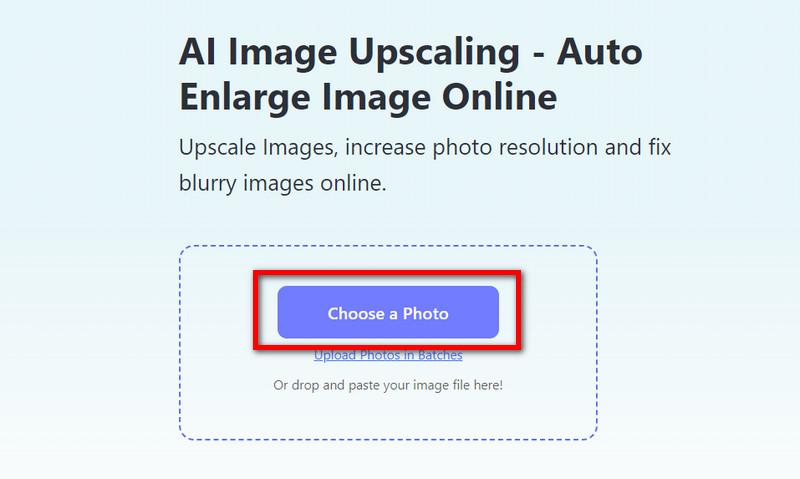
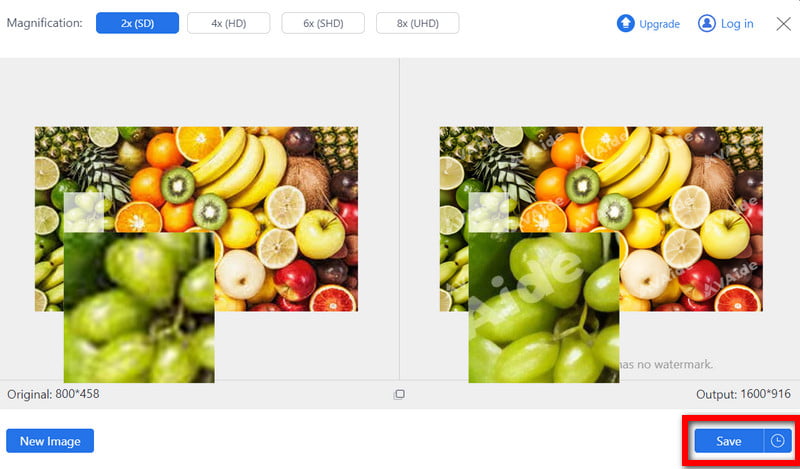
Step 1Go to the official website of AVAide Image Upscaler. Then click on the Choose a Photo button to select the image file you want to upscale.
Step 2Next, please wait for a while as it loads the image online. After that, decide how much you want to upscale your image, ranging from 2× to 8×.
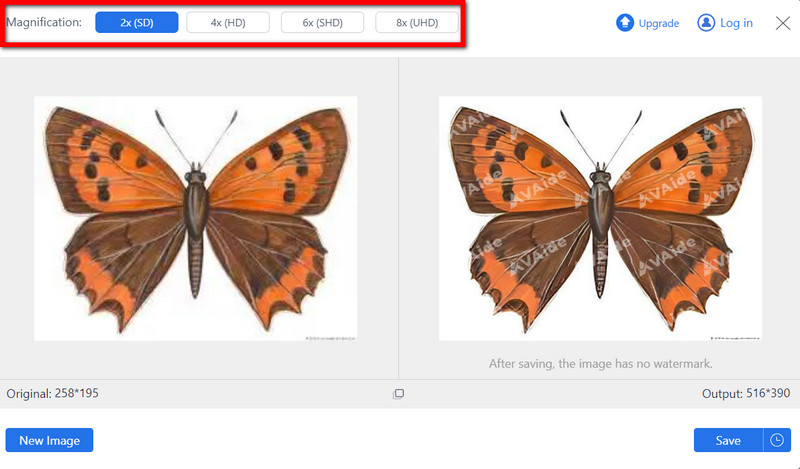
Step 3Once the AI has processed your image, you can click the Save button to download the clear and crisp result to your computer for immediate use.
Part 4. FAQs About Nightmare AI Upscale
Is it possible to use Nightmare AI Upscaler effectively for image restoration tasks?
Yes, Nightmare AI Upscaler is a good image restoration tool. It uses Real-ESRGAN technology to conserve aesthetics and improve color balance and contrast, among other factors. Therefore, it efficiently restores images with precision and clarity.
Does Nightmare AI Upscaler also provide support for video upscaling?
Nightmare AI Upscaler is not intended for video upscaling; it mostly focuses on image upscaling. This application does not currently support video upscaling. As such, while users can upscale images accurately and with quality, they cannot do so with videos.
Does Nightmare AI Upscaler has a mobile version?
No, there is no mobile app version of Nightmare AI Upscaler; instead, it functions as an internet-based platform that can be reached using any web browser. Users do not need a dedicated mobile application but can directly upload images on the website to enlarge them.
What are the limitations of Nightmare AI Upscaler?
The free version only gives a small number of credits and limits on resolution. If you want to upscale your photo to 4K and even higher quality, choose AVAide Image Upscaler to upscale image for free.
What image formats does Nightmare AI Upscaler support for upscaling?
Nightmare AI Upscaler supports a wide range of image formats, including JPG, JPEG, PNG, and BMP. Users can upscale and sharpen images online in these formats with precision and clarity, ensuring compatibility with various types of image files for seamless enhancement.
This thorough review explains how transformative Nightmare AI Image Upscaler is. When improving pictures to crisp 4K quality or recovering beloved ones, Nightmare AI Image Upscaler proves as formidable as its best alternative, AVAide Image Upscaler. Please take advantage of its distinctive attributes to enjoy unbeatable image-enhancing experiences.

Our AI technology will automatically enhance the quality of your images, remove noise and fix blurry images online.
PROCESS NOW