Making a transparent background in Procreate is easier than it sounds. If the white area is a separate Background Color layer, you only need to hide it. If the background is part of the image itself, use Procreate's Selection tools to remove it, then export the result as a PNG.
Part 1. When You Need a Transparent Background
A transparent background is useful when you need to:
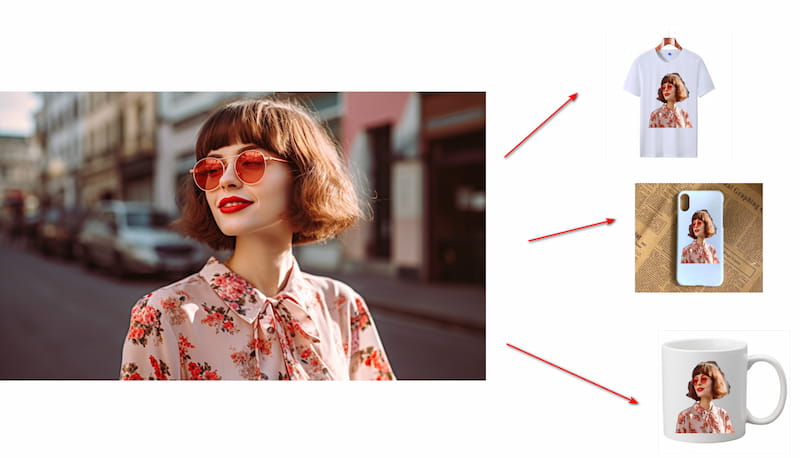
- Create product mockups by placing a logo or icon on shirts, mugs, cards, stickers, and other surfaces.
- Reuse the same artwork over different colors, photos, or textures without a white box around it.
- Create social media graphics, thumbnails, or profile images with a subject isolated from its original background.
- Prepare simple product or food graphics for e-commerce layouts where the subject needs to stand out from the page background.
Part 2. Make Transparent Background in Procreate
Procreate doesn't have a one-click background removal feature, but you can still make a transparent background in a few steps. If the white background is a separate Background Color layer, simply hiding that layer will do the trick. If the background is part of the image layer, you'll need to select and remove the unwanted area first.

Step 1Check the Background Layer
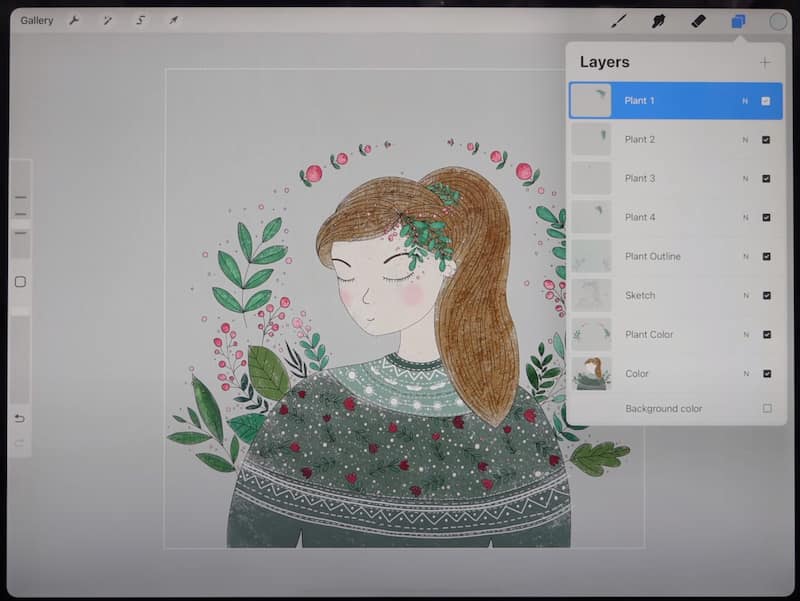
Open the Layers panel. If the artwork already has transparency and the white area comes from the built-in Background Color layer, tap its Visibility Checkbox to hide it. If the white background is part of the imported image itself, move on to Step 2.
Step 2Extract the Figure
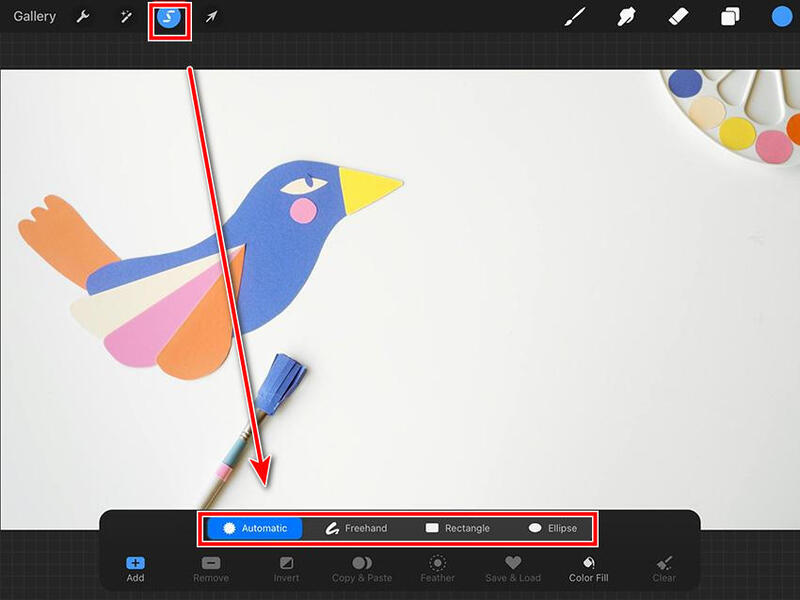
If the background's mostly solid, tap the S ribbon button at the top left, choose Automatic, tap the background, and keep tapping or dragging to tweak the selection threshold until it looks right. Once the unwanted area is selected, scrub three fingers left and right on the canvas to wipe it out.
For complex shapes, auto-selection might struggle. Tap the S button and use Freehand, Rectangle, or Ellipse Selection to outline the subject, tap the S button > Invert, and then delete the area outside the selection.
Step 3Hide Any Remaining Background Layers
Open Layers again and turn off the Background Color layer and any other visible background layers. Only visible layers are included in the export.
Step 4Export as PNG
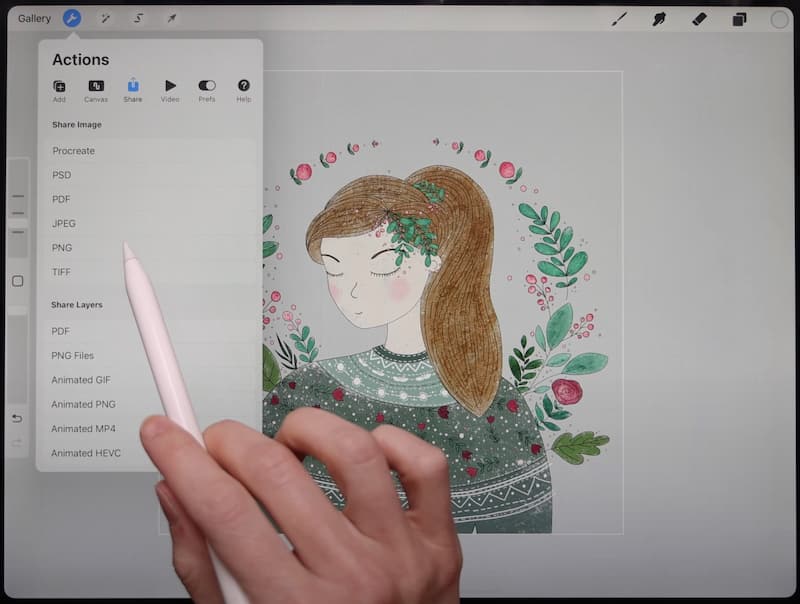
Tap the wrench button > Share > PNG, then choose where to save or share the file. PNG preserves transparency and uses lossless compression.
By following these procedures above, a transparent background can be created in Procreate. Its user-friendly interface and comprehensive functions make it an excellent choice for photo editors of all skill levels. Start exploring the possibilities and unleash your creativity with Procreate!
Nothing is perfect in this world, however. Procreate is not omniscient, as it is only available for the iPad and iPhone, and it is not available on Windows. Most importantly, it is not free to use and users have to pay to download this software.
So, in the next part, I will recommend an alternative to Procreate, AVAide Background Eraser.
Part 3. Free Online Alternative for Automatic Background Removal
For photos, AVAide Background Eraser is an easy online option if you want the background removed automatically instead of making manual selections in Procreate. It can help you make a transparent PNG in 3 steps easily. Upload an image, review the result, and download the transparent image.
Step 1Open AVAide Background Eraser
Open the tool in a browser and click the central button to add the photo you want to edit.
Step 2Review the Result
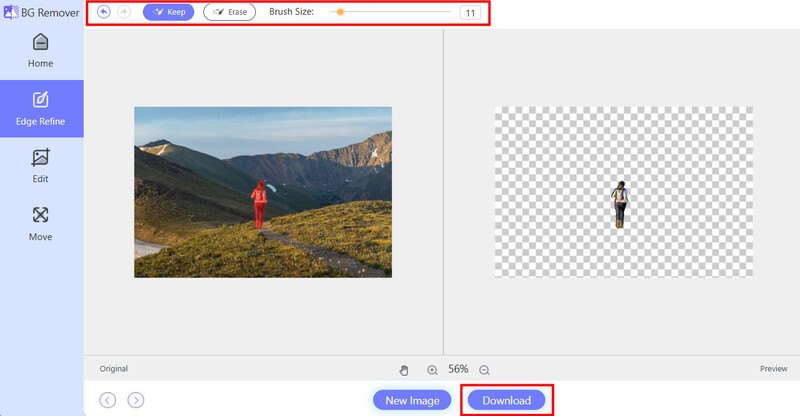
The background is removed automatically, and the preview is shown on the right side. If the edges are not clean enough, use the Keep or Erase brush in the top menu to refine them.
Step 3Download the Image
Click Download to save the finished image. It's exported as a PNG automatically.
Part 4. FAQs About Making an Image Background Transparent
How to create a custom background in Procreate?
You can add your own image as the background. Add a new layer beneath the subject layer, then go to Actions (the wrench button), click Insert a photo in the Add bar, and choose a picture from your files. You can edit the background freely on its layer, without touching the main subject.
Will exporting a PNG degrade image quality?
PNG uses lossless compression. That means a standard PNG export won't introduce the same quality loss you get with JPEG, unless you choose to lower its bit-depth or resolution.
Why does my exported PNG still have a white background?
Check the Layers panel and make sure the Background Color layer and any other white background layers are hidden. Procreate exports visible layers, so a visible white layer will appear in the PNG.
Creating a transparent background in Procreate is pretty straightforward. Most of the time you're just dealing with a separate background layer: hide it and you're good. If the background is a part of your artwork, you'll need to erase or cut it out instead. If you don't want to bother outlining a selection area manually, use AVAide Background Eraser to get it done quickly.
ABOUT THE AUTHOR


Uses AI and automated background removal technology to capture complex backgrounds from JPG, JPEG, PNG, and GIF.
PROCESS NOW