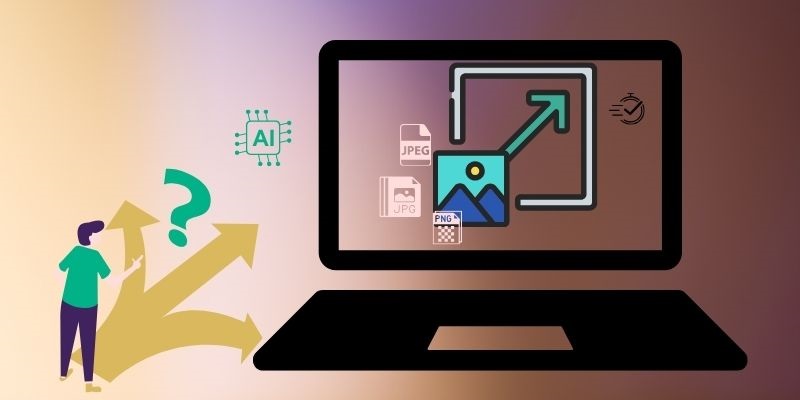
The world of text and image generation experienced a transformative change through ChatGPT. Through its advanced function, ChatGPT enables users to generate visual content. But, every impressive generated image needs resolution improvement for proper use at larger sizes. Upscaling represents the necessary step in this process. This ensures that images keep their quality while improving their details for applications.
This article presents step-by-step methods on how to upscale ChatGPT images without stress. We'll showcase the best tools that enhance image quality while keeping details intact.
- Part 1: Can ChatGPT Upscale Images?
- Part 2. The Difference Between ChatGPT and Professional Upscalers
- Part 3: How to Choose the Best ChatGPT Image Upscaler
- Part 4: Best Way to Upscale ChatGPT Images Free
- Part 5: How to Upscale ChatGPT Images in GIMP
- Part 6: How to Upscale ChatGPT Images with Upscale Media
Part 1: Can ChatGPT Upscale Images?
Sure. ChatGPT can generate code for image upscaling (such as Python + OpenCV or super-resolution models based on Real-ESRGAN). Users can run the code locally or on a server to perform upscaling. During upscaling, it not only interpolates pixels but also reconstructs edges, textures, and detailed information. For artifacts and excessive sharpening in images generated by ChatGPT, solutions include optimizing prompts, performing secondary noise reduction, or using specialized tools for localized adjustments.
| Item | Parameter / Specific Value |
| Default Output Resolution | Same as the original image (no automatic upscaling) |
| Common Upscale Ratios | 2× / 4× |
| Maximum Common Output Resolution | 4K (depends on the tool used) |
| Native Image Generation Resolution | Typically up to ~1024 × 1024 |
| Image Quality After Upscaling to 4K | Noticeable detail enhancement; possible minor artificial details or slight edge over-sharpening |
| Batch Processing Support | Not supported natively; available in some third-party tools |
| Supported Formats | JPG / PNG / WEBP |
| Additional Enhancement Features | Automatic sharpening, noise reduction, texture reconstruction |
Part 2. The Difference Between ChatGPT and Professional Upscalers
Core Objectives Differ
ChatGPT: Centered on "generative models," it fundamentally reconstructs or redraws image details through diffusion/generative models, falling under content generation.
Upscaler: Based on Super-Resolution models, its goal is to enlarge pixels while preserving the original structural integrity as much as possible.
Differences in Detail Origins
ChatGPT: May "speculate" on missing details during upscaling, generating plausible yet potentially non-existent textures.
Upscaler: Utilizes convolutional neural networks to reconstruct low-resolution pixels through mapping, prioritizing structural consistency, and minimizing the likelihood of generating pseudo-details.
Resolution and Scaling Control
ChatGPT: Native generation resolution typically has an upper limit (e.g., approximately 1024×1024 or platform restrictions). It does not emphasize fixed 2×/4× precise scaling.
Upscaler: Explicitly supports integer scaling factors like 2× / 4× / 8×. Specifically optimized for 4K and 8K output.
Scenario
| Scenario | ChatGPT | Upscaler |
| Creative image enhancement | √ | Feasible, but not optimal |
| AI style reconstruction | √ | × |
| Precise product image upscaling | Feasible, but not optimal | √ |
| Old photo restoration | Feasible, but not optimal | √ |
| Industrial-level batch output | × | √ |
Part 3: How to Choose the Best ChatGPT Image Upscaler
The quality of images generated by ChatGPT largely depends on the enlargement tool selected by the user. Among the numerous image enlargement tools available, only a few deliver precise results. They are easy to operate, though their output quality is not outstanding. To select the best ChatGPT upscale image tool, the following factors should be considered.
Clarity and Detail at Magnified Levels
Can an image retain authentic details after enlargement, rather than arbitrarily "faking" textures? High-quality tools should maintain sharp edges, legible text, and low noise levels even after 2×/4× magnification.
Magnification and Output Resolution
Standard images can tolerate 2× scaling; for poster-quality or 4K output, seek tools supporting up to 4K/8K resolution. Some tools only support fixed magnification (e.g., limited to 2×), failing to meet high-resolution requirements.
Batch Processing Capabilities
For e-commerce, advertising, or content professionals who routinely need to scale 10+, 50+, or more images at a time, support for batch uploads, one-click processing, and API/automated workflows is a critical evaluation criterion. Without these features, substantial time is wasted on repetitive tasks.
Daily Usage Limits
Free versions often impose daily or monthly call limits. Some tools only allow free enlargement of 3–5 images per day; others operate on a free credit/quota basis, ceasing service once depleted. Therefore, review relevant instructions before use.
Part 4: Best Way to Upscale ChatGPT Images Free
AVAide Image Upscaler is the best image enlargement tool on ChatGPT. Its AI technology automatically scans images and enhances them to high-definition resolution. For enlargement, it can scale up to 8×. The tool supports multiple image formats, including JPG, PNG, and JPEG. Enlarged images are watermark-free and can be used freely. The system provides a secure and reliable processing procedure that does not compromise privacy. Facts and numerous user reviews prove it is the ideal choice for enhancing low-quality images.
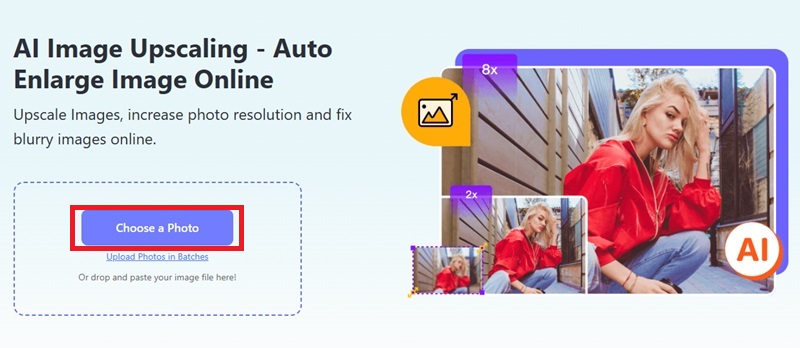
Step 1Visit the link below to visit the AVAide Image Upscaler Online. Then, start by locating and tapping the Choose a Photo button to initiate the process.
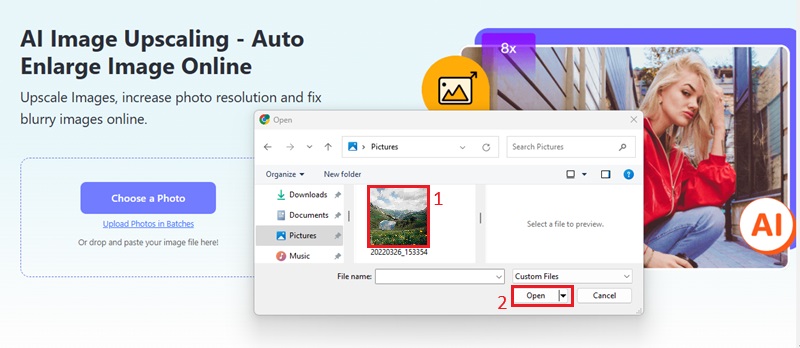
Step 2Access your device's file explorer to choose the image that needs upscaling. It also lets you drag and drop the ChatGPT image into the designated box.
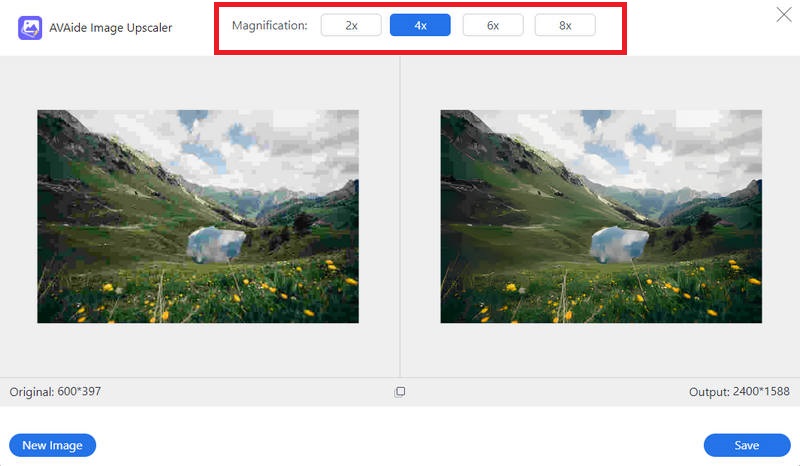
Step 3After uploading your image, pick the magnification level you prefer. The program enhances your image quality while resolving defects. The detail enhancement enables increased image resolution capacity.
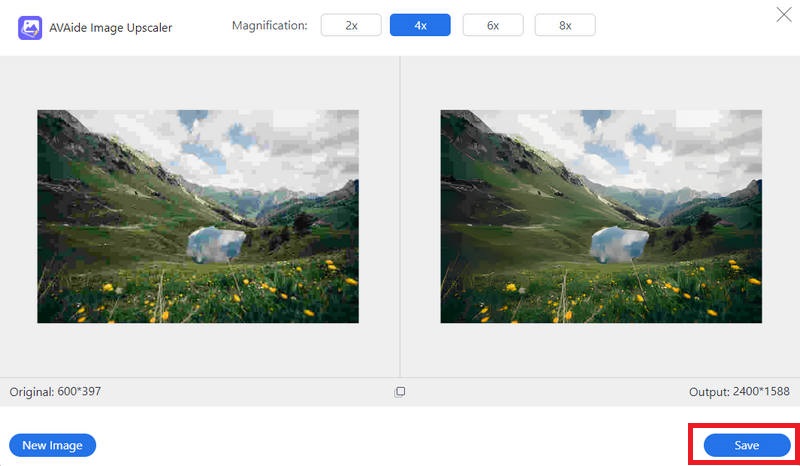
Step 4After the upscale completion, the system shows processed image results. Use the Save button to retrieve the upscaled image on your device. The system enables the selection of an output resolution of 4K. This lets you control the outcome quality.
Part 5: How to Upscale ChatGPT Images in GIMP
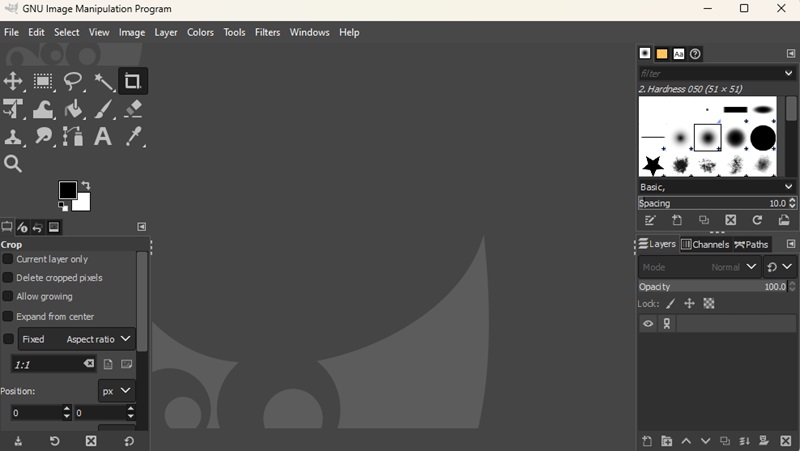
GIMP is another image upscaler for ChatGPT images. It is an open-source image editing application. When enlarging images generated by ChatGPT, GIMP primarily relies on high-quality interpolation algorithms and optional enhancement tools to improve output quality. Its scaling feature supports multiple interpolation methods. GIMP supports JPG, PNG, and TIFF file formats, enabling users to perform high-precision operations. Unlike deep learning-based super-resolution models, GIMP does not perform AI-driven detail reconstruction. Instead, it enlarges pixel dimensions through mathematical interpolation, resulting in limited clarity improvement after enlargement.
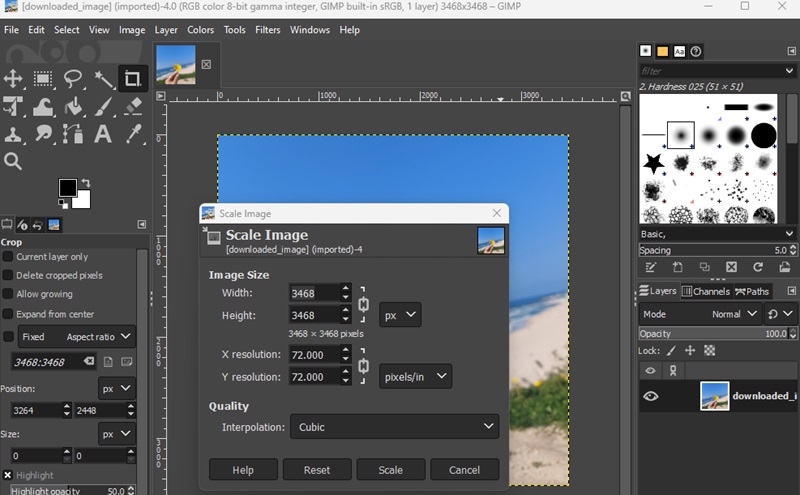
Step 2Access the Image menu through the interface and select Scale Image to proceed. Enter the ideal resolution and dimensions in the Scale Image dialog box. Cubic interpolation should be your preferred option. It ensures quality retention in image resizing operations.
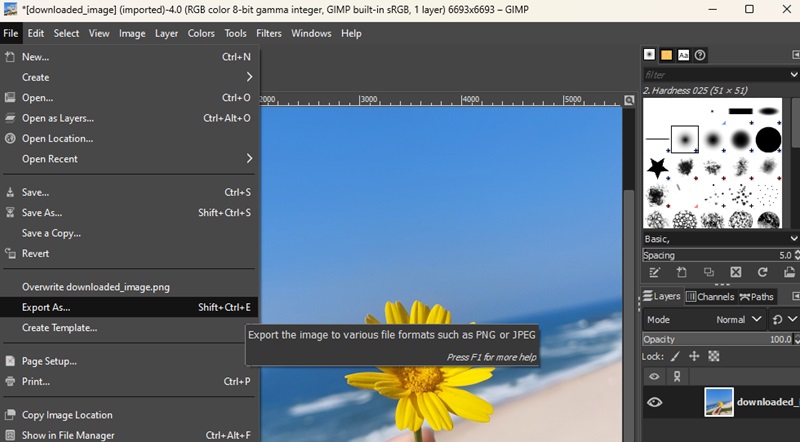
Step 3After resizing your image to match the target dimensions, select the Export As option. It is located under the File menu to save it. Save your image by selecting its format, then change the quality options before completing the Save action. You can proceed with using the finalized upscaled image.
Part 6: How to Upscale ChatGPT Images with Upscale Media
Upscale Media functions as an AI-powered resolution enhancer. It rapidly enhances the look of images created through ChatGPT. The essential feature of Upscale Media originates from its AI technology. This maintains resolution quality by eliminating pixelation during upscale operations. Users can work with different image types and upscale up to 8x. Both novice users and experienced professionals can work efficiently with its tools. Users can enjoy free unmarked image upscaling as it provides watermarkless results. Upgrading images for any purpose, including print, digital, or professional work, becomes hassle-free.
Step 1Locate the Upload Image button on the Upscale Media website. You can start the image selection by clicking on the button.
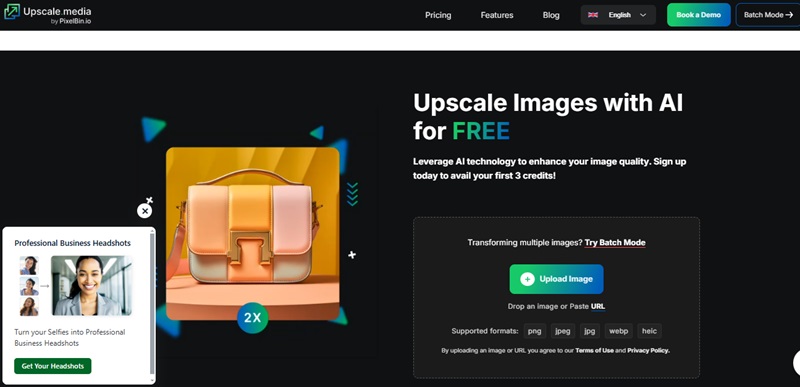
Step 2Look for the ChatGPT image you want to improve through your device's file system directory. Users can upload pictures of all major formats like JPG, PNG, and JPEG to the platform.
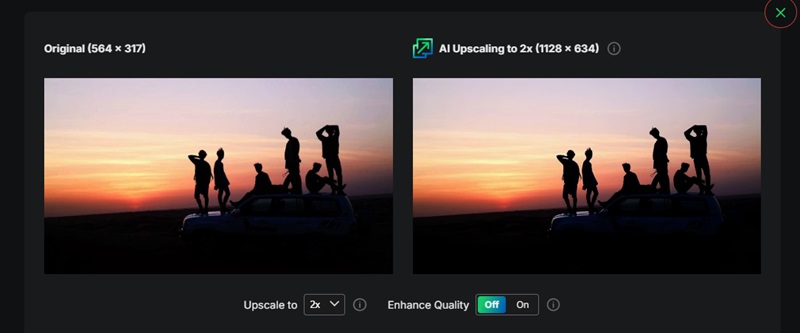
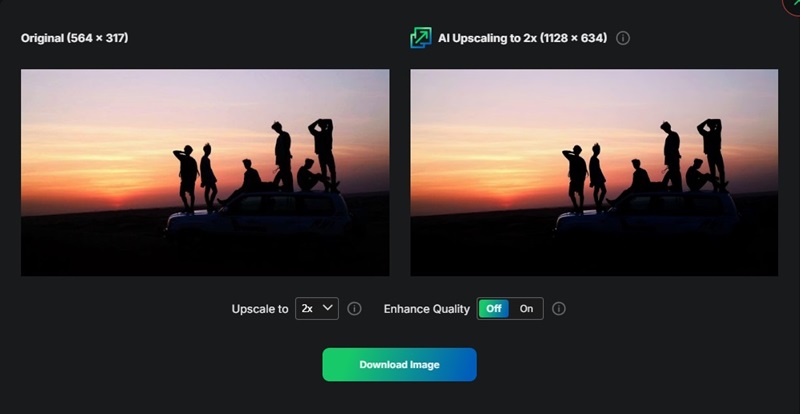
Step 3After the image upload, the AI system initiates automatic processing. It will expand the resolution while enhancing image quality. A preview of the upscaled image also opens after processing. Hit the Download Image button to save the image to your device.
ChatGPT masters image creation. Yet, users must depend on external tools to increase their image resolution levels. Users have many suitable options to improve image clarity. It includes free ChatGPT upscale image tools or complex editing solutions. The simplicity, speed, and AI-powered enhancement of AVAide Image Upscaler delivers high-quality, clear outcomes to users while omitting watermark markings. AVAide is an excellent tool to upscale your ChatGPT images. It generates top-notch results. Plus, it only requires minimal work to enhance image quality for all your projects.

Our AI technology will automatically enhance the quality of your images, remove noise and fix blurry images online.
PROCESS NOW