JPG images are used everywhere. While JPEGs are usually smaller than raw files, high-resolution photos can still take up a lot of space. So what should you do? Compress JPG! In this guide, we will show different ways to shrink file size. So, please scroll down and pick the method that is most convenient for you.
- Part 1: What Is a JPG File
- Part 2: Why You Need to Compress JPG
- Part 3: Best Way to Compress JPG Without Quality Loss
- Part 4: How to Compress JPG Files via iLoveIMG (Online)
- Part 5: How to Compress a JPG via Paint (Windows)
- Part 6: How to Compress a JPG with Preview (Mac)
- Part 7: How to Compress a JPG with Curtail (Linux)
- Part 8: How to Compress a JPG Using Compress Photo & Pictures (iPhone)
- Part 9: How to Compress a JPG Using Photo Compressor and Resizer (Android)
Part 1: What Is a JPG File
Before compressing a JPG image, it helps to know what a JPG file is. JPG and JPEG are the same image file format. There is no difference in quality or use. JPG came from old Windows systems that allowed only three letters. JPEG is the full name of the Joint Photographic Experts Group. This format uses lossy compression to reduce file size.
Part 2: Why You Need to Compress JPG
Compressing JPGs reduces file size while keeping quality high, helps pages load faster, improves SEO, and saves storage space on devices or servers. Smaller files are also easier to send by email, chat, or upload online. Compression also improves performance on phones, tablets, and older computers.
Part 3: Best Way to Compress JPG Without Quality Loss
AVAide Image Compressor can compress JPG images by 50-80% in seconds while keeping image quality clear and sharp. It supports bulk compression so that you can shrink many images at once. This platform works fully online and is free to use. No sign-up is needed. You upload, wait a moment, and download smaller images right away. Simple, fast, and reliable!
Key Features:
- Safe and secure compression that protects your files.
- One-click compression with fast and automatic results.
- Upload up to 40 images at once, 5 megabytes max per file.
- Supports multiple image formats like JPG, PNG, BMP, and more.
Learn how JPG compression without losing quality works below:
Step 1Open your favorite browser and go to the official AVAide Image Compressor website. The page loads fast and shows a clean screen, so you can start right away without signing up.
Step 2Click the Choose Files button or pick and drop your JPG images into the uploading area. You can upload up to forty images at once. A real time-saver, right?
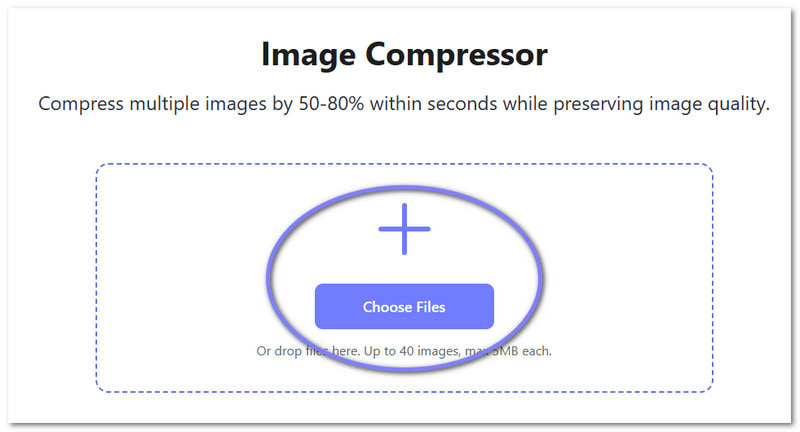
Step 3Right after uploading, AVAide Image Compressor will start to compress your JPG images automatically. You will see the real results on your screen. For example, a 485.19 KB image can drop to 30.49 KB, while a 547.57 KB file can shrink to 204.38 KB.

Step 4Once you are happy with the results, click the Download All button. Your compressed JPG images will be saved to your local folder. That is it. You just compressed JPG files without quality loss in a few easy steps!

Part 4: How to Compress JPG Files via iLoveIMG (Online)
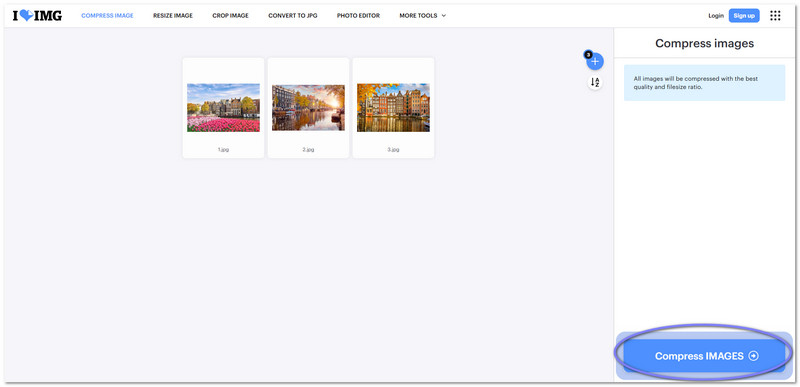
iLoveIMG is one of the top image compressors that lets you compress JPG files online. It allows you to shrink many images at once, making it perfect for batch compression. It also shows exactly how much smaller your files become in percent, so you know your savings.
Step 1Head to the iLoveIMG website. Click Select Images or drag and drop your JPG files. You can add more than one image at a time.
Step 2Once all your images are loaded, click the Compress Images button. The platform will start reducing the file size automatically.
Step 3Please wait until the compression is done. You can see how much space you saved in percentage.
Step 4If you are satisfied with the result, click Download Compressed Images to save the smaller files to your device.
Part 5: How to Compress a JPG via Paint (Windows)
Windows Paint can also help you compress the JPG file. You can open your image and resize it by adjusting the width and height or percentage. This method works well for beginners because it is built into Windows.
Step 1Right-click your JPG image and select Open with > Paint to open it.
Step 2Click Resize under the Home tab. You will see the Resize and Skew window.
Step 3Enter the percentage you want in the Horizontal and Vertical boxes. For example, type 50 to make the image half the size. Tick Maintain aspect ratio so the image does not get stretched. Then, click OK.
Step 4After resizing, click File > Save to save your compressed JPG image. You can also choose Save As to keep the original image.

Part 6: How to Compress a JPG with Preview (Mac)
On Mac computers, Preview is a built-in program that can compress JPG images. It allows you to change image dimensions, resolution, and pixels to reduce file size. It shows how much the file size changes, which is helpful for planning storage.
Learn how to compress a JPG with Preview below:
Step 1Find your JPG file and double-click to open it in Preview.
Step 2Click Tools > Adjust Size from the menu bar to open the resize options.
Step 3Choose your desired size. You can change Fit Into for preset dimensions, Pixels for exact pixel counts, or adjust the Resolution. The new file size and percentage change will be displayed.
Step 4Once done, click File > Save As to create a new compressed copy. Give it a new name and click Save to keep your original file safe.

Part 7: How to Compress a JPG with Curtail (Linux)
Curtail is a Linux program that allows you to compress JPGs for free. It allows you to choose between lossless or lossy compression and even keep metadata if you want. It supports bulk image processing, so many photos can be compressed at once. It also shows you the original and new file sizes and the space saved.
Step 1Launch the Curtail on your Linux computer. Please wait for the program to open fully so you can see the main interface.
Step 2Choose the type of compression you need. Select Lossless if you want to keep the image clarity intact. Pick Lossy if you want a smaller file size and are okay with a slight clarity change.
Step 3Now, select the JPG files you want to compress. You can pick them from the file manager or simply select and drop them into the main display.
Step 4The program will start compressing your JPG images automatically as soon as you upload them. After it finishes, you will see a summary showing the file name, the original and new size, and how much space you saved. You can then save the compressed images to your computer.

Part 8: How to Compress a JPG Using Compress Photo & Pictures (iPhone)
This mobile app helps compress JPG files on your iPhone. It keeps photos sharp while reducing file size, even by 90% or more. It gives an estimate of the space saved before compression. The compressed images are saved in your library and a special album for easy access. Besides JPG, you can also use it to compress PNG, HEIC, and HEIF image files.
Step 1Get Compress Photo & Pictures by New Marketing Lab, Inc. from the App Store.
Step 2Open the app and press Select Photos to Compress. Then, choose the JPG images you want to make smaller. You can pick multiple images at the same time to save effort.
Step 3Adjust the Photo Quality and Photo Dimensions using the sliders under Compression Settings. Moving the sliders will show how the image size will change. Set them according to how much you want to reduce the file size.
Step 4After adjusting, press the Compress button. Compress Photo & Pictures will reduce the file size of your JPG images. Once done, you can save the smaller images to your phone or share them directly.
Part 9: How to Compress a JPG Using Photo Compressor and Resizer (Android)
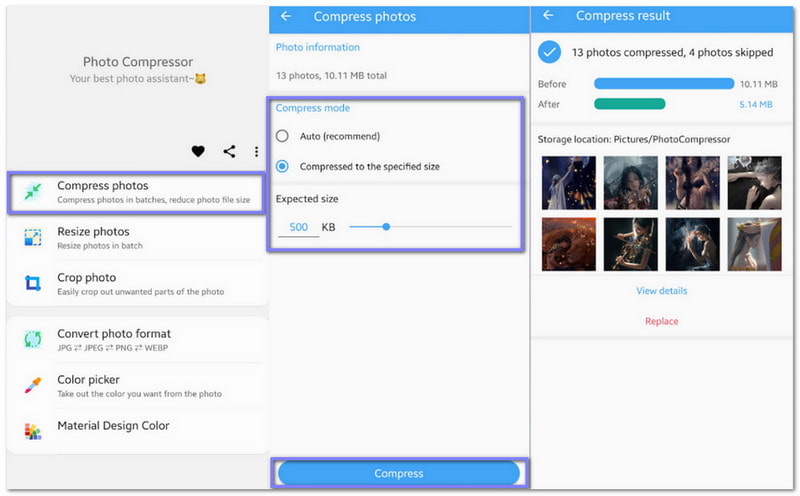
This Android app helps you compress JPG images fast while keeping the clarity almost the same. It uses smart compression to reduce file size without visible loss. You can compress one photo or many at once, which saves time. It also lets you set an exact file size if needed.
Rely on the guide below to master how to compress JPG files using your Android phone:
Step 1Head to the Google Play Store and install Photo Compressor and Resizer by Wang YuFen.
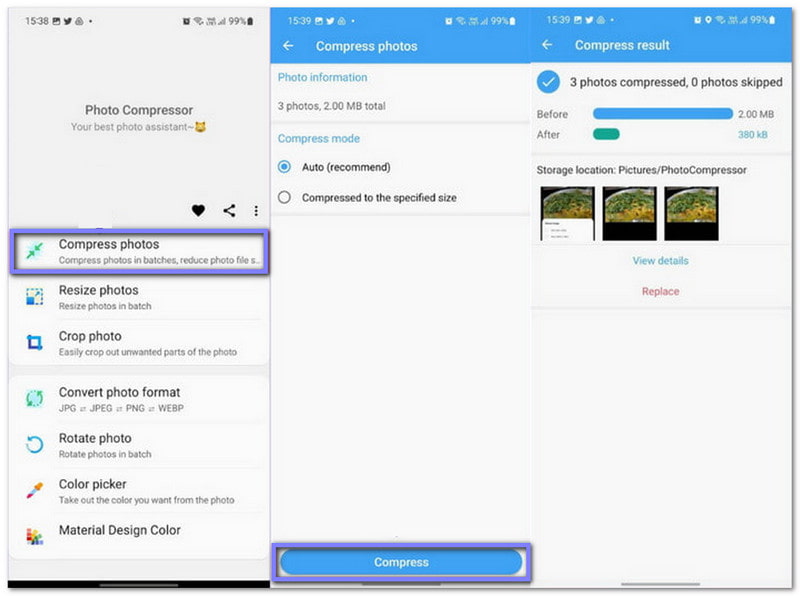
Step 2Tap Compress Photos from the options once opened. Then, select the JPG images you want to reduce. After selecting, click the NEXT button to move forward.
Step 3Choose how you want to compress the images. Tick the Auto option for automatic compression or select Compressed to Specified Size if you want a specific file size. It gives you control over the final image size.
Step 4Press Compress to start the process. After compression, you can compare the before and after image sizes and save the smaller files to your device. You are done!
One thing is for sure: learning how to compress a JPG file offers many perks. Whether you need it for social media, emails, or your website, smaller images make everything faster and easier.
The good thing is, you now know how to do it. Of course, it is always better to compress your JPG without losing quality. For that, AVAide Image Compressor is the best choice. It will not cost you anything to use it!
ABOUT THE AUTHOR


Reduce the file size of an image online within seconds while preserving the quality. We support JPG, PNG, WEBP, GIF, and more.
PROCESS NOW