Word documents get bulky once you drop in a few high-res photos. The desktop app has a built-in Compress Pictures tool that can shrink those files, but it only works in the full desktop version – not in Word for the web. Resizing the display size of a picture also does not reduce the actual file size. In this guide you'll find clear steps for compressing pictures in Word on Windows and Mac, what the Compress Pictures dialog actually does, the limits you should know about, and a cleaner way to shrink images before you ever insert them.
Part 1. How to Compress Pictures in Word (Windows & Mac)
Here's the good news! Microsoft Word offers 2 methods to compress your images. You do not have to worry because neither requires additional tools to execute. In this case, you will save more storage space on your computer. See the separate methods to compress pictures in Word below.
Compress Photos in Word on Windows
Microsoft Word has a built-in compressor tool to resize the images you prefer to add to your document. You can access it through the Picture Tools feature. In this process, you do not need to enter the width and length you prefer for your photos. You only need to click the feature; the program will compress the images to make them smaller. See how below.
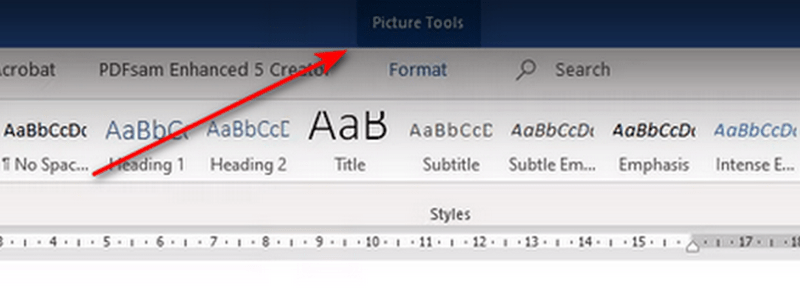
Step 1Launch Microsoft Word and open the document where you want to compress the images. After that, please click the picture you want to compress. The Picture Tools feature at the top center will automatically appear. Later, click it to see more options for your images.
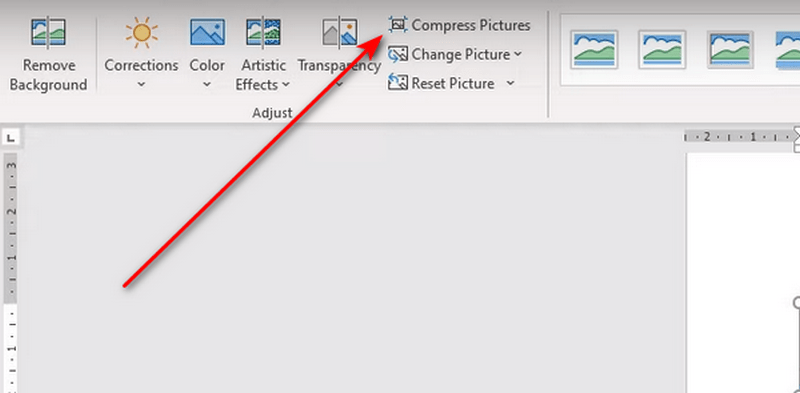
Step 2Click the Format button at the top, and the drop-down options associated with it will be shown. Later, select the Compress Pictures button on the left of the main interface. The Word images will be compressed after a few seconds.
When you compress the picture, there are some options you might want to check:
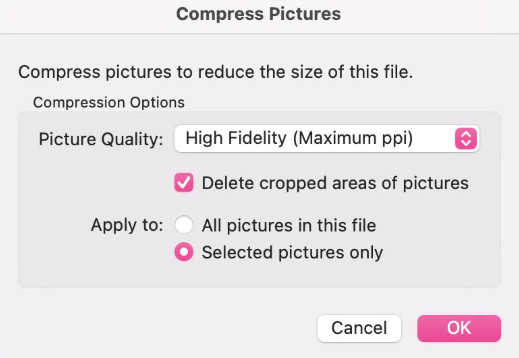
- Apply only to this picture: If you leave this unchecked, Word will compress all images in the document in the same way. If it's selected, Word only compresses this one.
- Delete cropped areas of pictures: If it's unchecked, Word only hides the cutoff area rather than deleting it. Select this option only when the document's been finalized.
- PPI: PPI is short for Pixels Per Inch. As it goes higher, the picture maintains more detail but also has a larger file size.
Compress Pictures in Word on Mac
Step 1Select a picture
Open the document in Word for Mac and click the picture you want to compress. The Picture Format tab should appear.
Step 2Open Compress Pictures
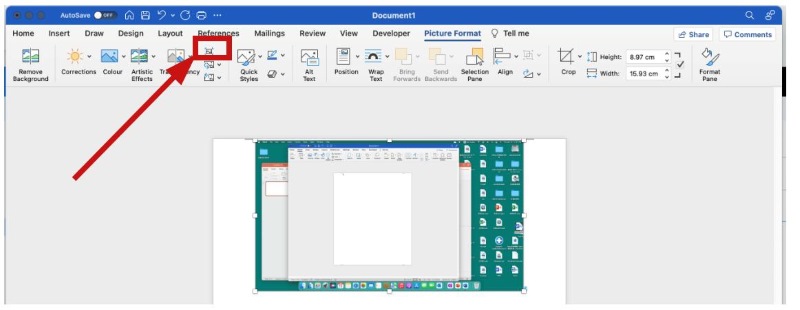
On the Picture Format tab, click Compress Pictures.
Step 3Set quality and scope
Choose a Picture Quality (or resolution) from the list. Then decide whether the change applies to Selected pictures only or All pictures in this file. If you previously cropped images, enable the option to delete cropped areas so the hidden data is removed for good.
Step 4Apply and save
Click OK and save the document. Review the new file size and the visual quality of the images.
- Changing the Width or Height values on the Picture Format tab only scales how large the picture appears on the page. The original image data stays inside the document, so the file size barely changes.
- The Compress Pictures feature is available only in the desktop versions of Word, including Microsoft 365, Word 2021/2024, etc. Word for the web doesn't offer this tool. If you only have access to the browser version, you will need to compress the images outside Word first, then insert the smaller files.
Part 2. Limitations of Using Word to Compress Images
Word's compression is convenient, but it comes with trade-offs:
Mostly all-or-nothing. You can target one picture or every picture, but you cannot easily assign different resolutions to different images in a single pass without repeating the process.
Limited effect on already-compressed images. If the photo was already saved at a low resolution or heavily compressed before you inserted it, Word has little extra data to remove.
Quality loss is baked in. Word uses lossy compression. For print or high-detail work, this can matter a lot.
That's why many people compress images before inserting them into Word. You keep full control over quality and size, and the document never carries unnecessary pixel data in the first place.
| Aspect | Compress inside Word | Compress before inserting |
| Control per image | Limited – one setting for selected or all | Full – compress each image as needed |
| Works in Word for the web? | No | Yes – any browser |
| Best for | Quick fix on an existing desktop document | Clean workflow and consistent quality |
Part 3. Better Way to Compress Images on A Computer
If you want smaller files and better flexibility, compress the images first, then insert them into Word. AVAide Image Compressor lets you shrink JPG, PNG, GIF, WEBP and more in the browser, without signing up or installing anything. As the pictures already arrive at a sensible size, Word never has to do heavy compression later. What's better, the feature works even if you only have Word for the web.
Key Features:
- Batch compress up to 40 images at once
- Typical size reduction of 50–80% while keeping usable quality
- Works in any modern browser on Windows, Mac, or mobile
- No watermark and no account needed
- Simple one-click workflow: upload, compress, download
Step 1Please go to the main website of AVAide Image Compressor. Familiarize yourself with the interface. After that, please click the Choose Files button at the center of the screen. The computer album will be shown. Import the images you prefer to compress afterward.
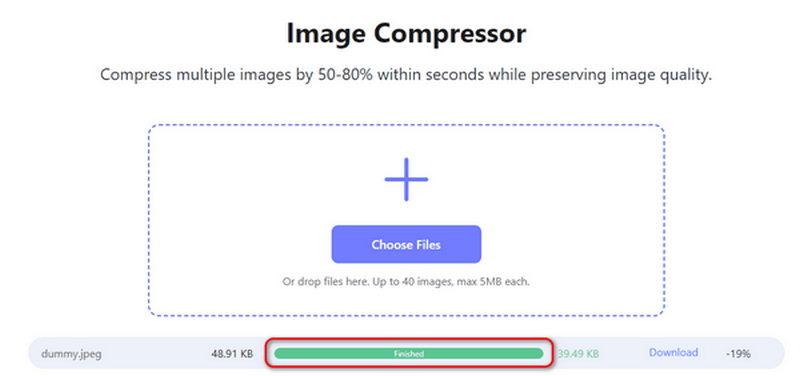
Step 2The image compressor online tool will process the images for a few seconds. It still depends on the speed of the internet connection. You will see the Finished section at the bottom if the process is complete.
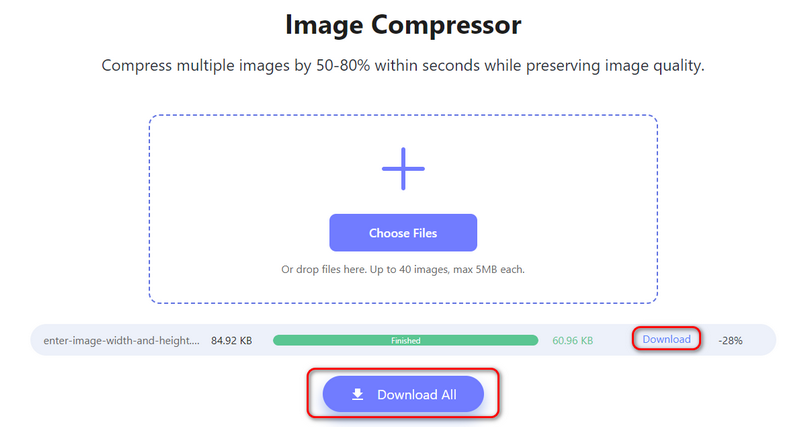
Step 3Then, it is time to save the compressed images on your computer. If so, click the Download All button at the bottom if you compressed multiple files. But if you prefer to save one file, please choose the Download button on the right side of the image files.
Part 4. FAQs about Word Compress Images
Can you resize many pictures at once in Microsoft Word?
Yes. You can compress pictures at once in the Microsoft Word program. You only need to open the document and upload the images you prefer to resize. After that, select all of them by pressing the Ctrl key on your keyboard and clicking each photo. Choose the Picture Tools button and click the Format button. Options will be revealed, and select the Compress Pictures button at the top left.
How do I select multiple images in Word?
You can select multiple images in Word and import them through the computer album. First, open the computer album and the Word program. After that, locate the pictures you prefer to input on the document. Later, you can click and hold the computer mouse to select multiple photos. Also, you may press the Ctrl key on your keyboard once choosing the pictures. Drag and drop them afterward to import them to the Word.
How do I change the default image size in Word?
You may change the default image size in Word by clicking the File button at the top left. After that, select the Options button at the top. On the revealed options on the left of the main interface, please choose the Advanced button. Later, please locate the Image Size and Quality section at the bottom. Go to the Default Resolution and click the High Fidelity section. Choose the image size on the drop-down options afterward on the screen.
Learning how to make a picture smaller in Word is a bit demanding. Some multiple tools and features need to be executed. Sometimes, using them is a bit confusing because of how many they are. But we hope this post made the process simpler and easier to understand because of the details of the steps. You will also see the limitations of the picture compression of the mentioned program and its leading alternative for compressing images: AVAide Image Compressor.
ABOUT THE AUTHOR


Reduce the file size of an image online within seconds while preserving the quality. We support JPG, PNG, WEBP, GIF, and more.
PROCESS NOW