האם אי פעם הייתה לך שיחת טלפון שבה שותפו פרטים חשובים, אבל שכחתם אותם מיד לאחר מכן? או שאולי מישהו נתן לכם הוראות, ולא הייתה לכם דרך לרשום אותן? במקרים כאלה, למידה איך להקליט שיחת טלפון באנדרואיד מהווה עזרה גדולה.
מדריך זה נועד לעזור לכם ללמוד כיצד. בין אם אתם משתמשים במכשירי סמסונג, גוגל פיקסל, שיאומי, וואן פלוס או כל טלפון אנדרואיד אחר, השיטות שלהלן נועדו עבורכם. קחו את הזמן שלכם ועברו על כל חלק.
תנאי מוקדם: שיקולים משפטיים לפני שמתחילים להקליט
לפני שאתם מקליטים שיחת טלפון באנדרואיד, עליכם להכיר את הכללים המשפטיים הבסיסיים. כללים אלה חשובים. הם עוזרים לכם להימנע מבעיות ולכבד את הפרטיות. במקומות רבים, הקלטת שיחה ללא אישור אינה מותרת.
ודאו תמיד שהאדם השני יודע שאתם מקליטים. חלק מהטלפונים כבר משמיעים צליל אזהרה או צפצוף כשההקלטה מתחילה. למרות זאת, עדיין עדיף לבקש רשות תחילה. החוקים אינם זהים בכל מקום. לכן, עליכם לבדוק את הכללים באזורכם לפני שאתם מתחילים להקליט.
שיטה 1: השתמש במקליט השיחות המובנה של הטלפון שלך
מקליט שיחות מובנה הוא תכונה נפוצה בטלפונים עם מערכת הפעלה אנדרואיד. זוהי השיטה הפשוטה ביותר להקלטת שיחות. אין צורך בהתקנת אפליקציה נוספת. נדרשות רק כמה נגיעות כדי להתחיל להקליט אם הטלפון שלך כולל תכונה זו.
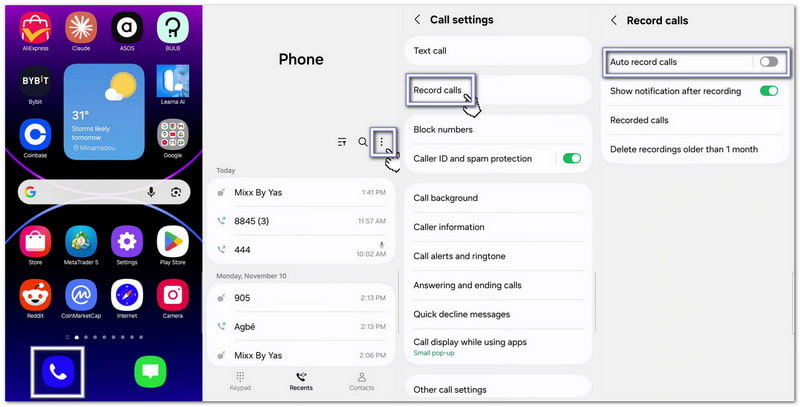
1. כיצד להקליט שיחת טלפון בסמסונג (One UI)
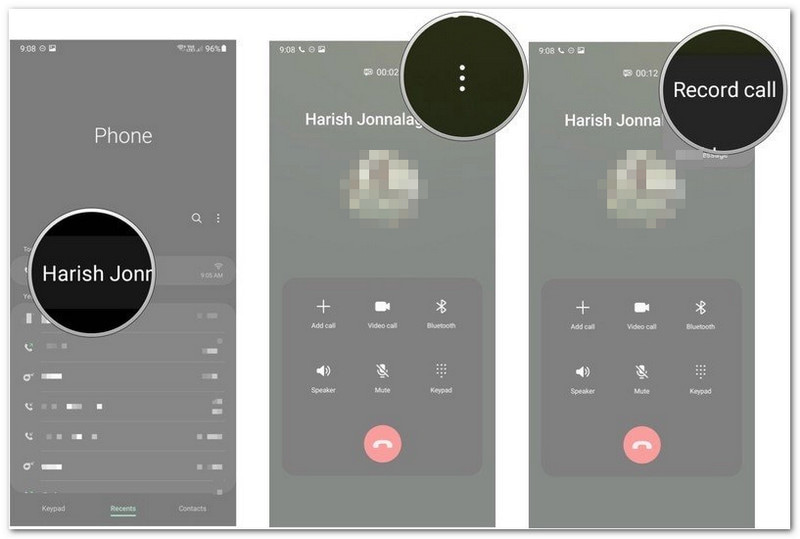
טלפונים של סמסונג מגיעים עם מקליט שיחות בתוך אפליקציית הטלפון, מה שעוזר אם אתם לומדים כיצד להקליט שיחת טלפון בסמסונג.
- פתח את ה מכשיר טלפון אפליקציה. בצע שיחה או ענה לשיחה.
- לאחר שהשיחה מתחברת, הקש על הקלטת שיחה.
- כדי להקליט את כל השיחות באופן אוטומטי, הקש על תפריט שלוש נקודות ולבחור הגדרות.
- בחר הקלטת שיחות.
- להדליק הקלטת שיחות אוטומטית.
פרטים נוספים:: אתה יכול גם הקלטת מסך בסמסונג, אשר לוכד גם את פעילויות המסך וגם את האודיו שלך, ומתאים לשיחות וידאו.
2. כיצד להקליט שיחת טלפון בגוגל פיקסל
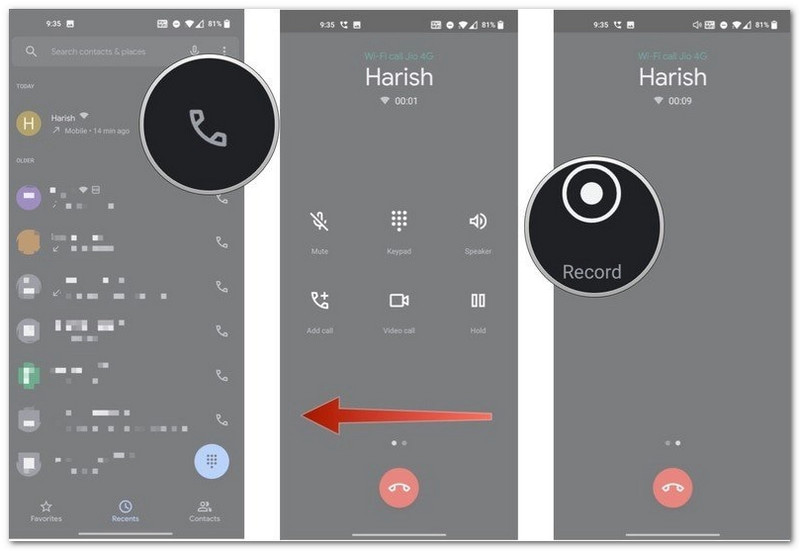
טלפוני גוגל פיקסל משתמשים באפליקציית גוגל טלפון. ייתכן שהקלטת שיחות לא תהיה זמינה בכל מדינה או ספק.
- פתח את ה מכשיר טלפון אפליקציה במהלך שיחה. החליקו שמאלה כדי לראות אפשרויות שיחה נוספות.
- בֶּרֶז תקליט.
- כדי להקליט אוטומטית מתקשרים לא ידועים, פתחו הגדרות טלפון > הקלטת שיחה.
- להדליק תמיד להקליט.
- בֶּרֶז תפסיק כאשר ברצונך לסיים את ההקלטה.
- גוגל פאן ינגן הודעה כדי ליידע את שני האנשים שהשיחה מוקלטת.
3. מותגי אנדרואיד אחרים (Xiaomi, OnePlus, Nothing וכו')
מותגי אנדרואיד רבים משתמשים באפליקציית טלפון משלהם. השלבים בדרך כלל דומים.
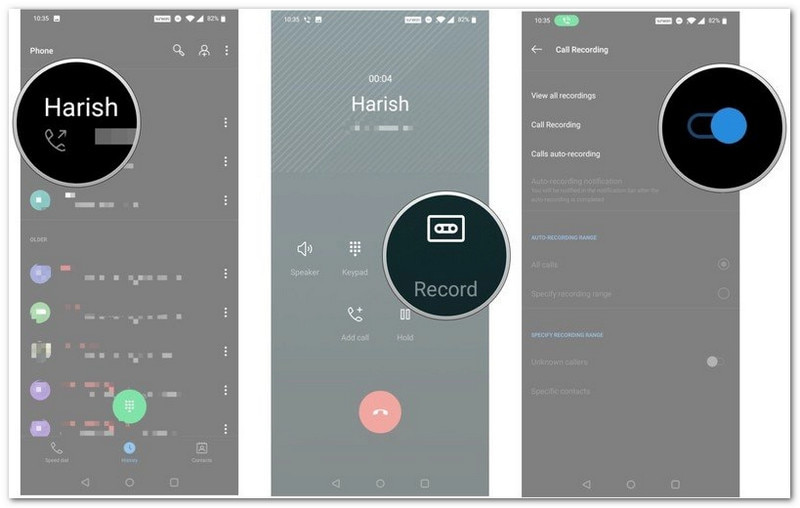
- בצע או קבל שיחה. המתן עד שהשיחה תתחבר.
- החלק או גלול בין אפשרויות השיחה.
- בֶּרֶז תקליט.
- בֶּרֶז התחל להקליט אם מופיעה הודעה.
- בֶּרֶז תפסיק לאחר סיום.
שיטה 2: כיצד להקליט שיחת טלפון באנדרואיד ללא אפליקציה
אם בטלפון שלך אין מקליט מובנה, עדיין תוכל ללמוד כיצד להקליט שיחה באנדרואיד ללא אפליקציה ולשמור שיחה. שיטות אלה אינן דורשות אפליקציית הקלטת שיחות ייעודית.
1. השתמשו במכשיר ההקלטה המובנה של אפליקציית גוגל לטלפון (אם זמין)
חלק מטלפוני האנדרואיד תומכים בהקלטה דרך אפליקציית גוגל טלפון.
- בצע שיחה או ענה לשיחה.
- בֶּרֶז תקליט על מסך השיחה.
- בֶּרֶז תפסיק כאשר השיחה מסתיימת.
ההקלטה תישמר בהיסטוריית השיחות שלך.
- שני האנשים ישמעו הודעת הקלטה לפני תחילת ההקלטה.
2. השתמש במכשיר שני כדי להקליט שיחות רמקול
זוהי אחת השיטות הפשוטות ביותר.
- להדליק רמקול במהלך השיחה.
- הנח טלפון, טאבלט או מחשב נוסף בקרבת מקום.
- השתמש במכשיר השני כדי להקליט את השיחה.
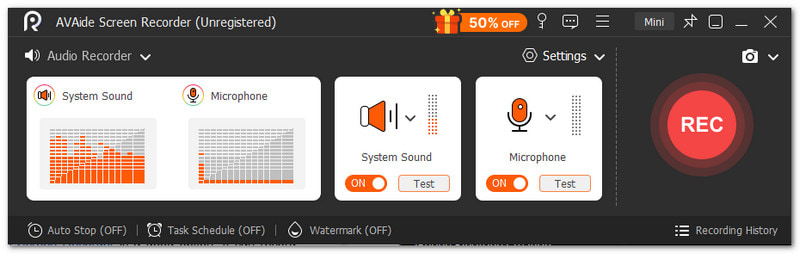
אם אתם משתמשים במחשב Windows או Mac, מקליט מסך AVAide זוהי אפשרות טובה. יש לה מקליט שמע מובנה שיכול להקליט שיחת טלפון באנדרואיד עם צליל צלול.

 הורדה מאובטחת
שיחת הטלפון המוקלטת נשמרת ישירות במחשב שלך לגישה נוחה. לא משנה אם שיחת הטלפון שלך ארוכה, מכיוון שהיא יכולה להתמודד איתה. אם ישנם חלקים מיותרים בתחילתה או בסוף, תוכל להשתמש בתכונת החיתוך כדי להסיר אותם ולשמור רק את החלק שאתה צריך.
דברים עיקריים נוספים שתוכלו לצפות להם:
- הקלטת וידאו, אודיו ומצלמת רשת יחד.
- לוכד מסכי טלפון עם אודיו ברירות גבוהה.
- מאפשר תצוגה מקדימה מיידית לאחר ההקלטה עם אפשרות להקליט שוב.
- תומך בפורמטי מדיה מרובים כמו MP4, WMV, AVI, GIF, MP3 ועוד.
3. השתמשו בגשר ועידה
שיטה זו עובדת היטב עבור שיחות חשובות.
- הצטרפו לפגישה דרך זום או גוגל מיט בטלפון האנדרואיד שלכם.
- הצטרף לאותה פגישה במחשב שלך.
- התחל את שיחת הטלפון.
- נְקִישָׁה תקליט במחשב שלך.
השמע יישמר ישירות במחשב שלך לגישה נוחה בהמשך.
שיטה 3: הקלטת שיחות אוטומטית ללא כל הודעה
חלק מהטלפונים מציעים אפשרויות נוספות להקלטת שיחת קול בטלפון אנדרואיד. הגדרות אלו יכולות להפחית עבודה ידנית ולהקל על ההקלטה. זכרו שהתכונות הזמינות תלויות בדגם, בספק ובמיקום של הטלפון שלכם.
1. החלף את ההכרזה בצפצוף (הגדרה מקורית בחלק מהמותגים)
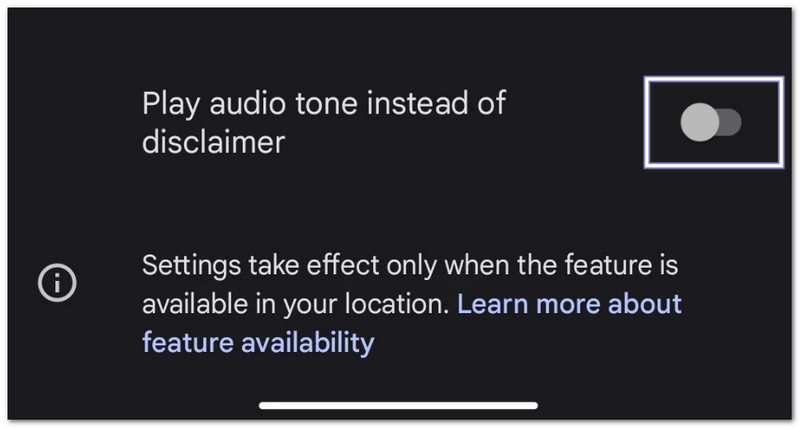
חלק מטלפוני אנדרואיד מאפשרים לך להשתמש בצפצוף קצר במקום בהכרזה קולית.
- פתח את ה מכשיר טלפון אפליקציה.
- הקש על תפריט שלוש נקודות אוֹ הגדרות לַחְצָן.
- בחר הקלטת שיחה.
- להדליק השמע צליל שמע במקום הצהרת הוויתור.
- אם אינך מוצא אפשרות זו, ייתכן שהטלפון או האזור שלך אינם תומכים בה.
2. הגדר הקלטת שיחות אוטומטית לחלוטין (ללא התערבות ידנית)
בטלפון שלך יש אפשרות להקליט שיחות באופן אוטומטי.
- עבור להגדרות של הטלפון.
- בֶּרֶז הקלטת שיחות.
- להדליק הקלטת שיחות באופן אוטומטי.
- בחר כל השיחות או מספרים נבחרים.
לאחר ההפעלה, ההקלטות יתחילו אוטומטית בהתאם להגדרות שלך.
3. אפליקציות צד שלישי עם תכונות התגנבות
אם הטלפון שלך אינו מציע מספיק אפשרויות הקלטה, אפליקציות צד שלישי עשויות לעזור.
- קוביית ACR - מקליט שיחות טלפון רגילות וחלק משיחות אינטרנט.
- מקליט שיחות אוטומטי פרו - תומך בהקלטה אוטומטית ובבקרות הקלטה נוספות.
חָשׁוּב: הגבלות אנדרואיד עשויות להגביל את אופן פעולתן של אפליקציות אלה. טלפונים מסוימים עשויים לדרוש הרשאות נוספות. איכות ההקלטה עשויה להשתנות גם בהתאם למכשיר.
היכן ניתן למצוא שיחות מוקלטות באנדרואיד
לאחר הקלטת שיחה, ייתכן שתתהו היכן ניתן למצוא שיחות מוקלטות באנדרואיד. המיקום תלוי במותג הטלפון ובאפליקציית הטלפון שלכם.
בסמסונג (ממשק משתמש אחד)
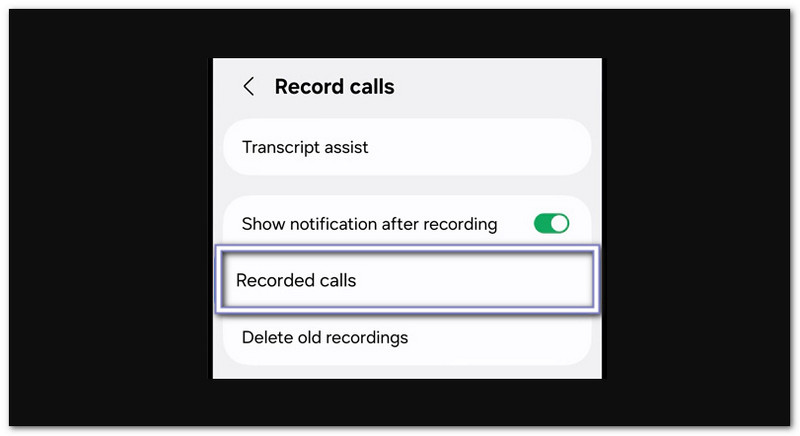
הקלטת שיחות של סמסונג נמצאת בתוך אפליקציית הטלפון.
- פתח את ה מכשיר טלפון אפליקציה.
- הקש על תפריט שלוש נקודות.
- בחר הגדרות.
- בֶּרֶז הקלטת שיחות.
- לִפְתוֹחַ שיחות מוקלטות.
באפליקציית Google Phone (Pixel וטלפונים אחרים עם Google Dialer)
גוגל פון שומר הקלטות בהיסטוריית השיחות שלך.
- פתח את ה מכשיר טלפון אפליקציה.
- בֶּרֶז אחרונים.
- בחר את השיחה המוקלטת.
- בֶּרֶז הִיסטוֹרִיָה או ה לְשַׂחֵק לַחְצָן.
ב-Xiaomi / MIUI / HyperOS
ניתן למצוא הקלטות בשני מקומות.
אפשרות 1:
- פתח את ה מכשיר טלפון אפליקציה.
- לך ל אחרונים.
- הקש על חֵץ אוֹ פרטים כפתור ליד השיחה.
אפשרות 2:
- לִפְתוֹחַ מנהל קבצים.
- לך ל אִחסוּן > MIUI > מקליט_סאונד > התקשרות_הקלטה.
על מותגים אחרים (מיקום כללי)
רוב הטלפונים של אנדרואיד שומרים הקלטות במנהל הקבצים.
- לִפְתוֹחַ מנהל קבצים.
- בדוק תיקיות כגון שֶׁמַע, שִׂיחָה, או הקלטות שיחות.
- ניתן גם לחפש הקלטת שיחה.
אם אינך מצליח למצוא את הקבצים, בדוק הגדרות טלפון > הקלטת שיחות עבור מיקום השמירה.
כיצד לכבות את הקלטת השיחות באנדרואיד
אם גם אתם רוצים ללמוד כיצד לבטל את הקלטת השיחות באנדרואיד, תוכלו להסתמך על ההוראות שלהלן.
- פתח את ה מכשיר טלפון אוֹ חייגן אפליקציה.
- הקש על תפריט שלוש נקודות.
- בחר הגדרות.
- בֶּרֶז הקלטת שיחה אוֹ הקלטת שיחות אוטומטית.
- הפעל את התכונה כבוי.
לאחר מכן, הטלפון שלך יפסיק להקליט שיחות עתידיות באופן אוטומטי. הקלטות קיימות יישארו נשמרות אלא אם כן תמחק אותן ידנית.
פוסט זה עונה על השאלה "האם אפשר להקליט שיחות טלפון באנדרואיד"?" והתשובה היא כן. לא משנה באיזה מכשיר אתם משתמשים, תמיד יש דרך להקליט את השיחה שלכם. אפילו במחשב, עדיין תוכלו לשמור את השיחה. כלי פשוט אחד שתוכלו להשתמש בו הוא מקליט מסך AVAideזה עובד היטב להקלטות ארוכות ומציע תכונות מועילות להקלטת שמע.
אודות המחבר

צלם פעילויות מסך עם אודיו, פגישות מקוונות, סרטוני משחק, מוזיקה, מצלמת אינטרנט וכו'.