צריכים להראות ולתעד שלבים, לדווח על באג או ליצור מדריך קצר במחשב שלכם? יצרתי מאות, אם לא אלפי, של הקלטות של Windows עבור משתמשים יומיומיים ומתמקדים בכלים פשוטים המובנים במערכת ההפעלה שלה. מדריך זה מראה לכם בדיוק כיצד להקליט מסך ב-Windows באמצעות כלי ברירת המחדל הזמינים וכלים של צד שלישי המציעים תכונות נרחבות לצורכי ההקלטה שלכם. בעזרת צעדים ברורים, תוכלו להפיק סרטונים ברורים וניתנים לשיתוף.
שיטות הקלטת מסך מובילות במבט חטוף
הבחירה הטובה ביותר למתחילים: סרגל משחקי Xbox (Windows מובנה, לכידה מהירה בלחיצה אחת) וכלי החיתוך (הקלטת אזור נבחר באמצעות כפתורי שמע פשוטים)
הטוב ביותר לשימוש חינמי עבור אנשי מקצוע: OBS Studio (הקלטה ללא הגבלה, סצנות ממקורות מרובים, סטרימינג חי, קוד פתוח), ו-ShareX (חינם, לכידת אזורים, זרימת עבודה ניתנת להתאמה אישית).
מקליט חינמי הטוב ביותר עם סימן מים: Bandicam (קל משקל, הקלטה, אודיו ואזור באיכות גבוהה)
הכל-באחד הטוב ביותר בתשלום להקלטה כוללת: מקליט מסך AVAide (ממשק מסך פשוט, לוח זמנים להקלטה, שכבת-על של מצלמת רשת, תכונת נעילה, עורך מובנה והערות בזמן ההקלטה)
הטוב ביותר להקלטת סרטונים באינטרנט: Loom (הקלטה מבוססת ענן, שיתוף קישורים, תגובות ותגובות, תואם ל-Windows, אינטרנט) ו-Awesome Screenshot (אפליקציה מבוססת דפדפן, צילום עם סימון ועריכה מהירה)
שיטה 1: סרגל משחקי Xbox (הבחירה המהירה והקלה)
מחפש פתרון ללכידת אפליקציה או משחק ללא כל התקנה שעובד עם Windows? Xbox Game Bar הוא תכונה מובנית של Windows 10 ו-11 שמגיעה עם אפשרות ללכוד אודיו ומיקרופון מה-Xbox, וכן לשמור קובץ MP4 בלחיצה אחת. למד כיצד להקליט את המסך שלך: פתח את האפליקציה שלך, לחץ על Win + G ולחץ על הקלטה. התהליך הבא מתאר את ההגדרה, כפתורי השמע ומיקום ההקלטה.
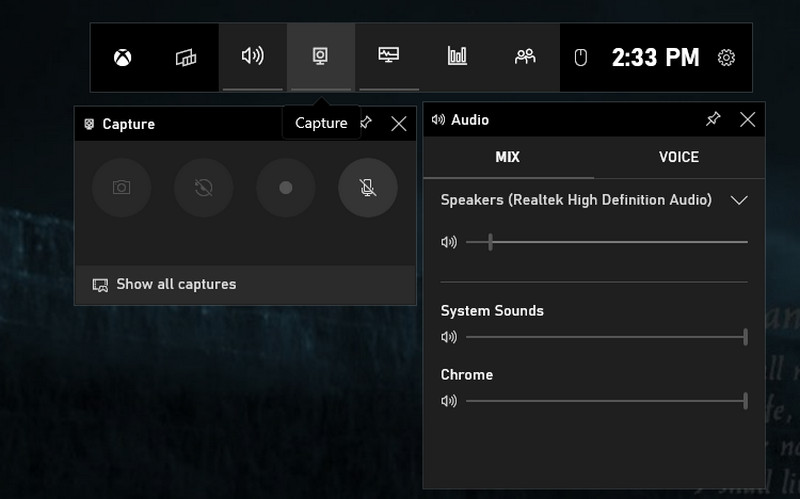
שלב 1לחץ על חלונות הכפתור וה- G מקש כדי לפתוח את סרגל המשחקים של Xbox.
שלב 2לאחר מכן, סמנו את התיבה כדי לאשר ולהמשיך. התאימו את ההקלטה בהתאם לצרכים שלכם בעזרת האפשרויות הזמינות כאן. כעת, כשאתם מוכנים להתחיל להקליט, לחצו על כפתור הנקודה האדומה כדי להתחיל, או שתוכלו ללחוץ על Windows + Alt + R.
שלב 3יופיע סטטוס של הקלטה על המסך. אם תסיים, לחץ על מְרוּבָּע לַחְצָן.
שיטה 2: כלי חיתוך (Windows 11)
ב-Windows 11, ה- כלי חיתוך זוהי דרך פשוטה ומובנית ללכוד כל אזור במסך. היא מקליטה אודיו ומיקרופון של המערכת, מאפשרת לך לבחור אזור או מסך מלא, ושומרת ישירות כקובץ MP4. אם אתם תוהים כיצד להקליט מסך מבלי להתקין תוכנה חדשה, כלי זה הוא האפשרות המהירה ביותר. השלבים שלהלן מראים כיצד לפתוח אותו, להתחיל להקליט ולשמור את הסרטון שלכם.
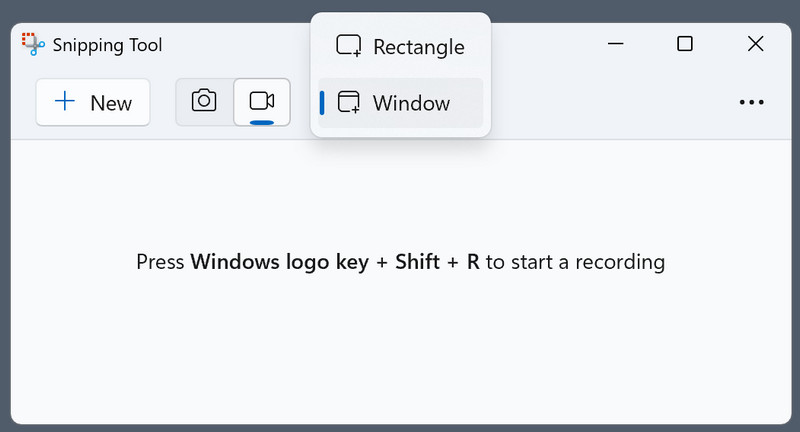
שלב 1כדי לפתוח אותו, לחצו על כפתור Windows במקלדת והקלידו את כלי החיתוך הזמין ב-Windows.
שלב 2בממשק הצף שלו, לחצו על הלחצן מַצלֵמָה כפתור מכיוון שברצונך להשתמש בתכונת הקלטת המסך שלו. לאחר מכן, התאם את האזור שבו ברצונך להיקלט על ידי ציור מלבן.
שלב 3לאחר מכן, לחץ הַתחָלָהלאחר ההקלטה, לחצו על הלחצן תפסיק לחצן כדי לשמור אותו.
שיטה 3: מקליט מסך AVAide
מקליט מסך AVAide היא אפליקציית Windows בתשלום המיועדת למי שמעוניין באפליקציה מסודרת, הקלטה מתוזמנת, שכבת-על של מצלמת רשת, הערות ועורך משולב. היא מקליטה את השמע והמיקרופון של המערכת שלך, מקליטה באזור או במסך מלא, ומייצאת בפורמטים נפוצים ללא סימן מים. אם אתם מחפשים כיצד לבצע הקלטה על המסך עם תכונות מקצועיות ותהליך עבודה פשוט, אפליקציה זו מספקת איכות עקבית עבור תוכן הדרכה ותכני הדרכה. השלבים הבאים ממחישים התקנה, הגדרת שמע, הגדרות הקלטה ואפשרויות ייצוא.
שלב 1ראשית, עליך להוריד ולהתקין את מקליט המסך במחשב Windows 10/11 שלך על ידי לחיצה על הכפתור המתאים כאן. לאחר מכן, המשך לשלבים הבאים.

 הורדה מאובטחת
שלב 2בממשק הראשי, בחר מקליט מסךכאן, עליך להגדיר כראוי את אזור ההקלטה, להוסיף את הפנים שלך דרך מצלמת רשת, אודיו מהמיקרופון החיצוני שלך וצליל מערכת שנוצר במחשב שלך. לאחר מכן, לחץ על הלחצן REC לחצן כדי להתחיל את ההקלטה.
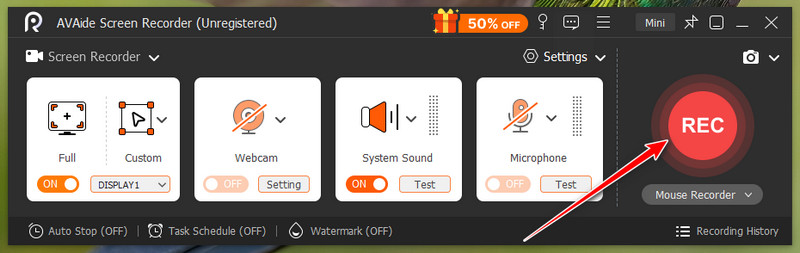
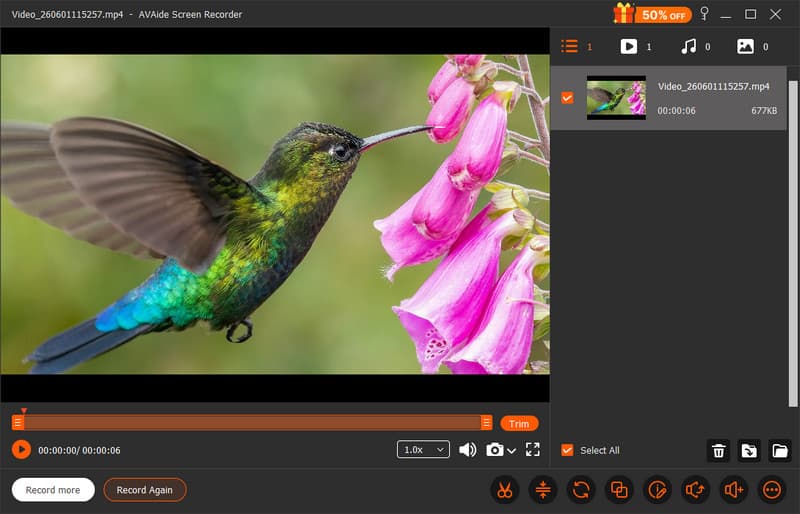
שלב 3לאחר שתהיו מרוצים והאפליקציה עשתה את עבודתה בהקלטה, לחצו על תפסיק כפתור. כעת, תוכלו לשתף את הסרטון המוקלט עם כולם בקלות כמו ש-AVAide מציעה.
שיטה 4: בנדיקאם
בנדיקם הוא מקליט לכידת מסך קל אך יעיל ב-Windows המסוגל ליצור הקלטות באיכות גבוהה לפרקי זמן ממושכים. יש לו גם תכונות לכידת אזור וגם הקלטה במסך מלא ובחלון ספציפי, והוא מאפשר לו להקליט שמע של מיקרופון ומערכת, להגדיר הקלטות ולצייר תוך כדי הקלטה. Bandicam הוא מקליט לכידת מסך ב-Windows שהוא יציב ומפיק קבצים בגודל קטן יותר עבור הדרכות והדגמות, או אפילו עבור משחקים. השלבים הבאים מדגימים התקנה, בחירת מצב הלכידה, הגדרת קלט השמע והגדרת אפשרויות הייצוא.
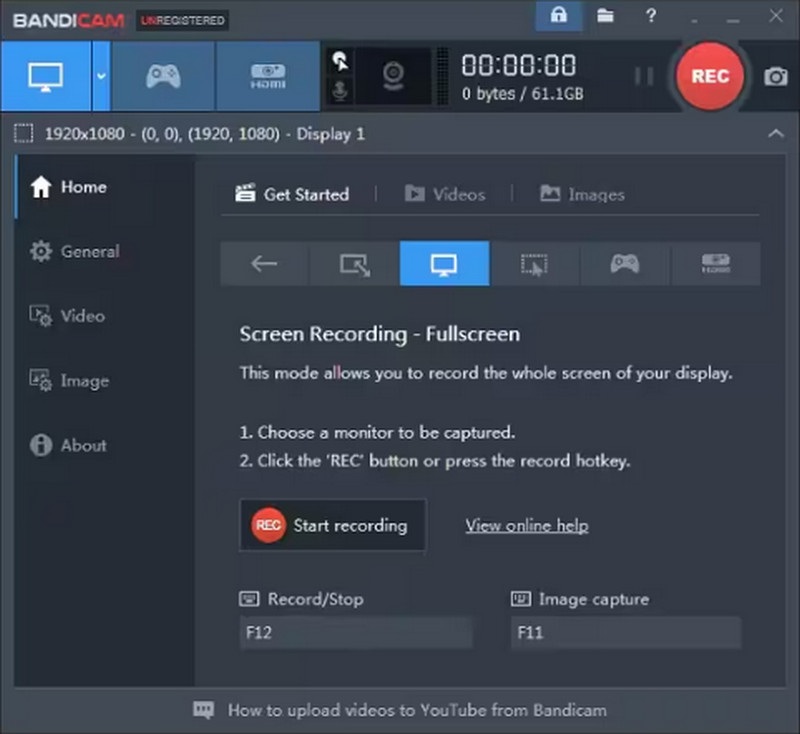
שלב 1פתחו את Bandicam במחשב שלכם, בחרו את מצב ההקלטה הזמין כאן ותרצו להתאים את ההגדרות הקבועות מראש שלו.
שלב 2לאחר מכן, לחץ על REC כדי להתחיל בהקלטה, לאחר מכן המתן מספר שניות עד לסיום הספירה לאחור.
שלב 3לאחר סיום ההקלטה, לחצו על הלחצן תפסיק כפתור, ותוכלו להשמיע שוב את הסרטון המוקלט.
שיטה 5: סטודיו OBS
סטודיו OBS הוא מקליט וסטרימר חינמי בקוד פתוח עבור Windows, עם הקלטה ללא הגבלה, ללא סימני מים ויכולת שליטה גבוהה על הסצנות, המקורות, מערבלי האודיו והמקודדים שלו. הוא הטוב ביותר לתצורות מרובות מקורות, מעברים מותאמים אישית והפקת פלט באיכות גבוהה, והוא האפשרות המועדפת על אנשי מקצוע המעריכים גמישות. עבור Windows, אם אתם מחפשים להקליט מהמסך ב-Windows עבור רצועות שמע, רזולוציה ואפשרויות קצב סיביות, תוכלו לקבל איכות שידור עם OBS Studio.
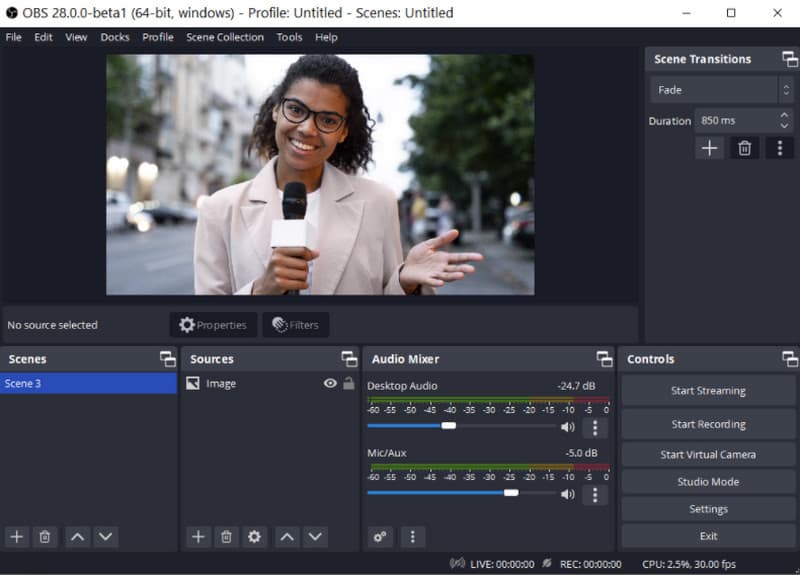
שלב 1הורד ופתח את הגרסה העדכנית ביותר של OBS Studio. שנה שם או צור שם סְצֵינָה מהתיבה השמאלית התחתונה שלו.
שלב 2הוסף את מקור ההקלטה, לחץ על כפתור ה-+ כדי להוסיף את הסצנות הנכונות ובחר לכידת תצוגה. סמן את הגדרות > תְפוּקָה > נתיב ההקלטה > לְדַפדֵף כדי לבחור היכן ברצונך לשמור את הסרטון המוקלט.
שלב 3עכשיו כשאתם מוכנים, לחצו על הלחצן התחל להקליט כפתור, וכאשר ברצונך לעצור אותו, לחץ על הפסק להקליט לַחְצָן.
שיטה 6: הקלט מסך
ScreenRec הוא מקליט מסך אמין המוכר על ידי יותר מ-14 מיליון אנשים ברחבי העולם, המציע הקלטת מסך, מיקרופון, מערכת ומצלמת רשת בחינם עם שיתוף מיידי לענן וללא סימן מים לעצירת צילומי מסך. הוא מספק התקנה מהירה, שליטה קלה לשימוש ו-2 ג'יגה-בייט של אחסון ענן בחינם לשיתוף מהיר לאחר כל הקלטה. ScreenRec הוא מקליט מסך פשוט ומהיר למשתמשים, טכנאי תמיכה ומדריכים שאינם צריכים להוריד תוכנות גדולות. השלבים הבאים מדגימים כיצד להקליט מסך ב-Windows בעזרת כלי זה, וכן כיצד לשתף את הסרטון שלך באמצעות קישור.
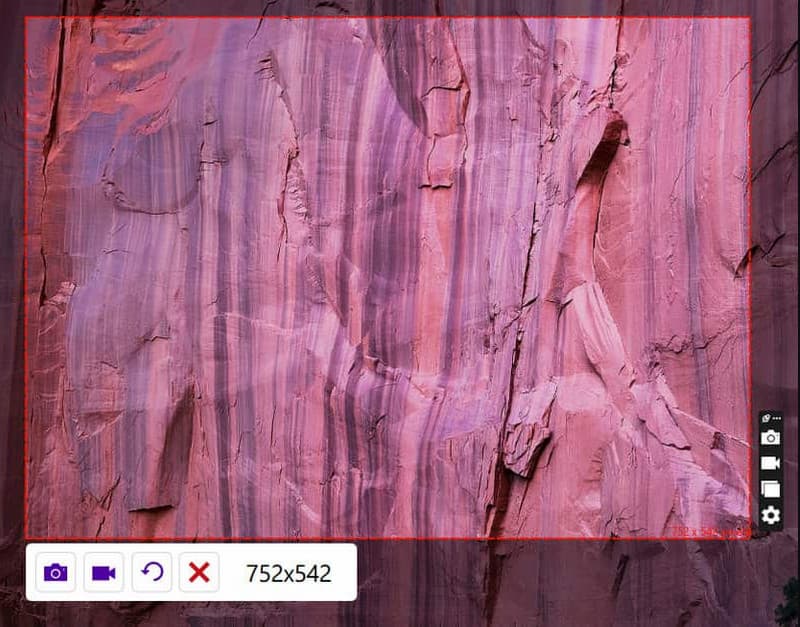
שלב 1הורידו את האפליקציה הרשמית באתר ScreenRec, ופעל לפי תהליך ההתקנה. לאחר מכן, לחצו על Alt + ס כדי לבחור את האזור שברצונך לצלם.
שלב 2כדי להקליט את המסך שלך, לחץ על מַצלֵמַת וִידֵיאוֹ והפעל את השמע והמיקרופון של המחשב אם ברצונך להקליט אליו שמע.
שלב 3סמן את מְרוּבָּע כפתור כדי להפסיק את ההקלטה, ותקבלו כתובת URL ייחודית שבה תוכלו לשתף את הסרטון המוקלט עם כל מי שאליו שלחתם את הקישור.
שיטה 7: נול
נוֹל הוא מקליט מסך מבוסס ענן המאפשר צילום קל של המסך, מצלמת הרשת והמיקרופון שלכם, ולאחר מכן שיתוף מיידי באמצעות קישור עם הערות ותגובות. הוא עובד על Windows ומציע ממשק נקי, עריכה מהירה ותכונות שיתוף פעולה צוותיות מובנות. אם אתם תוהים כיצד להקליט מסך במחשב לתקשורת אסינכרונית מהירה, Loom אידיאלי למורים, תמיכה וצוותים הזקוקים לשיתוף מיידי מבלי לנהל קבצים. השלבים שלהלן מציגים התקנה, בחירת מצב הקלטה וכיצד לשתף את קישור הווידאו שלכם.
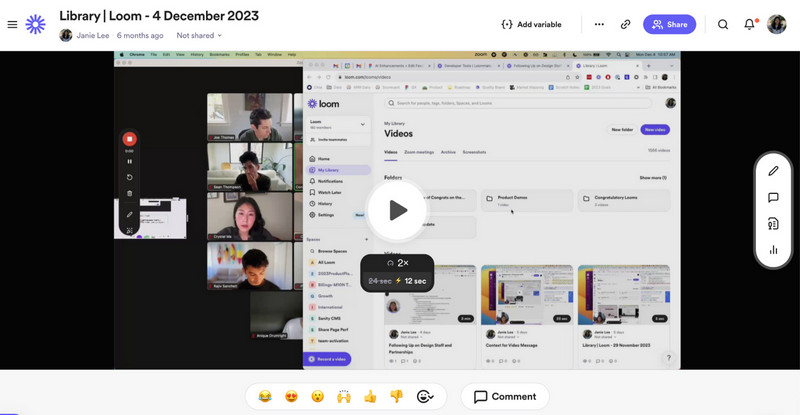
שלב 1הורד את Loom למחשב שלך ופעל לפי הוראות ההתקנה, לאחר מכן פתח אותו.
שלב 2בחר את מצב הקלטה שברצונך להשתמש בהן מהאפשרויות הזמינות בתפריט. הפעל את המיקרופון והמצלמה אם אתה זקוק להם להקלטה. לאחר מכן, לחץ התחל להקליט.
שלב 3כשתסיים, לחץ על ה תפסיק כפתור, והוא ייפתח אוטומטית בדפדפן חדש. לחץ על העתק קישור אם אתם רוצים לשתף את זה עם אחרים באינטרנט.
שיטה 8: ShareX
ShareX היא אפליקציית Windows חינמית בקוד פתוח שמקליטה אזורים ואת כל המסך, הופכת זרימות עבודה לאוטומטיות ומעלה באופן מיידי ללא סימני מים. מציעה את היכולת לתמוך בשמע של המיקרופון והמערכת, מקשי קיצור מותאמים אישית ופעולות לאחר הצילום כגון הערות ושיתוף. ShareX הוא מקליט המסך הטוב ביותר עבור Windows 11 למשתמשים מתקדמים שרוצים להקליט מסכים ב-Windows 11 עם אפשרויות חינמיות באיכות גבוהה וזרימות עבודה אוטומטיות.
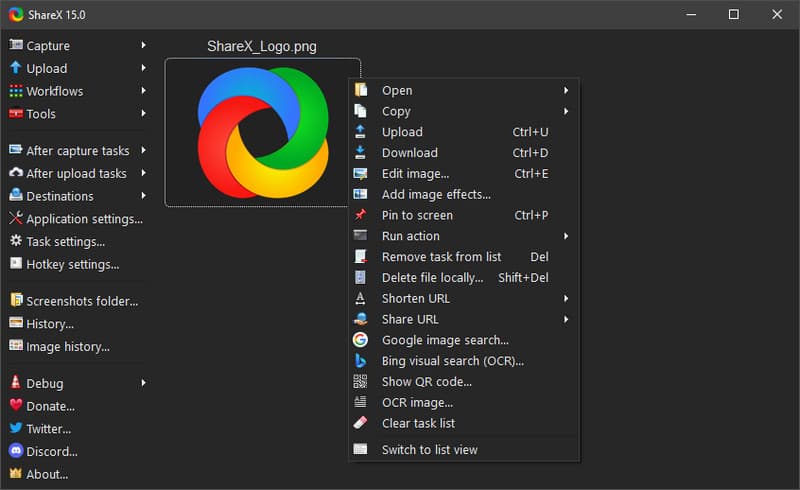
שלב 1פתחו את ShareX ולחצו על Shift + הדפס מסך מכיוון שאלה מקשי הקיצור שלו להקלטה.
שלב 2יופיע סמן, לחצו וגררו לאזור הנבחר שברצונכם להקליט, או פשוט ללחוץ על הפעל הקלטה בחלון או בהקלטה במסך מלא. לאחר מכן, ההקלטה תתחיל עם זמן קצר ממגבלת ההקלטה שלכם.
שלב 3כדי לסיים את ההקלטה, לחצו על אותם מקשי קיצור שהזכרנו או על תפסיק כפתור כאן.
שיטה 9: צילום מסך מדהים
צילום מסך מדהים היא אפליקציה מבוססת דפדפן שיכולה לצלם ולערוך צילומי מסך וגם מאפשרת לך להקליט אזורים מסוימים וכרטיסיות אינטרנט. עובד ב-Windows עם Chrome או Edge, תומך באודיו של מיקרופון, עריכה מהירה ושיתוף. עבור צילומי מסך מבוססי אינטרנט, Awesome Screenshot הוא הרחבה שימושית אם אתה מחפש ללכוד במהירות את המסכים שלך לעריכה מהירה ולערוך הערות. אז, אם אתה רוצה לנסות את זה תוסף מקליט המסך או האפליקציה להורדה, בצעו את השלבים הבאים.
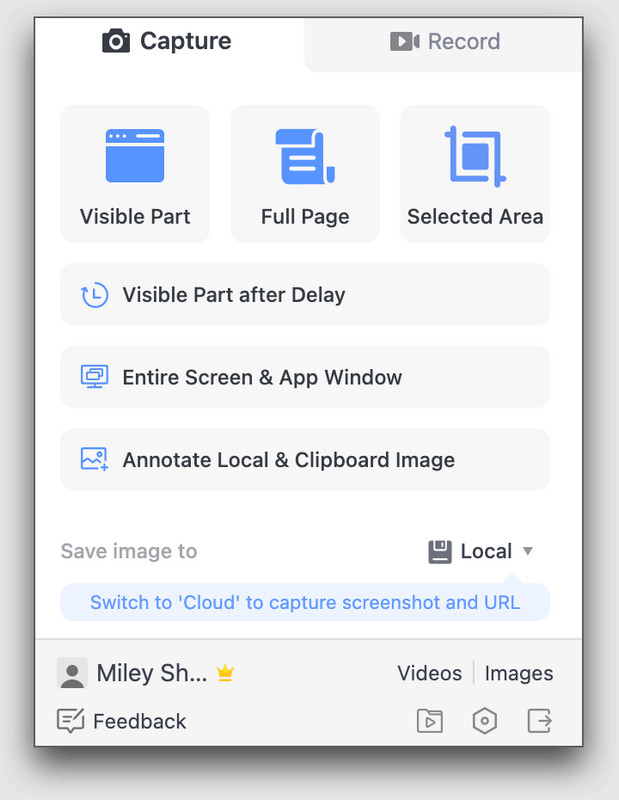
שלב 1הורד את האפליקציה למחשב שלך, או השתמש בהרחבת הדפדפן שלה. בחר את מצב ההקלטה הרצוי, כגון מסך מלא, כרטיסייה מסוימת, אזור ספציפי או מצלמה בלבד.
שלב 2במידת הצורך, הפעל את המיקרופון, שמע המערכת והמצלמה לפני שתלחץ על התחל להקליט.
שלב 3לאחר שתסיים, לחץ הפסקת שיתוף כדי לסיים את ההקלטה.
גיליון קיצורי מקלדת
לפעמים, אתם רוצים לבצע הקלטת מסך ב-Windows בעזרת קיצור דרך מכיוון שזה מהיר יותר ונטול טרחה. למדו אילו מקשי קיצור זמינים במקליט המסך שברצונכם להשתמש בו.
| שם הכלי | התחל להקליט | השהייה/חידוש הקלטה | גלילה של צילום מסך | לכידת תפריט קופץ | סגנון לוח ההקלטה של החלפת לוח | פתיחה/סגירה של מצלמת רשת | לכידת מסך |
| Xbox Game Bar | Win + Alt + R | לא זמין | לא זמין | לא זמין | Win + G | Win + Alt + W | Win + Alt + הדפס מסך |
| כלי חיתוך (Windows 11) | Win + Shift + R | לא זמין | לא זמין | לא זמין | לא זמין | לא זמין | Win + Shift + S |
| מקליט מסך AVAide | Alt + S | Alt + R | Alt + L | Alt + M | Alt + I | Alt + W | Alt + C |
| בנדיקם | Ctrl + F12 | לא זמין | לא זמין | F11 | לא זמין | מקש Tab | F11 |
| סטודיו OBS | הגדר מקשי קיצור מותאמים אישית | הגדר מקשי קיצור מותאמים אישית | לא זמין | לא זמין | לא זמין | לא זמין | F7 |
| ScreenRec | Alt + S | לא זמין | לא זמין | לא זמין | לא זמין | לא זמין | Alt + S |
| נוֹל | Ctrl + Shift + L | Alt + Shift + L | לא זמין | לא זמין | לא זמין | לא זמין | Ctrl + Shift + 1/2 |
| ShareX | Shift + הדפס מסך | לא זמין | לא זמין | לא זמין | לא זמין | לא זמין | הדפס מסך |
| צילום מסך מדהים | Alt + Shift + R | לא זמין | Alt + Shift + F לעמוד שלם | לא זמין | לא זמין | לא זמין | Alt + Shift + V/S/F |
פתרון בעיות: בעיות נפוצות בהקלטת מסך
| בְּעָיָה | מה לעשות? |
| ההקלטה לא תתחיל. | עבור אל הגדרות, לאחר מכן אל פרטיות, כדי לבדוק אם הקלטת המסך וגישה למיקרופון מופעלים. |
| מסך שחור בהקלטה | נסה סוג אחר של מצב צילום או סגור את אפליקציות הווידאו המוגנות |
| אין קול בהקלטה | הפעל את המיקרופון ואת שמע המערכת בהגדרות שלך או על ידי לחיצה על מקשי הקיצור הזמינים, בהתאם לכלי. |
| הקלטה מופסקת מוקדם יותר | פנה שטח דיסק והפעל מחדש את המחשב. |
| מצלמת הרשת לא מוצגת | הפעל את מצלמת הרשת לפני ההקלטה המוקדמת, או בדוק את ההגדרות שלה. נסה לבדוק גם את הרשאות המצלמה. |
עכשיו אתה יודע איך להקליט מסך במחשב באמצעות כלים מובנים כגון Xbox Game Bar ו-Snipping Tool, כמו גם יישומים חזקים של צד שלישי כגון מקליט מסך AVAide, OBS Studio, Bandicam ו-Loom. מצאו מישהו שצריך סרטוני משחק מהירים, סרטוני הדרכה או דוחות באגים מהירים; זה מה שיש לכולם. השתמשו בתכונות מובנות בסיסיות לפשטות, או בחרו בתכונות מתקדמות יותר כשאתם זקוקים לשליטה רבה יותר. לקבלת זרימת עבודה מהירה יותר, עיינו בגיליון קיצורי המקשים, ואם אתם נתקלים בבעיות, עיינו בסעיף פתרון הבעיות. טיפים וכלים אלה יעזרו לכם להשיג צילומי מסך נהדרים עם Windows, בכל פעם.
אודות המחבר

צלם פעילויות מסך עם אודיו, פגישות מקוונות, סרטוני משחק, מוזיקה, מצלמת אינטרנט וכו'.