


ייתכן שלמכשיר הקלטה המובנה של אנדרואיד אין מספיק תכונות. עם זאת, ישנם כמה טיפים מעשיים שתוכלו ללמוד כדי לבצע הקלטות קלות ורב-תכליתיות יותר על מסך הטלפון שלכם. פוסט זה יראה לכם מידע מקיף הקלטת מסך אנדרואיד שֶׁל מוֹרֶה.
אם אתם מעדיפים הקלטת מסך מתקדמת למשחקים, הדרכות או הדגמות מקצועיות, נוכל גם לעזור לכם לעקוף את העומס ולהביא לכם את שיטות ואפליקציות הקלטת המסך הטובות ביותר לאנדרואיד הזמינות כיום, יחד עם הדרכות שלב אחר שלב שיעזרו לכם להשיג תוצאות חדות ברזולוציה גבוהה.
חלק 1: כיצד להשתמש במקליט המסך המובנה של אנדרואיד
רוב המכשירים המריצים אנדרואיד 11 ומעלה מגיעים עם אפליקציית הקלטת מסך מקורית שנמצאת בחלונית ההגדרות המהירות. ניתן להשתמש בה פשוט כדי להקליט את מסך הטלפון.
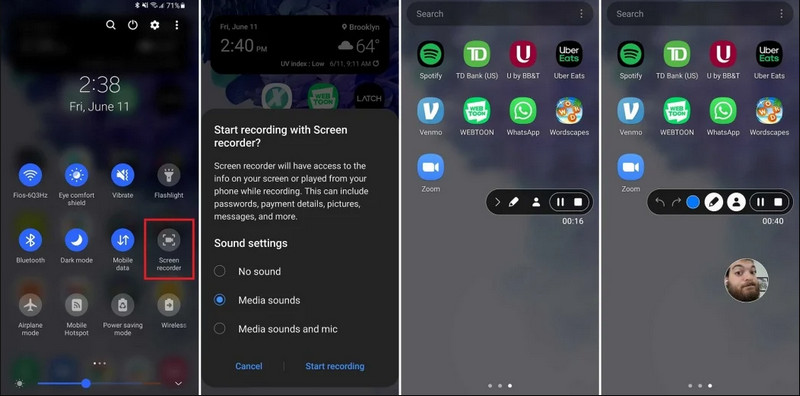
שלב 1גישה להגדרות מהירות
החליקו מטה פעמיים מראש המסך כדי להרחיב את תפריט ההגדרות המהירות המלא.
שלב 2בחר מקליט מסך
לְחַפֵּשׂ הקלטת מסךאם אינך רואה זאת, הקש על ה- לַעֲרוֹך (עם סמל עיפרון) וגררו את אריח הקלטת המסך לרשת הפעילה שלכם.
שלב 3הגדר את הגדרות ההקלטה
כשאתה מוצא את האנדרואיד מקליט מסך כלי, יש לך מספר אפשרויות הקלטה. בחירת אפשרויות מתאימות יכולה להפוך את הקלטת המסך באנדרואיד שלך ליעילה.
- אין קול: הקלט רק את מסך הטלפון ללא שמע מערכת או צליל חיצוני.
- צלילי מדיה: הקלט את המסך עם כל צלילי המערכת, כולל צלילים מכל האפליקציות בטלפון שלך.
- צלילי מדיה ומיקרופון: הקלט גם צלילי מערכת וגם צלילים חיצוניים (מיקרופון מובנה של הטלפון או מיקרופון מהאוזניות שלך).
שלב 4התחלה ועצירה של הקלטת מסך
בצע את בחירתך והקש על התחל קידוד מחדש כפתור. ספירה לאחור תופיע בשורת המצב. כדי להפסיק את הקלטת המסך של אנדרואיד, הקש על תפסיק כפתור (אם יש סרגל מצב הקלטה) או החלק למטה את לוח ההתראות והקש על הסמל האדום תפסיק לַחְצָן.
חלק 2: כמה כלי מקליט אנדרואיד ספציפיים למותג
יצרני טלפונים רבים של אנדרואיד מספקים מקליטי מסך קנייניים עם תכונות מתקדמות כמו שכבות של מצלמת סלפי. בדקו כמה מתכונות ההקלטה המיוחדות של מותגי אנדרואיד פופולריים:
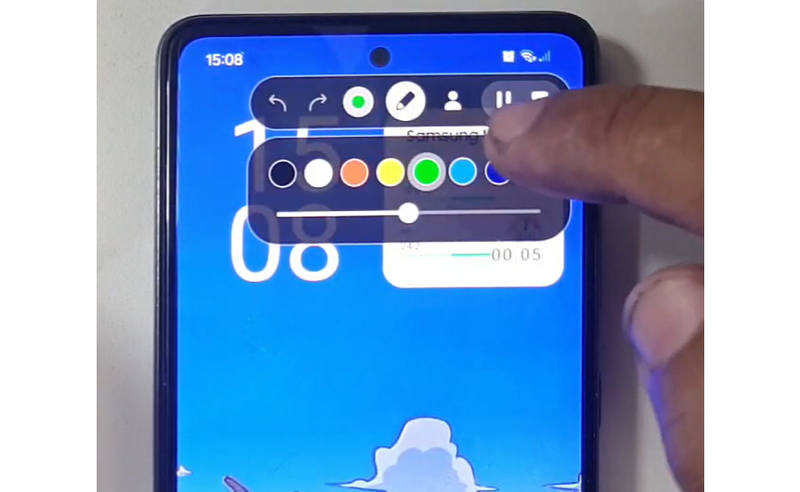
סמסונג (ממשק משתמש אחד): כולל מקליט מסך עם סרגל כלים המאפשר לך לצייר על המסך בזמן אמת.
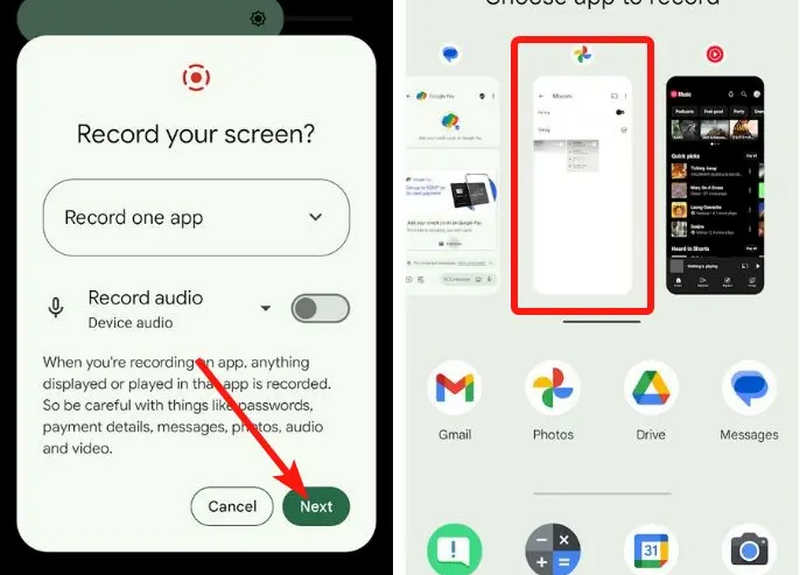
גוגל פיקסל: ניתן לבחור אפליקציה ספציפית (למשל, אפליקציית בנקאות או וואטסאפ) להקלטה. אם תצאו מהאפליקציה או תורידו את מסך ההתראות במהלך הסשן, פעולות אלו לא יופיעו בסרטון הסופי.
שיאומי (MIUI/HyperOS): כולל אפליקציית "מקליט מסך" ייעודית עם התאמה אישית עמוקה של קצב פריימים (FPS) וקצב סיביות.
Huawei & Honor (HarmonyOS / MagicOS): שילוב ייחודי של חומרה-תוכנה המאפשר להתחיל או לעצור הקלטה פשוט על ידי לחיצה כפולה על המסך עם שתי פרקי אצבעות.
OPPO, vivo ו-realme (ColorOS / OriginOS): כאשר משחק מופעל, מקליט המסך מייעל אוטומטית את משאבי המעבד/כרטיס המסך כדי להבטיח שהקלטת סרטון 4K/60FPS לא תגרום להשהיה או לירידות פריימים במהלך המשחק.
חלק 3: 4 דרכים מגוונות נוספות להקלטת מסך באנדרואיד
אם טלפון האנדרואיד שלך אינו כולל תכונות הקלטת מסך מספקות, תוכל לבדוק את ארבע אפליקציות הקלטת המסך לאנדרואיד. הן יכולות לספק כמה תכונות נוחות ומעשיות.
1. מקליט מסך AZ
מקליט מסך AZ היא אפליקציית הקלטת מסך פופולרית מאוד לאנדרואיד בחנות Play. היא יכולה להקליט וידאו ברזולוציה גבוהה על מסך טלפון האנדרואיד שלך. האפליקציה מאפשרת לך גם להתאים את הרזולוציה, קצב הפריימים וקצב הסיביות בהתאם למטרות הקלטה שונות.
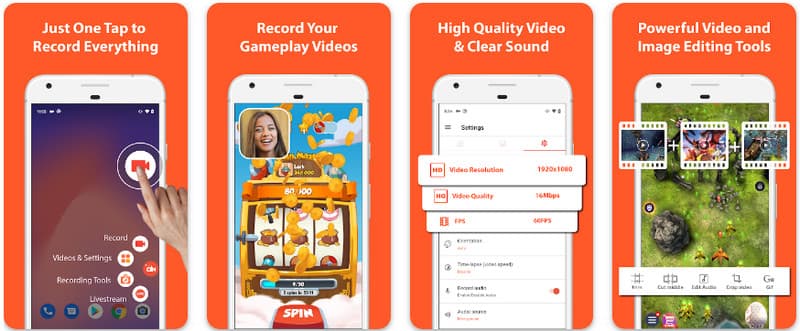
יתר על כן, מקליט מסך AZ מאפשר למשתמשים להקליט את הצליל המושמע במכשיר באמצעות מיקרופון. זה הופך את ההקלטה אפילו להקלטות המורכבות והרמה הגבוהות ביותר האפשריות. סידור הכפתורים הפשוט והביצועים העקביים שלה הופכים את האפליקציה למועדפת על רבים. למד כיצד להקליט מסך אנדרואיד עם זה באמצעות המדריך שלהלן.
שלב 1לאחר שהורדת את האפליקציה לאנדרואיד שלך, הפעל אותה. לאחר מכן, לחץ על מַצלֵמָה לחצן כדי לגשת לתכונת הקלטת המסך שלו.
שלב 2בֶּרֶז התחל עכשיו כדי להתחיל את הקלטת המסך באנדרואיד שלך, וספירה לאחור תופיע על המסך.
שלב 3כדי להפסיק את הקלטת המסך בטלפון האנדרואיד שלך, הקש על תקליט לחצן שוב. בעזרת אפליקציה זו, תוכלו גם הקלטת מסך באייפון שלך עם צלילים מוּפעָל.
2. מקליט מסך מוביזן
מקליט מסך של מוביזן היא אפליקציה נוספת להקלטת מסך באנדרואיד הזמינה בחינם בחנות Play ומבטיחה הקלטה קלה ואיכותית. היא מספקת אפשרויות להקלטה באיכות HD עם פרמטרים מתכווננים והקלטה נקייה להסרת סימני מים. בנוסף, ל-Mobizen יש גם הקלטת קול פנימית, בה ניתן להשתמש להקלטה, כמו גם מצלמת פנים ו-GIF, שיכולים להוסיף עוד להקלטה. היא גם משתמשת בהפעלה פשוטה של התכונות והפקדים השונים המסייעים למשתמש להתחיל להקליט מסך באנדרואיד או לערוך את התוכן מבלי להתעסק יותר מדי באפליקציה. גלו כיצד להקליט מסך באנדרואיד באמצעות אפליקציה זו.
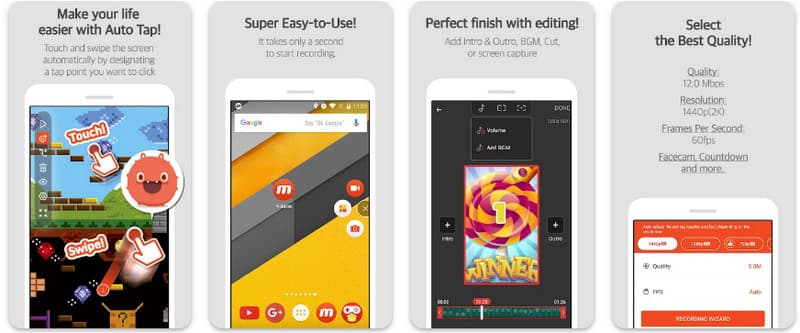
שלב 1הורד אותו עכשיו לאנדרואיד שלך ופתח את האפליקציה.
שלב 2בצעו את ההגדרות הנדרשות מכם לפני שתוכלו להשתמש במקליט המסך. סרגל הקלטה צף יופיע על המסך. הקישו על מַצלֵמָה כפתור, אם כך התחל עכשיו כדי להתחיל את הקלטת המסך.
שלב 3כשתסיים, הקש על מ וה תפסיק כפתור כדי לעצור את הקלטת המסך בטלפון האנדרואיד שלך.
3. מקליט מסך - XRecorder של Inshot
מקליט מסך - XRecorder הוא כלי רב עוצמה והכל באחד לאנדרואיד, המפשט את צילום המסך על ידי הצעת הקלטה ברזולוציית HD, עד 1080p ב-60 פריימים לשנייה, ללא צורך בגישת רוט או הטלת סימני מים. כשיטה מובילה להקלטת מסך באנדרואיד 17/16, הוא מספק חוויית משתמש חלקה באמצעות חלון בקרה צף המאפשר לך להתחיל, להשהות ולצייר על המסך בזמן אמת באמצעות כלי מברשת מובנה. מעבר ללכידת וידאו פשוטה, הוא תומך בהקלטת שמע פנימית, שכבות של מצלמת פנים לסטרימרים ועריכת וידאו משולבת, מה שהופך אותו לבחירה אידיאלית לכל מי שצריך ליצור הדרכות מקצועיות, קטעי משחק או הדגמות ברורות ישירות מהמכשיר הנייד שלו.
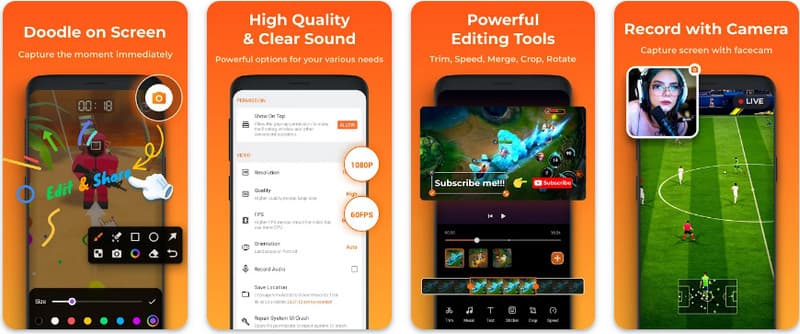
שלב 1כאשר הורדת ה-XRecorder הסתיימה, פתח אותו והקש על אפשר סמל צף.
שלב 2לאחר מכן, הקש על תקליט לחצן כדי להתחיל הקלטה ו התחל עכשיו כדי לאשר.
שלב 3כפי שניתן לראות, אורך ההקלטה מופיע כסמל צף; הקש על תפסיק לחצן כדי לשמור את ההקלטה.
4. מקליט מסך סופר
מקליט מסך סופר הוא פתרון מהשורה הראשונה לכל מי שמחפש דרך מקצועית להקלטת מסך באנדרואיד עם גמישות מרבית. אפליקציה עוצמתית זו מספקת לכידה ברזולוציה גבוהה ובולטת בכך שהיא מציעה חוויה ללא סימן מים אפילו בגרסה החינמית שלה, מה שמבטיח שהתוכן שלכם יישאר נקי ומקצועי. היא כוללת מצלמת פנים משולבת ללכידת תגובות בזמן אמת וכלי מברשת רב-תכליתי המאפשר לכם לצייר על המסך במהלך ההקלטה, פונקציה חיונית ליצירת הדרכות או הדרכות מרתקות. בין אם אתם משתמשים מתחילים או מתקדמים, Super Screen Recorder מספק את ההתאמה האישית החזקה הדרושה כדי לשלוט בהקלטת מסך באנדרואיד בקלות.
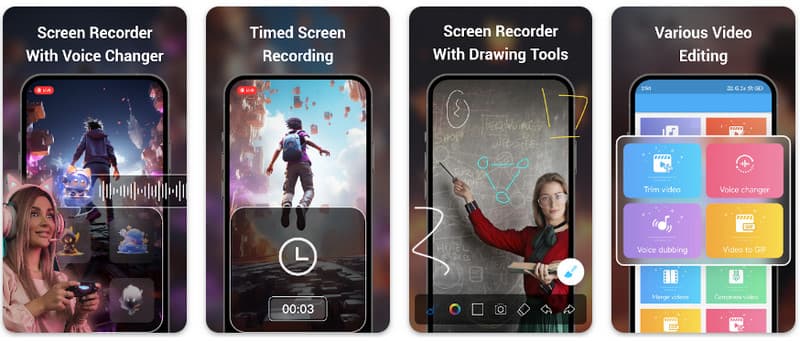
שלב 1פתח את מקליט המסך הסופר באנדרואיד שלך ואז הפעל את התכונה הצפה של האפליקציה כדי להשתמש בה.
שלב 2במסך, הקש על מַצלֵמָה לחצן, אשר את ההגדרות והקש התחל עכשיו. לאחר מכן, תופיע ספירה לאחור של שלוש שניות לפני תחילת ההקלטה.
שלב 3הקש על מְרוּבָּע לחצן כדי לסיים את ההקלטה ולשמור אותה במכשיר האנדרואיד שלך.
בונוס: הקלטת מסך במחשב ובטלפון נייד באיכות הטובה ביותר
האם אתה מאמין שאפשר להקליט את מסך הטלפון של אנדרואיד במחשב? מקליט מסך AVAide מיועד בעיקר להקלטת מסך ב-Windows וב-Mac. אבל הוא יכול גם להקליט את המסך המלא של טלפון האנדרואיד שלכם. זה מועיל במיוחד כשצריך ליצור מדריך של פעולות מסוימות באנדרואיד ולאחר מכן לערוך את הסרטון ישירות ב-Mac או Windows שלכם.
להקלטת מסך ב-Windows וב-Mac, AVAide Screen Recorder תומך בקודקים של AV1 ו-HEVC, שיכולים לדחוס מאוד את תוצאת ההקלטה תוך שמירה על איכות הווידאו הטובה ביותר. האצת החומרה המלאה מאפשרת לך להקליט סרטונים ארוכים עם צריכת CPU נמוכה מאוד. מעניין עוד יותר הוא שיש לו מיקרופון משופר שמשפר את הבהירות על ידי ביטול צלילי רקע והד. התוכנה מבצעת הקלטות מצוינות עם תכונות ניווט ועריכה פשוטות, כמו חיתוך והערות. למרות שמדובר בתוכנה יקרה, היא מומלצת מאוד מכיוון שניתן להשתמש בה למטרות אישיות ועסקיות.
- הקלט את מכשיר האנדרואיד או ה-iOS שלך באיכות הווידאו הטובה ביותר.
- צרו בקלות הקלטות הדרכה בעזרת תכונות ציור והערות.
- תמיכה בקודקים של פלט AV1 ו-HEVC לדחיסה גבוהה של וידאו הפלט.
- הציעו תכונות עריכת וידאו קלות לשימוש לעריכת ההקלטות שלכם באנדרואיד.

 הורדה מאובטחת
שלב 1כעת תוכל להוריד את מקליט המסך למחשב שלך על ידי סימון כפתור ההורדה כאן. לאחר מכן, התקן את האפליקציה על ידי ביצוע ההנחיה על המסך והפעל אותה כדי להתקדם לשלב הבא.
שלב 2כעת, כשהיא כבר פועלת לתוך המערכת שלך, מקם את מסגרת ההקלטה באזור שבו ברצונך להתחיל להקליט. כאן, אתה יכול להקליט את כל המסך שלך על ידי בחירה באפשרות מסך מלא במקום האפשרות אזור.

שלב 3לאחר מכן, ניתן להגדיר את הקלטת המערכת והמיקרופון במידת הצורך. אם אתה רוצה להוסיף את הפנים שלך להקלטה, הפעל כאן את אפשרות מצלמת האינטרנט. לאחר מכן, לחץ REC כדי להתחיל את הספירה לאחור ולהתחיל להקליט.

שלב 4כשתסיים את ההקלטה, לחץ על תפסיק כפתור, שהוא ריבוע אדום. לחלון הבא שיופיע, תוכל לערוך את ההקלטה שצילמת קודם לכן עם האפשרויות הזמינות כאן, ולאחר מכן מקם את הסמן על ההקלטה ולחץ על הורד לחצן כדי לשמור אותו. אפליקציה זו מוכיחה את ערכה כ- מקליט הקוד הפתוח הטוב ביותר זָמִין.

חלק 4: שאלות נפוצות על איך להקליט מסך באנדרואיד
איפה אני יכול למצוא את הקלטת המסך בהגדרות שלי?
כדי לגשת לתכונה המובנית כדי הקלטת מסך באנדרואיד ללא אפליקציות צד שלישי, החליקו למטה פעמיים מראש המסך כדי לפתוח את הגדרות מהירות לוח וחפש את הקלטת מסך (או סמל "הקלטת מסך"). אם הוא אינו גלוי, הקש על לַעֲרוֹך (עיפרון) כדי לגרור את כפתור הקלטת המסך אל המשבצות הפעילות. לאחר ההוספה, תוכלו פשוט ללחוץ על הסמל, לבחור את העדפות השמע שלכם, כגון הקלטת צלילי מערכת פנימיים או המיקרופון שלכם, וללחוץ על התחל כדי להתחיל לצלם את המסך ישירות מהגדרות המערכת.
למה אני לא מוצא הקלטת מסך באנדרואיד שלי?
היעדר אפשרות מובנית להקלטת מסך באנדרואיד נובע בדרך כלל מכך שהמכשיר שלך מריץ מערכת הפעלה ישנה יותר, מכיוון שהתכונה המובנית תוקנה רק עם אנדרואיד 11אם התוכנה שלך מעודכנת, ייתכן שהמתג פשוט מוסתר מהמערכת שלך. הגדרות מהירות תפריט; בדרך כלל ניתן לחשוף אותו על ידי הקשה על לַעֲרוֹך כפתור בלוח ההתראות וגרירת אריח "הקלטת מסך" לתצוגה הפעילה. בנוסף, חלק מהמכשירים הבסיסיים "Go Edition" או גרסאות של יצרנים ספציפיים עשויים להשבית תכונה זו כדי לחסוך במשאבי מערכת, ובמקרה כזה שימוש באפליקציית צד שלישי כמו XRecorder או Super Screen Recorder הוא הפתרון היעיל ביותר.
למה נעלם כפתור הקלטת המסך?
כפתור הקלטת המסך בדרך כלל נעלם מכיוון שהוא הוזז בטעות מחוץ לאזור הפעיל של ההגדרות המהירות; לעתים קרובות ניתן לשחזר אותו על ידי הקשה על עריכה (סמל עיפרון) בלוח ההתראות וגרירת האריח אחורה. ייתכן שהוא מוסתר גם עקב מצב חיסכון באנרגיה, מוגבל על ידי פרופיל עבודה, או פשוט דורש הפעלה מחדש של המערכת כדי לרענן את ממשק המשתמש לאחר עדכון תוכנה.
בעזרת המדריך המפורט כאן, למדת כיצד להקליט מסך באנדרואיד סמסונג. מדריך זה יועיל לך מאוד לגבי משימת הקלטת המסך שלך, במיוחד אם אתה משתמש אנדרואיד. שתף מידע זה עם חבר משתמש אנדרואיד שלך כדי לתת לו מושג כיצד לעשות זאת.
אודות המחבר

הקלט מסך, אודיו, מצלמת אינטרנט, משחקיות, פגישות מקוונות, כמו גם מסך אייפון/אנדרואיד במחשב שלך.


