איך להקליט מוזיקה באייפוןהקלטת המוזיקה האהובה עליכם היא משימה פשוטה, הודות לתכונות המוכנות מראש של הטלפון ולאפליקציות האמינות. בין אם אתם מקליטים שיר קצר, מתמודדים עם רצועות אינסטרומנטליות או מצלמים שיחות, האייפון שלכם יכול להציע אפשרויות גמישות שיכולות לסייע למתחילים ולמקצוענים. לכן, אם אתם רוצים שיטות שונות להקלטת המוזיקה שלכם ביעילות, עדיף להתחיל לקרוא את כל מה שבמדריך הזה.
חלק 1. הקלטת מוזיקה באייפון באמצעות אפליקציית תזכירי הקול המובנית
אחת מאפליקציות הקלטת ה-MP3 באייפון בהן ניתן להשתמש כדי להקליט מוזיקה היא אפליקציית Voice Memos. זוהי אפליקציה מובנית שניתן לגשת אליה במכשיר האייפון שלכם. מקליט המוזיקה הזה מאפשר לכם להקליט וללכוד כל תוכן שמע בצורה ברורה ומיידית. הוא אידיאלי לרישום רעיונות לשירים, מנגינות ותרגולים מלאים. החלק הכי טוב כאן הוא שלאפליקציה יש ממשק משתמש אינטואיטיבי. אתם יכולים לקצץ בצורה חלקה את התוכן המוקלט שלכם, לארגן ולשתף אותו מבלי להיתקל בקשיים. כמו כן, עבור מוזיקאים שרוצים... להקליט אודיו באייפון, אנחנו לא יכולים לומר שאפליקציית תזכירי הקול עשויה להיות הכלי האידיאלי.
כדי ללמוד כיצד להקליט קובץ MP3 באייפון, תוכלו לבצע את השלבים המפורטים להלן.
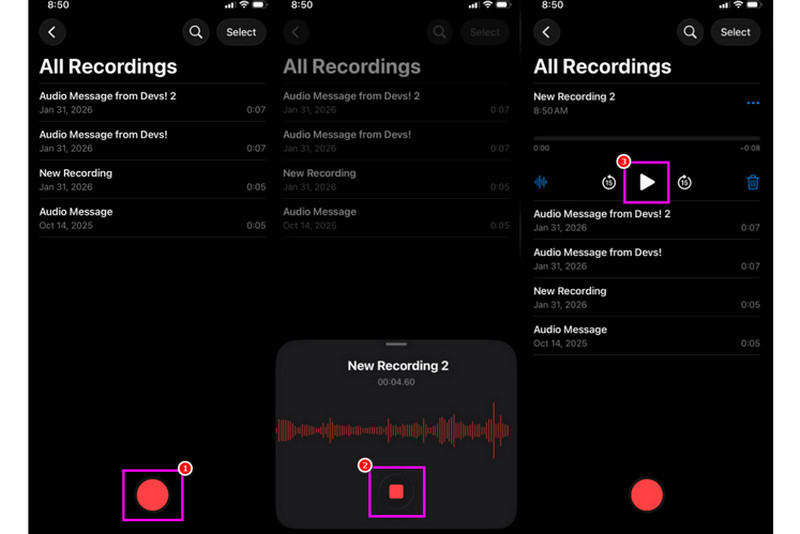
שלב 1באייפון שלך, המשך אל כלי עזר סעיף והקש על הודעה קולית אפליקציה. לאחר מכן, ודא שהמוזיקה שברצונך להקליט כבר מוכנה.
שלב 2לאחר מכן, המשך לממשק התחתון ולחץ על תקליט כפתור. לאחר שתסיים, תוכל כעת להשמיע את המוזיקה באייפון שלך או במכשיר אחר.
שלב 3לאחר סיום ההקלטה, לחצו על תפסיק כפתור. בעזרתו, כעת תוכלו להקליט את המוזיקה שלכם. תוכלו אפילו לערוך או לשתף את הקובץ אם תרצו.
חלק 2. לכידת מוזיקה באמצעות GarageBand
האם ברצונך ליצור מוזיקה משלך ולהקליט אותה כדי לשמור אותה במכשיר שלך? במקרה כזה, תוכל לגשת GarageBandזוהי אפליקציה חינמית שמבטיחה שתוכלו להקליט מוזיקה באייפון שלכם. עם תכונת ההקלטה שלה, אין ספק שהקלטת המוזיקה שלכם היא משימה פשוטה. תוכלו אפילו לגשת לכלי נגינה שונים בהם תוכלו להשתמש אם תרצו ליצור מוזיקה משלכם. לכן, אם אתם זקוקים לפתרון הקלטה מקיף, שקלו להשתמש באפליקציה הזו.
שלב 1לך אל חנות אפל ולהתחיל להוריד GarageBandלאחר ההתקנה, הפעל אותו במכשיר שלך.
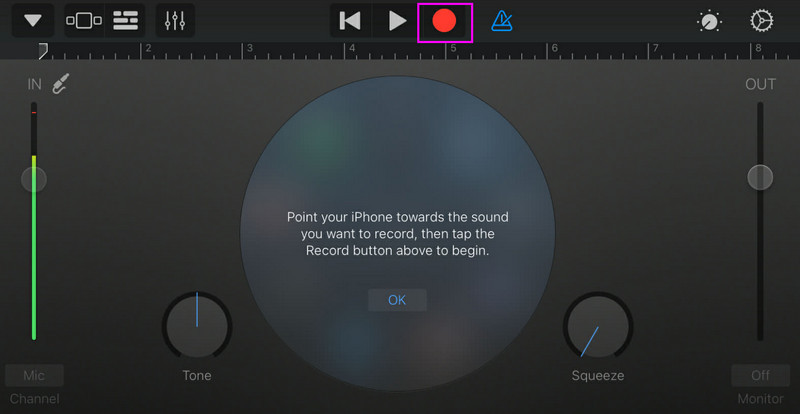
שלב 2מהממשק, עליך לבחור וללחוץ על הלחצן מקליט אודיולאחר מכן, הממשק הראשי יופיע על המסך.
שלב 3התחל להקליט את המוזיקה שלך על ידי לחיצה על תקליט כפתור למעלה. לאחר מכן, הקש תפסיק כדי לסיים את ההקלטה.
חלק 3. הקלטה מרובת ערוצים עם אפליקציות צד שלישי
GarageBand שימושי להקלטת מוזיקה. עם זאת, ישנן אפליקציות נוספות בהן ניתן לגשת שיכולות להתאים במיוחד לסגנונות שונים של כתיבת שירים, מעקב ושיתוף פעולה בין פלטפורמות. חלק מהאפליקציות הן:
- BandLab - כלי זה אידיאלי לשיתוף פעולה מבוסס ענן. הוא מושלם למוזיקאים מכיוון שיש לו תכונות טובות יותר, כגון אלגוריתמי מאסטרינג, ספריית לולאות נרחבת והקלטות מרובות.
- FL Studio Mobile - זהו כלי מבוסס מנוי. מפיקי היפ הופ, אלקטרוניקה ופופ מעדיפים אותו.
- קובאסיס 3 - זוהי אפשרות אולפן מקצועית שעברה מ-Cubase לשולחן העבודה. הכלי יכול להציע עריכת MIDI מעולה, הקלטה בלתי מוגבלת של רצועות שמע והקלטה מרובת ערוצים, מה שהופך אותו לכלי אידיאלי עבור משתמשים.
דרך יעילה להקליט מוזיקה על שולחן העבודה
האם אתם מחפשים מקליט שולחני שיעזור לכם להקליט את המוזיקה שלכם? במקרה כזה, תוכלו לגשת, מקליט מסך AVAideתוכנה זו מציעה את Phone Recorder שלה כדי להקליט את המוזיקה שלך מהאייפון שלך. תוכנה זו אידיאלית אם אתה רוצה לשמור את ההקלטה שלך ישירות למחשב שלך. מה שאנחנו אוהבים כאן הוא שהמקליט הזה יכול לספק לך תהליך הקלטה חלק ופשוט, הודות לממשק המשתמש האינטואיטיבי שלו. תוכנה זו גם מבטיחה שתוכל לשמור את השמע באיכות הטובה ביותר, עד 320 kbps, מה שמוביל להשמעת שמע טובה יותר. אתה יכול אפילו לערוך את השמע שלך בהתאם להעדפות שלך, מה שהופך את מקליט השמע לאידיאלי עבור כל המשתמשים.
שלב 1הורד מקליט מסך AVAide בשולחן העבודה שלך. לאחר מכן, הפעל אותו כדי להתחיל בתהליך.

 הורדה מאובטחת
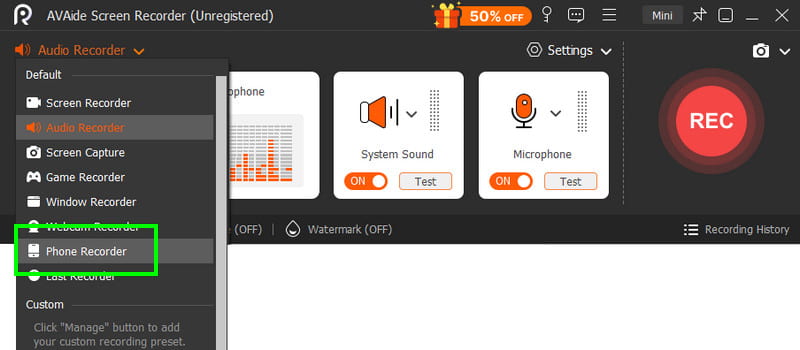
שלב 2מהממשק, עבור אל להפיל לחצן ובחר את מקליט טלפון תכונה. לאחר מכן הקש על iOS וחבר את הטלפון שלך.
שלב 3לאחר מכן, המשך אל הקלטת תוכן סעיף כדי לבטל את הסימון של מָסָך אפשרות ובחר את רמקול טלפון אפשרות. לאחר שתסיים, הקש תקליט כדי להתחיל את תהליך ההקלטה.
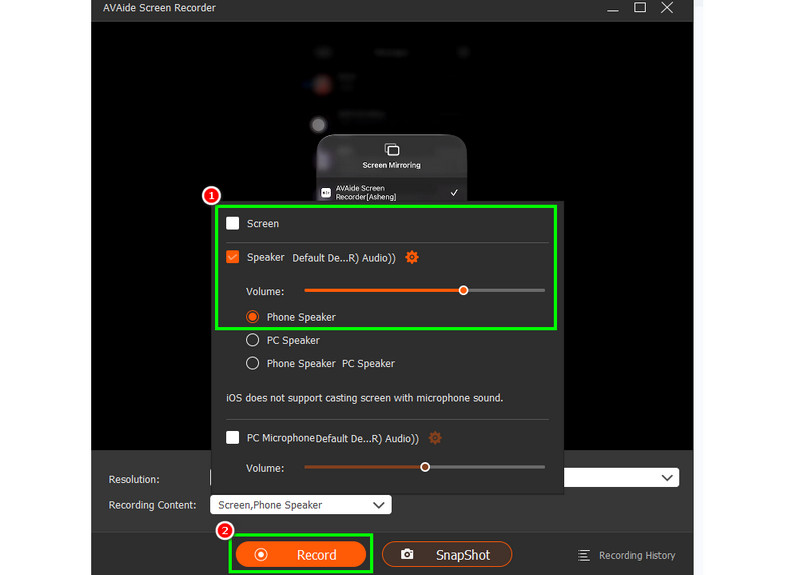
בֶּרֶז תפסיק כדי לסיים את ההקלטה.
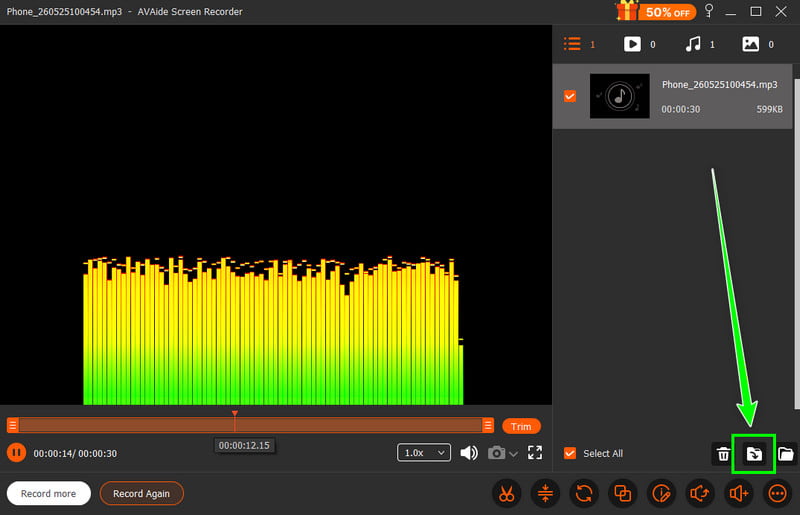
שלב 4כאשר התצוגה המקדימה מופיעה, לחצו יְצוּא כדי להתחיל לשמור את האודיו המוקלט.
חלק 4. הקלטה בפורמט MP3
כברירת מחדל, המערכת האקולוגית של אפל שומרת מוזיקה כ-WAV או AAC. עם זאת, עדיין ניתן לומר ש-MP3 הוא בין פורמטי האודיו הניידים ביותר שקיימים. לכן, המרת ההקלטות שלכם ל-MP3 היא האפשרות הטובה ביותר. כדי להמיר את ההקלטה שלכם, תוכלו להשתמש באפליקציית הקלטת שמע. בעזרת אפליקציה זו תוכלו להמיר את ההקלטות שלכם מתזכירי קול ל-MP3 לתאימות טובה יותר. ניתן להמיר AAC ל-MP3, WAV ל-MP4, FLAC ל-WAV, ועוד.
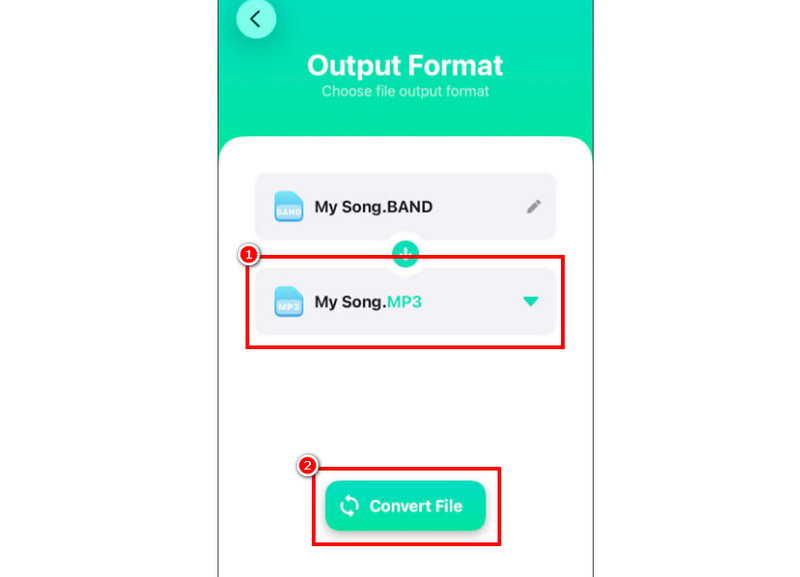
שלב 1לך ל ... שלך חנות אפל ולהוריד את ממיר אודיו אפליקציה. לאחר מכן, הפעילו את הממיר והתחלו להוסיף את ההקלטה.
שלב 2מ ה פוּרמָט סעיף, התחל לבחור את MP3 פורמט. לאחר מכן, הקש על להמיר לַחְצָן.
שלב 3לאחר תהליך ההמרה, כעת תוכלו להשמיע את קובץ ה-MP3 שלכם.
חלק 5. איך להקליט מוזיקה מיוטיוב באייפון
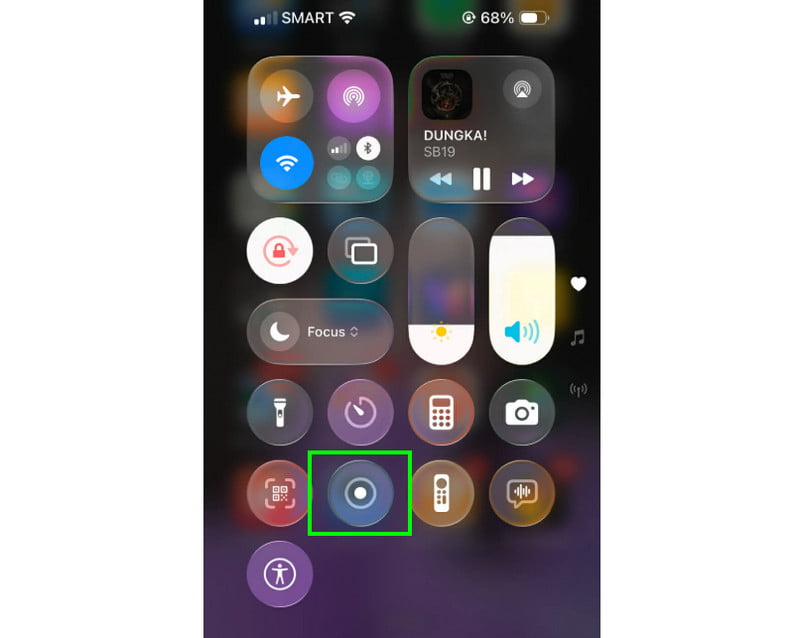
האם אתם רוצים להקליט מוזיקה מיוטיוב באייפון שלכם? במקרה כזה, כל מה שאתם צריכים זה להשתמש בתכונת ההקלטה במכשיר שלכם. בעזרת תכונה זו, תוכלו להקליט כל מוזיקה מיוטיוב. כדי להפעיל את תכונת ההקלטה, כל מה שאתם צריכים לעשות הוא ללחוץ על מגע מסייע והמשיכו למקטע מרכז הבקרה. שם תיכנסו לתכונת ההקלטה. ההליך יתחיל לאחר ספירה לאחור של 3 שניות. לאחר מכן, תוכלו להתחיל להשמיע את המוזיקה מיוטיוב. לחצו על עצור כדי לסיים את ההקלטה. לאחר שתסיימו, תוכלו להשתמש בכל ממיר וידאו ל-MP3 כדי להפוך את הסרטון שלכם לקובץ שמע.
חלק 6. טיפים מקצועיים לאיכות צליל טובה יותר
עיינו בסעיף זה וקבלו תובנות נוספות כיצד להשיג איכות צליל טובה יותר.
- תמיד להקליט במקום שקט כדי למזער רעשי רקע.
- בעת שימוש באפליקציה כמו GarageBand, עליכם לשמור על איזון בהגברת הקלט. הימנעו תמיד מחיתוך על ידי הישארות מתחת לאזור האדום.
- לקבלת איכות טובה יותר, תמיד הקליטו בפורמט AIFF או WAV.
- ניטור הקלטה באמצעות אוזניות. ניתן להשתמש באוזניות חוטיות כדי לטפל בבעיות בזמן אמת.
ל להקליט שיר באייפון, השתמשו בכל השיטות המופיעות במדריך זה. בעזרת זה, תוכלו להשיג את התוצאה הרצויה לאחר התהליך. כמו כן, אם תרצו להקליט מוזיקה מהטלפון שלכם באמצעות שולחן העבודה, תוכלו לגשת מקליט מסך AVAideבעזרת תכונת הקלטת הטלפון של תוכנה זו, תוכלו לחבר את האייפון שלכם ולהקליט כל מוזיקה ולשמור אותה באיכות הטובה ביותר, מה שהופך אותו למקליט הטוב ביותר שתוכלו לסמוך עליו.
אודות המחבר

צלם פעילויות מסך עם אודיו, פגישות מקוונות, סרטוני משחק, מוזיקה, מצלמת אינטרנט וכו'.