איך להקליט הודעה קולית באייפוןובכן, הקלטת הודעה קולית היא דרך מהירה לשתף את מחשבותיך או לשלוח שמע מותאם אישית מבלי להקליד. בעזרת תכונת ההודעות הקוליות המובנית של האייפון, תוכל להקליט, לשמור ולשתף באופן מיידי את קטעי האודיו שלך בכמה נגיעות בלבד. לכן, אם אתה מחפש דרך מקיפה להקליט ולשלוח הודעה קולית בטלפון הנייד שלך, עיין במדריך זה כדי להשיג את התוצאה הרצויה.
חלק 1. כיצד להקליט ולשלוח הודעה קולית ב-iMessage
iMessage אינו רק כלי תקשורת פשוט. הוא יכול גם להציע את תכונת הודעת הקול שלו. בעזרת תכונה זו, תוכלו לשלוח או לשתף את ההודעות והמחשבות שלכם באמצעות הקול שלכם. זוהי פונקציה אידיאלית אם אתם רוצים לשלוח את ההודעות שלכם מבלי להקליד טקסט מהמקלדת. החלק הכי טוב כאן הוא ששליחת הודעת קול היא פשוטה, מה שהופך אותה למושלמת עבור כל המשתמשים. לכן, אם אתם רוצים להתחיל להקליט ולשלוח הודעות, תוכלו להשתמש בהוראות שלהלן.
כיצד להקליט הודעת קול באייפון
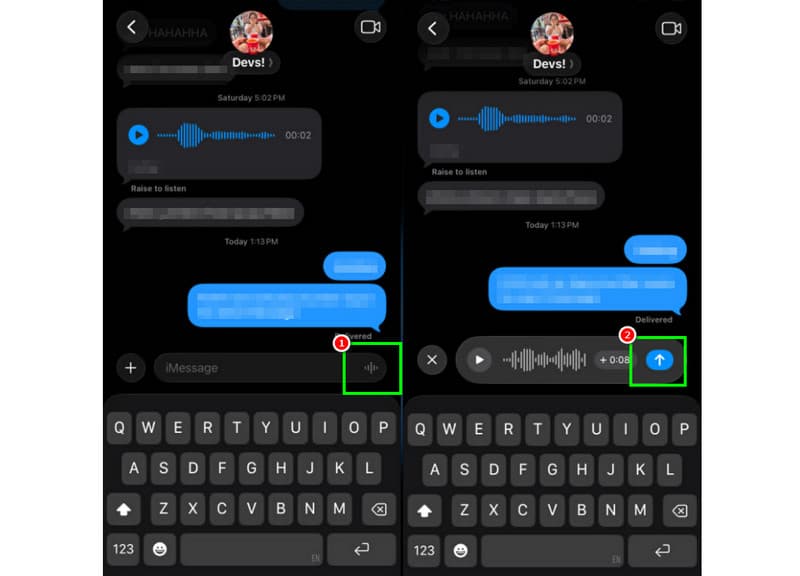
שלב 1באייפון שלך, הפעל את iMessage אפליקציה. לאחר מכן, המשך לאדם שברצונך לתקשר איתו.
שלב 2מהמסך, לחצו והחזיקו את מִיקרוֹפוֹן אפשרות. תוך כדי לחיצה ממושכת, תוכלו להתחיל להקליט ולדבר את ההודעה שלכם.
שלב 3כדי לעצור את ההקלטה, שחררו את האצבע מהכפתור. לאחר מכן, הקישו על שלח חץ כפתור לשליחת ההודעה.
האזנה להודעות קוליות נכנסות
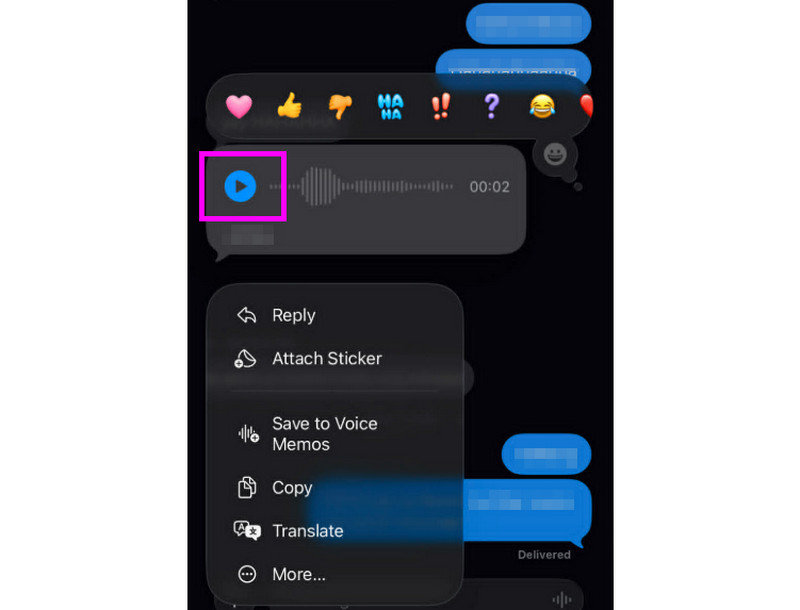
שלב 1לאחר קבלת הודעת הקולית, ניתן להקיש לְשַׂחֵק לַחְצָן.
שלב 2ניתן גם לכוון את עוצמת הקול מהכפתור הצדדי של האייפון כדי לשמוע את ההודעה כראוי.
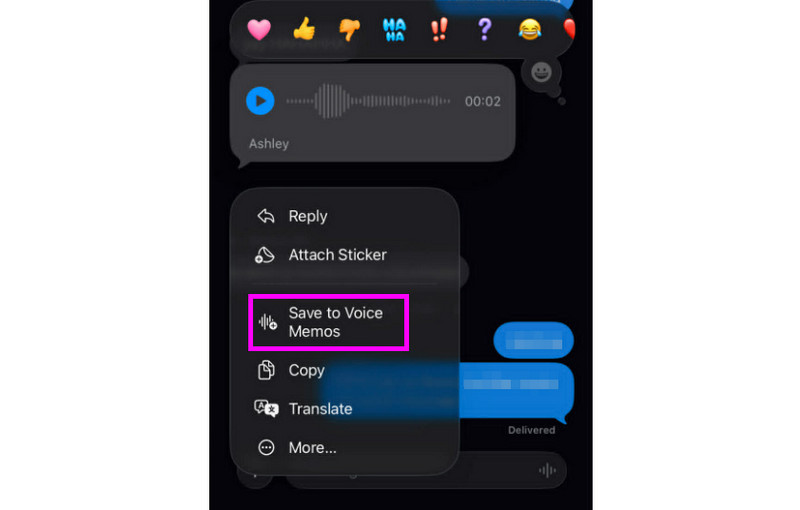
שלב 3לאחר שתי דקות, תוקף ההודעה הקולית יפוג. כדי לשמור את ההודעה, פשוט לחצו על לִשְׁמוֹר אפשרות למטה.
שלב 4אם ברצונך לשמור את הודעת הקולית, פשוט לחץ לחיצה ארוכה והקש על הלחצן שמור בתזכירים קוליים אפליקציה. עם זה אפליקציית הקלטת קול, באפשרותך להאזין שוב להודעה בכל עת ובכל מקום.
התאמת הגדרות הודעות קוליות
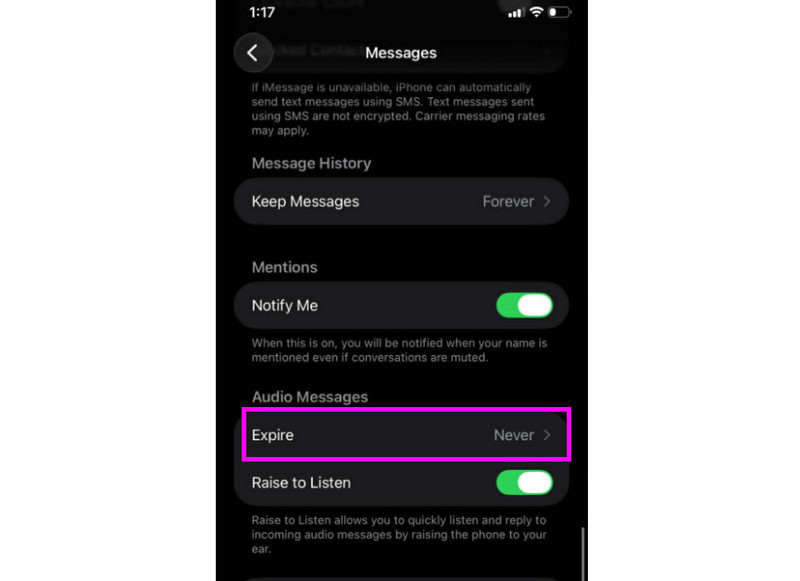
שלב 1לך ל ... שלך הגדרות אפליקציה. לאחר מכן, המשך אל הודעות אפליקציה.
שלב 2נווט אל הודעות שמע > לָפוּג סעיף והקש על לְעוֹלָם לֹא אפשרות. בדרך זו, הודעות קוליות מ-iMessage שלך לא יפוגו בתוקף.
חלק 2. שיטה להקלטת ברכת הודעה קולית באייפון
כאשר אינך זמין, המתקשרים יקבלו הודעה מותאמת אישית אם תקליט ברכה להודעה קולית באייפון שלך. קל ליצור ברכה חדשה, לשנות או להסיר ברכה ישנה, ואפילו להשתמש בברכה זמנית לאירועים מיוחדים. תוכל לשנות לחלוטין את האופן שבו ההודעה הקולית שלך נשמעת לאנשים אחרים בכמה נגיעות בלבד באפליקציית הטלפון. ראה את השיטות ולמד כיצד להקליט הודעת הודעה קולית באייפון.
הגדרת ברכת הודעת הדואר הקולי שלך
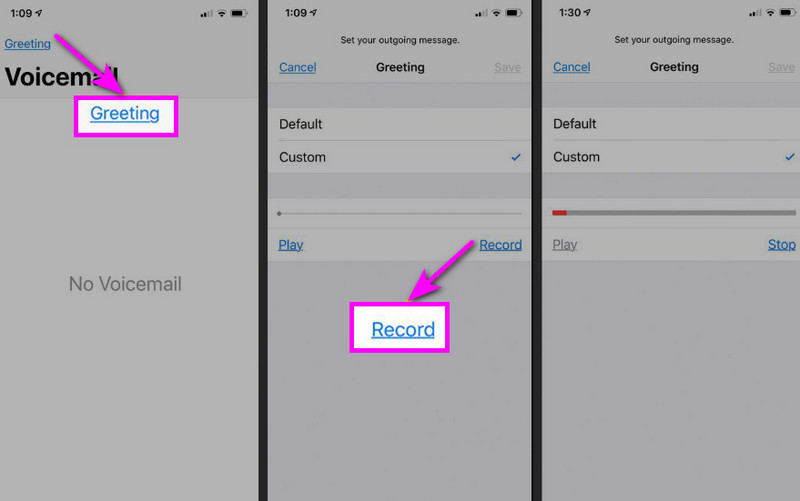
שלב 1המשך אל ה מכשיר טלפון האפליקציה והקש על הודעה קולית אוֹפְּצִיָה.
שלב 2לאחר מכן, לחצו על ה- בְּרָכָה פונקציה מהפינה השמאלית העליונה של המסך. לחץ המותאם אישית > תקליט להתחיל הקלטת אודיו באייפון שלך כברכתך.
שלב 3בֶּרֶז תפסיק כדי לסיים ולהשמיע אותו כדי לחזור עליו. לאחר שתסיים, לחץ על להציל כדי להגדיר אותו כברכתחנה פעילה.
שינוי או מחיקה של הברכה שלך
שלב 1אתה יכול לחזור אל ה הודעה קולית > בְּרָכָה סָעִיף.
שלב 2מכה המותאם אישית ולהקליט ברכה חדשה שתחליף את הישנה.
שלב 3לאחר מכן, כדי לחזור לברירת המחדל, ניתן לבחור בְּרִירַת מֶחדָל במקום מותאם אישית.
טיפ מקצועי: ברכה זמנית
אם אינך זמין לזמן קצר, הקלט ברכה זמנית באמצעות אותם שלבים תחת "מותאם אישית". לאחר שתחזור, תוכל פשוט לחזור לברכה הרגילה שלך או לאפשרות ברירת המחדל.
חלק 3. פתרון בעיות - לא ניתן להקליט הודעה קולית
היכנסו לסעיף זה וראו את מדריך פתרון הבעיות המכסה חלק מהבעיות בעת הקלטה או שליחת הודעת דואר קולי באייפון.
כפתור המיקרופון מופיע באפור בהודעות
פִּתָרוֹן: ודא שגישה למיקרופון מופעלת. לשם כך, עבור אל הגדרות > פרטיות ואבטחה > מיקרופון ואפשר גישה להודעות.
הקול לא נשלח
פִּתָרוֹן: בדוק תמיד את חיבור האינטרנט שלך. בנוסף, ודא ש-iMessage מופעל תחת הגדרות > הודעות > iMessage.
לא ניתן להקליט את ברכת ההודעה הקולית
פִּתָרוֹן: אפשרות הברכה תופיע רק אם הספק תומך בהודעה קולית חזותית. אם היא חסרה, ניתן ללחוץ והחזק את 1 באפליקציית הטלפון כדי לחייג ישירות להודעה הקולית. לאחר מכן, ניתן להתחיל לפעול לפי הנחיות הספק כדי להקליט ברכה.
הנמענים אומרים שהם לא יכולים לשמוע אותך
פִּתָרוֹן: ניתן לבדוק את המיקרופון באמצעות אפליקציית Voice Memos. ניתן גם להסיר כל כיסוי או אביזר שעלולים לחסום את המיקרופון. שיטה נוספת היא ניקוי פתח המיקרופון באמצעות מטלית או מברשת מיניאטורית.
מדריך מהיר: הודעה קולית לעומת הודעה קולית
רוצה לדעת עוד על הודעות קוליות ודואר קולי? לאחר מכן, תוכל לבדוק את הטבלה הפשוטה למטה.
| תכונה | הודעה קולית (iMessage) | הודעה קולית (ספק) |
| איך זה נשלח | • הוקלט באפליקציית ההודעות • נשלח דרך iMessage | • ברכה מוקלטת • אודיו המאוחסן על ידי הספק |
| נדרש אינטרנט | כן (Wi-Fi או נתונים סלולריים) | לא, עובד דרך רשת סלולרית |
| אִחסוּן | נשמר בשרשור iMessage | מאוחסן במערכת התא הקולי של הספק |
| לִשְׁלוֹט | המשתמש יכול לשלוח מחדש, למחוק או לשמור | הספק שולט בגישה ובאחסון |
בונוס: הכלי הטוב ביותר שיעזור לך לערוך הקלטות קוליות
לאחר שמירת הקלטת קול או הודעת קול, ישנם מקרים בהם תרצו לערוך אותה כדי לקבל פלט שמע טוב יותר. לכן, כשמדובר בעריכת האודיו שלכם, עדיף לגשת לכלי עריכה מעולה, כמו ממיר וידאו AVAideתוכנה זו מציעה פונקציית עריכת אודיו, המאפשרת לך לערוך את קובץ האודיו שלך. ניתן לחתוך את רצועת האודיו, לפצל ולמזג. ניתן אפילו להתאים את עוצמת הקול וההשהיה בהתאם להעדפותיך. החלק הטוב ביותר כאן הוא שתוכל לשמור את האודיו בכל פורמט באמצעות פונקציית ההמרה של התוכנה. ניתן לשמור את הקלטת הקול שלך כ-MP3, WAV, M4A, FLAC ועוד, באיכות הטובה ביותר של עד 320 kbps. לכן, אם אתם מחפשים תוכנה אידיאלית שיכולה לעזור לכם לערוך את הקלטות הקול שלכם, אל תחפשו רחוק יותר מ-AVAide Video Converter.

 הורדה מאובטחת
תכונות נוספות:
- זה יכול להציע הליך עריכת אודיו חלק.
- התוכנה יכולה למזג מספר קבצי שמע ליצירת קובץ יחיד.
- זה יכול להמיר פורמטי אודיו ווידאו במהירות המרה גבוהה פי 120.
- התוכנה יכולה להציע גם עורכי וידאו מובנים, כגון מיזוג, מפצל, חיתוך, קרופר וכו'.
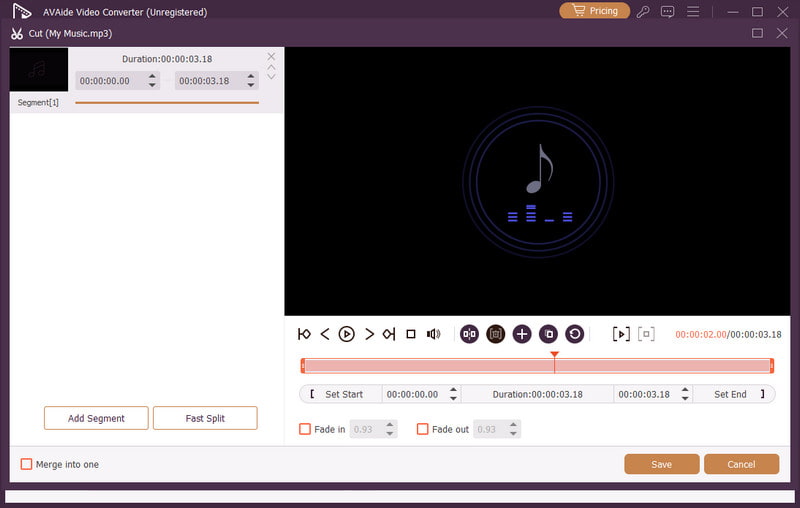
שליחת הודעה קולית באייפון זוהי דרך אידיאלית אם אתם רוצים לשלוח את ההודעה שלכם מהר יותר. הודות למדריך זה, למדתם כיצד להקליט ולשלוח הודעה קולית ביעילות. אתם אפילו מקבלים מספיק תובנות כיצד לשמור את ההודעה הקולית כדי להשמיע אותה ללא כל הגבלה. בנוסף, אם אתם רוצים לערוך את הקלטות הקול שלכם, עדיף לגשת ל... ממיר וידאו AVAideבעזרת תכונת עריכת האודיו של תוכנה זו, תוכלו לשפר את האודיו שלכם, וכתוצאה מכך להשמעת אודיו טובה ומספקת יותר.
אודות המחבר

צלם פעילויות מסך עם אודיו, פגישות מקוונות, סרטוני משחק, מוזיקה, מצלמת אינטרנט וכו'.