Comment enregistrer l'écran sur un ordinateur portable Lenovo Cela dépend de l'outil choisi, qu'il s'agisse des fonctionnalités intégrées de Windows ou de logiciels avancés. Ce guide présente des méthodes simples, claires et efficaces pour capturer votre écran sur les appareils Lenovo, que ce soit pour des tutoriels, des réunions, des sessions de jeu ou des enregistrements quotidiens.
- Méthode 1. Utilisation de la barre de jeu Xbox
- Méthode 2. Utilisation de Lenovo Vantage
- Méthode 3. Utilisation de Legion Zone / Lenovo Nerve Center
- Méthode 4. Utilisation de l'enregistreur d'écran AVAide
- Méthode 5. Utilisation des paramètres rapides
- Dépannage des problèmes courants d'enregistrement d'écran sur Lenovo
Méthode 1. Utilisation de la barre de jeu Xbox
La fonction d'enregistrement intégrée de la Xbox Game Bar est une technologie Microsoft, parfaitement compatible avec Windows et constitue la solution d'enregistrement la plus pratique pour les utilisateurs Lenovo. Conçue pour les jeux, elle sert également d'enregistreur d'applications, de créateur de tutoriels et d'enregistreur de navigation. Son principal atout ? Aucune installation n'est requise : elle est prête à l'emploi immédiatement.
Il présente toutefois des inconvénients certains. L'enregistrement du bureau et de l'explorateur de fichiers n'est pas possible, et la personnalisation se limite aux outils professionnels. Néanmoins, il reste l'une des options intégrées les plus pratiques pour les sessions occasionnelles où la qualité et l'effort ne sont pas primordiaux.
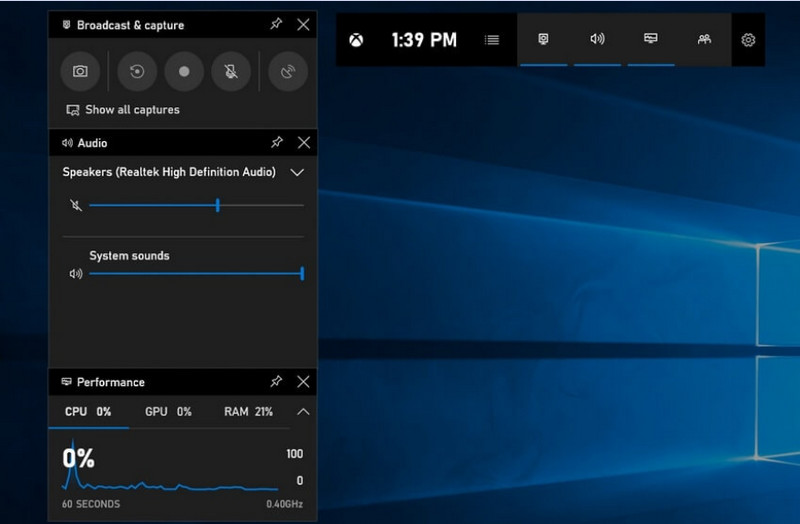
Étape 1Pour ouvrir la barre de jeu Xbox, appuyez sur Windows + G sur votre clavier.
Étape 2Trouvez le Capture panneau ou cliquez dessus depuis le Widgets menu.
Étape 3Clique le Enregistrement (●) bouton ou appuyez sur Windows + Alt + R.
Étape 4Si vous souhaitez enregistrer votre voix, activez la fonction correspondante. Microphone.
Étape 5Presse Windows + Alt + R à nouveau ou cliquez Arrêter (■) à compléter.
Étape 6Vous trouverez votre enregistrement dans Vidéos > Captures.
Méthode 2. Utilisation de Lenovo Vantage
Lenovo Vantage n'est pas un enregistreur d'écran ; il s'agit d'une suite de gestion et d'optimisation du système. Son rôle dans l'enregistrement est indirect, avec très peu de fonctionnalités facilitant le processus, selon le modèle de périphérique d'enregistrement, voire même certains périphériques proposant des raccourcis ou des outils caméra/affichage utiles.
Les performances et la disponibilité varient considérablement. Certaines fonctions d'enregistrement de base peuvent être prises en charge par certains appareils Lenovo, tandis que d'autres en sont totalement dépourvues. Les fonctionnalités d'enregistrement plein écran sont limitées et parfois incohérentes, mais cette solution peut s'avérer utile aux utilisateurs souhaitant rester au sein de l'écosystème Lenovo. enregistrer un podcast contenu avec des outils de base.
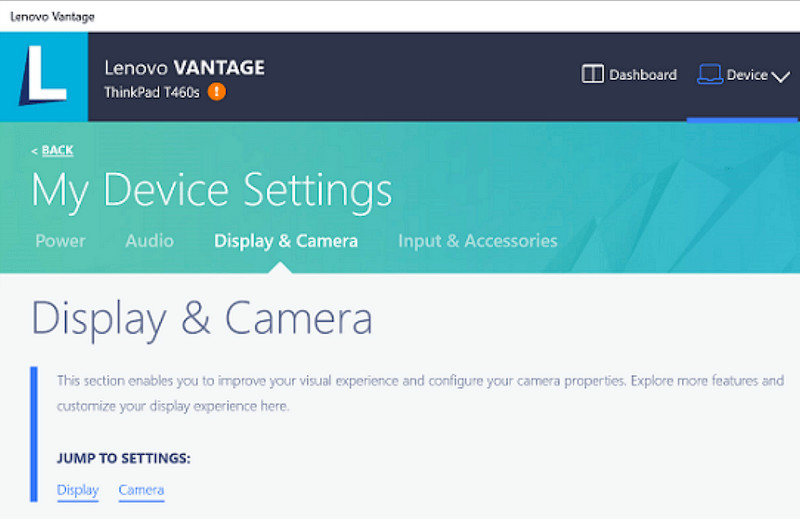
Étape 1Allez au Démarrer menu et cliquez sur Lenovo Vantage.
Étape 2Robinet Paramètres de mon appareil > Écran et appareil photo.
Étape 3Vérifiez s'il y a des enregistrements ou d'autres fonctions disponibles.
Étape 4Mettez à disposition toutes les options ou raccourcis nécessaires.
Étape 5Enregistrez la musique à l'aide de la fonction prévue à cet effet (si possible).
Étape 6Retrouvez les enregistrements que vous avez sauvegardés dans votre dossier Vidéos.
Méthode 3. Utilisation de Legion Zone / Lenovo Nerve Center
Lenovo Nerve Center (ou Legion Nerve Center – les nouveaux outils de Legion ont remplacé Nerve Sense) est optimisé pour les appareils Lenovo, notamment les ordinateurs portables Lenovo Legion, et s'adresse aux joueurs. Il est également étroitement intégré aux outils d'optimisation des performances de jeu, permettant ainsi aux utilisateurs de prendre des captures d'écran de leurs jeux tout en surveillant et en optimisant les ressources système.
Il s'agit toutefois d'un enregistreur assez basique. Privilégiant la simplicité d'utilisation à la personnalisation, il n'offre que des options d'enregistrement de base, avec un contrôle limité de la résolution, du débit binaire et des paramètres avancés. De plus, il n'est disponible que sur certains systèmes récents, et d'autres l'ont remplacé ou retiré de leurs systèmes ; sa fiabilité a donc diminué.
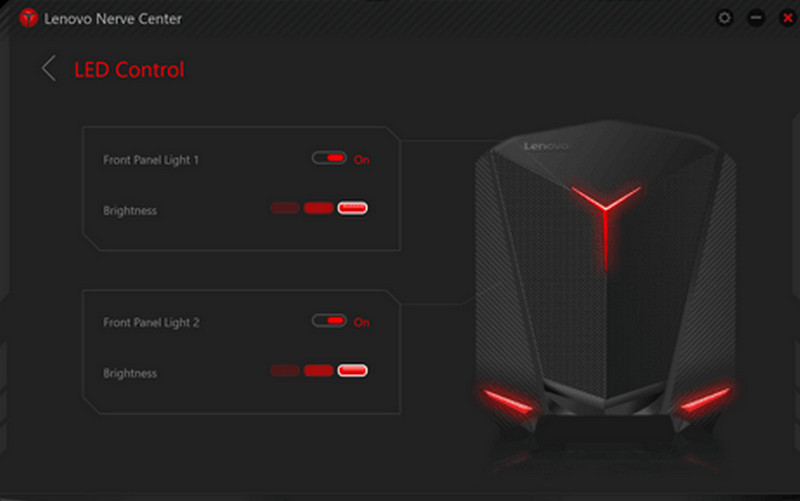
Étape 1Accéder au Centre névralgique Lenovo ou Zone de la Légion de l'appareil.
Étape 2Accédez aux outils d'enregistrement et/ou de jeu.
Étape 3Si possible, modifiez les paramètres d'enregistrement, tels que la résolution ou la qualité audio.
Étape 4Lancez le jeu ou l'application.
Étape 5Enregistrez avec le raccourci ou le bouton par défaut.
Étape 6Arrêtez l'enregistrement et consultez votre Vidéos ouvrir le dossier pour vérifier si le fichier a été enregistré.
Méthode 4. Utilisation de l'enregistreur d'écran AVAide
AVAide Enregistreur d'écran est un enregistreur d'écran plus sophistiqué et polyvalent pour Lenovo que l'enregistreur intégré. Il est conçu pour ceux qui recherchent une qualité vidéo supérieure, une utilisation plus fluide et un contrôle accru de l'enregistrement. C'est l'outil idéal pour créer des tutoriels, enregistrer des réunions ou capturer des séquences de jeu, sans configuration complexe et avec un niveau professionnel.
Elle permet de capturer le son du système, l'entrée microphone, la webcam et l'écran, et prend en charge l'enregistrement Full HD et même 4K avec un décalage minimal par rapport aux enregistreurs classiques. C'est ainsi une application de capture d'écran tout-en-un, idéale pour le travail et les loisirs.
- Capturez des vidéos en 1080p ou 4K avec une fluidité et une absence de latence optimales.
- Enregistrez en mode PLEIN ÉCRAN ou PERSONNALISÉ selon vos besoins.
- Enregistrez simultanément le son interne et la voix avec une sortie audio claire.
- Ajoutez l'enregistrement vidéo via webcam pour les tutoriels, les présentations ou les vidéos de gameplay.
- Découpez, compressez et améliorez les enregistrements après la capture.

 Téléchargement sécurisé
Étape 1Télécharger et installer le logiciel
Rendez-vous sur le site officiel d'AVAide Screen Recorder. Téléchargez le programme d'installation Windows, installez-le sur votre ordinateur portable Lenovo et exécutez-le.
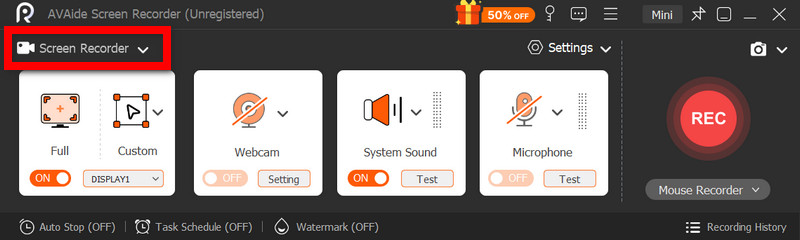
Étape 2Choisissez le mode d'enregistrement
Ouvrez le logiciel, puis cliquez Enregistreur d'écranEnregistrez l'écran entier avec Plein ou une partie de l'écran avec Personnalisé.
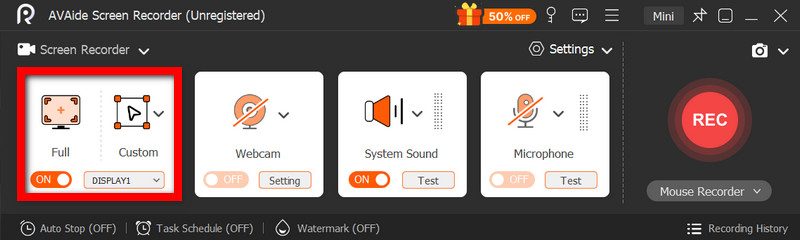
Étape 3Configurer les paramètres audio
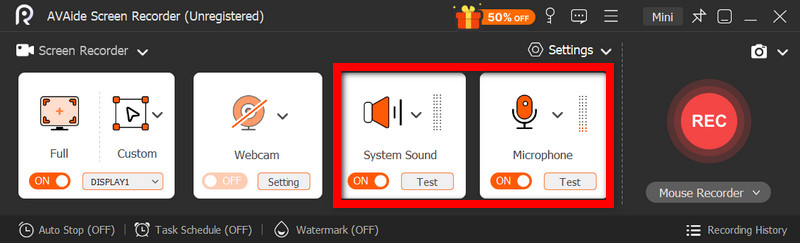
Pour enregistrer les sons émis par l'ordinateur, activez Son du systèmePour inclure votre propre voix, activez le MicrophoneLa webcam peut également être activée selon les besoins.
Étape 4Ajuster les paramètres d'enregistrement
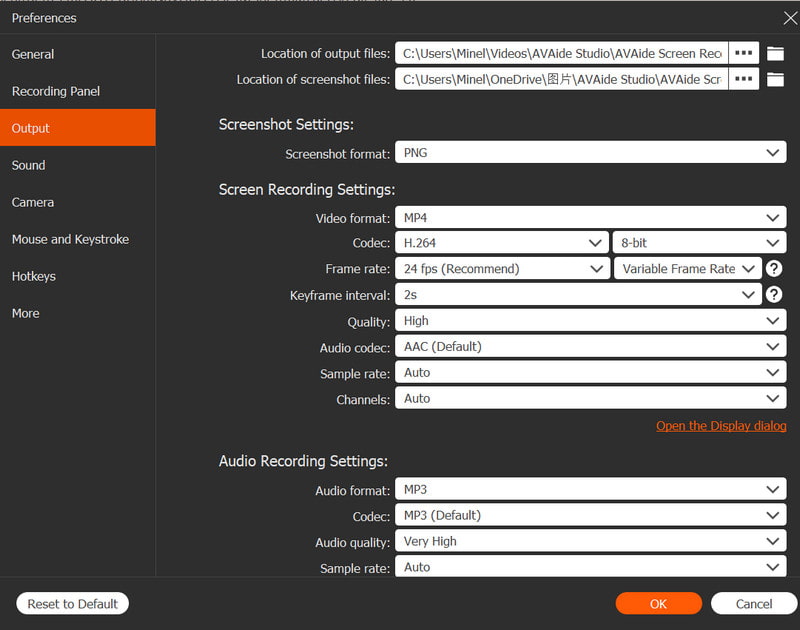
Utilisez le Réglages bouton permettant de configurer la qualité vidéo, la résolution, la fréquence d'images et le format de sortie pour obtenir des performances d'enregistrement optimales.
Étape 5Commencer l'enregistrement
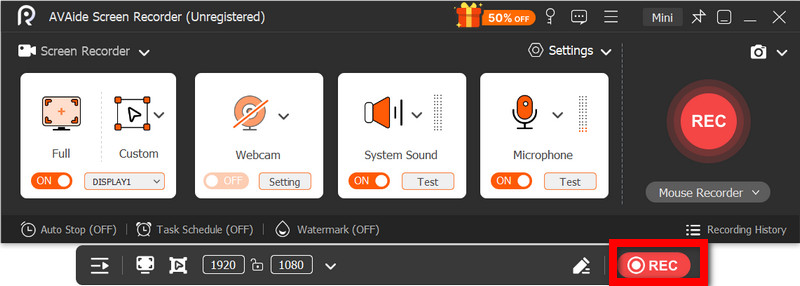
appuie sur le REC Cliquez sur le bouton pour démarrer l'enregistrement. Les enregistrements Google Meet, les tutoriels, les sessions de jeu ou toute activité à l'écran peuvent être enregistrés sans problème.
Étape 6Arrêter et sauvegarder l'enregistrement
Lorsque vous aurez terminé, cliquez sur Arrêter Cliquez sur le bouton. Prévisualisez votre enregistrement, modifiez-le rapidement si nécessaire et enregistrez-le instantanément sur votre ordinateur.
Méthode 5. Utilisation des paramètres rapides
Sur les tablettes Lenovo Android, une option d'enregistrement d'écran est intégrée aux paramètres rapides. Le meilleur moyen d'enregistrer des tutoriels, des séquences de jeu ou l'activité d'applications sur votre tablette est de ne pas télécharger d'applications tierces. Simple, rapide et optimisée pour une utilisation mobile, elle est idéale pour des enregistrements rapides en déplacement.
Il lui manque les fonctionnalités avancées d'édition et de personnalisation présentes dans d'autres outils de capture d'écran, mais il est suffisant pour les captures d'écran simples avec son.
Étape 1Faites glisser votre doigt du bas vers le haut de l'écran pour ouvrir le Paramètres rapides.
Étape 2Cherchez le Enregistrement d'écran ou Enregistreur d'écran bouton. S'il n'est pas là, cliquez sur le bouton. Éditer bouton et ajoutez-le à votre panneau.
Étape 3Cliquez sur Enregistreur d'écranSélectionnez ensuite les paramètres souhaités.
Étape 4Robinet Démarrer L'enregistrement va commencer. Un compte à rebours s'affichera avant le début de l'enregistrement.
Étape 5Appuyez sur la barre d'outils flottante ou la barre de notification, puis appuyez sur Arrêter pour mettre fin à l'enregistrement.
Dépannage des problèmes courants d'enregistrement d'écran sur Lenovo
Vous pouvez consulter des conseils pour résoudre les problèmes courants liés à l'enregistrement d'écran sur un appareil Lenovo.
Bien que l'enregistrement d'écran sur les appareils Lenovo ne pose généralement pas de problèmes majeurs, des difficultés peuvent toujours survenir selon l'outil ou l'appareil utilisé. Vous trouverez ci-dessous les problèmes les plus courants et leurs solutions.
- L'enregistreur d'écran ne fonctionne pas : Redémarrez votre appareil et réessayez. Pour les outils intégrés comme la Barre de jeu Xbox, assurez-vous qu'elle est activée dans les paramètres Windows, sous Jeux.
- Aucun son dans l'enregistrement : Avant d'enregistrer, vérifiez que le son système ou le microphone est activé. Assurez-vous également que le volume de votre système n'est pas coupé.
- Vidéo saccadée ou de mauvaise qualité : Réduisez la qualité vidéo ou fermez les applications en arrière-plan. La mise à jour de vos pilotes graphiques peut également améliorer les performances.
- Impossible d'enregistrer le Bureau ou l'Explorateur de fichiers : C'est l'une des limitations courantes de la barre de jeu Xbox. Si vous souhaitez enregistrer votre écran et tout capturer, utilisez un logiciel avancé comme AVAide Screen Recorder. meilleurs enregistreurs d'écran pour Mac et Windows.
- Enregistrement non sauvegardé : Assurez-vous que votre espace de stockage n'est pas saturé et vérifiez l'emplacement d'enregistrement par défaut. Dans les paramètres, modifiez le dossier de sortie et réessayez.
bouton d'enregistrement d'écran Lenovo Les options varient selon votre appareil et l'outil utilisé. Globalement, les fonctionnalités intégrées et les applications tierces simplifient l'enregistrement et vous offrent des solutions flexibles pour capturer, sauvegarder et gérer efficacement l'activité de l'écran sur les appareils Lenovo.
À PROPOS DE L'AUTEUR

Capturez les activités de l'écran avec de l'audio, des réunions en ligne, des vidéos de jeu, de la musique, une webcam, etc.
Enregistrement d'écran
- Enregistrement d'écran sous Windows
- Enregistrer un live sur Instagram
- Extraire des vidéos de Tubi
- Convertir des vidéos YouTube en MP3
- Téléchargez des vidéos depuis Fansly
- Téléchargement de vidéos JW Player
- Télécharger les vidéos Bilibili
- Télécharger des vidéos Patreon
- Télécharger les vidéos SpankBang
- Télécharger des vidéos Discord
- Télécharger la vidéo DoodSream