Many people check ScreenRec before they use it for real work, and that is why solid reviews matter. It is a common pick for quick capture tasks, yet users still want to know if it can keep up with daily needs. This guide gives a clear look at its strengths and limits so readers can decide with confidence. Each feature is explained in simple terms to show how it performs and where it works best. The review also highlights tools that can match or even beat it. Now, let us move to the main features, full review, and top alternatives.
Part 1: Main Features of ScreenRec
Before exploring what makes ScreenRec useful, it helps to know the core features that set it apart. These tools make recording, editing, and sharing simple, even for beginners.
1. Multiple Recording Modes
ScreenRec screen recorder allows capturing your whole screen, a single window or a custom area in a single click. It is easy to record only what you actually need, whether you are putting together a tutorial, recording a call or following on-screen instructions.
2. Screenshot and Annotation Tools
The tool can take quick screenshots even while you record. You can add shapes, text, and marks to highlight key points. This helps users create clear guides or visual notes without using another app.
3. 4K Video Recording
ScreenRec can record in SD, HD, or full 4K. You can pick the quality that fits your project. This makes the screenrec app useful for users who want crisp footage for lessons, demos, or detailed walkthroughs.
4. Simple and Clean Interface
The design is easy to follow, even for beginners. Every control is placed in an organized layout, so users can start a recording fast without digging through menus.
5. Cloud Storage Integration
Videos may be stored directly to the built-in cloud. This enables you to have rapid access to your files on any of the devices, and it is easy and secure to share a link.
6. Custom Recording Settings
You can change frame rate, video size, audio input, and annotation tools. This level of control helps users build videos that match their goals, whether they want small file sizes or sharp visual quality.
7. Watermark-Free Exports
ScreenRec app exports clips with no watermark, even on the free version. This gives users clean videos that they can post, share, or send to clients right away.
If you plan to try the tool, the screenrec download page makes setup fast and simple.
Part 2: Detailed Review of ScreenRec
To understand if ScreenRec is right for you, it is important to look at its performance, pricing, and limits. This review covers everything from usability to safety.
1. Platform Support
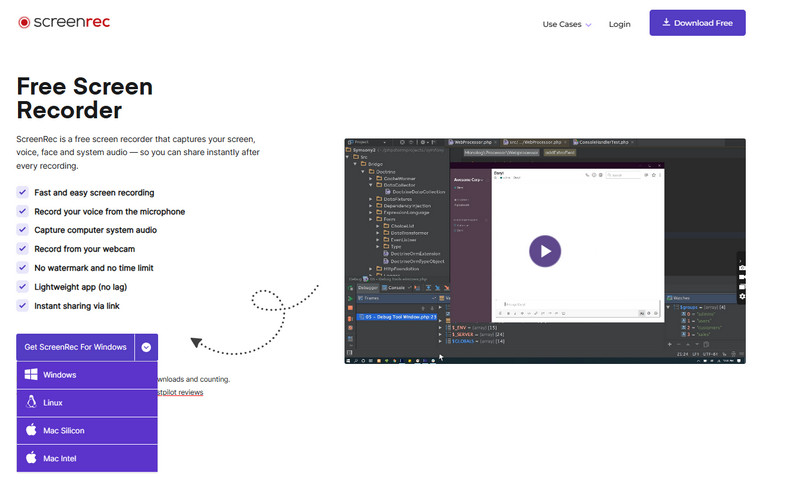
ScreenRec runs on Windows, macOS, and Linux, and it works well even on older hardware. The setup is light, and the ScreenRec download process is quick for new users. It also automatically saves videos in MP4 and screenshots in PNG and has its own cloud storage that is easily accessible.
2. Performance and Ease of Use
The design is plain, and the buttons have clear labels on recording, screenshots, history and settings. The workflow is smooth and stable in day-to-day work. Many users also ask if ScreenRec is 60fps, and the answer is no; it targets standard frame rates suited for tutorials and support videos. Long recordings work fine as long as you sign in to remove the five-minute limit.

3. Pricing and Plans
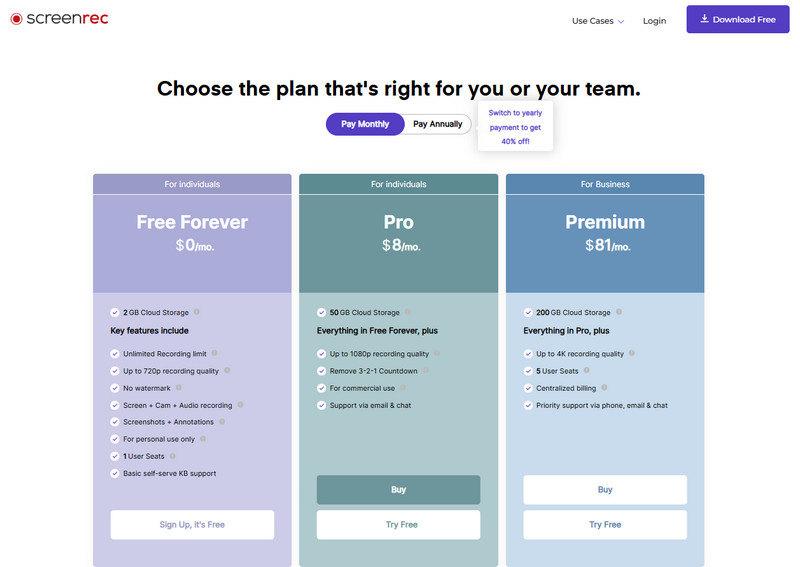
ScreenRec has three plans. The Free plan gives watermark-free 720p video, screenshots, cloud storage, and basic capture tools. The Pro plan raises the quality to 1080p and adds support options. The Premium tier offers 4K video plus extra seats and priority support for teams. Each option of ScreenRec review fits different work needs and budgets.
- Pros
- Clean and easy interface
- Cloud storage for quick sharing
- No watermark in the free plan
- Lightweight and stable
- Long recordings with an account
- Cons
- No video editing tools
- Audio quality may vary
- Free plan limited to 720p
- Five-minute cap without login
Many search intents are ScreenRec's safe, and it is known for secure cloud handling and private links. This screenrec review shows that the tool is a solid pick for simple, fast, and reliable screen capture.
Part 3: Top 3 ScreenRec Alternatives
Despite its recording power, some users look for alternatives with extra features, such as built-in editing, adjustable audio quality, and unlimited recording even on a free plan. To help, we have gathered the top three ScreenRec alternatives you can choose from.
1. AVAide Screen Recorder (Best Overall)
AVAide Screen Recorder is the strongest alternative if you want smooth, long-duration recording with no lag or distortion. It is able to record video and audio in high quality, and it works with your original display resolution or 4K. You do not need to log in to record, and this is why it is quick and easy to use during working or school. The design is plain and can support the demanding nature of a game, tutorial or even meetings without performance lag.

FREE DOWNLOAD For Windows 7 or later
 Secure Download
FREE DOWNLOAD For Mac OS X 10.13 or later
Secure Download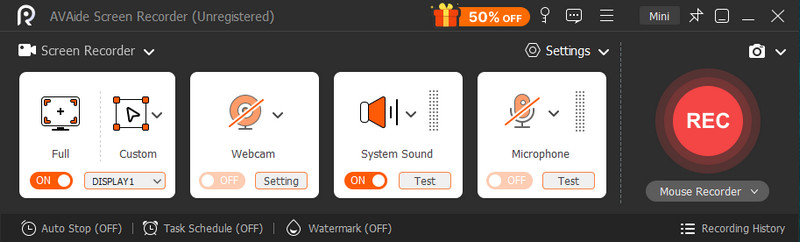
- Pros
- Long-duration recording with no limits
- Stable capture with no delay
- Records video and audio in high quality
- No login needed
- Supports 4K resolution
- Cons
- Full features require a paid plan
2. OBS Studio
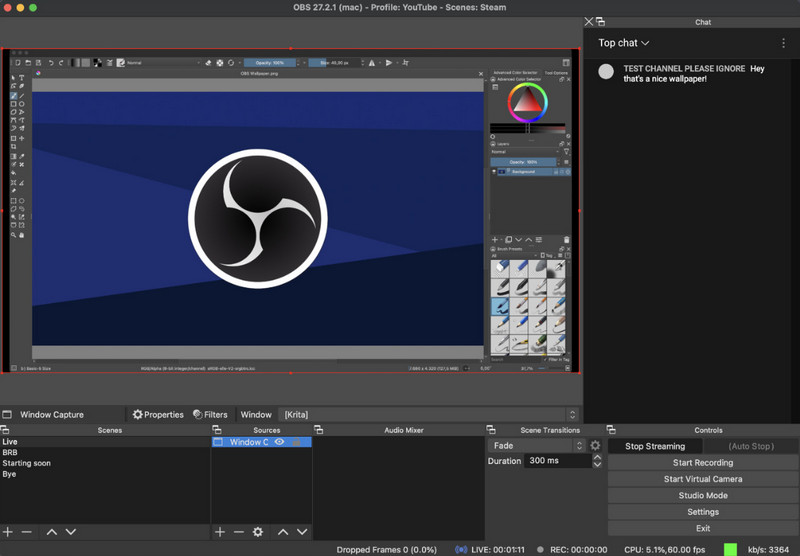
OBS Studio is a free and popular power recorder that is utilized by numerous streamers and creators. With the correct settings, it is able to record longer sessions, work with multiple sources and produce high-quality output. Although this Skype call recorder is flexible, it may seem complicated to unskilled individuals. Nonetheless, it remains among the best free options for its users who wish to have full control of their recordings.
- Pros
- Free and open-source
- Long-duration recording with no limits
- Extreme video and audio customization
- Gameplay and streaming work well
- Cons
- Steep learning curve
- Can lag on low-end computers
- None of the built-in quick editing features
3. Bandicam
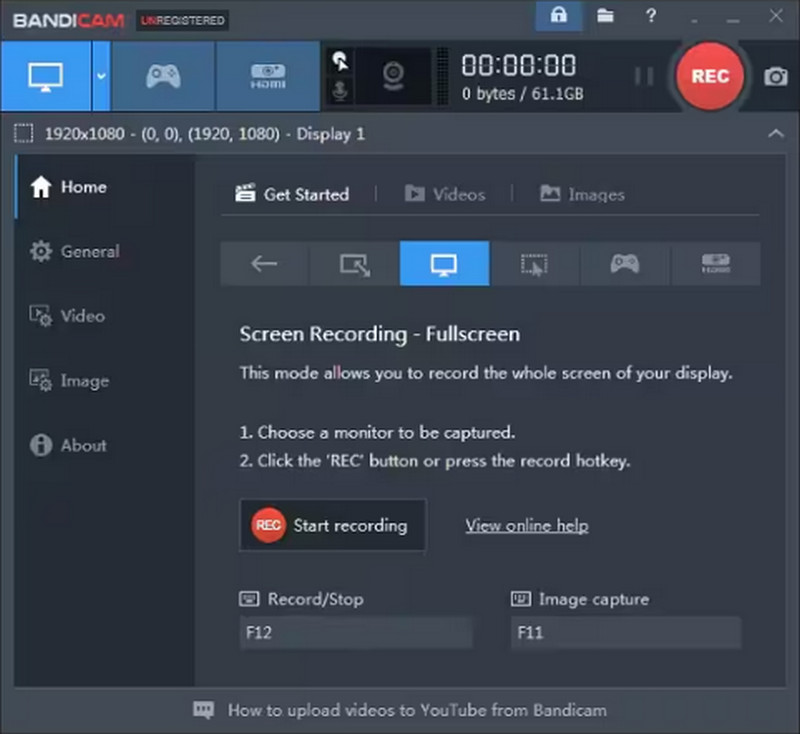
Bandicam is a popular alternative known for its lightweight design and strong performance. It supports long recording sessions and can capture high-quality video with low CPU usage, which other online voice recorders can not offer. While it offers clear results and good stability, the free version adds a watermark and has a time limit, which may not fit all users.
- Pros
- Long-duration recording
- Lightweight and stable
- Clear video output
- Good for tutorials and gameplay
- Cons
- Watermark in the free version
- Time limit on free recordings
- Fewer editing features compared to paid tools
ScreenRec is a good application to use for quick, easy, and quality screen recording. It can be used in teaching tutorials, presentations and personal projects due to its easy user interface, cloud connectivity, and watermark-free exports.
Although limited in some aspects, like simple editing features and a limited free recording time, it is still a very good idea to use it on a daily basis. To the people who are willing to give it a shot, the ScreenRec download page offers a simple and fast installation, and you can start capturing your screen immediately.
Record screen, audio, webcam, gameplay, online meetings, as well as iPhone/Android screen on your computer.