OBS is a popular program for streaming and recording gameplay. While it offers many features, some users still experience OBS lag when playing games.
The good news is, we have prepared fixes to help you solve the issue and return to smooth gameplay. In addition, we will introduce a tool, the ultimate solution you can use to record your gameplay easily and without lag.
Part 1: Possible Reasons for OBS Lag When Playing Games
We cannot deny the fact that OBS lag when playing games is really frustrating. Have you ever wondered why this happens? If you are unaware, please take a closer look at the possible reasons behind it below.
1. High CPU Usage: OBS uses your processor to capture and encode video. If your CPU is busy running a game, adding OBS can overload it. It causes choppy gameplay or stuttered recordings.
2. GPU Overload: Games already use your graphics card. If OBS uses GPU encoding too, your system may slow down. High-demand games plus OBS can make your computer struggle.
3. Wrong Output Settings: Using high resolution or frame rates can push your system too hard. Streaming in 1080p at 60fps needs a strong computer. Older computers cannot handle it smoothly.
4. Slow Storage Drive: OBS saves recordings to your hard drive or SSD. A slow drive cannot keep up with writing video data, causing stutters or lag.
5. Too Many Sources in OBS: Adding webcams, overlays, browser windows, or animations in OBS uses extra CPU and GPU. Each source adds load, and too many can slow your system.
6. Background Programs: Other apps, like browsers, Discord, or antivirus can use system resources. It leaves less power for OBS and your game, which causes lag.
7. Outdated Software or Drivers: Old OBS versions or outdated graphics/audio drivers can reduce performance. Updating software and drivers helps OBS run smoother.
8. Internet Problems (Streaming Only): Streaming needs a stable connection. If your internet speed drops or fluctuates, OBS can lag, skip frames, or buffer.
Part 2: How to Fix OBS Lag When Playing Games
In part 1, you learned the main reasons why OBS can lag while playing games. Now, in this section, you will discover different solutions on how to fix OBS lag when playing games. There is sure to be at least one solution below that will work for the issue you are experiencing. So, please keep reading and find the solution that helps you get smooth gameplay again.
• Check Your Hardware: Ensure your computer meets OBS requirements. OBS runs on Windows 10/11, macOS 11+, or Linux. Better CPUs and GPUs reduce lag.
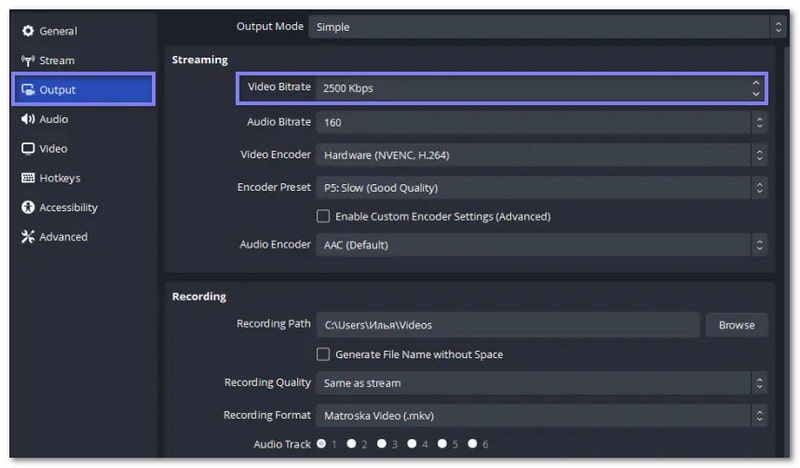
• Reduce Bitrate: High bitrate improves video quality, but can overload your system. Lower the bitrate in File > Settings > Output > Streaming > Video Bitrate to ease the strain.
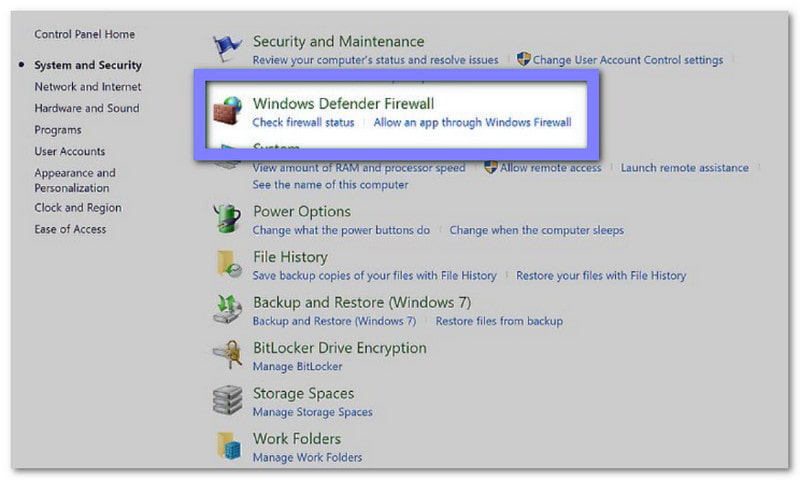
• Check Security and Firewall Apps: Some antivirus or firewall apps can block OBS. Do not turn off security. Just add OBS to the safe or exempt list in your antivirus or firewall.
• Connect to a Stable Network: A weak internet connection can make streaming laggy. Make sure your network is stable for smooth video.

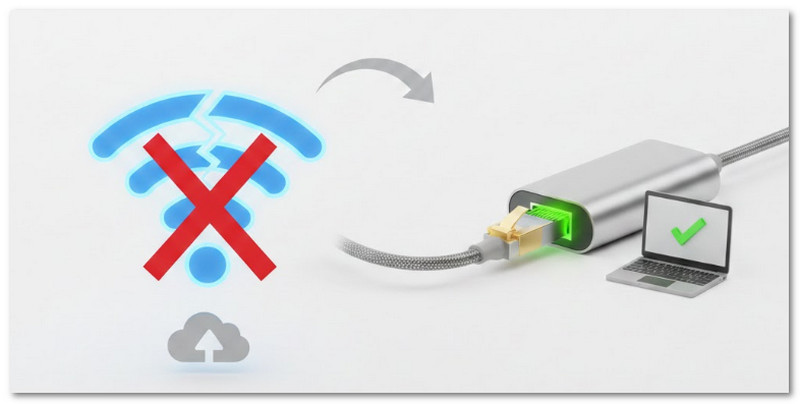
• Switch to a Wired Connection: Ethernet is faster and more stable than WiFi. It prevents internet lag that can affect OBS streaming.
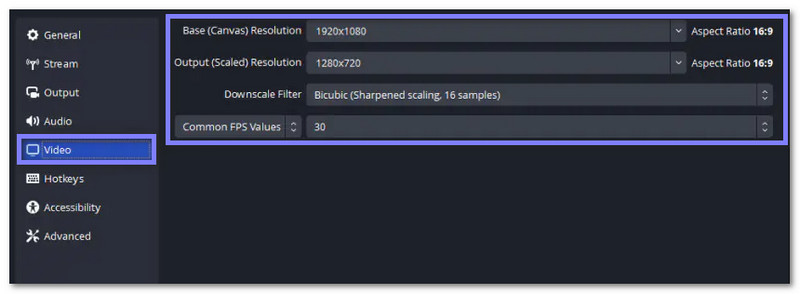
• Change OBS Settings: Fine-tune output resolution, frame rate, and encoder settings. Lower settings reduce strain and prevent lag.
1. Change Frame Rate: Go to File > Settings > Video > Common FPS Values.
2. Change Resolution: Go to File > Settings > Video > Base (Canvas) & Output (Scaled) Resolution.
• Close Unnecessary Processes: Shut down apps running in the background. One key tip on how to reduce lag with OBS when playing a game is to run only OBS and your game.
• Restart OBS: Closing and reopening OBS can fix glitches. Use Task Manager to ensure it is fully closed before restarting.
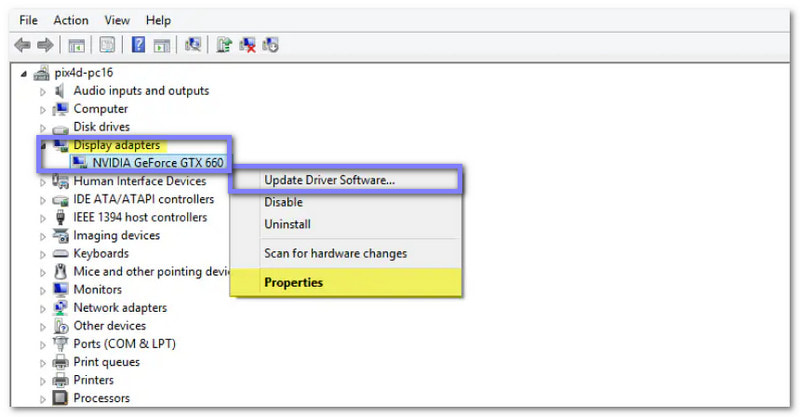
• Update Drivers: Keep graphics, audio, and network drivers updated. It improves OBS and system performance, and can also help fix the OBS window black capture issue.
• Broadcast to a Different Server: If streaming lags, try another server. Busy servers can slow down data transfer, causing OBS lag.
Part 3: Ultimate Solution to Record Gameplays
AVAide Screen Recorder is the ultimate program to record gameplay like a professional. Whether you are playing popular, like Fortnite, Valorant, or Roblox, it makes capturing your action easy and smooth.
With just one click, you can record your gameplay without lag, add arrows or highlights to emphasize key moments, and trust in its 100% stable performance. It works on Windows and Mac, making it easy for anyone to capture their gameplay anywhere.
Step 1First and foremost, you must download and install AVAide Screen Recorder for free. Once done, launch the program on your computer.

FREE DOWNLOAD For Windows 7 or later
 Secure Download
FREE DOWNLOAD For Mac OS X 10.13 or later
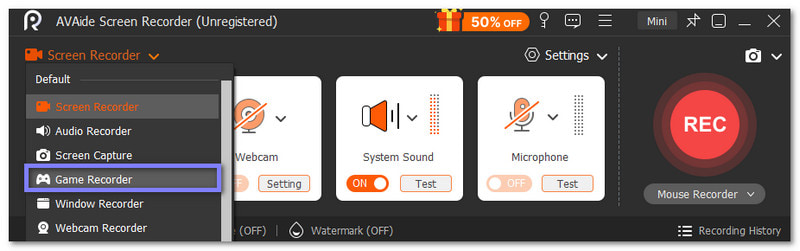
Secure DownloadStep 2Once opened, AVAide Screen Recorder usually starts in Screen Recorder mode. Since you are recording games, click the drop-down arrow and select Game Recorder mode. Then, give the program administrator access by checking Always Run as Administrator and clicking the OK button.
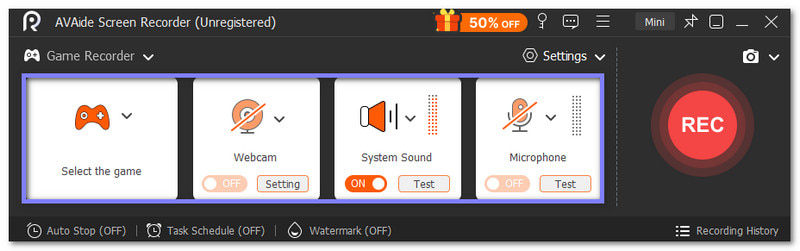
Step 3In the Select the Game tab, choose the game you want to record. Next, turn on both System Sound and Microphone to capture the game's audio and your voice at the same time. Do you want to add yourself to the video? If yes, please turn on the Webcam.
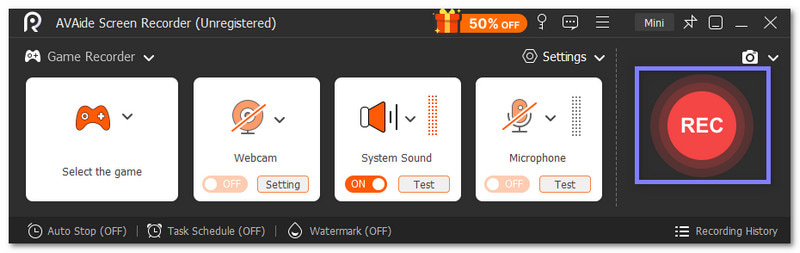
Step 4Is everything set up? If yes, click the REC button, and a three-second countdown will appear before recording begins. Keep in mind that the recording window size cannot be changed while recording, so make sure your game is set up the way you want.
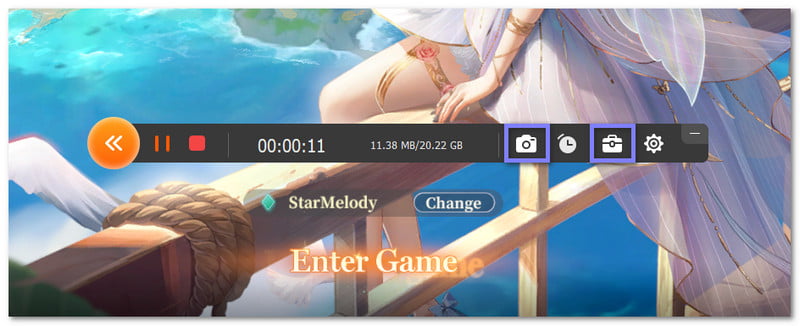
Step 5During the recording, you will see a floating bar under the game display. This bar gives you several handy tools. You can press the Camera button to take screenshots of your highlights. You can also use annotation tools from the Toolbox to add lines, arrows, texts, or highlights directly to your recording.
Step 6Once your game session ends, click the Stop button to end recording. A preview display will pop up where you can make edits like trimming, boosting audio, or extracting sounds. You now have a polished gameplay video ready to share or upload. Awesome work!
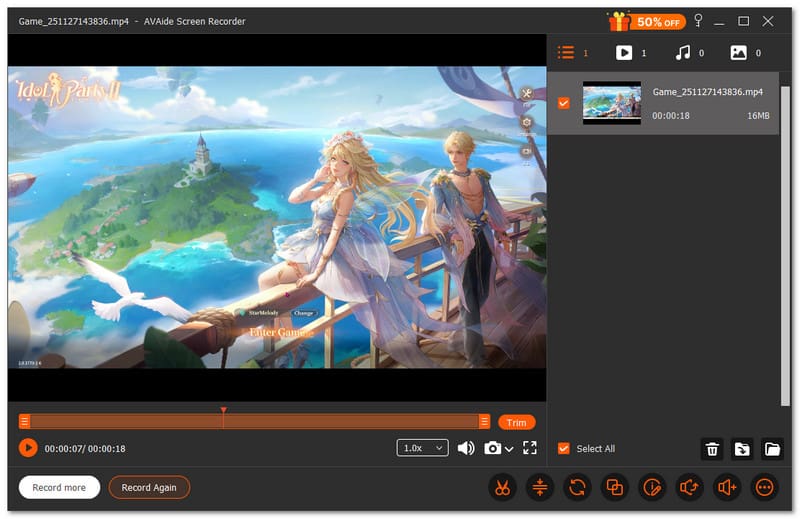
Other features that make AVAide Screen Recorder a top choice:
• Many output formats - Save recordings in MP4, WMV, MOV, AVI, etc.
• Smooth game recording - Capture games in full high-definition at 60 fps.
• Quick screenshot tool - Snap your screen with one click to save highlights.
• Webcam, game sound, and mic capture - Add your face, system audio, and voice in one clean recording.
• Record Phone Screen - Screen record on Android or iPhone fast with the built-in recorder.
There are many ways to fix OBS lag when playing games, and we are happy to help you with this.
If you are also looking for an effective way to record gameplays, do not look further, AVAide Screen Recorder is here. It has a Game Recorder mode specially designed for high-performance gaming, so your gameplay recordings stay smooth and completely lag-free. Try it now with your games!
Record screen, audio, webcam, gameplay, online meetings, as well as iPhone/Android screen on your computer.