尝试 play music while recording video iPhone clips for TikTok, travel memories, or quick vlogs can be frustrating when the audio suddenly stops. Many users encounter this issue during important moments. Thankfully, there are several easy ways to keep music playing while recording on both iPhone and Android devices.

Part 1. iPhone - How to Play Music While Recording Video

Method 1: The iOS 18 Built-In Method

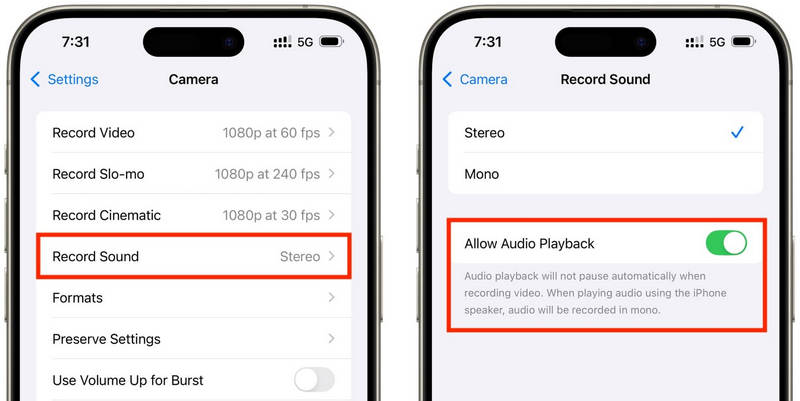
iOS 18 brings some welcome improvements in ease of use to iPhone users. In the past, older versions of iOS would pause music playback while the Camera app was recording, but this update resolves that issue and lets users listen to music while recording. It is the most straightforward and reliable way because there is no need to install additional applications or use hacks; it functions directly within the iPhone system.

第1步Go to the Settings app on your iPhone.

第2步点击 相机 在屏幕底部。

第 3 步 选择 Record Sound or the same audio option, and toggle on the Allow Audio Playback during recording option.

Allow Audio Playback

第四步Play a song in the music app of your choice.

第 5 步打开 相机 app and select the Video Mode. Your music should continue playing while recording.

Method 2: The QuickTake Trick (For iOS 17 and Older)

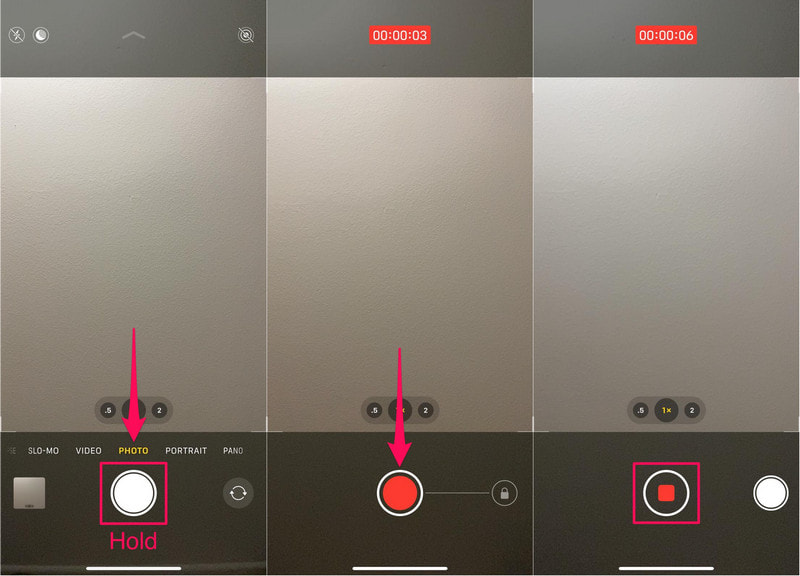
QuickTake is one of the simplest ways to work around the issue of music pausing when recording video on older iPhones. Unlike entering Video mode entirely, QuickTake lets you take clips straight from Photo mode, so background music continues to play. It is quick and easy for quick videos, tweeted videos, videos of yourself on social media, or any random instance you want to capture without ending your audio.

第1步Play your song in Apple Music, Spotify, or another music application.

第2步Stay in the default 照片 模式。

Older iOS Version

第 3 步To start video recording, hold down the Shutter 按钮。

第四步 Move the shutter button to the right to secure the recording, so you do not need to hold the shutter.

第 5 步点击 停止 button once completed.

Method 3: Using a Third-Party App

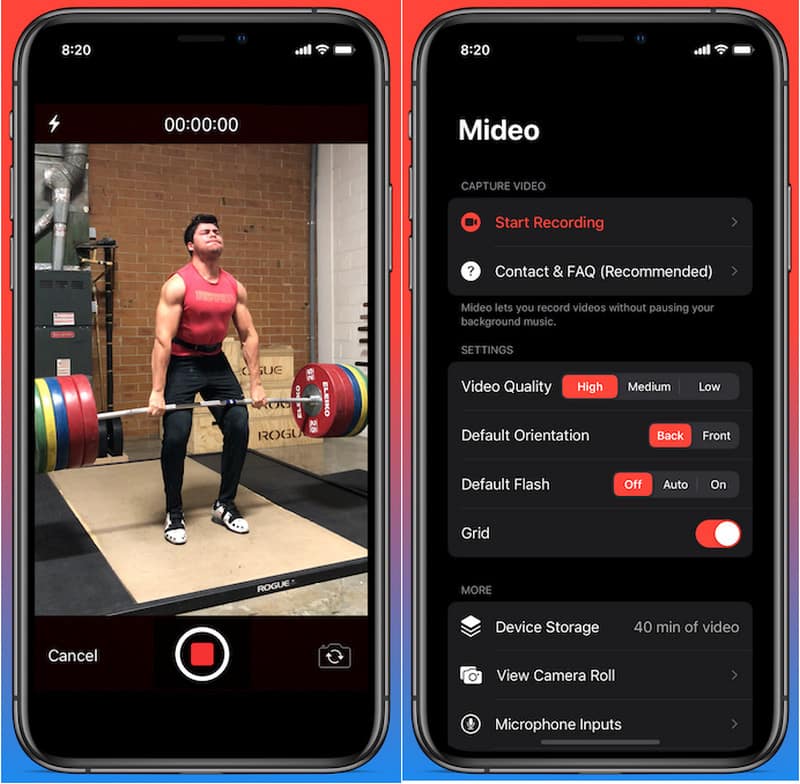
If playback is still interrupted by music, 3rd-party recording applications are the perfect solution. The most popular is Mideo, an application that lets users play music and record videos simultaneously. It handles HD and even 4K recording on compatible devices and includes all the features you would expect, such as zoom-in and zoom-out controls, support for the front and back cameras, and instant saving to the Photos app.

第1步Download Mideo from the App Store.

第2步Allow access to the camera and mic.

第 3 步Open Apple Music, Spotify, or another streaming app, then start playing.

第四步Once your music starts, open the App.

Mideo App

第 5 步记录 button and start recording as your music plays in the background.

Method 4: Using Picture-in-Picture (PiP) Mode

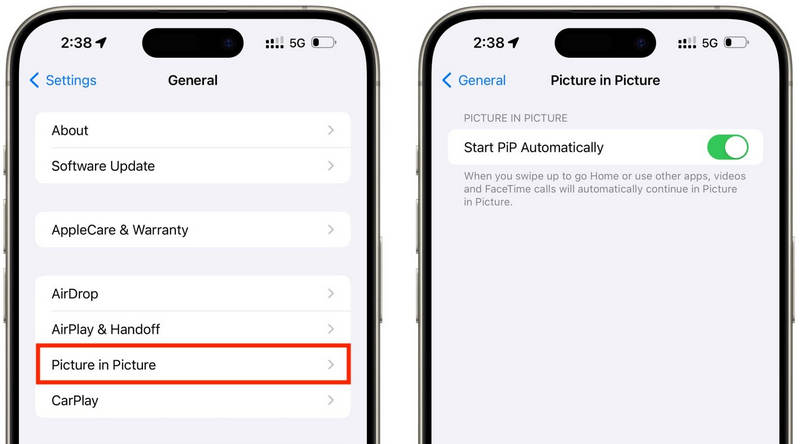
Media playback does not need to be shut down when recording video; you can use Picture-in-Picture. Your iPhone could keep playing a video or music file even after opening the Camera app in the foreground. This is an easy method that does not require installing extra recording tools.

第1步Play a song or video from an app that supports Picture-in-Picture mode.

第2步设置 > 一般的 > 画中画, then turn on Start PiP Automatically.

画中画

第 3 步Swipe up or tap the PiP button on the video player to minimize the media into a floating window.

第四步Launch the Camera app carefully without stopping the media playback.

第 5 步Record your video while the music or media continues playing in the background.

Part 2. Android - How to Play Music While Recording Video

Method 1: Samsung One UI 7 (Built-In)

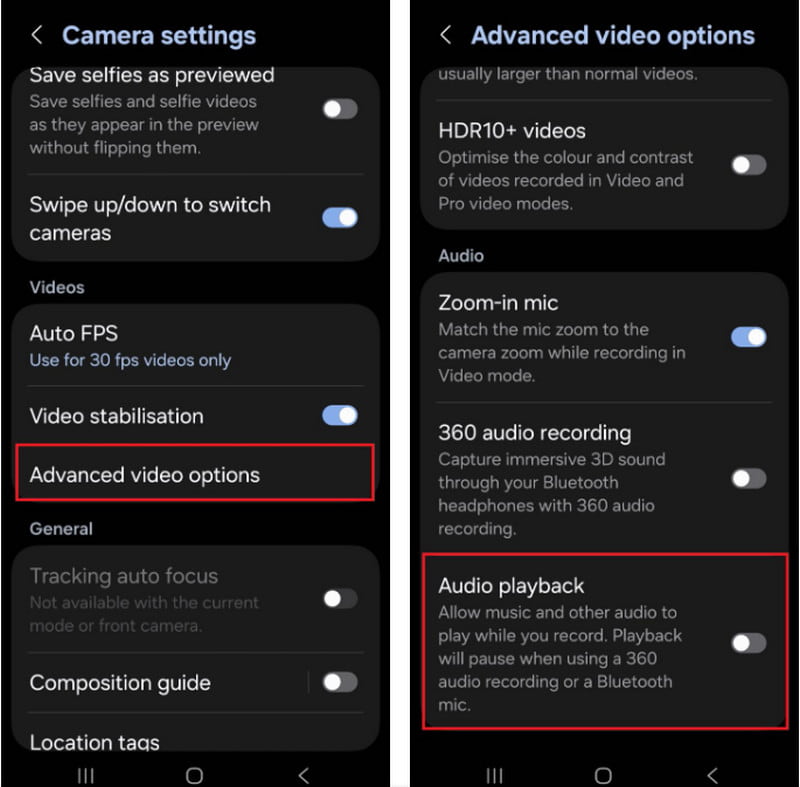
With Samsung One UI 7, the company is enhancing camera and audio controls to make it easier to play music while shooting video. The feature is integrated into the system, so users can experience a smoother recording experience without installing any additional applications. It is particularly helpful for making social media videos, vlogs, or casual videos with background music.

第1步打开 相机 app, then tap the 设置 按钮。

第2步Check for audio or Advanced Video Options.

Advanced Video Options

第 3 步启用 Audio playback.

第四步Open a song on Spotify, YouTube Music, or another app.

第 5 步打开 相机 app and start recording.

Method 2: Using Google Pixel Screen Recorder

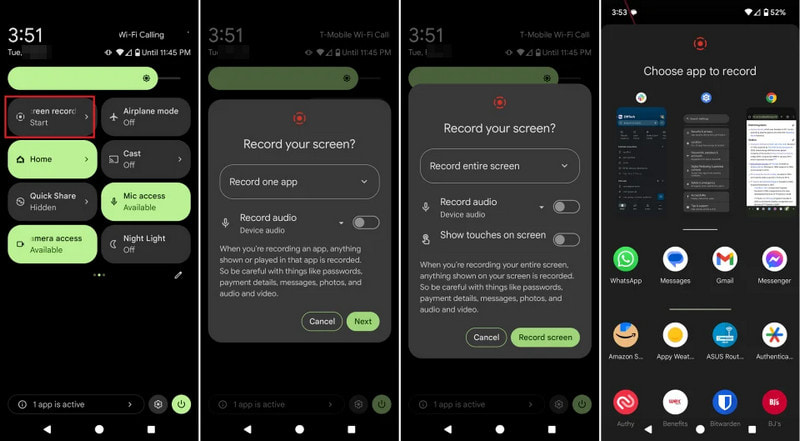
The built-in screen recorder in Google Pixel phones also lets you record your internal audio. It is primarily an app for screen recordings, but it can also play music while recording. It is very helpful for tutorials, gameplay demonstrations, and app demonstrations with background music.

Google Pixel Screen Recorder

第1步 Tap and drag down from the top of the screen.

第2步Choose the screen recorder that is already available.

第 3 步Choose internal or device audio recording.

第四步To play the music back, click the favorite music app.

第 5 步Start the screen recording.

Method 3: Using a Third-Party App

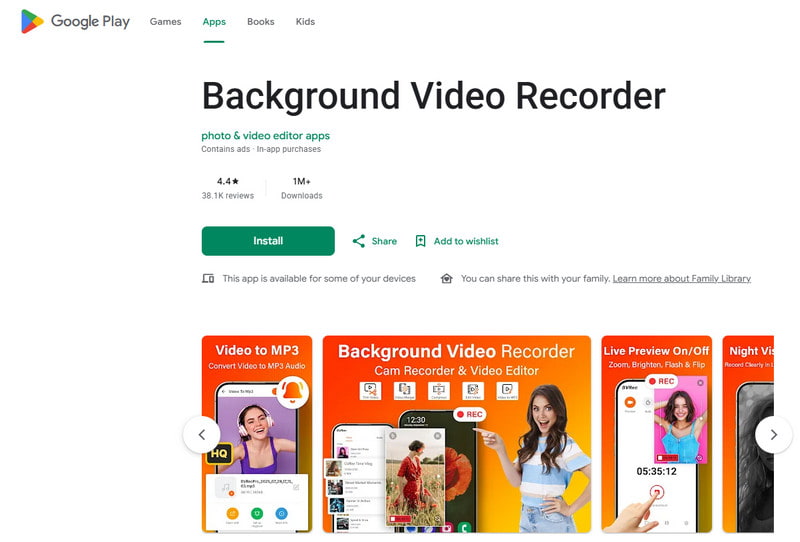
Third-party recording apps like Background Video Recorder are widely used on Android as they are more compatible with a range of phone brands and Android versions. A significant number of apps offer background audio playback and additional audio recording options, such as HD video quality, manual controls, filters, and stabilization. They can be helpful for people who need more recording options than the built-in Camera app provides, especially for users who want to 录制播客, tutorials, vlogs, or social media content with better audio and video quality.

背景视频录制器

第1步Install Background Video Recorder from the Google Play Store.

第2步Allow access to your camera, microphone, and storage when prompted.

第 3 步Open Spotify, YouTube Music, or another music app and start your playlist.

第四步Launch the recorder and adjust video quality or audio settings if needed.

第 5 步Tap the record button while your music continues playing in the background.

Part 3. Why Does My iPhone Pause Music When I Start Recording?

Some iPhone users report that their music suddenly stops when recording a video of themselves. This is because on iOS devices, the camera microphone is always used first for recording audio rather than for media playback. This behavior is similar to how software that records voice on Mac prioritizes microphone input during recording sessions. Several possible causes can trigger this issue, depending on your iPhone model and iOS version.

  • The Camera App takes control of Audio: The Camera app automatically prioritizes the microphone for video recording to ensure the best audio quality.
  • Older iOS versions come with restrictions: in most cases, music is automatically paused when recording videos on iOS 17 and earlier.
  • You can only play music in the background with some music apps: Some streaming applications might temporarily pause streaming if another application is using the audio recording settings.
  • Bluetooth Devices Can Cause Conflicts: Wireless earbuds or speakers can be a distraction during recordings.
  • Battery Saver Mode May Interfere: Low Power Mode may restrict background operations, such as music playing.

Part 4. Music Stops or Would not Play [Quick Fixes]

Problem Quick Fix
Music pauses immediately after the recording starts. Use the QuickTake method or enable the iOS 18 playback feature inside your Camera settings.
No music during recording. Restart both the Camera and music apps, then try recording again.
Bluetooth audio disconnects. Reconnect your wireless earbuds or speaker after turning Bluetooth off and back on.
Third-party recorder not working. Update or reinstall the recording app to fix possible compatibility issues.
Music still stops on my iPhone. Restart your iPhone and install the latest available iOS update.
No sound in the recorded video. Make sure microphone permissions are enabled for both the Camera and music apps.

Part 5. How About Using a Professional Screen Recorder

AVAide 屏幕录像 is professional screen recording software for those who prefer smoother, higher-quality recordings on Windows and Mac. It can capture system audio, microphone audio, webcam video, and even the screen in high-quality. The software is particularly helpful for creating tutorials, game videos, reaction videos, online classes, and video presentations, without lag and with no complicated setup.

AVAide 屏幕录像
  • Record videos in up to 4K or 1080p resolution with smooth and stable performance.
  • Capture internal audio and microphone sound simultaneously for clearer recordings.
  • Choose between full screen, selected window, or a customized recording area.
  • Record webcam footage or mirror and capture iPhone and Android screens easily.
  • Add annotations while recording and trim or edit videos immediately after capture.

第1步安装 AVAide 屏幕录像机

Go to the official AVAide website and download the Windows or Mac software. Install the program, and then run it after installation.

第2步Choose the Recording Mode

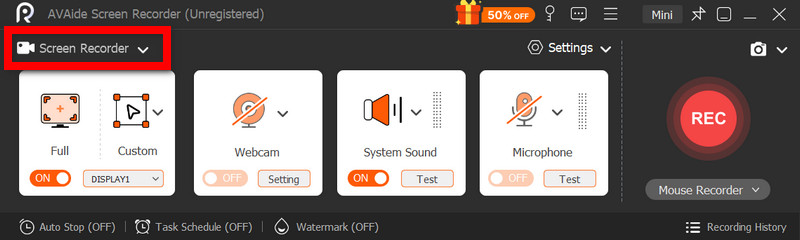
To record your screen activity, click the 屏幕录像 option from the main screen.

AVAide 屏幕录像

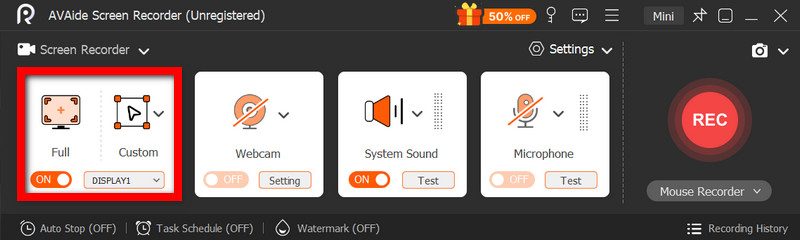
第 3 步选择录制区域

选择 满的 或者 风俗 recording mode as needed.

完整或自定义

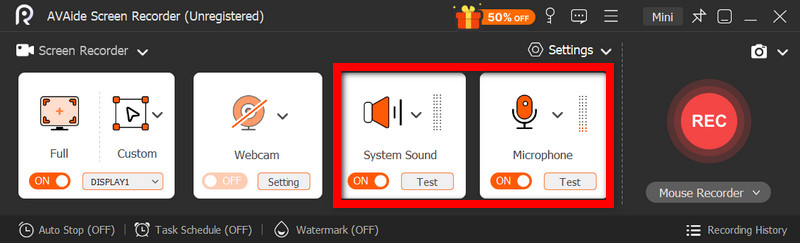
第四步Enable Audio Sources

If you want to record your voice, turn on the 麦克风; if you want to record the internal sound, select 系统声音.

Enable System Sound and Microphone

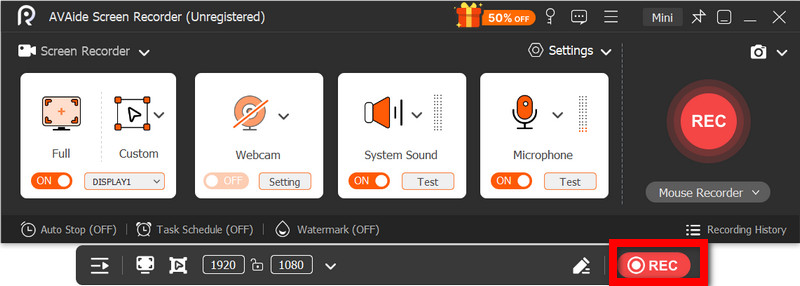
第 5 步开始录制

点击 录音 button to record your screen, video, or audio activity.

录制按钮

第 6 步Edit and Save the Recording

When complete, press the 停止 button. Watch the video to get a general feel for it, edit it briefly if needed, then save it to the computer.

结论

Playing music while recording is something many users struggle with when creating videos for social media or personal use. With the right settings, methods, or tools, both iPhone and Android users can easily record videos without stopping their background music.

经过 艾莎·约翰逊 on 5 月 27, 2026

关于作者

艾莎·约翰逊
艾莎·约翰逊

艾莎·约翰逊是一位多媒体制作技术员,专长于屏幕录制和音频采集工作流程。她曾帮助教育工作者、培训师和播客团队搭建稳定的录制环境,并解决常见的硬件和配置问题。她的实践经验能够帮助创作者提升录制清晰度,制作出更可靠的内容。

相关文章