Cách thu âm nhạc trên iPhoneViệc ghi âm những bản nhạc yêu thích của bạn rất đơn giản, nhờ vào tính năng được tích hợp sẵn và các ứng dụng đáng tin cậy của điện thoại. Cho dù bạn đang ghi âm một bài hát ngắn, xử lý các bản nhạc không lời hay ghi âm cuộc gọi, iPhone của bạn đều cung cấp các tùy chọn linh hoạt có thể hỗ trợ cả người mới bắt đầu và người chuyên nghiệp. Vì vậy, nếu bạn muốn tìm hiểu nhiều phương pháp để ghi âm nhạc hiệu quả, tốt hơn hết bạn nên bắt đầu đọc toàn bộ hướng dẫn này.
- Phần 1. Ghi âm nhạc trên iPhone bằng ứng dụng Ghi âm giọng nói tích hợp sẵn.
- Phần 2. Thu âm nhạc bằng GarageBand
- Phần 3. Thu âm đa kênh với ứng dụng của bên thứ ba
- Phần 4. Ghi âm ở định dạng MP3
- Phần 5. Cách ghi âm nhạc từ YouTube trên iPhone
- Phần 6. Mẹo chuyên nghiệp để có chất lượng âm thanh tốt hơn
Phần 1. Ghi âm nhạc trên iPhone bằng ứng dụng Ghi âm giọng nói tích hợp sẵn.
Một trong những ứng dụng ghi âm MP3 trên iPhone mà bạn có thể sử dụng để ghi lại nhạc của mình là ứng dụng Ghi âm giọng nói (Voice Memos). Đây là ứng dụng tích hợp sẵn trên thiết bị iPhone của bạn. Ứng dụng ghi âm này cho phép bạn ghi lại và thu âm bất kỳ nội dung âm thanh nào một cách rõ ràng và tức thì. Nó lý tưởng để ghi chú lại các ý tưởng bài hát, giai điệu và toàn bộ các buổi luyện tập. Điều tuyệt vời nhất ở đây là ứng dụng này có giao diện người dùng trực quan. Bạn có thể dễ dàng cắt ghép nội dung đã ghi âm, sắp xếp và chia sẻ mà không gặp bất kỳ khó khăn nào. Ngoài ra, ứng dụng này cũng rất hữu ích cho các nhạc sĩ muốn... ghi âm trên iPhoneChúng ta không thể khẳng định rằng ứng dụng Ghi âm giọng nói là công cụ lý tưởng.
Để tìm hiểu cách ghi âm MP3 trên iPhone, bạn có thể làm theo các bước chi tiết bên dưới.
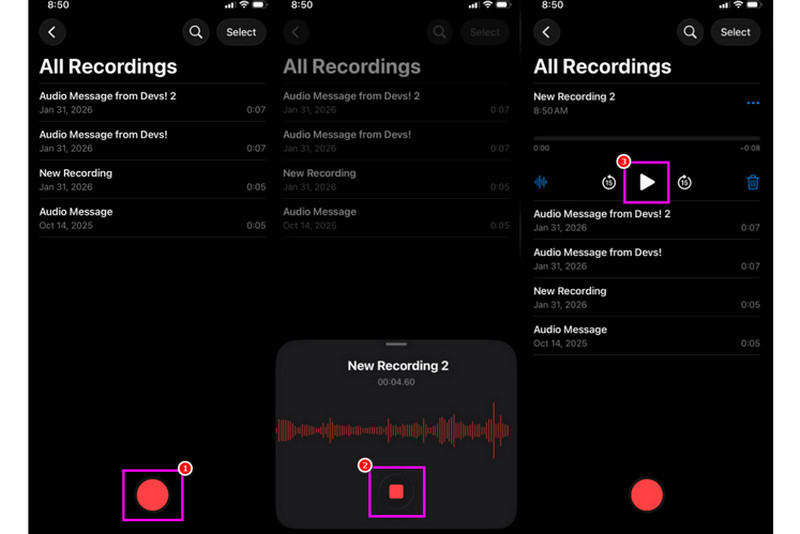
Bước 1Trên iPhone của bạn, hãy tiến hành các bước sau: Tiện ích phần và chạm vào Bản ghi nhớ giọng nói Sau đó, hãy đảm bảo rằng bản nhạc bạn muốn thu âm đã được chuẩn bị sẵn.
Bước 2Sau đó, chuyển đến giao diện phía dưới và nhấn vào nút. Ghi Sau khi nhấn nút, bạn có thể phát nhạc trên iPhone hoặc thiết bị khác.
Bước 3Sau khi ghi âm xong, hãy nhấn Ngừng lại nút bấm. Với thao tác đó, bạn đã có thể truy cập vào bản nhạc đã thu âm của mình. Bạn thậm chí có thể chỉnh sửa hoặc chia sẻ tệp nếu muốn.
Phần 2. Thu âm nhạc bằng GarageBand
Bạn muốn tự sáng tác nhạc và thu âm để lưu vào thiết bị của mình? Trong trường hợp đó, bạn có thể truy cập Ban nhạc tại giaĐây là một ứng dụng miễn phí cho phép bạn thu âm nhạc trên iPhone. Với tính năng ghi âm của nó, việc thu âm nhạc trở nên vô cùng đơn giản. Bạn thậm chí có thể truy cập nhiều nhạc cụ khác nhau để sử dụng nếu muốn sáng tạo âm nhạc của riêng mình. Vì vậy, nếu bạn cần một giải pháp thu âm đa năng, hãy cân nhắc sử dụng ứng dụng này.
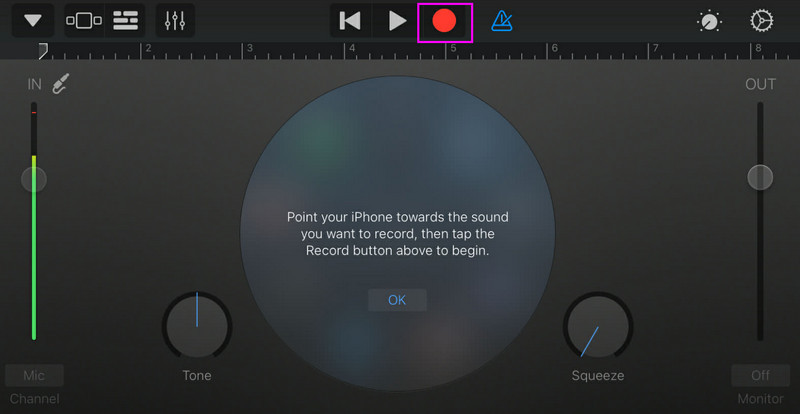
Bước 1Đi đến Cửa hàng Apple và bắt đầu tải xuống Ban nhạc tại giaSau khi cài đặt xong, hãy chạy ứng dụng trên thiết bị của bạn.
Bước 2Từ giao diện, bạn phải chọn và nhấn vào Máy thu âmSau đó, giao diện chính sẽ hiện lên trên màn hình của bạn.
Bước 3Bắt đầu thu âm nhạc của bạn bằng cách chạm vào Ghi nút ở trên. Sau đó, chạm vào Ngừng lại để hoàn tất việc ghi âm.
Phần 3. Thu âm đa kênh với ứng dụng của bên thứ ba
GarageBand rất hữu ích để thu âm nhạc. Tuy nhiên, có nhiều ứng dụng khác bạn có thể sử dụng để phục vụ cho nhiều phong cách sáng tác, thu âm và cộng tác đa nền tảng khác nhau. Một số ứng dụng đó là:
- BandLab - Công cụ này lý tưởng cho việc cộng tác trên nền tảng đám mây. Nó hoàn hảo cho các nhạc sĩ vì có nhiều tính năng vượt trội, chẳng hạn như thuật toán xử lý âm thanh chuyên nghiệp, thư viện vòng lặp phong phú và khả năng ghi âm đa lớp.
- FL Studio Mobile - Đây là một công cụ dựa trên hình thức đăng ký trả phí. Các nhà sản xuất nhạc hip-hop, nhạc điện tử và nhạc pop thường ưa chuộng nó.
- Cubasis 3 - Đây là một tùy chọn phòng thu chuyên nghiệp được chuyển thể từ phần mềm Cubase trên máy tính để bàn. Công cụ này cung cấp khả năng chỉnh sửa MIDI cao cấp, ghi âm không giới hạn số lượng track và đa track, biến nó trở thành công cụ lý tưởng cho người dùng.
Cách hiệu quả để ghi âm nhạc trên máy tính để bàn
Bạn đang tìm kiếm một phần mềm ghi âm trên máy tính để bàn có thể giúp bạn ghi lại âm nhạc của mình? Trong trường hợp đó, bạn có thể truy cập AVAide Screen RecorderChương trình này cung cấp tính năng Ghi âm điện thoại để bạn có thể ghi lại nhạc từ iPhone của mình. Phần mềm này lý tưởng nếu bạn muốn lưu bản ghi âm trực tiếp vào máy tính. Điều chúng tôi thích ở đây là trình ghi âm này mang đến cho bạn quy trình ghi âm mượt mà và đơn giản, nhờ giao diện người dùng trực quan. Chương trình này cũng đảm bảo bạn có thể lưu âm thanh với chất lượng tốt nhất, lên đến 320 kbps, cho chất lượng phát lại âm thanh tốt hơn. Bạn thậm chí có thể chỉnh sửa âm thanh theo sở thích của mình, khiến trình ghi âm này trở nên lý tưởng cho mọi người dùng.
Bước 1Tải xuống AVAide Screen Recorder Trên màn hình máy tính của bạn. Sau đó, khởi chạy nó để bắt đầu quá trình.

TẢI VỀ MIỄN PHÍ Đối với Windows 7 trở lên
 An toàn tải
TẢI VỀ MIỄN PHÍ Dành cho Mac OS X 10.13 trở lên
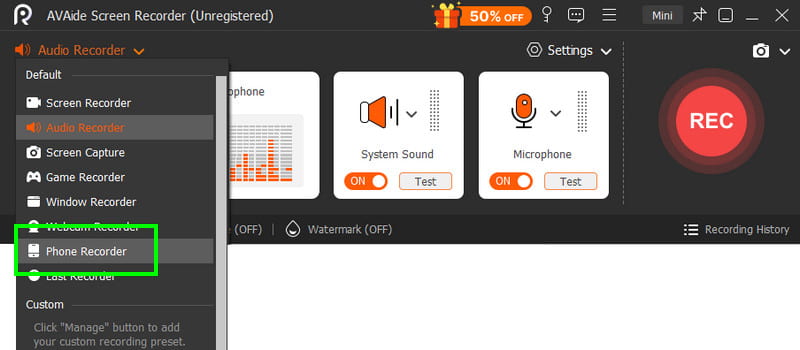
An toàn tảiBước 2Từ giao diện, hãy đi đến thả xuống và chọn Máy ghi âm điện thoại Tính năng này hoạt động. Sau đó, chạm vào iOS và kết nối điện thoại của bạn.
Bước 3Sau đó, tiến hành đến Ghi nội dung phần để bỏ chọn Màn hình tùy chọn và chọn Loa điện thoại tùy chọn. Sau khi hoàn tất, hãy nhấn Ghi Để bắt đầu quá trình ghi âm.
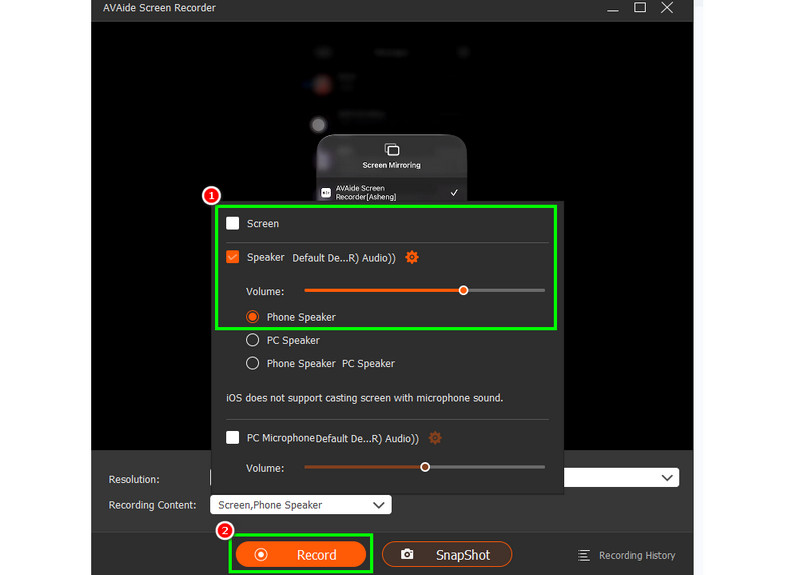
Vô nhẹ Ngừng lại để hoàn tất việc ghi âm.
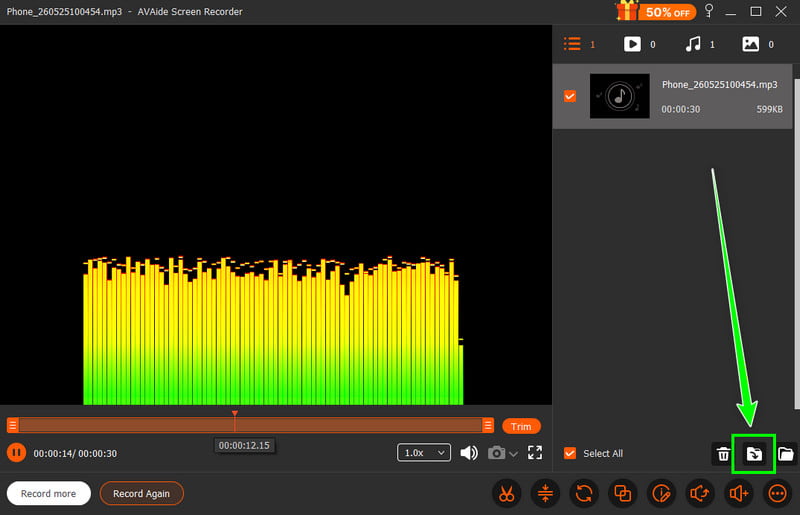
Bước 4Khi cửa sổ xem trước hiện ra, hãy nhấp chuột. Xuất khẩu Bắt đầu lưu lại bản ghi âm.
Phần 4. Ghi âm ở định dạng MP3
Theo mặc định, hệ sinh thái của Apple lưu nhạc dưới dạng WAV hoặc AAC. Tuy nhiên, chúng ta vẫn có thể nói rằng MP3 là một trong những định dạng âm thanh di động nhất hiện nay. Do đó, chuyển đổi bản ghi âm của bạn sang MP3 là lựa chọn tốt nhất. Để chuyển đổi bản ghi âm, bạn có thể sử dụng ứng dụng Ghi âm. Với ứng dụng này, bạn có thể chuyển đổi bản ghi âm từ Ghi âm giọng nói sang MP3 để có khả năng tương thích tốt hơn. Bạn có thể chuyển đổi AAC sang MP3Chuyển đổi từ WAV sang MP4, FLAC sang WAV, và nhiều định dạng khác nữa.
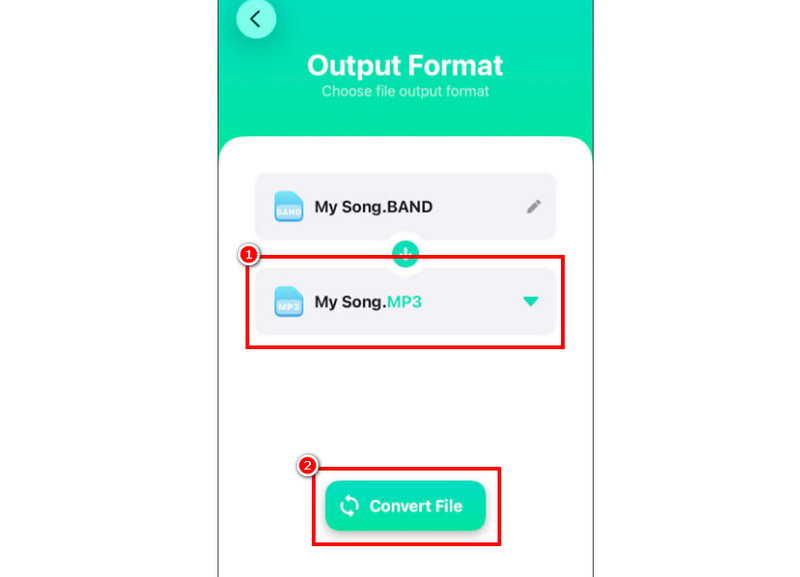
Bước 1Đi đến của bạn Cửa hàng Apple và tải xuống Bộ chuyển đổi âm thanh Sau đó, khởi chạy trình chuyển đổi và bắt đầu thêm bản ghi.
Bước 2Từ Định dạng phần này, hãy bắt đầu chọn MP3 định dạng. Sau đó, chạm vào Đổi cái nút.
Bước 3Sau khi quá trình chuyển đổi hoàn tất, bạn có thể phát file MP3 của mình.
Phần 5. Cách ghi âm nhạc từ YouTube trên iPhone
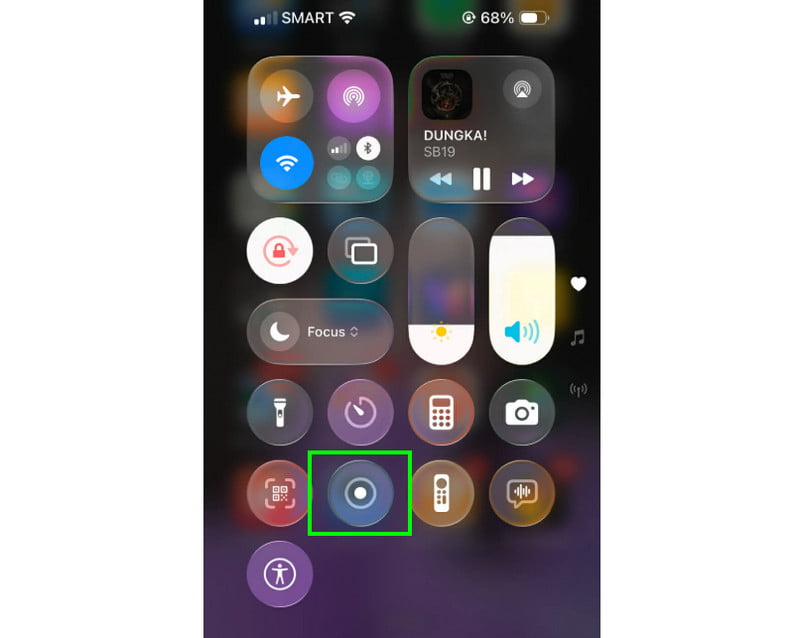
Bạn muốn ghi âm nhạc từ YouTube trên iPhone của mình? Trong trường hợp đó, tất cả những gì bạn cần làm là sử dụng tính năng Ghi âm trên thiết bị của mình. Với tính năng này, bạn có thể ghi âm bất kỳ bản nhạc nào từ YouTube. Để bắt đầu tính năng ghi âm, tất cả những gì bạn cần làm là chạm vào biểu tượng ghi âm. Hỗ trợ cảm ứng Tiếp tục vào mục Trung tâm điều khiển. Chọn tính năng Ghi âm. Quá trình sẽ bắt đầu sau khi đếm ngược 3 giây. Sau đó, bạn có thể bắt đầu phát nhạc từ YouTube. Nhấn giữ nút dừng để kết thúc quá trình ghi âm. Sau khi hoàn tất, bạn có thể sử dụng bất kỳ phần mềm chuyển đổi video sang MP3 nào để chuyển video của mình thành tệp âm thanh.
Phần 6. Mẹo chuyên nghiệp để có chất lượng âm thanh tốt hơn
Hãy xem phần này để hiểu rõ hơn về cách cải thiện chất lượng âm thanh.
- Luôn thu âm ở nơi yên tĩnh để giảm thiểu tiếng ồn xung quanh.
- Khi sử dụng ứng dụng như GarageBand, bạn phải giữ mức khuếch đại đầu vào cân bằng. Luôn tránh hiện tượng méo tiếng bằng cách giữ mức khuếch đại dưới vùng màu đỏ.
- Để có chất lượng tốt hơn, hãy luôn ghi âm ở định dạng AIFF hoặc WAV.
- Theo dõi quá trình ghi âm bằng tai nghe. Bạn có thể sử dụng tai nghe có dây để xử lý các vấn đề trong thời gian thực.
Đến Thu âm một bài hát trên iPhoneHãy sử dụng tất cả các phương pháp được cung cấp trong hướng dẫn này. Với đó, bạn có thể đạt được kết quả mong muốn sau quá trình thực hiện. Ngoài ra, nếu bạn muốn ghi âm nhạc từ điện thoại bằng máy tính để bàn, bạn có thể truy cập... AVAide Screen RecorderVới tính năng Ghi âm điện thoại của chương trình này, bạn có thể kết nối iPhone và ghi âm bất kỳ bản nhạc nào, lưu lại với chất lượng tốt nhất, biến nó trở thành máy ghi âm đáng tin cậy nhất.
GIỚI THIỆU VỀ TÁC GIẢ

Ghi lại các hoạt động trên màn hình bằng âm thanh, cuộc họp trực tuyến, video trò chơi, nhạc, webcam, v.v.