Cách ghi âm tin nhắn thoại trên iPhoneGhi âm tin nhắn thoại là một cách nhanh chóng để chia sẻ suy nghĩ hoặc gửi tin nhắn âm thanh cá nhân mà không cần gõ chữ. Với tính năng nhắn tin thoại tích hợp sẵn trên iPhone, bạn có thể ghi âm, lưu và chia sẻ đoạn âm thanh của mình ngay lập tức chỉ với vài thao tác. Vì vậy, nếu bạn đang tìm kiếm một cách toàn diện để ghi âm và gửi tin nhắn thoại trên điện thoại di động của mình, hãy xem hướng dẫn này để đạt được kết quả mong muốn.
Phần 1. Cách ghi âm và gửi tin nhắn thoại trong iMessage
iMessage không chỉ là một công cụ liên lạc đơn giản. Nó còn cung cấp tính năng tin nhắn thoại. Với tính năng này, bạn có thể gửi hoặc chia sẻ tin nhắn và suy nghĩ của mình bằng giọng nói. Đây là một chức năng lý tưởng nếu bạn muốn gửi tin nhắn mà không cần gõ bất kỳ văn bản nào từ bàn phím. Điều tuyệt vời nhất ở đây là việc gửi tin nhắn thoại rất đơn giản, khiến nó trở nên hoàn hảo cho tất cả người dùng. Vì vậy, nếu bạn muốn bắt đầu ghi âm và gửi tin nhắn, bạn có thể sử dụng hướng dẫn bên dưới.
Cách ghi âm tin nhắn thoại trên iPhone
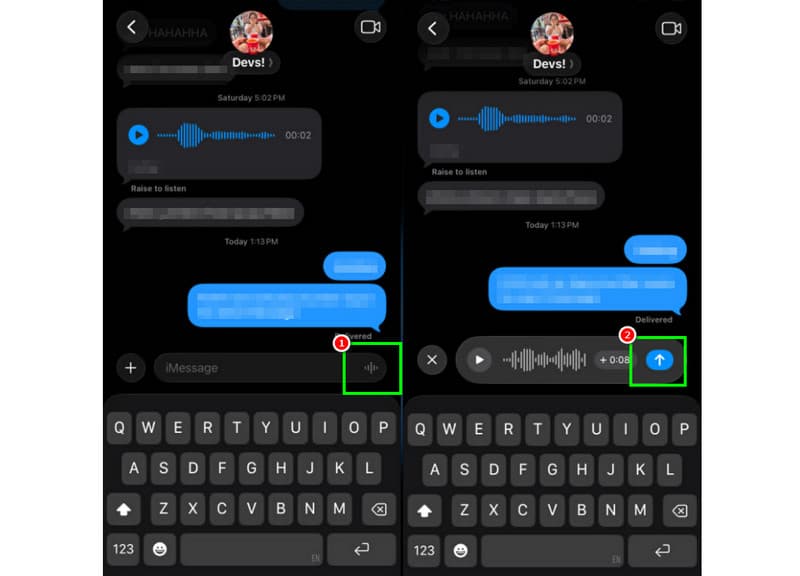
Bước 1Trên iPhone của bạn, hãy khởi chạy ứng dụng. iMessage Sau đó, hãy chuyển đến người mà bạn muốn liên lạc.
Bước 2Trên màn hình, nhấn và giữ Cái mic cờ rô Tùy chọn này cho phép bạn vừa giữ nút, vừa bắt đầu ghi âm và nói tin nhắn của mình.
Bước 3Để dừng ghi âm, hãy thả ngón tay khỏi nút. Sau đó, chạm vào nút. Gửi mũi tên nút để gửi tin nhắn.
Nghe tin nhắn thoại đến
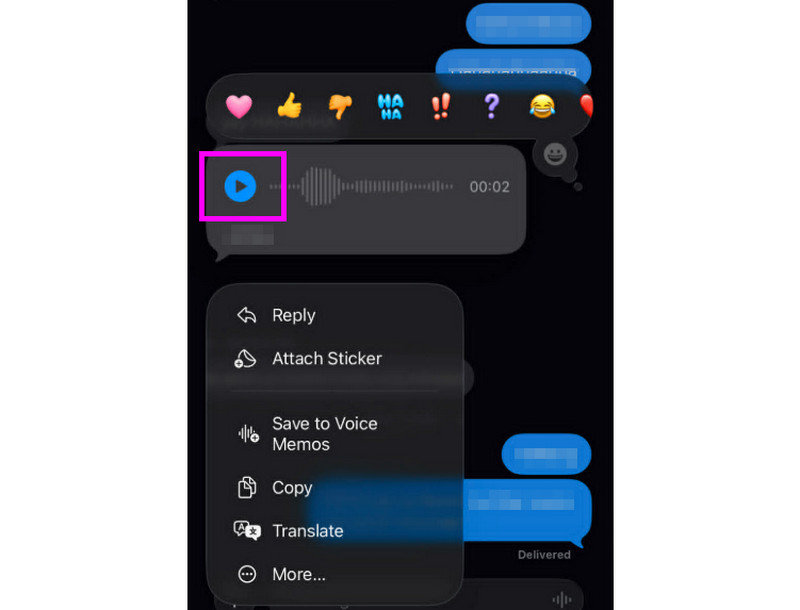
Bước 1Sau khi nhận được tin nhắn thoại, bạn có thể chạm vào Chơi cái nút.
Bước 2Bạn cũng có thể điều chỉnh âm lượng bằng nút bên cạnh của iPhone để nghe tin nhắn rõ hơn.
Bước 3Sau hai phút, tin nhắn thoại sẽ tự động tắt. Để lưu lại tin nhắn, chỉ cần nhấn vào nút. Giữ tùy chọn bên dưới.
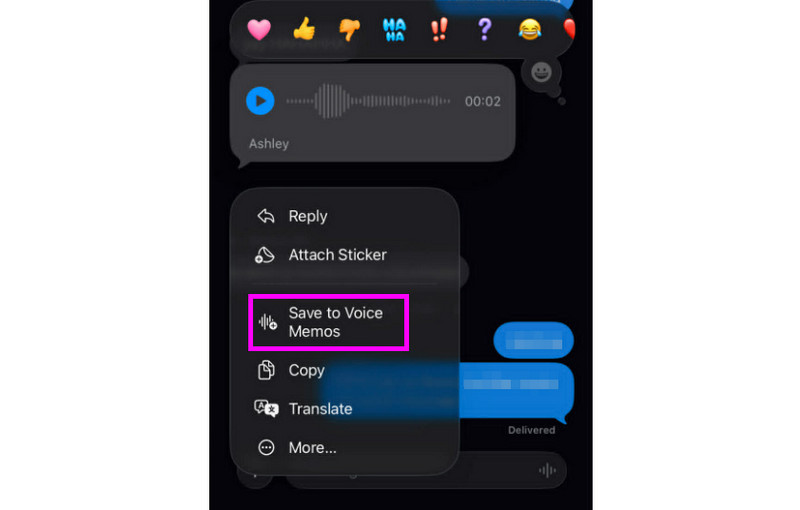
Bước 4Nếu bạn muốn lưu tin nhắn thoại, chỉ cần nhấn giữ tin nhắn đó và chạm vào biểu tượng lưu. Lưu vào ghi âm ứng dụng này. Với điều này ứng dụng ghi âm giọng nóiBạn có thể nghe lại tin nhắn bất cứ lúc nào và ở bất cứ đâu.
Điều chỉnh cài đặt tin nhắn thoại
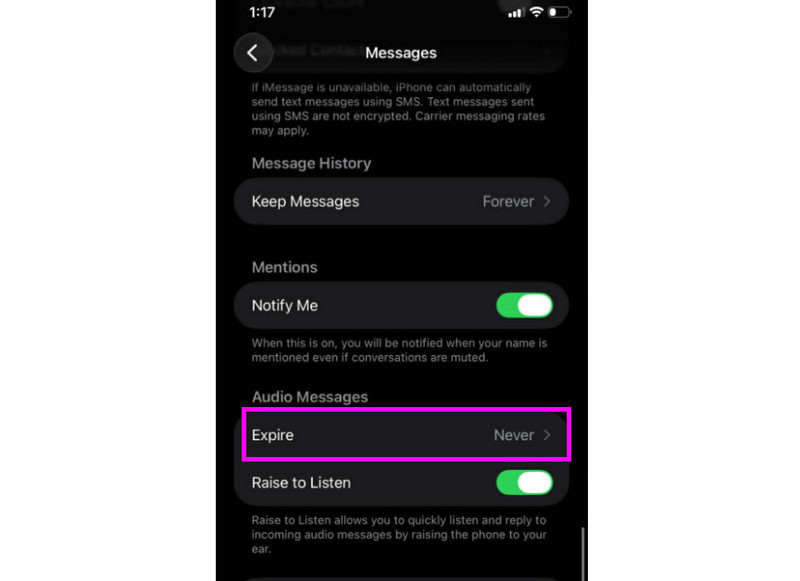
Bước 1Đi đến của bạn Cài đặt ứng dụng. Sau đó, hãy tiếp tục đến Tin nhắn ứng dụng.
Bước 2Điều hướng đến Tin nhắn âm thanh > Hết hạn phần và chạm vào Không bao giờ tùy chọn này. Bằng cách này, bất kỳ tin nhắn thoại nào từ iMessage của bạn sẽ không bị hết hạn.
Phần 2. Phương pháp ghi âm lời chào hộp thư thoại trên iPhone
Khi bạn không thể nghe máy, người gọi sẽ nhận được một tin nhắn tùy chỉnh nếu bạn ghi âm lời chào hộp thư thoại trên iPhone của mình. Việc tạo lời chào mới, chỉnh sửa hoặc xóa lời chào cũ, thậm chí sử dụng lời chào tạm thời cho các sự kiện đặc biệt rất đơn giản. Bạn có thể hoàn toàn thay đổi âm thanh hộp thư thoại của mình đối với người khác chỉ với một vài thao tác chạm trong ứng dụng Điện thoại. Xem các phương pháp ở bên cạnh và tìm hiểu cách ghi âm tin nhắn hộp thư thoại trên iPhone.
Thiết lập lời chào hộp thư thoại của bạn
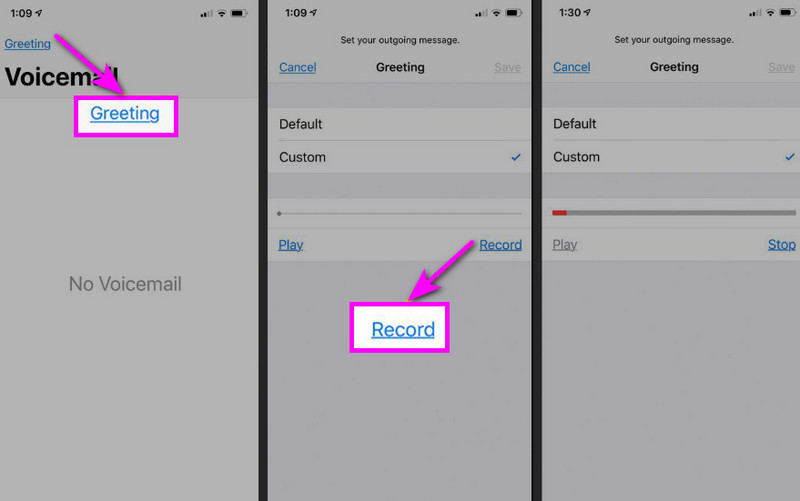
Bước 1Tiếp tục với Điện thoại ứng dụng và chạm vào Thư thoại lựa chọn.
Bước 2Sau đó, nhấn Lời chào Chức năng nằm ở góc trên bên trái màn hình. Nhấn Phong tục > Ghi để bắt đầu ghi âm trên iPhone của bạn như lời chào của bạn.
Bước 3Vô nhẹ Ngừng lại Hoàn thành và chơi để đánh giá. Sau khi xong, hãy nhấn Cứu Đặt nó làm lời chào mặc định của bạn.
Thay đổi hoặc xóa lời chào của bạn
Bước 1Bạn có thể quay lại Thư thoại > Lời chào tiết diện.
Bước 2Đánh Phong tục và ghi âm lời chào mới để thay thế lời chào cũ.
Bước 3Sau đó, để khôi phục về cài đặt mặc định, bạn có thể chọn Mặc định Thay vì Tùy chỉnh.
Mẹo hay: Lời chào tạm thời
Nếu bạn vắng mặt trong một thời gian ngắn, hãy ghi âm lời chào tạm thời bằng cách làm theo các bước tương tự như trong mục Tùy chỉnh. Khi bạn quay lại, bạn chỉ cần chuyển về lời chào thông thường hoặc tùy chọn mặc định của mình.
Phần 3. Khắc phục sự cố - Không thể ghi âm tin nhắn thoại
Hãy đến phần này và xem hướng dẫn khắc phục sự cố bao gồm một số vấn đề khi ghi âm hoặc gửi tin nhắn thoại trên iPhone.
Nút micro bị mờ đi trong ứng dụng Tin nhắn.
Giải pháp: Hãy đảm bảo rằng quyền truy cập micro đã được bật. Để làm điều đó, hãy vào Cài đặt > Quyền riêng tư & Bảo mật > Micro và cho phép truy cập cho ứng dụng Tin nhắn.
Không thể gửi bằng giọng nói
Giải pháp: Luôn kiểm tra kết nối internet của bạn. Ngoài ra, hãy đảm bảo rằng iMessage đã được kích hoạt trong Cài đặt > Tin nhắn > iMessage.
Không thể ghi âm lời chào hộp thư thoại
Giải pháp: Tùy chọn Lời chào chỉ hiển thị nếu nhà mạng hỗ trợ hộp thư thoại trực quan. Nếu không có, bạn có thể nhấn và giữ phím 1 trên ứng dụng điện thoại để gọi trực tiếp đến hộp thư thoại. Sau đó, bạn có thể bắt đầu làm theo hướng dẫn của nhà mạng để ghi âm lời chào.
Người nhận nói rằng họ không nghe thấy bạn.
Giải pháp: Bạn có thể kiểm tra micro bằng ứng dụng Ghi âm. Bạn cũng có thể tháo bất kỳ vỏ hoặc phụ kiện nào có thể che chắn micro. Một phương pháp khác bạn có thể sử dụng là làm sạch lỗ micro bằng vải hoặc bàn chải nhỏ.
Tham khảo nhanh: Tin nhắn thoại so với hộp thư thoại
Bạn muốn tìm hiểu thêm về tin nhắn thoại và thư thoại? Vậy thì, bạn có thể xem bảng đơn giản bên dưới.
| Tính năng | Tin nhắn thoại (iMessage) | Hộp thư thoại (Nhà mạng) |
| Cách thức gửi | • Được ghi lại trong ứng dụng Tin nhắn • Được gửi qua iMessage | • Lời chào được ghi âm • Âm thanh được lưu trữ bởi thiết bị lưu trữ. |
| Cần có kết nối Internet | Có (Wi-Fi hoặc dữ liệu di động) | Không, nó hoạt động qua mạng di động. |
| Kho | Đã lưu trong cuộc trò chuyện iMessage | Được lưu trữ trong hệ thống thư thoại của nhà mạng. |
| Điều khiển | Người dùng có thể gửi lại, xóa hoặc lưu. | Hãng vận chuyển kiểm soát quyền truy cập và lưu trữ. |
Phần thưởng: Công cụ tốt nhất giúp bạn chỉnh sửa bản ghi âm giọng nói
Sau khi lưu bản ghi âm hoặc tin nhắn thoại, đôi khi bạn muốn chỉnh sửa để có được chất lượng âm thanh tốt hơn. Vì vậy, khi cần chỉnh sửa âm thanh, việc sử dụng một công cụ chỉnh sửa xuất sắc sẽ là lựa chọn tốt hơn, chẳng hạn như... AVAide Video ConverterChương trình này cung cấp tính năng chỉnh sửa âm thanh, cho phép bạn chỉnh sửa tệp âm thanh của mình. Bạn có thể cắt, tách và ghép đoạn âm thanh. Bạn thậm chí có thể điều chỉnh âm lượng và độ trễ theo sở thích của mình. Điều tuyệt vời nhất là bạn có thể lưu âm thanh ở bất kỳ định dạng nào bằng tính năng chuyển đổi của chương trình. Bạn có thể lưu bản ghi âm giọng nói của mình dưới dạng MP3, WAV, M4A, FLAC, và nhiều định dạng khác, với chất lượng tốt nhất lên đến 320 kbps. Vì vậy, nếu bạn đang tìm kiếm một phần mềm lý tưởng có thể giúp bạn chỉnh sửa bản ghi âm giọng nói, thì AVAide Video Converter chính là lựa chọn hoàn hảo.

TẢI VỀ MIỄN PHÍ Đối với Windows 7 trở lên
 An toàn tải
TẢI VỀ MIỄN PHÍ Dành cho Mac OS X 10.13 trở lên
An toàn tảiThêm tính năng:
- Nó có thể cung cấp quy trình chỉnh sửa âm thanh mượt mà.
- Chương trình có thể ghép nhiều tệp âm thanh lại với nhau để tạo thành một tệp duy nhất.
- Nó có thể chuyển đổi định dạng âm thanh và video với tốc độ nhanh hơn 120 lần.
- Chương trình cũng có thể cung cấp các trình chỉnh sửa video tích hợp sẵn, chẳng hạn như ghép, chia, cắt, xén, v.v.
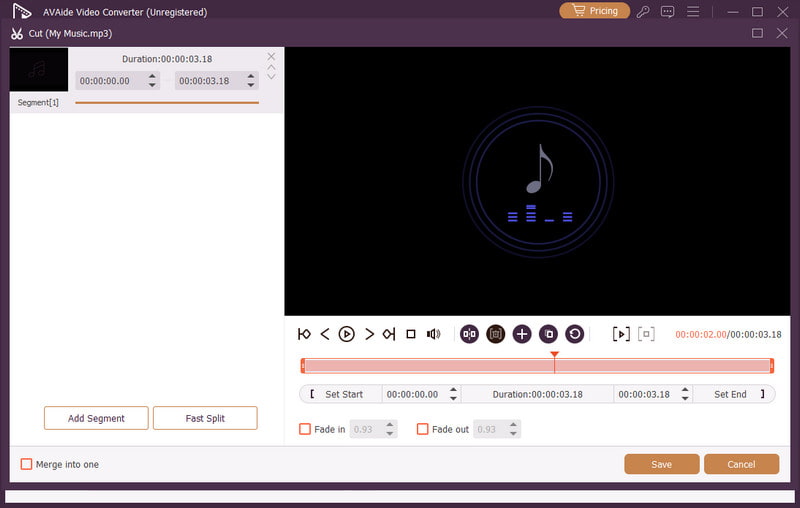
Gửi tin nhắn thoại trên iPhone Ghi âm là một cách lý tưởng nếu bạn muốn gửi tin nhắn nhanh hơn. Nhờ hướng dẫn này, bạn đã học được cách ghi âm và gửi tin nhắn thoại hiệu quả. Bạn thậm chí còn hiểu rõ cách lưu tin nhắn thoại để phát lại mà không gặp bất kỳ hạn chế nào. Thêm nữa, nếu bạn muốn chỉnh sửa bản ghi âm giọng nói của mình, sẽ tốt hơn nếu bạn truy cập vào phần mềm chỉnh sửa. AVAide Video ConverterVới tính năng chỉnh sửa âm thanh của chương trình này, bạn có thể cải thiện chất lượng âm thanh, mang lại trải nghiệm phát lại âm thanh tốt hơn và thỏa mãn hơn.
GIỚI THIỆU VỀ TÁC GIẢ

Ghi lại các hoạt động trên màn hình bằng âm thanh, cuộc họp trực tuyến, video trò chơi, nhạc, webcam, v.v.