Bạn có muốn học không Cách ghi âm cuộc gọi trên iPhoneViệc ghi âm cuộc gọi trên iPhone rất hữu ích, đặc biệt nếu bạn muốn lưu lại những cuộc trò chuyện quan trọng, các cuộc thảo luận kinh doanh hoặc các cuộc phỏng vấn. Vì vậy, nếu bạn quan tâm đến việc tìm hiểu các phương pháp tốt nhất để ghi âm cuộc gọi, thì tốt nhất nên đọc hướng dẫn này. Chúng tôi ở đây để cung cấp cho bạn tất cả các phương pháp bạn có thể sử dụng và làm theo để ghi âm cuộc gọi điện thoại trên cả các phiên bản iOS cũ và mới. Vì vậy, hãy xem bài viết này và tìm hiểu thêm thông tin chi tiết.
Phần 1. Thay đổi lớn trong iOS 18.1 - Gọi điện thoại gốc
Trong iOS 18.1, Apple đã giới thiệu tính năng ghi âm cuộc gọi tích hợp. Với tính năng này, bạn có thể ghi âm cuộc gọi một cách hiệu quả, lý tưởng để lưu lại các cuộc thảo luận quan trọng, chủ đề kinh doanh hoặc bất kỳ cuộc trò chuyện cần thiết nào. Hơn nữa, công cụ này được tích hợp trực tiếp vào ứng dụng Điện thoại, đảm bảo tất cả các bản ghi âm đều rõ ràng, dễ truy cập và an toàn. Ngoài ra, khi sử dụng tính năng này, cả hai bên đều nhận được thông báo. Điều này hoàn hảo để duy trì tính minh bạch và tuân thủ các tiêu chuẩn về quyền riêng tư. Vì vậy, nếu bạn đang sử dụng iPhone chạy iOS 18.1, bạn có thể dựa vào tính năng này để ghi âm cuộc gọi mà không cần tải xuống bất kỳ ứng dụng ghi âm bên thứ ba nào.
Để tìm hiểu cách sử dụng trình ghi âm cuộc gọi tích hợp, bạn có thể làm theo các bước đơn giản mà chúng tôi đã cung cấp bên dưới.
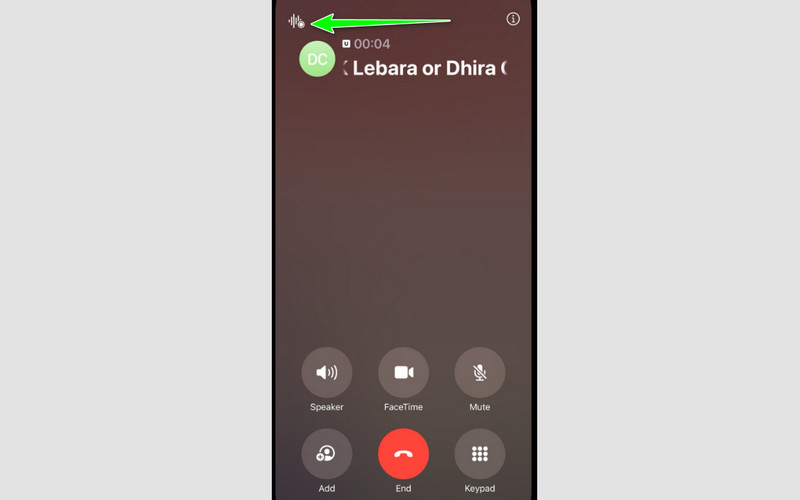
Bước 1Mở Điện thoại Mở ứng dụng và bắt đầu hoặc nhận cuộc gọi. Sau đó, nếu bạn đang trong cuộc gọi, hãy chuyển sang bước tiếp theo.
Bước 2Chạm vào Ghi Nhấn vào nút ở phía trên màn hình. Sau đó, một thông báo sẽ hiện ra để thông báo cho cả hai bên rằng quá trình ghi âm đang được kích hoạt.
Bước 3Để dừng ghi âm cuộc gọi, bạn có thể nhấn nút. Ngừng lại biểu tượng trên màn hình của bạn.
Các cuộc gọi đã ghi âm được lưu ở đâu trên iPhone?
Với iOS 18.1, các cuộc gọi được ghi âm bằng trình ghi âm tích hợp sẽ tự động được lưu và lưu trữ trong lịch sử cuộc gọi của ứng dụng Điện thoại. Thêm vào đó, chúng cũng được đồng bộ hóa với ứng dụng Ghi âm giọng nói để dễ dàng truy cập. Sự tích hợp này đảm bảo rằng các bản ghi âm có sẵn dưới dạng các tệp âm thanh độc lập và được sắp xếp cùng với các cuộc gọi của bạn. Các bản ghi âm này có thể được sao lưu và truy cập dễ dàng từ tất cả các thiết bị Apple của bạn, tùy thuộc vào cài đặt iCloud của bạn.
Phần 2. Cách ghi âm cuộc gọi trên các phiên bản iOS cũ hơn (iOS 17 trở xuống)
Bạn vẫn đang sử dụng phiên bản iOS cũ và muốn ghi âm cuộc gọi? Đừng lo lắng! Việc ghi âm cuộc gọi trên iOS 17 trở xuống vẫn hoàn toàn có thể. Để tìm hiểu tất cả các phương pháp khả thi, bạn có thể tham khảo các phương pháp trong phần này.
Phương pháp 1. Sử dụng ứng dụng của bên thứ ba (Phương pháp gọi ba chiều)
Một giải pháp thay thế được cung cấp bởi các chương trình của bên thứ ba ghi âm cuộc gọi bằng cách sử dụng thiết lập cuộc gọi hội nghị ba chiều. Các ứng dụng này cho phép bạn ghi lại cuộc thảo luận bằng cách kết nối cuộc gọi của bạn với một đường dây ghi âm. Mặc dù cần phải cài đặt và triển khai ứng dụng, nhưng đây là một trong những phương pháp đáng tin cậy hơn cả. Hãy làm theo các hướng dẫn đơn giản bên dưới và tìm hiểu cách bạn có thể ghi âm cuộc gọi trên iPhone.
Bước 1Bạn có thể cài đặt ứng dụng ghi âm cuộc gọi hỗ trợ ghép các cuộc gọi.
Bước 2Trong khi đang gọi, bạn có thể bắt đầu cuộc gọi hội nghị ba chiều bằng cách quay số đường dây ghi âm của ứng dụng.
Bước 3Tiếp theo, hãy ghép các cuộc gọi lại với nhau để ứng dụng ghi âm có thể ghi lại cuộc trò chuyện. Sau khi hoàn tất, hãy kết thúc cuộc gọi và truy cập bản ghi âm đã lưu trong ứng dụng.
Nếu bạn đang tìm kiếm các ứng dụng của bên thứ ba, bạn có thể thử sử dụng Rev Call Recorder, TapeACall và Call Recorder - IntCall.
Phương pháp 2. Sử dụng thiết bị thứ hai (Giải pháp thay thế bằng thiết bị tương tự)
Một cách khác để ghi âm trên iPhoneMột cách hiệu quả để ghi âm cuộc trò chuyện, đặc biệt là các cuộc gọi, là sử dụng một thiết bị khác. Bạn có thể dùng điện thoại khác, máy ghi âm hoặc máy tính xách tay/máy tính để bàn. Phương pháp này đơn giản và không yêu cầu bất kỳ ứng dụng đặc biệt nào. Nó thậm chí có thể hoạt động ổn định miễn là môi trường yên tĩnh. Nhược điểm duy nhất ở đây là chất lượng âm thanh phụ thuộc vào môi trường xung quanh và thiết bị ghi âm. Để tìm hiểu cách ghi âm cuộc trò chuyện trên iPhone, hãy làm theo các bước bên dưới.
Bước 1Bạn có thể sử dụng một thiết bị khác làm máy ghi âm. Bạn có thể sử dụng tính năng ghi âm hoặc ứng dụng ghi âm trên điện thoại, thiết bị ghi âm độc lập hoặc máy tính. Sau đó, bắt đầu ghi âm.
Bước 2Giờ bạn có thể bắt đầu cuộc gọi và đảm bảo rằng cuộc gọi được bật ở chế độ loa ngoài để nghe được giọng nói từ cuộc gọi khác. Lưu ý rằng môi trường xung quanh cần phải yên tĩnh để có chất lượng âm thanh tốt hơn.
Bước 3Dừng ghi âm và lưu lại vào thiết bị của bạn. Bạn cũng có thể chia sẻ bản ghi âm nếu cần.
Phương pháp 3. Sử dụng ghi âm giọng nói
Các Bản ghi nhớ giọng nói Ứng dụng này cũng hữu ích nếu bạn muốn ghi âm cuộc gọi. Tuy nhiên, bạn cần lưu ý rằng không phải lúc nào bạn cũng có thể ghi âm cuộc gọi vì iOS chặn tính năng thu âm cuộc gọi để bảo vệ quyền riêng tư. Hơn nữa, ngay cả khi bạn ghi âm được cuộc gọi, chất lượng âm thanh cũng rất kém. Thậm chí có những lúc bạn sẽ không nghe thấy gì trong bản ghi âm. Vì vậy, dù phương pháp này có hiệu quả phần nào, chúng tôi không khuyến khích bạn sử dụng nó, đặc biệt là khi ghi âm một cuộc trò chuyện quan trọng.
Bước 1Chạy Bản ghi nhớ giọng nói Ứng dụng trong khi bạn đang gọi điện.
Bước 2Sau đó, bạn có thể bắt đầu ghi âm cuộc gọi bằng cách nhấn nút. Ghi cái nút.
Bước 3Sau đó, đánh Ngừng lại để hoàn tất việc ghi âm.
Phần 3. Các vấn đề pháp lý và quyền riêng tư quan trọng
Người đang nghe cuộc gọi khác có nhận được thông báo khi tôi ghi âm cuộc gọi trên iPhone không?
Câu trả lời là có. Nếu bạn đang sử dụng trình ghi âm tích hợp sẵn từ iOS 18.1 trở lên, cả hai bên sẽ nhận được thông báo khi cuộc gọi đang được ghi âm. Điều này là cần thiết để bảo vệ quyền riêng tư và đảm bảo tính minh bạch. Người kia sẽ nghe thấy và nhận được thông báo, cho phép họ biết rằng cuộc trò chuyện đang được ghi âm.
Việc ghi âm cuộc gọi điện thoại có hợp pháp không?
Điều đó phụ thuộc vào tình huống. Nếu bạn muốn ghi âm cuộc gọi mà không có sự đồng ý của người kia, thì điều đó sẽ bị coi là bất hợp pháp. Bởi vì bạn đang không tôn trọng quyền riêng tư của người mà bạn đang nói chuyện cùng. Mặt khác, nếu cả hai người đều biết về việc ghi âm, thì điều đó sẽ hợp pháp. Vì vậy, nếu bạn muốn ghi âm một cuộc trò chuyện hoặc thảo luận quan trọng qua điện thoại, việc xin phép người kia là điều lý tưởng và thể hiện sự tôn trọng.
Liệu cuộc gọi được ghi âm bí mật có thể được sử dụng làm bằng chứng không?
Tại tòa án, các bản ghi âm bí mật thường bị bác bỏ, đặc biệt nếu chúng vi phạm luật về sự đồng ý hoặc quyền riêng tư. Thậm chí, trong một số trường hợp, chúng có thể khiến người quay phim gặp rắc rối pháp lý. Tòa án thường ưu tiên các bản ghi âm được thực hiện với sự đồng ý rõ ràng của tất cả mọi người.
Phần 4. Ứng dụng ghi âm cuộc gọi video tốt nhất cho thiết bị của bạn
Bạn đang tìm kiếm một máy ghi âm xuất sắc có thể đáp ứng mọi nhu cầu của bạn? Trong trường hợp đó, chúng tôi khuyên bạn nên sử dụng... AVAide Screen RecorderChương trình này cung cấp tính năng Ghi âm cuộc gọi, cho phép bạn ghi lại bất kỳ nội dung nào từ điện thoại di động của mình, bao gồm cả các cuộc gọi. Điều chúng tôi thích ở đây là nó rất dễ sử dụng, nhờ giao diện người dùng toàn diện. Nó cũng đảm bảo bạn có được chất lượng âm thanh tốt nhất để có trải nghiệm nghe tốt hơn. Phần tốt nhất ở đây là bạn có thể lưu bản ghi âm của mình theo định dạng ưa thích. Bạn có thể lưu tệp dưới dạng MP4, AVI, MKV, MP3, AAC, WAV, và nhiều hơn nữa. Vì vậy, nếu bạn cần ứng dụng tốt nhất để ghi âm cuộc gọi iPhone, thì AVAide Screen Recorder chính là lựa chọn không thể bỏ qua.
Bước 1Đầu tiên, tải xuống AVAide Screen Recorder Trên máy tính của bạn. Bạn có thể truy cập nó trên máy Mac hoặc Windows.

TẢI VỀ MIỄN PHÍ Đối với Windows 7 trở lên
 An toàn tải
TẢI VỀ MIỄN PHÍ Dành cho Mac OS X 10.13 trở lên
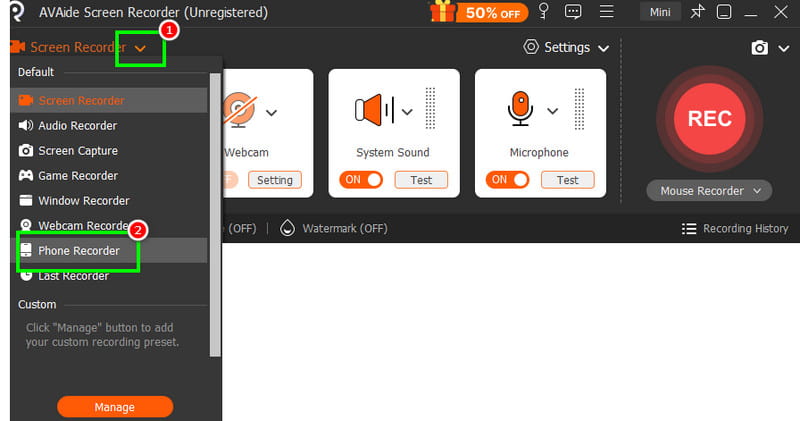
An toàn tảiBước 2Sau khi khởi chạy chương trình, hãy nhấp vào thả xuống và chọn Máy ghi âm điện thoại tính năng đó. Sau đó, bạn có thể bắt đầu kết nối điện thoại di động của mình với phần mềm.
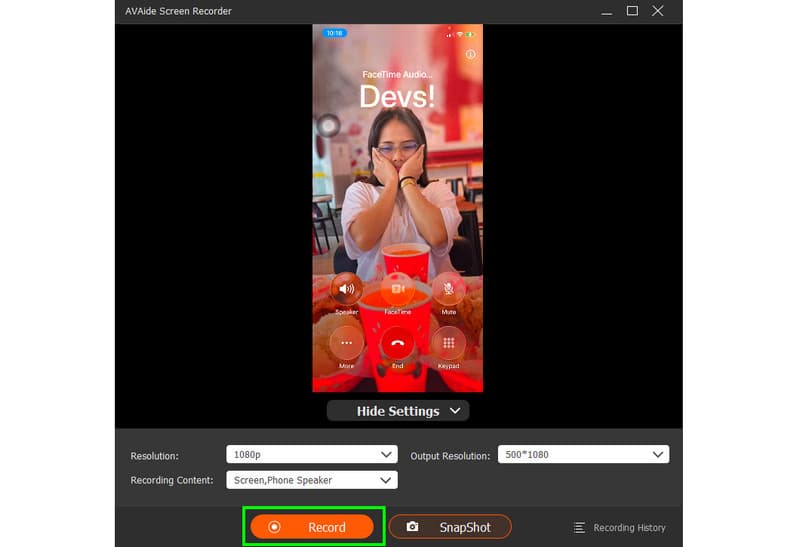
Bước 3Sau khi kết nối điện thoại, bạn sẽ thấy màn hình điện thoại trên màn hình máy tính. Bắt đầu chạm vào các nút. Ghi Nhấn nút để bắt đầu quá trình ghi âm. Nhấn Ngừng lại Khi bạn thu âm xong.
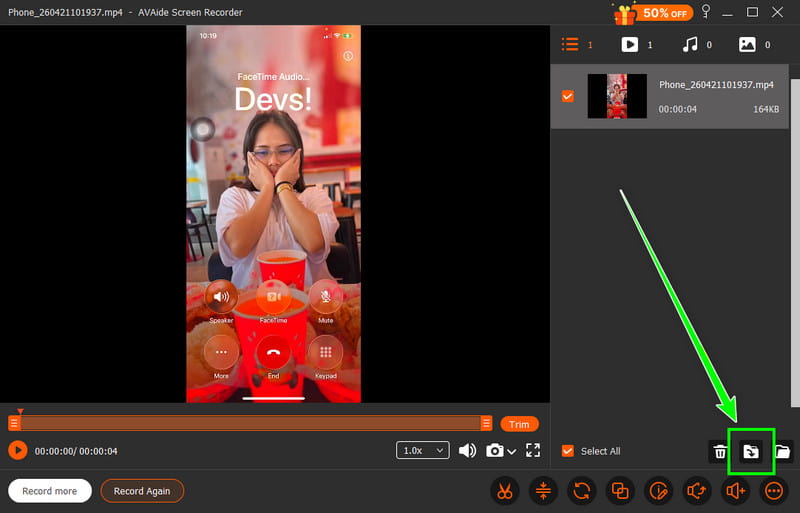
Bước 4Cuối cùng, bạn có thể bắt đầu tấn công Xuất khẩu Nhấn vào nút bên dưới để lưu bản ghi âm vào máy tính của bạn.
Để đạt hiệu quả ghi âm cuộc gọi iPhoneBạn có thể sử dụng tất cả các phương pháp trong phần này. Chúng tôi đã cung cấp những cách tốt nhất để bạn có thể ghi âm cuộc gọi trên iPhone bằng cả phiên bản iOS cũ và mới. Ngoài ra, nếu bạn muốn có quy trình ghi âm cuộc gọi iPhone tốt hơn, chúng tôi khuyên bạn nên sử dụng... AVAide Screen RecorderVới tính năng Ghi âm cuộc gọi của chương trình này, bạn có thể đảm bảo ghi âm cuộc gọi với chất lượng tốt nhất, lý tưởng cho việc phát lại thoải mái.
GIỚI THIỆU VỀ TÁC GIẢ

Ghi lại màn hình, âm thanh, webcam, trò chơi, cuộc họp trực tuyến, cũng như màn hình iPhone / Android trên máy tính của bạn.