Lenovo dizüstü bilgisayarda ekran kaydı nasıl yapılır? Seçtiğiniz araca bağlı olarak, yerleşik Windows özelliklerinden gelişmiş yazılımlara kadar çeşitli seçenekler mevcuttur. Bu kılavuz, eğitim videoları, toplantılar, oyun oynama veya günlük kayıtlar için Lenovo cihazlarınızda ekran görüntüsü almanın basit, net ve etkili yöntemlerini göstermektedir.
Yöntem 1. Xbox Oyun Çubuğunu Kullanma
Xbox Game Bar'ın dahili kayıt özelliği Microsoft'a aittir, Windows ile sorunsuz bir şekilde entegre olur ve Lenovo kullanıcıları için en kullanışlı kayıt çözümüdür. Oyun oynamak için tasarlanmış olup aynı zamanda standart uygulama kaydedici, eğitim videosu oluşturucu ve tarayıcı kaydedici olarak da hizmet vermektedir. En büyük avantajı ise kurulum gerektirmemesi; hemen kullanıma hazır olmasıdır.
Ancak kesin dezavantajları da var. Masaüstünü veya Dosya Gezgini'ni kaydetmiyor ve özelleştirme profesyonel araçlarla sınırlı. Bununla birlikte, kalite ve çabanın o kadar önemli olmadığı sıradan oturumlar için en kullanışlı yerleşik seçeneklerden biri olmaya devam ediyor.
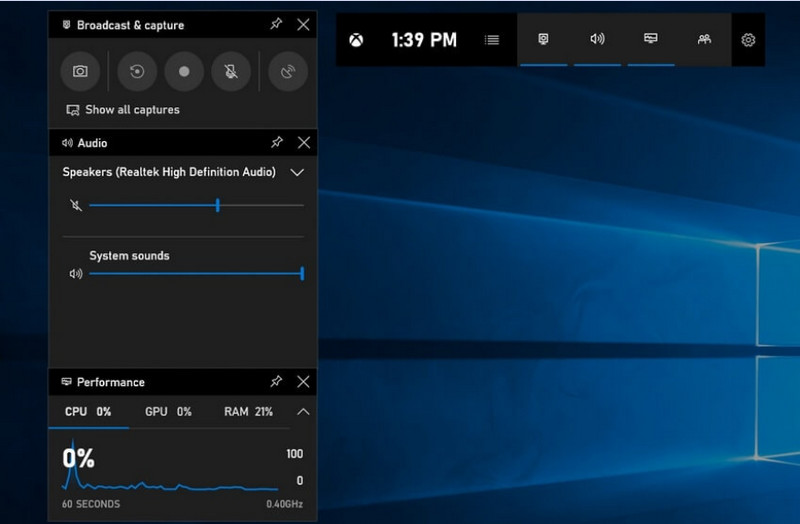
Aşama 1Xbox Oyun Çubuğunu açmak için tuşuna basın. Windows + G klavyenizde.
Adım 2Bul Ele geçirmek panelden veya üzerine tıklayarak erişebilirsiniz. Widget'lar Menü.
Aşama 3Tıkla Kayıt (●) düğmesine basın veya basın Windows + Alt + R.
4. AdımSes kaydı yapmak istiyorsanız, etkinleştirin. Mikrofon.
Adım 5Basmak Windows + Alt + R tekrar veya tıklayın Dur (■) tamamlamak için.
6. AdımKaydınızı şu konumda bulacaksınız: Videolar > Yakalar.
Yöntem 2. Lenovo Vantage Kullanımı
Lenovo Vantage bir ekran kaydedici değil; bir sistem yönetimi ve optimizasyon paketidir. Kaydedilen cihaz modeline bağlı olarak, kayıt sürecine yardımcı olan çok az özelliğiyle, kayıt işleminde dolaylı bir rol oynar; hatta bazı cihazlar kayıt sürecine yardımcı olabilecek kısayollar veya kamera/ekran araçları sunar.
Bu, performans ve kullanılabilirlik açısından geniş bir çeşitlilik anlamına gelir. Bazı Lenovo cihazlarında temel kayıt işlevleri desteklenebilirken, diğerlerinde bu özellikler hiç bulunmayabilir. Tam ekran kayıt cihazları için yapabilecekleri sınırlı ve biraz tutarsızdır, ancak Lenovo ekosisteminde kalmak isteyen kullanıcılar için değerli olabilir. podcast kaydı Temel araçlarla içerik.
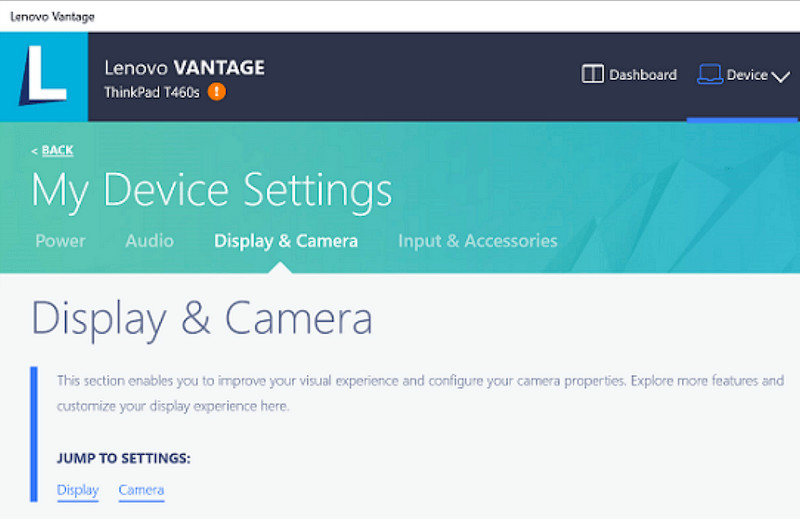
Aşama 1şuraya git Başlangıç menüye tıklayın ve Lenovo Vantage.
Adım 2Musluk Cihaz Ayarlarım > Ekran ve Kamera.
Aşama 3Kayıtları veya diğer mevcut işlevleri kontrol edin.
4. AdımGerekli tüm seçenekleri veya kısayolları kullanıma sunun.
Adım 5Mümkünse, sağlanan işlevi kullanarak müziği kaydedin.
6. AdımVideolar klasörünüzde kaydettiğiniz kayıtları bulun.
Yöntem 3. Legion Zone / Lenovo Nerve Center Kullanımı
Lenovo Nerve Center (veya Legion Nerve Center - Legion'dan gelen daha yeni araçlar Nerve Sense'in yerini aldı), özellikle oyunculara yönelik Lenovo Legion dizüstü bilgisayarlar olmak üzere Lenovo cihazları için optimize edilmiştir. Ayrıca oyun performansı araçlarıyla sıkı bir şekilde entegre edilmiştir, böylece kullanıcılar sistem kaynaklarını izlerken ve optimize ederken oyunlarının ekran görüntülerini alabilirler.
Ancak, oldukça basit bir kayıt cihazıdır. Özelleştirmeden ziyade kullanım kolaylığına odaklanmıştır ve çözünürlük, bit hızı ve gelişmiş ayarlar üzerinde sınırlı kontrol sağlayan yalnızca temel kayıt seçenekleri sunar. Ayrıca, yalnızca bazı yeni sistemlerde mevcuttur ve diğerleri bunu sistemlerinden kaldırmış veya değiştirmiştir, bu nedenle eskisi kadar güvenilir değildir.
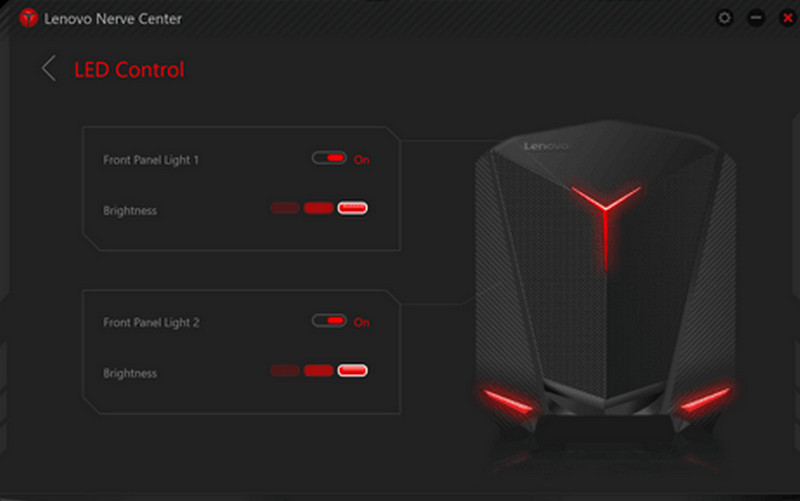
Aşama 1Erişmek Lenovo Sinir Merkezi veya Lejyon Bölgesi cihazdan.
Adım 2Kayıt ve/veya oyun araçlarına gidin.
Aşama 3Eğer bir seçenek varsa, çözünürlük veya ses kalitesi gibi kayıt ayarlarını değiştirin.
4. AdımOyunu veya uygulamayı başlatın.
Adım 5Varsayılan kısayol veya düğmeyi kullanarak kayıt yapın.
6. AdımKaydı durdurun ve şunlara bakın: Videolar Dosyanın kaydedilip kaydedilmediğini görmek için klasöre bakın.
Yöntem 4. AVAide Ekran Kaydedici Kullanımı
AVAide Ekran Kaydedici Lenovo'nun dahili ekran kaydedicisinden daha gelişmiş ve çok yönlü bir ekran kaydedicidir. Video kalitesi, daha akıcı çalışma ve daha fazla kayıt kontrolü isteyenler için tasarlanmıştır. Profesyonel düzeyde, karmaşık kurulum gerektirmeden eğitim videoları oluşturmak, toplantıları kaydetmek veya oyun kayıtlarını almak için mükemmel bir araçtır.
Sistem sesini, mikrofon girişini, web kamerasını ve ekran alanlarını kaydedebilmesinin yanı sıra, temel kayıt cihazlarına kıyasla minimum gecikmeyle Full HD ve hatta 4K kayıt desteği de sunuyor. Bu da onu iş ve eğlence için hepsi bir arada bir ekran yakalama uygulaması haline getiriyor.
- 1080p veya 4K çözünürlükte, sorunsuz ve gecikmesiz videolar kaydedin.
- İhtiyaçlarınıza bağlı olarak TAM veya ÖZEL ekran modlarında kayıt yapın.
- Hem dahili sesleri hem de dış sesleri aynı anda, net bir çıktı ile kaydedin.
- Eğitim videoları, sunumlar veya oyun videoları için yüz kamerası kaydı özelliğini ekleyin.
- Kayıt işlemi tamamlandıktan sonra, kayıtları kırpın, sıkıştırın ve iyileştirin.

 Güvenli indirme
Aşama 1Yazılımı İndirin ve Yükleyin
AVAide Screen Recorder'ın resmi web sitesini ziyaret edin. Windows Installer dosyasını indirin, Lenovo dizüstü bilgisayarınıza kurun ve çalıştırın.
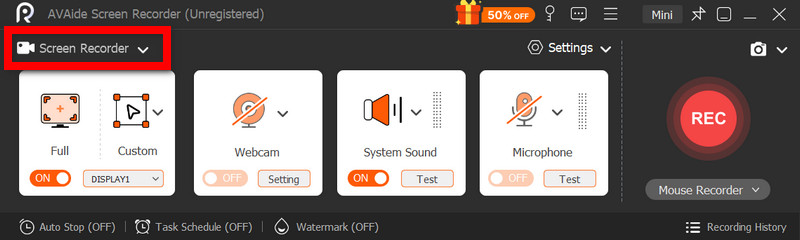
Adım 2Kayıt Modunu Seçin
Yazılımı açın, ardından tıklayın. Ekran kaydedicisiEkranın tamamını şu şekilde kaydedin: Tam dolu veya ekranın bir bölümü ile Gelenek.
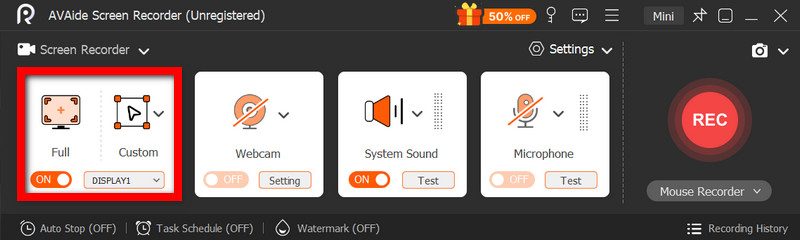
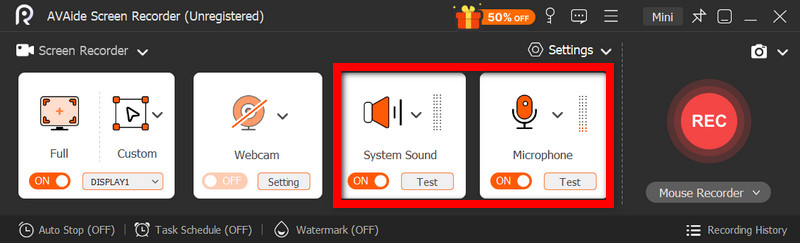
Aşama 3Ses Ayarlarını Yapılandır
Bilgisayar tarafından çıkarılan sesleri kaydetmek için etkinleştirin. Sistem SesiKendi sesinizi eklemek için etkinleştirin. MikrofonGerektiğinde web kamerası da açılabilir.
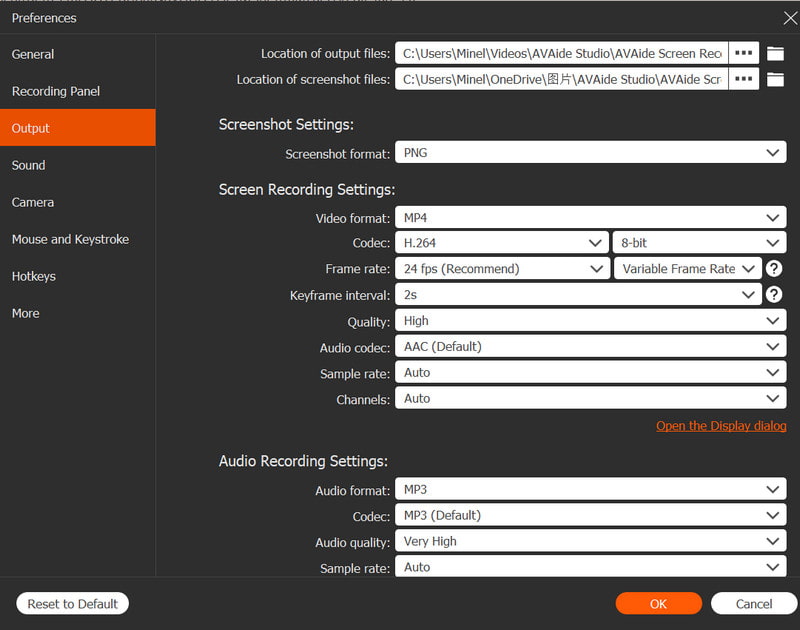
4. AdımKayıt Ayarlarını Düzenleyin
Kullan Ayarlar En iyi kayıt performansını elde etmek için video kalitesini, çözünürlüğü, kare hızını ve çıkış formatını yapılandırmak üzere kullanılan düğme.
Adım 5Kayda başla
basın KAYIT Kaydı başlatmak için düğmeye tıklayın. Google Meet kayıtları, eğitim videoları, oyun oynama veya ekrandaki herhangi bir etkinlik sorunsuz bir şekilde kaydedilebilir.
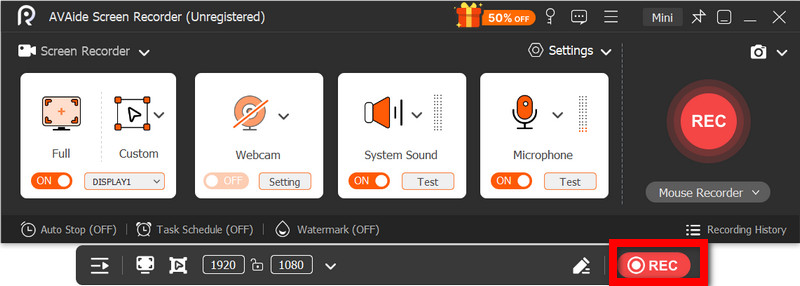
6. AdımKaydı Durdurun ve Kaydedin
İşiniz bittiğinde, tıklayın. Durmak Bu düğmeyi kullanarak kaydınızı önizleyin, gerekirse hızlıca düzenleyin ve anında bilgisayarınıza kaydedin.
Yöntem 5. Hızlı Ayarları Kullanma
Lenovo Android tabletlerde, hızlı ayarlar bölümünde yerleşik bir ekran kaydı seçeneği bulunur. Tabletinizde eğitim videoları, oyun oynama veya uygulama etkinliklerini kaydetmenin en iyi yolu, üçüncü taraf uygulamalar indirmeden bunu yapmaktır. Kolay, hızlı ve mobil kullanım için optimize edilmiş olan bu özellik, hareket halindeyken hızlı kayıtlar için idealdir.
Diğer ekran yakalama araçlarında bulunan gelişmiş düzenleme ve özelleştirme özelliklerinden yoksun olsa da, sesli basit ekran yakalama işlemleri için yeterlidir.
Aşama 1Ekranın altından yukarı doğru kaydırarak açın. Hızlı Ayarlar.
Adım 2Aramak Ekran Kaydı veya Ekran kaydedicisi Düğmeye tıklayın. Eğer orada yoksa, tıklayın. Düzenlemek Buton'u seçin ve panelinize ekleyin.
Aşama 3Tıklamak Ekran kaydedicisiArdından istediğiniz ayarları seçin.
4. AdımMusluk Başlangıç Kaydı başlatmak için. Kayıt başlamadan önce bir geri sayım olacak.
Adım 5Yüzen araç çubuğuna veya bildirim çubuğuna dokunun, ardından basın. Durmak Kaydı sonlandırmak için.
Lenovo'da Sık Karşılaşılan Ekran Kaydı Sorunlarını Giderme
Lenovo cihazlarda ekran kaydı yaparken karşılaşılan yaygın sorunları çözmeye yönelik ipuçlarını okuyabilirsiniz.
Lenovo cihazlarda ekran kaydı yaparken genellikle büyük bir sorun yaşanmasa da, kullanılan ekran kayıt aracı veya cihaza bağlı olarak her zaman sorun çıkma olasılığı vardır. Aşağıda en yaygın sorunlar ve bunların nasıl çözüleceği yer almaktadır.
- Ekran Kaydedici Çalışmıyor: Cihazınızı yeniden başlatın ve tekrar deneyin. Xbox Game Bar gibi yerleşik araçlar için, Windows Ayarları'nda Oyun bölümünde etkinleştirildiğinden emin olun.
- Kayıtta Ses Yok: Kayda başlamadan önce Sistem Sesinin veya Mikrofonun açık olup olmadığını kontrol edin. Ayrıca, sistem sesinizin sessiz modda olmadığından emin olun.
- Gecikmeli veya Düşük Kaliteli Video: Video kalitesini düşürün veya arka planda çalışan uygulamaları kapatın. Grafik sürücülerinizi güncellemek de performansı artırabilir.
- Masaüstü veya Dosya Gezgini kaydedilemiyor: Bu, Xbox Game Bar'ın yaygın sınırlamalarından biridir. Ekranınızı kaydetmek ve her şeyi yakalamak istiyorsanız, AVAide Screen Recorder gibi gelişmiş bir program kullanın. Mac için en iyi ekran kaydediciler ve Windows.
- Kaydedilmiyor, Kaydediliyor: Depolama alanınızın dolu olmadığından emin olun ve varsayılan kaydetme konumunu doğrulayın. Ayarlarda çıktı klasörünü değiştirin ve deneyin.
Lenovo ekran kaydı düğmesi Seçenekler, cihazınıza ve kullandığınız araca bağlı olarak değişir. Genel olarak, yerleşik özellikler ve üçüncü taraf uygulamalar, kaydı basitleştirerek Lenovo cihazlarda ekran etkinliğini verimli bir şekilde yakalamanıza, kaydetmenize ve yönetmenize olanak tanıyan esnek yollar sunar.
YAZAR HAKKINDA

Ses, çevrimiçi toplantılar, oyun videoları, müzik, web kamerası vb. ile ekran etkinliklerini yakalayın.
Ekran Kaydı
- Windows'ta Ekran Kaydı
- Instagram Canlı Yayınını Kaydedin
- Tubi'den Videoları Kopyala
- YouTube Videolarını MP3'e Dönüştürün
- Fansly'den Video İndir
- JW Player Videolarını İndirme
- Bilibili Videolarını İndirin
- Patreon Videolarını İndirin
- SpankBang Videolarını İndirin
- Discord Videolarını İndirin
- DoodSream Videosunu İndirin