เมื่อเข้าร่วมการประชุมหรือชั้นเรียนออนไลน์ผ่าน Zoom คุณอาจต้องการ... ถ่ายภาพหน้าจอใน Zoom เพื่อใช้ในภายหลัง บทความนี้จะนำเสนอคำแนะนำฉบับสมบูรณ์เกี่ยวกับการถ่ายภาพหน้าจอใน Zoom โดยใช้คุณสมบัติเริ่มต้นของ Windows, Mac และอุปกรณ์มือถือ หรือใช้คุณสมบัติในตัวของ Zoom เอง นอกจากนี้ เราจะพูดถึงข้อกังวลที่หลายคนสงสัย: Zoom สามารถตรวจสอบได้หรือไม่ว่าคุณกำลังถ่ายภาพหน้าจอ? คุณจะพบคำตอบในบทความนี้
ส่วนที่ 1 วิธีการจับภาพหน้าจอใน Zoom บนพีซี (Windows)
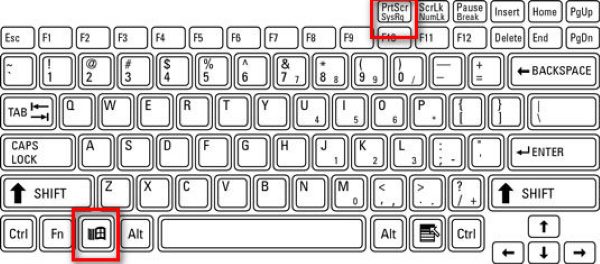
1. ใช้ปุ่ม Print Screen (โหมดเต็มหน้าจอ)
ใช้ปุ่มลัดจับภาพหน้าจอใน Windows เพื่อจับภาพทั้งหน้าจอ ขณะที่การประชุม Zoom กำลังดำเนินอยู่ ให้กดปุ่มนี้ Windows พร้อมกับ PrtScn ปุ่ม (ซึ่งโดยปกติจะอยู่ถัดจากปุ่มฟังก์ชัน)
ระบบจะคัดลอกทุกสิ่งที่ปรากฏบนหน้าจอของคุณทันที และบันทึกไว้ที่ C:\Users\YOUR_USERNAME\Pictures\Screenshots (ใน Windows 10 และ 11)
2. การใช้เครื่องมือ Snipping Tool / Snip & Sketch (เหมาะที่สุดสำหรับการซูม)
กด ชนะ + กะ + ส เพื่อทำให้เดสก์ท็อปเป็นสีเทาและแสดงแถบเครื่องมือจับภาพที่ด้านบน จากนั้นคุณสามารถวาดสี่เหลี่ยม หรือเลือกจับภาพแบบอิสระ แบบหน้าต่าง หรือแบบเต็มหน้าจอได้
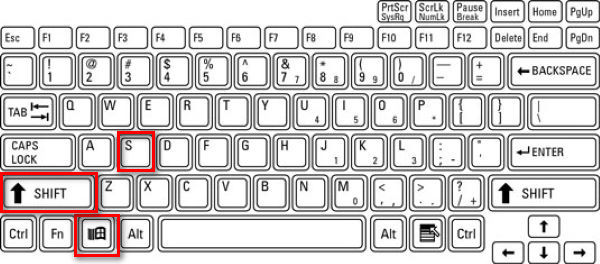
ฟังก์ชันนี้เหมาะสำหรับ Zoom เพราะคุณสามารถจับภาพเฉพาะหน้าต่าง Zoom หรือบางส่วนได้ หลังจากจับภาพแล้ว ภาพจะถูกคัดลอกไปยังคลิปบอร์ด และจะมีข้อความแจ้งเตือนปรากฏขึ้น คลิกที่ข้อความแจ้งเตือนเพื่อแก้ไขภาพหน้าจอ
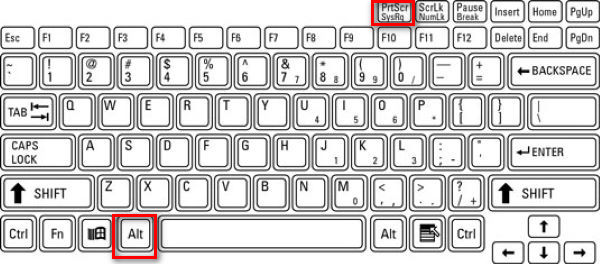
3. การใช้ Alt + PrtScn (เฉพาะหน้าต่างที่ใช้งานอยู่)
ขั้นตอนที่ 1คลิกที่หน้าต่าง Zoom เพื่อตรวจสอบว่าเปิดใช้งานอยู่หรือไม่
ขั้นตอนที่ 2กด Alt + PrtScn.
ฟังก์ชันนี้จะจับภาพเฉพาะหน้าต่างที่ใช้งานอยู่ ซึ่งก็คือการประชุม Zoom และคัดลอกไปยังคลิปบอร์ด
4. การใช้เครื่องมือจากผู้ให้บริการภายนอก
ฉันชอบใช้โปรแกรมจับภาพหน้าจอจากภายนอกมากกว่าใน Zoom เพราะภาพจะถูกบันทึกไว้ในตำแหน่งเฉพาะที่ฉันตั้งค่าไว้ แยกจากภาพหน้าจออื่นๆ ที่ถ่ายโดย Windows ทำให้ค้นหารูปภาพที่ต้องการได้ง่ายขึ้น
มีโปรแกรมจับภาพหน้าจอหลากหลายประเภทสำหรับใช้ในการจับภาพหน้าจอการประชุม Zoom เช่น ShareX, Icecream Screen Recorder, Snagit และอื่นๆ โปรแกรมบันทึกหน้าจอ AVAideเช่นเดียวกับ AVAide Screen Recorder คุณสามารถจัดเก็บภาพหน้าจอไว้ในโฟลเดอร์เดียวกัน ทำให้ง่ายต่อการจัดเก็บภาพหน้าจอทั้งหมดให้เป็นระเบียบ ผมจะแสดงวิธีทำทีละขั้นตอนให้ดู
ขั้นตอนที่ 1ดาวน์โหลดและติดตั้งโปรแกรมบันทึก

ดาวน์โหลดฟรี สำหรับ Windows 7 หรือใหม่กว่า
 ดาวน์โหลดอย่างปลอดภัย
ดาวน์โหลดฟรี สำหรับ Mac OS X 10.13 หรือใหม่กว่า
ดาวน์โหลดอย่างปลอดภัยขั้นตอนที่ 2เริ่มการบันทึก
ขั้นตอนที่ 3เข้าร่วมการประชุม Zoom
ขั้นตอนที่ 4คลิก กล้อง กดปุ่มที่มุมบนขวาของหน้าต่าง AVAide Screen Recorder
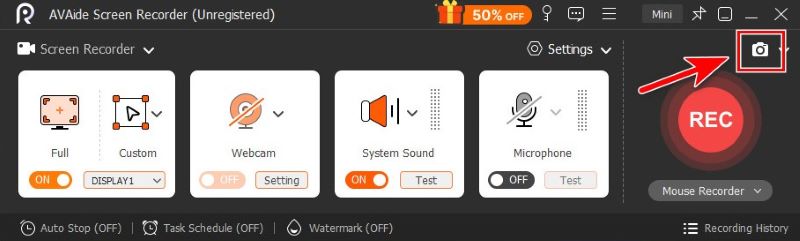
ขั้นตอนที่ 5ตัดภาพแบบอิสระโดยการลากเมาส์ หรือวางตัวชี้เมาส์บนโปรแกรม Zoom เพื่อจับภาพหน้าต่างของโปรแกรม
ขั้นตอนที่ 6เมื่อคุณพอใจกับภาพที่ตัดแล้ว ให้คลิก บันทึกและเลือกโฟลเดอร์ที่คุณต้องการบันทึกไฟล์
ส่วนที่ 2 วิธีการจับภาพหน้าจอใน Zoom บน Mac
ฟังก์ชันพื้นฐานที่มีอยู่ในระบบก็เพียงพอแล้วสำหรับการจับภาพหน้าจอใน Mac
1. การจับภาพหน้าจอแบบเต็มหน้าจอ
หากต้องการจับภาพหน้าจอทั้งหมดบน Mac ให้กดปุ่ม สั่งการ + กะ + 3.

2. การจับภาพเฉพาะส่วน (เหมาะที่สุดสำหรับการซูม)
หากคุณต้องการจับภาพบริเวณสี่เหลี่ยมผืนผ้าเฉพาะบนหน้าจอการประชุม ให้กดปุ่ม สั่งการ + กะ + 4.

3. จับภาพหน้าต่างเฉพาะ
ขั้นตอนที่ 1กด สั่งการ + กะ + 4
ขั้นตอนที่ 2กดปุ่ม Spacebar

จากนั้นเคอร์เซอร์จะเปลี่ยนเป็นไอคอนกล้อง คลิกที่หน้าต่าง Zoom เพื่อจับภาพเฉพาะหน้าต่างนั้น
4. การใช้แอปจับภาพหน้าจอ
ขั้นตอนที่ 1 กด สั่งการ + กะ + 5 เพื่อเปิดแถบเครื่องมือจับภาพหน้าจอของ Apple

ขั้นตอนที่ 2เลือกเครื่องมือที่คุณต้องการใช้

ฉันขอแนะนำ จับภาพหน้าต่าง และ บันทึกส่วนหนึ่งเหมาะสำหรับใช้เฉพาะหน้าต่าง Zoom โดยไม่มีสิ่งรบกวน

- คุณยังสามารถใช้คุณสมบัติเริ่มต้นของ Mac หรือเครื่องมือจากผู้พัฒนาภายนอกได้อีกด้วย แก้ไขภาพหน้าจอของคุณบน Mac ตามที่คุณต้องการ
ส่วนที่ 3 วิธีการจับภาพหน้าจอใน Zoom บนมือถือ (iPhone และ Android)
1. บน iPhone / iPad
วิธีการใช้งานขึ้นอยู่กับรุ่นของอุปกรณ์ของคุณ
ขั้นตอนที่ 1เริ่มการประชุม Zoom ของคุณ
ขั้นตอนที่ 2ถ่ายภาพหน้าจอ
- สำหรับ iPhone ที่มี Face ID และไม่มี Home ปุ่ม (iPhone X และรุ่นที่ใหม่กว่า ยกเว้น iPhone SE) และ iPad ที่มี ไม่มีบ้าน ปุ่ม:
กด ปุ่มด้านข้าง + เพิ่มระดับเสียง. - สำหรับ iPhone หรือ iPad ที่มี หน้าหลัก ปุ่ม (iPhone SE, 8 และรุ่นก่อนหน้า, iPad รุ่นเก่า):
กด ปุ่มด้านข้าง/ด้านบน + หน้าหลัก.
ปล่อยทั้งสองอย่างอย่างรวดเร็ว คุณจะเห็นหน้าจอกะพริบ บันทึกภาพหน้าจอทั้งหมด และภาพขนาดย่อจะปรากฏขึ้นเพื่อให้คุณแก้ไขหรือบันทึก
2. บนระบบแอนดรอยด์
ทางลัด: โทรศัพท์ Android ส่วนใหญ่ใช้แบบคลาสสิก พลัง + ลดระดับเสียง ทางลัดนี้จะแตกต่างกันไปตามยี่ห้อของอุปกรณ์ของคุณ ดังนั้นหากทางลัดนี้ใช้ไม่ได้ ซึ่งเป็นเรื่องปกติ ผมขอแนะนำให้คุณตรวจสอบรุ่นโทรศัพท์ของคุณและค้นหาทางลัดดู
ขณะที่การประชุม Zoom กำลังดำเนินอยู่ ให้กดปุ่มทั้งสองค้างไว้พร้อมกันประมาณ 1-2 วินาที จนกว่าหน้าจอจะกะพริบ ภาพหน้าจอจะถูกบันทึกไว้ในแกลเลอรีหรือแอปรูปภาพของคุณ
แถบเครื่องมือ: ลากเมนูออกมาโดยการปัดนิ้วลงบนหน้าจอ ค้นหา ภาพหน้าจอ คลิกปุ่มบนเมนู แล้วแตะเพื่อเลือกโหมดการจับภาพหน้าจอ ได้แก่ แบบเต็มหน้าจอ แบบอิสระ และแบบเลื่อน
ส่วนที่ 4 การใช้คุณสมบัติในตัวของ Zoom
ฟังก์ชัน "ถ่ายภาพหน้าจอ" ของ Zoom (สำหรับการแชร์หน้าจอเท่านั้น)
ฟีเจอร์จับภาพหน้าจอในตัวของ Zoom ใช้งานง่าย เพียงแค่คลิกไม่กี่ครั้ง
ขั้นตอนที่ 1คลิก แชท ที่ด้านล่างของหน้าต่าง Zoom
ขั้นตอนที่ 2คลิก ภาพหน้าจอ ไอคอนด้านล่างช่องแชท
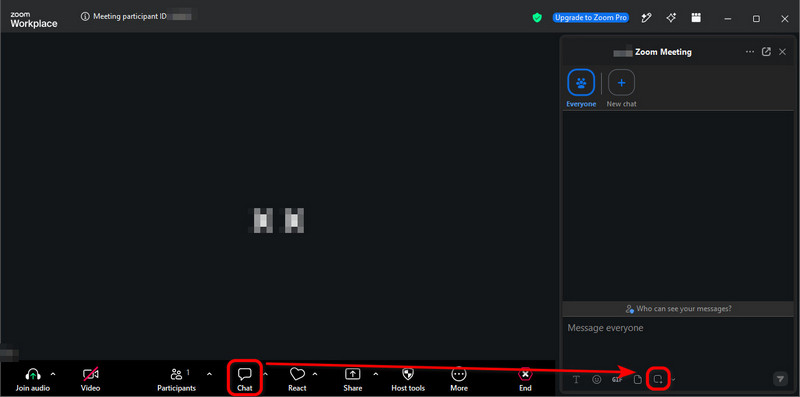
ขั้นตอนที่ 3ลากเมาส์ไปวางบนส่วนของหน้าจอที่คุณต้องการ แล้วคลิก การจับกุม.
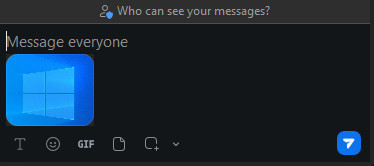
ภาพหน้าจออยู่ในนั้นแล้ว กล่องแชทคุณสามารถส่งไปยังผู้เข้าร่วมประชุมคนอื่นๆ ได้ด้วยการคลิกเพียงครั้งเดียว เครื่องบินกระดาษ ไอคอนที่มุมล่างขวา
- ภาพหน้าจอในช่องแชทจะไม่ถูกบันทึกในคอมพิวเตอร์ของคุณโดยอัตโนมัติ หากคุณต้องการบันทึก ให้คลิกขวาที่ภาพแล้วเลือก บันทึกเป็น….
- แม้ว่าวิธีนี้จะง่ายและรวดเร็วมาก แต่บางครั้งก็อาจล้มเหลวได้ เนื่องจากโฮสต์อาจปิดใช้งานการแชทในการประชุมหรือการบันทึกการแชท เมื่อเกิดเหตุการณ์เช่นนั้น คุณก็รู้ว่าจะต้องทำอย่างไร: ใช้คุณสมบัติของระบบปฏิบัติการหรือเครื่องมือของบุคคลที่สาม เช่น AVAide Screen Recorder แทน
"โปรแกรมสร้างภาพหน้าจอการประชุม Zoom" คืออะไร?
ฟังดูเหมือนโปรแกรมจับภาพหน้าจอใช่ไหม? ตอนแรกฉันก็งงเหมือนกัน แต่ที่จริงแล้วมันเป็นเครื่องมือจากผู้พัฒนาภายนอกที่... สร้างภาพปลอมสำหรับการโทรผ่าน Zoom.
พวกเขาเสนอฟีเจอร์จำลองการประชุมผ่าน Zoom ซึ่งคุณสามารถอัปโหลดรูปภาพและป้อนชื่อเพื่อสร้างภาพหน้าจอการประชุมที่สมจริงพร้อมผู้เข้าร่วมจำลองได้
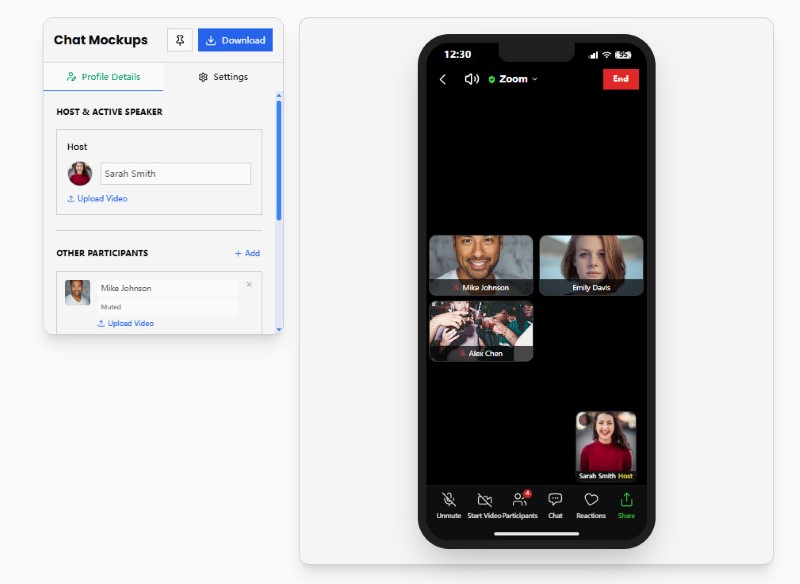
โปรแกรมสร้างภาพหน้าจอการประชุม Zoom ไม่ใช่สิ่งที่เราต้องการในบทความนี้ แต่ถ้าคุณสนใจสร้างมีม Zoom ปลอม ลองใช้เว็บไซต์อย่าง Pradoy หรือ Kapwing ดู พวกมันสนุกมาก
ส่วนที่ 5. Zoom แจ้งเตือนการจับภาพหน้าจอหรือไม่?
กล่าวโดยสรุป Zoom ไม่แจ้งให้คุณทราบเมื่อผู้เข้าร่วมประชุมถ่ายภาพหน้าจอ ไม่ว่าพวกเขาจะใช้ฟีเจอร์ของระบบปฏิบัติการ เครื่องมือของบุคคลที่สาม หรือฟีเจอร์ถ่ายภาพหน้าจอในตัวของ Zoom ก็ตาม
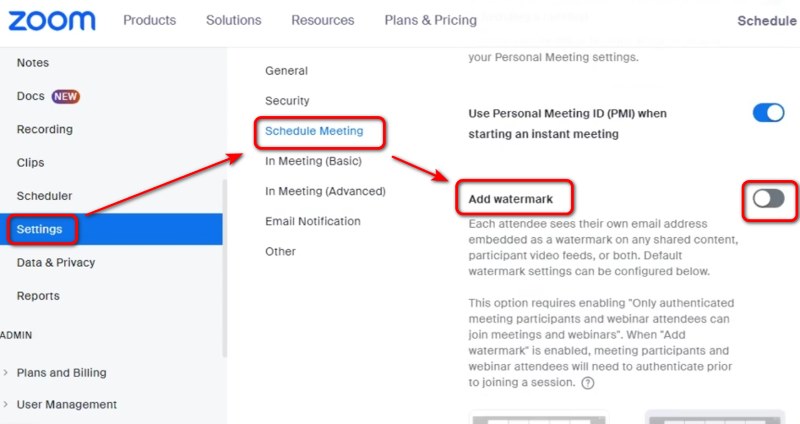
ในฐานะผู้จัดประชุมหรือผู้แชร์หน้าจอ คุณอาจกังวลว่าสิ่งที่ปรากฏบนหน้าจอของคุณจะรั่วไหลออกไปโดยที่คุณไม่รู้ตัว จนถึงตอนนี้ยังไม่มีวิธีใดที่จะป้องกันเรื่องนี้ได้โดยเฉพาะ นอกจากการเพิ่มลายน้ำลงบนหน้าจอของคุณ – โดยเข้าไปที่การตั้งค่าของพอร์ทัลเว็บ Zoom แล้วเปิดใช้งาน "เพิ่มลายน้ำ"
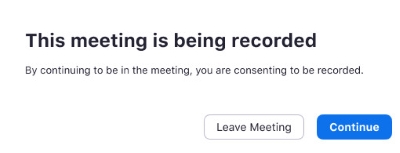
แต่ Zoom จะแจ้งเตือนเมื่อมีคนโทรมา บันทึกการประชุม Zoomเมื่อเข้าร่วมการประชุมที่กำลังบันทึก หรือเมื่อผู้จัดเริ่มบันทึก คุณจะได้รับการแจ้งเตือนขอความยินยอม คุณสามารถให้ความยินยอมหรือออกจากที่ประชุมได้
การถ่ายภาพหน้าจอใน Zoom การจับภาพหน้าจอทำได้ง่ายบน Windows, Mac, iPhone และ Android โดยใช้คุณสมบัติของอุปกรณ์ เครื่องมือของบุคคลที่สาม หรือคุณสมบัติของ Zoom เอง Zoom จะไม่แจ้งให้โฮสต์หรือผู้เข้าร่วมทราบเมื่อคุณจับภาพหน้าจอแบบมาตรฐาน อย่างไรก็ตาม การเคารพความเป็นส่วนตัว ลิขสิทธิ์ และกฎการประชุมใดๆ ก่อนที่จะจับภาพหรือแชร์เนื้อหา Zoom ยังคงเป็นสิ่งสำคัญ หากคุณกังวลเกี่ยวกับความเป็นส่วนตัว ให้แจ้งให้ผู้เข้าร่วมทราบอย่างชัดเจนว่าคุณไม่ต้องการให้จับภาพหน้าจอก่อนที่จะแชร์หน้าจอของคุณ
เกี่ยวกับผู้เขียน

บันทึกช่วงเวลาที่ดีที่สุดด้วย AVAide Screen Recorder Screencast ปรับแต่งและแชร์ในไม่กี่วินาที