คุณกำลังประสบปัญหาการบันทึกวิดีโอที่ไม่ราบรื่นและมีความละเอียดต่ำอยู่หรือไม่? ไม่ว่าคุณจะนำเสนอรายงาน เสนอโครงการ หรือสาธิตการใช้งานอย่างรวดเร็ว คุณอาจกำลังคิดถึงเรื่องนี้อยู่ เครื่องมือบันทึกหน้าจอ Loom ณ ขณะนี้ เราจึงจะมาทำการรีวิวในบทความนี้ ค้นพบคุณสมบัติ ข้อกำหนดของระบบ ราคา และรายละเอียดทั้งหมดที่คุณจำเป็นต้องรู้ นอกจากนี้ เราจะนำเสนอทางเลือกที่ดีที่สุดสามทางเลือกที่คุณสามารถใช้ได้นอกเหนือจาก Loom
ส่วนที่ 1. Loom คืออะไร?
โปรแกรมบันทึกหน้าจอ Loom
แพลตฟอร์ม: เดสก์ท็อป, โครม และมือถือ
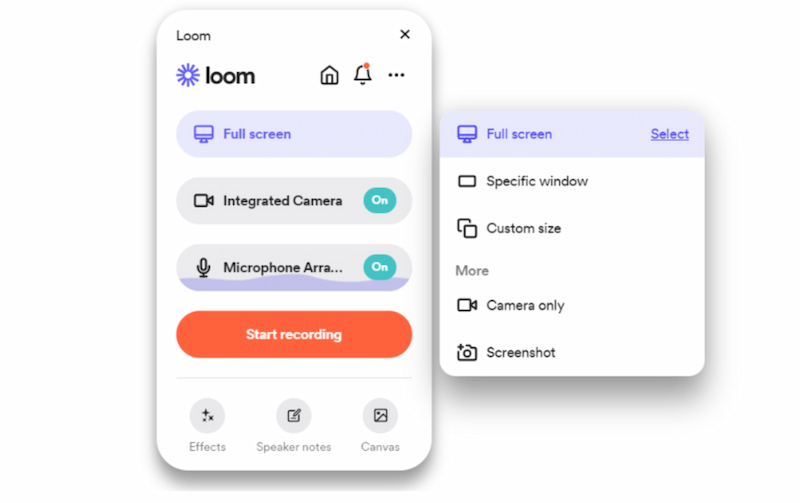
Loom เป็นเครื่องมือที่ออกแบบมาเพื่อช่วยให้ผู้ใช้บันทึกหน้าจอได้อย่างรวดเร็ว ไม่ว่าจะเป็นโหมดเต็มหน้าจอ โหมดเลือกพื้นที่ หรือโหมดหน้าต่าง โดยทุกโหมดสามารถเปิดหรือปิดเสียงระบบหรือเสียงไมโครโฟนได้ นอกจากนี้ เครื่องมือนี้ยังมีอินเทอร์เฟซที่ใช้งานง่าย เหมาะสำหรับผู้เริ่มต้นที่ต้องการเริ่มบันทึกด้วยการคลิกเพียงครั้งเดียว
ยิ่งไปกว่านั้น เครื่องมือนี้ยังมีฟีเจอร์พิเศษเฉพาะตัวของ Loom ซึ่งช่วยให้คุณสามารถเชิญและทำงานร่วมกับเพื่อนร่วมทีมเพื่อดู แก้ไข และแสดงความคิดเห็นในไฟล์ที่บันทึกไว้ เพื่อการปรับปรุงและรับข้อมูลเชิงลึก
- ข้อดี
- อินเทอร์เฟซที่สะอาดตา ช่วยให้ใช้งานเครื่องมือได้ทันที
- รองรับหลายแพลตฟอร์ม
- เป็นเครื่องมือที่ดีสำหรับการสื่อสารแบบอะซิงโครนัส
- การถอดเสียงด้วย AI มีความแม่นยำสูง
- ข้อเสีย
- ส่วนเสริมของ Chrome มีฟีเจอร์ที่รองรับกล้องเว็บแคมน้อยกว่า
- วิดีโอที่บันทึกไว้สามารถดูและแก้ไขได้เฉพาะในเบราว์เซอร์ของคุณเท่านั้น
คำตัดสิน
ความง่ายในการใช้งาน: 4/5
โปรแกรม Loom Screen Recorder มีอินเทอร์เฟซที่สะอาดตาและใช้งานง่ายสำหรับผู้เริ่มต้น ทำให้การบันทึกวิดีโอทำได้อย่างรวดเร็ว อย่างไรก็ตาม กระบวนการตัดต่อขั้นสูงบางอย่างอาจต้องใช้เวลาในการเรียนรู้เพิ่มเติม
คะแนน: 4/5
เครื่องมือนี้ใจกว้างที่ให้แผนใช้งานฟรี ในขณะที่แผนแบบเสียเงินนั้นมอบการทำงานร่วมกันที่ยอดเยี่ยมและมีประโยชน์ด้วยคุณสมบัติ AI ดังนั้น คุณค่าของมันจึงคุ้มค่ากับราคา
การทำงานร่วมกัน: 4.5/5
Loom มีฟีเจอร์ที่ยอดเยี่ยมซึ่งมอบประสบการณ์ที่น่าทึ่งสำหรับการสื่อสารแบบอะซิงโครนัส คุณสามารถเพลิดเพลินกับการแสดงความคิดเห็นด้วยวิดีโอและการแชร์ลิงก์ได้อย่างง่ายดาย ซึ่งเป็นตัวเลือกที่ยอดเยี่ยมสำหรับการทำงานจากระยะไกล
การบูรณาการ AI: 3.5
ในแพ็กเกจแบบชำระเงิน คุณจะสามารถเพลิดเพลินกับฟีเจอร์ที่ผสานรวม AI อันน่าทึ่ง เช่น การถอดเสียงอัตโนมัติ การสร้างบทสรุป และคำแนะนำ อย่างไรก็ตาม คุณอาจคาดหวังได้ว่าฟีเจอร์ AI ที่มีให้จะค่อนข้างจำกัด หากเปรียบเทียบกับเครื่องมืออื่นๆ
คะแนนโดยรวม: 4/5
นี่คือหนึ่งในเครื่องมือบันทึกหน้าจอที่ดีที่สุดที่ผู้เชี่ยวชาญ ครู และพนักงานที่ทำงานทางไกลสามารถใช้งานได้ มันมีกระบวนการบันทึกที่รวดเร็วและการแชร์ที่ราบรื่น ในขณะเดียวกันก็ช่วยคุณในการทำงานด้วยคุณสมบัติ AI อีกด้วย
ส่วนที่ 2. คุณสมบัติหลัก
ต่อไปนี้เราจะนำเสนอคุณสมบัติของซอฟต์แวร์บันทึกวิดีโอ Loom ดูความสามารถทั้งหมดและวิธีที่ผู้ใช้ Loom Screen Recording บน Mac, Windows และ Chrome สามารถบันทึกการประชุม บทเรียน และการนำเสนอได้อย่างง่ายดายด้วยวิดีโอและเสียงคุณภาพสูง
โหมดการบันทึก
แอป Loom Screen Recording รองรับโหมดการบันทึกสามโหมด ดังต่อไปนี้:
- เต็มหน้าจอ: บันทึกการนำเสนอ วิดีโอสอน หรือวิดีโอสาธิตวิธีการใช้งาน
- หน้าต่างเฉพาะรุ่น: คุณมีสิทธิ์เลือกหน้าต่างที่คุณต้องการบันทึกภาพได้
- ขนาดสั่งทำพิเศษ: คุณสามารถตั้งค่าอัตราส่วนของกระบวนการบันทึกหน้าจอได้
- หน้าจอและกล้อง: เป็นที่นิยมสำหรับการอัปเดตข้อมูลทีมและการฝึกอบรมพนักงานใหม่ แอปนี้จะบันทึกภาพหน้าจอของคุณพร้อมกับตัวคุณอยู่บนจอด้วย
- การบันทึกเสียงไมโครโฟน: สามารถนำไปใช้ได้กับทุกโหมด เพียงแค่เปิดใช้งานเท่านั้น
เครื่องมือแก้ไข
เครื่องมือนี้ยังมีฟีเจอร์การแก้ไขขั้นพื้นฐานอีกด้วย:
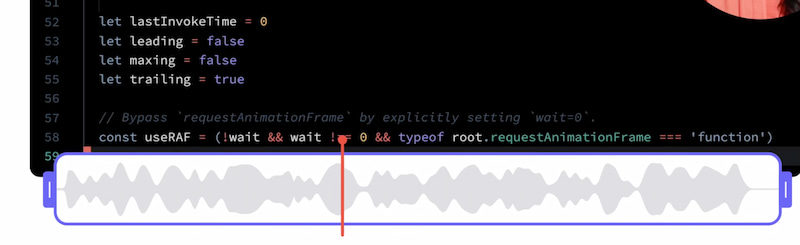
- ตัดต่อวิดีโอ: ตัดส่วนที่ไม่จำเป็นออกจากวิดีโอ
- เครื่องมือวาดภาพ: ใส่คำอธิบายประกอบระหว่างการบันทึก
- การแสดงออกทางสีหน้าด้วยอิโมจิ: เพิ่มการมีส่วนร่วมแบบง่ายๆ
คุณสมบัติที่ขับเคลื่อนด้วย AI
นอกจากนี้ยังผสานรวมเทคโนโลยี AI เพื่อการประมวลผลและการตรวจสอบการบันทึกของคุณที่รวดเร็วยิ่งขึ้น
- ระบบถอดเสียง AI: สร้างและสรุปบทสนทนาให้คุณโดยอัตโนมัติ
- จุดเด่นของ AI: สกัดประเด็นสำคัญจากไฟล์เสียงขนาดยาว
แชร์ได้ทันที
- ลิงก์ด่วน: ไม่จำเป็นต้องดาวน์โหลดไฟล์วิดีโอ
- การทำงานร่วมกันเป็นทีม: สมาชิกในทีมสามารถแสดงความคิดเห็น ตอบโต้ และตอบกลับได้
- การผสานการทำงาน: ทำงานร่วมกับ Slack และ Gmail ได้อย่างราบรื่น และได้รับการประเมินในระดับสูงจากผู้ใช้
ส่วนที่ 3. ข้อกำหนดของระบบ
นอกจากนี้ Loom Screen Recorder ยังต้องการให้อุปกรณ์บางอย่างตรงตามข้อกำหนดของระบบ หากไม่มีปัจจัยเหล่านี้ เครื่องมืออาจทำงานไม่ถูกต้อง ดังนั้น ควรตรวจสอบองค์ประกอบเหล่านี้ก่อนใช้งาน Loom Screen Recorder
| แพลตฟอร์ม | ระบบปฏิบัติการขั้นต่ำ | ซีพียู | แกะ | หมายเหตุ |
| เดสก์ทอป | ระบบปฏิบัติการ Windows 10 ขึ้นไป หรือ macOS 12.3 ขึ้นไป | Intel Skylake (เจนเนอเรชั่นที่ 6) หรือ Apple M1 | 8 GB (แนะนำ 16 GB) | รองรับการบันทึกระดับ HD/4K ในแพ็กเกจ Business/Enterprise |
| เบราว์เซอร์ | ส่วนขยาย Loom สำหรับบันทึกหน้าจอสำหรับ Chrome ต้องการเบราว์เซอร์ Chrome หรือ Chromium เวอร์ชันล่าสุด | ไม่มี | 4 GB+ | • ส่วนขยาย Loom Screen Recorder ใช้งานได้เฉพาะกับ Chrome, Edge, Brave และ Opera เท่านั้น โดยจำกัดความละเอียดในการบันทึกไว้ที่ 720p ในเบื้องต้น • ส่วนขยาย Chrome ไม่สามารถบันทึกภาพจากกล้องในแอปพลิเคชันที่ไม่ใช่ Chrome เช่น PowerPoint หรือ Keynote ได้ |
| โทรศัพท์มือถือ | iOS 15 ขึ้นไป หรือ Android 10 ขึ้นไป | ไม่มี | ไม่มี | แอปพลิเคชันบนมือถือช่วยให้สามารถบันทึกและแชร์ได้ แต่เครื่องมือแก้ไขมีจำกัดเมื่อเทียบกับเวอร์ชันบนเดสก์ท็อป |
ส่วนที่ 4 วิธีการใช้เครื่องทอผ้า
หลังจากได้สำรวจคุณสมบัติที่น่าทึ่งทั้งหมดของ Loom Screen Recorder แล้ว ต่อไปเรามาเรียนรู้วิธีการบันทึกวิดีโอด้วย Loom อย่างง่ายดายกัน เราได้เตรียมคู่มือไว้ให้คุณแล้ว:
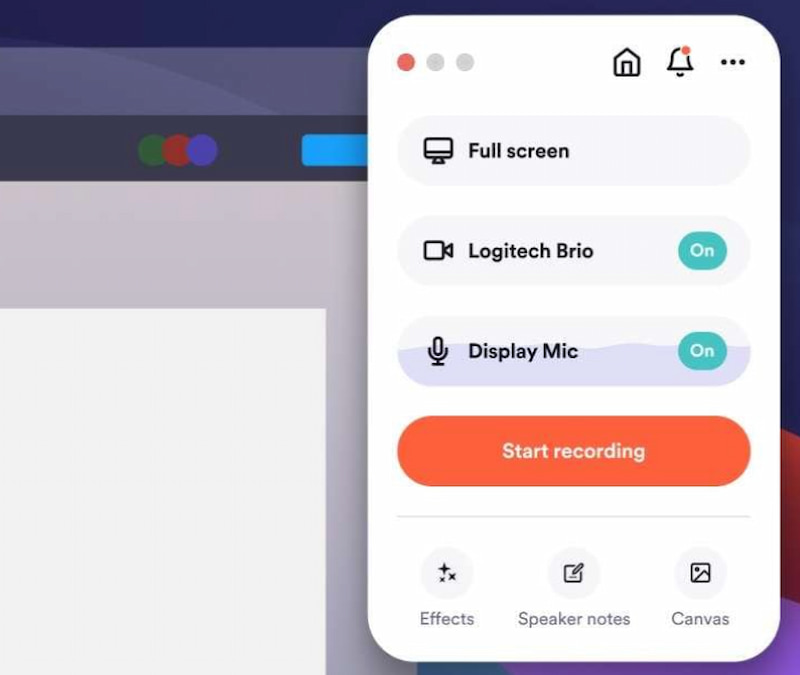
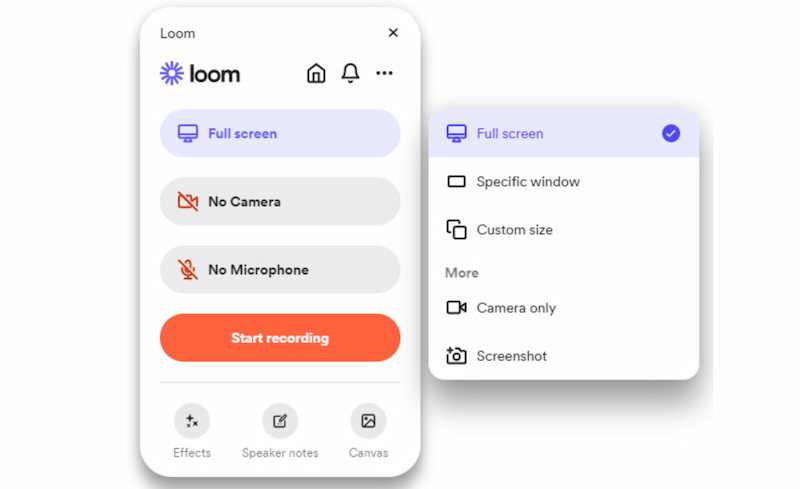
ขั้นตอนที่ 1ดาวน์โหลดโปรแกรม Loom Screen Recorder ลงในคอมพิวเตอร์ของคุณ จากนั้น เข้าไปที่เมนู Start ต่อไป เลือกโหมดการบันทึกจากเมนู เต็มจอ, หน้าต่างเฉพาะ, หรือ ขนาดที่กำหนดเอง.
ขั้นตอนที่ 2ถัดไป คุณสามารถเปิดหรือปิดได้ กล้อง หรือ ไมโครโฟน สำหรับการบันทึกวิดีโอของคุณ จากนั้นโปรดดำเนินการต่อโดยคลิกที่ปุ่ม เริ่มบันทึก กดปุ่ม แล้วทำสิ่งที่คุณต้องการไปเรื่อยๆ ขณะที่การบันทึกดำเนินไปอย่างต่อเนื่อง
ขั้นตอนที่ 3เมื่อเสร็จแล้ว คุณสามารถคลิกได้เลย หยุด กดปุ่ม แอป Loom จะนำคุณไปยังหน้าต่างแสดงตัวอย่าง จากนั้นคุณจะมีตัวเลือกในการแก้ไขหรือแชร์วิดีโอที่บันทึกไว้กับผู้อื่น
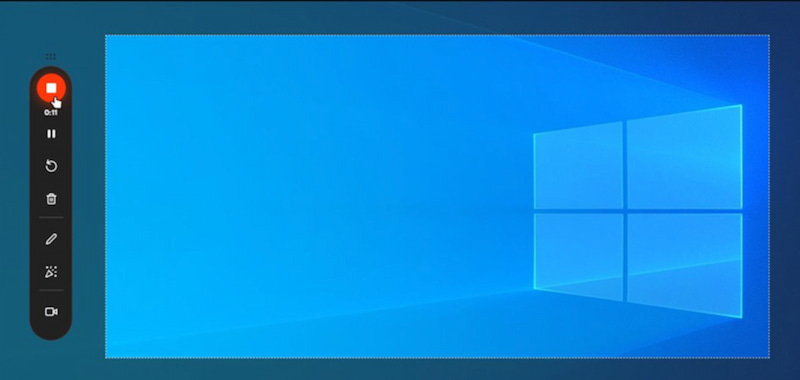
เราจะเห็นได้ว่า Loom Screen Recorder มีประสิทธิภาพและใช้งานง่าย มันมีฟีเจอร์ที่จำเป็นสำหรับการบันทึก โดยพื้นฐานแล้วมันใช้สำหรับการบันทึกและแก้ไขวิดีโอของคุณในระดับพื้นฐาน
ส่วนที่ 5. แผนราคา
โปรดแจ้งรายละเอียดแผนราคาของ Loom Screen Recorder ดูประเภทการสมัครใช้งานตั้งแต่เวอร์ชันฟรีไปจนถึงเวอร์ชันเสียเงินที่เหมาะสำหรับธุรกิจและวัตถุประสงค์ต่างๆ
| วางแผน | ราคา | คุณสมบัติที่สำคัญ |
| สตาร์ทเตอร์ | ฟรี | • วิดีโอ 25 รายการ • จำกัดเวลา 5 นาที • บันทึกการประชุมได้ไม่จำกัดจำนวนครั้ง • ความคิดเห็นและปฏิกิริยาตอบกลับ |
| ธุรกิจ | $18 ต่อผู้ใช้ต่อเดือน | • รับชมวิดีโอได้ไม่จำกัดเวลา • HD/4K • การลบโลโก้หรือตราสินค้า • การอัปโหลด/ดาวน์โหลด |
| ธุรกิจ + ปัญญาประดิษฐ์ | $24 ต่อผู้ใช้ต่อเดือน | • ฟีเจอร์ทางธุรกิจครบครัน • บทสรุปและบทต่างๆ เกี่ยวกับ AI • การกำจัดความเงียบ |
| องค์กร | กำหนดเอง | • ระบบรักษาความปลอดภัยขั้นสูง • การควบคุมโดยผู้ดูแลระบบ • การวิเคราะห์ข้อมูล • การบูรณาการ |
ส่วนที่ 6 ทางเลือกอื่นนอกเหนือจาก Loom
1. โปรแกรมบันทึกหน้าจอ AVAide
โปรแกรมบันทึกหน้าจอ AVAide โปรแกรมนี้มีโหมดการบันทึกหน้าจอ ฟีเจอร์กล้อง และโหมดการบันทึกเสียงทั้งภายในและภายนอกให้เลือกมากมาย เป็นเครื่องมือบันทึกที่สมบูรณ์แบบสำหรับผู้บริโภค โดยเฉพาะผู้ใช้ที่มองหาความเรียบง่ายและความน่าเชื่อถือในการบันทึกประจำวัน เนื่องจากมีน้ำหนักเบา ราคาไม่แพง และมาพร้อมกับเครื่องมือแก้ไขพื้นฐาน

ดาวน์โหลดฟรี สำหรับ Windows 7 หรือใหม่กว่า
 ดาวน์โหลดอย่างปลอดภัย
ดาวน์โหลดฟรี สำหรับ Mac OS X 10.13 หรือใหม่กว่า
ดาวน์โหลดอย่างปลอดภัย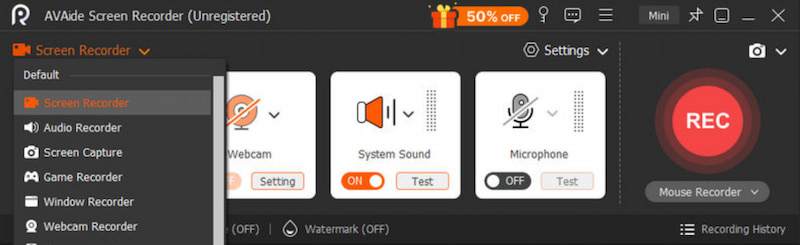
2. โปรแกรม OBS Studio
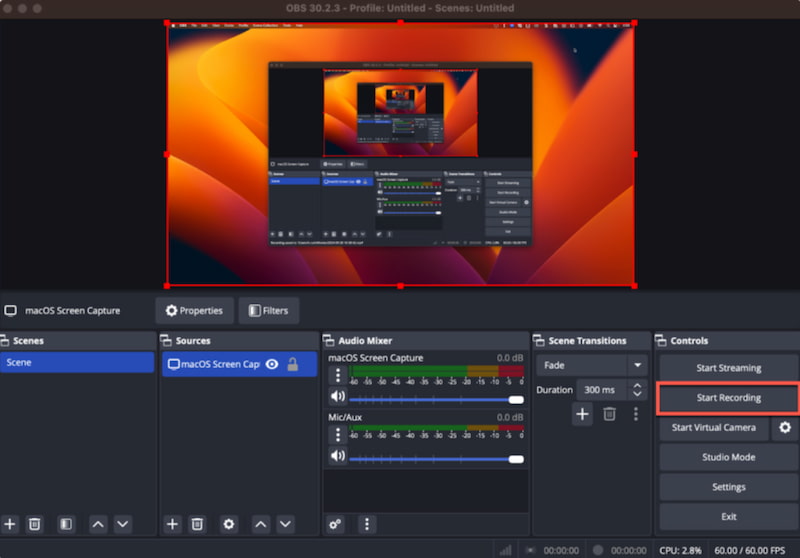
OBS Studio เป็นเครื่องมือที่สามารถบันทึกหน้าจอและเสียงของคุณได้ พร้อมคุณสมบัติที่ปรับแต่งได้หลากหลาย นอกจากนี้ เครื่องมือนี้ยังใช้งานได้ฟรีอีกด้วย โปรแกรมบันทึกหน้าจอโอเพ่นซอร์สเหมาะอย่างยิ่งสำหรับนักเล่นเกม ผู้ประกาศข่าว และมืออาชีพที่ต้องการความสามารถในการบันทึกที่หลากหลาย เนื่องจากรองรับการสตรีมสดที่ซับซ้อน แหล่งที่มาต่างๆ การซ้อนทับ และปลั๊กอินต่างๆ
3. แคมตาเซีย
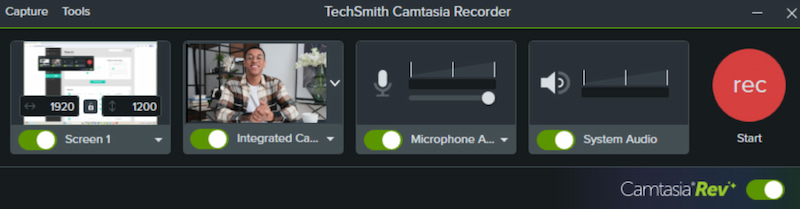
Camtasia ผสานการบันทึกคุณภาพระดับมืออาชีพเข้ากับคุณสมบัติการตัดต่ออันทรงพลัง เช่น แบบทดสอบ เอฟเฟกต์ และการเปลี่ยนฉาก ครูและผู้ฝึกสอนเลือกใช้โปรแกรมนี้แม้จะมีราคาสูง เนื่องจากได้วิดีโอคุณภาพสูงแบบโต้ตอบได้ และมีคุณสมบัติการผลิตที่ครบครัน
ส่วนที่ 7 การแก้ไขปัญหา: โปรแกรมบันทึกหน้าจอ Loom ไม่ทำงาน
ปัญหาที่ 1: ส่วนเสริมของ Chrome ไม่ทำการบันทึก
- โปรดตรวจสอบให้แน่ใจว่าคุณได้ใช้ Chrome เวอร์ชันล่าสุดแล้ว
- ตรวจสอบสิทธิ์การเข้าถึงกล้อง ไมโครโฟน และหน้าจอสำหรับส่วนขยาย Loom
- ปิดใช้งานส่วนขยายที่อาจก่อให้เกิดความขัดแย้ง
ปัญหาที่ 2: ฟีเจอร์ AI ไม่แสดงผล หรือวิดีโอประมวลผลไม่สำเร็จ
- ตรวจสอบให้แน่ใจว่าการเชื่อมต่ออินเทอร์เน็ตมีความเสถียร
- ล้างคุกกี้และแคชในเบราว์เซอร์ของคุณ
- ตรวจสอบข้อมูลสมาชิกของคุณสำหรับแพ็กเกจ Business + AI
- รีเฟรชการซิงค์บัญชีโดยการออกจากระบบแล้วเข้าสู่ระบบใหม่อีกครั้ง
ปัญหาที่ 3: คุณภาพวิดีโอไม่ดี
- ความละเอียดของการบันทึกในแพ็กเกจ Starter ฟรีนั้นมีจำกัด
- สำหรับการบันทึกวิดีโอระดับ HD/4K ให้เปลี่ยนไปใช้แอปพลิเคชันบนเดสก์ท็อป
- ตรวจสอบให้แน่ใจว่าหน้าจอและเว็บแคมของคุณรองรับความละเอียดสูงได้
ขณะนี้เราสามารถสรุปได้ว่า โปรแกรมบันทึกหน้าจอ Loom เป็นเครื่องมือที่ยอดเยี่ยมที่สามารถมอบฟีเจอร์ที่คุณต้องการในการบันทึกหน้าจอ ผู้ใช้หลายคนชื่นชอบโหมดการบันทึกที่หลากหลาย ตั้งแต่แบบเต็มหน้าจอไปจนถึงขนาดที่กำหนดเอง อย่างไรก็ตาม เวอร์ชันฟรีอาจมีข้อจำกัดมากสำหรับคุณ โชคดีที่เรามีทางเลือกที่ดีกว่าที่สามารถมอบฟีเจอร์ได้มากกว่า การบันทึกหน้าจอและเสียงของคุณแม้แต่ในการแปลงไฟล์ฟรีก็ตาม ลองใช้เครื่องมือ AVAide Screen Recorder เพื่อการบันทึกหน้าจอที่มีประสิทธิภาพและประสิทธิผลมากกว่า
เกี่ยวกับผู้เขียน

จับภาพกิจกรรมบนหน้าจอด้วยเสียง การประชุมออนไลน์ วิดีโอการเล่นเกม เพลง เว็บแคม ฯลฯ